How to Switch from Windows to Linux, Explained
How to switch from Windows to Linux: choose a distro, back up safely, install, move your files, and prepare for hardware, gaming, and update snags.
tl;dr the short answer
Switching from Windows to Linux means replacing or sharing your current operating system with a Linux distribution, a complete system that includes an installer, desktop, and apps. Choose a beginner-friendly distro that supports your hardware and software needs, test it from a USB drive, back up your files, and decide whether to keep Windows before installing. After setup, install updates, move and check your files, and learn the tools at your own pace to build a system that fits your needs without risking important data.
Think about moving into a new apartment. You can toss everything into the new place and sort it out later, or you can plan the move, pack carefully, and set up each room before you settle in. Switching from Windows to Linux works the same way.
Linux comes in many flavors called distros (short for distributions), and each one ships with its own installer and desktop.
We’ll walk through the whole process in order: picking a distro, backing up, installing, settling in, and catching the hardware, gaming, and post-update problems that tend to catch people off guard.
Why Switch from Windows to Linux
Before you pick a distribution (a distro, which is Linux bundled with its own installer and default apps), it helps to know what you’re gaining. Here’s what people usually notice first.
The main benefits you gain
Six benefits come up again and again:
- Privacy and security. You decide which programs run in the background, and a standard user account keeps everyday apps away from core system files unless you explicitly allow it.
- Open-source transparency. Linux and most of its core software are open source, so the code is public. Anyone can read it, check how it works, or report a problem.
- Cost savings. Most distributions cost nothing to download, and so does much of the software that comes with them.
- Flexibility and customization. You choose your desktop, your bar, your file manager, and your color scheme, so the system looks and works the way you want.
- Performance and stability. Lightweight desktops often run well on older hardware, and a tidy setup can stay steady for a long time.
- Free software ecosystem. Package managers give you one place to install, update, and remove apps, and an active community builds tools for nearly every common task.
Underneath all six, the real shift is choosing your setup rather than accepting the one you were handed. Think of a college student with a ten-year-old laptop that feels sluggish under Windows.
After installing a lightweight distro, the same machine boots quickly, runs the browser and notes app smoothly, and stays out of the way during late-night study sessions. Same laptop, new life.
Choosing the Linux Distro That Fits You
A distro (short for distribution) is a complete Linux system with an installer, a desktop, and apps.
Which Linux distro should replace Windows 10?
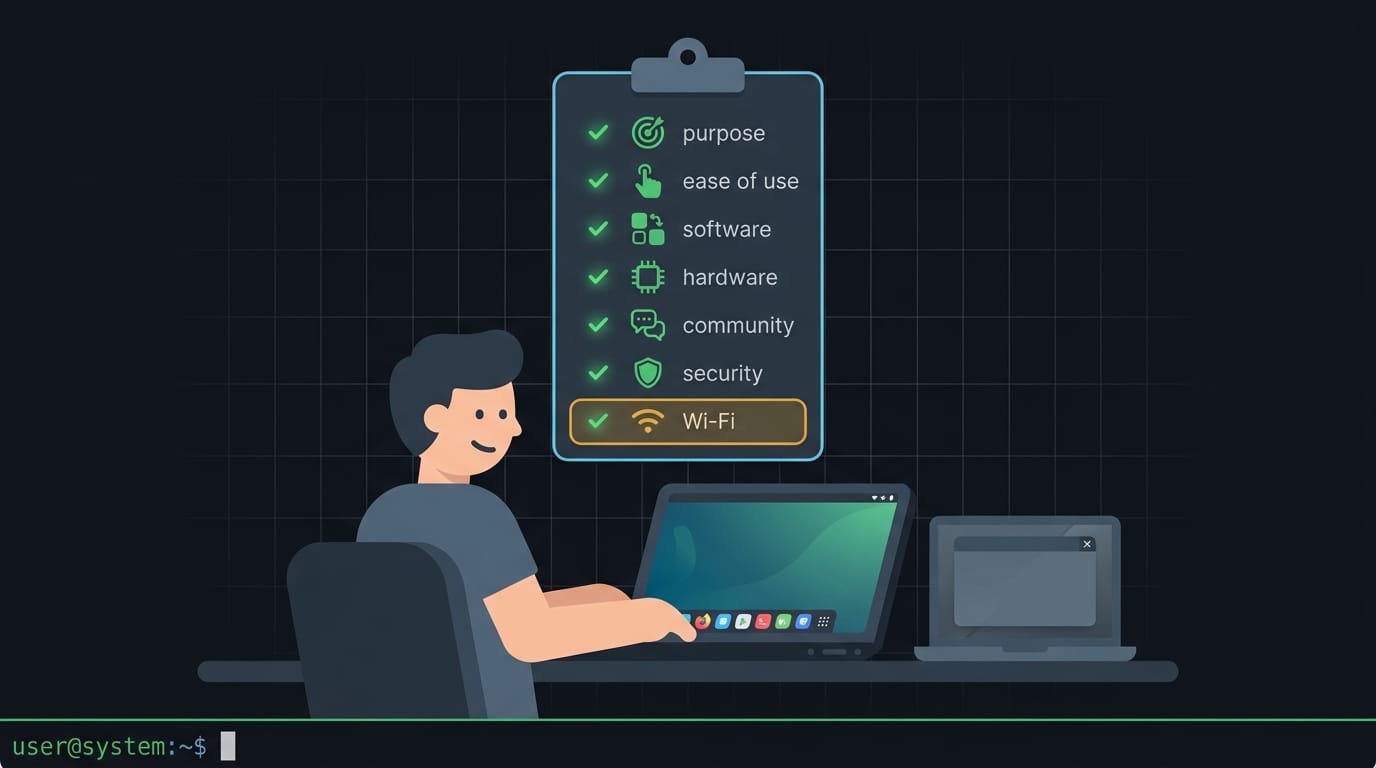
There’s no single best operating system (OS), but a beginner-friendly distro is a safe start. Weigh these points:
- Purpose of use: Browsing, writing, or gaming? Let your main task steer the choice.
- Ease of use: Pick a familiar desktop so you aren’t hunting for settings.
- Software availability: Confirm your must-have apps run on Linux.
- Hardware compatibility: Check that graphics and sound are supported.
- Community support: Big communities mean faster answers when things break.
- Security focus: See how the distro handles updates and security fixes.
- Check hardware and Wi-Fi support: Look up your Wi-Fi chip first, since a dead connection makes fixes hard to download.
Popular distros for first-timers
- Ubuntu: A widely used, beginner-friendly pick with plenty of guides.
- Linux Mint: Often recommended to Windows switchers for its familiar layout.
- Fedora and Debian: Solid once you’re comfortable, each with its own update approach.
Popularity matters less than whether it fits your machine. The best Linux for an older computer is usually a lightweight distro with a lighter desktop, since heavy ones feel sluggish on old hardware.
Take a student with a ten-year-old laptop who mostly writes papers: a lighter setup boots fast again, so they’re typing essays that afternoon.
Try Linux from a USB before installing
Most distros offer a live session: boot from a prepared Universal Serial Bus (USB) stick and Linux runs without installing anything. Try the desktop:
- open a browser
- play a video
- check Wi-Fi
If your printer or sound fails here, it’ll likely fail after installing too.
This is low-risk exploration: if something feels off, shut down, pull the stick, and reboot into Windows. Nothing’s permanent yet.
Prepare Backups and Install Media
Before we change anything, you need a safety net and a way to install Linux. Get both ready now, and the rest of the switch gets a lot less stressful.
Back up your data first
Your files are the one thing you can’t simply reinstall, so copy them somewhere safe first. You’ve got a few options:
- External hard drive: Plug one in and copy over your Documents, Pictures, and Desktop folders.
- Cloud storage: Upload important files to a service you already use. It’s handy for documents and photos, though big folders can take a while.
- Full-system backup software: A tool that copies your entire drive, so you can restore everything if something goes sideways.
Partitioning splits your disk into sections so Linux gets room of its own, and one wrong click here can cost you files. Back up before you partition, not after.
Consider a student who shrinks their Windows partition on a Saturday night, then remembers the thesis folder they never copied. Ten minutes with an external drive would have turned that panic into a non-event. Your files come first.
Turning the ISO into a bootable USB
An ISO is a single disk image file that holds everything a Linux installer needs. A bootable USB is a flash drive your computer can start from, and that’s how you’ll run the installer.
- Download the distro ISO from the distribution’s official website.
- Use Rufus on Windows, or Etcher on macOS or Linux.
- Select your USB drive, then select the ISO, and double-check you’ve picked the right drive before you write.
Installing Linux on Your PC
This is where the switch gets real. You’ll boot from your USB (universal serial bus) drive, then make a few careful disk choices.
Boot your PC from the USB drive
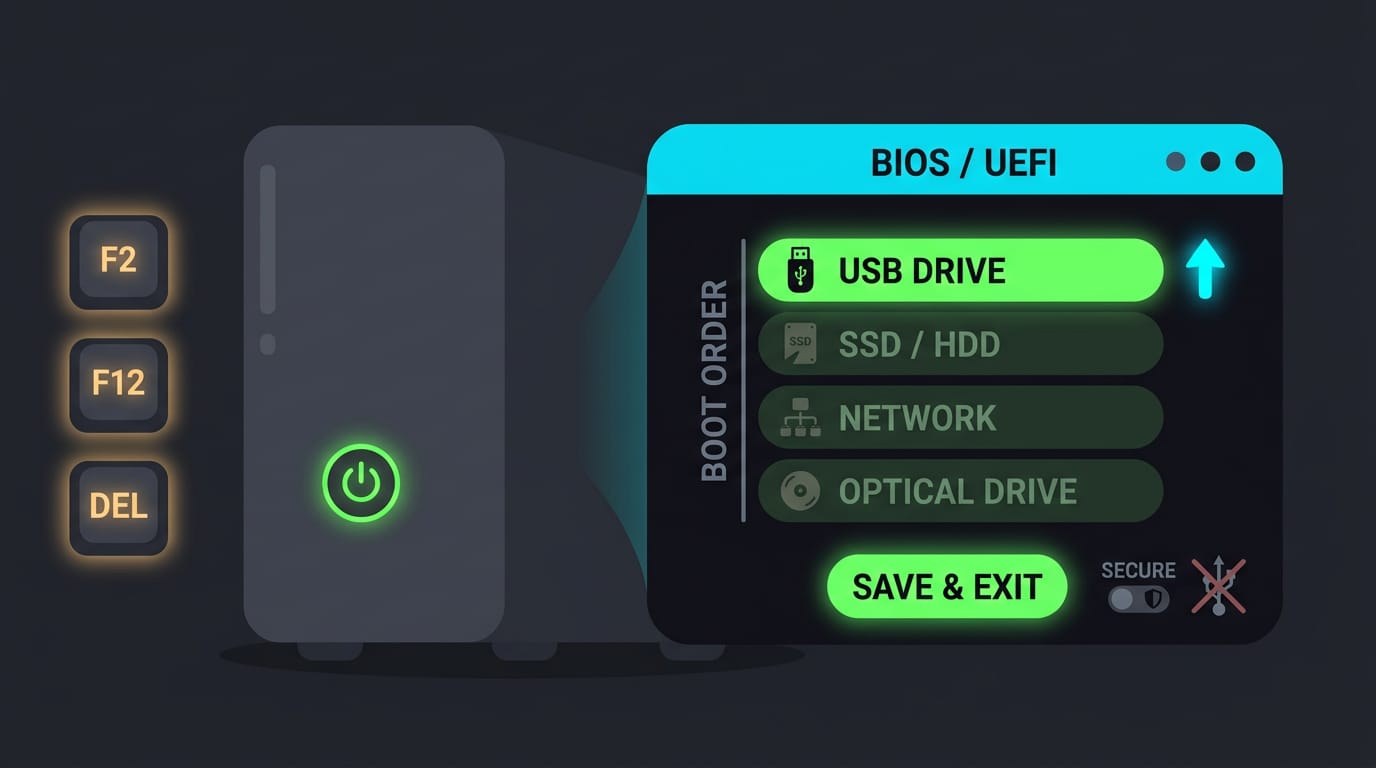
Restart your PC and tap the firmware key as it powers on. On many machines that’s F2, F12, or Del. That opens your BIOS/UEFI setup, the firmware that runs before any operating system does.
Move your USB drive to the top of the boot order, then save and exit.
If the drive doesn’t show up, Secure Boot (a firmware setting that only starts signed, trusted software) may be blocking it.
Choosing how to split your disk
Think of a student with a ten-year-old ThinkPad who wants Linux for schoolwork but still needs Windows for one licensed app. Their installer choices decide whether both systems stay on the disk:
- Install alongside existing OS: keeps Windows (your current operating system) and adds Linux beside it.
- Erase disk, Linux only: wipes everything, Windows included, so only pick it when you’re done with Windows.
- Shrink Windows partition: makes room for Linux without reinstalling Windows.
- Custom partitioning: gives you manual control over how the disk is divided.
Back up first. Last, the installer asks for your language, username, and password.
Keeping Windows and Linux side by side
Keeping Windows means sharing your disk, not replacing it. Before you start, delete unneeded large files or move them to an external drive. The installer can only use space that’s truly free.
Afterward, a boot menu at startup lets you pick Linux or Windows.
If Windows uses BitLocker (its built-in drive encryption), changing boot settings or partitions can trigger a recovery prompt. Find your recovery key before you begin. It’s your way back in.
What to Do After Installing Linux
The install’s done, but it still feels new. Here’s what we’d set up first.
Getting your new system set up
- Set up your internet connection. Join your Wi-Fi from the network menu.
- Install updates. Run your update tool now and regularly for fixes and security patches.
- Add your NVIDIA driver. If you have an NVIDIA card, install its driver with your distro’s driver tool, then reboot.
- Customize wallpaper and icons. Pick a look that feels like yours.
Finding and installing your apps
Your software center is an app store where you search and click install. Start there.
A package manager does the work: APT (Advanced Package Tool) covers Debian and Ubuntu, and DNF (Dandified YUM) covers Fedora.
Flatpak and Snap bundle apps with what they need, so they run across many distros.
Think of a writer who drafts essays and edits photos: LibreOffice covers Word-style documents, GIMP handles editing, and VLC plays most videos. Some Windows-only programs never get a Linux version, so it helps to know how to run exe on linux.
For Windows software, look for a Linux-native option first. Check game launchers for Linux support before you buy.
Picking a desktop that feels familiar
The desktop environment sets your layout, panels, and menus. Here are the usual picks:
- GNOME: clean and modern, and the default on many distros.
- KDE Plasma: highly customizable and can mimic Windows.
- Cinnamon: a taskbar-and-menu layout that feels closest to Windows.
- Xfce: lightweight, which suits older hardware.
Consider a student with a ten-year-old laptop. Xfce keeps it fast enough for essays.
Wayland is the newer display system and X11 the older one. Start with Wayland. If something misbehaves, pick X11 at the login screen.
The right desktop is the one you use daily, not the prettiest screenshot. Try two and keep the one that fits.
Moving Your Files and Settings Over
Get your files and settings off the Windows machine before you install anything. Here’s how, starting with files, then browser and email.
Ways to move your files across
Pick whichever fits:
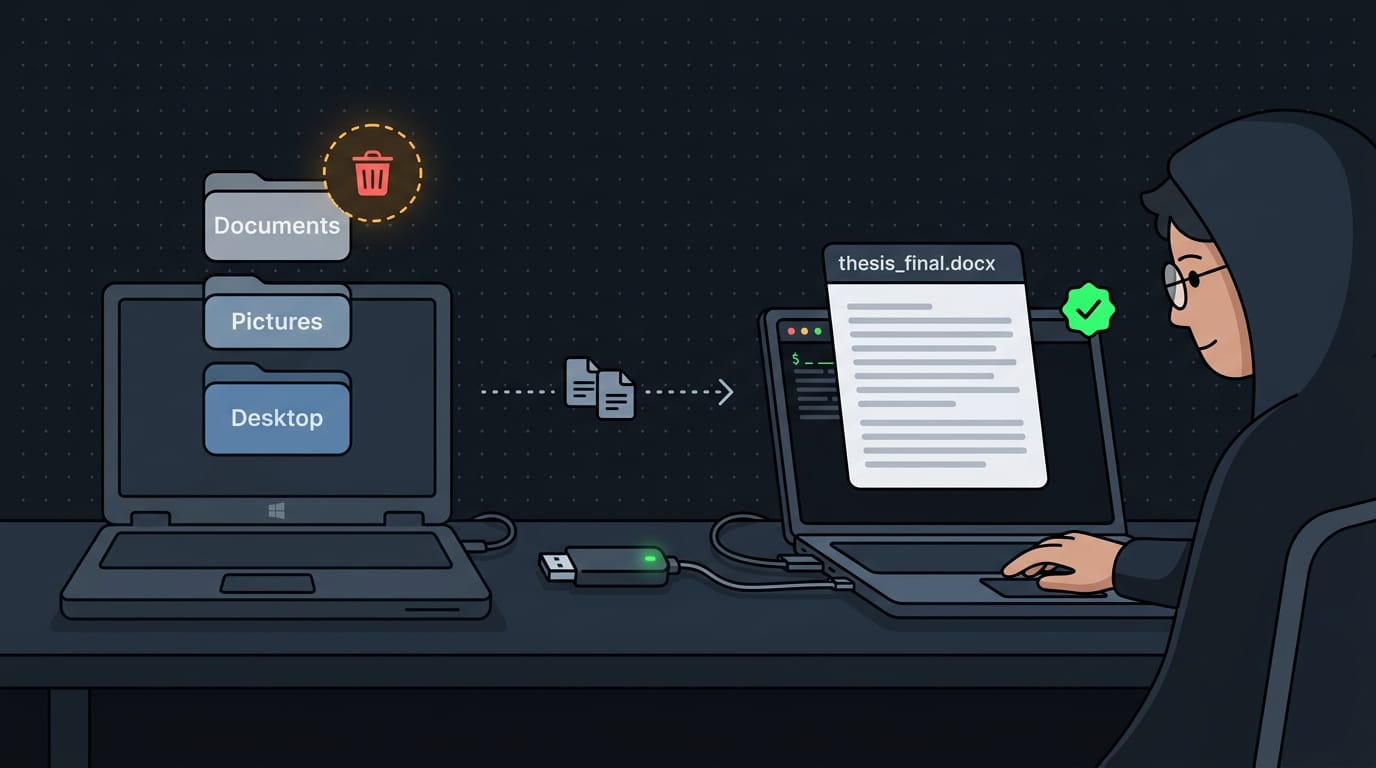
- External storage. Copy your Documents, Pictures, and Desktop folders to a flash drive or external hard drive, then plug it into the Linux machine.
- Cloud storage services. Upload your folders to a service you already use, then download them on the new install.
- Network transfer. If both machines share a home network, Samba lets Windows and Linux see each other’s folders. rsync is a terminal tool that copies only changed files, so you can rerun it to catch anything missed.
Take a grad student with years of thesis drafts on a Windows laptop. They copy everything to a flash drive and open a few files on the new install before wiping the old drive, so the thesis is intact on day one.
The real check isn’t how much got copied but whether it actually opens. Open it, then wipe.
Bringing over your browser and email
- Browser account sync. Sign in to Firefox or Chrome on Linux with the account you already use, and your bookmarks and saved settings come with you.
- Export emails and contacts. If your mail lives in a Windows desktop program, export your messages and contacts to files you can keep.
- Thunderbird import. Thunderbird is a free mail client for Linux, and its import tool can pick up those exported files.
- Webmail needs no migration. If you read mail in a browser tab, there’s nothing to move. Sign in and it’s already there.
Getting Comfortable with Linux Basics
Two skills smooth out your first weeks on Linux: typing commands and knowing where to turn for help.
Using the terminal and new habits
Your desktop has two ways to get things done. The graphical user interface (GUI) is the windows and icons you know. The command-line interface (CLI) lives in a terminal app, and it’s less about clicking and more about typing.
Everything lives under one top-level folder, /. Three commands get you around it:
pwd(print working directory) shows the folder you’re in.lslists what’s inside it.cdmoves you into a folder, andcd ~takes you to your home directory, your personal folder.
Picture a student on an old ThinkPad who can’t find a class PDF. She types cd ~/Downloads, then ls, and the file appears in seconds. Next time, it’s one command away.
Most distros include a package manager that installs, updates, and removes programs in one place. Use it instead of hunting down installers from random websites, and expect a few odd moments at first. It gets easier fast.
Where to learn and get help
Start with your distro’s documentation and beginner tutorials. They’re the safest place to check a command before you run it.
Forums hold posts about the exact error you’re seeing, so search with that text and your distro’s name.
If something breaks after an update, note which update came just before the problem, then search for that exact error.
User groups are local meetups and online communities full of people who’ve made the same switch.
When you ask, include your distro, the exact command, and the full error message. Clear questions tend to get faster answers.
Switching from Windows to Linux is less about leaving something behind and more about building a setup that’s truly yours.
Pick a distro that fits your hardware and habits, back up before you touch the disk, and work through the post-install checks so surprises don’t catch you at 2am.
Every step you take makes the next one easier, and you don’t have to get everything perfect on day one.
Your new desktop is ready when you are.
Questions
What is the best Linux for an old PC?
The best Linux for an old PC is usually a lightweight distribution with a desktop such as Xfce, which uses fewer resources than heavier desktops. Linux Mint Xfce or Xubuntu are beginner-friendly options; try a live USB first to check that Wi-Fi, sound, and other hardware work.
How can I change from Windows to Linux?
Choose a beginner-friendly distribution, back up your files, and create a bootable USB from its official ISO using a tool such as Rufus. Start the PC from the USB, test Linux in a live session, then install it either alongside Windows or in place of it. Back up first, especially before changing disk partitions.
Why do hackers prefer Linux?
Linux appeals to some security professionals because it is open source, customizable, and offers powerful command-line and networking tools. Many security-testing tools run on Linux, but hackers use many operating systems; Linux itself does not make someone a hacker or guarantee security.
Which OS is best to replace Windows 10?
There is no single best replacement for Windows 10, but Ubuntu and Linux Mint are popular beginner-friendly choices. Linux Mint’s familiar layout can ease the transition, while the best option depends on your hardware, software needs, and preferred desktop. Try it from a live USB before installing.
Read next.
Install Homebrew on macOS and Linux: Complete Guide
Install Homebrew on macOS or Linux, then set the right PATH and verify commands work before adding tools, updating packages, or fixing setup issues.
Install CUDA on Linux: Driver, Toolkit, and Kernel Steps
Install CUDA without guesswork: match the driver to the toolkit, then check Linux, Windows 11, containers, and rollback steps before you start.
How to Run a .sh File in Linux
How to run a SH file in Linux: make it executable with chmod +x or launch it with bash. Follow a worked example and fix common script errors safely.