Set Env Variable on Linux: One-Off and Permanent Methods
Set an environment variable in Linux for one session or keep it across logins, with safe steps for user-wide, system-wide, zsh, and fish setups.
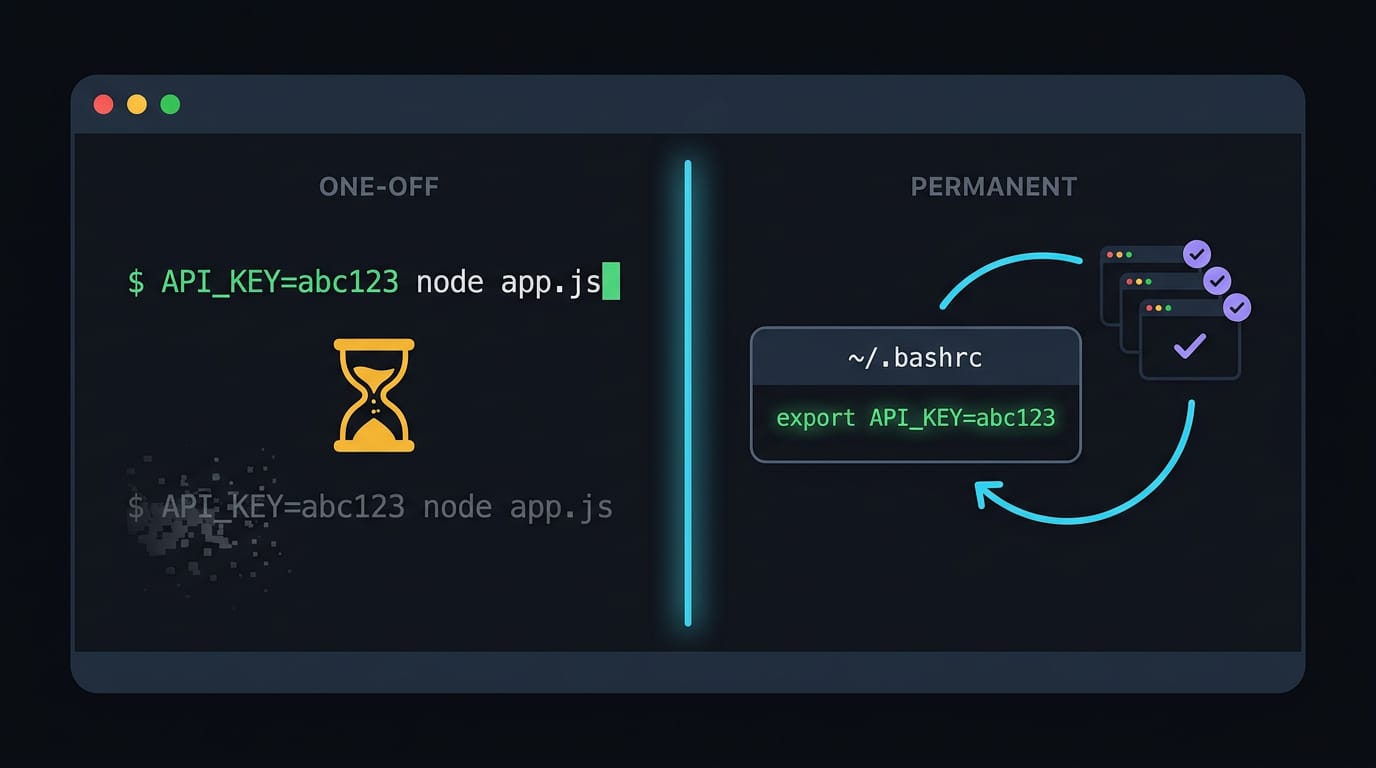
tl;dr the short answer
A Linux environment variable is a named value that a shell and the programs it starts can read to control settings such as an editor, language, or command search path. Set a value in the current shell for a temporary change, export it to pass it to child programs, or save it in the right user, system, desktop, or service configuration for longer use. Match its location to who needs it, verify it with `printenv`, and keep secrets out of shared configuration files.
Think of your Linux session as a shared whiteboard. Every program that walks into the room can read what’s written on it, from your terminal to the browser you left open. Those notes are environment variables.
In plain terms, an environment variable is a named value, like EDITOR set to nvim, that your shell and the programs it starts can look up.
In this post, we’ll cover one-off exports, permanent per-user and system-wide setups, systemd, and the zsh and fish details that trip people up.
Understanding Environment Variables in Linux
Before you set one, it helps to know what they hold and how far they reach.
What environment variables store and control
An environment variable is a named value your shell and its programs can read. Think of the name as a label and the value as what’s written on it.
Variables store frequently used values so you don’t have to retype them. Programs and scripts check them to decide how to behave: set EDITOR=nvim and tools that open an editor will reach for nvim.
How variables differ in scope and lifespan
Local variables stay inside the shell that created them. Global variables, the exported kind, are passed down to every program that shell launches, and that’s what makes them environment variables.
A session-only value lasts until you close that terminal or log out, while a system-wide setting applies to every login and survives reboots. Typed at the prompt, an export is temporary. Saved in a config file, it’s permanent.
Each terminal window gets its own copy, so an export in one won’t appear in another.
Everyday examples of what variables hold
Here’s what you’ll usually find:
- Executable paths.
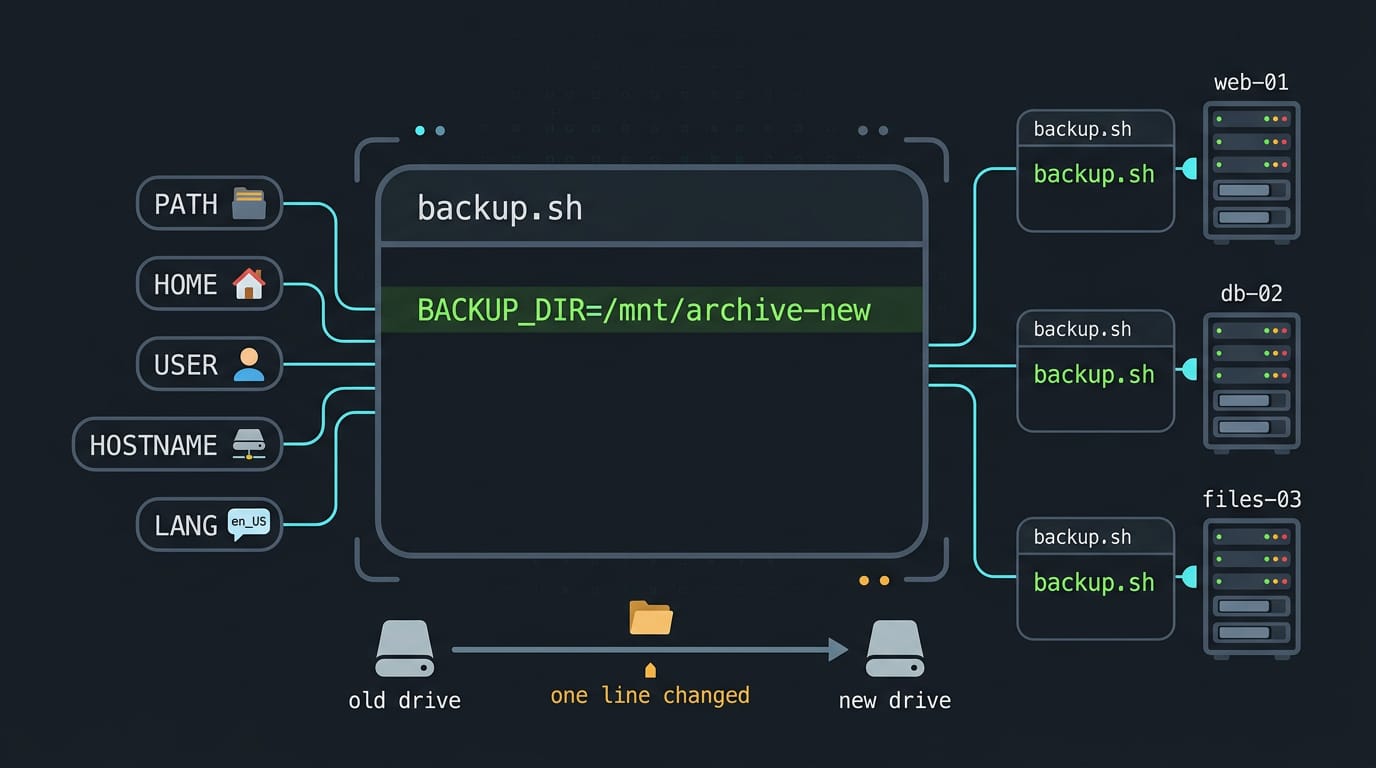
PATHlists the folders the shell searches for commands, which is whylsworks from anywhere. - Hostname and user info.
USERandHOMEtell scripts who’s logged in and where their files live, andhostnameshows the machine’s name. - Software configuration settings.
LANGtells programs which language and locale to use. - Server administration relevance. Admin scripts read paths and settings from variables, so one script can run on different machines.
Take a sysadmin whose nightly backup script reads its target folder from a variable. Moving the folder means changing one line, not hunting through code. Same script, new folder.
Setting a Variable for This Session
Sometimes you only need a setting for an hour or two. Setting it for this session is the quickest route, and it’s the building block for the permanent methods we’ll cover next.
How to create an env variable in Linux?
An environment variable is a named value that your shell and the programs it runs can read. The simplest way to create one is to type a name, an equals sign, and a value:
VAR=valuecreates the variable.- Don’t put spaces around the equals sign, or the shell won’t read it as an assignment.
- The variable lives only in the current shell.
Think of a student on a ten-year-old ThinkPad who sets EDITOR=nvim for an afternoon of tinkering. Nothing lingers to surprise them tomorrow.
Exporting variables to child processes
Setting a variable keeps it in your shell. Exporting it makes it global to child processes, the programs you start from that shell. Create the variable with MY_VAR=hello, then run export MY_VAR.
Consider a ricer whose wallpaper script reads THEME_DIR. Export that variable in the terminal, and the script launched from there finds the right folder with no extra setup.
Adding a directory to your PATH
PATH is the list of directories your shell searches when you type a command name. If you keep helper scripts in ~/bin, that folder has to be on the list before you can run them by name.
Append a directory with export PATH=$PATH:/dir, replacing /dir with your own folder. The $PATH part keeps the existing list, and :/dir tacks your folder onto the end. Now a backup script in ~/bin runs as backup-dotfiles from any directory.
Like any variable set this way, the change lasts only as long as this shell.
Making Variables Permanent Across Sessions
A variable exported in one terminal vanishes when that window closes. Which file keeps it alive depends less on what it does and more on who needs it, so we’ll walk through the options.
Setting it in your own shell profile
Two bash files do most of the work:
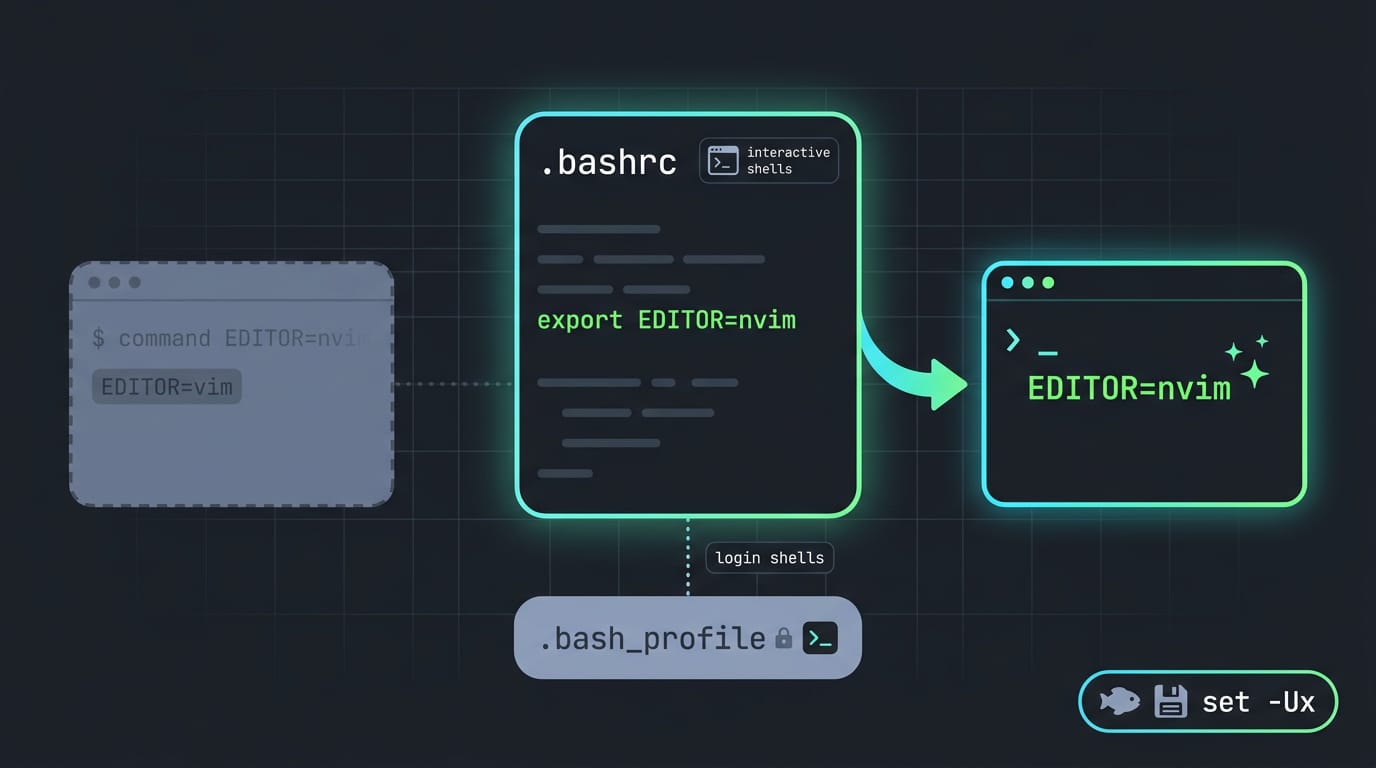
- ~/.bashrc: read by interactive shells, the terminal windows you open yourself.
- ~/.bash_profile: read by login shells, started when you log in at a text console or over secure shell (ssh).
Add a line like export EDITOR=nvim to either file. It applies to new sessions only. Zsh users put the same line in ~/.zshrc or ~/.zshenv.
Fish skips export: run set -Ux EDITOR nvim at its prompt, where -U saves the variable for every future session and -x exports it.
Setting variables for every user
For a value everyone shares, edit /etc/profile, the system-wide login profile (you’ll need sudo). Most distros load the scripts in /etc/profile.d from there, keeping your additions out of the main file.
Anything set there applies to all users, not just you.
Creating a profile.d script step by step
Say a housemate also logs in to your homelab server, and you both need an application programming interface (API) key.
- Echo the export into a new
.shfile withsudo sh -c, so the redirect runs as root:sudo sh -c 'echo "export WEATHER_API_KEY=your-key-here" > /etc/profile.d/weather.sh' - Make it executable with
sudo chmod +x /etc/profile.d/weather.sh. - Load it into your current shell with
source /etc/profile.d/weather.sh, so it works right away.
Your housemate picks up the key at their next login. That’s it.
Setting variables for one systemd service
systemd, the service manager most distros use, lets each service carry its own environment in its unit file (a small config file).
Add an Environment= line under the [Service] section, like Environment="WEATHER_API_KEY=your-key-here", then run sudo systemctl daemon-reload and restart the service.
It’s preferred over profile scripts, since the key reaches that one service, not every shell on the machine.
Shell profile variables often miss graphical user interface (GUI) apps, since menu-launched programs never read .bashrc. For desktop-wide values, put KEY=value lines in ~/.config/environment.d/ instead.
Systemd’s user manager reads them at login. Log out and back in.
Checking, Testing, and Removing Variables
Setting a variable is only half the job. You also need to confirm it landed, and know how to clear it when it causes trouble.
Listing variables and checking their values
Start with printenv, which lists every environment variable your shell has passed along. Give it a name, like printenv LANG, and it prints just that one. Say you’re a student on a ten-year-old ThinkPad who set EDITOR=nvim in a config file.
Running printenv EDITOR confirms the setting is live before you open a file.
To test the value your shell actually uses, put a dollar sign in front of the name with echo, like echo $EDITOR. The $ tells the shell to swap in the value.
Here’s the key difference: printenv only shows what’s been exported, while echo can show any shell variable, exported or not.
Removing a variable with unset
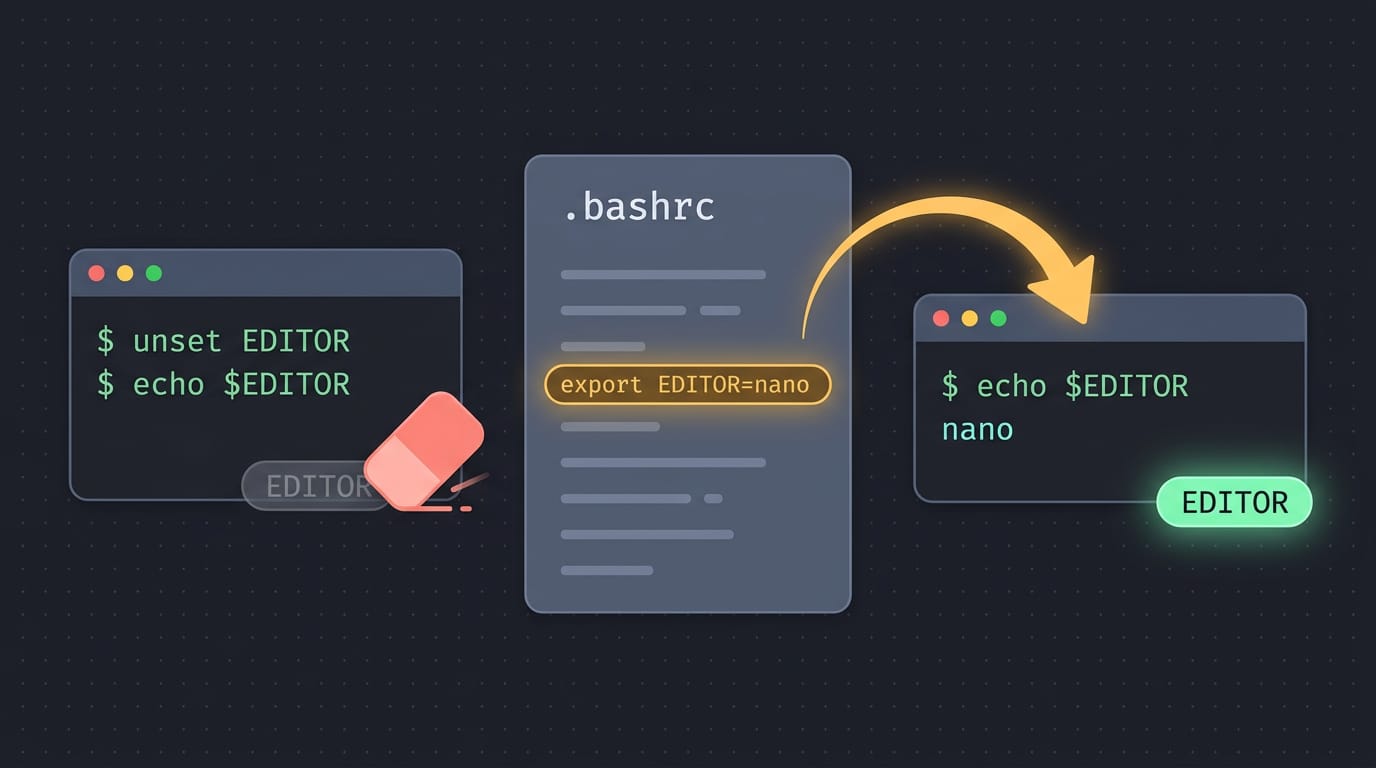
When a variable is in the way, unset removes it from the shell you’re in: unset EDITOR. Afterward, echo $EDITOR prints a blank line, and printenv EDITOR prints nothing.
unset only changes the current session. The config file where you set the variable stays exactly as it was, so a new terminal may bring it right back. Clear it from the file, too.
If a variable keeps vanishing, check where it came from. An export typed at a prompt lasts only until that terminal closes.
A line added to a config file won’t reach shells that were already open, so start a new terminal or reload the file with source, which reads it into your current shell.
Tips for Managing Variables Safely
Where a variable lives decides who sees it and how long it lasts.
Choosing the right place for variables
Start with scope: who needs the variable, and for how long? A student sharing a ten-year-old ThinkPad can set EDITOR in their own account, so the sibling’s terminal never changes. Match the file to the need, not to whatever you last edited.
One-off tests belong in the current session, and only what every account needs goes system-wide.
Knowing the difference between files saves a lot of guesswork:
~/.profile: read at login, so it’s a solid default for variables every session needs.~/.bashrc: read by interactive bash shells, so it suits terminal-only variables./etc/environment: system-wide, but it takes plainKEY=valuelines with noexportor$expansion.~/.config/environment.d/*.conf: read by systemd for your user session, so desktop apps can see them.
profile.d keeps maintenance easy. Instead of editing /etc/profile, drop a small script into /etc/profile.d/. Group related variables per file, like fonts in one and your editor in another, so each group is easy to update or remove.
Keep service variables isolated. Take a homelab tinkerer whose nightly backup job needs an access token. Set it in the job’s systemd unit file (its config) with Environment=, or point the job at a file with EnvironmentFile=.
Only that service sees the token, and your interactive shell stays clean.
Keep secrets out of your dotfiles repo, the git repository that holds your config files. Anything you commit stays in that history, even after you delete it.
Store tokens in a separate file outside the repo, lock it with chmod 600 (readable by your user only), and have your shell load it. Your config can be shared. Your keys can’t.
Setting environment variables comes down to choosing the right scope. A quick export lasts for one session, a shell config file keeps it for your user, and systemd or a system-wide file covers the rest.
Match the scope to what you need, and the notes stay where your tools can find them.
Test each change in a fresh terminal before you trust it, since a quick echo check catches mistakes early. Set it once in the right place, and you won’t be retyping it every morning.
Questions
What are environment variables?
Environment variables are named values that a shell passes to programs it starts. They can store settings such as `EDITOR`, `PATH`, and `LANG` that programs use to determine how to behave.
How to create an env variable in Linux?
In a Linux shell, assign a name and value with no spaces around the equals sign, such as `MY_VAR=hello`. To make it available to programs launched from that shell, run `export MY_VAR`; the setting lasts only for the current shell session unless you save it in a configuration file.
Read next.
How to Run Exe on Linux: Wine, Proton, and Native Apps
How to run exe on Linux: open files from your file manager, spot native alternatives, or use copy-paste Wine commands when a download won’t launch.
Run a Shell Script: Every Method Explained
Run a shell script by interpreter, executable path, or sourcing it, and see how permissions, inputs, and output differ so you can choose the right method.
What File System Does Linux Use? A Complete Guide
What file system does Linux use? Compare ext4, XFS, and Btrfs, see distro defaults, and use terminal commands to check your current setup today.