Dual Boot Explained: How Two Operating Systems Share One PC
Dual boot lets you choose Windows or Linux at startup. See how to plan partitions and handle Fast Startup and BitLocker before installing.
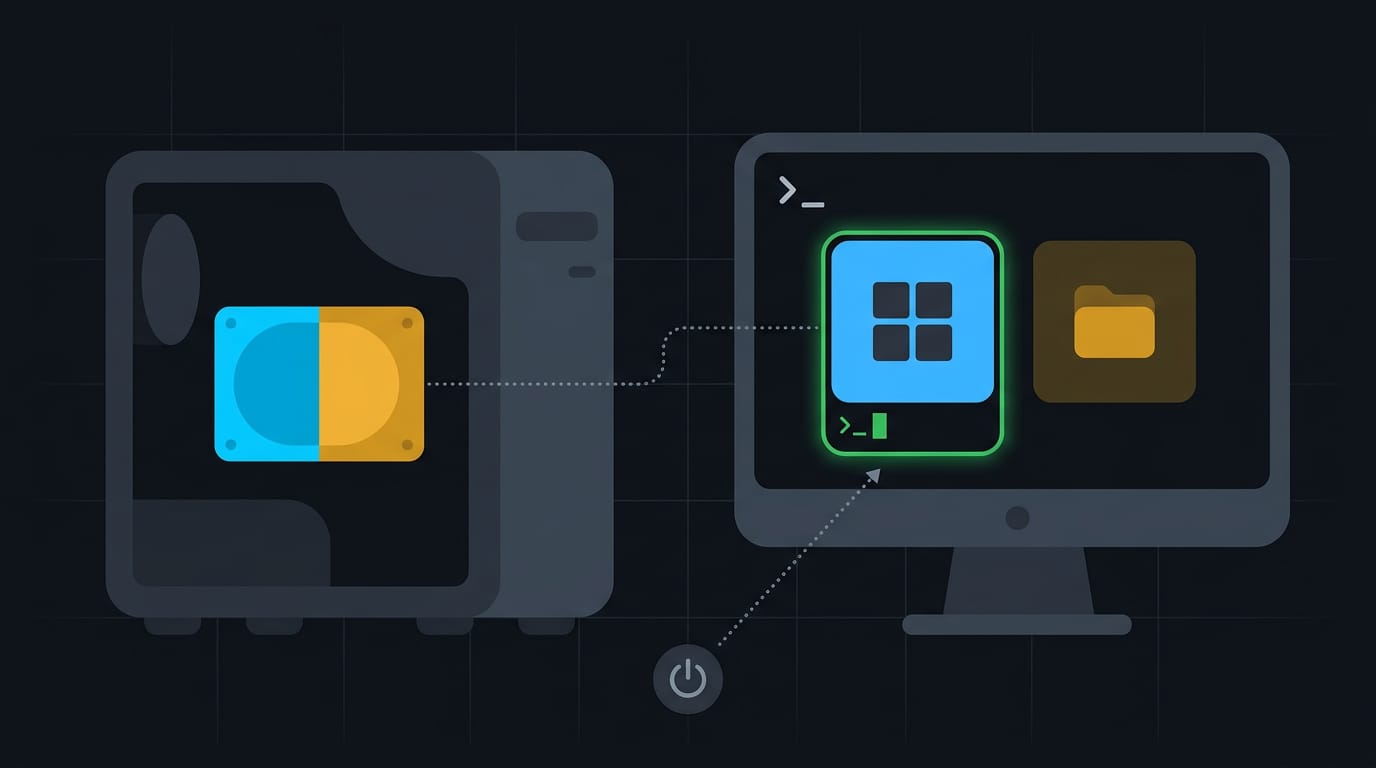
tl;dr the short answer
Dual booting means installing two operating systems on one computer and choosing which one starts each time you turn it on; only one runs at a time. It lets you use each system’s apps and hardware directly, but switching requires a reboot, and both systems share limited disk space. Back up first, plan separate partitions, and account for Windows Fast Startup, BitLocker, and bootloader changes to reduce setup and repair problems.
Think of a two-room apartment with one front door. Each time you come home, you pick the room you want. Dual booting works the same way: two operating systems share one computer, and you choose which one starts.
Plenty of people do this to keep Windows for a game or work app while running Linux for everything else.
This post covers how it works, from partitions (slices of a disk) and bootloaders (the program behind the startup menu) to installs and fixes, plus the Windows details guides skip, like Fast Startup and BitLocker.
How Dual Boot Works on One Computer
Dual boot puts two operating systems (OS) on one personal computer (PC), and a startup step decides which one loads each time you power on. We’ll look at how that works, then compare it with virtualization.
Two operating systems on one PC
Both OSes share one drive, and installing one doesn’t erase the other. At startup, you pick which one loads. Think of a Linux user who needs Windows for one design app.
They reboot into Windows for that work, then return to Linux, with no second machine needed.
Multi-boot generalizes dual boot to three or more systems. Either way, both are installed, but only one runs at a time.
What the boot menu actually does
The firmware (the low-level software that starts the hardware) reads boot entries, which point to each bootloader (the program that starts an OS). The boot manager is the menu that lists your systems and hands control to your choice.
Through chainloading, a bootloader passes control to another one. For example, GRUB, a common Linux bootloader, can hand off to the Windows loader.
A one-time boot menu key, offered by many firmware setups, lets you pick another OS for one session. Your default stays put.
How dual boot differs from virtualization
Virtualization runs a second OS inside your current system, using a virtual machine (VM), or software that imitates a computer. Dual boot needs a reboot to switch systems, so you save your work and restart. Every time.
Each OS runs directly on your hardware with nothing in between, which matters for demanding software. Virtualization lets you run both at once, while dual boot only lets you switch.
For both running together, a hypervisor (the software that manages VMs) is the alternative, though it costs some speed.
Why People Set up Dual Boot
Setting up a dual boot (a computer that starts one of two operating systems, or OS, though only one runs at a time) usually comes down to a specific need. Here’s what tends to drive it.
Running apps that need another system
- Apps that need a different OS. Some programs simply won’t run on your main system.
- Legacy tools. Older programs built for a previous OS still matter for some jobs.
- Driver model support. Each OS brings its own drivers (the software that makes your hardware work), so a device can behave differently in each.
- Use all software on one computer. Everything stays on one machine instead of two.
Think of a Linux user who needs one Windows-only design program for a freelance job. They reboot only for that job, and their daily setup stays untouched.
Testing new systems safely on real hardware
You can try a newcomer beside your current system on its own partition (a reserved section of your drive), then remove it later without touching your everyday setup.
Because it runs directly on your hardware, you see how the drivers really behave. That’s native driver testing.
Using dual boot to test another OS on the same computer can reduce hardware costs, as a paper on triple boot machines for cash-strapped small college labs argues.
Cross-environment validation just means checking your apps and files in each system before you commit.
Keeping work and personal systems apart
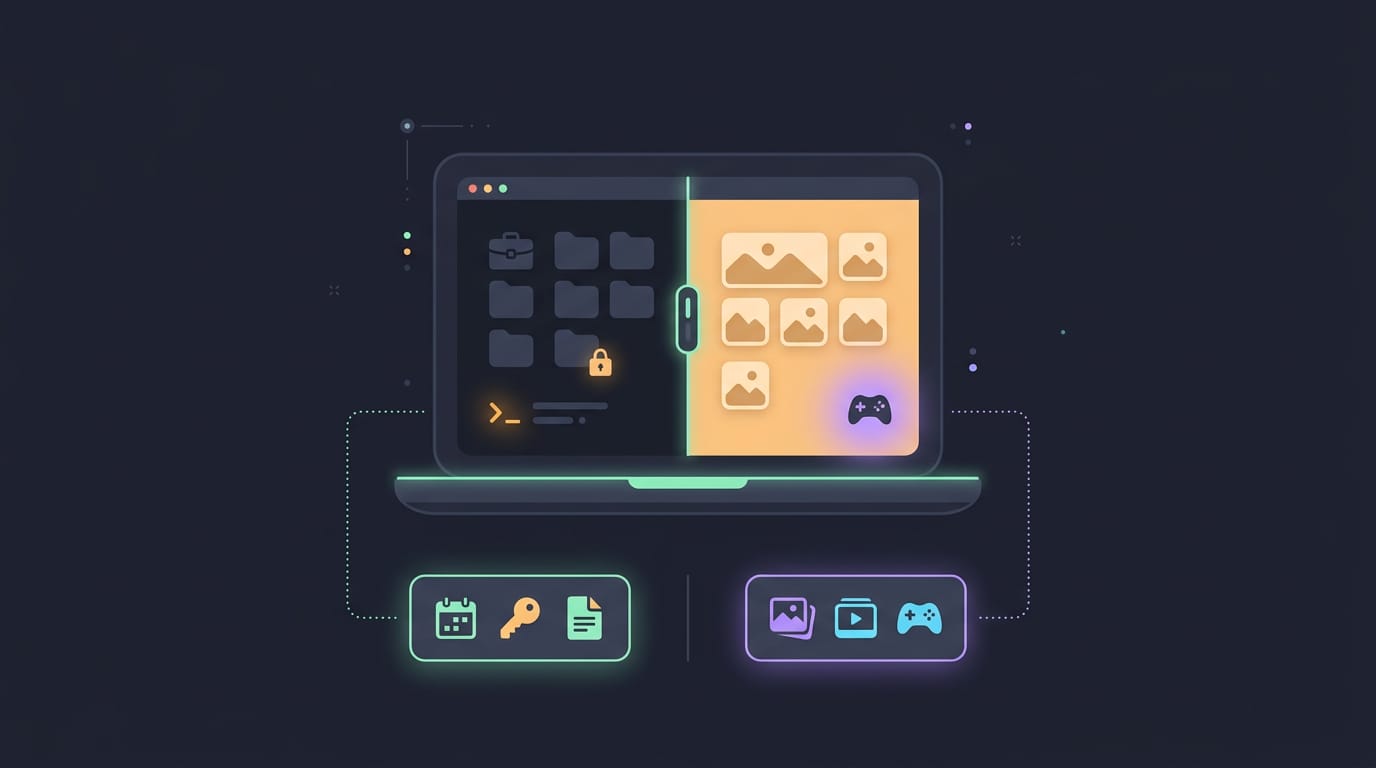
Many people share one laptop between paid work and private life, and dual boot gives each side its own system. Work files and accounts live in one OS, while personal photos and games stay in the other.
Each system keeps its own admin settings, so changes made for work don’t carry over. Work logins stay out of your personal environment too. It’s less about hiding things and more about keeping each setup clean.
Training labs and moving off an old OS
- Lab and training environments. Classes use dual boot so students can practice on more than one system with one machine. Think of a student who runs Linux day to day but boots Windows for one course, keeping the setup they’ve tuned.
- Migrate data before removing old OS. Copy your files somewhere safe and check that they open before you wipe the old system. Back up first.
- Primary versus occasional OS. Your primary system gets your updates and tweaks, while the occasional one only boots when you need it.
Preparing Your PC Before You Begin
Most dual boot trouble starts before the installer runs, so we’ll check these first.
Checking hardware and driver support first
Check your Wi-Fi, graphics (GPU), and audio drivers before installing. A student with an older ThinkPad may find its Wi-Fi card needs a driver the installer lacks.
With no network, they can’t fetch it, so copy drivers to a USB (Universal Serial Bus) stick first. Some machines run the drive in Intel Rapid Storage mode, which can hide it from installers.
Test touch or pen input from a live USB (Linux running from a stick).
How much disk space each system needs
Both systems grow, so leave room. Picture a gamer sharing one drive between Linux work and Windows games. Months later, both sides are full.
- Updates and rollback space: Leave room for downloads and for returning to earlier versions.
- App and cache growth: Browsers and package caches add up fast.
- Partition sizing limits: Windows can only shrink so far before the page file (swap space) blocks it.
Size for growth, not day one.
Back up first and keep recovery media
Make a full backup before partitioning (splitting the disk), then open a few files to confirm it. Create recovery media for each operating system (OS): a Windows recovery drive and a Linux live USB (also a rescue system).
That stick also restores boot entries, the menu items listing each OS. Picture a fresh-install tweaker whose Windows update hides their Linux option. Booting the live USB lets them rebuild the boot menu without reinstalling.
Adjusting firmware and Secure Boot settings
Firmware, your PC’s startup settings, controls how each system boots.
- Boot mode: Use UEFI (Unified Extensible Firmware Interface) on both systems, since mixing modes can hide boot entries.
- Boot order: Decide whether the boot menu or your everyday OS loads first.
- Secure Boot and signed loaders: Secure Boot runs only signed bootloaders (startup programs), and most Linux distributions ship signed ones, so you can usually leave it on.
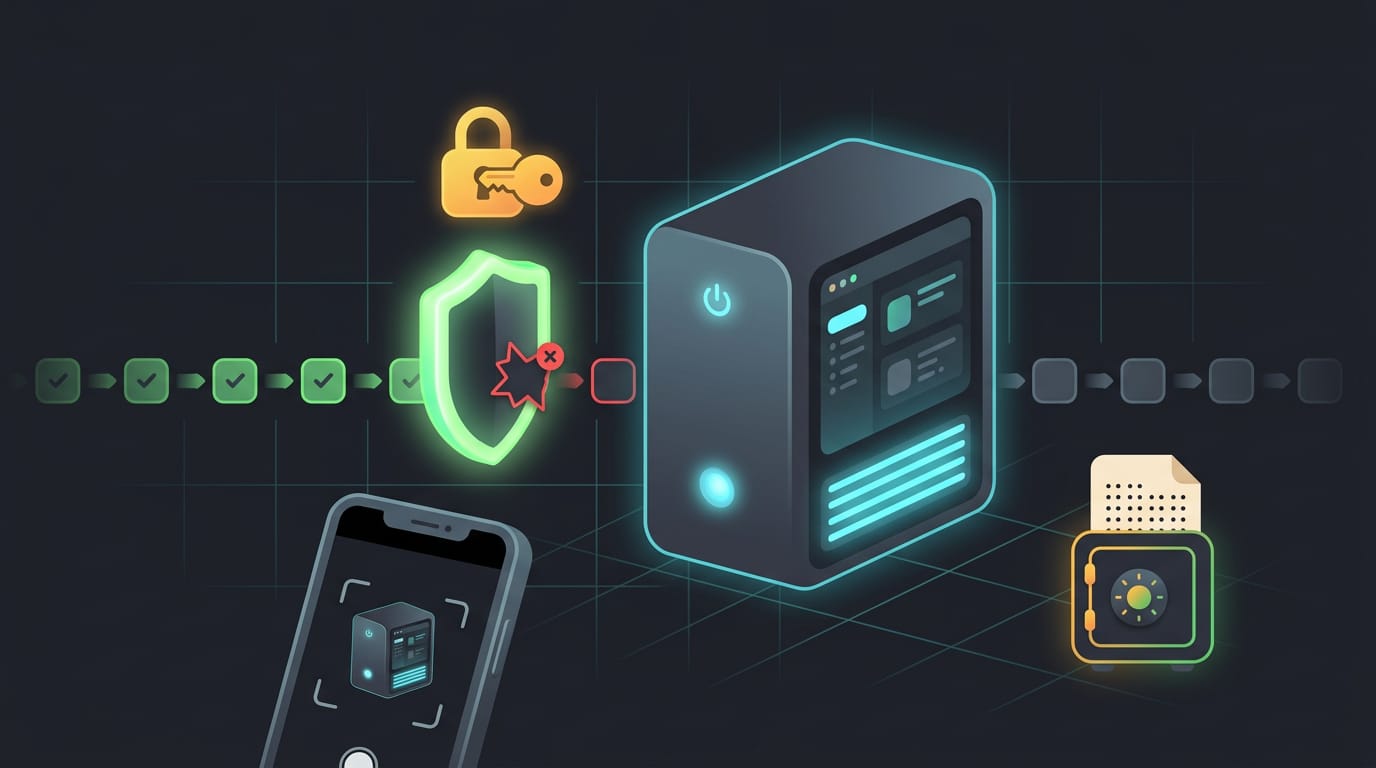
- Document changes: Photograph each setting first, and save your BitLocker recovery key (the code that unlocks an encrypted drive) off the machine. Boot changes can trigger a recovery prompt.
- NVIDIA drivers and MOK: With Secure Boot on, an NVIDIA driver must be signed, so you enroll a Machine Owner Key (MOK). A one-time screen appears at reboot. Skip it, and a Hyprland user’s NVIDIA card stays idle. Remember the password you set; you’ll type it there.
Arranging Disk Space and Partitions
Before either system touches your disk, decide how to divide the space.
Splitting one drive into partitions
A partition is a labeled slice of a drive that an operating system treats as its own disk. A student with one old ThinkPad might keep Arch for coursework and Windows for one design app, without buying a second machine.
NTFS (New Technology File System) is Windows’ native format, while ext4 (Fourth Extended Filesystem) is the usual Linux choice. Windows can’t read ext4 out of the box.
Linux usually needs three partitions:
- Boot: files your bootloader needs at startup.
- Root: the Linux system itself.
- Data: your personal files.
Both partitions share one drive’s speed, and partitioning carries real risk, so back up first. Then shrink the Windows partition from inside Windows with Disk Management, its built-in disk tool. That frees space for Linux without wiping your files.
Giving each system its own drive
With a spare drive, you’ll skip the juggling:
- Clearer separation: a broken update or full disk on one side can’t spill into the other.
- One-time boot menu: pick the drive for one session, keeping your default.
- Extra hardware: you need a spare drive bay or port, which a laptop may not have.
Consider a hyprland user who keeps Windows on a spare drive for one game launcher, so the Linux setup they’ve tuned never gets touched.
Why partition order and numbers matter
Put Windows in the first primary partition, the top-level slot on a drive. Linux goes in logical partitions nested inside an extended partition.
Bootloaders find each system by partition number. Add or delete one in the middle and the menu may point at nothing. Shuffle the numbers, and it breaks.
Sharing one data partition between systems
A shared data partition gives both systems one home for project files, so you never keep two copies. Confirm both systems can read and write its format before you commit.
Permissions and encryption can trip you up: Linux file permissions won’t always carry over, and an encrypted partition needs its key.
Symlinking your home folders uses a symbolic link (symlink), a pointer that makes one folder appear somewhere else. Point your Linux Documents folder at the shared partition and both systems use the same files.
How Bootloaders and Firmware Modes Work
Before we touch partitions, know that your firmware picks a loader, and the loader decides which system starts.
Choosing between UEFI and legacy BIOS
UEFI (Unified Extensible Firmware Interface) loads .efi files from the ESP (EFI System Partition). Legacy BIOS (Basic Input/Output System) reads the boot sector instead. It cares about where code lives, while UEFI cares about which files exist.
Mixing modes complicates setup, since each system must match your firmware’s mode. Keep them matched.
For example, a Linux user with a laptop might build a GPT (GUID Partition Table) disk with an ESP, a Windows partition, and a Linux root partition. The firmware finds its .efi loader on the ESP, so either system can start.
Which bootloaders you’ll run into
- GRUB is the Linux loader you’ll configure, while LILO (Linux Loader) is an older one.
- Windows Boot Manager runs modern Windows, while NTLDR (NT Loader) is its older counterpart.
- rEFInd and Air-Boot are alternative boot managers for UEFI systems.
- OS/2 Boot Manager belongs to OS/2, which you’ll rarely meet today.
How Windows and Linux loaders interact
Windows doesn’t support multi-boot on its own. According to Design of a Dynamic Boot Loader for Loading an Operating System, Windows Boot Manager generally doesn’t automatically add Linux to its menu, though GRUB can provide one for choosing between them.
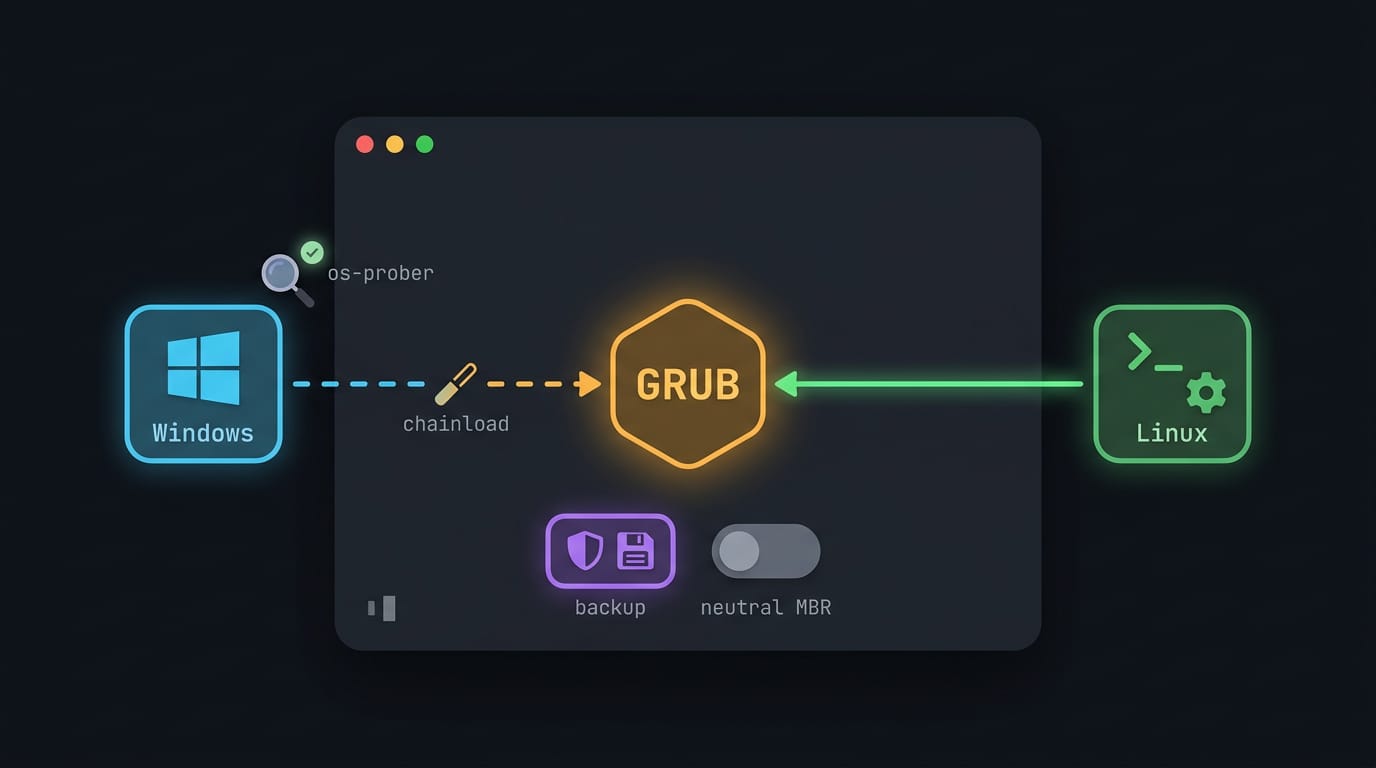
GRUB detects Windows through a helper called os-prober, which may be disabled. If Windows is missing from your menu, check that first.
Chainloading means one loader hands control to another. EasyBCD, a Windows tool, can add a chainload entry that hands you to GRUB.
When Windows keeps taking over, a neutral MBR (master boot record) option can replace that code. Back up first.
Install Guides for Each Platform
Each platform has its own route, but the goal is the same: free up space, install, and let a bootloader (the program behind your boot menu) offer both at startup.
Walking through a Linux and Windows install
For Ubuntu and Debian, start by confirming your machine boots in UEFI (Unified Extensible Firmware Interface) mode. The installer then creates the partition that holds your bootloader.
Next, flash the ISO (a disk image file) onto a USB (Universal Serial Bus) stick to make a bootable USB. Flashing wipes the stick, so you’ll want to save anything you need first.
When the installer reaches the disk, choose manual partitioning, select the free space you made, and leave the Windows partitions alone. Across most distros, the graphical installer follows the same path:
- language
- keyboard
- disk layout
- account
- reboot
Once you’ve done one, the rest feel familiar.
Boot Camp setup for Intel Macs
According to Apple’s support article on Boot Camp Assistant, Boot Camp supports installing Windows on Intel-based Macs, and you can switch between macOS and Windows at restart.
On a Mac, the job is less about installing a second system and more about making room for one. Boot Camp Assistant shrinks your macOS partition non-destructively, so your files stay put. Back up first anyway.
Windows expects a BIOS (Basic Input/Output System) style boot, and the Compatibility Support Module (CSM) emulates that behavior for it.
The driver disc option supplies the Windows drivers for your Mac’s hardware, so the keyboard and trackpad work once you’re in.
Think of a Linux user with an older Intel MacBook who needs Windows for a single design app. They let Boot Camp Assistant handle the resizing, then reboot into Windows only when that app is needed.
Is Dual Booting a Good Idea?
Yes, if you need a second operating system (OS) for one job.
What dual booting does well
Dual booting gives each OS native hardware access to your CPU (processor), RAM (memory), and GPU (graphics card). A student might boot Windows only for a game that needs graphics power, and it runs at full speed.
Does dual booting slow down your computer? No, only the running OS uses the hardware. Each OS works offline, and you can test drivers on real hardware.
Downsides and ongoing upkeep
Setup complexity matters: you’ll want Windows installed first, since its installer can overwrite the bootloader. Windows updates can also reorder boot entries or drop your Linux one. Your install usually survives.
Switching requires a reboot. Fast Startup and hibernation both save a frozen Windows session, so Linux may refuse to write to that partition. Run powercfg /h off as an administrator to turn both off.
Storage overhead: partitions split your disk into fixed chunks instead of one flexible pool.
Fixing common dual boot problems
Is it risky? Only if you change partitions or boot records without a backup.
- Loader sees only one OS. Install
os-proberso GRUB (GRand Unified Bootloader) finds Windows, then runsudo grub-mkconfig -o /boot/grub/grub.cfg. - One OS fails to boot. Boot a live USB, check the boot partition, and reinstall the bootloader.
- Clock handling differences. Linux keeps the clock in UTC (Coordinated Universal Time), while Windows uses local time. Fix it with
timedatectl set-local-rtc 1 --adjust-system-clock. - Encryption blocks shared access. BitLocker, Windows’ drive encryption, can lock Linux out. Save its recovery key before resizing.
- Backing up MBR with dd. Copy the Master Boot Record (MBR) first:
sudo dd if=/dev/sda of=mbr-backup.img bs=512 count=1. Check the disk name withlsblk. GPT (GUID Partition Table) disks also need ansgdisktable backup.
Dual boot really comes down to three habits: back up your data, give each system its own clean partition, and let the bootloader handle the startup menu.
Keep Fast Startup and BitLocker in mind before you resize anything, and the two systems will share your disk far more peacefully.
Take it one step at a time, and you’ll end up with a machine that’s flexible without being fragile. Plan the disk first, and the boot menu takes care of the rest.
References
- Triple boot machines for cash-strapped small college labs — dl.acm.org (2000)
- Design of a Dynamic Boot Loader for Loading an Operating System — doi.org (2019)
- Install Windows 10 on your Mac with Boot Camp Assistant — support.apple.com (2025)
Questions
What is meant by dual-boot?
Dual-booting means installing two operating systems on one computer and choosing which one starts when you turn it on. Only one operating system runs at a time; switching requires a restart.
Is it a good idea to dual-boot?
Dual-booting is a good idea when you need a second operating system for a particular app, task, or hardware test and want it to run directly on your computer. It requires careful setup, enough disk space, backups, and a reboot whenever you switch systems.
Does dual booting slow down your computer?
No. Dual booting does not slow down the operating system that is currently running, because only that system uses the computer’s hardware. The systems do share the drive’s storage, so each needs enough space for its files and updates.
Is it risky to dual-boot?
Dual-booting has risks, mainly when resizing partitions or changing boot records without a backup. Boot entries can also be disrupted by updates, and encryption such as BitLocker can complicate access. Back up your data and save your recovery key before making changes.
Sources
Read next.
Install gh CLI on Any Platform: Complete Guide
Install gh CLI on your platform with the right package manager, then verify the setup and sign in before bringing GitHub work into your terminal.
Claude Code Install Guide: Every Method Explained
Claude Code install can fail when Linux Node.js or shell PATH settings don't match. Check Node.js, PATH, and login requirements, even on headless servers.
Update Fedora: Packages and Release Upgrades Explained
Update Fedora packages or move to Fedora 41 from the terminal or graphical interface, then check broken drivers and learn how to undo an upgrade.