How to Run a .sh File in Linux
How to run a SH file in Linux: make it executable with chmod +x or launch it with bash. Follow a worked example and fix common script errors safely.
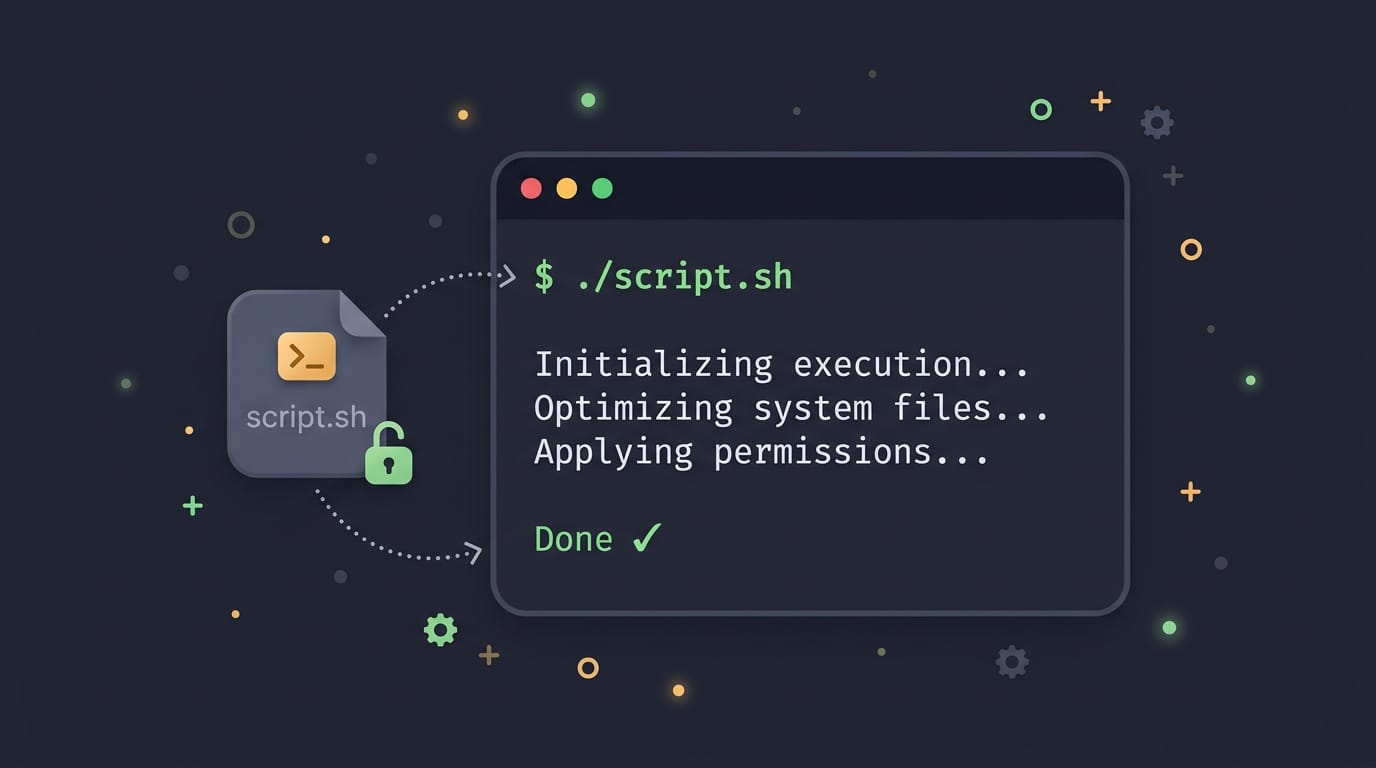
tl;dr the short answer
A .sh file is a plain-text list of commands that a shell, such as Bash, can run; its first line can name the interpreter. To launch it directly, add execute permission with `chmod +x script.sh` and run `./script.sh`; alternatively, pass it to `bash` or `sh` without changing permissions. Use the interpreter the script expects, check paths and line endings if it fails, and read unfamiliar scripts before running them, especially with `sudo`.
Ever been handed a recipe card with every step written out, only to find the kitchen won’t cook it until you say yes? That’s roughly how a .sh file works.
It’s a shell script, a plain text file full of terminal commands, and Linux wants a clear signal before it follows them.
The short answer: make the file executable with chmod +x, then launch it with ./script.sh, or pass it straight to the shell with bash script.sh.
Along the way, we’ll walk through permissions, every run method, the errors you’re most likely to hit, and how to vet a downloaded installer before you trust it.
Setup to Run Sh Files in Linux
Before you run a script, it helps to know what it is and why Linux sometimes refuses to start it.
What file type is a bash script?
A bash script is a plain text file of commands for the shell, the program that reads what you type in a terminal. Most scripts use a .sh ending, so is .sh a bash script? Often, yes, but the extension doesn’t decide that.
The first line, called the shebang (such as #!/bin/bash), does.
Windows .bat files use different syntax and won’t run in a Linux terminal. To make your own, run nano backup.sh, add #!/bin/bash on the first line, write your commands, and save.
Why permissions matter
Linux uses permissions to control who can read, write, and run each file, applying the least privilege principle: each user and program gets only what it needs. New files don’t get execute permission by default.
Picture a student who downloads a cleanup script for their ten-year-old ThinkPad. They can open and read it, but typing ./cleanup.sh returns Permission denied. The fix is one command away.
A file you can read isn’t one you can run. That gap is intentional.
Make a script executable with chmod
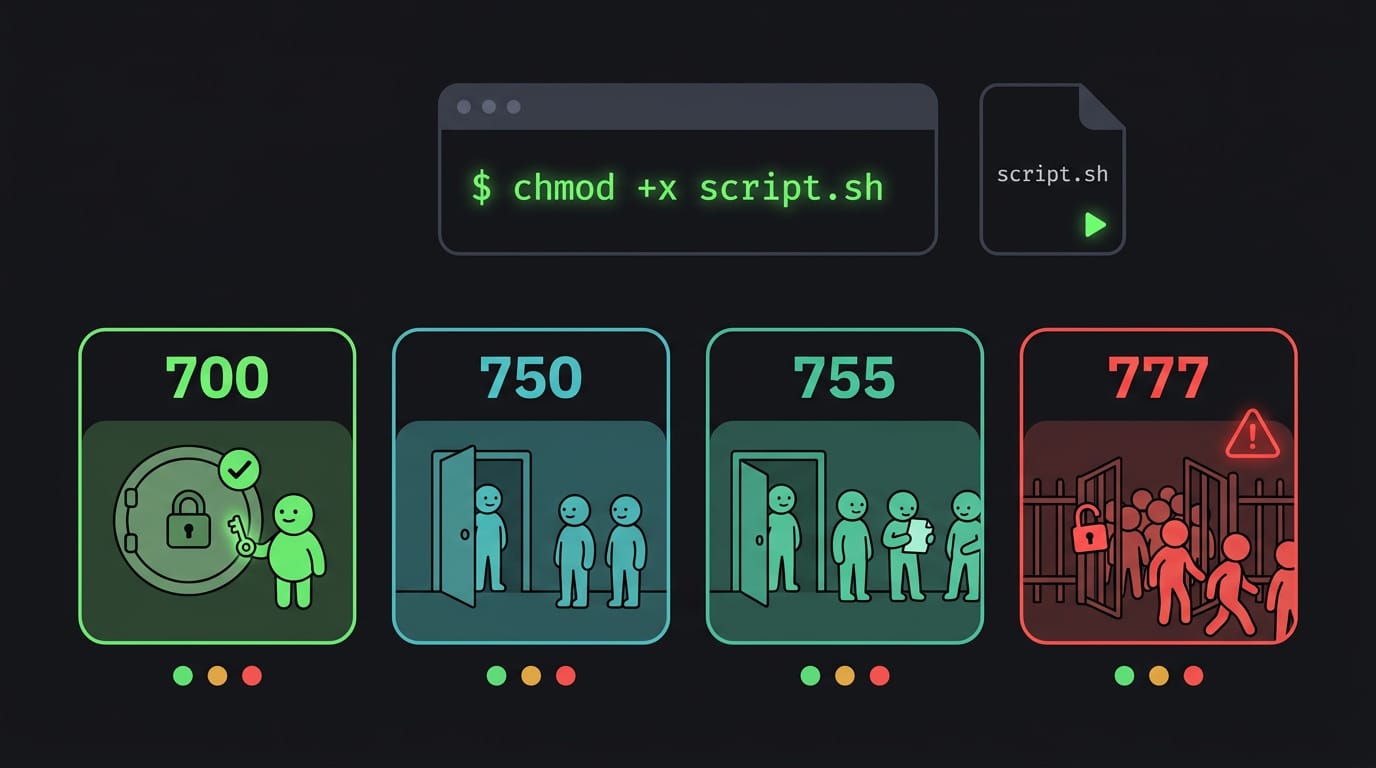
The chmod command (short for change mode) sets permissions from the terminal. The quickest fix is chmod +x script.sh, which adds execute permission for everyone. To allow only the owner, use chmod u+x script.sh, where u means owner.
You’ll also see numeric modes, where read is 4, write is 2, and execute is 1, added up for owner, group, and everyone else:
700: only the owner can read, write, and run the file.750: the owner has full access, the group can read and run it, and everyone else gets nothing.755: the owner has full access, and everyone else can read and run it.777: everyone can read, write, and run it.
The security risk of 777 is that anyone on the system can edit the script, which matters if it runs with admin rights. For most scripts, 700 or 755 is the safer pick.
Turn on executable in file properties
Prefer clicking? Most desktop file managers offer the same switch. Right-click the script, choose Properties, open the Permissions tab, and tick the option that lets it run as a program.
Labels vary by file manager, so look for wording about executing. Either way, the result is identical.
Ways to Run Scripts from the Terminal
A script is just a text file of commands, so running one comes down to telling the shell where that file lives. Here’s how we’ll do that, plus a few things to watch for.
Run a script with the ./ prefix
Typing script.sh alone often returns “command not found.” Your shell only searches the folders listed in your PATH, and the folder you’re in usually isn’t one of them. The ./ prefix tells it to run the file right here.
The catch is execute permission, the flag that marks a file as runnable. If the script came from a download, it may need chmod +x script.sh first.
Pass the script to bash or sh
bash script.sh and sh script.sh need no execute permission, because you’re passing the file to a shell instead of launching it.
The ./ form runs the interpreter named on the file’s first line (the #! line), while bash script.sh always uses bash, whatever that line says.
On Debian and Ubuntu, sh may be dash, a simpler shell that skips some bash features. If a script fails under sh but works under bash, that’s a likely culprit.
Drag it in or paste its path
Prefer not to type paths? Drag the file from your file manager into the terminal, and its full path appears at the cursor. You can also copy and paste the path yourself. A full path starts at /, the top of the file system, so it works from any folder.
To run it without changing its permissions, put sh in front: sh /home/you/Downloads/install.sh.
Run the script as another user
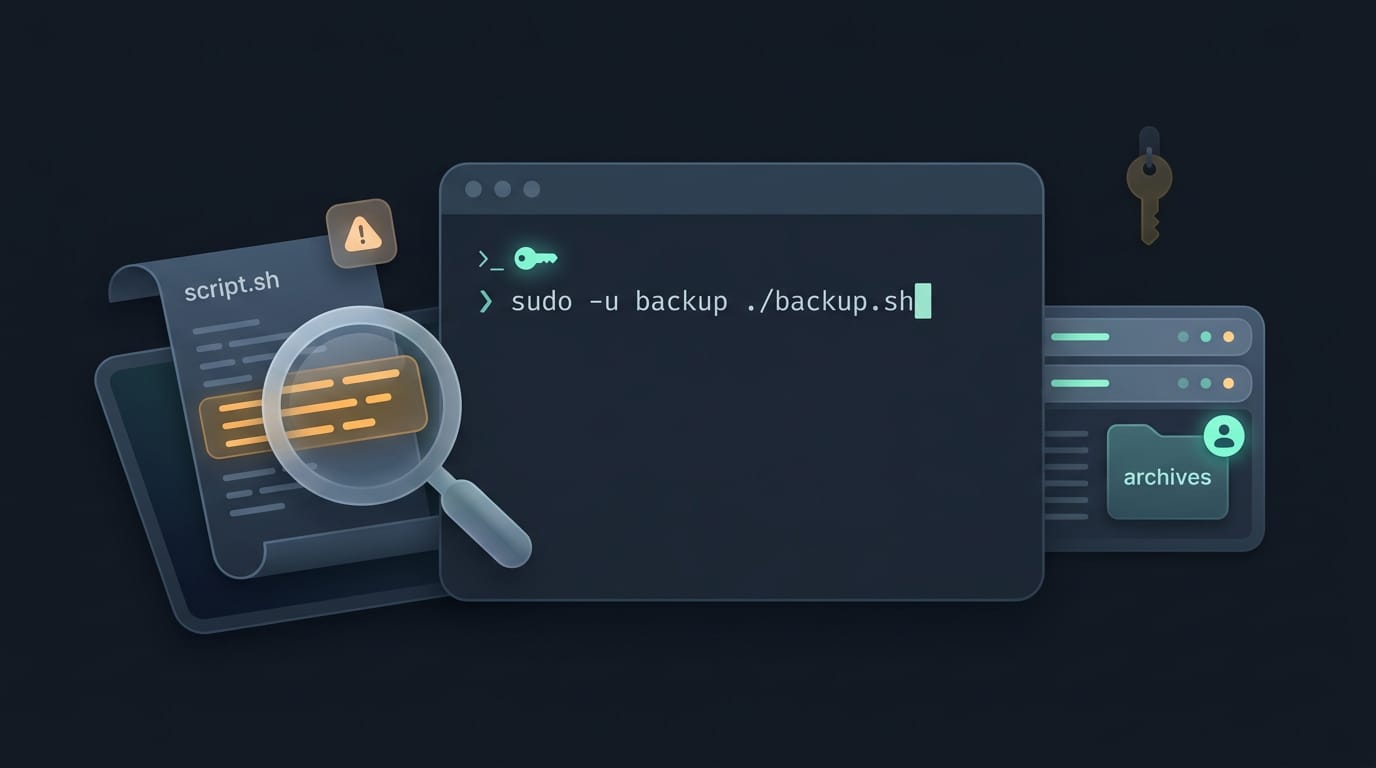
sudo ./script.sh runs the script as root, the system’s administrator account, so it can change system files. sudo -u username ./script.sh runs it as a specific user instead.
Picture a homelabber whose backup script should write archives as the backup account, not root, so the files end up owned by the account that reads them. sudo -u backup ./backup.sh handles that in one line.
Since sudo gives a script serious control, read it before you run it, not after. Open it with less script.sh and check for lines that delete files, change system settings, or download and run other code.
Reading takes a minute. Cleaning up takes much longer.
A Step-by-step Example to Follow
Here’s the complete run-through we’ll follow, from an empty folder to a working script. Follow the steps in order, since each one depends on the last.
Create and run a sample script
Picture a student on a ten-year-old ThinkPad who wants a script that greets them each time they open a terminal. Start with a simpler version that prints a hello-world message so you can watch every step work.
-
Make a folder. Run
mkdir hello-script, thencd hello-scriptto move inside. -
Create the file and add content. Run
touch hello.shto make an empty file, then add two lines withecho:echo '#!/bin/bash' > hello.sh echo 'echo "Hello, world!"' >> hello.sh
The first line, a shebang, tells Linux which shell (the program that reads your commands) should run the file. > writes to the file, while >> adds to the end of it. 3. Make it executable. Run chmod +x hello.sh.
Reading a file and running it are two different permissions, and this command grants the second. 4. Run it. Type ./hello.sh. The ./ tells the shell to look in the current folder.
Your terminal should print:
Hello, world!
Your first script works.
Stop a running script with CTRL+C
The hello script finishes in an instant, so there’s nothing to stop. Picture a script that prints a reminder every second and floods your terminal. Press CTRL+C to force-stop it, and the prompt returns right away.
CTRL+C stops the script rather than pausing it, so you’ll run it again from the top when you’re ready.
Common Problems and How to Fix Them
Most script failures come from a few repeat offenders. Once you know what each error means, the fix is usually one command.
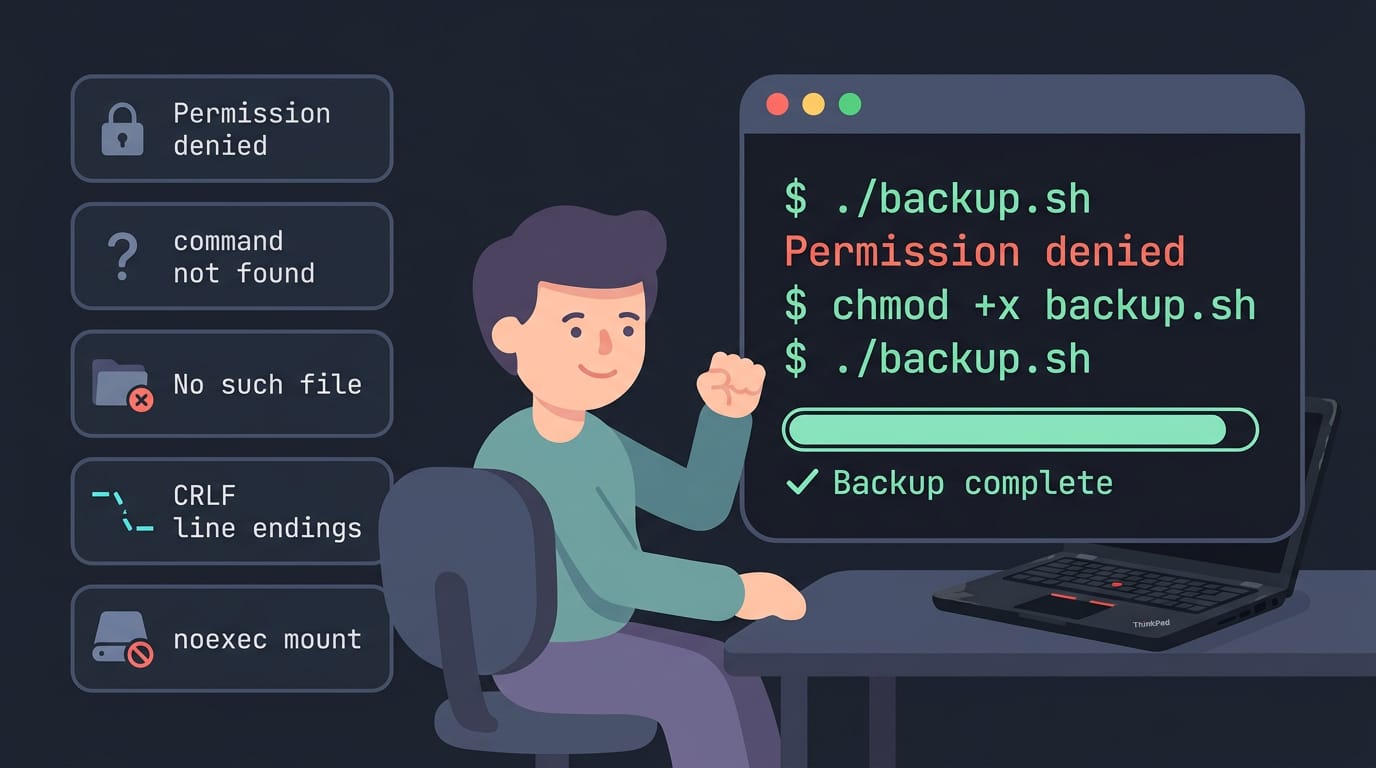
Terminal errors you might see
- Permission denied: The file exists but isn’t marked executable. Run
chmod +x script.sh. - command not found: You typed a bare name, and your shell couldn’t find it. Prefix it with
./to run the file in the current folder. - No such file or directory: The path is wrong. Check the path with
lsby running it in the folder to confirm the exact name, including capitals. - Windows CRLF line-ending errors: Scripts saved on Windows often use CRLF (carriage return plus line feed) endings, and that extra character can make a present file look missing. Save the script with Unix line endings instead.
- noexec mount blocks ./ execution: Some drives and temp folders are mounted with
noexec(no execute), so nothing on them runs, even if it’s marked executable. Move the script to your home folder.
Consider a student on a ten-year-old ThinkPad who types ./backup.sh and gets Permission denied. One chmod +x later, the backup runs.
Why the #!/bin/bash line matters
The first line, #!/bin/bash, is the shebang, and it names the interpreter that runs the file. Leave it out and the script runs in whatever shell you’re using. Same file, different shell, different results.
When double-clicking a script does nothing
Double-clicks are handled by your file manager, not the shell, so the fix often lives on the desktop side.
- Nothing happens after an upgrade: Check the settings below before you blame the script.
- Nemo’s executable text file setting: Nemo, the Cinnamon file manager, can be set to show executable text files instead of running them, so a double-click does nothing.
- Toggle the executable permission: Right-click the script, open Properties, and tick the execute option under Permissions.
When a self-extracting installer fails
A self-extracting installer packs its files into one script, so you can’t simply open it and fix it.
- Self-extracting installer errors: Read the full message before retrying, since it often names the step that failed.
- MojoSetup panic: Some installers built on MojoSetup stop with a panic, a hard crash inside the installer itself. Retrying won’t help.
- Seek an updated installer from the vendor: Check their download page for a newer build, or ask them directly.
Where to Go Next
Once your script runs reliably, the next step is keeping it tidy so you can find and reuse it. The same habits work for Python scripts, too.
Organize and extend your scripts
Think of a student on a ten-year-old ThinkPad who wrote a battery-check script and left it sitting in Downloads. Every time they want it, they dig through folders first. The fix is one command.
mv (short for “move”) relocates a file, so mv battery-check.sh ~/scripts/ puts it somewhere you’ll remember. You can rename it in the same step with mv battery-check.sh battery.sh.
The goal is finding your scripts fast, not building a perfect folder system. Less digging. More running.
Python scripts follow the same pattern. Run one with python3 cleanup.py, or make it executable with chmod +x cleanup.py and add a shebang line (the #! line at the top that names the interpreter, such as #!/usr/bin/env python3).
Then you can start it as ./cleanup.py, just like a shell script.
If you want the full picture on file permissions and what the execute flag actually does, revisit the permissions section earlier in this guide. It’s worth a second read whenever a script refuses to start.
Running a .sh file really comes down to three things: permissions, the right run method, and a quick look at what you’re about to execute.
Get those right, and most scripts behave just the way you’d expect, while the errors that once looked scary turn into simple fixes.
Your system is yours to shape, and scripts are just one more tool you control. Read before you run, and enjoy that first clean run.
Questions
How do I create a .sh file?
Create a plain-text file with a text editor, such as `nano script.sh`, and add your shell commands. Put a shebang such as `#!/bin/bash` on the first line to specify the interpreter, then save the file. To run it as `./script.sh`, grant execute permission with `chmod +x script.sh`.
How can I run a shell script to run a command?
Put the command you want to run in a text file, for example `#!/bin/bash` followed by `echo "Hello, world!"`, and save it as `script.sh`. Run `bash script.sh` to pass it to Bash, or use `chmod +x script.sh` and then `./script.sh` to launch it directly. The `./` tells the shell to look for the script in the current folder.
Is .sh a bash script?
A `.sh` file is usually a shell script, but the extension alone does not mean it is specifically a Bash script. The shebang on the first line, such as `#!/bin/bash`, identifies the intended interpreter.
Read next.
Install CUDA on Linux: Driver, Toolkit, and Kernel Steps
Install CUDA without guesswork: match the driver to the toolkit, then check Linux, Windows 11, containers, and rollback steps before you start.

Install Homebrew on macOS and Linux: Complete Guide
Install Homebrew on macOS or Linux, then set the right PATH and verify commands work before adding tools, updating packages, or fixing setup issues.
Install macOS from USB: Complete Step-by-Step Guide
Install macOS from USB with clear steps for downloading the installer, creating a bootable drive, and starting setup on Intel or Apple Silicon Macs.