How to Run Exe on Linux: Wine, Proton, and Native Apps
How to run exe on Linux: open files from your file manager, spot native alternatives, or use copy-paste Wine commands when a download won’t launch.
tl;dr the short answer
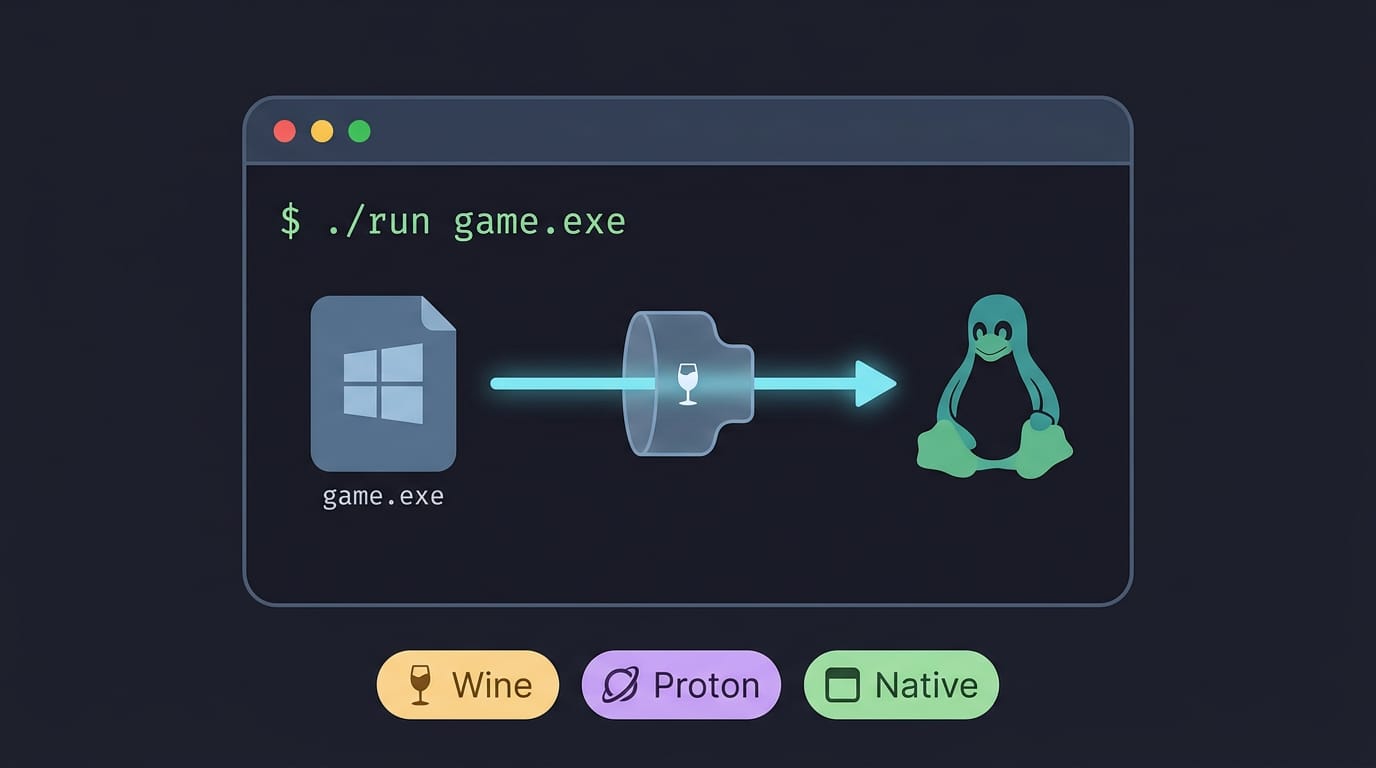
An .exe file is a Windows program, so Linux usually cannot run it directly; it needs a compatibility layer such as Wine, while Steam games can use Proton. First check whether a native Linux version is available, then use Wine or Proton for Windows-only software, and run it from a terminal when double-clicking gives no useful response. File permissions and file-manager settings can also affect launching, so checking them and reading terminal output can help identify what is wrong.
Ever double-clicked a download and watched your desktop just shrug? That’s the moment many people hit when a Windows program lands on Linux.
Think of it like a game disc from one console that won’t play in another: the disc is fine, the player just speaks a different language.
Running an .exe on Linux usually means giving it a translator, unless a native Linux version exists.
In this post, we’ll cover opening .exe files from your file manager, spotting native Linux programs, and using Wine and Proton, with copy-paste terminal commands you can act on right away.
Run Exe on Linux from File Manager
Double-clicking an .exe should just work, but a few settings decide whether it does, so we’ll fix those.
Making a file executable before double-clicking
Your file manager only runs a file on double-click if it’s marked executable. Think of a new Linux user who downloads a setup.exe and gets nothing. It’s not broken; it just isn’t flagged. Fix that in a terminal with chmod +x setup.exe. Shell scripts also need the executable flag before they will start, and a walkthrough covers every way to run a shell script.
Even then, double-click may not launch it. A desktop launcher, a small .desktop file that tells your desktop how to start a program, lets you run it in a terminal instead.
Ways to launch it in a terminal
- Custom launcher with “Launch in Terminal”: Enable that option so the program opens in a terminal window.
- Keep the terminal open with
read: Fast programs close before you can read the output, so runwine setup.exe; read -p "Press Enter to close"instead. - Custom Python wrapper script: A short script can launch the program and handle the pause.
- Nemo actions and .desktop files: Add a right-click action in Nemo that points to a
.desktopfile.
Why PIE programs get mistaken for libraries
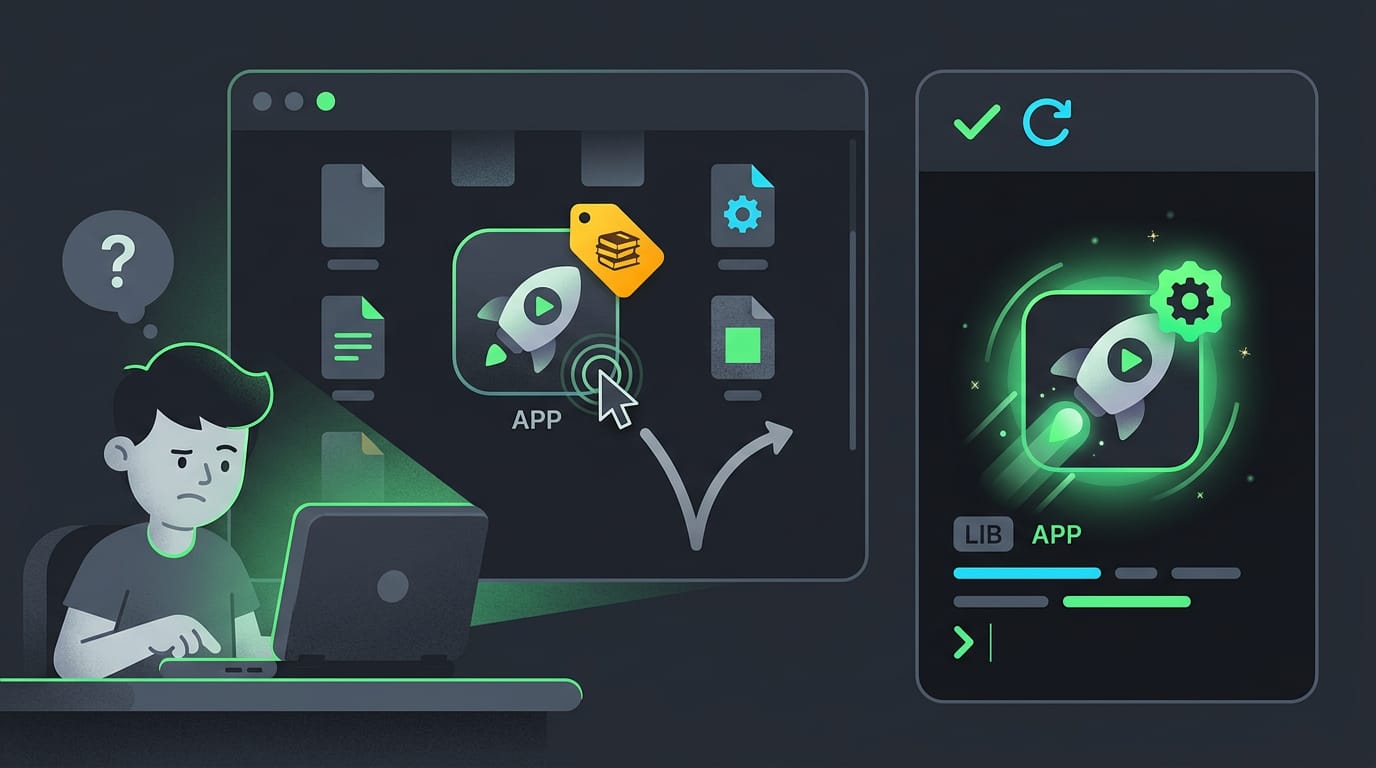
Some native Linux programs are built as PIE (position-independent executables), so they can load at any memory address. They’re programs that look like libraries because of the MIME type, the label that says what kind of file something is.
A bug in shared-mime-info, the shared database of file types, tagged these programs as application/x-sharedlib, the label for libraries. Picture a student on a ten-year-old ThinkPad whose double-click gets nowhere.
The bug was fixed in version 2.1, and Linux Mint 21 isn’t affected. On older versions, updating shared-mime-info should clear it up.
Dolphin and Nemo differ on running files
Dolphin, the file manager from KDE (K Desktop Environment), offers a run-in-terminal dialog. Nemo doesn’t yet, and a feature request is still open.
On Dolphin, use that dialog. On Nemo, use the right-click action instead. Same program, different path.
That’s the KDE vs GNOME philosophy at work: KDE offers more options up front, while GNOME-family tools stay lean. It’s less about whether it runs and more about how your file manager starts it.
Run Native Linux Programs from the Terminal
A native Linux program usually launches straight from the terminal, and the whole routine takes only a few steps once you know the pattern.
Open the folder, then type ./filename
Here’s the routine:
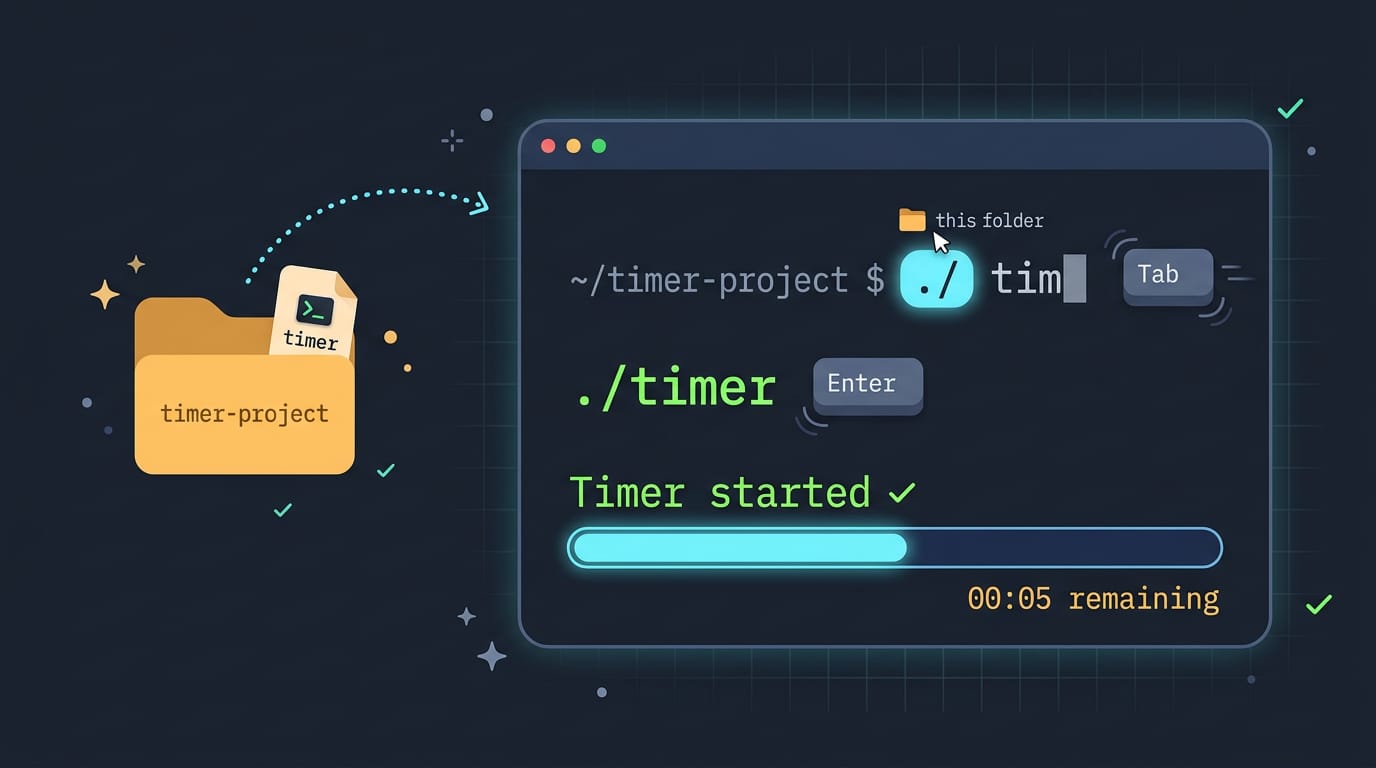
- Open your file manager, go to the folder that holds the program, right-click an empty spot, and choose Open in Terminal. Your terminal now starts in that folder, which is called the working directory, so you don’t have to type a long path.
- Type
./and the first few letters of the file name, then press Tab. The terminal fills in the rest. This shortcut is called Tab completion, and it saves you from typos in long file names. - Press Enter. For example, a program called
helloruns with./hello.
The ./ matters because it tells the terminal to run the file in this folder, not somewhere else on your system.
Think of a student who just built a small timer tool in their project folder. They open a terminal there, type ./tim, press Tab, and hit Enter, and the tool runs right away. That’s the payoff: a fast test right where the file lives.
Once the program starts, the terminal stays open and becomes your output window. Anything the program prints shows up right there, so you can see what happened instead of guessing. Leave it open.
Opening Windows .exe Files Using Wine
Got a Windows program you need on Linux? Here’s how we’ll get it running.
Can Linux run Windows programs?
Not directly. A .exe file is a Windows executable, so Linux needs a compatibility layer to read it. Wine is the main option for running them.
Consider a Linux Mint user with one old Windows-only class tool. She runs it from Downloads with Wine and never reboots. No dual boot required. It’s less about installing Windows and more about running one program.
For Steam games, Proton is the built-in layer that runs Windows programs. To add your own .exe, choose Add a Non-Steam Game in Steam’s Library, then set Proton under Compatibility in its Properties.
Install Wine from your package manager
Most distributions ship Wine through their package manager, the built-in tool that installs software. On Linux Mint, run sudo apt-get install wine in a terminal. Can’t find it? Run apt search wine.
These commands cover most of what you need: - wine ~/Downloads/app.exe runs your program. Swap in your file’s path. - winecfg opens Wine’s settings, including the Windows version it mimics.
Fixing Wine programs that won’t start
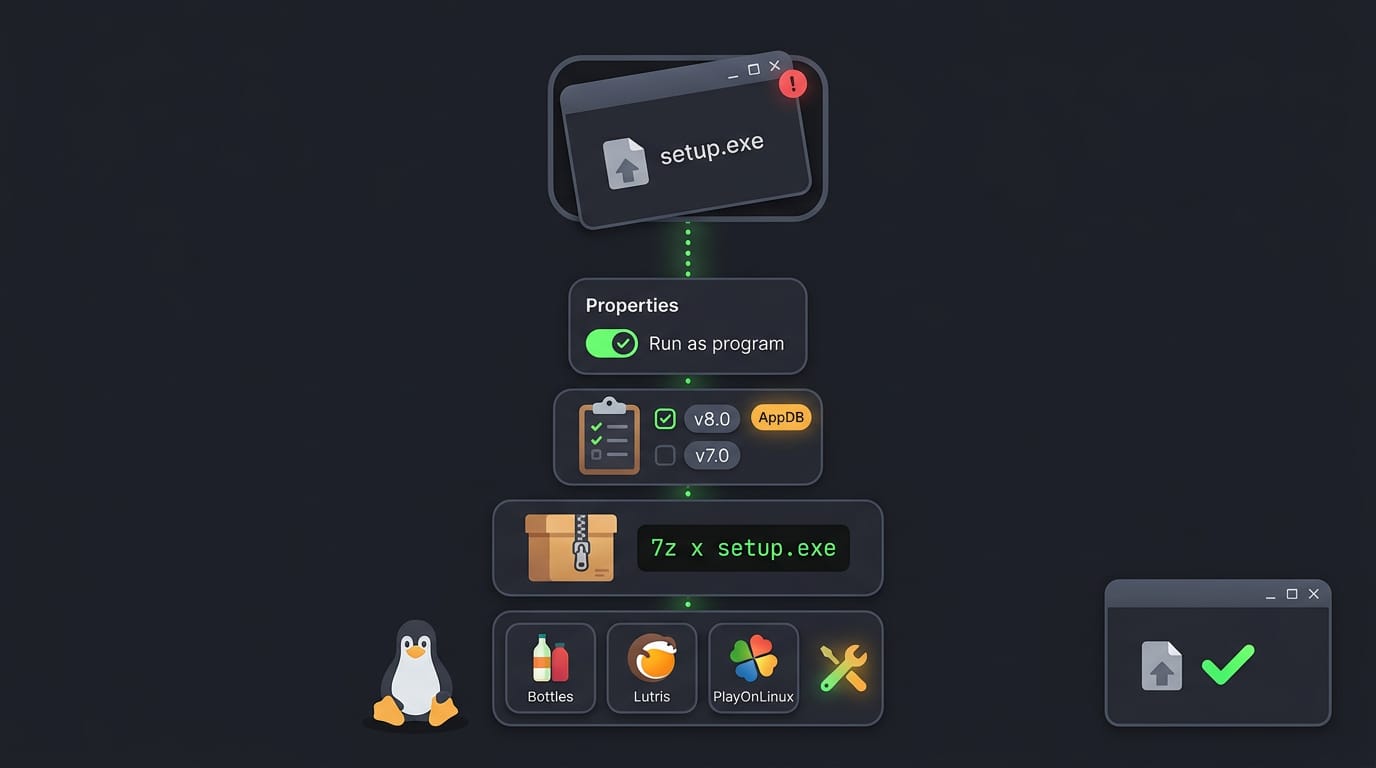
Wine can be temperamental, so start with the basics. Right-click the file, open Properties, and check the Permissions tab so it’s allowed to run as a program.
Next, check the Wine AppDB, a community list of Windows programs and the Wine versions that run them. Some need one specific version, so try a newer or older release.
If an installer won’t run, it may be an archive in disguise. Install p7zip-full with apt, then run 7z x setup.exe to unpack it.
If Wine keeps fighting you, Bottles, Lutris, and PlayOnLinux manage Wine setups for you.
When a Downloaded App Won’t Open
You grabbed an installer, double-clicked it, and got nothing back. Before you give up or hunt for a different download, here’s what’s usually going on and what to check first.
Why clicking the launcher does nothing
Double-clicking an installer asks your desktop to open it with a program behind the scenes. When that program can’t start, the desktop often shows no error, so the click just seems dead.
Picture a Fedora user who downloads a Windows installer, double-clicks it, and decides the file is broken. The file may be fine. Focus on why it failed, not just that it failed.
The terminal shows what the desktop hides. Run the installer through Wine, the compatibility layer that runs Windows programs on Linux:
- Open a terminal and move into the folder with the installer, for example
cd ~/Downloads. - Type
wine setup.exeand press Enter, swapping in your file’s exact name. - Read the last few lines of output, since they usually name the problem.
If you see wine: command not found, Wine isn’t installed yet, so that’s your first fix.
Before you follow any fix, pin down two things: your distro (short for distribution, the particular flavor of Linux you installed) and the exact app you want.
Install steps and package names change between distros, so a fix for one may not work on another. Consider a student on a ten-year-old ThinkPad running Ubuntu who needs a Windows-only drawing program for class.
Once they name both, they can skip the steps meant for someone else’s setup. Name both, and the rest gets simpler.
Running a Windows .exe on Linux is less mysterious than it looks. Try your file manager first for the simple cases, check whether a native Linux version already exists, and reach for the terminal when you want more control.
Wine and Proton are there for the programs that need a little help.
Keep these steps handy the next time a download refuses to open. Your desktop doesn’t have to stop at the edge of Windows software. It just needs the right translator.
Questions
How to run a file in terminal?
Open a terminal in the file’s folder, then run it with `./filename`, replacing `filename` with the program’s name. If it isn’t marked executable, run `chmod +x filename` first.
How to open .exe on Linux Mint?
On Linux Mint, install Wine with `sudo apt-get install wine`, then run the file with `wine /path/to/file.exe`. For example, use `wine ~/Downloads/app.exe`.
How do I add an exe file to Steam?
In Steam, choose **Add a Non-Steam Game** from the Library menu and select the `.exe` file. Open the game’s Properties, go to Compatibility, and choose a Proton version.
How to open exe with proton?
Add the `.exe` to Steam as a non-Steam game, then open its Properties and enable compatibility with Proton under Compatibility. Select a Proton version and launch it from your Steam Library.
How to unpack an exe file on Linux?
Some `.exe` files are self-extracting archives. Install `p7zip-full` and run `7z x filename.exe` to extract the contents; this will not unpack every Windows installer or executable.
How can I run a .Linux file?
If it is a Linux executable named with a `.Linux` extension, open a terminal in its folder, run `chmod +x filename.Linux`, then launch it with `./filename.Linux`. If it is an archive or another file type, use the appropriate extraction or launch tool instead.
How do I run an .exe file?
To run a Windows `.exe` on Linux, install Wine and launch it with `wine filename.exe`, using the file’s path if needed. For Steam games or programs added to Steam, you can use Proton instead.
Can Linux run Windows programs?
Linux cannot run Windows programs directly, but compatibility layers such as Wine can run many `.exe` files. Proton, based on Wine, is commonly used for Windows games through Steam; compatibility varies by program.
Read next.
Best terminal emulator for Linux: kitty, Ghostty and more
kitty, Ghostty, foot, Alacritty and WezTerm compared on what a rice needs: Wayland, tabs and splits, images, ligatures, config and themes, with a pick by setup.
Alpine Linux package manager commands you need every day
The Alpine Linux package manager, apk, installs and upgrades software. Get daily commands, package sources, version locking, and fixes for common errors.
Run a Shell Script: Every Method Explained
Run a shell script by interpreter, executable path, or sourcing it, and see how permissions, inputs, and output differ so you can choose the right method.