Shell Scripting Explained: Write Your First Script
Shell scripting turns repeated commands into a runnable routine. Write your first script, practice core syntax, and schedule recurring tasks with cron.
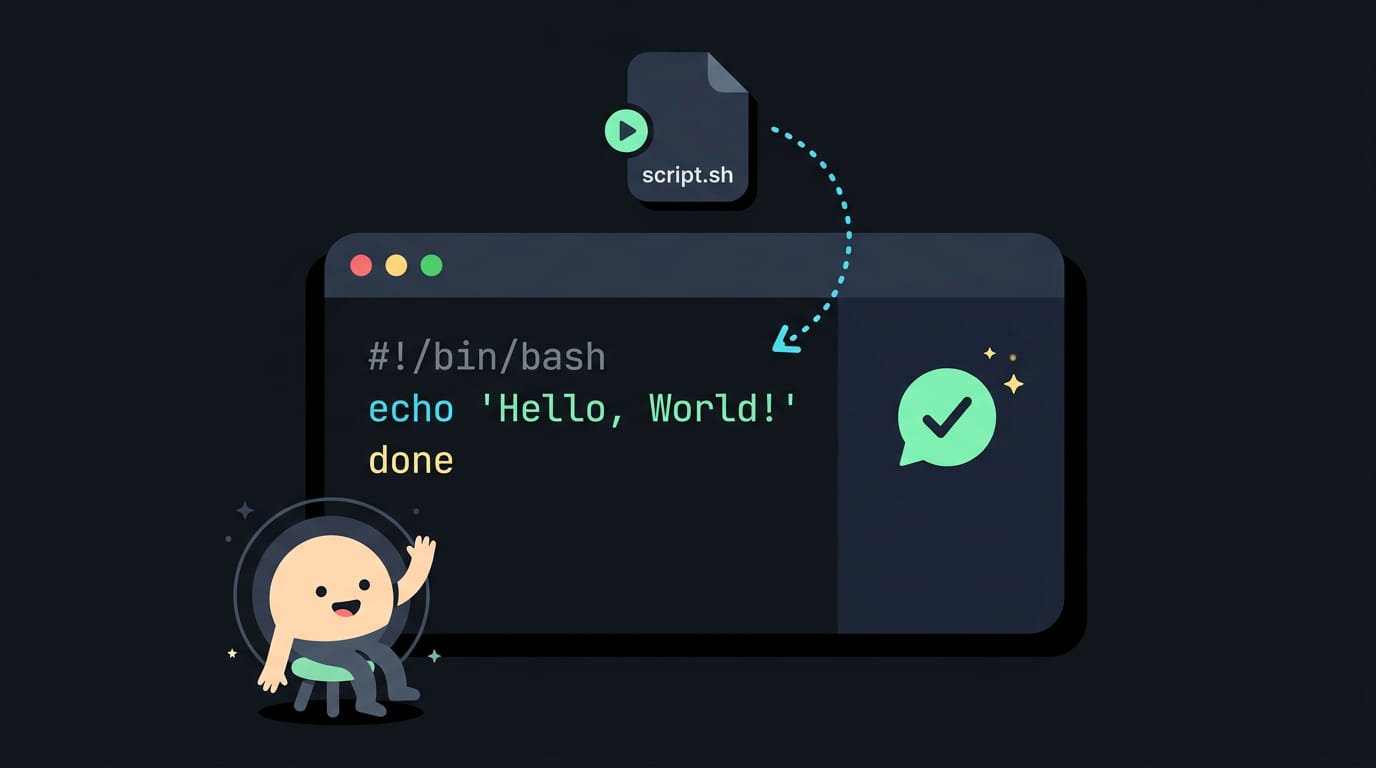
tl;dr the short answer
Shell scripting means saving terminal commands in a plain text file that a shell runs in sequence. Scripts automate repeatable tasks such as backups, file cleanup, monitoring, and deployments; variables, conditionals, loops, and functions help control what they do, while testing, quoting values, and debugging tools make them safer. Start with a small task, then choose bash or POSIX sh based on where the script must run, since scripts are useful for joining tools together but are a poor fit for complex computation.
Think about your morning routine: start the coffee, check the weather, back up your notes, open the same three apps. Writing those steps down once beats retyping them every day.
That’s the idea behind a shell script: a plain text file of commands that your shell (the program that reads what you type in a terminal and runs it) executes in order.
This post covers what a script is, who uses them, and how to write and run your first one.
We’ll also walk through core syntax, working examples, scheduling with cron (a tool that runs commands at set times), safe habits, debugging, and when to choose bash or POSIX (Portable Operating System Interface) sh.
What Shell Scripting Actually Is
Ever wished the same commands could just run themselves? That’s the whole idea behind shell scripting.
Shell scripts are plain text files
A shell script is a plain text file of commands, the same ones you’d type at a prompt, saved in order. The shell interprets it, reading and running it line by line, top to bottom. By convention the file ends in .sh.
The file holds instructions, not action. The shell supplies that.
For example, a student on an old ThinkPad backs up their homework every Friday. Saved as backup.sh, the copy runs in one step, the same way every time, no retyping.
How the shell, terminal, and kernel connect
These three words get mixed up constantly, so here’s the stack:
- Terminal: the window that displays text and takes your keystrokes.
- Shell: the program inside it that reads your commands.
- Kernel: the core of Linux that talks to your hardware.
The shell is the middleman, not the worker. It passes your request to the kernel and returns the answer. A command-line shell takes typed text, while a graphical shell is the clickable desktop. Scripts belong on the command-line side.
Is it called bash or shell?
Both, depending on what you mean. Shell is the category, and bash is one specific member of it. The Bourne shell is one of the early Unix shells, and bash is Bourne-compatible, so the original style carries over.
The C, Korn, and Z shells are other members. Bash is often the default on Linux. So ‘shell script’ means any script run by a shell, while ‘bash script’ means one written for bash. That Bourne-compatible baseline is the common ground we’ll build on.
Who Uses Shell Scripting and Why
A shell script is a text file of commands your shell runs in order, so it shines wherever the same work keeps coming back. Here’s who relies on scripts, what they’re good for, and where they fall short.
Everyday jobs scripts can handle
Scripts earn their keep on the tasks you’d otherwise type by hand:
- Automating repetitive tasks: running the same commands on demand or on a schedule.
- Backups and file cleanup: copying folders somewhere safe and pruning old files.
- System monitoring: checking disk space, memory, or whether a service is still running.
- User account management: creating or removing accounts across many machines.
- Deployments and testing: pushing code to a server and running its checks.
- Database start/stop and backups: bringing a database up or down and dumping its data.
Roles that rely on scripts
System administrators keep servers consistent, developers build and test projects with one command, DevOps professionals wire scripts into deployment pipelines, and IT professionals handle routine work across many machines.
Consider a Linux user with a home server. A script copies the day’s changes to an external drive every night and deletes backups older than a month, so the backup runs even on the night they forget.
What makes scripts worth using
Scripts are less about writing software and more about automating commands you already know:
- Saves time: a daily task takes seconds once it’s scripted.
- Consistency and fewer errors: the same steps run the same way every time.
- Native Unix/Linux support: shells come built in, so there’s nothing extra to install.
- No compile step: edit the file and run it.
- Portability: scripts that stick to widely shared features move between machines easily.
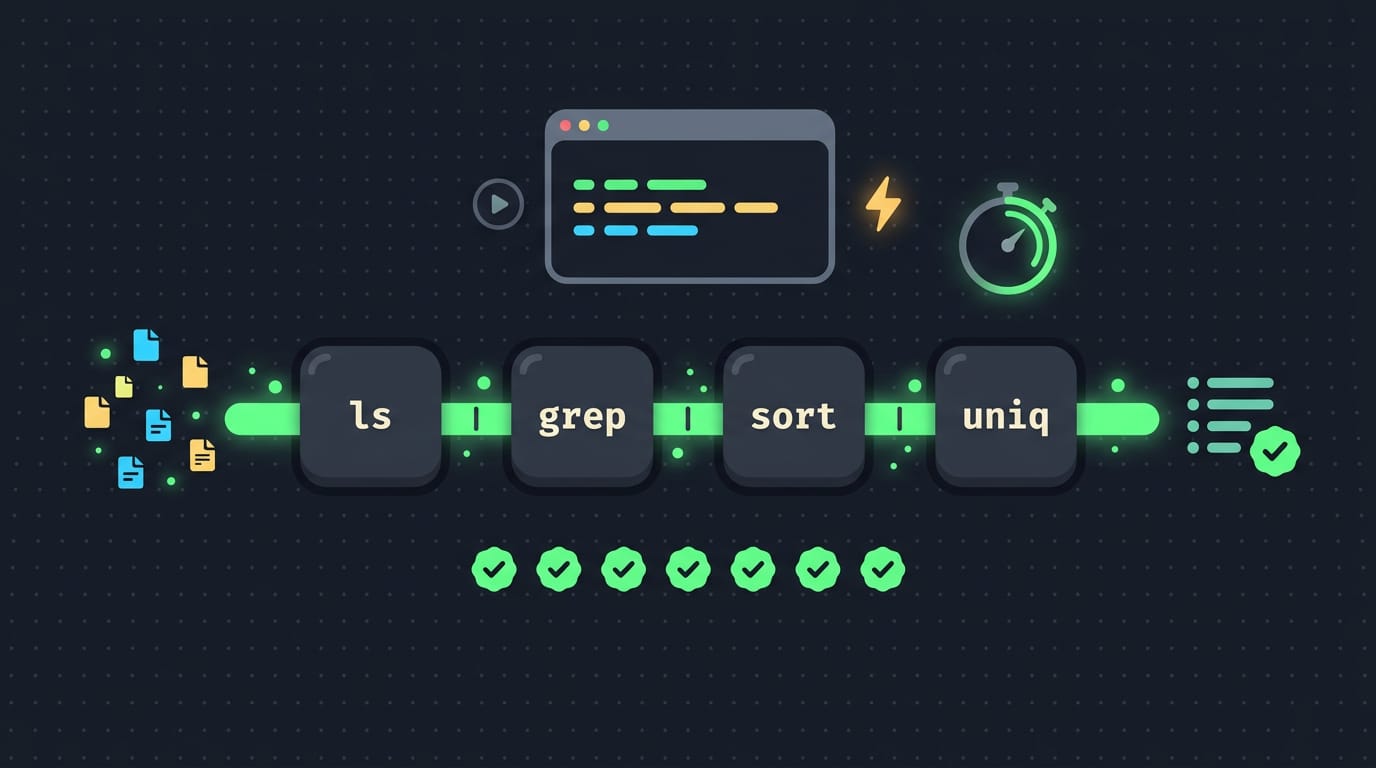
- Chaining commands together: pipes feed one command’s output straight into the next.
Is shell scripting outdated?
Not for gluing tools together, but we should be honest about the limits.
Shell scripts run more slowly than programs written in compiled languages, and a study on scripting and user-interface languages makes the broader point that compiled code usually runs faster than interpreted code.
For moving files, that gap rarely matters. The question isn’t whether scripts are fast, but whether they’re fast enough for the job.
Complex computation is a weak spot, and a stray space in a filename can break a script in sneaky ways. When the logic grows, Python, JavaScript, or Perl usually make more sense.
What you need to know first
You’ll get the most out of this if you’ve already typed commands in a terminal, moved between folders, and run a few programs. You don’t need a programming background, though.
Basics like variables and loops are enough to start, and beginner-focused tutorials walk through them one concept at a time.
On Windows, you’ll need a bash shell to follow along with the examples. The usual route is the Windows Subsystem for Linux (WSL), which runs a real Linux environment, bash included, inside Windows.
Write and Run Your First Script
Every script is a plain text file with a few standard parts. You’ll learn them fast by building one.
Parts every script file includes
The first line is the shebang (such as #!/bin/bash), which names the interpreter that runs the file. The .sh extension is mostly for you, since Linux doesn’t need it. Lines starting with # are comments the shell skips.
Execute permission bits mark a file as runnable; ls -l shows them, and a file without an x won’t run directly.
Write a Hello World script
Find bash’s location with which bash, then use that path after #! if it differs from the example. Create the file with touch hello.sh, then open it.
To open a shell script, pass its name to an editor like nano hello.sh or vim hello.sh (less hello.sh views it without editing). Add these lines:
#!/bin/bash
echo "Hello, world!"
echo prints text to your terminal.
Make a script executable and run it
A new file lacks execute permission, so grant it with chmod u+x hello.sh: u means you, the owner, and +x adds execute. Then run ./hello.sh. The ./ runs the file in this folder, since bare names only search your PATH.
A tmux tinkerer who wants a greeting every session saves this as hello.sh, runs chmod once, and types just ./hello.sh instead of retyping the line.
Skip permissions with bash hello.sh, which hands the file straight to bash. If you see Permission denied, the execute bit is missing, so rerun the chmod step.
If your script misbehaves, bash -x hello.sh prints each command as it runs. For a second check, install ShellCheck, a linter that flags likely mistakes, then run shellcheck hello.sh.
Your first script is done.
Core Syntax to Learn First
Most scripts you’ll meet are built from the same few pieces: variables, input, math, decisions, loops, and functions.
What do $1 and $2 mean?
A variable stores a value: name=value. Don’t put spaces around the =, and read it back with $name. Use read -p 'Project: ' project to ask for input, where -p sets the prompt.
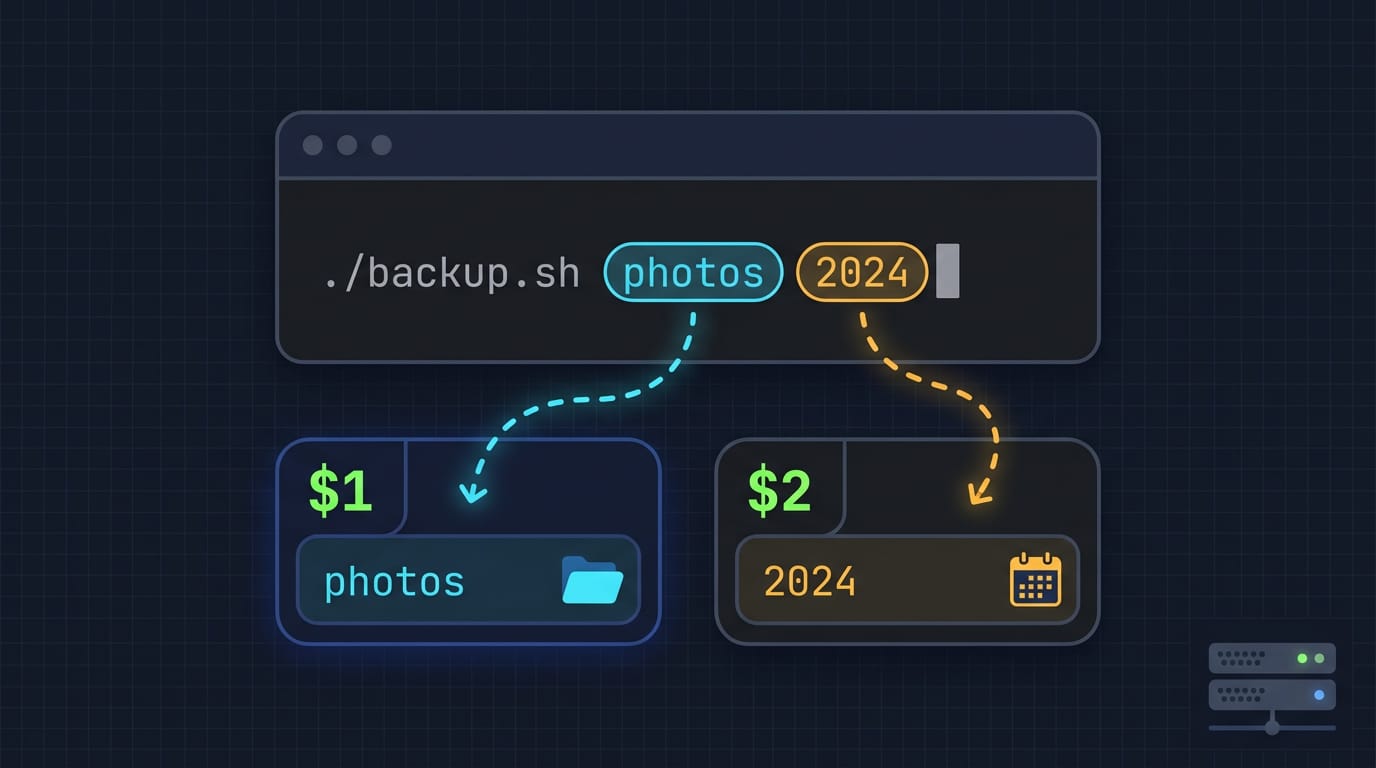
Command-line arguments are the words you type after the script’s name, like ./backup.sh photos 2024. Positional parameters hold them in order: $1 is the first value you pass in (photos), and $2 is the second (2024).
Think of a homelabber who’s backing up one folder per run. Typing ./backup.sh media beats editing the script each time. Quote variables, as in "$1", so a folder name with spaces stays one value.
Doing math in your scripts
Arithmetic operators are:
+-*/%(remainder)**(power)
Wrap calculations in $(( )), like total=$(( price * qty )).
Bash keeps only whole numbers, so $(( 10 / 3 )) returns 3. For decimals, you’ll need bc, a command-line calculator: echo 'scale=2; 10/3' | bc returns 3.33, where scale sets the decimal places.
Making decisions with if and case
An if block runs code only when its test passes and closes with fi. Add elif or else for other cases.
Numeric comparisons use:
-eq(equal)-ne(not equal)-lt(less than)-le(less than or equal)-gt(greater than)-ge(greater than or equal)
Combine tests with AND (&&) or OR (||) inside [[ ]]. Use && when both conditions must hold and || when either will do.
Use case for one value with several matches, like a waybar script that takes on or off: case "$1" in on) ... ;; off) ... ;; esac. One file handles both instead of two near-identical scripts.
Repeating steps with loops
The for loop runs once per item in a range like {1..5} or a list like alice bob. while repeats while its test holds, and until repeats until it’s true. Think of a tinkerer renaming 200 screenshots: one for loop beats 200 manual commands.
Reading files, capturing output, and functions
To read a file line by line, feed it to a loop: while IFS= read -r line; do echo "$line"; done < notes.txt. The empty IFS= (the field separator setting) and -r keep leading spaces and backslashes intact.
To capture a command’s output, use command substitution. The older backticks, as in today=`date`, still work, but today=$(date) nests cleanly and reads better, so prefer it.
A function groups commands under one name: greet() { echo "Hello, $1"; }, called as greet alice. Inside it, $1 holds the function’s own arguments.
Every command returns an exit code: 0 means success, and anything else means failure. You can check the last one with $?.
Start scripts with set -euo pipefail to stop at the first failure, flag unset variables, and catch errors hidden in pipes. Fail loudly, not quietly.
Working Examples to Learn From
Reading working code teaches you more than any syntax table will. The point isn’t to memorize these scripts but to notice how each one thinks.
Sample scripts you can study
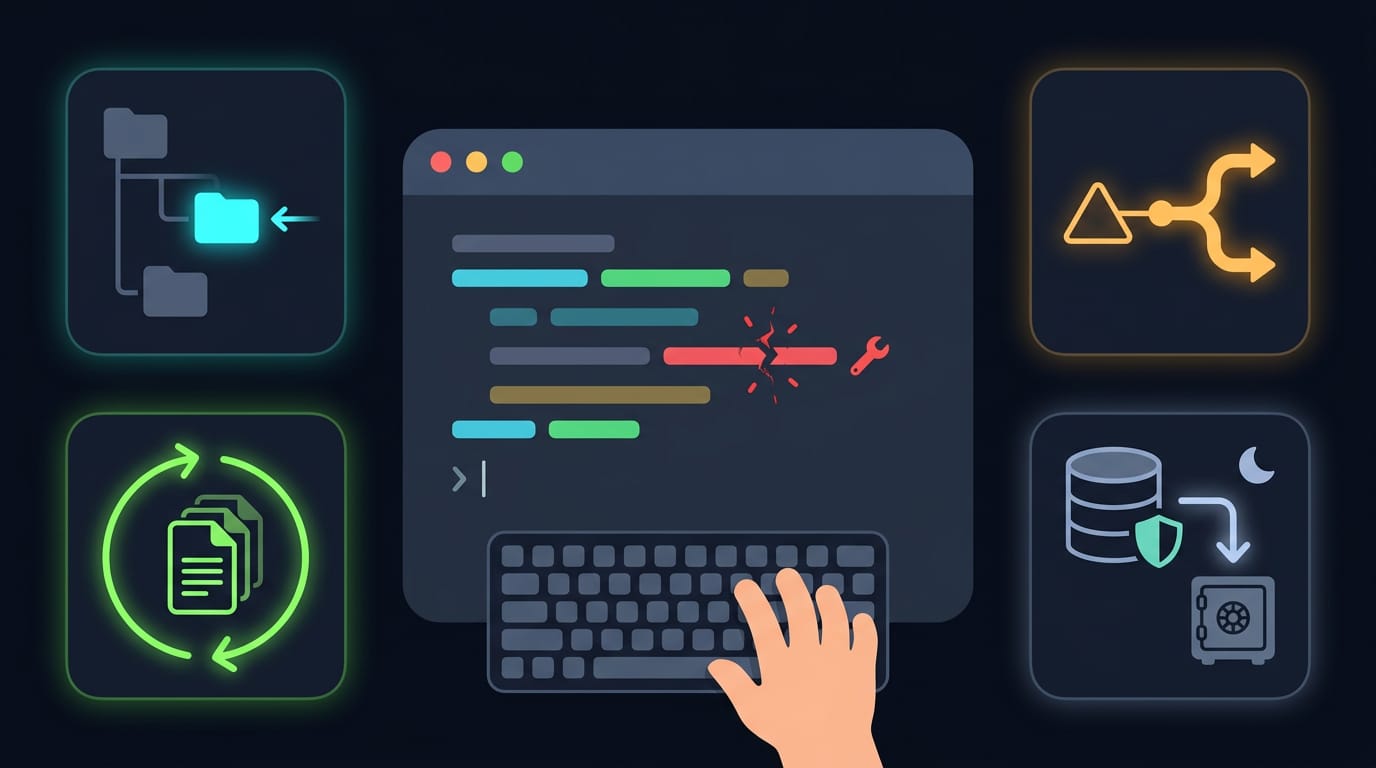
- Directory jump script. Think of a Linux user who keeps projects scattered across several nested folders. A short script lets them type one word and land straight in the right directory, saving keystrokes all day. It shows how a script takes an argument and acts on it.
- Triangle type checker. This one takes three side lengths and reports whether the triangle is equilateral, isosceles, or scalene. It’s a friendly first look at conditionals, the branches that let a script choose a path.
- Directory listing script. A loop walks through the files in a folder and prints each one. Small as it is, it covers the loop and file-handling patterns you’ll reuse in nearly every script you write.
- Database monitoring and backup scripts. Picture a self-hoster running a small app on a home server who wants a nightly copy of their data. A backup script copies the database to a safe location, while a monitoring script checks that the database is still up. Paired with a scheduler, they show how automation keeps watch while you sleep.
Break it on purpose. That’s where the learning sticks.
Running Scripts on a Schedule
Once a script works, you’ll want it running without you kicking it off by hand. Here’s how to schedule it, load it automatically, and find the ones you already have.
Run scripts regularly with cron
Cron is the scheduler built into most Linux systems. Each job lives in your crontab and starts with five time fields: minute, hour, day of month, month, and weekday. An asterisk means every, so 30 2 * * * runs daily at 2:30.
A few common schedules:
*/15 * * * *: every 15 minutes0 9 * * 1: 9:00 every Monday
Consider a student whose backup.sh copies her coursework. She adds one line to her crontab and wakes up to a fresh backup. Cron fires on schedule, so the job runs whether or not she’s at the keyboard.
Once it’s scheduled, it runs unattended. Use full paths in your script, since cron doesn’t share your terminal’s settings.
Set up scripts that load automatically
A startup script runs when you open a terminal, not on a timer. Bash reads .bashrc from your home directory each time a terminal opens.
An environment variable is a named setting that programs read, like export EDITOR=vim to pick your editor. Add it to .bashrc and every new terminal has it.
To reuse a script you’ve already written, add source ~/scripts/aliases.sh to .bashrc. Sourcing runs it inside your shell, so its aliases stick.
Picture a terminal-first user who keeps shortcuts in aliases.sh. After that one source line, every new terminal already knows them. No retyping, ever.
Find scripts already on your system
Lost track of a script? Run crontab -l to list the jobs scheduled for your user. Then run find ~ -name '*.sh' to list every shell script in your home directory.
Where to Keep Learning and Practicing
Reading a guide only gets you so far. The fastest way to get comfortable with scripts is to keep writing them after this article ends, and these options help you do that.
Courses, books, and hands-on practice
Pick the format that fits how you learn best:
- Coursera courses and programs. If you like a set path with lessons in order, Coursera offers courses and programs you can work through step by step.
- Replit practice environment. Try your scripts in Replit without touching your own machine, so a typo can’t break your setup.
- Author books and paperbacks. Prefer paper? The author’s books and paperbacks give you something to keep open beside your terminal.
- Quiz questions. Use the quiz questions to check what stuck before you move on.
Consider a student riding a ten-year-old ThinkPad who wants a script that backs up their homework folder every night. They could read about loops for an hour, or they could type one into a practice environment, run it, break it on purpose, and fix it.
The second route sticks because it’s less about reading and more about doing. Make the mistakes early.
Mixing these works best: read a bit, try it in a practice environment, then rebuild it from memory.
Shell scripting turns commands you already type into something you can save, repeat, and schedule. You don’t need to master everything at once.
Start with one small script that solves a real problem, test it before you trust it, and build your safe habits and debugging skills as you go.
Pick bash or POSIX sh based on where the script needs to run, and you’ll avoid a lot of surprises later. Your terminal has been waiting for instructions all along. Now you know how to write them.
References
- Timing trials, or the trials of timing: experiments with scripting and user-interface languages — onlinelibrary.wiley.com
Questions
What is meant by shell scripting?
Shell scripting is writing commands in a plain text file so a shell can run them in sequence. It is commonly used to automate repetitive tasks such as backups, file cleanup, and system checks.
What is $1 $2 in shell script?
In a shell script, `$1` and `$2` are positional parameters: `$1` holds the first argument supplied after the script name, and `$2` holds the second. For example, `./backup.sh photos 2024` makes `$1` equal to `photos` and `$2` equal to `2024`.
What is the bash shell?
Bash, short for Bourne Again Shell, is a command-line shell that reads and runs commands and scripts. It is Bourne-compatible and is often the default shell on Linux.
What are the different types of shells available in Linux?
Common Linux shells include Bash, the Bourne shell (sh), Zsh, KornShell (ksh), and C shell (csh) or its improved version, tcsh. Fish is another popular interactive shell. Their syntax and features differ, so a script written for one shell may not work unchanged in another.
What are some common commands in bash?
Common Bash commands include `pwd` to show the current directory, `ls` to list files, `cd` to change directories, and `mkdir` to create a directory. `cp`, `mv`, and `rm` copy, move, and remove files; `cat` displays file contents, and `echo` prints text.
How can I learn shell scripting?
Start by learning basic terminal commands and then practice small scripts using variables, arguments, conditionals, and loops. Run scripts, intentionally test errors, and use tools such as ShellCheck to spot likely mistakes. Courses, books, and online practice environments can provide structured lessons and exercises.
How does a shell work?
A shell reads commands and runs them, generally in order, interpreting script files line by line. It acts as an intermediary between the user or script and the operating system, passing requests to the kernel and returning results.
Is shell scripting outdated?
No. Shell scripting remains useful for automating system tasks and connecting existing command-line tools, especially on Linux and Unix systems. It is less suitable for complex computation or large applications, where languages such as Python may be easier to maintain and perform better.
Sources
- Timing trials, or the trials of timing: experiments with scripting and user-interface languages, onlinelibrary.wiley.com
Read next.
Mac Terminal Commands: A Complete Beginner's Guide
Mac Terminal commands take you from a blinking cursor through safe basics, customization, admin work, Homebrew, and fun tricks, including macOS quirks.
Alpine Linux package manager commands you need every day
The Alpine Linux package manager, apk, installs and upgrades software. Get daily commands, package sources, version locking, and fixes for common errors.
Ubuntu Terminal Shortcut Keys, Explained Simply
Ubuntu terminal shortcuts help you work mouse-free. Find keys for opening, editing, history, tabs, desktop actions, and fixing custom bindings.