OS Commands in Linux: A Practical Guide
OS commands in Linux help you find files, move through folders, manage permissions, and customize your desktop without clicking through windows.
tl;dr the short answer
Linux OS commands are typed instructions entered in a terminal to control your computer, navigate folders, and work with files. Commands such as cd, ls, pwd, cp, mv, rm, and grep help you find, organize, search, and edit files, while flags, permissions, and scripts let you adjust or automate tasks. Learning these basics makes everyday computer work and desktop customization faster, but use rm carefully because deleted files do not go to the trash.
Think about the last time you had to dig through folders to find one file. You could click through every window, or you could type one short command and land right on it.
That’s the idea behind OS (operating system) commands: short typed instructions you run in the terminal, the text window where you talk directly to your system.
We’ll cover everything from moving around the file system to searching files and checking permissions, explaining each command clearly. Then we’ll show you which ones to run when you’re setting up or riccing (customizing) your window manager or desktop.
Faster OS Commands in the Linux Terminal
Clicking through folders gets old fast when you’re tweaking a desktop. The terminal is faster, and a few commands and keys make it quicker still.
Why the terminal is worth learning
Instead of clicking, you type a command and the shell (the program that reads and runs it) carries it out. Type a program’s name to launch it.
Think of a student on a fresh Ubuntu install hunting for desktop config files. cd ~/.config and ls show them in seconds.
New to Ubuntu? Press Ctrl+Alt+T to open a command-line interface (CLI, the text-based way to control your computer), then try:
pwdto see where you arelsto list what’s hereman lsto read a command’s manual
Managing files is just as direct:
mkdirmakes folderscpcopiesmvmoves or renamesrmdeletes for good, so double-check first
Linux is Unix-like, meaning it follows the same design as Unix, so these commands work much the same on macOS. The details, such as some options, are where they differ.
Shortcuts that save typing and time
- Tab autocomplete. Start typing a file or folder name and press Tab.
cd ~/Docbecomescd ~/Documents/in one press. Tab does the typing. - Up arrow history. The up arrow recalls your last command, and each press steps further back.
- Avoid typos. Typing less means fewer mistakes. Picture a ricer who mistypes one letter in a long command. Tap up arrow, fix the one wrong letter, and press Enter.
- clear and Ctrl+L. Type
clearor press Ctrl+L to wipe the screen, so new output sits at the top.
Moving Around the Linux File System
Before you can run anything useful, you need to know where you are and how to get around. If you’re not sure which operating system (OS) you’re on, cat /etc/os-release will tell you.
cat prints a file’s contents, and that file names your distro and version.
How folders connect and shorthand paths
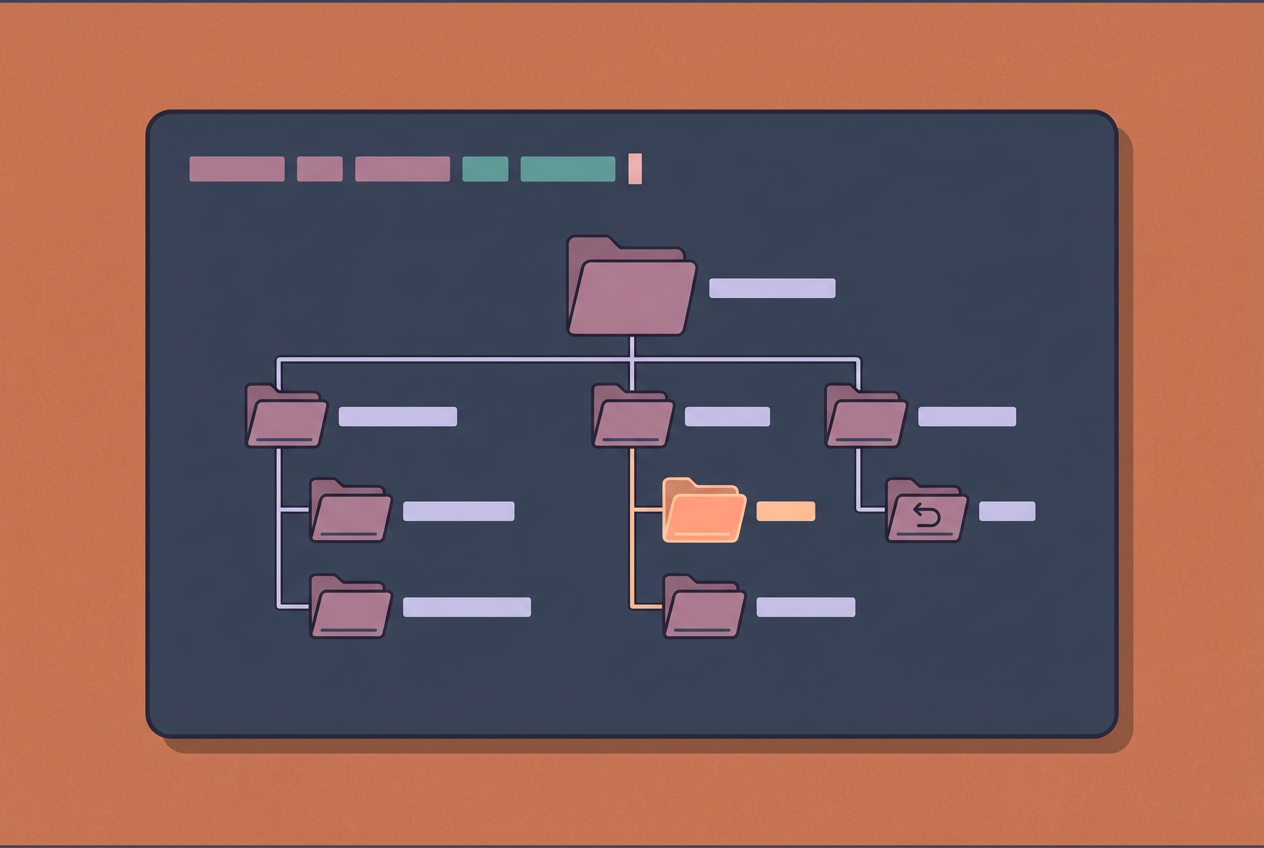
Linux organizes everything into a hierarchical tree of folders that starts at a single root directory, written as /. Every other folder branches off from there. A few shorthand symbols let you point to places without typing the whole path:
.(dot) means your current directory, the folder you’re in right now...(double dot) means the parent directory, one level up.~(tilde) means your home directory, your personal folder.
Commands for moving between folders
Once you know the layout, these four commands get you around it:
cdchanges directory. Typecdfollowed by a folder name or path to move there.lslists contents, showing the files and folders in the current directory.pwdprints the working directory, showing the full path to where you are right now.cd /goes to root, jumping straight to the top of the tree from anywhere.
The big difference is that cd changes where you are, while ls shows you what’s there. Picture a ricer on a fresh install who wants to tweak their status bar.
They run pwd to confirm their location, cd ~ to head home, and ls to spot the config folder before they dive in. No guessing, no retyping long paths.
Managing Files and Folders with Commands
Most setup work comes down to making, copying, moving, and deleting config files, so we’ll start with the commands that do exactly that.
Making new files and folders
Use mkdir to make a new directory, which is what Linux calls a folder. A Hyprland user on a fresh install might run mkdir ~/.config/waybar to make a home for their bar settings. Then touch style.css creates a blank file to fill in.
You can also open a file that doesn’t exist yet, such as vim style.css, and it gets created when you save.
Copy, move, and rename files
cp copies a file, and mv moves or renames one. The key difference is that cp leaves the original where it is and adds a copy, while mv relocates the original. Renaming is just moving to a new name, so mv style.css old-style.css does it.
Before trying a new palette, a ricer copies a working config with cp so there’s a known-good version to fall back on.
Folders need the -r flag, which tells cp to work through everything inside (you’ll learn more about flags below): cp -r ~/.config/hypr ~/hypr-backup.
Deleting files with no trash recovery
rm removes files, and there’s no trash recovery. Nothing lands in a trash folder for you to restore from. Once it’s gone, it’s gone.
Picture a Hyprland user who tested a theme in ~/.config/old-theme and wants it cleared out. rm won’t touch a folder by default, so they add -r to remove the directory and everything inside: rm -r ~/.config/old-theme.
Double-check that path before you press Enter.
Opening folders and files in editors
You still need an editor to change what you’ve created and copied. If you use Visual Studio Code (VS Code), typing code followed by a filename opens that file, and code . opens the folder you’re in.
A ricer tweaking keybinds and the bar can run code ~/.config/hypr and have every config file in the sidebar.
Other editors follow the same pattern:
- subl opens Sublime Text.
- emacs opens Emacs.
- vim opens Vim, which runs right in your terminal.
What does a flag do in Bash?
A flag is an option you add after a command to change how it behaves. Bash is the shell, the program that reads what you type, and it passes flags along for the command to interpret. In short, a flag tells a command how to act.
rm alone removes a file, but rm -r also removes a whole directory. That’s what it means to modify command behavior: same command, different result.
You’ll see -r with cp, rm, and other commands, but -Wall looks similar and belongs to a compiler, the program that turns source code into something runnable, not to Bash. Flags are the knobs.
For most commands, flag order doesn’t matter, so you don’t need to memorize a sequence.
Searching, Permissions, and Scripting
Most daily Linux work runs on a few commands, like ls for listing files, ps for running processes, and uname -r for your kernel version. Here’s what you’ll reach for when a setup fights back.
Finding text inside files with grep
grep searches files for text. Add -r for a recursive search of a whole folder: grep -r "background" ~/.config. To find where a variable is set, try grep -rn "TERMINAL=" ~/.config, where -n adds line numbers.
Flags like -i (ignore case) and -l (filenames only) add control.
A pipe (|) feeds one command’s output into another, as in ls ~/.config | grep waybar. Dotfiles, the hidden files like ~/.bashrc, only show up with ls -a. Stuck on an option? Run man grep for its manual page.
Using sudo to fix permission errors
Got a “Permission denied” error? Put sudo (short for “superuser do”) in front of the command to run it with administrator rights. It may prompt for your password, and it doesn’t change what a command does, only the access it has.
Package managers, which install software, use it too:
sudo apt install(Debian, Ubuntu)sudo dnf install(Fedora)sudo pacman -S(Arch).
Automating repetitive work with scripts
Think of a hyprland user who reloads their bar and swaps the wallpaper after every theme change. A script, a plain text file of commands, turns those steps into a single keypress.
Start the file with #!/bin/bash, a line called a shebang that tells the system to use Bash. Then:
- Save the file as
switch-theme.sh. - Make it executable with
chmod +x switch-theme.sh. (chmod means “change mode,” and +x adds execute permission.) - Run it with
./switch-theme.sh.
Bind a key to its full path and it runs from anywhere. That’s the whole trick.
Once these commands feel natural, the terminal stops being intimidating and starts being the quickest way to get things done. Moving around, managing files, searching, and checking permissions are the habits that keep your system running smoothly.
Keep them close when you’re tweaking your bar, editor, or window manager, and you’ll spend less time digging through menus.
Practice the basics in a real session and the terminal will start to feel like home. Learn these commands once, and every fresh install gets a little easier.
Questions
What are some common commands used in Linux operating systems?
Common Linux commands include `pwd` to show your current directory, `ls` to list its contents, and `cd` to change directories. Use `mkdir` to create a folder, `cp` to copy files, `mv` to move or rename them, and `rm` to delete them. For searching text, use `grep`; use `man` to read a command’s manual.
Which OS am I using in Linux?
To identify your Linux distribution and version, open a terminal and run `cat /etc/os-release`. The output names the distribution and includes version details. To check your kernel version, run `uname -r`.
What does flag do in Bash?
A flag is an option passed to a command that changes how it behaves. For example, `rm -r` tells `rm` to remove a directory and its contents, while `rm` by itself removes files. Bash passes flags to commands, which interpret them.
Can you provide a tutorial on the command line for Ubuntu beginners?
On Ubuntu, press Ctrl+Alt+T to open a terminal. Try `pwd` to see your current location, `ls` to list its contents, and `cd ~` to go to your home directory; use `mkdir practice` to create a folder. Run `man ls` to read about a command, and be careful with `rm`, which deletes files without moving them to the trash.
Read next.
Ubuntu Shutdown Screen Explained, Step by Step
Ubuntu shutdown screen delays can reveal stuck apps or services. See how logind handles power events and force an immediate terminal shutdown when needed.
Ubuntu Install Errors: A Complete Troubleshooting Guide
Ubuntu install errors often start with USB media or partitioning mistakes. Fix boot, UEFI, Secure Boot, and GRUB problems with practical troubleshooting steps.
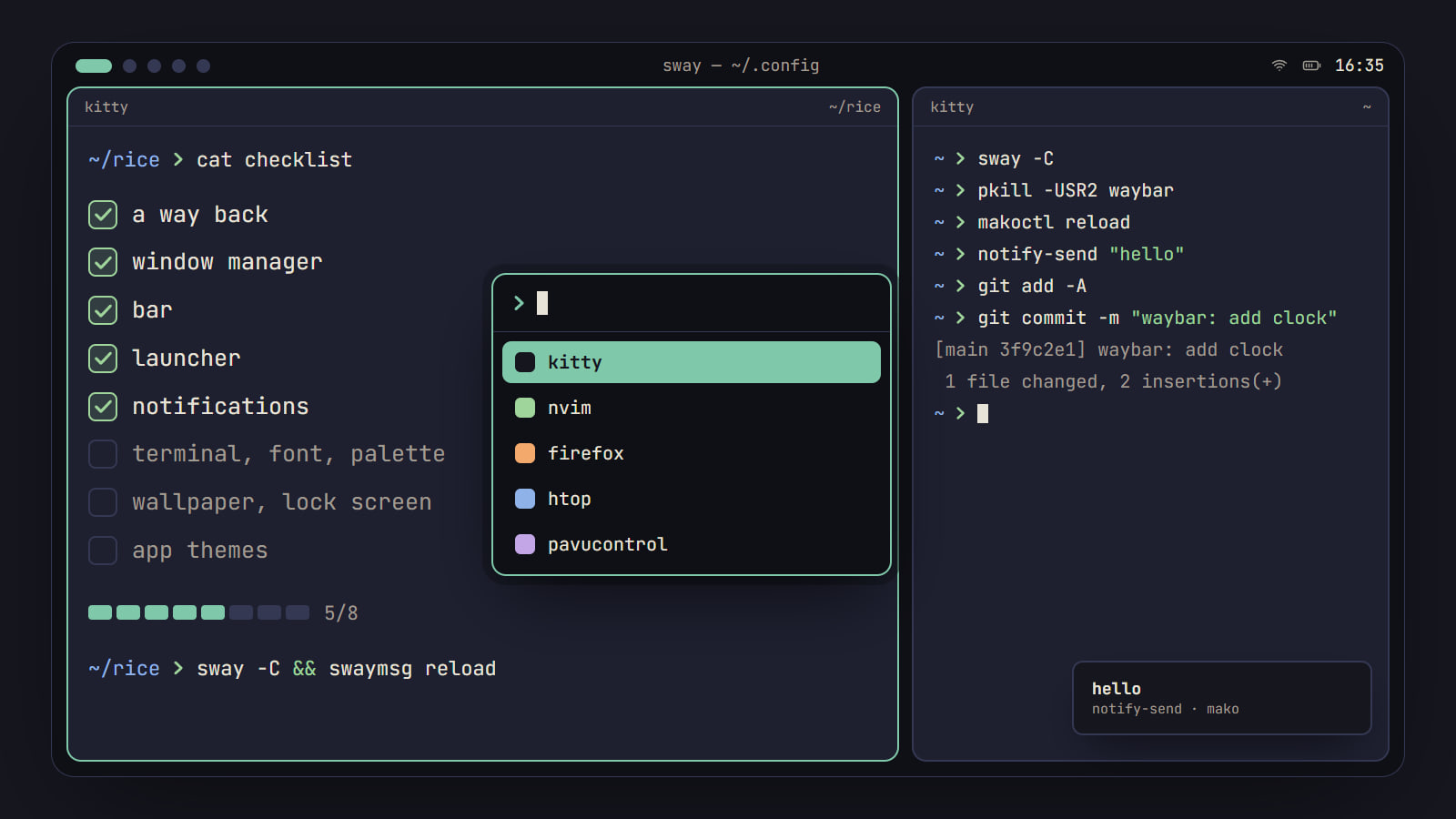
How to rice Linux: a first-rice checklist
The order to rice a Linux desktop without breaking it: a way back first, then each piece from window manager to lock screen, with its config file and a check.