How to rice Linux: a first-rice checklist
The order to rice a Linux desktop without breaking it: a way back first, then each piece from window manager to lock screen, with its config file and a check.
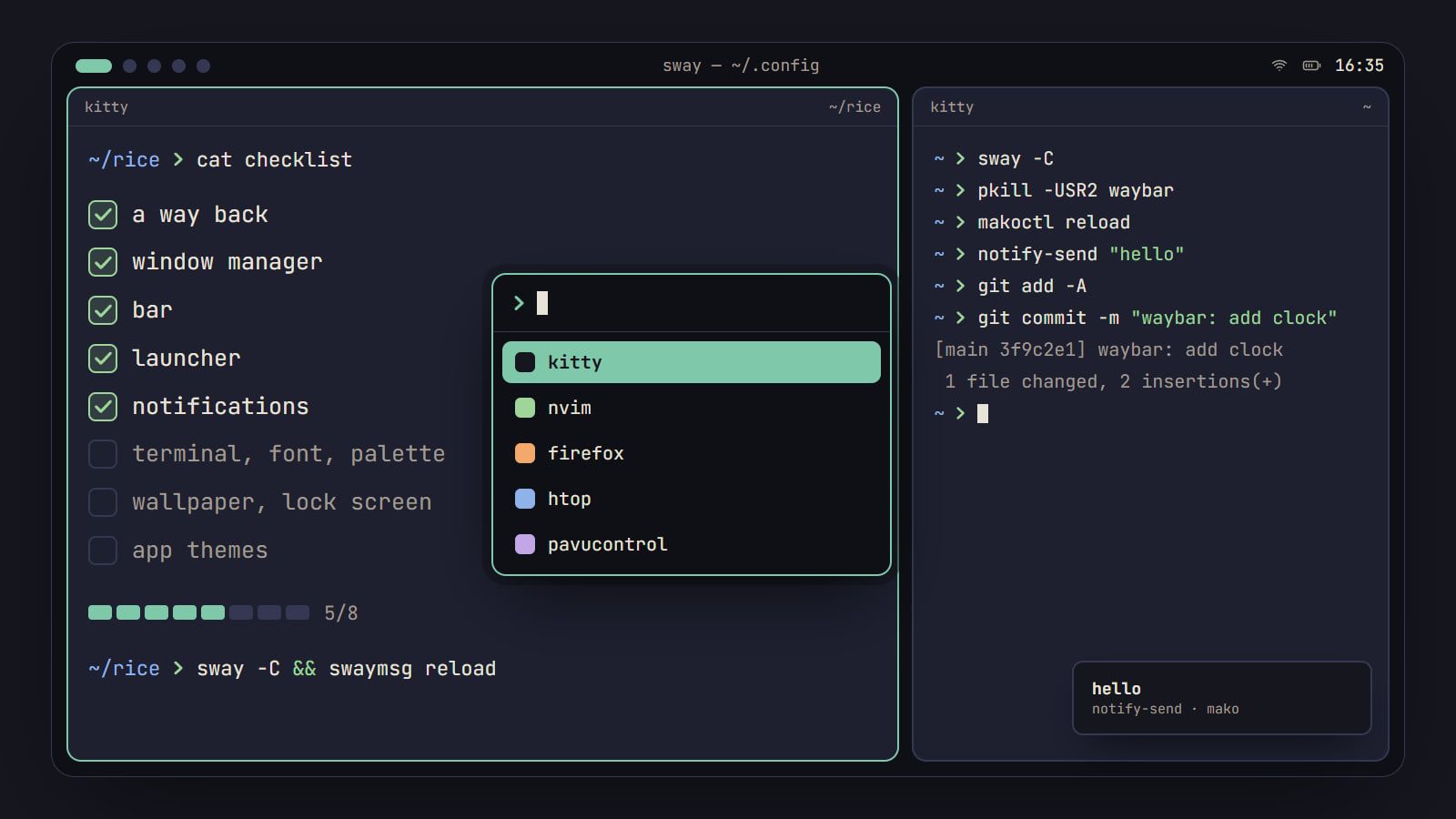
tl;dr the short answer
Rice in order: make sure you can get back to a working session, then pick a window manager and add a bar, launcher and notifications before the terminal, font, palette, wallpaper and lock screen. Change one piece at a time, check it before the next, and keep every config in a dotfiles repository from day one.
To rice Linux without breaking it, work in order: make sure you can get back to a working session, pick a window manager, add a bar, a launcher and notifications, set the terminal, font and palette, then finish with the wallpaper, lock screen and app themes. Change one piece at a time, check it before the next, and keep every config in a dotfiles repository from day one. Here is that order as a checklist, with the file each piece lives in and its check. The commands follow each project’s current docs (Hyprland 0.56, sway 1.12, niri 26.04, i3 4.25); if your version differs, its man page has the final word.
What a rice is made of
A desktop environment like KDE Plasma or GNOME ships every piece together. A rice usually starts from a window manager, which places windows and handles keys and little else, and you choose the rest. On Wayland the window manager is also the compositor, the program that draws the screen, so the two words get used for the same thing.
| Piece | Common picks | Config, under ~/.config |
|---|---|---|
| Window manager | Hyprland, sway, niri, i3 | hypr/hyprland.lua, sway/config, niri/config.kdl, i3/config |
| Bar | Waybar, or the bars built into sway and i3 | waybar/config.jsonc and waybar/style.css |
| Launcher | fuzzel, rofi | fuzzel/fuzzel.ini, rofi/config.rasi |
| Notifications | mako, dunst | mako/config, dunst/dunstrc |
| Terminal | kitty, foot, Alacritty | kitty/kitty.conf, foot/foot.ini, alacritty/alacritty.toml |
| Font | a coding font in its Nerd Font build | set by name in each app’s config |
| Palette | a ported scheme, or your own | a theme file each app loads |
| Wallpaper | swaybg, hyprpaper, feh | the window manager’s config, or hypr/hyprpaper.conf |
| Lock screen | swaylock, hyprlock, i3lock | swaylock/config, hypr/hyprlock.conf |
Nearly everything lives under ~/.config, the default config folder in the XDG Base Directory spec, which is what lets you copy a rice into a repository. A window manager also leaves out plumbing a full desktop handles for you: a notification daemon, desktop portals for file pickers and screen sharing, and an authentication agent for apps that ask for your password. niri’s list of important software maps these well, whichever compositor you pick.
Before you change anything
These four steps keep a broken config a five-minute fix instead of a reinstall.
- Keep your current desktop installed. Install the window manager alongside it. Your login screen lists every installed session, often behind a gear or a session menu, so you can pick the old one if the new one fails.
- Find a text console now, before you need it. On most distros Ctrl+Alt+F3 opens a text login, and Ctrl+Alt+F1, F2 or F7 (it depends on the distro) takes you back to the graphical one. From there you can log in and fix a config with
nano. - Back up what’s there:
cp -a ~/.config ~/.config.bak-$(date +%F) - Learn two keybinds before you log in: the one that opens a terminal and the one that exits. Install the terminal the default config calls, or that first bind opens nothing.
| Window manager | Opens a terminal | Exits | Terminal it calls |
|---|---|---|---|
| sway | Super+Return | Super+Shift+E | foot |
| niri | Super+T | Super+Shift+E | Alacritty |
| Hyprland | Super+Q | in the generated file | kitty |
| i3 | Mod+Return | Mod+Shift+E | i3-sensible-terminal |
i3’s config wizard asks on first start whether Mod is the Super key or Alt.
The check: log in to the new session, open a terminal and log out again with the keyboard alone.
Change one thing, reload, check it, commit. When something breaks, it’s the last thing you touched.
Pick the window manager first
Every other piece depends on this choice: Hyprland, sway and niri run on Wayland and i3 on X11, and the two use different bars, launchers, wallpaper setters and lock screens. If you haven’t chosen yet, our comparison of Hyprland, sway, niri and i3 sets out how each one tiles and how it’s configured, and Desktops is where we write about them.
With sway as the example:
-
Install it from your distro’s packages:
sudo pacman -S swayon Arch,sudo dnf install swayon Fedora,sudo apt install swayon Debian and Ubuntu. -
Copy the default config so you have something to edit:
mkdir -p ~/.config/sway
cp /etc/sway/config ~/.config/sway/config
i3, Hyprland and niri write a starter config on first start if none exists.
-
Make the first change a small one, like gaps and borders:
gaps inner 8 default_border pixel 2 -
Reload with Mod+Shift+C in sway and i3. Hyprland and niri reload the file when you save it.
The check: sway -C (or i3 -C, or niri validate) reports no errors before you reload.
On Hyprland, check a snippet’s format before you copy it. Since 0.55 the config is hyprland.lua and the older hyprland.conf format is deprecated: Hyprland reads it only when no hyprland.lua exists, and the project said it would keep working for one or two releases from 0.55. Most dotfiles and tutorials online still use the old format.
Add a bar, a launcher and notifications
The bar
On Wayland, Waybar is the usual pick, with workspace modules for sway, Hyprland and niri; sway and i3 also ship their own bars, set up in a bar { } block. Waybar reads its modules from ~/.config/waybar/config.jsonc (JSON that allows comments) and its look from style.css beside it. The Waybar wiki’s configuration page lists every option.
- Copy the example config, usually installed under
/etc/xdg/waybar/, into~/.config/waybar/. - In sway, replace the
bar { }block withexec waybar. niri’s default config already starts Waybar, so don’t add a second one. - After each edit, run
pkill -USR2 waybarto reload it.
The check: start waybar once from a terminal. Mistakes in the config show up there.
The launcher
fuzzel is a small launcher made for Wayland. It reads ~/.config/fuzzel/fuzzel.ini, where colors are eight hex digits, the last two for opacity. rofi runs on X11 and, since version 2.0, officially on Wayland too. To get a full config to edit, run mkdir -p ~/.config/rofi, then rofi -dump-config > ~/.config/rofi/config.rasi. Then point your menu bind at it; in sway that’s set $menu fuzzel.
The check: the bind opens the launcher, and an app starts from it.
Notifications
mako runs on Wayland and reads ~/.config/mako/config; reload it with makoctl reload. dunst runs on X11, and on Wayland since 1.6. It reads ~/.config/dunst/dunstrc and reloads with dunstctl reload. Start either one from the window manager’s config, as in exec mako.
The check: notify-send "hello" (from libnotify) shows a notification.
Set the terminal, font and palette
The terminal’s config is where the font and colors below get set, so pick one first. For the font, take a coding font in its Nerd Font build: Waybar modules, prompts and file managers draw their icons from one, and without it you get empty boxes. How to install Nerd Fonts on Linux covers the variants and the fixes. Set the font’s exact family name in the terminal, the bar’s style.css and the launcher.
The check: fc-list : family | grep -i nerd lists the font, and the bar shows icons, not boxes.
For the palette, you want one set of colors shared by every app. There are two routes:
- A ported scheme. Catppuccin, Rosé Pine, Tokyo Night, Gruvbox and Nord have ports for most terminals, editors and bars. Install every app’s port from the same scheme. The Toolkit links the main ones.
- Your own. The Generator builds a palette from a wallpaper: a background, text, an accent and all sixteen terminal colors, with every text color at 4.5:1 contrast or better. Its theme files cover kitty, Alacritty, Waybar, rofi, fuzzel, Hyprland, sway and i3, among others, and it runs in your browser, so the image is never uploaded.
Either way, keep the colors in a theme file of their own and load it with one line: include in kitty, import in Alacritty, source in tmux, @import in Waybar. Swapping palettes later then means changing that one line.
The check: print the sixteen colors, then look at real output, like ls --color=auto and a git diff:
for i in $(seq 0 15); do printf '\033[48;5;%sm %2s ' "$i" "$i"; done; printf '\033[0m\n'Text should read easily, and a deleted line should still look red.
Finish with wallpaper, lock screen and app themes
Set the wallpaper where your window manager expects it:
- sway:
output * bg ~/Pictures/wallpaper.jpg fillin the config. - Hyprland: hyprpaper, set up in
~/.config/hypr/hyprpaper.conf. - niri and other Wayland compositors:
swaybg -i ~/Pictures/wallpaper.jpg -m fill, started from the config (in niri, aspawn-at-startupline). - i3:
exec --no-startup-id feh --bg-fill ~/Pictures/wallpaper.jpg.
The check: the wallpaper is still there after a reload and after logging in again.
For the lock screen, use swaylock on sway and niri, hyprlock on Hyprland and i3lock on i3, with swayidle or hypridle to lock when you step away. Lock it once by hand before you put it on a timer. If it won’t let you back in, a text console still works: hyprlock’s docs give pkill -USR1 hyprlock from another console, and warn that hyprlock exits without locking when it can’t find its config file.
The check: you can lock, then unlock with your password.
GTK and Qt apps keep their own look until you tell them otherwise, and the Generator doesn’t write themes for them. gsettings set org.gnome.desktop.interface color-scheme 'prefer-dark' asks GTK apps for their dark version; nwg-look sets the GTK theme, icons and cursor, and qt6ct does the same for Qt apps once QT_QPA_PLATFORMTHEME=qt6ct is set. Apps built with libadwaita follow the dark or light setting but ignore custom GTK themes.
The check: a file manager and a settings dialog match your dark or light choice.
Keep it in dotfiles from day one
- Make a repository:
mkdir ~/dotfiles && cd ~/dotfiles && git init. - Move each config in and link it back to where the app expects it. GNU Stow does the linking; our guide to managing dotfiles with GNU Stow walks through it.
- Commit after every step that works, naming the piece:
git add -A && git commit -m "waybar: add clock". - Keep secrets out: API tokens, SSH keys and anything holding a password belong in
.gitignore, not the repository.
The check: git status is clean after each working change. When something breaks, git diff shows what changed, and git restore puts it back.
Borrowing someone else’s rice
Starting from a rice you liked is fine, as long as you can still fix what you end up with.
- Read install scripts before you run them. They run as you, often call
sudo, install packages and overwrite configs. Watch forrm,sudoand anything piped fromcurlinto a shell. - Try it somewhere safe first, like a virtual machine or a new user account.
- Take pieces, not the whole thing. Copy one app’s config at a time and read it line by line.
- Check the versions. Options get renamed between releases, so a config written for another version may not load.
- Credit what you use. Check the license of the dotfiles and of the wallpaper, and when you post a screenshot, name whose dotfiles and whose art it uses.
When every step has passed its check, the rice is yours: you know what each file does, so the next machine is one clone away.
Questions
What does ricing mean on Linux?
Ricing is customizing a desktop until it looks and works the way you want: the window manager, bar, colors, fonts and wallpaper, usually by editing config files. The word comes from car-tuning slang, and a rice is the finished setup, often shared as a screenshot with the dotfiles behind it.
Do I need a tiling window manager to rice?
No. Tiling is popular because it is driven from the keyboard and set up in a text file, but floating window managers and full desktops can be riced too. What matters is that each piece is set in a config you can read and keep.
Can I rice KDE Plasma or GNOME?
Yes. Plasma is the most themeable full desktop: color schemes, global themes, panels, widgets, window decorations and icons are all in System Settings. GNOME is more locked down: extensions change the shell, and apps built with libadwaita follow the dark or light preference and the accent color but do not take custom GTK themes.
Is it safe to run someone else’s dotfiles install script?
Only after you have read it. An install script runs with your permissions and can install packages, call sudo and overwrite your configs, so read every line, back up ~/.config and try it in a virtual machine or a spare user account first. If you cannot tell what a line does, do not run it.
Which distro is best for ricing?
Any distro can be riced, since the pieces are the same programs everywhere. Distros that update often, like Arch or Fedora, get new versions of fast-moving projects such as Hyprland and niri sooner, while slower ones like Debian may ship older versions than the docs describe. Pick the one you know how to fix when something breaks.
Sources
- XDG Base Directory Specification, freedesktop.org,
- Waybar wiki: Configuration, Waybar on GitHub
- Important software, niri documentation
- hyprlock, Hyprland Wiki
Read next.
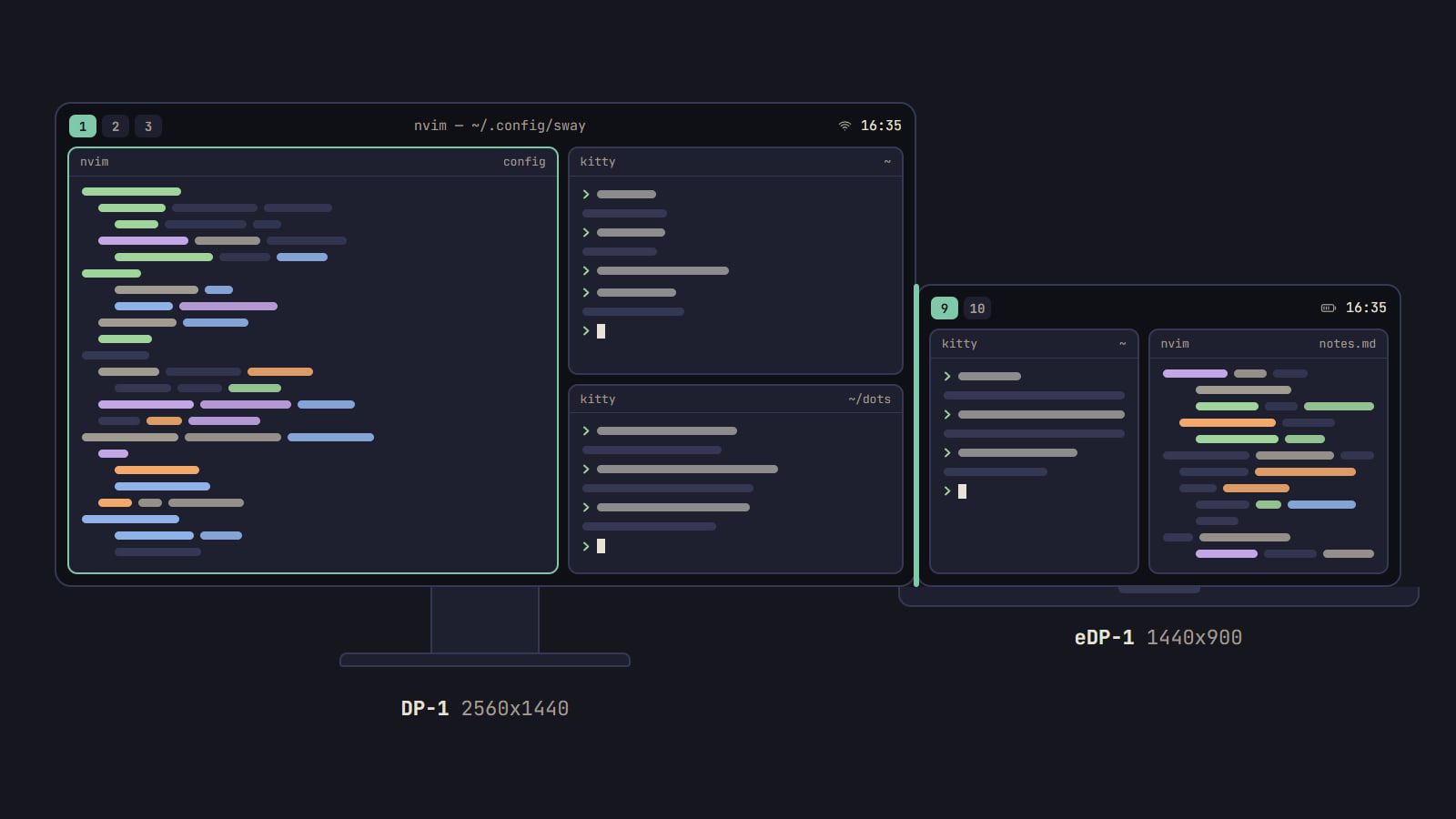
How to set up multiple monitors in sway
Find the name sway gives each screen, place it in logical pixels, pin workspaces to it and let kanshi switch layouts when you dock a laptop.
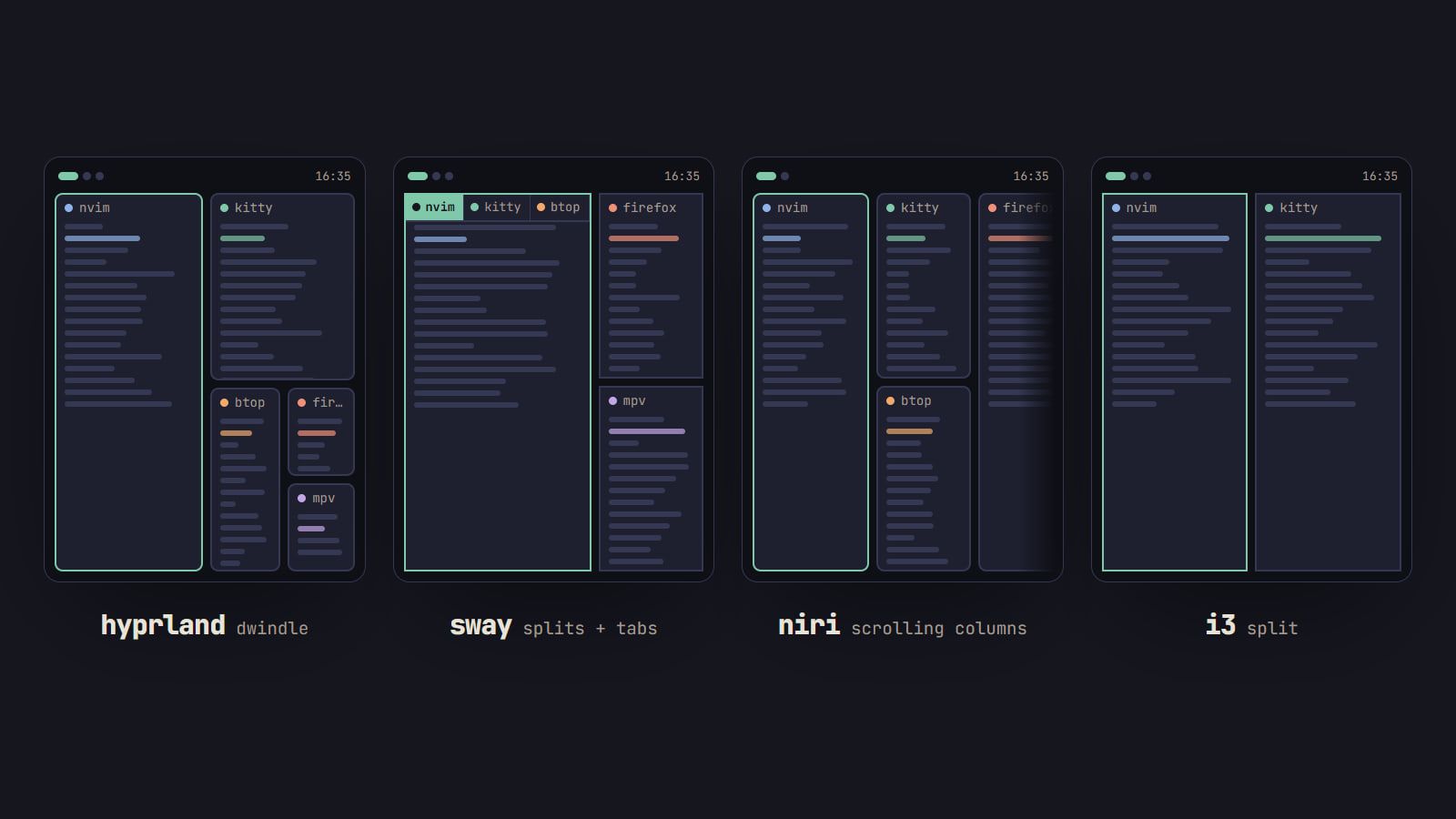
Hyprland vs sway vs niri vs i3: which tiling WM to pick
How Hyprland, sway, niri and i3 tile, how each is configured and reloaded, and what their own docs say about effects and NVIDIA, with a pick for each setup.
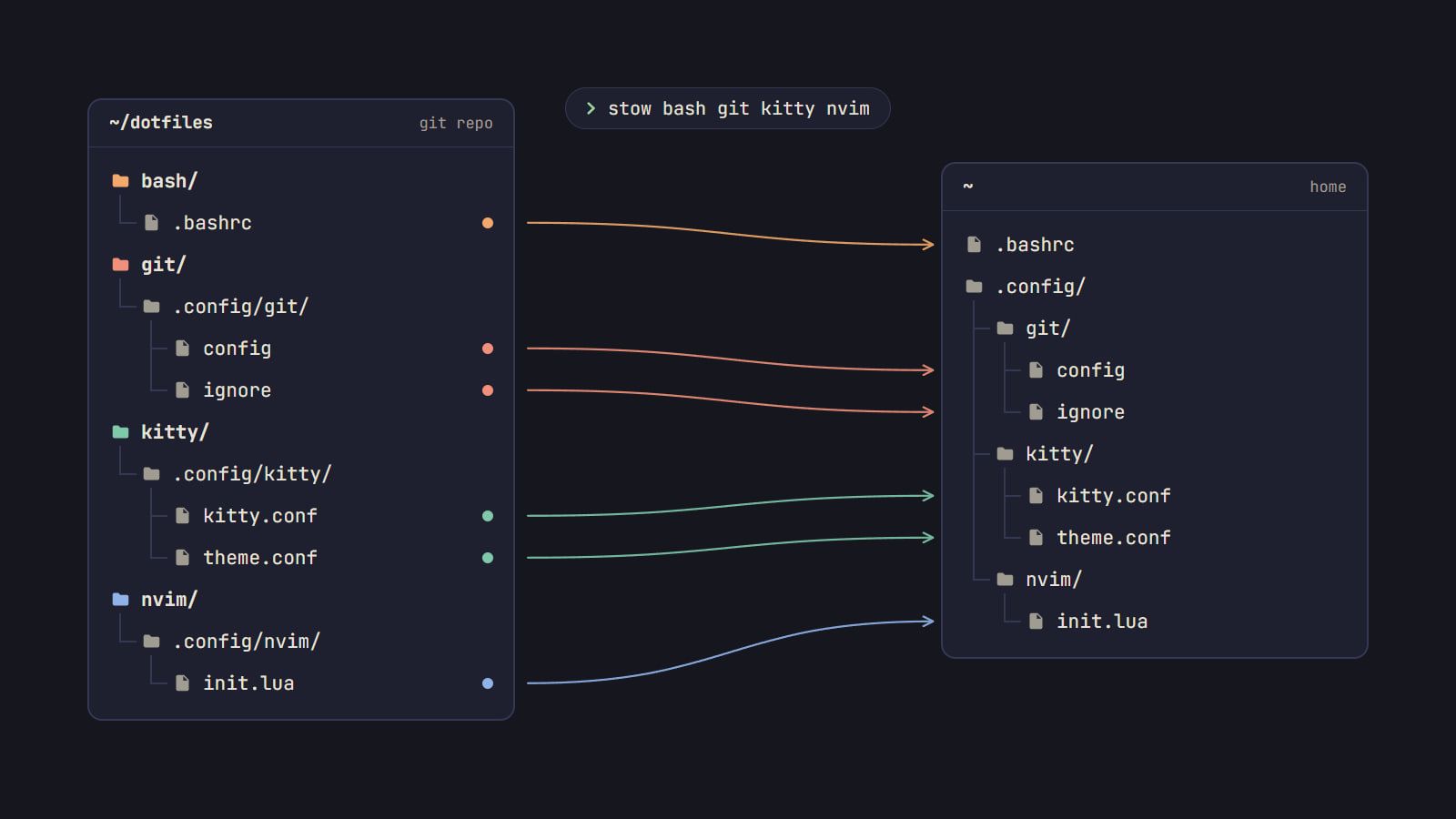
How to manage dotfiles with GNU Stow
Keep configs in a git repo and let Stow link them into place: dry runs, tree folding, conflicts and --adopt, secrets kept out, and a rebuild on a new machine.