Install Oh My Zsh: Setup, Themes, and Plugins Explained
Install Oh My Zsh and turn a bare prompt into your own workspace: check Zsh prerequisites, choose a theme, add plugins, and fix common setup issues.
tl;dr the short answer
Oh My Zsh is a framework for managing Zsh configuration, with themes and plugins that customize your shell without building everything from scratch. To install it, first install Zsh, Git, and curl or wget, set Zsh as your default shell, then use the installer script or clone the project manually and protect any existing .zshrc changes. Choose a readable theme, enable only the plugins you need, and keep custom settings backed up so your terminal stays useful, responsive, and easy to maintain.
Ever stared at a bare terminal prompt and wished it felt a little more like yours? Think of your shell as the room you work in all day. Zsh (the Z shell) is the sturdy frame, and Oh My Zsh adds the shelves, lamps, and labels that make it feel like home.
Put simply, Oh My Zsh is a framework that sits on top of Zsh and bundles themes and plugins into one manageable setup.
In this guide, we’ll cover prerequisites, installation on your Linux system, themes, plugins, updates, and removal, plus fixes for common post-install problems.
Zsh Prerequisites Before Installing Oh My Zsh
Three things come before the installer: zsh itself, a few helper tools, and zsh as your login shell. Here’s how to handle each one.
Install Zsh and its dependencies
Oh My Zsh relies on git and curl, so install all three together. Picture an Ubuntu user refreshing an old ThinkPad: one command gets everything in place.
Pick the line for your system:
- Debian/Ubuntu:
sudo apt install zsh git curl - Fedora:
sudo dnf install zsh git curl - Arch:
sudo pacman -S zsh git curl - openSUSE:
sudo zypper install zsh git curl - macOS:
brew install zsh, through Homebrew
Check the version with zsh --version. A version number means zsh is ready.
Set Zsh as your default shell
Your default shell is the program that opens each time you start a terminal. Run chsh -s $(which zsh) to switch it to zsh, where which zsh fills in the full path for you.
Before you do, run cat /etc/shells and confirm zsh’s path is listed there. If it isn’t, chsh may refuse the change.
Managing a homelab server as root? Skip chsh and run usermod -s $(which zsh) root instead.
A Fedora user runs chsh, opens a new terminal, and still sees the old shell. Nothing’s broken. Log out and back in, and the change takes hold.
What Zsh and Oh My Zsh do
Zsh is a Unix shell, the program that reads the commands you type and carries them out.
Oh My Zsh is a framework for config management, and it adds support for plugins and themes so you can add features or restyle your prompt without starting from scratch. Two jobs, two tools.
Zsh runs your commands, and Oh My Zsh is about managing how they’re set up.
Both work best on macOS and Linux, which is where the steps in this guide point.
Two Ways to Install Oh My Zsh
There are two routes to Oh My Zsh: a one-line installer and a manual clone. Both end in the same place, so the choice comes down to how much you want to see along the way.
Run the one-line installer script
The fastest route is one command that downloads the official install.sh script from the Oh My Zsh GitHub repository and runs it. If you have curl (a command-line download tool), use:
sh -c "$(curl -fsSL https://raw.githubusercontent.com/ohmyzsh/ohmyzsh/master/tools/install.sh)"
No curl? wget (another download tool) works just as well:
sh -c "$(wget -O- https://raw.githubusercontent.com/ohmyzsh/ohmyzsh/master/tools/install.sh)"
Think of a Fedora user on a fresh install who wants a working prompt before lunch. One paste gets them there.
Clone the repo for a manual install
Prefer to see every step? Go manual. You trade a little speed for visibility into every file that changes. This route needs git installed.
- Clone the repo into
~/.oh-my-zshwithgit clone https://github.com/ohmyzsh/ohmyzsh.git ~/.oh-my-zsh. - Back up your existing config with
cp ~/.zshrc ~/.zshrc.bakbefore anything touches it. - Copy the template config with
cp ~/.oh-my-zsh/templates/zshrc.zsh-template ~/.zshrc. - Merge your old config by pasting your exports, aliases, and PATH changes from the backup into the new file.
Consider a homelab tinkerer with a heavily customized .zshrc on a self-hosted server. The manual route keeps every alias and PATH tweak intact while the framework comes in around them.
Check the script and official docs first
Before you run any install script you found online, read it. Download it without running it using curl -fsSL <install.sh URL> -o install.sh, then page through it with less install.sh. Look for what it writes and where.
Then check the official Oh My Zsh documentation in the GitHub repository. When a guide (this one included) and the script disagree, the docs win.
Picture a Debian user who copies a one-liner from a forum thread. A quick read beats an afternoon of untangling a config they never meant to change. Read first. Run second.
Where Oh My Zsh and .zshrc live
Two locations matter day to day:
~/.oh-my-zsh: the framework itself, including its built-in plugins and themes.~/.zshrc: your personal config, where you pick a theme, enable plugins, and add aliases.
Want the framework somewhere else? Set ZSH to your preferred path before the installer runs, such as ZSH=~/tools/oh-my-zsh sh -c ..., and make sure the export ZSH= line in .zshrc matches. You’re changing where the framework lives, not how it behaves.
After any edit, reload with source ~/.zshrc. The current shell picks up the changes, so you don’t need to log out.
Choose a Theme for Your Prompt
Your prompt is the line you see all day, so it’s worth making it yours.
The default theme and bundled options
Out of the box, Oh My Zsh uses robbyrussell as its default theme, so you get a working prompt right away. According to the oh-my-zsh GitHub repository, the project has “over one hundred themes now bundled,” so expect roughly 100 to 150 to choose from.
To browse them, list the themes folder with ls ~/.oh-my-zsh/themes. Each file is one theme, so the list doubles as your menu.
Switch themes by editing your .zshrc
Switching is one edit to ~/.zshrc, your shell’s startup config:
- Open
~/.zshrcin your editor and find the ZSH_THEME line. - Change the value to a theme name, such as
ZSH_THEME="agnoster". - Run
source ~/.zshrc, or open a new terminal window, to reload the config.
You’re not installing anything here. You’re pointing Oh My Zsh at a theme you already have.
Two special values to know:
- Blank value: set
ZSH_THEME=""to disable the theme. - Random: set
ZSH_THEME="random"and Oh My Zsh picks one for you.
Fonts and extra themes you may need
The agnoster theme needs Powerline fonts, which add the arrows and branch symbols it draws. Skip them and you’ll see gaps.
The project wiki has screenshots of bundled themes and a page of external themes beyond those.
If you want icons too, install a Nerd Font, a font patched with extra symbols, and pick it in your Linux terminal emulator (the app that draws your shell). A Fedora user who makes this change stops seeing boxes where icons should be.
Add Plugins to Extend Zsh
Themes change how your prompt looks, but plugins change what your shell can do, so we’ll cover the built-in ones and how to add more from outside Oh My Zsh.
Plugins that come built in
According to How-To Geek, Oh My Zsh includes 200-300+ bundled plugins, and the git plugin is enabled by default. That one adds a grt alias, which changes directory to the root of the current repository.
Each plugin lives in the plugins folder (~/.oh-my-zsh/plugins), and each has a README that explains what it adds. Read it before you turn one on.
The bundle also includes package manager alias plugins, which shorten commands for the package manager on your system.
Turn on the plugins you want
Having a plugin on disk does nothing until you list it. Open ~/.zshrc, find the plugins=(...) line, and add the names you want, separated by spaces. Then run source ~/.zshrc or restart your terminal.
Enable a few at a time, not everything at once. Consider a student on a ten-year-old ThinkPad who wants command suggestions but worries the prompt will slow down. They enable one plugin, use it for a day, then add the next.
If the terminal starts lagging, they know which change caused it. The goal is to know why your shell behaves the way it does, not to collect every plugin you can find.
Add outside plugins by cloning them
Not everything ships in the bundle. For outside plugins, clone the repository into the custom plugins folder (~/.oh-my-zsh/custom/plugins/).
Two popular picks are zsh-autosuggestions, which suggests commands from your history as you type, and zsh-autocomplete, which shows completions as you type.
- Clone the plugin’s repository with
git clone, using the plugin’s name as its folder name inside the custom plugins folder. - Add its name to your
plugins=(...)list, or add asourceline to.zshrcif its README asks for one. - Reload your shell.
Cloning puts the code on your machine, but the README tells you how to load it.
Install plugins with Homebrew
If you already use Homebrew, it can install some plugins for you. Run brew install autosuggestions to get autosuggestions that way, and do the same for fast syntax highlighting, which colors commands as you type.
If brew can’t find a name, run brew search with a keyword to find the right one. Homebrew may print a Caveats section after the install, so follow its instructions.
Load plugins in Bash shells
Oh My Zsh plugins are written for Zsh, so installing one doesn’t guarantee it runs in Bash. Some plugin folders include generic plugin files you can source from .bashrc.
Not all plugins are compatible, though, so load each one in a fresh Bash session before you rely on it. Test first.
Customize and Add Handy Extras
Once Oh My Zsh is running, we’ll make it yours with a few small additions. Custom aliases and useful extras can speed up everyday commands.
Create custom aliases that override defaults
Oh My Zsh reads every .zsh file in your custom folder, which sits at ~/.oh-my-zsh/custom by default. Keep your additions there instead of editing core files, and your setup stays tidy.
Create a file such as aliases.zsh and add your own alias, a short nickname for a longer command.
Here’s one for an Arch user who’s tired of typing the full upgrade command:
alias update-stuff='sudo pacman -Syu'
Save the file, run source ~/.zshrc, and one word now refreshes the whole system. Less typing, same result.
Now for overriding. Define a name that already exists and your version takes priority, so you get your behavior, not the default. Pick names carefully, though, because overriding a built-in can change commands you already rely on.
Helpful companion tools like exa and mas
Two handy tools are worth a look. exa is a modern replacement for ls, the command that lists files, and mas is a command-line tool for the Mac App Store.
It adds color and more readable output. After installing exa with your distro’s package manager, these flags do most of the work:
-lshows a long list with permissions, size, and dates.-aincludes hidden files.-Tdisplays folders as a tree.--gitshows the git status of each file.
Typing flags every time gets old, so bake them into an alias. alias ls='exa --git' swaps exa in for ls wherever you type it. A developer juggling several project folders can then spot changed files at a glance.
If you’re on a Mac, mas manages App Store apps from the terminal. Linux readers won’t need it.
Update or Reinstall Oh My Zsh
Sometimes the fastest fix is a rebuild rather than a patch. Routine upkeep runs through omz update, and the auto-update behavior is set in ~/.zshrc, so that’s where you’d change it. When the install itself is broken, we’d reinstall by hand instead.
Remove and re-clone it by hand
Before you start, copy anything you’ve added to ~/.oh-my-zsh/custom, since deleting the folder removes your custom themes and plugins too. Then work through these steps:
- Remove the old install with
rm -rf ~/.oh-my-zsh. - Clone a fresh copy of the ohmyzsh repo into
~/.oh-my-zshwithgit clone. - Open a new terminal, or run
exec zshto load the new setup.
Uninstalling for good is similar, but you also need to clean up ~/.zshrc. It still loads Oh My Zsh at startup, so remove that line too, or new shells will throw errors.
Two common post-install problems have simple fixes:
- Slow startup: too many plugins loading at once is the usual cause. Trim the
plugins=()list in~/.zshrc, then time your shell again. - Command not found: the shell often hasn’t picked up the new setup yet. Run
exec zsh, then confirm the plugin’s name is in that same list.
Picture a Debian user on a ten-year-old ThinkPad whose prompt takes several seconds to appear in every new terminal. Trimming the plugin list and re-cloning brought that prompt back to instant. Same laptop, faster shell.
Who Maintains It and Where It Started
Before you hand your shell over to a framework, it’s worth knowing who’s steering it. Let’s look at who’s behind Oh My Zsh and where it came from.
Contributors, Discord, and project origins
Oh My Zsh is an open source project maintained by a group of contributors and maintainers, not one person working alone. Think of it as a community project more than a product, so the people behind it matter as much as the code.
The project also runs a Discord server, a handy spot to connect with other users when you’re stuck. It’s there when you want to talk through a problem with people who’ve hit the same thing.
According to the project’s own site, Oh My Zsh was started by the team at Planet Argon, a software consultancy that helps organizations improve their existing Ruby on Rails applications. Where a project starts is context, not a guarantee.
User testimonials are another good gut check: hearing how others describe their setups helps you decide whether it fits yours.
For example, a Linux student with a ten-year-old ThinkPad wants a cleaner terminal before the semester starts.
Knowing a real team builds it and that a Discord server exists for questions means that when a plugin breaks at 1am, they’ve got somewhere to ask instead of giving up on the whole setup.
You now have the full picture: what to check before you start, how to install Oh My Zsh on your Linux distribution, and how to theme, extend, update, and remove it with confidence.
Pick a theme you can read at 2am, keep your plugin list lean, and reach for the post-install fixes whenever something breaks. Your terminal should look like you, and it should still start tomorrow.
References
- GitHub - njufancy/oh-my-zsh: A delightful community-driven framework for managing your zsh configuration. Includes 200+ optional plugins (rails, git, OSX, hub, capistrano, brew, ant, php, python, etc), over 140 themes to spice up your morning, and an auto-update tool so that makes it easy to keep up with the latest updates from the community. — github.com
- I customized my terminal with Oh My Zsh and just a little bit … — howtogeek.com (2026)
- Oh My Zsh — ohmyz.sh
Sources
- GitHub - njufancy/oh-my-zsh: A delightful community-driven framework for managing your zsh configuration. Includes 200+ optional plugins (rails, git, OSX, hub, github.com
- I customized my terminal with Oh My Zsh and just a little bit ..., howtogeek.com,
- Oh My Zsh - a delightful & open source framework for Zsh, ohmyz.sh
Read next.
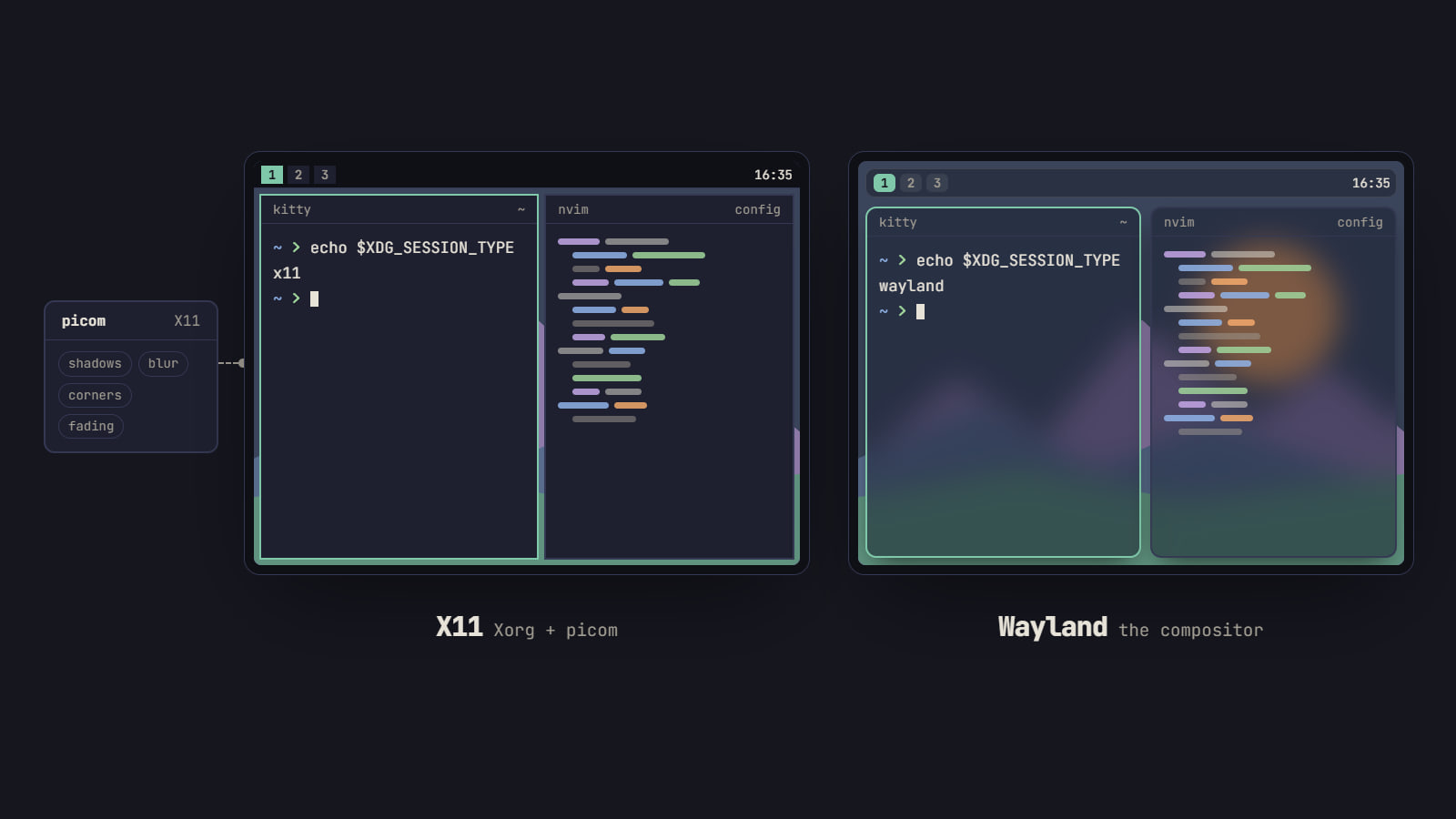
Wayland vs X11 for ricing: what changes and what to use
Where GNOME, Plasma, Xfce and Cinnamon stand now, which X11 tools a rice swaps on Wayland, from picom to xdotool, and the cases where X11 still fits.