Ubuntu Terminal Shortcut Keys, Explained Simply
Ubuntu terminal shortcuts help you work mouse-free. Find keys for opening, editing, history, tabs, desktop actions, and fixing custom bindings.
tl;dr the short answer
An Ubuntu terminal shortcut is a keyboard combination or key that opens the terminal, edits commands, manages terminal windows, or controls the desktop without using menus. Shell shortcuts handle tasks such as moving through a command, recalling history, and stopping a process, while terminal-app shortcuts copy text and manage tabs; settings and custom shells can change how some keys behave. Learning the most useful combinations saves time, and knowing which layer handles each one makes conflicts easier to diagnose.
Ever watched someone fly through a terminal without touching the mouse and wondered how they do it? It’s a lot like learning to drive a stick shift: the first few gears feel clumsy, then your hands just know.
Ubuntu’s terminal shortcuts follow the same pattern. Some keys come from the shell, the program that reads and runs your commands, while others come from the terminal app, the window that displays them.
This guide covers opening, editing, history, tabs, and the desktop keys around them, plus notes for anyone with a customized setup.
Ubuntu Terminal Shortcut Basics to Learn First
Before we learn any shortcuts, it helps to know what you’re typing into and what the screen tells you back.
What a terminal is versus a GUI
Your desktop runs on a graphical user interface (GUI): the windows, icons, and menus you click. A terminal is a window that gives you a text-based way to talk to your computer instead. Related names include:
- Shell: the program inside the terminal that reads your typing and runs it.
- Console: often used loosely for the same text-based window.
- Command line: the act of typing commands rather than clicking.
The difference comes down to how you talk to the machine. A GUI asks you to click through options, while a terminal lets you type exactly what you want. Picture a student who just installed Ubuntu and needs to update the system.
Clicking through settings works, but one typed command skips the menu hunt. Less clicking, more typing.
What the prompt means when it appears
The prompt is the short line of text ending in a symbol like $, waiting for your input. Think of it as the terminal saying, ‘Ready when you are.’
Run a command and you’ll usually see output first: a list of files, a progress message, or an error. When that finishes, a fresh prompt appears below it. That new prompt means the command is done and the terminal is ready for more.
Sometimes a command prints nothing, and it’s easy to assume something broke. Picture a new Ubuntu user typing mkdir projects to make a new folder.
The prompt returns with no text, and they can trust the folder was created. Silence usually means done, not broken.
How to Open and Close the Terminal
Whether you’re setting up a fresh install or just need one quick command, there’s more than one way to get a terminal open. Let’s start with the fastest route, then look at the alternatives and how to close things out cleanly.
Launch it instantly from the keyboard
Press Ctrl + Alt + T and the terminal opens. This is the fastest method because your hands never leave the keyboard. It works on recent versions of Ubuntu, so there’s nothing extra to set up.
Think of a student on a ten-year-old ThinkPad who needs to check a file path before class. One chord puts a prompt on the screen, and they’re back to their notes without touching the mouse.
Other ways to open it
If you’d rather not memorize a chord, these work too:
- Activities search: Open the Activities menu, type Terminal into the search box, and press Enter.
- Super key: Press the Super key (the key with the Windows logo on most keyboards), then type Terminal.
- Alt + F2: Opens the run console, a small prompt where you type a command and press Enter to launch it.
Each route ends in the same window, just by a different path. Pick the one you’ll actually remember.
Close the session with Ctrl + D
When you’re finished, press Ctrl + D to close the session. Say you’ve copied a few files and want the window gone. A quick chord does the job, and you’re back at your desktop. Ctrl + D is for closing the session, not just switching away from it.
Ubuntu Terminal Shortcut Keys You’ll Use Most
Most Ubuntu terminal keys come from the shell, usually bash, while a few belong to the terminal app. We’ll flag which is which, since it explains why some shortcuts work anywhere and others depend on your app.
Moving the cursor along the command line
Bash edits lines with a library called readline. Ctrl + A jumps to the start of the line, Ctrl + E to the end, and Alt + B and Alt + F move one word back or forward.
Ctrl + B and Ctrl + F move one character, like the arrow keys, while Ctrl + Left and Ctrl + Right usually jump by word. A student fixing a typo in a long tar command can press Alt + B to reach it and skip retyping the rest.
Heads-up for tmux users: Ctrl + B is tmux’s default prefix, so inside tmux that keystroke never reaches the shell. Some people remap the prefix to Ctrl + A, which clashes with jumping to the start of the line.
Cut, delete and fix text quickly
Ctrl + U cuts from the cursor to the start of the line, and Ctrl + K cuts to the end. Ctrl + W removes the word before the cursor, and Ctrl + Y pastes back what you cut last. These feel like delete, but they keep what they remove.
Ctrl + T swaps the two characters before the cursor, so with the cursor after sl, one press gives you ls. Mistakes are cheap.
Copying text without confusing Ctrl + C
In Ubuntu’s default terminal, Ctrl + Shift + C copies and Ctrl + Shift + V pastes. Those belong to the terminal app, not the shell. Ctrl + C is not copy. It sends an interrupt that stops the running program, and it’s the classic beginner confusion.
A student who selects an error message and presses Ctrl + C out of habit kills the script they were reading. Ctrl + Shift + C copies the text and leaves the script running.
Tabs and windows belong to the app too: Ctrl + Shift + T opens a tab and Ctrl + Shift + N opens a window.
Find and reuse past commands
Up and Down arrows step through your history. Ctrl + R starts reverse search: type part of an old command and the most recent match appears. Press Ctrl + R again for older matches, Ctrl + G to exit the search, or Ctrl + O to run the match you found.
!! recalls the previous command, and Alt + . inserts its last argument. A new Ubuntu user who ran apt install without sudo can type sudo !! instead of retyping the whole line.
Zsh and fish set up their own keybindings (fish accepts a suggestion with the Right arrow), so check your shell if a key misbehaves.
Clear the screen and pause running commands
Ctrl + L clears the screen and keeps what you’re typing. Ctrl + C stops the running command, while Ctrl + Z suspends it, so the job is paused rather than finished. Resume it later with fg. Ctrl + S pauses output and Ctrl + Q resumes it.
Someone watching a log file who hits Ctrl + S by accident may think the server froze. Ctrl + Q brings the scrolling back. Panic over.
Let Tab finish filenames and commands
Tab auto-completes file names and commands. Press Tab twice when more than one match fits, and the terminal lists them. For example, type cd Doc and press Tab. If Documents is the only match, the name finishes itself.
Add a Docs folder, and the first Tab fills in nothing new, so a second Tab lists both.
Essential Commands to Know on Ubuntu
You don’t need hundreds of commands to get around Ubuntu. These are the ones you’ll use most:
Moving around and managing files
Start with pwd, which shows where you’re working, and ls, which lists what’s there. cd moves you around, mkdir makes folders, touch makes empty files, and cp and mv copy and move.
Be careful with rm: it deletes files for good, with no undo. Add -i for a confirmation prompt.
cat prints a file, nano is a simple editor (Ctrl+O saves, Ctrl+X exits), and grep searches inside files.
Installing and updating software with APT
APT (Advanced Package Tool) installs, updates, and removes software from Ubuntu’s online repositories, the collections of packages your system downloads from. Most of these commands need sudo, which runs a command with administrator rights.
- apt update vs upgrade.
apt updaterefreshes your list of available software, whileapt upgradeinstalls newer versions of what you already have. - install, remove, autoremove.
apt installadds software,apt removeuninstalls it, andapt autoremoveclears out helper packages (dependencies) that nothing uses anymore. - apt vs apt-get.
aptis the friendlier everyday choice, whileapt-getis the older tool that scripts depend on.
Updating step by step:
- Refresh the package list:
sudo apt update - Install the newer versions:
sudo apt upgrade
Checking system info and managing processes
uname -a shows your kernel version, and lsb_release -a shows your Ubuntu release. df -h and free -h report disk space and memory in readable sizes. A student whose old laptop crawls each afternoon can check both in seconds to see which one is maxed out.
top shows running programs live, and htop is a friendlier, color-coded view (install it with apt). ps aux lists every process along with its PID (process ID), the number you need to stop one.
For an unresponsive program, kill PID politely asks it to close. If it ignores you, kill -9 PID forces it to stop, a last resort since the program gets no chance to save. killall name works by program name instead.
Managing users, groups and permissions
sudo adduser creates a user with guided prompts, sudo deluser removes one, and passwd sets a password. To make someone an admin, run sudo usermod -aG sudo name. The -a matters: without it, usermod replaces the user’s other groups.
visudo edits the sudoers file, which controls admin access, and checks the syntax before saving. A typo made while editing it directly can lock you out, so always use visudo.
chmod sets who can read, write, or run a file, and chown changes its owner. Follow least privilege, giving each account and file only the access it needs. Skip chmod 777, which gives everyone full access.
Checking your network from the terminal
ip addr shows your network interfaces and addresses. It replaces ifconfig, which comes from the net-tools package that recent Ubuntu releases don’t install by default.
On Linux, ping runs until you stop it with Ctrl+C. wget saves files to disk, while curl prints responses to your screen, handy for testing a web address or API.
Say you run a home server and want to confirm only your intended ports are open. ss -tuln lists every listening port in one table, so anything unexpected stands out.
Where to find help in the terminal
man ls opens a command’s full manual. Scroll with the arrow keys, search with /, and quit with q. For a quick summary, try ls --help, and whatis grep gives a one-line description.
Shortcuts That Work Across the Whole Desktop
These keys work in any app, so they’re the first ones worth learning.
Key names and how to press combos
Most shortcuts pair a modifier (a key that changes what another key does) with one regular key. Here’s the setup:
- Super key: the key with the Windows logo on most keyboards, often labeled Super.
- Control (Ctrl), Alt, Shift: the modifiers you’ll use most. Pressed alone, they usually do nothing.
- Hold, then tap: you hold the modifier and tap the other key, not the reverse. Order matters.
Keys for the desktop and system
- Super: opens Activities, the overview of your open windows and apps.
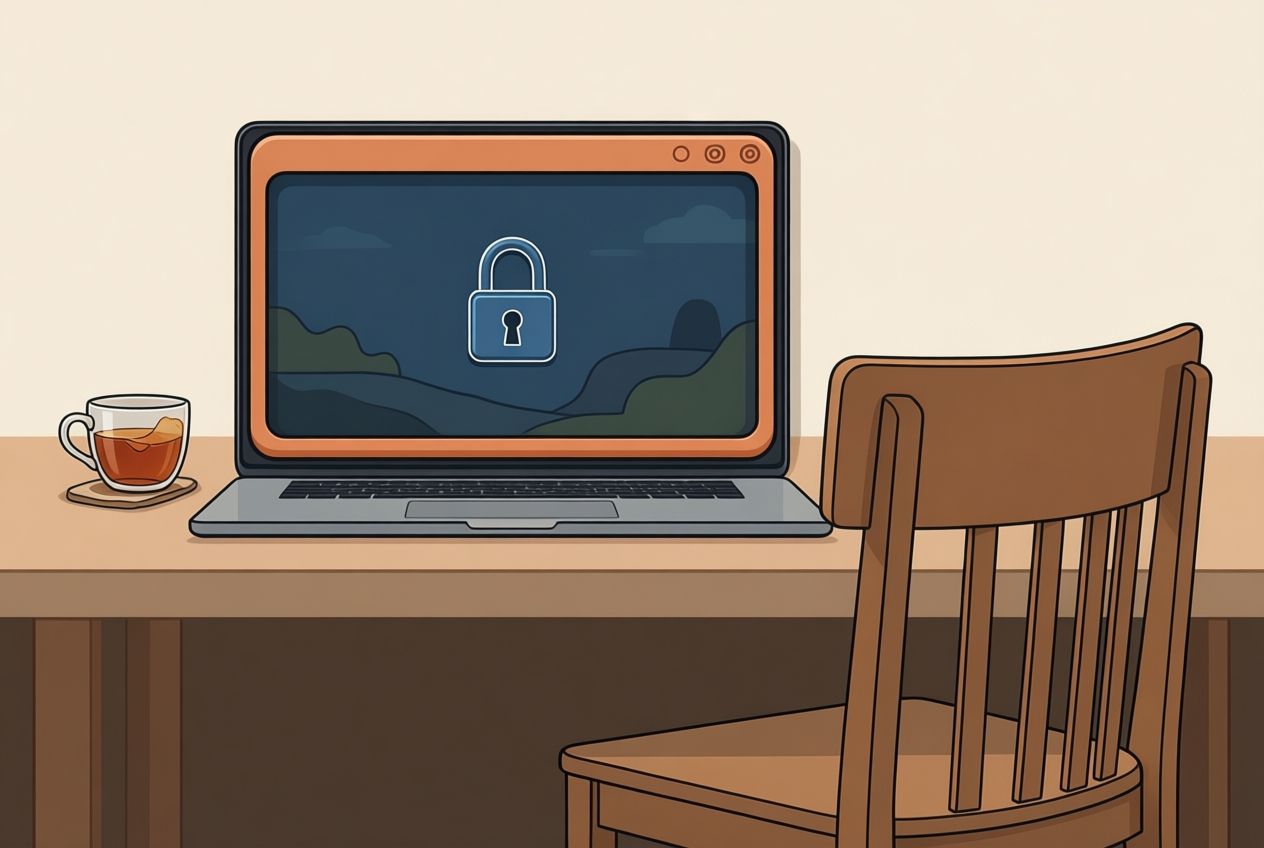
- Super + L: locks the screen.
- Super + D: shows the desktop by minimizing your windows, and pressing it again brings them back.
- Super + M: opens the notification tray.
- Super + Space: switches input language, once you’ve added a second one.
Consider a teacher working from a laptop. Super + L locks the screen in one press when they step away, so nobody sees their notes.
Snapping, switching and closing windows
Super + Up maximizes a window, and Super + Down restores it. Super + Left or Super + Right snaps it to half the screen.
Alt + Tab jumps to the last window you used. Hold Alt and tap Tab to cycle further, and add Shift for reverse switching. Alt + F4 closes the window rather than hiding it, so you’ll usually get a save prompt if there’s unsaved work.
Consider a writer with a draft and two research pages open. Super + Left parks the draft on one side, Super + Right does the same for a research page, and Alt + Tab moves between them without the mouse.
Moving between workspaces and windows
Workspaces are separate screens of windows, stacked one above another. Ctrl + Alt + Up or Down moves you between them.
Switching shows a different workspace, but moving a window sends it there: Shift + Ctrl + Alt + Up or Down carries the active window up or down the stack.
For organization, group work by task. A developer might keep the dashboard on one workspace and the terminal on another, which keeps the dashboard clean during standup.
Taking screenshots with Print Screen
Print Screen (often labeled PrtSc) opens Ubuntu’s screenshot tool, and adding Alt captures just the active window. Combos vary by Ubuntu release, so check the shortcut list in Settings if one doesn’t respond.
Add Ctrl to copy the capture rather than save it, then paste with Ctrl + V. Without Ctrl, the file lands in your Pictures folder, usually inside a Screenshots subfolder.
On many laptops, Print Screen shares a key with another function, so hold the Function (Fn) key too if nothing happens.
Consider a student stuck on an error at 1am. Ctrl + Print Screen grabs the capture, and Ctrl + V drops it into the forum reply with no file hunting.
Accessibility shortcuts for easier use
- Screen reader toggle: Super + Alt + S turns it on or off. On Ubuntu, that’s Orca, which reads the screen aloud.
- Zoom in and out: Super + Alt + plus and minus zoom the screen, and Super + Alt + 8 toggles the magnifier.
- Sticky Keys: press Shift five times to turn it on. It latches a modifier so you never have to hold it. Small setting, big payoff.
Consider someone typing one-handed after a wrist injury. They press Super, release it, then tap L to lock the screen, no second hand needed.
Changing and Fixing Your Shortcuts
Every default shortcut can be changed, so a combo that clashes with your habits doesn’t have to stay. Here’s how we’ll find, build, and repair your own.
Find and change existing shortcuts
Open Settings > Keyboard and select View and Customize Shortcuts to see the full list. Click any binding and press your new combo. Want to undo it? Press Backspace to reset that shortcut.
Build your own shortcut step by step
Think of a student on an older laptop who wants one key to open kitty, so the terminal is always a keystroke away. Here’s the process:
- Test the command in a terminal first, then bind it.
- Click Add Shortcut, then enter a name and the command. For kitty, use
kitty. For Alacritty, usealacritty. - Set the key combo. If another action already uses it, a real-time conflict warning appears, so pick a different one.
- That key now launches your terminal.
Fixing shortcuts that don’t work
Usually it’s a clash, not a broken key. Conflicting assignments happen when two actions claim the same combo. Application overrides happen when a program grabs a key for itself, so your desktop never sees it.
If Print Screen stopped taking screenshots, check whether it was reassigned in the keyboard list and restore it there. The menu paths above follow GNOME, while KDE organizes its shortcuts differently, so search its settings for the action’s name.
Alt + F2 also varies by version, so check your release before you assume the shortcut is broken.
Terminal Problems and Common Questions Answered
Most terminal errors are easier to decode than they look. Here’s what the common ones mean, and we’ll also cover quick answers to frequent questions.
Errors you might run into
Command not found means the shell can’t find the program you typed. Check the spelling first, then install the program if it’s missing.
Permission denied means you lack the rights to read, write, or run something. A self-hoster editing a file in /etc might see it, and putting sudo in front of the command often fixes it.
Case sensitivity trips up almost everyone. A student on an old ThinkPad types Htop, gets an error, and retypes htop to fix it, because Linux cares about exact capitalization. Capitals matter.
Network not reachable errors often show up during updates or downloads. Ping a numeric address like 8.8.8.8 first.
If that works but ping ubuntu.com fails, your DNS (Domain Name System, the service that turns website names into addresses) is the likely problem.
Quick answers to common questions
The terminal is a text window where you type commands to manage files and software.
sudo (short for superuser do) runs one command with administrator rights, usually after asking for your password. It’s for borrowing admin power for one task, not working as the administrator all day.
To stop a running command, press Ctrl+C. Say a tinkerer’s update hangs on a flaky connection: one press returns the prompt, and then they can run it again.
Check your Ubuntu version with lsb_release -a so you don’t follow a guide written for a different release.
ifconfig, the older command for network details, may not be installed on a fresh Ubuntu system. Use ip addr instead.
Once the basics click, the terminal stops feeling like a locked room. Knowing which layer owns a key, the shell or the terminal app, means you can track down a broken shortcut instead of guessing.
Keep notes on the shortcuts you change, so a fresh install doesn’t leave you hunting. Learn the keys once, and your terminal will feel like home every time.
Questions
What is the keyboard shortcut to close a window in Linux?
Press **Alt + F4** to close the active window in Linux desktop environments such as Ubuntu. In a terminal, **Ctrl + D** closes the shell session; it does not close an unrelated window.
How to use the terminal on Ubuntu?
Open Terminal from the Activities search or press **Ctrl + Alt + T**. At the prompt, type a command such as `pwd` to see your current folder or `ls` to list its contents, then press Enter. Use `man command` or `command --help` for help, and type `exit` or press Ctrl + D when finished.
What does Ctrl+Alt+T do?
**Ctrl + Alt + T** opens a terminal window on recent Ubuntu versions. It is a keyboard shortcut, so you can launch the terminal without using the mouse.
What does Ctrl+K do in Linux?
In the Bash command line, **Ctrl + K** cuts the text from the cursor to the end of the current line. You can restore the cut text with **Ctrl + Y**.
Read next.
Best terminal emulator for Linux: kitty, Ghostty and more
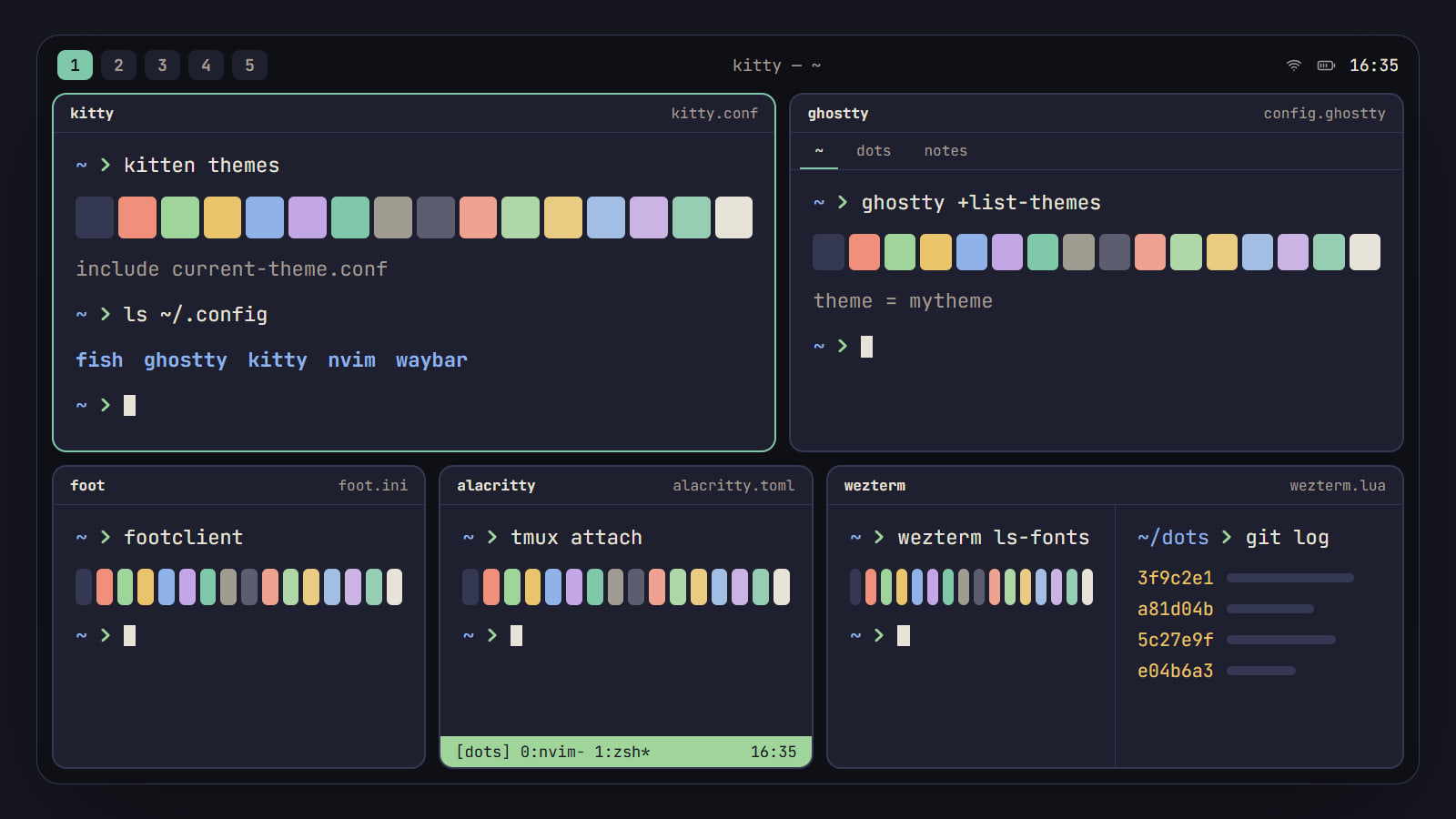
kitty, Ghostty, foot, Alacritty and WezTerm compared on what a rice needs: Wayland, tabs and splits, images, ligatures, config and themes, with a pick by setup.