Mac Terminal Commands: A Complete Beginner's Guide
Mac Terminal commands take you from a blinking cursor through safe basics, customization, admin work, Homebrew, and fun tricks, including macOS quirks.
tl;dr the short answer
Mac Terminal commands are text instructions you enter in the Terminal app to navigate files, change settings, manage your Mac, and install extra software. Start with basics like `pwd`, `ls`, and `cd`, check unfamiliar commands with `man`, and take care with administrator or disk commands because mistakes can change or delete data; macOS’s BSD tools may also use different options than Linux. In practice, Terminal can simplify everyday tasks and large-scale administration, while Homebrew adds tools that macOS does not include.
Ever opened Terminal, stared at the blinking cursor, and wondered what to type? You’re not alone. The command line feels like a locked room, but it’s really a direct line to your Mac.
This guide walks you through Mac Terminal commands from start to finish.
We’ll cover opening the shell (the program that reads what you type) and everyday basics, then move into customization, system admin work, and Homebrew (a tool for installing extra software).
Along the way, we’ll point out where macOS’s BSD tools (from the Berkeley Software Distribution) and the zsh shell differ from the Linux habits you might already have.
Start Using Mac Terminal Commands Safely
Here’s how to open Terminal, get help, and stay safe.
Find Terminal and run your first command
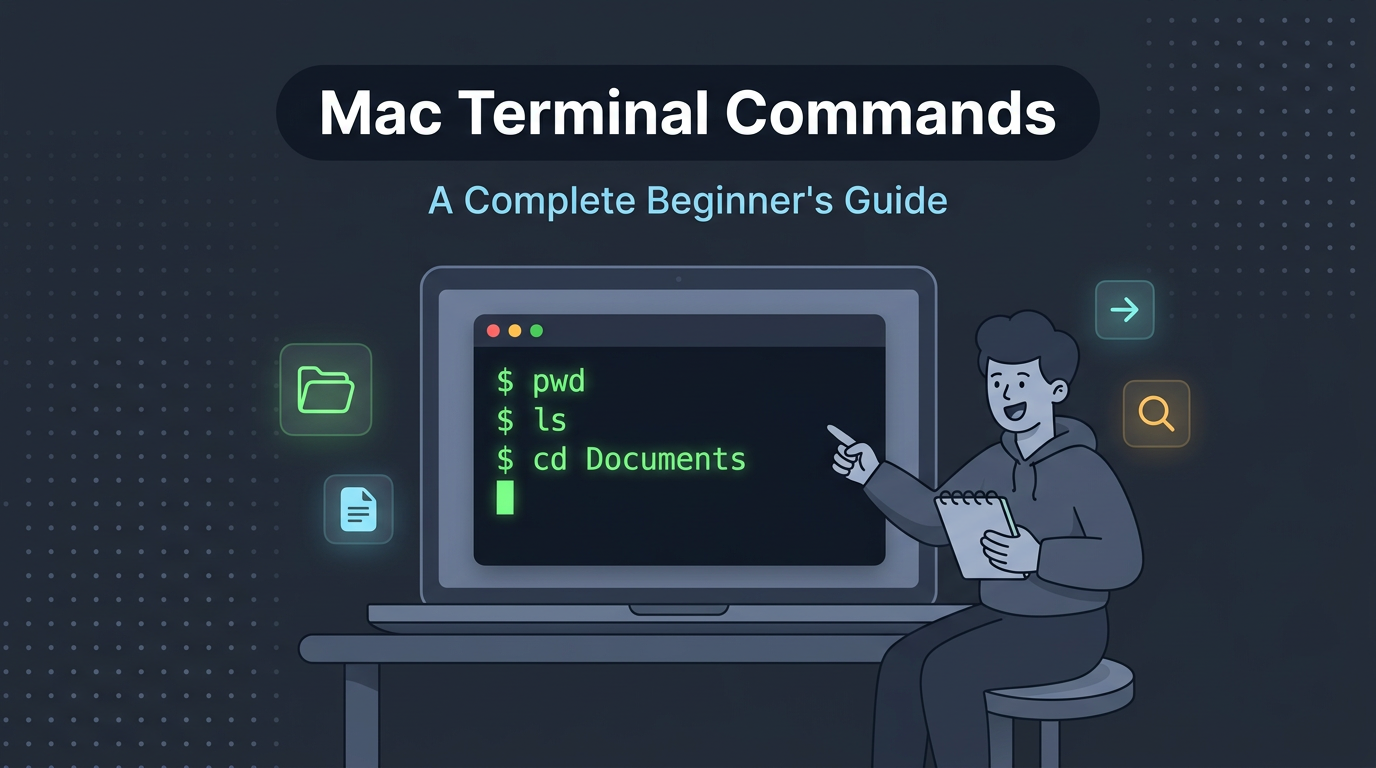
Open Launchpad, type Terminal in the search bar, and press Return. Then run pwd to see your folder. A blinking cursor can feel intimidating, but you need only a few commands.
Short answer: macOS defaults to zsh, though bash is still installed. The shell reads what you type. Everyday basics include ls (list files), cd (change folder), and cp (copy a file).
To close a session, type exit or logout and press Return, or press Ctrl+D at an empty prompt. To edit a long line, Ctrl+A jumps to the start and Ctrl+E jumps to the end. Linux terminals work the same way.
Find help in man pages anytime
Most commands ship with a manual, called a man page. Type man and a command name, like man tmutil (the command-line tool for Time Machine). A Linux user on a new Mac can run man tmutil to see Time Machine’s options before running anything.
Read first, run second. Or open the page in Preview for a roomier view.
Limits and risks to keep in mind
- This list isn’t exhaustive.
- Some commands run only in macOS Recovery.
- Some depend on your macOS version.
- Misuse can cause data loss, so double-check anything that deletes or overwrites.
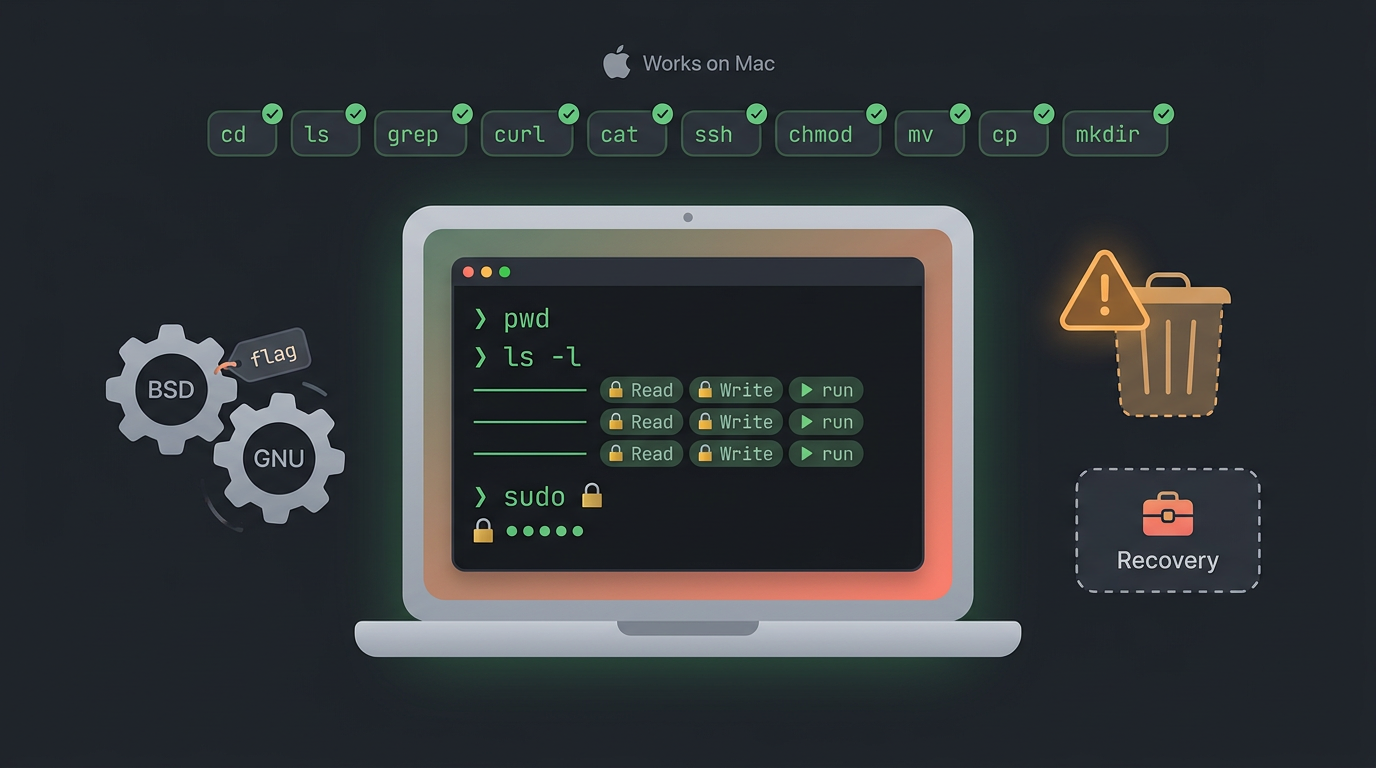
- macOS uses BSD tools (a Unix family) while most Linux systems use GNU tools, so the same command can differ in flags.
Ten common Linux basics are ls, cd, pwd, cp, mv, rm, mkdir, cat, man, and sudo, and they all run on your Mac too. sudo runs a command with administrator rights, so expect a password prompt. ls -l shows who can read, write, or run a file.
Customize Your Mac with Handy Commands
A few short commands can make your Mac feel more like yours. Here are two handy tweaks we’d start with, plus a quick look at performance.
Add contact info to your login screen
Think of a grad student who leaves a MacBook on a train. A short message on the login screen gives whoever finds it a way to send it back. You set that message with defaults, the macOS command for reading and writing system preferences:
sudo defaults write /Library/Preferences/com.apple.loginwindow LoginwindowText "If found, contact the owner"
The sudo prefix runs the command with administrator rights, so you’ll be asked for your password. To remove the message, run the same command with an empty string: sudo defaults write /Library/Preferences/com.apple.loginwindow LoginwindowText "".
Reveal hidden files in Finder
Finder hides system files to protect you from accidental changes, not to keep anything secret. To show them, run these two lines:
defaults write com.apple.finder AppleShowAllFiles TRUE
killall Finder
The killall command quits Finder by name, and macOS relaunches it with the new setting. Expect some clutter, since system files you’d normally never see now sit right beside your own.
When you’re done, switch it back with defaults write com.apple.finder AppleShowAllFiles FALSE and restart Finder the same way. Easy to undo.
Ways to speed up your Mac
Once your look is set, a few performance tweaks can help your Mac feel snappier. Those are next.
Commands for System Admins and Deployment
These commands let you script fleet work instead of repeating the same steps on every Mac.
Installing macOS and building install media
An IT admin at a small studio has twelve Macs to reimage before Monday. She builds one installer drive, scripts the rest, and gets twelve identical setups without twelve rounds of clicking. Clicking doesn’t scale.
- createinstallmedia builds a bootable installer drive from a macOS installer app.
- startosinstall runs that installer from the command line, so the install can be scripted.
- asr (Apple Software Restore) copies a volume or disk image to another drive, handy for cloning a prepared setup.
Locking down security and privacy settings
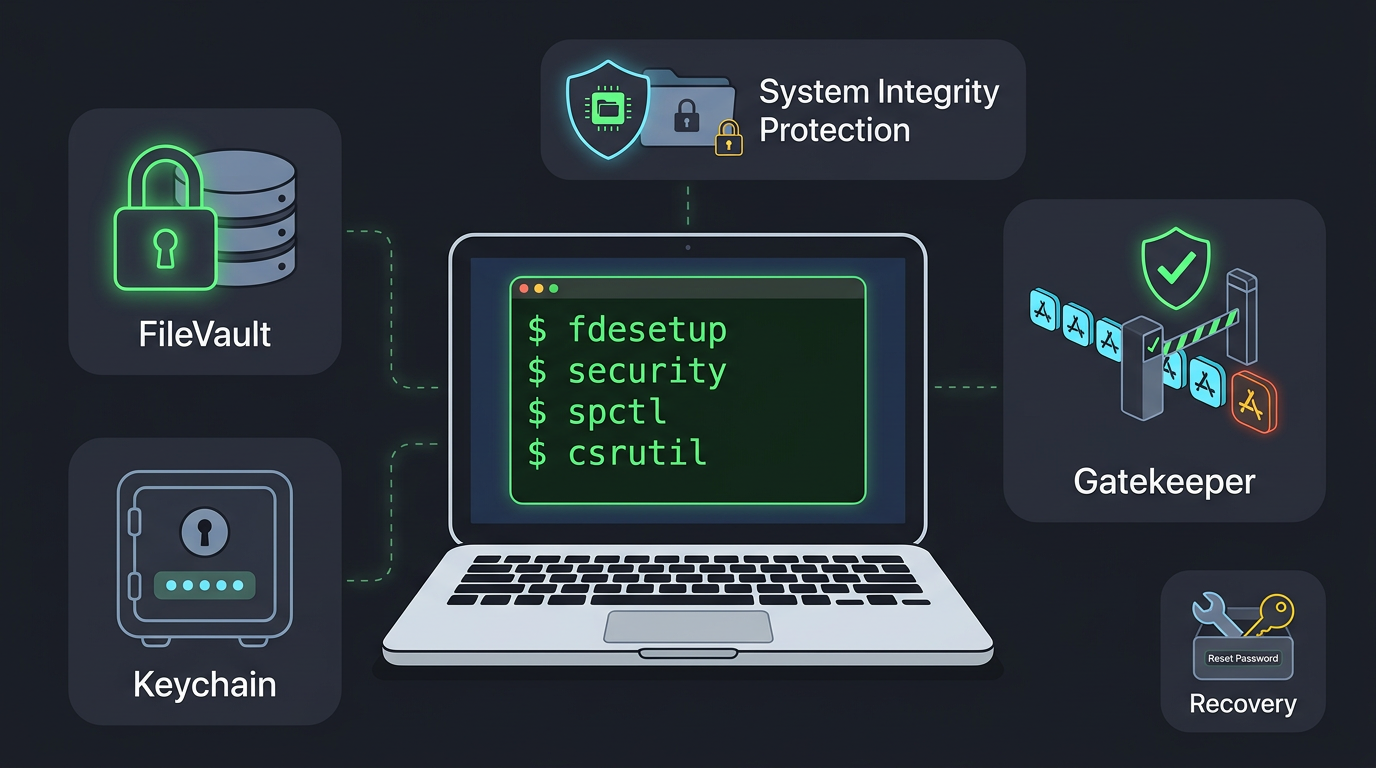
The tools here control FileVault (Apple’s full-disk encryption), your Keychain (the built-in vault for saved passwords and certificates), and which apps are allowed to run.
- fdesetup turns FileVault on or off and reports its status.
- security manages Keychain items, certificates, and passwords from the command line.
- spctl queries and sets the Gatekeeper policy that decides which apps can open.
- csrutil checks or changes System Integrity Protection (SIP), which locks core system files. Checking is harmless, but changing SIP is deliberate, and you’ll usually do it from Recovery.
- resetpassword runs from the Utilities menu in Recovery to reset a locked-out user’s password.
Managing disks, backups, and file metadata
- hdiutil creates, mounts, and converts disk images.
- diskutil runs
verifyVolumeto report problems andrepairVolumeto fix them. Verifying is safe, but repairing actually changes the disk, so back up first. - tmutil controls Time Machine, Apple’s built-in backup system, from the terminal.
- mdutil turns Spotlight (macOS’s search index) on or off for a volume, and mdls shows the metadata stored for a file.
- screencapture takes screenshots from the terminal, useful for scripted captures.
Reading and changing system settings
- defaults reads and writes preference values, and plutil converts and edits property lists (plists), the files that store most app and system settings.
- system_profiler prints detailed hardware and software reports.
- ioreg dumps the I/O registry, the map of hardware and drivers the system sees.
- networksetup configures network services, and systemsetup handles things like time zone and remote login.
- launchctl manages launchd jobs, the background services macOS runs, and it’s the closest thing to
systemctlon Linux. - open launches files and apps, and osascript runs AppleScript or JavaScript for automation.
Packaging apps and signing code
These follow a natural order: build the package, sign it, then install it.
- codesign signs an app with a developer identity and checks existing signatures, so macOS can verify who built it.
- pkgbuild builds a single component package, and productbuild combines packages into one distributable installer.
- installer installs a package from the command line, so deployment scripts can handle it too.
Handling users, profiles, and MDM tools
Managing many Macs usually means mobile device management (MDM), which pushes settings to devices remotely.
- dscl (Directory Service command line) reads and edits user and group records.
- sysadminctl creates, edits, and deletes local accounts.
- passwd changes a password, and login starts a session as a named user.
- profiles lists and inspects configuration profiles, which deliver settings such as Wi-Fi or restrictions.
- mdmclient is a lower-level tool for checking a Mac’s MDM connection, so save it for troubleshooting.
- serveradmin manages services on Macs running server software, so confirm your macOS version still includes it.
Adding Extra Tools with Homebrew
macOS covers a lot, but it doesn’t cover everything. Homebrew is a package manager, a tool that downloads and installs software for you. It doesn’t replace what your Mac already has. It adds to it.
Install Homebrew and your first tools
Start by running the Homebrew install script. Copy the install command from the official Homebrew website, paste it into Terminal, and press Return. When prompted, enter your Mac password. Once it finishes, try a couple of tools:
brew install emacsgives you the Emacs text editor.brew install sladds a silly little train animation. It’s more fun than useful, but it’s a harmless way to test your setup.
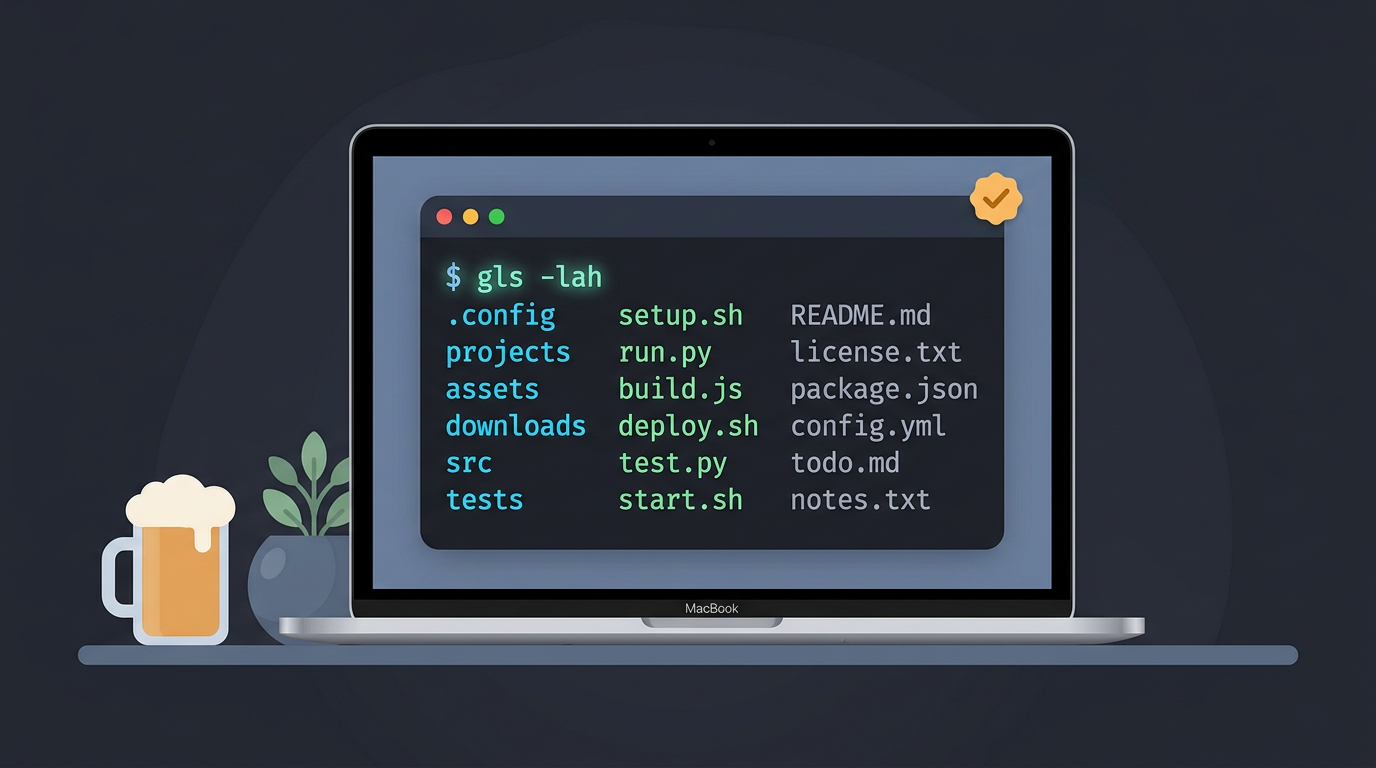
Now for the one that matters most if you’re coming from Linux. Say you just moved from Ubuntu to a MacBook and keep reaching for the ls flags you know by heart, only to find they behave differently on macOS.
Run brew install coreutils to get the GNU versions of everyday commands. They usually carry a g prefix, like gls, so your Linux muscle memory works as expected. Fewer surprises.
A handful of commands keep everything tidy:
brew updaterefreshes Homebrew’s list of available software.brew upgradeinstalls newer versions of what you already have.brew searchhelps you find a package when you only remember part of its name.brew uninstallremoves a package you no longer need.
Fun Tricks You Can Run in Terminal
Terminal isn’t only for serious work. A few built-in tricks are just for fun, and some turn out to be surprisingly handy.
Make your Mac read text aloud
The say command turns text into speech, and it comes with about 20 voices, so you can pick one you like. You can also convert text files to speech, which is handy when you’d rather listen than read.
Think of a student with lecture notes saved as a plain text file. Instead of squinting at the screen on the bus, they point say at the file and listen on the way to class. It’s less about reading and more about hearing your notes.
Visual surprises and hidden Easter eggs
An Easter egg is a hidden extra that developers tuck into software for fun.
Type sl and a steam locomotive rolls across your screen. Inside Emacs, you can also chat with a bot called doctor. When you’re done, exit with ctrl+x ctrl+c.
Try it once. You’ll probably smile.
Play games hidden inside Emacs
Launch emacs, press Esc, then x, and type one of these games at the prompt:
- Tetris, Pong, and Snake
- Solitaire, 5x5, gomoku, and dunnet
Use the arrow keys to play. Think of a developer stuck waiting on a slow build who opens Emacs, picks a game, and squeezes in a few rounds of Snake before the build finishes.
These games are for a break from work, not a replacement for it. Quick, silly, and worth a look.
Terminal starts to feel less mysterious once you’ve practiced a few commands and seen what they do. Work through the basics safely, customize with confidence, then tackle admin tasks and Homebrew at your own pace.
Each step makes the next one easier, and the BSD and zsh differences you’ve learned will keep you from getting caught off guard.
Keep experimenting and jot down what works. The command line rewards curiosity, so keep typing and keep learning.
Questions
What is a Docker and why is it used?
Docker is a platform for packaging applications and their dependencies into containers, which can run consistently across different environments. It is used to simplify software development, testing, and deployment.
How can I run commands in Mac?
Open the Terminal app, type a command at the prompt, and press Return. Common commands include `pwd` to show your current folder, `ls` to list files, and `cd` to change folders.
How do you find terminals in Mac?
Open Launchpad, type **Terminal** in the search bar, and press Return. You can also find Terminal in Finder under Applications > Utilities.
How to close terminal in Mac using command?
Type `exit` or `logout` and press Return. You can also press **Ctrl+D** at an empty prompt to close the shell session.
How does Docker run on macOS?
Docker on macOS typically runs through Docker Desktop, which starts a lightweight Linux virtual machine because containers require a Linux kernel. The Docker command-line tool on your Mac sends requests to the Docker engine running inside that VM.
Is macOS terminal bash or zsh?
macOS defaults to zsh, though bash is also installed. You can check your current shell by typing `echo $SHELL` in Terminal.
Does NASA use Docker?
NASA teams and projects may use Docker, but there is no single Docker policy across the agency. Use can vary by project, system, and security requirements.
Is Docker RAM heavy?
Docker's RAM use varies with the containers and applications running. Docker Desktop also uses memory for its background services and Linux virtual machine, so resource-intensive containers or running many containers can use substantial RAM.
Read next.
Alpine Linux package manager commands you need every day
The Alpine Linux package manager, apk, installs and upgrades software. Get daily commands, package sources, version locking, and fixes for common errors.
Ubuntu Terminal Shortcut Keys, Explained Simply
Ubuntu terminal shortcuts help you work mouse-free. Find keys for opening, editing, history, tabs, desktop actions, and fixing custom bindings.
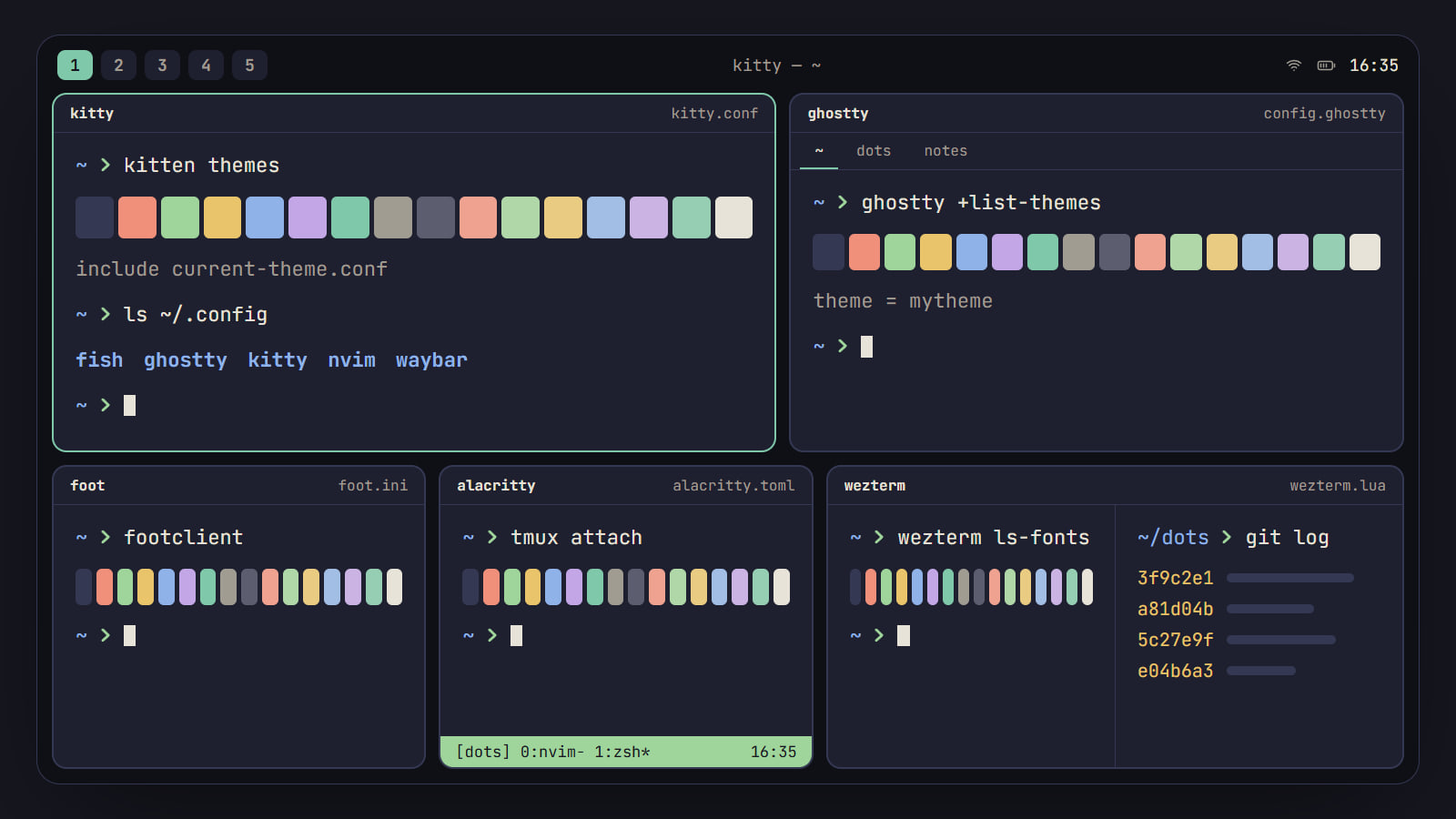
Best terminal emulator for Linux: kitty, Ghostty and more
kitty, Ghostty, foot, Alacritty and WezTerm compared on what a rice needs: Wayland, tabs and splits, images, ligatures, config and themes, with a pick by setup.