Alpine Linux package manager commands you need every day
The Alpine Linux package manager, apk, installs and upgrades software. Get daily commands, package sources, version locking, and fixes for common errors.
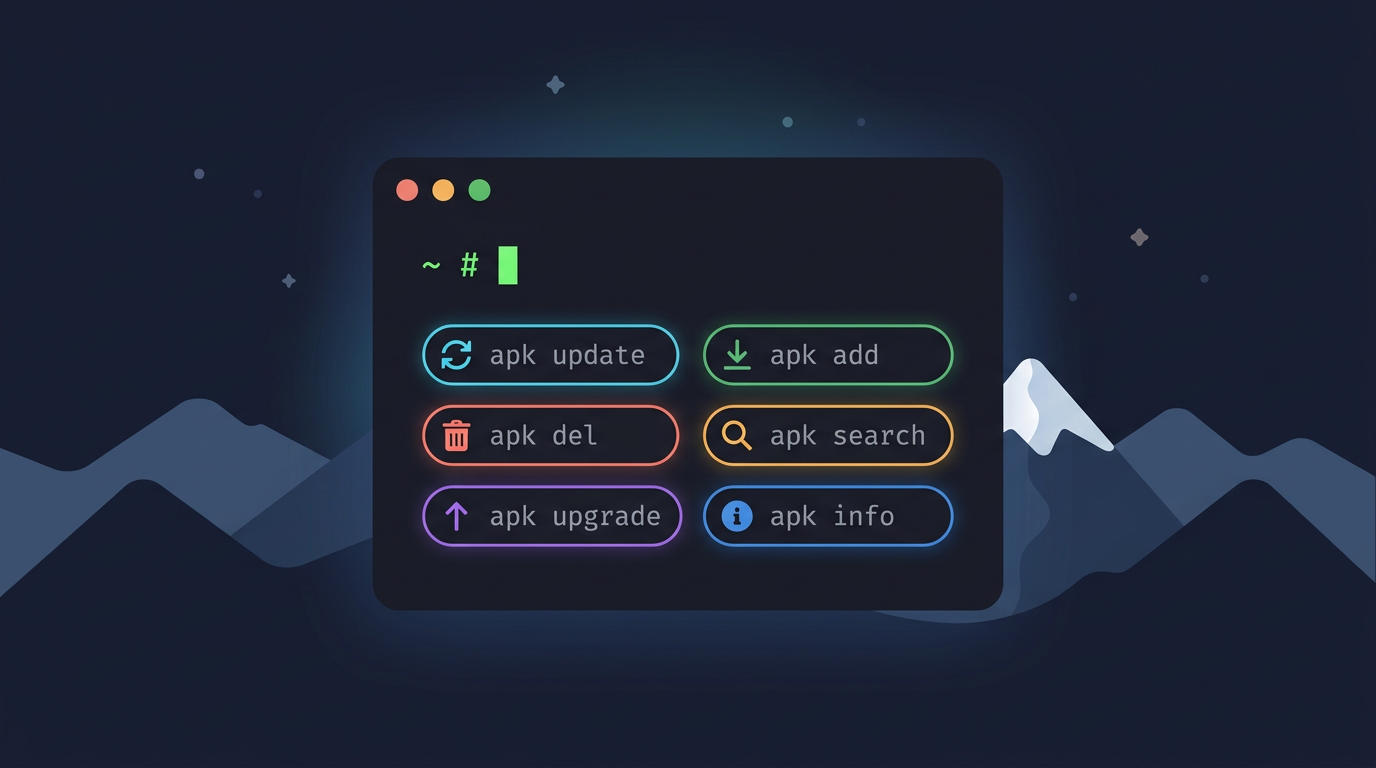
tl;dr the short answer
The Alpine Linux package manager, called apk (Alpine Package Keeper), installs, upgrades, removes, and checks software on Alpine systems. Use apk to refresh package lists, search repositories, inspect dependencies, and preview changes before altering a system; choose stable repositories and pin versions when you need a tested build to stay put. These habits keep Alpine installations and container images lean and predictable, while making package changes easier to manage and troubleshoot.
Think of an Alpine system as a well-stocked pantry: you keep only what you actually cook with. apk is the tool that decides what goes on the shelf and what comes off.
apk is the package manager that ships with Alpine Linux. It installs, upgrades, and removes software for you.
In this post, we’ll cover the everyday commands, where packages come from, how to lock a version, and how to fix common errors, plus some terminal tips for containers and shell workflows.
Meet APK, the Alpine Linux Package Manager
Every package on Alpine goes through one tool, so let’s get to know it.
Built into Alpine, not always in containers
APK stands for Alpine Package Keeper, and it’s the default package manager on Alpine Linux. On a standard system it’s pre-installed and ready from first login. In a container, it’s less predictable, since a minimal image may leave it out.
Take a homelabber who trims a container to a bare base: running which apk first tells them if they can install anything at all.
Why APK stays light and simple
Compared with heavier managers like APT or YUM, APK aims for less machinery, not more features. Its design rests on three traits:
- One file per package. Each package ships as a single .apk file.
- Few dependencies. Packages pull in fewer extras, so fewer parts can break.
- Signed and pinnable. APK checks signatures, and pinning holds a package at a version you’ve tested.
Think of a student on a ten-year-old ThinkPad. Fewer dependencies mean each install is a short, predictable step, which leaves more room for their projects. Less machinery, fewer surprises.
What is the purpose of Alpine Linux?
Alpine is a small Linux distribution built on BusyBox and musl. BusyBox packs many common Unix tools into one compact program, and musl is a lightweight C library.
Its purpose is a small footprint and a simple, security-oriented design: little ships by default, so there’s less to maintain and fewer places for trouble to hide.
That lean design has made Alpine popular for containers. Consider a self-hoster packaging a small web app into one. Starting from Alpine keeps the image light, carrying the app and little else.
Essential Apk Commands for Daily Use
Most of your day on Alpine comes down to a handful of apk commands, Alpine’s package manager. We’ll walk through each one in the order you’ll likely reach for it:
Refresh the package list with apk update
Run apk update before you install or upgrade anything. It refreshes the repository package lists, so apk knows what’s currently on offer. It changes what apk knows is available, not what’s installed, so nothing on your system moves yet.
Finding packages with apk search
Not sure of a package’s exact name? Run apk search nginx to list the matches. Add -v for verbose output, or -d to match package descriptions too, which helps when you know the job but not the name.
Wildcards work as well: apk search 'py3-*' lists every matching Python 3 package in one pass. Quote the pattern so your shell doesn’t expand it first.
Install one or several packages at once
Install a package with apk add package, or list several names on one line to grab them together: apk add curl git tmux. Add -i for interactive mode if you want apk to ask before it goes ahead.
Afterward, apk info -e tmux reports whether the package is installed.
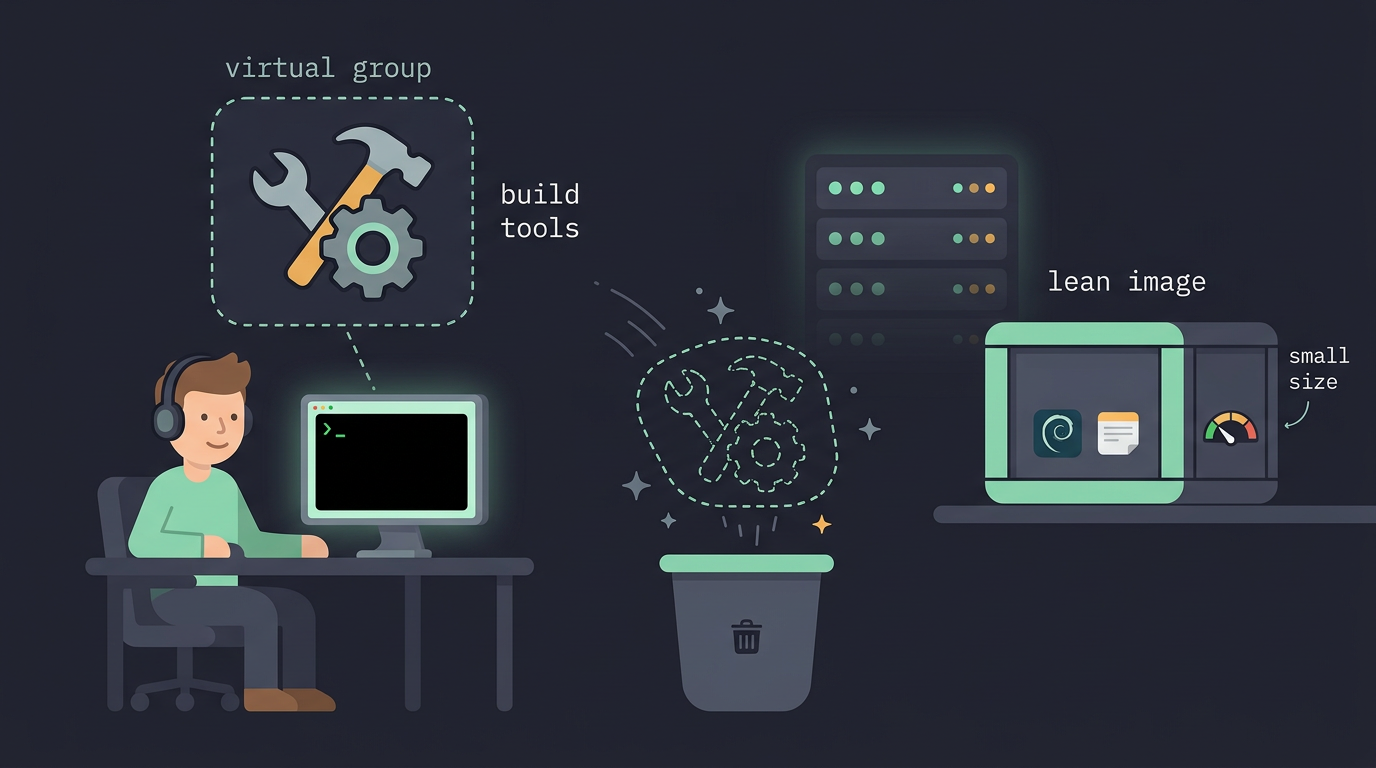
For build-time tools you don’t want to keep, group them into a virtual package with --virtual: apk add --virtual .build-deps gcc musl-dev. When the build’s done, apk del .build-deps removes the whole group in one step.
Inside a Dockerfile, add --no-cache so apk skips its local index cache: RUN apk add --no-cache curl. Picture a homelabber building a small image for a self-hosted notes app.
The compiler is only needed during the build, so the virtual group plus --no-cache keeps the shipped image lean.
Removing packages and checking dependencies first
Removal deserves the same caution. Run apk del -s package first to see everything the change would touch, dependencies included, then drop the -s once the list looks right.
Add --purge (apk del --purge package) when you also want the configuration files gone, not just the program. Preview first, then remove.
Upgrade packages and preview changes first
apk upgrade moves every installed package to the newest version in your current release, while apk upgrade curl touches only curl. To preview, add -s: apk upgrade -s shows what would change without changing anything. Want just the list?
apk version -l '<' shows the packages with updates waiting. If a package’s files have been damaged, apk fix curl reinstalls it to restore them.
How do you update to a newer Alpine release? It’s a bigger job than a routine upgrade, because it means changing which release your repositories point to.
Point your repository list at the new release, read its notes before you start, then run apk update followed by apk upgrade.
Getting help and downloading without installing
apk --help prints the built-in list of commands and options, which saves a trip to the web when a flag slips your mind. Need the package file itself? apk fetch curl downloads it into your current directory and leaves the system untouched.
Consider a student reviving an old ThinkPad with no network on the target machine. They fetch the package on a connected computer, carry the file over on a USB stick, and decide what to install only once it’s there.
The old machine stays untouched until they’re ready.
Where Alpine Packages Come From
Before you install anything, let’s look at where Alpine’s packages come from. Every apk command searches a list of repositories, and that list shapes what you can install.
Main, community, and edge package sources
Alpine sorts packages into a few repositories, which are collections apk searches:
- Main: tested, official packages. Start here.
- Community: community-supported packages, useful but not official.
- Edge: the testing origin, where newer packages land first.
Think of a homelabber building a container for a self-hosted wiki. They stay on main for a predictable base and reach into edge only for the one tool missing from main. Choose main for stability over novelty.
Editing the /etc/apk/repositories file
The list lives in /etc/apk/repositories, a plain text file with one repository URL per line. Edit it in any editor, then run apk update to refresh the package index.
The default entries point to the official repository on a CDN (content delivery network), which spreads files across servers around the world.
For a one-off install from somewhere else, skip the file and pass the URL with -X, like apk add -X <repo-url> <package>. apk uses that repository for that command only, so the change stays temporary rather than permanent.
Building from the aports tree with abuild
The aports tree is the official collection of build recipes, organized into a folder for each package. Each folder’s APKBUILD file describes how to compile that software, and the abuild tool turns that recipe into an installable .apk package.
Say you’ve patched a tool your terminal setup depends on. Rebuild it with abuild, and apk can install and remove it like any other package, on every machine you own. Most days you won’t need this. Still, it’s good to know it’s there.
Looking up Package Information
Before you install or remove anything, you’ll want to know what’s already on the system. Alpine’s package manager, apk, has an info subcommand that answers those questions.
See installed packages, versions, and files
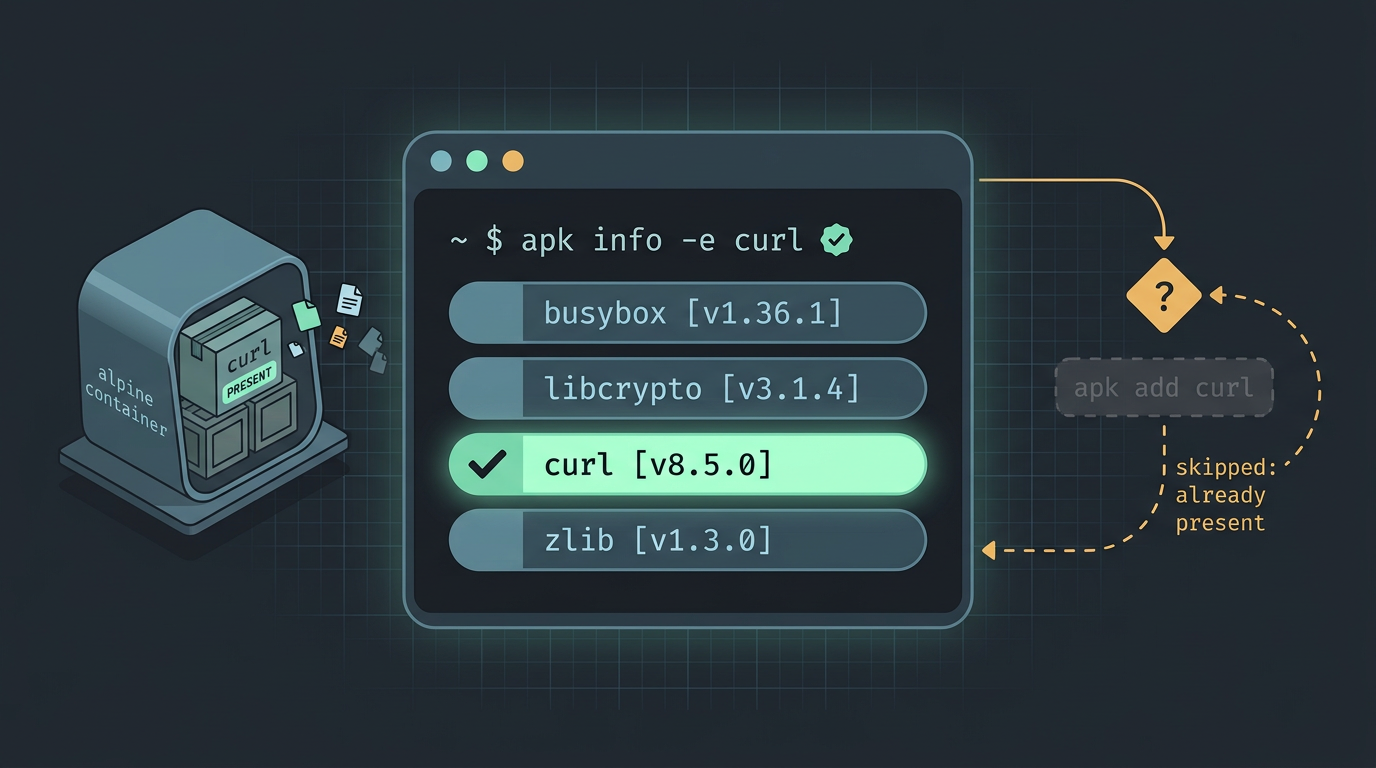
Run apk info with no arguments to list every installed package. Use apk info -e <name> to check one package quietly, with an exit code your scripts can read. Add -v for the version or -s for size, and -L to list the files it placed on disk.
Consider a homelab user trimming an Alpine container image for a reverse proxy. Their build script runs apk info -e curl || apk add curl, so the package is added only when it’s missing, which keeps the build quick.
Tracing dependencies in both directions
A dependency is another package a program needs to run. Use apk info -R <name> to see what a package pulls in, and apk info -r <name> for its reverse dependencies, the packages that depend on it.
The flags differ only by case, so remember that -R answers what this package needs and -r answers what needs this package.
When you remove something with apk del, apk checks these relationships itself, so you don’t have to track each link by hand. Still, the reverse list is a useful preview of what else might be affected.
A self-hoster tidying an Alpine file server spots a library that looks unused. Running apk info -r on it first shows whether anything still relies on it, which beats discovering the problem when a service won’t start. Look before you remove.
Locking Packages to a Specific Version
Most of the time you want the newest package, but sometimes one version needs to stay put. Here’s how we’ll hold a package, set version constraints, and treat pinning as a trust decision.
Holding a version and setting constraints
Holding a package tells the system to leave it alone during upgrades, so it stays exactly where you put it. Think of a student running Alpine on a ten-year-old ThinkPad, where a new release of a media tool breaks the one workflow they rely on for class.
Holding that package at the working version means a routine upgrade won’t touch it, and the rest of the system keeps moving.
When the fix lands and you’re ready, release the hold so the package can upgrade again. A hold is meant to be temporary rather than permanent, so set yourself a reminder to come back to it.
Version constraints let you spell out exactly what you’ll accept. Constraints come in two forms:
pkg=1.2asks for that exact version.pkg~=1.2accepts a looser match around 1.2.
Using pinning as a security control
Pinning also works as a trust control. Choosing a version means you’ve decided to trust that specific build until you’ve reviewed the next one.
For example, a self-hoster running a small Alpine container for a family photo server pins the web server to the release they tested, so a rebuild can’t quietly pull in something unreviewed. Updates happen when you say so.
Installing Apk by Hand
Before you can run any apk command, you need Alpine’s package manager on your system. Here’s what to have in place, then we’ll walk through getting apk.static running by hand.
What you need before you start
Check these four things first:
- A supported Alpine 3.x release, so the steps match your version.
- BusyBox, a compact bundle of core command-line utilities, and a libc, the C library programs use to talk to the system.
- Network connectivity, since apk pulls packages from remote repositories.
- Root or sudo access, because installing changes protected system files.
Installing apk.static one step at a time
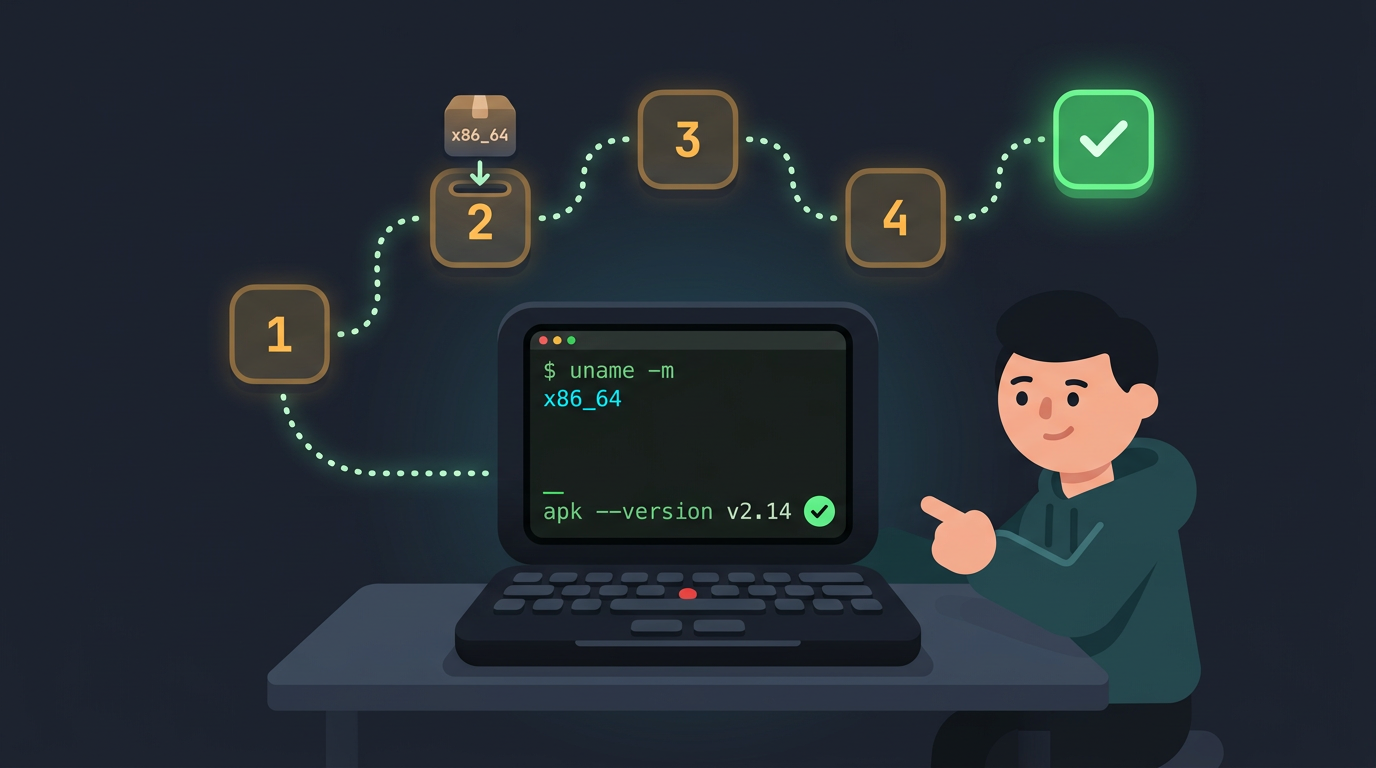
Do the architecture check before you download, not after. A build for the wrong architecture won’t run on your machine, so catch that early.
- Match your system architecture. Run
uname -mto see yours, such as x86_64 or aarch64, and note the matching build. - Download apk.static with wget. Use
wgetto fetch the build for that architecture. - Make the file executable. Run
chmod +xon the download so your shell can run it. - Install apk-tools-static. Install the apk-tools-static package so the tool is ready for everyday use.
- Verify with apk —version. Run
apk --version. A version number means it works; an error means you should recheck step 1.
Picture a student who just put Alpine on a ten-year-old ThinkPad. They check uname -m, grab the matching build, and their first apk --version comes back clean. Skip a step and nothing else works.
How Apk Compares to Other Package Managers
If you’ve used apt, apk will feel familiar but not identical.
Matching apk commands to other managers
Kali Linux uses apt, the same package manager as Debian and Ubuntu. pacman (Arch) maps the same jobs to -Sy, -S, -Ss, and -R, while emerge (Gentoo) uses --sync, emerge <pkg>, --search, and --unmerge.
DNF (Fedora) and XBPS (Void Linux) follow the same pattern:
| Task | apk | apt | dnf | xbps |
|---|---|---|---|---|
| Update | apk update |
apt update |
dnf makecache |
xbps-install -S |
| Install | apk add |
apt install |
dnf install |
xbps-install |
| Search | apk search |
apt search |
dnf search |
xbps-query -Rs |
| Remove | apk del |
apt remove |
dnf remove |
xbps-remove |
Same four jobs, shorter names.
What’s the difference between apk and apt?
apk and apt both handle installs and removals, but four differences matter most:
- Search names only.
apk searchmatches names, whileapt searchalso scans descriptions. - Cache cleanup.
apk add --no-cacheleaves no index behind, so there’s nothing to clear. apt typically needs a separate cleanup step. - Source builds. apk installs prebuilt packages. Source builds use APKBUILD recipes (plain-text build scripts) run through abuild.
- Repository and branch setup. Sources live in
/etc/apk/repositories, where you pick a release branch or the rolling edge branch.
Setting up OpenRC services and networking
Alpine uses OpenRC instead of systemd, starting services by runlevel (a named group that starts together at a set stage of boot). To start sshd at boot, run rc-update add sshd default, then rc-service sshd start to start it now.
Networking lives in /etc/network/interfaces. A minimal wired setup that gets its address automatically (via DHCP, which hands out addresses) looks like this:
auto lo
iface lo inet loopback

auto eth0
iface eth0 inet dhcp
Swap eth0 for your interface name from ip link, and check that networking is in the default runlevel with rc-update show.
A homelab user with a headless server (no monitor or keyboard) gets sshd and networking back after every reboot, so they can log in from another machine.
Fixing Common Apk Problems
Most apk trouble comes from a handful of repeat offenders, and we’ve got a quick fix for each. Work through these before you dig into logs.
Quick fixes for the usual problems
- Dependency conflicts. Read the error to find the two packages that disagree. Decide which one you actually need, remove the other with
apk del, and retry. Usually that’s enough. - Update, then upgrade. Run
apk updatefirst to refresh the package index, thenapk upgradeto pull in newer versions. Skip the first step and upgrade works from old information, so it may report nothing new. - Use curl instead of wget. If a script’s download step keeps failing, install curl with
apk add curland use it in place of wget. - Remove and reinstall apk-tools. This package provides the apk command itself, so removing it takes your package manager with it. Treat it as a last resort, and only on a machine you can rebuild. Plan how you’ll get apk working again before you start.
- Shell is ash, not bash. Your default shell is ash, not bash, so a script that starts with
#!/bin/bashfails on a fresh install. Picture a homelabber building a small Alpine container for a self-hosted service, where the setup script dies on its first line. Runningapk add bashgets the script running again, or you can rewrite it for ash and skip the extra package.
apk rewards a little patience. Once you know its core commands, its repositories, and its version locks, a fresh Alpine install stops feeling mysterious. You’ll know where each package came from, why it’s pinned, and where to look when something breaks.
The container and shell tips matter just as much. Scripted installs and lean images mean the setup you build today survives the next rebuild.
A lean system you understand is a system you can trust.
Questions
What is the purpose of Alpine Linux?
Alpine Linux is a small, security-oriented Linux distribution built on BusyBox and musl. Its purpose is to provide a lean system with less software to maintain, making it especially popular for containers.
What is the difference between apk and apt?
Both apk and apt install and remove software. apk is Alpine’s lightweight package manager, uses repositories configured in `/etc/apk/repositories`, and searches package names by default; apt is used by Debian-based systems such as Debian, Ubuntu, and Kali, and its search also includes package descriptions.
How can I update Alpine Linux to a newer version?
To move to a newer Alpine release, update the repository entries in `/etc/apk/repositories` to point to the target release, review that release’s notes, then run `apk update` followed by `apk upgrade`. This is different from a routine package upgrade within the same release.
Which package manager does Kali Linux use?
Kali Linux uses apt, the package manager also used by Debian and Ubuntu.
Read next.
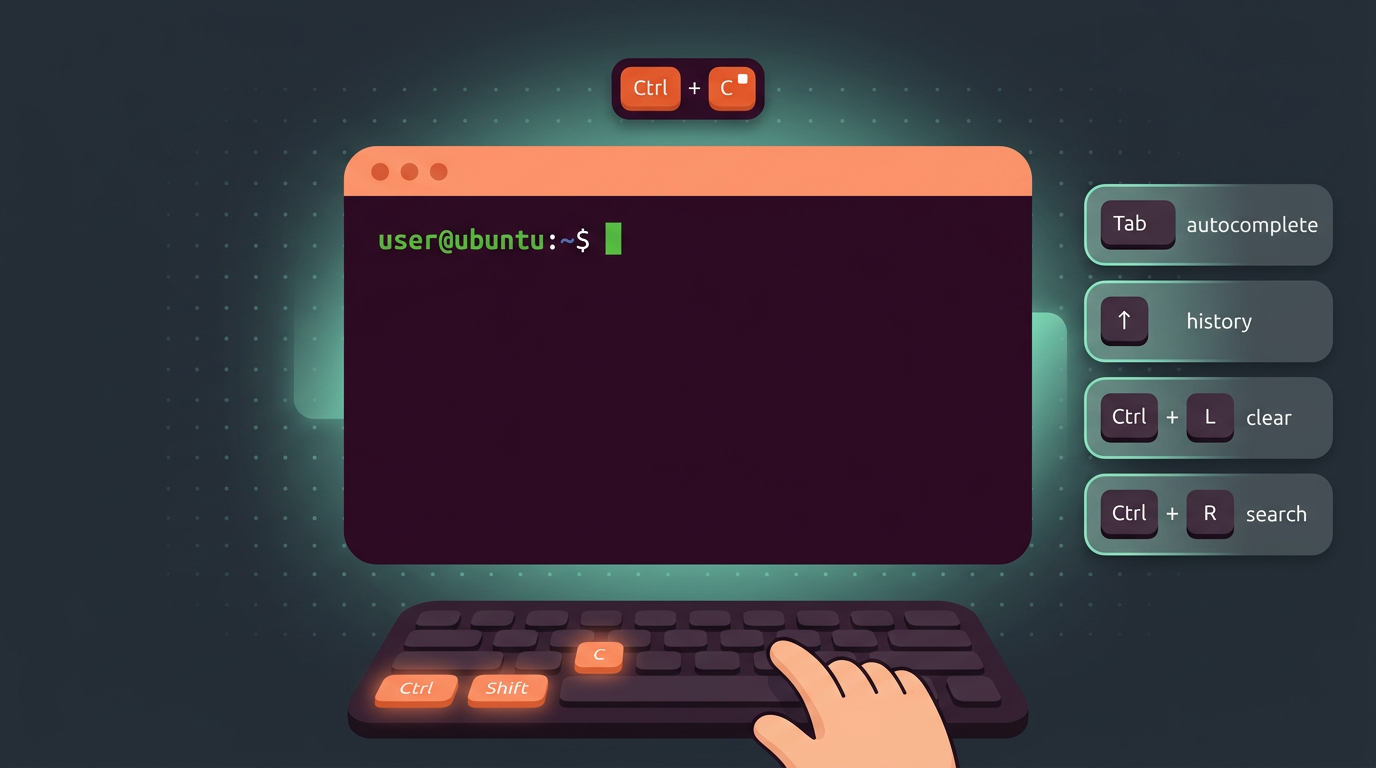
Ubuntu Terminal Shortcut Keys, Explained Simply
Ubuntu terminal shortcuts help you work mouse-free. Find keys for opening, editing, history, tabs, desktop actions, and fixing custom bindings.
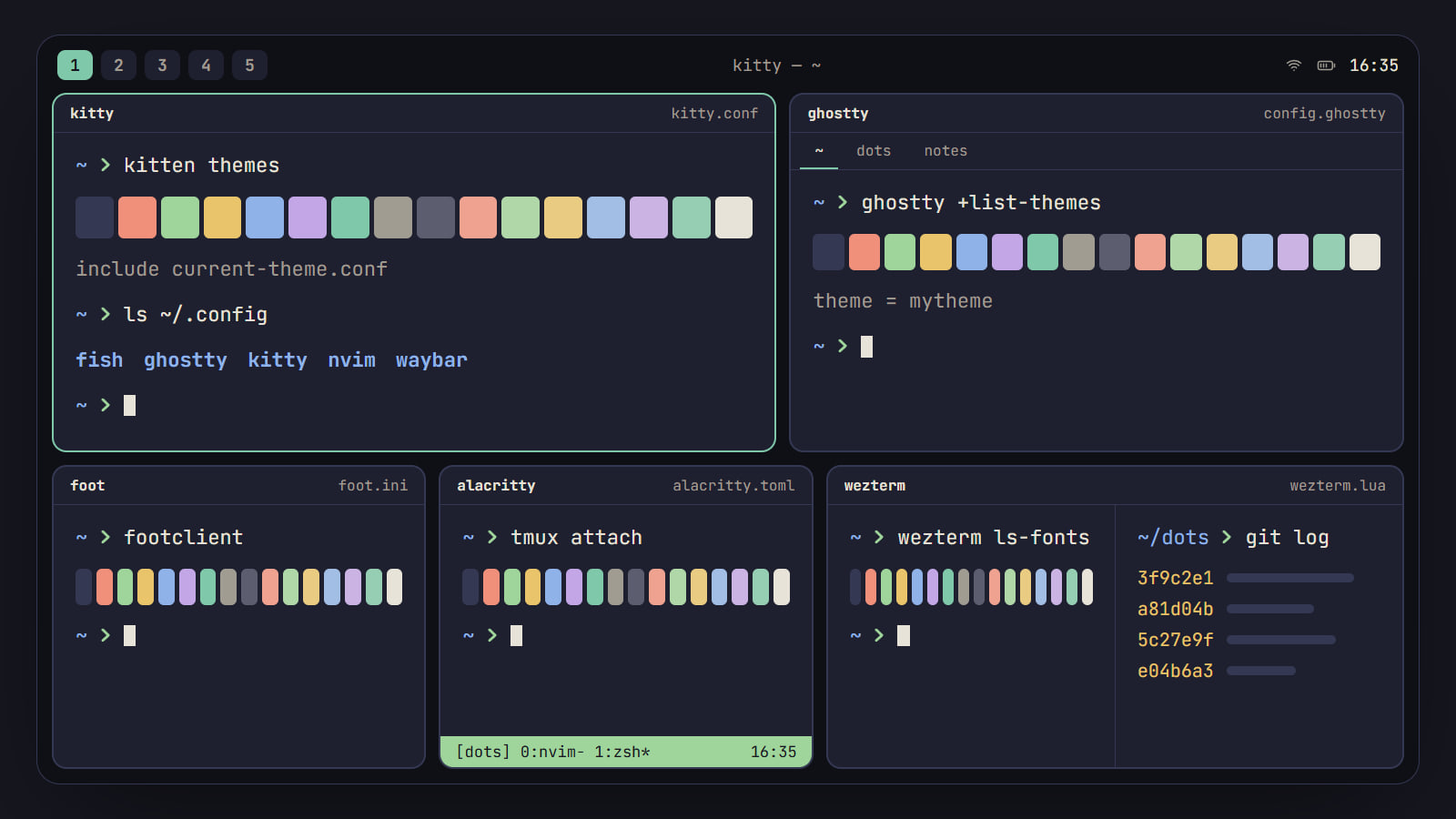
Best terminal emulator for Linux: kitty, Ghostty and more
kitty, Ghostty, foot, Alacritty and WezTerm compared on what a rice needs: Wayland, tabs and splits, images, ligatures, config and themes, with a pick by setup.