Linux on MacBook Air: The Complete Installation Guide
Linux on MacBook Air can turn a familiar laptop into your own setup: check model compatibility, choose a distro, install safely, and fix Wi-Fi.
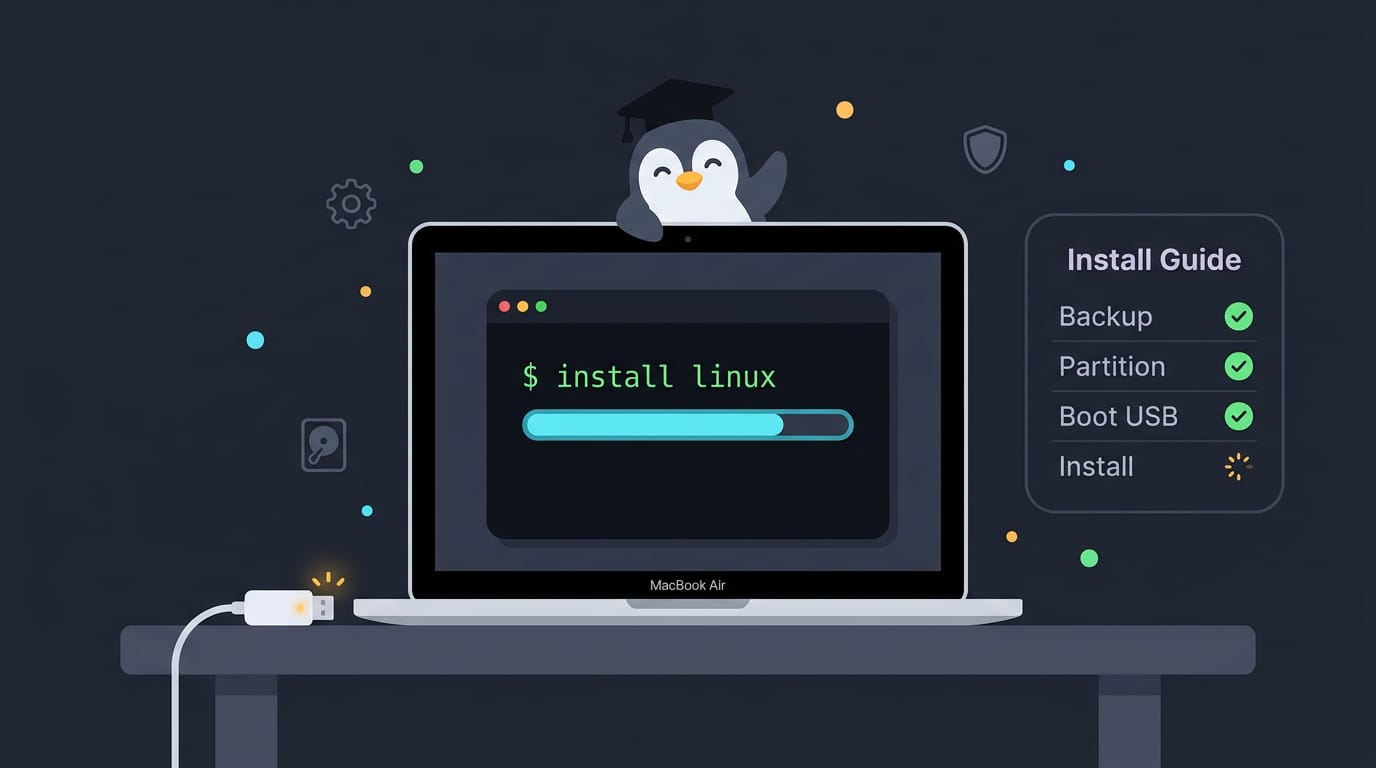
tl;dr the short answer
Linux on a MacBook Air means installing a Linux operating system on the laptop, either alongside macOS or instead of it; the guidance applies to Intel models. Choose a Linux Mint LTS edition, back up macOS, test hardware from a live USB, and be ready to use a temporary internet connection if built-in Wi-Fi needs a driver. Older Intel Airs can serve everyday needs, but limited battery life, few ports, repair difficulty, and model-specific compatibility are important trade-offs.
Think of a MacBook Air as a well-built apartment that came furnished by someone else. It’s comfortable, but you’d probably rearrange it if you could. Installing Linux is that rearranging, and this guide walks you through the whole move.
We’ll cover picking a distro, checking whether your model plays nicely with Linux, and getting through the installer.
You’ll also get Wi-Fi fixes, a safe way to set up dual-booting (running macOS and Linux side by side and choosing one at startup), and a ricing path (customizing your desktop until it looks like yours).
Why Run Linux on MacBook Air
You can run Linux on a MacBook Air, and this section covers what to expect. Is it legal to install Linux on a Mac? Our sources don’t address that, so if the machine belongs to an employer or school, check their rules before you wipe anything.
Why old Intel Airs are worth reviving
Intel Airs from 2010 onward are cheap to find, and many still have quality hardware underneath. Reviving one helps cut down on e-waste (discarded electronics). Think of a student with a 2012 Air sitting in a drawer since finals.
After an evening with Linux Mint, it boots to a working desktop for notes and a terminal, and no new laptop was needed. It’s also a showcase for Linux on quality hardware. The goal is to revive rather than replace.
How well do Macs run Linux?
On the models we tested, these Airs hold up well, and a few details explain why:
- Speed. Despite their age, they feel fast.
- Storage. The SATA (Serial ATA) SSD, a solid-state drive with no spinning disk, keeps things moving.
- Sound and cooling. Fans stay quiet, and the speakers sound good.
- Encryption. Encrypting the disk adds little slowdown.
- Basics. Audio, the trackpad, and sleep all work.
So do Macs run Linux well? For the models we ran, yes, and the details above are why.
Battery, ports, and repairs are weak spots
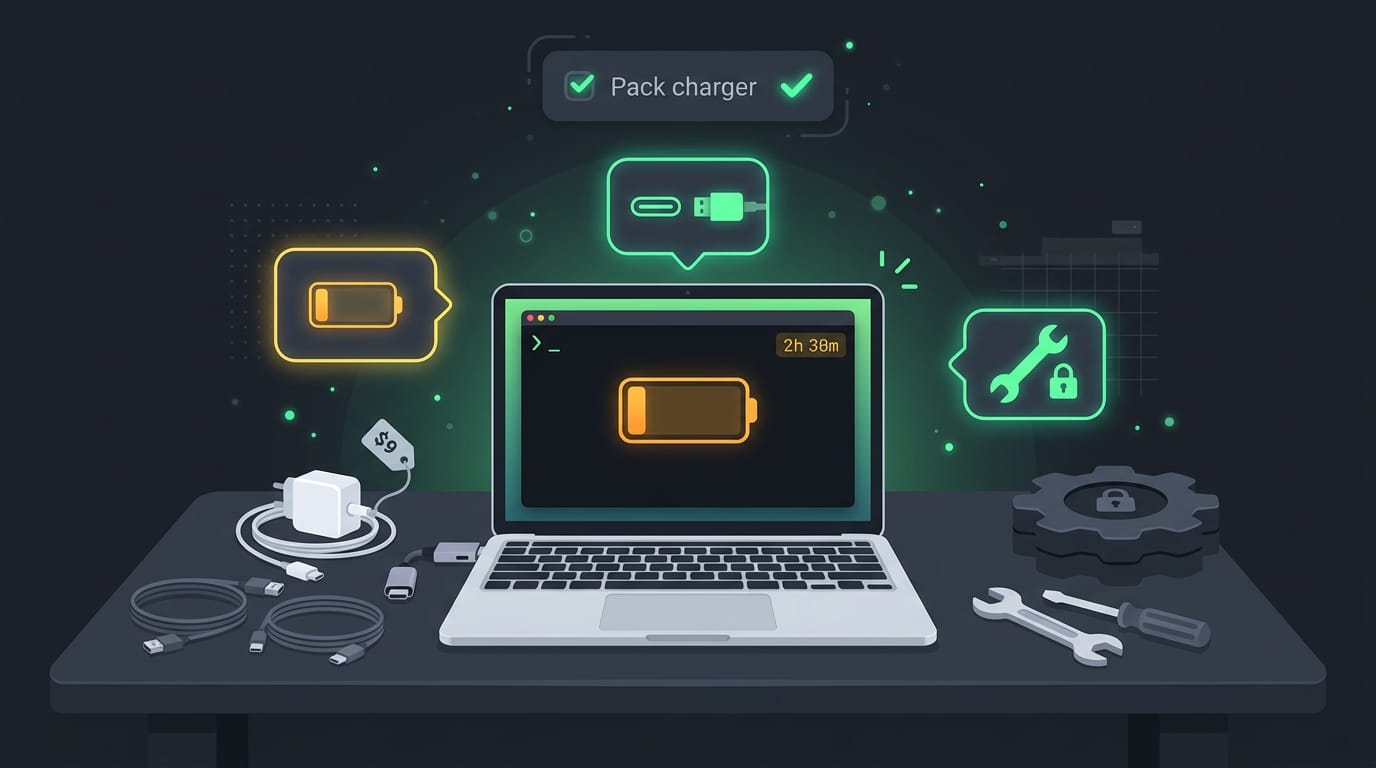
Not everything’s perfect. Battery life runs about 2 to 3.5 hours, so pack your charger. Ports are another limit.
A study of MacBook I/O (input/output) devices notes that these Airs have few ports, since most have moved to USB-C, so you’ll need an extra adaptor for the rest. That same study says the machines can be difficult to repair.
Replacement chargers are another cost to plan for, so check whether a used Air comes with one. Those are real trade-offs. Plan around them.
Air models and Mint versions we tested
We tested 2010, 2012, and 2014 Airs across Linux Mint Xia 22.1 and Zara 22.2. Two more setups round things out: Linux Mint Debian Edition (LMDE7) ran on a 2012 MacBook Pro, and Mint 17 Cinnamon ran on a newer Air.
Apple Silicon models, which use Apple’s own chips instead of Intel processors, are a separate topic, so this guide sticks to Intel Airs.
Get Everything Ready Before Installing
Prep now saves you from a stalled install. We’ll get everything in place before you change anything on your Air.
What you need on hand
Gather these first:
- A USB drive and the Linux Mint ISO (a single disk image file that holds the whole installer)
- A way to verify the ISO hashes by comparing the checksum (a short code that proves your download arrived intact) against the one published with the file
- A USB Ethernet adapter, a Wi-Fi dongle, or tethering (sharing your phone’s internet connection) in case the built-in Wi-Fi gives you trouble
- Patience
Picture a student with a ten-year-old MacBook Air. Their USB Ethernet adapter keeps them online while they sort out Wi-Fi, so setup doesn’t stall.
Back up macOS before you start
Dual-booting and wiping both change your disk, so back up first. Use Time Machine, macOS’s built-in backup tool, on an external drive or USB stick big enough for everything you’re keeping. Once it finishes, confirm it rather than assuming it worked.
Which Linux is best for MacBook Air?
For most people, the best pick is the Linux Mint LTS release (long-term support, so updates arrive for longer) in the Cinnamon 64-bit edition. Cinnamon gives you a familiar layout that’s easy to tweak later.
If Cinnamon isn’t for you, MATE, KDE, and Xfce are solid alternatives, each with its own look and feel.
Skip the no-codecs edition. It leaves out codecs (the software that plays common audio and video formats), so you’d be fixing playback before you’ve even started.
Turn your USB drive into an installer
Use the Mac Linux USB Loader tool to write the ISO onto your drive. It needs Java (a runtime that lets some programs run), so install that first if your Mac doesn’t have it. If you’d rather not download Java by hand, first install Homebrew, a package manager that adds it from the terminal.
Select your ISO, select your USB drive, and let the tool make a live USB, one you can boot Linux from without touching your Air’s disk.
Double-check that you’ve picked the USB drive, because writing erases whatever it points at.
Test the hardware before you commit
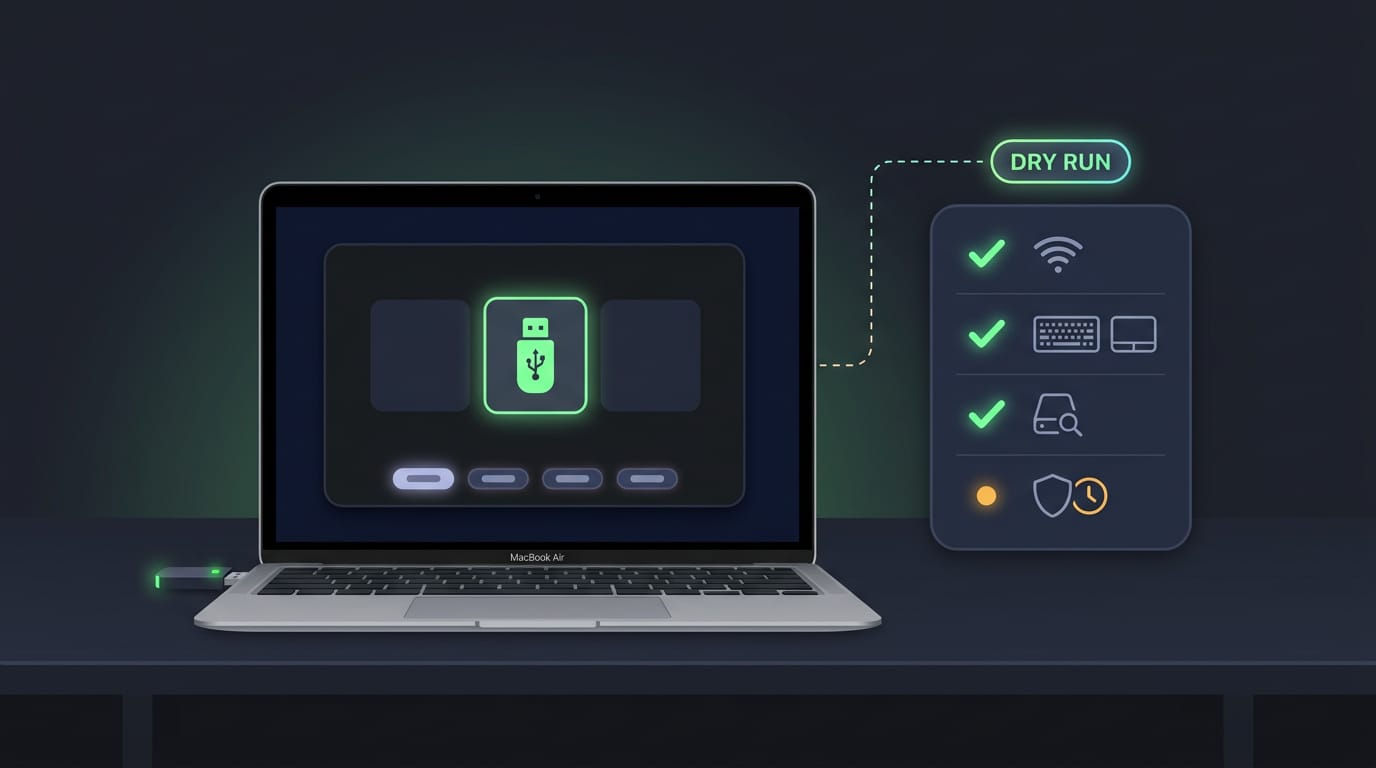
Treat this as a dry run, not a full install. Restart with the USB plugged in, open the boot menu (on a Mac, hold Option at startup), and check:
- Test Wi-Fi from the boot menu once the live session loads, and confirm it connects.
- Verify keyboard and trackpad: type, click, and scroll to make sure everything responds.
- Check the SSD (your Air’s internal storage) in Disks utility, the built-in disk tool, and review its details.
- Optionally wipe the disk fully for a clean slate, but only after your backup is confirmed, since it erases everything.
Catch problems now, not halfway through an install.
Start the Installer and Finish Setup
Here’s what to expect from the boot menu through encryption. The disk choices need the most care, since they change what’s on your drive.
Opening the boot menu at startup
With the MacBook Air off, power it on and hold the Alt key (labeled Option on a Mac keyboard) until the boot menu appears. Then:
- Pick the EFI Boot entry for your installer drive. EFI (Extensible Firmware Interface) is the firmware layer that loads the installer.
- If the installer doesn’t load, try the other entry.
Dividing the disk and choosing install type
Keeping macOS? Use Disk Utility to set aside free space first. Then choose:
- Install alongside macOS: both systems stay on the disk, and you pick one at each startup.
- Replace macOS entirely: the installer wipes macOS and uses the whole drive, so back up first.
- LVM option: LVM (Logical Volume Manager) splits the disk into flexible volumes that are easier to resize later.
Consider a student who needs macOS for one class project but wants Linux for everything else. Installing alongside gives them both, and the boot menu lets them pick at startup. Only choose replace if you’re certain macOS can go.
Walking through the installer screens
Most screens are simple, but three deserve a second look:
- Language, location, keyboard: pick the layout you actually type on, or typing your password becomes a chore.
- User and computer name: these show on your login screen and terminal prompt, so choose names you’ll enjoy.
- Power and disk space: plug in the charger before installing, and confirm the space shown matches what you set aside.
Ways to encrypt your files and disk
Every option hinges on an encryption key, the secret that unlocks your data. Your choices:
- Encrypt home folder: protects your personal files and leaves the system itself unencrypted.
- Full disk encryption with LUKS: LUKS (Linux Unified Key Setup) scrambles the entire drive and asks for a passphrase at startup.
- Login password as key: unlocks encryption with the password you already type to log in, so there’s one less secret to juggle.
The home folder option protects your files, while full disk protects everything. Lose the key, and you lose the data.
Fixes to Make After Installing
A fresh install is only half the job. Wi-Fi comes first, then boot order, and the webcam, Touch ID, keyboard backlight, key remapping, and trackpad gestures can follow once you’re settled.
Getting Broadcom Wi-Fi working after install
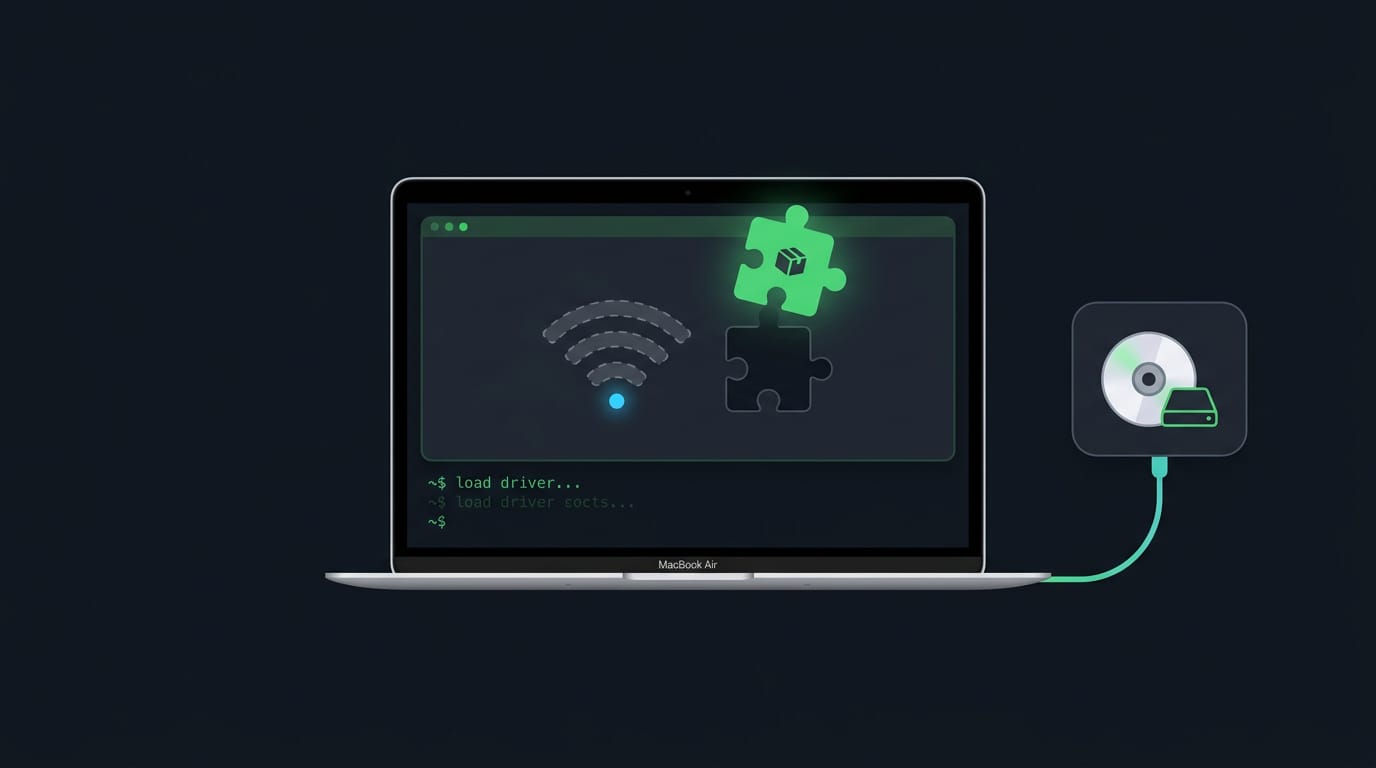
If your Air has a Broadcom Wi-Fi chip, the driver may not ship in the live session (the temporary system the installer boots into). It’s missing, not broken, so you’re adding it rather than repairing it.
The Driver Manager tool can install that driver, but you need to be online first. Start with a temporary connection, covered below.
If you’re stuck offline, mount the ISO (the disk image you installed from) as a CD-ROM, a virtual disc drive, then install the bcmwl-kernel-source package from it without a network.
Ways to get online for now
Think of a student with a term paper due tonight and no Wi-Fi icon. A USB-Ethernet adapter gets them to the course portal, and the driver fix waits until the paper’s submitted. Connection first, driver second. Here are three stopgaps:
- USB-Ethernet adapter: a small dongle that turns a network cable into a connection.
- USB Wi-Fi dongle: a plug-in wireless adapter that doesn’t rely on the Air’s built-in Wi-Fi.
- Smartphone USB tethering: share your phone’s data connection with the Air over a USB cable.
Setting boot order and the GRUB menu
Boot order decides which system starts by default, not whether Linux runs at all. efibootmgr is a command-line tool that edits the firmware’s boot order (the list the Air checks at startup), so you can set which entry comes first.
GRUB is the boot menu that lists your operating systems and lets you pick one. A custom GRUB entry can exit straight to macOS, and Escape at startup is the other key to know.
What to Do When It Feels Slow
Slowness usually has a findable cause, so measure before you start guessing at fixes.
If the checks point at the desktop itself, a lightweight window manager (the piece that places and draws your windows) is a good first thing to try. Start with the cheap checks.
Finding out why older Macs boot slowly
Think of a student whose old Air takes minutes to reach the login screen before a morning lecture. Here’s what we’d check first, so she knows whether she needs a hardware fix or just a lighter desktop:
- Missing AES-NI. Check whether your processor supports AES-NI (Advanced Encryption Standard New Instructions), a hardware feature that speeds up encryption. Without it, encryption runs slower.
- Swap size. Check how much swap (the space the system uses when RAM fills up) you have, and whether it’s enough.
- CPU stress test. Run one with GtkStressTesting to see how the processor behaves under load.
- Degraded thermal paste. Old paste between the chip and its heatsink can dry out and let the processor run hot.
- RAM and SATA detection. Confirm the system sees all your RAM and that your drive shows up over SATA (Serial ATA, the storage connection).
- Battery and firmware power behavior. Old firmware and battery settings can change how the machine boots and wakes, so review both.
What other owners have confirmed working
- Air 2012 Retina. Owners report this model works.
- 2012 MacBook Pro. Owners report full hardware working on this model.
- Not on the list? Post a new topic for support and see who else has hit the same snag.
Running Linux on a MacBook Air takes some planning, but every step makes the next one easier. Check compatibility, back up your data, and take the Wi-Fi fixes one at a time so you can tell what changed.
Once the system boots clean and stays connected, the fun part begins. A tiling window manager or themed desktop lets you shape the whole screen to match your taste. Make it yours, one fix at a time.
References
Questions
Which Linux is best for a MacBook Air?
For most MacBook Air users, Linux Mint’s 64-bit Cinnamon edition is a good choice, with a long-term-support release offering extended updates. MATE, KDE, and Xfce are alternatives if you prefer a different desktop; check that your particular Air’s hardware works before installing.
Do Macs run Linux well?
Yes, many Macs run Linux well, especially Intel MacBook Air models where basics such as audio, trackpad, and sleep can work properly. Results vary by model, and Wi-Fi, battery life, ports, and repairability may be limitations.
Can I run Linux on a MacBook?
Yes. You can run Linux from a live USB to test it, install it alongside macOS, or replace macOS entirely. Back up your data first and check hardware compatibility, especially for Wi-Fi.
Is it legal to install Linux on a Mac?
In general, installing Linux on a Mac you own is legal. If the Mac belongs to an employer or school, check its policies before changing the operating system, and follow the software licenses and applicable laws in your location.
Can you run Linux on any laptop?
Linux can run on many laptops, but compatibility depends on the specific hardware, including Wi-Fi, graphics, sound, and power management. Testing a live USB before installing is a practical way to check key components.
Which laptops are compatible with Ubuntu?
Ubuntu supports a wide range of laptops, including many models from Dell, Lenovo, HP, Acer, ASUS, and Framework. Compatibility varies by model and configuration, so check Ubuntu’s certified hardware list or test a live USB before installing.
Is Linux a better OS than Windows?
Neither Linux nor Windows is universally better; the right choice depends on your needs. Linux offers many distributions, customization, and often works well on older hardware, while Windows generally supports a broad range of commercial software and PC hardware out of the box.
Sources
Read next.
Surface Pro 4 Linux: Complete Install and Setup Guide
Run Linux on Surface Pro 4 with a fitting distro, then set up a touch-friendly desktop and tiling workflow while checking hardware support.
Linux Shebang Explained: What the First Line Does
Linux shebang lines tell the system which interpreter runs a script. Compare common forms, correct paths, and avoid failures from options or shell choice.
Dual Monitor Ubuntu: Complete Setup and Fixes Guide
Dual monitor Ubuntu setup is straightforward: connect screens, arrange and personalize your desktop, then fix detection, scaling, or layout problems.