Surface Pro 4 Linux: Complete Install and Setup Guide
Run Linux on Surface Pro 4 with a fitting distro, then set up a touch-friendly desktop and tiling workflow while checking hardware support.
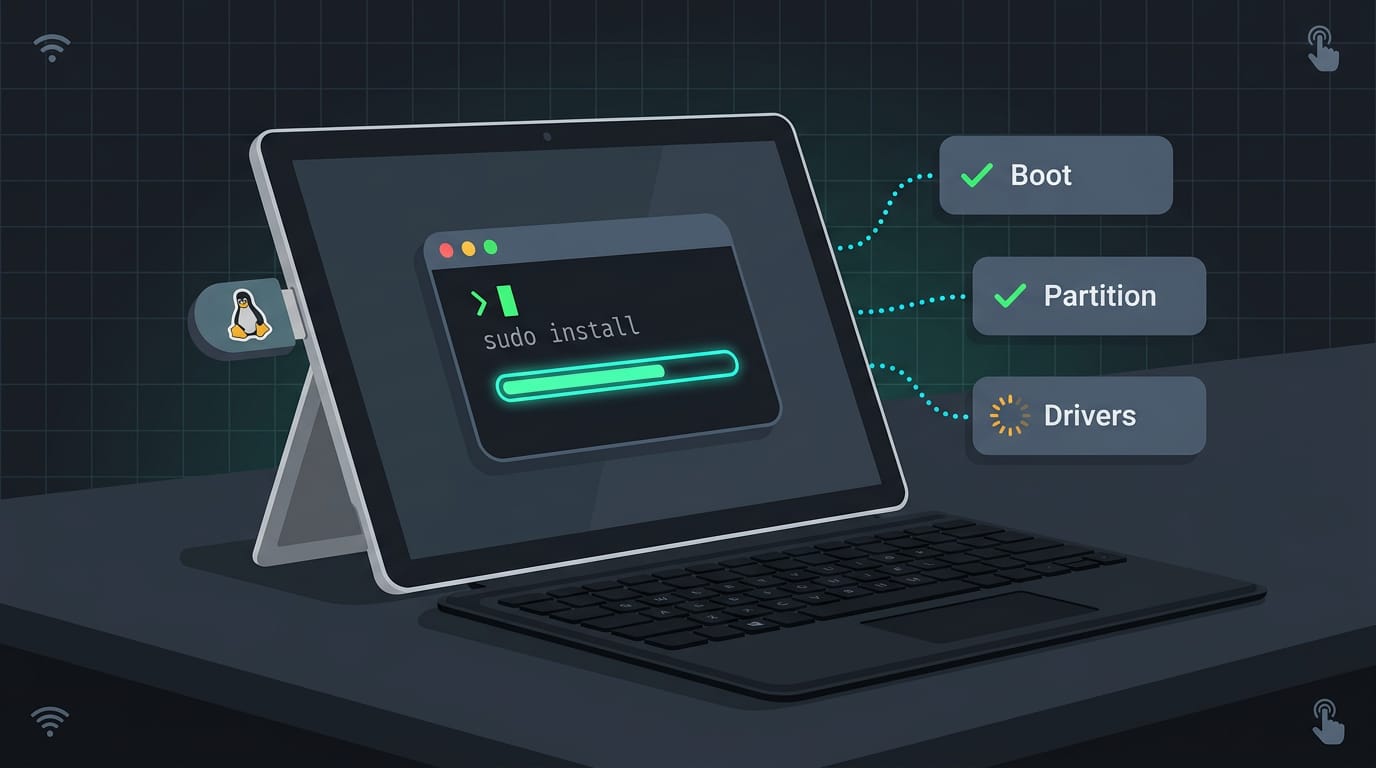
tl;dr the short answer
Linux on a Surface Pro 4 is a way to replace Windows with an operating system and desktop you can customize for tablet or laptop use. Fedora or Ubuntu, a touch-friendly desktop such as GNOME, and the linux-surface kernel provide a practical starting point, but touch and pen bugs, keyboard quirks, and limited battery life can require workarounds. Test the features you rely on before committing, because the experience can be useful but is not consistently reliable.
Think of your Surface Pro 4 as a solid tablet waiting for the right operating system. Windows does the job out of the box, but if you want a desktop that feels like yours, Linux is worth a look.
This post walks you through the whole process: choosing a distro, following the linux-surface install steps, checking what works, and dealing with the problems you’re likely to hit.
We’ll finish with a touch-friendly desktop and tiling setup, the part most guides skip.
Why Run Linux on Surface Pro 4
Running Linux on a Surface Pro 4 is less of a stunt than it sounds. Here’s the case for leaving Windows, what makes this tablet tick, and what we’d use it for.
Why leave Windows behind
Windows 10 has reached end of life, which means Microsoft stops providing regular updates. That’s about when the updates stop, not whether the tablet still works.
Many people also worry about planned obsolescence, where hardware gets nudged toward replacement. Linux appeals if you want digital freedom and privacy, since you choose what runs on your machine.
Reviving old hardware matters too: a tablet that still works shouldn’t end up in a drawer just because its software has moved on.
What makes this 2016 tablet appealing
According to CNET’s review, the entry-level model has an Intel Core m3 processor and 4GB of RAM, plus a stylus that magnetically attaches to the side of the screen. Those specs are modest, so a lean desktop setup matters, and we’ll cover one below.
The screen is HiDPI (high dots-per-inch, which keeps text and icons sharp). Its light, tablet-style body (the handheld shape of a tablet, not a laptop) makes it easy to sketch, read, and tap around.
If you’d rather look elsewhere, the Pinetab is the alternative to weigh against this one.
What we planned to use it for
We had five jobs in mind:
- Web browsing
- E-reading and PDF notes
- Media consumption
- Sketching and drawing
- DJ applications
Think of a student with a stack of lecture PDFs who marks them up with the stylus by day, then plays music and video on the same screen at night. One tablet replaces several devices, and that’s the real payoff.
Choosing a Distro and Desktop Environment
Your distro (the Linux version you install) and your desktop environment (the graphical layer you click through daily) set how much work the Surface Pro 4 takes. Choose both first.
Distros that tend to work best
Fedora and Ubuntu are the most successful choices on this hardware, so they’re the safest places to start.
If touch matters most to you, pick GNOME, the desktop environment that suits touchscreens, so swiping and tapping feel built in rather than bolted on.
Keep Fedora as your fallback. If another distro gives you trouble with the touchscreen, switch to Fedora rather than chase the bug for a weekend.
Lightweight desktops are worth comparing too. Check how each handles touch and the pen first, since a lighter desktop only helps if it still responds to your fingers.
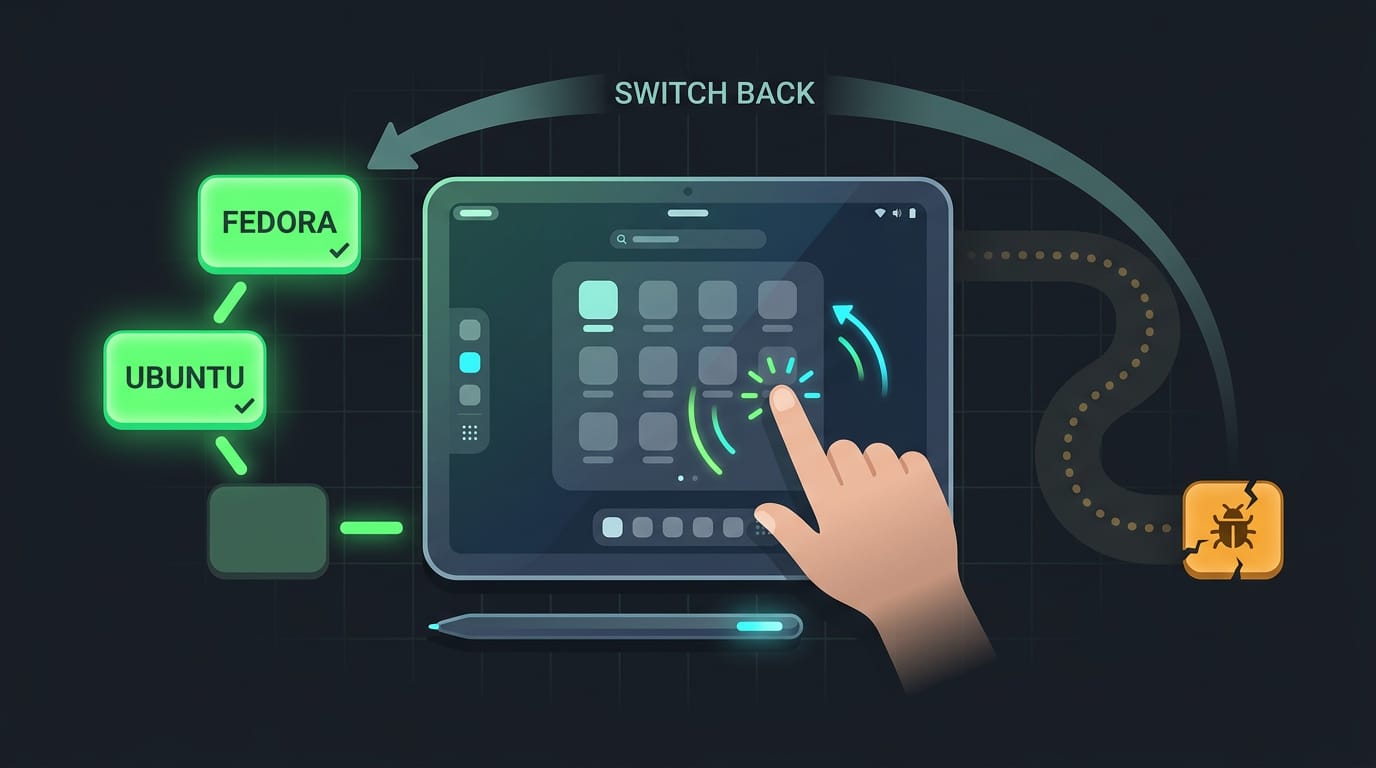
The two distros we actually tested
- EndeavourOS with KDE: one of our two test installs, with KDE (the K Desktop Environment) as the desktop.
- Fedora Workstation 40 with GNOME: our other test install, with GNOME as the desktop.
Consider a student who wants to take pen notes in lectures without losing a weekend to setup. For that job, Fedora Workstation 40 with GNOME is the lower-fuss pick.
Once you’ve picked a base, try Sway or Hyprland, two tiling Wayland compositors (Wayland is the modern display system, and a compositor draws your windows on screen). Tiling decides where windows go, but touch decides how you use them. Test it first.
Installing Linux and Getting Set Up
Getting Linux onto a Surface Pro 4 is less about hard engineering and more about following the right steps in the right order. Here’s what the install looks like and what to sort out before you start.
The linux-surface project on GitHub
The linux-surface project is a community project on GitHub built for Surface hardware. It ships a Surface-specific kernel (the core of the operating system, adapted for this hardware) plus a set of tools, and its wiki covers the installation steps.
Follow those steps rather than guessing your way through.
How hard the install really was
The install process was very smooth. Laptop use was nearly perfect even without the custom kernel.
Think of a student who types notes on their Surface in class: the laptop side just works, but pulling it off the keyboard and using it as a tablet is a different story. Tablet use was harder, so that’s the part to plan for.
Prep work and skipping the backup
We skipped the backup on this install, and that’s not a habit to copy. Back up anything you’d miss before you start. Your data deserves better.
Next, check your Secure Boot setting (a firmware option that controls which operating systems can start) and your BIOS (the firmware that starts your hardware). If you’re dual-booting with Windows, sort that out before you change anything.
In the next part, we’ll prepare the Ubuntu install.
What Works on This Hardware
The short version is that most of the Surface Pro 4 works on Linux now. This is less about whether it boots and more about how it feels once your fingers and pen are doing the work.
Hardware and features that now work
Your Wi-Fi, Bluetooth, and keyboard all work, and HiDPI scaling (for high-resolution screens that need the interface enlarged) works too. Power profiles let you trade performance for battery life.
Touch and pen work once you’re running the linux-surface kernel, so don’t skip that step.
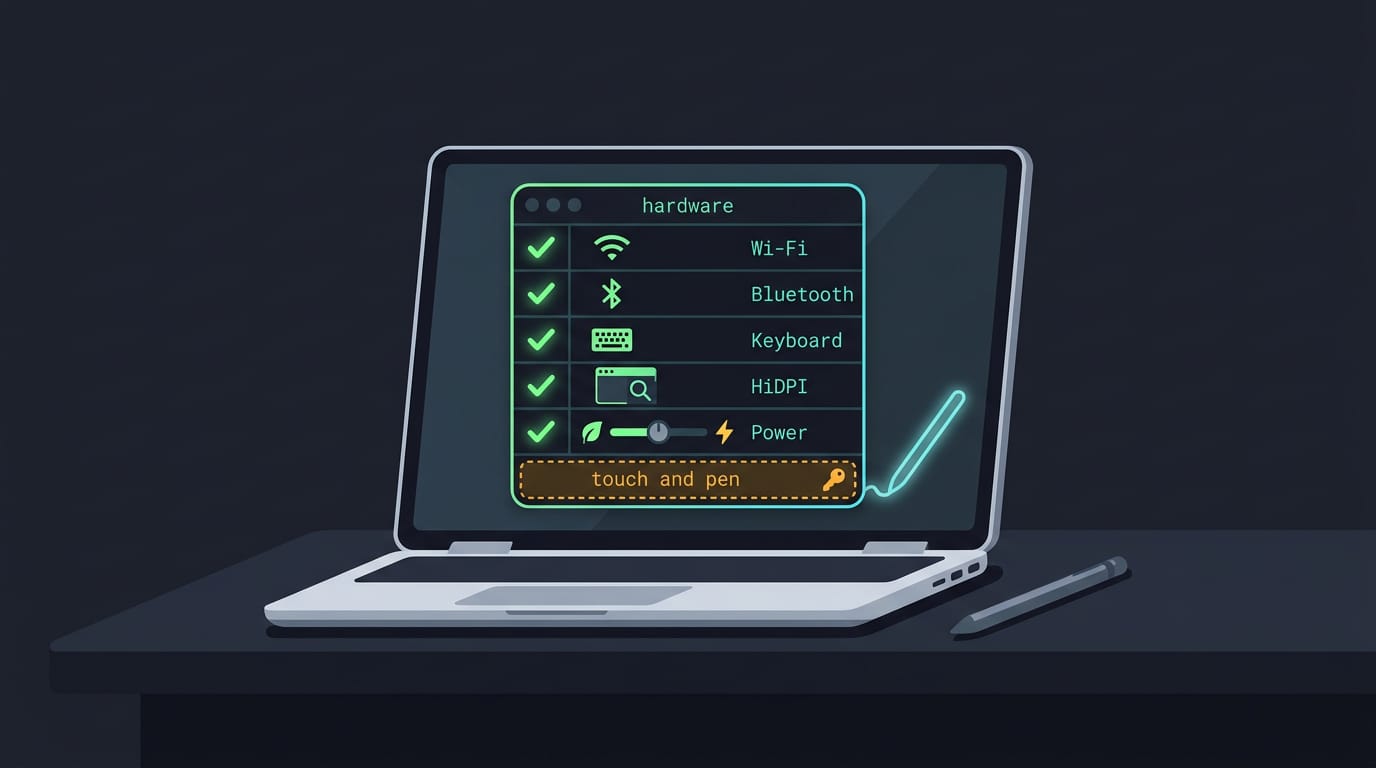
Tablet mode and how long it lasts
Auto screen rotation follows the device as you turn it, and detaching the keyboard switches the desktop into tablet mode. Battery is where your expectations need adjusting:
- Light use: 5 to 6 hours
- Video: about 3 hours
Think of a student who pulls the keyboard off to take notes on the couch. Light use covers a solid stretch of lectures on one charge. Keep the charger close.
How KDE and GNOME actually felt
Your desktop choice changes the feel more than you might expect. KDE (K Desktop Environment) feels fast and responsive on this hardware. GNOME brings an iPad-like tablet UI, but it’s heavier on resources, so it asks more of the machine.
If neither feels right, rice it. Pair Waybar (a customizable status bar) with an on-screen keyboard and you get a look that’s yours. Think of a tinkerer who wants the tablet to match the desk, not a stock desktop.
Problems You’ll Likely Run Into
Linux on a Surface Pro 4 has some rough edges, and the ones you meet depend partly on your desktop, whether that’s KDE Plasma or GNOME. Here’s what each one looks like and where a workaround is known.
Where touch and pen went wrong
Ghost touch means the screen registers taps you never made. Poor palm rejection means your resting hand can leave marks while you write.
Touch can also stop responding after the device wakes from sleep, and a pen setting in iptsd (Intel Precise Touch and Stylus Daemon, the touch and pen service) may have no visible effect.
Think of a student taking notes with the pen, whose palm keeps dropping stray marks across the page. These bugs are hard to pin down because they show up sometimes, not always, which makes every one feel random. Annoying, but you’re not imagining it.
Keyboard problems on screen and at boot
Keyboard trouble hits you at boot and inside the desktop:
- Disk password: no on-screen keyboard appears at the disk password prompt, so you’ll need a physical keyboard to get past it.
- KDE keyboard: the keyboard in KDE Plasma is buggy.
- GNOME backspace: backspace has a known issue on GNOME.
- Alternatives: if the defaults let you down, try Squeekboard or Onboard, two alternative on-screen keyboards.
Overnight battery drain, not yet investigated
Some reports describe losing 30% of the battery overnight. This one hasn’t been fully investigated, so we don’t have a settled fix yet.
Until someone pins down the cause, check your battery level before you leave the laptop alone for the night. Frustrating, and still a mystery.
Quirks you hit only on KDE
KDE has its own set of quirks, and these are ones you hit only on that desktop. A long press won’t bring up a right-click menu, which feels odd if you’re used to touch screens.
Resizing a window by its edge can be stubborn, and scrolling is sometimes choppy. Think of someone reading a long article on the couch, watching the text stutter as they scroll. Small annoyances, but they add up fast.
GNOME speed, memory, and gesture problems
GNOME can feel slower than KDE here, but the bigger issue is memory use. When memory runs low, the kernel’s OOM (out-of-memory) killer shuts down processes to free space.
Think of a developer with a dozen browser tabs and an editor open who loses unsaved work when an app gets killed.
GNOME can also leave swap and ZRam disabled. Swap is disk space used as overflow memory, and ZRam is a compressed slice of memory that acts as swap. With both off, you have less cushion when memory fills up.
Gesture and context menu bugs round out the list, so swipes and long presses may not do what you expect.
The slowdown is an annoyance, but losing work is the real problem. Save early, save often.

Some features just won’t work
Some features may not work under Linux on the Surface Pro 4. Test the ones you depend on, such as touch, pen, keyboard, and battery, before you commit to a setup.
Some issues above have known workarounds, and the linux-surface project’s known issues list is a good place to check before you assume a bug is permanent.
Where Things Landed and Alternatives
Linux on this Surface didn’t end in a clean win, and we’d rather say so up front. Here’s where things landed, why we’re back on Windows 10 for now, and which apps we still reach for there.
Why I went back to Windows 10
The dealbreaker was ghost touch, which means the screen registers touches you never made. A touchscreen that acts on its own is hard to trust, and that’s a rough deal when touch is the whole point.
Still, a Surface running Windows 10 beats one sitting idle in a drawer. Think of this as a practical call, not a final verdict on Linux: we’d rather have a working tablet today than a perfect project that collects dust.
We’ll re-evaluate once Windows 10 reaches its end of life (EOL). Until then, the Surface stays useful, and that’s the point.
Apps I use on Windows instead
Some tools are simply easier to live with on Windows right now. These are the ones we keep handy:
- Firefox for everyday browsing
- Nextcloud for syncing files with your own server
- Samba for sharing folders across your local network
- Krita for drawing with the Surface Pen
- Drawboard PDF for marking up documents with the pen
Think of a Linux user who sketches a wallpaper in Krita on Friday night, then marks up a shared PDF with the pen on Monday morning. On Windows, both jobs run without a second thought, so the pen stays a tool instead of a project.
Same Surface, fewer detours.
Running Linux on a Surface Pro 4 takes some patience, but it’s far from a dead end. Pick a distro that suits you, follow the linux-surface steps carefully, and you’ll know exactly what works and what still needs a workaround.
Add a touch-friendly desktop with tiling, and the tablet starts to feel built for how you actually work.
Your Surface Pro 4 already has the hardware. Linux simply gives you the final say in how it behaves.
References
Sources
Read next.
Linux Shebang Explained: What the First Line Does
Linux shebang lines tell the system which interpreter runs a script. Compare common forms, correct paths, and avoid failures from options or shell choice.
What Is Linux and How Its Kernel Runs Your PC
What is Linux? See how its kernel, distributions, desktops, and Wayland fit together, plus where Linux runs and how its software gets managed securely.
OS Commands in Linux: A Practical Guide
OS commands in Linux help you find files, move through folders, manage permissions, and customize your desktop without clicking through windows.