Linux Shebang Explained: What the First Line Does
Linux shebang lines tell the system which interpreter runs a script. Compare common forms, correct paths, and avoid failures from options or shell choice.
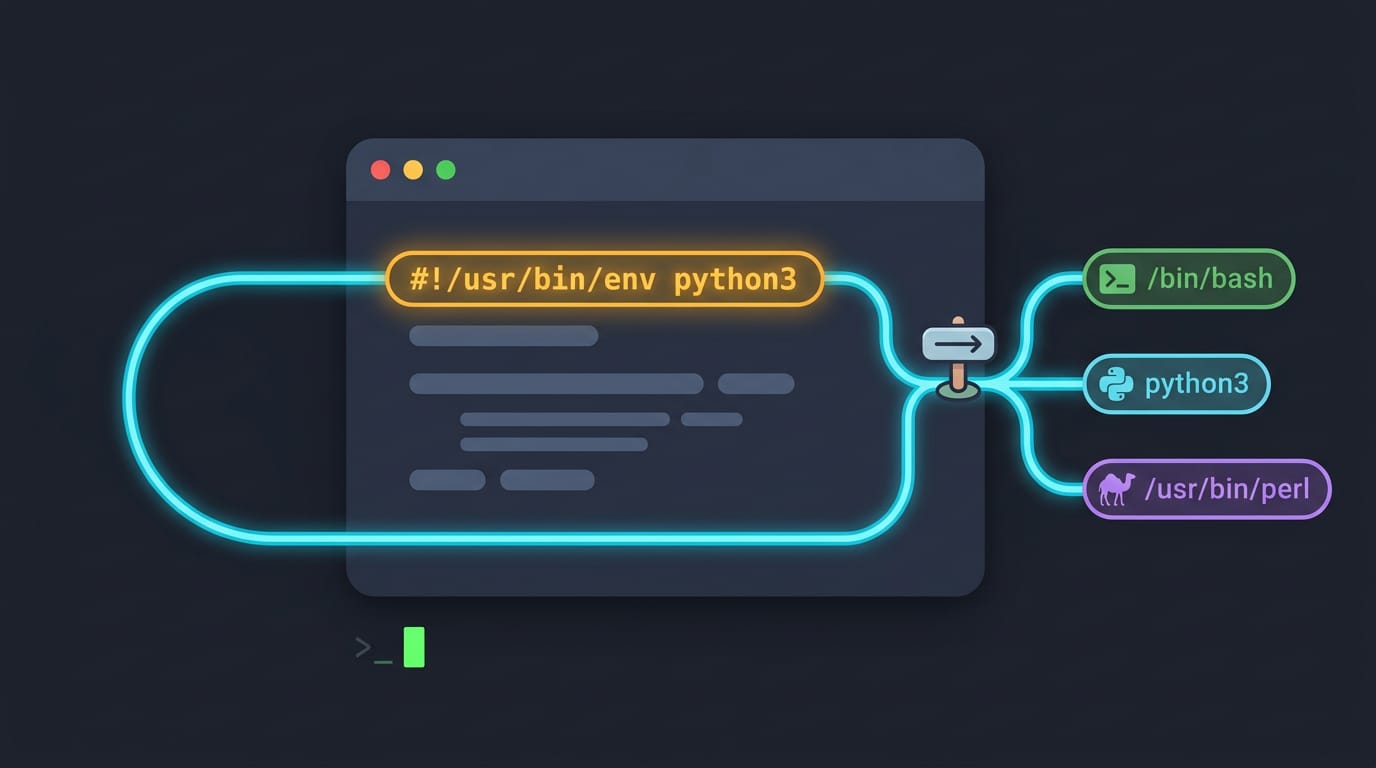
tl;dr the short answer
A Linux shebang is the first line of a script, beginning with `#!`, that names the program used to run the file. Choose an interpreter path that exists, use `#!/usr/bin/env` when the interpreter’s location may vary, and keep the line at the very top; make the script executable for direct execution. A correct shebang prevents the wrong shell from running your script and helps it work reliably across machines.
Picture a sealed envelope with a note on the front that says which key opens it. A Linux script works the same way: the first line tells the system which program should read the rest of the file.
That line is the shebang, written as #! followed by a path. It’s short, but it decides whether your script runs at all, which makes it an easy place for mysterious errors to hide.
Here we’ll walk through how the kernel reads it, the lines you’ll see most, and the checks that help when things go wrong.
What a Linux Shebang Actually Does
A shebang script is any script whose first line starts with #!, naming the program that runs it. Here’s how that line works and what goes wrong without it.
How to write the shebang line
Write #! followed by the path to your interpreter (the program that runs the script), such as #!/bin/bash, and make it the first line of the file. It’s also called a hashbang, from the hash mark and the bang (exclamation point).
You can add an option after the path, like #!/bin/bash -e, which stops at the first error.
How the system runs your script
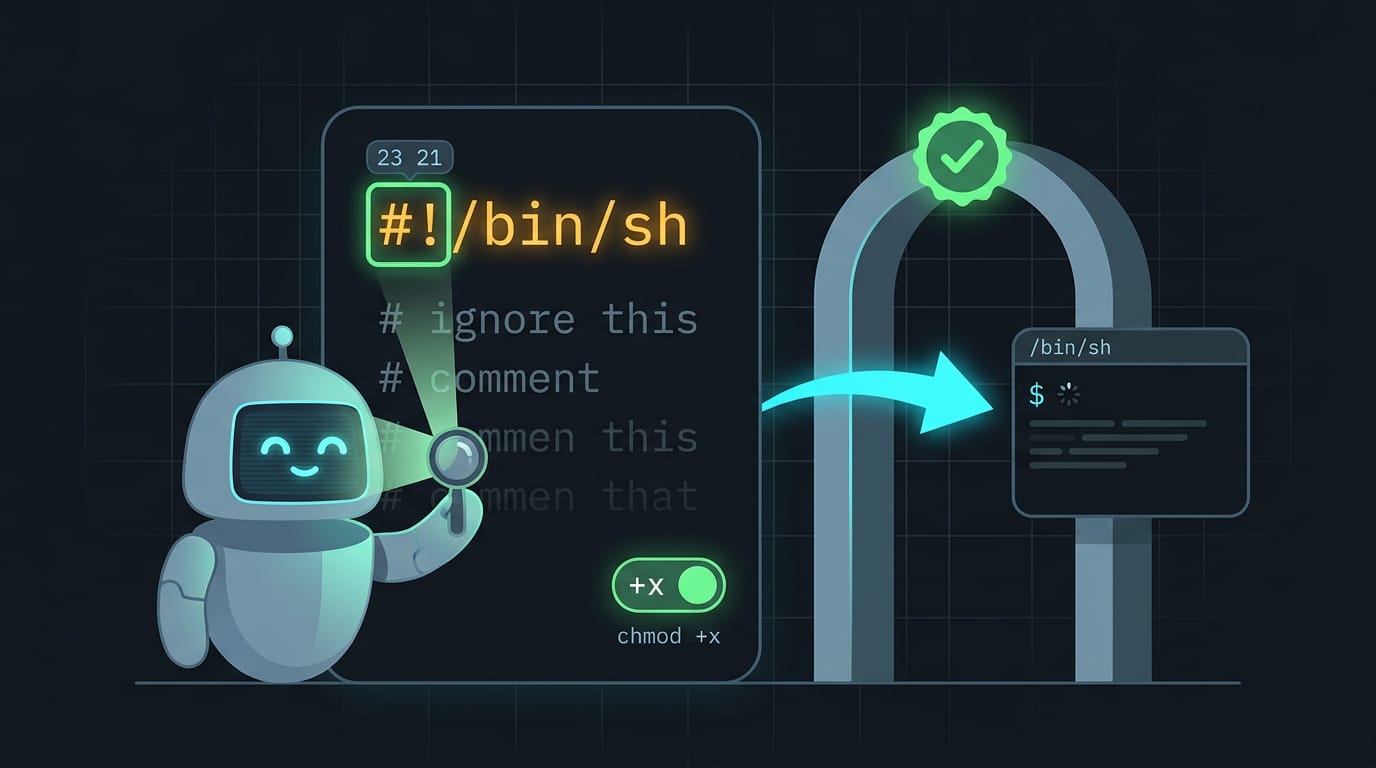
The kernel checks the first two bytes of a file, 23 21 in hex, which are the characters # and !. That magic number marks a script. fs/binfmt_script.c in the Linux kernel source only claims files that start this way, then launches the named interpreter.
Normally # starts a comment the shell ignores, which makes the shebang an exception: the kernel reads it as instructions.
The same line works when a web server runs the file through CGI (Common Gateway Interface, a standard for letting web servers run programs). For direct execution, you’ll also need to make the file executable, so run chmod +x myscript.sh once.
What happens when the shebang is missing
Without #!, the kernel doesn’t claim the file, so the system falls back to launching a shell. Which shell that is can vary between users and machines, and scripts that rely on one shell’s features may break when a different one takes over.
Think of a hyprland user whose keybinding script uses bash-only tricks and has no shebang. It runs fine on the desktop but fails on a laptop with another shell. Add #!/bin/bash at the top, and the script runs the same everywhere. One line, no guessing.
Shebang Lines You Will See Often
Most scripts start with a shebang line, and its path picks the program that runs the file. Hyprland and Waybar helper scripts use the same lines, so you’ll see them often.
What does #!/bin/bash mean?
The #! followed by a path is the shebang, and that path names the interpreter, the program that runs the file. So #!/bin/bash means “run this file with bash.” Three forms come up most:
#!/bin/bashuses bash at that exact path.#!/bin/shuses the system’s default shell, which may differ from bash.#!/usr/bin/env bashhas env find bash on your PATH (the list of folders your shell searches), so it works wherever bash lives.
Say you wrote a Waybar module that prints your volume. Starting its script with #!/usr/bin/env bash lets you test the output in a terminal before Waybar calls it.
The shebang sets which program runs the file, not what the file does. That’s the whole trick.
Shebang paths for Python, Perl, Ruby
Each language follows the same pattern:
#!/usr/bin/perlfor Perl#!/usr/bin/env python3for Python#!/usr/bin/env rubyfor Ruby#!/usr/bin/env phpfor PHP, a web scripting language, run from a terminal#!/usr/bin/osascriptfor AppleScript, a macOS tool
To pin one Python release, use #!/usr/bin/env python3.11. A missing version then fails loudly instead of quietly running a newer Python.
Interpreter paths on hosting servers
Hosts often put interpreters in different places, so a path that works on your laptop can trigger a bad interpreter error on a server. Many hosts publish an interpreter table, so copy your path from it.
PHP served to a browser doesn’t need a shebang. The web server runs it, and the browser just sees the output.
Getting the Interpreter Path Right
Your shebang only works if the kernel finds the interpreter at the exact path you wrote, so we’ll get that line right.
Why the path must be absolute
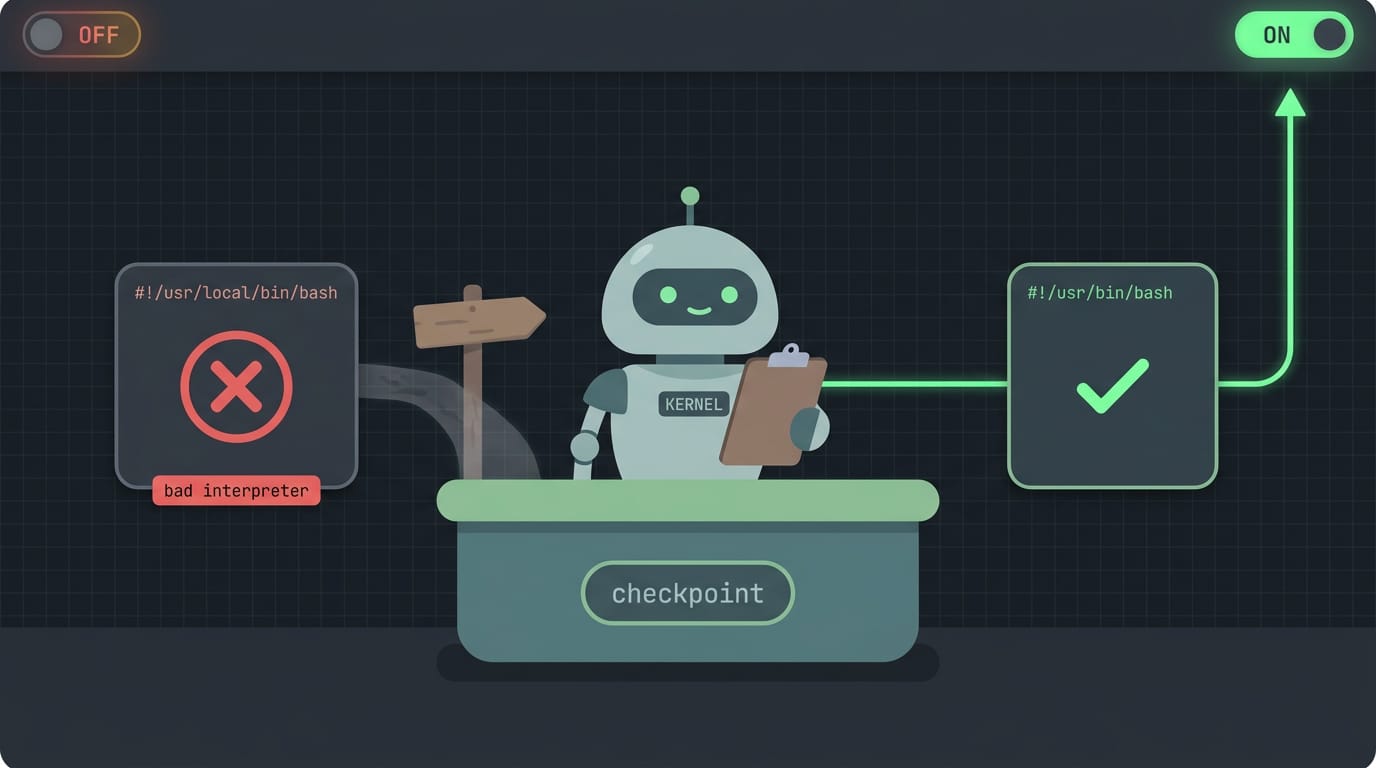
The kernel doesn’t search for bash. It opens the exact file you named and checks that path, so the path must be absolute, starting at the root /. A bare name like #!bash won’t work.
Your PATH isn’t guaranteed either, since a keybind or cron job may use a different one.
Consider a hyprland user who copies a status bar toggle from a forum post. Line one says #!/usr/local/bin/bash, which isn’t on their machine, so the terminal reports bad interpreter: No such file or directory.
The fix is to point line one at the real path that whereis bash reports, and the bar comes back on the next keypress.
Where interpreters live on each system
Interpreters don’t always sit in the same folder. Same tool, different address.
- Linux versus macOS: the same program can live in different folders, so a copied shebang can break.
- Homebrew bash: Homebrew installs its own copy under its own prefix, so the right path depends on how you installed it.
- BSD differences: BSD systems can lay out directories differently from Linux.
- Find the path with
whereis: runwhereis bashand use that result on line one.
Letting env find the interpreter
Instead of hardcoding a folder, write #!/usr/bin/env bash. The env program searches your PATH for bash and runs the first match, which improves portability across Linux, macOS, and BSD.
It also runs your preferred interpreter. If a newer Homebrew bash sits first on your PATH, that’s the copy your script uses.
There’s one catch: the shebang still needs /usr/bin/env to exist, so this moves the dependency rather than removing it. Where env lives elsewhere, you’ll see the same bad interpreter error.
Passing Options on the Shebang Line
Passing options on the shebang line is handy, but it has quirks. Here’s how to combine them safely, and when to set them inside the script instead.
Combining options without breaking things
A single flag is fine. A Perl script that should warn about suspicious code can use #!/usr/bin/perl -w.
Linux passes everything after the interpreter path as one argument, not several, so #!/bin/bash -e -u hands bash a single string that it rejects as an invalid option. That’s the catch.
Combined letters work, though: #!/bin/bash -eu is one argument that bash reads as two options.
Picture a waybar tinkerer whose status script should stop at the first error and flag unset variables. #!/bin/bash -eu does that, so a typo halts the script instead of feeding waybar bad output.
Switching to env doesn’t fix it. With #!/usr/bin/env bash -eu, env looks for a program literally named bash -eu and fails. GNU env’s env -S option splits that string into separate arguments: #!/usr/bin/env -S bash -eu.
Minimal env builds may lack it, so test on the systems where you’ll run the script.
Setting options inside the script instead
If the shebang gets messy, skip it. Put set -eu on the line after the shebang, and the shell applies those options as it reads the file, so it works no matter how the shebang is split.
Some people consider options buried in the script body bad style, since readers have to scroll past the first line to see how it behaves.
Picking a Shell and Good Habits
Shell scripting means writing commands in a plain text file so your shell runs them in order. Which shell you target shapes every line you write.
Choosing between sh and bash
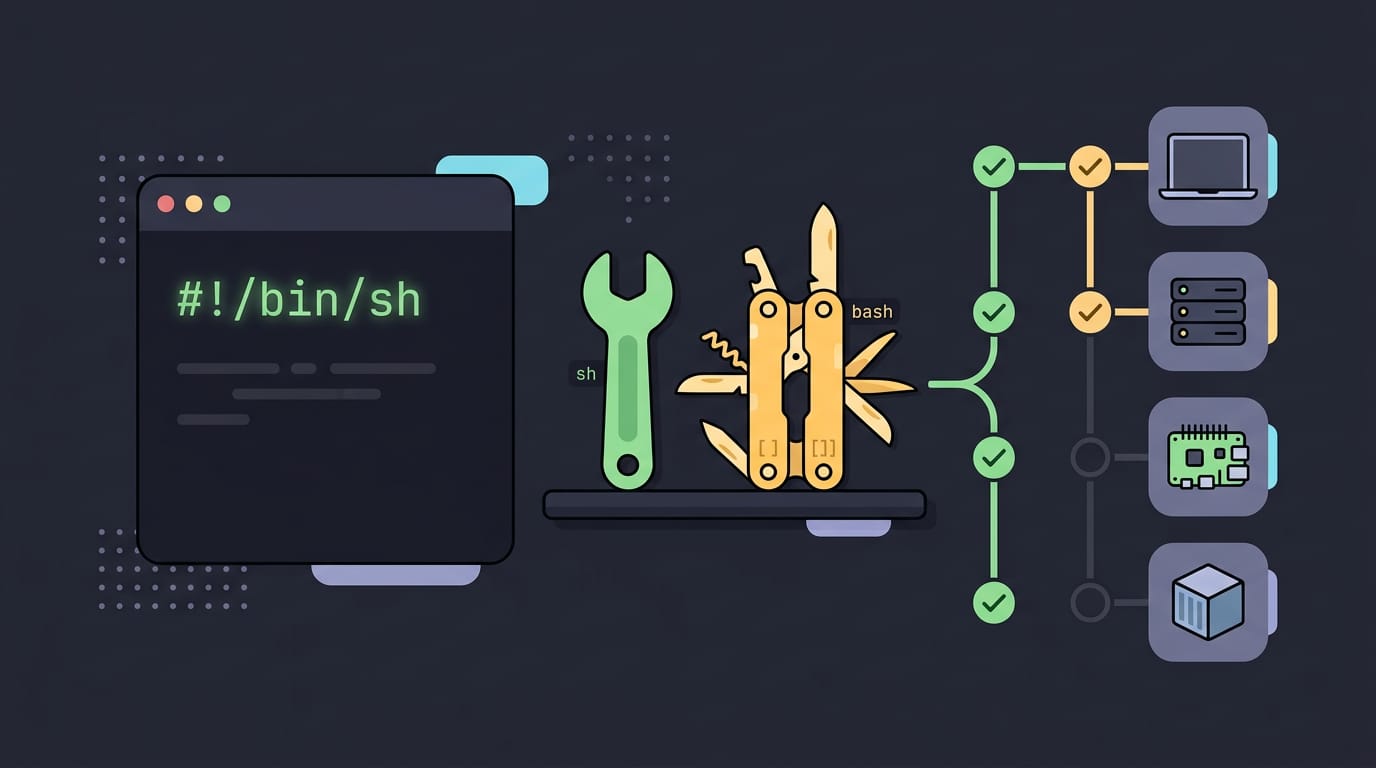
The shebang is the #! line at the top of a script, naming the interpreter that runs it. For maximum compatibility, use sh, which follows the POSIX (Portable Operating System Interface) standard.
Bash adds handy extras like arrays and [[ ]] tests, but only where bash is installed. Choose by what the script needs, not what looks clever. Portability wins ties.
How bash compares with zsh and fish
zsh and fish are popular interactive shells, with zsh offering strong tab completion and fish suggesting commands as you type. Fish isn’t POSIX-compatible, though, so its scripts won’t run under sh or bash.
Bash has more shared examples, so you’ll find more help when something breaks. Once a script outgrows shell, step up to Python or Swift.
Is bash or Python easier? It depends on the job. Bash is easier for running commands, since its syntax looks like the commands you already type. Python is easier once logic gets tangled, thanks to its data structures.
A student copying configs each night needs only a short bash job, but parsing JSON from a status bar is where Python earns its keep.
Recommended habits for portable scripts
Three habits keep scripts portable:
- Use
envfor portability.#!/usr/bin/env bashmakes the system search your PATH, since bash doesn’t always live at/bin/bash. - Fixed paths in controlled environments. On your own machine,
#!/bin/bashis fine and skips the lookup. - Always first line. The shebang must be the very first line, with no blank line or spaces above it, or the kernel won’t spot it.
Login shell versus the script’s shell
Your login shell is the program that starts when you log in, and chsh changes it. The shebang picks the shell for one script. Your login shell is about you, while the shebang is about the script.
A ricer might run fish daily yet keep a keybinding script on #!/usr/bin/env bash, and switching the login shell later won’t break those bindings. Two settings, two jobs.
Once you know what the shebang does, script setup gets much less mysterious. The kernel reads that first line, hands the file to the interpreter you named, and runs it.
Pick the path with care, lean on env where it helps, and make sure the file is executable.
Portable scripts are what keep your keybindings and status bar working after a fresh install or a move to a new machine. That’s the payoff for a little care up front. Get that first line right, and your scripts will run wherever you do.
References
- fs/binfmt_script.c at master — github.com
Questions
What is a shebang script?
A shebang script is a script whose first line begins with `#!` and names the interpreter that should run it, such as `#!/bin/bash`. The kernel reads that line when the file is executed and launches the specified program.
What is shell scripting in Linux?
Shell scripting in Linux means writing shell commands in a plain-text file so a shell runs them in order. The script can automate tasks, and its shebang can specify which shell or other interpreter should run it.
Is bash or Python easier?
It depends on the task: Bash is often easier for running commands and automating simple command-line jobs, while Python is often easier when the logic becomes complex or involves structured data. For example, Bash suits a short file-copying task, while Python can be more convenient for parsing JSON.
What's #!/bin bash?
The correct Bash shebang is `#!/bin/bash`, with no space between `#!` and the path. `#!/bin bash` is malformed because it makes the interpreter path `/bin` and treats `bash` as an argument; use `#!/bin/bash` or `#!/usr/bin/env bash` instead.
Sources
- fs/binfmt_script.c at master · torvalds/linux, github.com
Read next.
What Is Linux and How Its Kernel Runs Your PC
What is Linux? See how its kernel, distributions, desktops, and Wayland fit together, plus where Linux runs and how its software gets managed securely.
OS Commands in Linux: A Practical Guide
OS commands in Linux help you find files, move through folders, manage permissions, and customize your desktop without clicking through windows.
Ubuntu Shutdown Screen Explained, Step by Step
Ubuntu shutdown screen delays can reveal stuck apps or services. See how logind handles power events and force an immediate terminal shutdown when needed.