Linux permissions: owners, groups, and the rwx model
Linux permissions make access errors easier to solve by explaining rwx, chmod, ownership, numeric modes like 600 and 777, and SSH key security.
tl;dr the short answer
Linux permissions are rules attached to files and folders that determine what the owner, their group, and everyone else can read, change, or run. Use chmod to adjust access, chown to change ownership, and umask to limit permissions on new files; check directory execute access and use special bits or ACLs only when needed. In practice, grant only the access required, protect sensitive files and keys, and avoid broad settings like 777 that let everyone make changes.
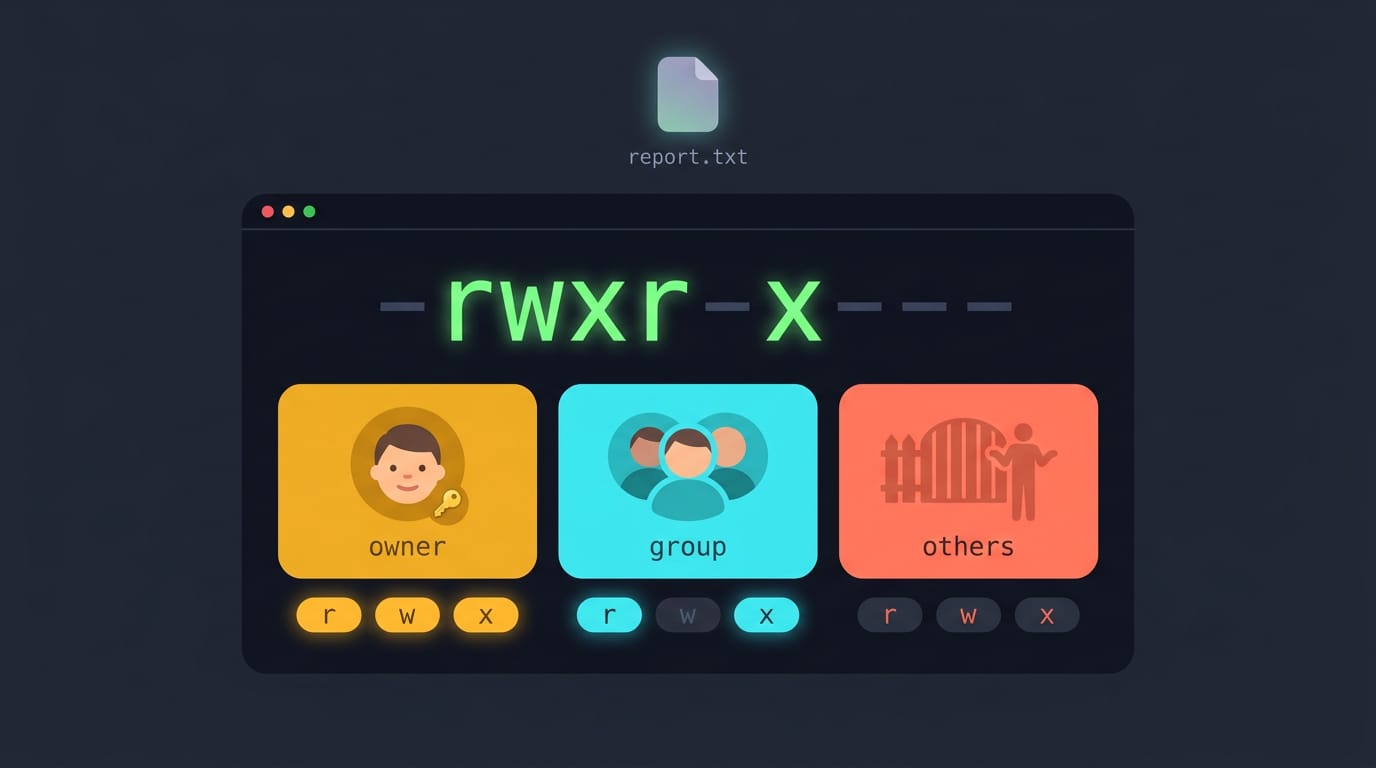
Think of a shared apartment where the front door opens for everyone, but your bedroom only opens for you. Linux permissions work the same way. Every file and folder has an owner, a group, and rules that decide who can read, write, or run it.
Once you know the rwx model, a permission-denied error stops being a mystery. In this post, we’ll cover how those rules work, how chmod and ownership change them, and what umask and special bits do.
We’ll also spell out numeric modes like 600, 700, 666, and 777, then finish with practical tips for dotfiles, SSH keys, and debugging.
How Linux Permissions Work
Each file carries a rulebook for who can read, change, and run it.
Owner, group, and everyone else
Every file has one owner and one group. The owner is usually the creator, and the group is a set of users who share access. Everyone else falls under others. Shorthand: u (user, meaning the owner), g (group), and o (others).
Picture a student sharing a ThinkPad with a roommate. Their shared folder belongs to a group they both join, while private notes stay closed to everyone else.
What read, write, and execute allow
Read (r) lets you view a file’s contents, write (w) lets you change them, and execute (x) lets you run it as a program or script.
On a directory, read lists contents, write adds, renames, or deletes entries, and execute lets you enter it and reach files by name. To see what a directory holds at a glance, try the tree linux command.
Being able to open a script isn’t the same as being able to run it. A hyprland user copies a wallpaper script from a friend’s dotfiles and gets “Permission denied” on launch.
The file is readable but lacks the execute bit, so one permission fix is all it needs.
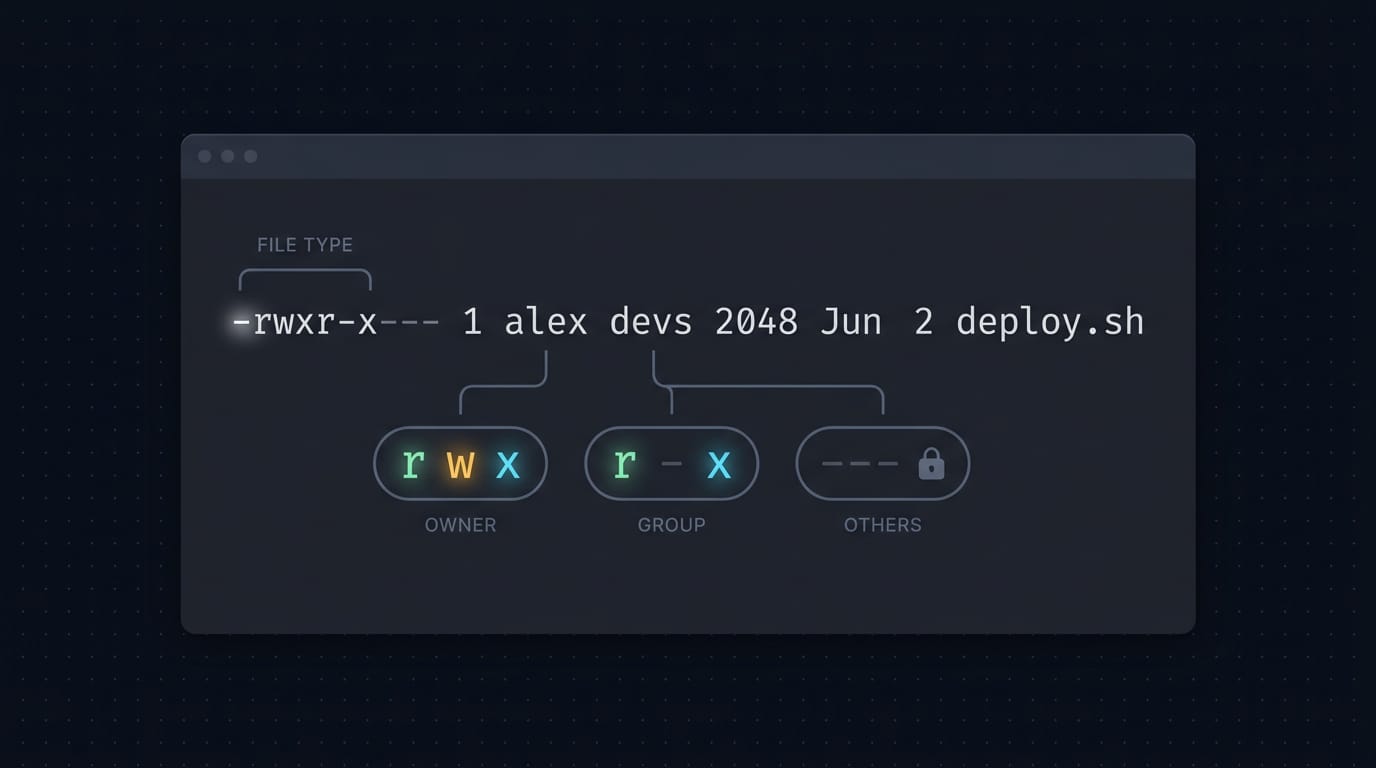
How to read ls -l output
Run ls -l and read the first column.
-rwxr-x--- 1 alex devs 2048 Jun 2 deploy.sh
- File type: the first character. A dash is a regular file,
dis a directory, andlis a symbolic link. - Permission string: the next nine characters, in groups of three for owner, group, and others. A letter grants a bit, and a dash withholds it.
- Owner and group fields: here,
alexowns the file anddevsis its group.
So -rwxr-x--- lets the owner read, write, and run it, the group can read and run it, and everyone else gets nothing. Run stat -c %a deploy.sh for the numeric form, which prints 750.
Writing permissions as letters or numbers
Two notations describe the same bits. Symbolic mode uses letters: u+x adds execute for the owner, and go-w removes write for the group and others. Octal mode, the numeric form, uses one digit per class:
- r = 4
- w = 2
- x = 1
Add the values in each class: rwx is 7, r-x is 5, r— is 4, and --- is 0. So rwxr-x--- becomes 750, and 600 means read and write for the owner and nothing for anyone else. It’s just addition.
Changing File Access and Ownership
chmod controls who can read, write, or run a file, chown controls who owns it, and umask sets the defaults for new files. Here’s how we’ll work through each one.
What is chmod 600 and 700?
Numeric mode adds up each digit’s bits: read is 4, write is 2, and execute is 1. chmod 600 notes.txt gives the owner 6 (read and write) and nothing to anyone else. chmod 700 script.sh gives the owner 7 (full access) and still locks everyone else out.
Symbolic mode uses u, g, and o for owner, group, and others, with +, -, and = to add, remove, or set exactly:
chmod u+x script.shadds execute for the owner.chmod go-rwx private.txtstrips access from the group and others.
Add -R to apply either form to a whole folder.
666 gives everyone read and write on a file, but nobody can run it. 777 adds execute on top. On a directory, 777 lets any account create, rename, or delete entries inside, including other people’s files.
Picture a student on a shared lab machine running chmod 777 on a class folder to clear a permission error. Now every account can delete the homework. Quick fix, big risk.
Changing file owners and groups
chown alice notes.txt changes the owner, chown alice:devs notes.txt sets owner and group together, and chgrp devs notes.txt changes only the group. Owner changes usually need root, so you’ll often see sudo out front.
Say sam copies a project folder off a USB drive with sudo and can’t edit a thing. sudo chown -R sam:sam ~/project fixes the whole tree at once, but -R reaches everything below, so check the path first.
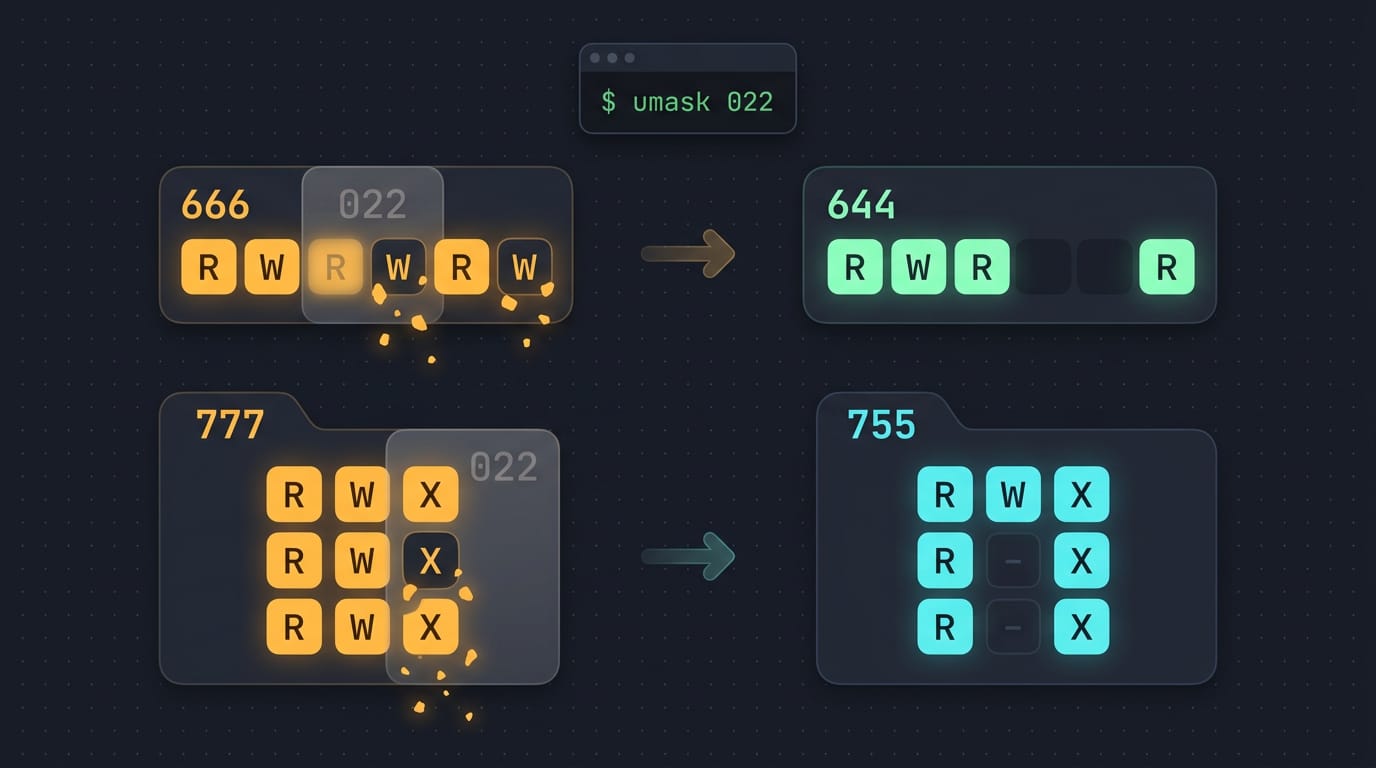
Controlling default permissions with umask
New files usually start from 666 and new directories from 777, and your umask strips bits from that base. So it’s about removing access, not granting it. A umask of 022 leaves files at 644 and directories at 755.
Run umask alone to check yours, and set a new one with umask 027 (files 640, directories 750). To keep it, add the line to a startup file like ~/.bashrc.
Gaining admin rights with su and sudo
su switches user for the whole session: su - opens a root shell after root’s password, and su alice switches to alice. sudo runs one command as root, usually with your own password. So su changes who you are, while sudo grants rights for one command. If you are not sure which account names exist before using su, the linux list users guide covers them.
For system files, use sudoedit /etc/hosts: it opens the file in your own editor and writes it back as root.
Less Common Permission Flags
Most days, rwx and ownership cover you. Special bits and an access control list (ACL) handle the cases where they fall short.
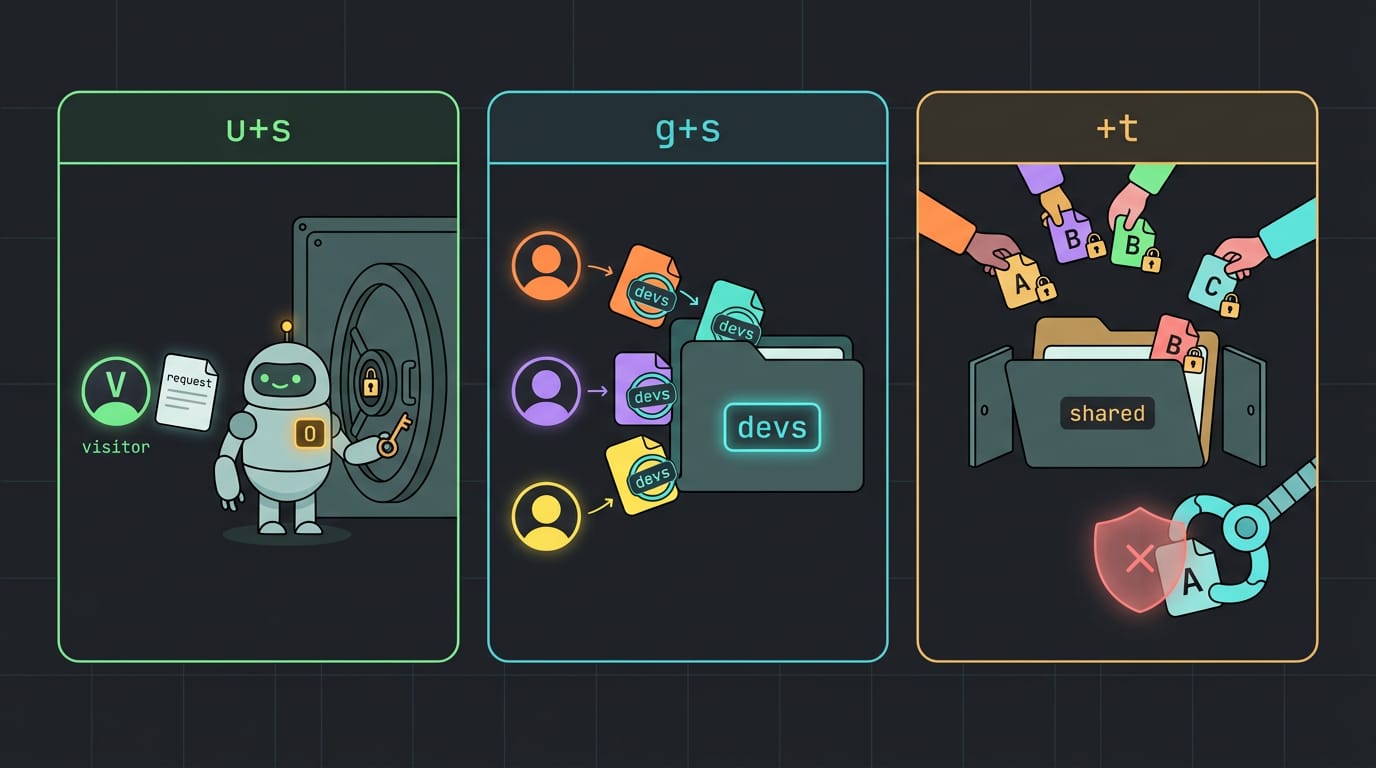
What SUID, SGID, and sticky bit do
In numeric mode, each bit adds a leading digit to the usual three.
- SUID (set user ID): The program runs as its file owner, not whoever launched it, which is how
passwdlets you change your password. Set it withchmod u+s fileorchmod 4755 file. - SGID (set group ID): New files in the directory inherit its group instead of the creator’s. Set it with
chmod g+s dirorchmod 2755 dir. - Sticky bit: Only a file’s owner (or root) can delete or rename files in the directory, even when everyone can write there. Set it with
chmod +t dirorchmod 1777 dir.
Picture Dana sharing /srv/project with her devs group. After chown :devs /srv/project and chmod 2775 /srv/project, every file her teammates create lands in devs, so nobody has to fix permissions after each save.
The /tmp directory is the classic sticky case. It’s writable by everyone (mode 1777), but the sticky bit means Alice’s scratch file survives Bob’s cleanup script.
Use these bits judiciously. A root-owned SUID program with a bug can hand an attacker root, so set it only on tools you trust. Fewer is safer.
For the in-between cases, setfacl -m u:alice:rw report.txt gives Alice read and write access without changing the owner or group, and getfacl report.txt lists every entry. A + after the permission bits in ls -l means an ACL is set.
Putting Permissions into Practice
Here’s how to apply these rules, then how to track down what’s blocking you.
Common setups and hands-on exercises
A student hosting a small site needs the server to read files but never change them. Use 755 for folders and 644 for files.
For a folder two roommates share, make a group, assign it with chgrp, and run sudo chmod 2775 on it. The leading 2 is the setgid bit, so new files join that group.
Run touch practice.txt, then chmod it to 600, 666, and 777, checking ls -l each time. 600 shuts out everyone except you, while 666 and 777 let every account write.
Quick takeaways:
- Check before you change. Start with
ls -l. - Grant the minimum. Give only the access each user or service needs.
Troubleshooting access errors and common questions
- Permission denied checks. The error says that something failed, so find where. Check
ls -ldon each parent folder, since every directory needs execute (x) to pass through. - Cannot execute script fix. A script that fails with permission denied usually lacks the execute bit. Run
chmod +x backup.sh, then./backup.sh. - Using id command. Run
idto list your groups. A roommate added mid-session keeps getting refused until they log out and back in. Groups only refresh at login. - Safe config file permissions. Config files with passwords or access tokens should be
600, and ordinary dotfiles can stay644. - su vs sudo.
su(substitute user) asks for the target account’s password.sudo(superuser do) runs one command with admin rights using your own password. - SSH key and ~/.ssh permissions. Secure Shell (SSH) refuses private keys that other users can read. Set
~/.sshto700and private keys to600, and public.pubfiles can be644.
Permissions come down to a few simple ideas: who owns a file, which group it belongs to, and whether read, write, or execute is allowed for each.
Chmod and umask give you the controls, and numeric modes like 600 and 700 are just shorthand for those same rules.
Keep private keys and personal files locked down, and open access only when there’s a real reason to. Your files should open for the people who need them and stay closed to everyone else.
Questions
What is chmod 600 and 700?
`chmod 600` gives the owner read and write access, with no permissions for the group or others. `chmod 700` gives the owner read, write, and execute access, while locking out everyone else.
What is chmod 777 vs 666?
For a regular file, `chmod 666` gives everyone read and write access but no execute access. `chmod 777` gives everyone read, write, and execute access. Both are broad permissions; `777` adds the ability to run the file.
What are file permissions and what do they do in Linux?
Linux file permissions determine which users can read, change, or execute files and access directories. They apply separately to the file’s owner, its group, and everyone else, using read (`r`), write (`w`), and execute (`x`) permissions.
What does chmod 777 do to a directory?
`chmod 777` gives everyone read, write, and execute permissions on a directory. Anyone can enter it and create, rename, or delete entries inside, including files belonging to other users, so it can be risky.
Read next.
Alpine Linux package manager commands you need every day
The Alpine Linux package manager, apk, installs and upgrades software. Get daily commands, package sources, version locking, and fixes for common errors.
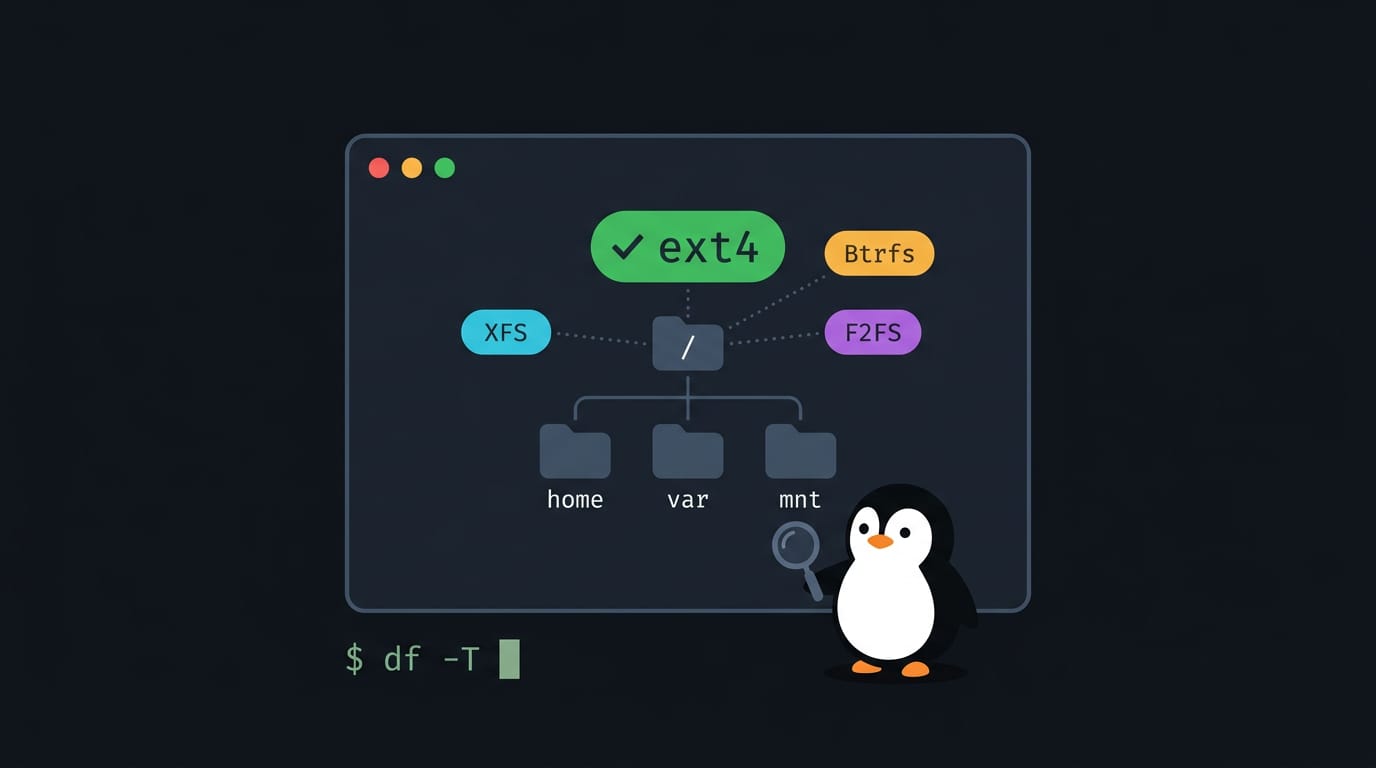
What File System Does Linux Use? A Complete Guide
What file system does Linux use? Compare ext4, XFS, and Btrfs, see distro defaults, and use terminal commands to check your current setup today.
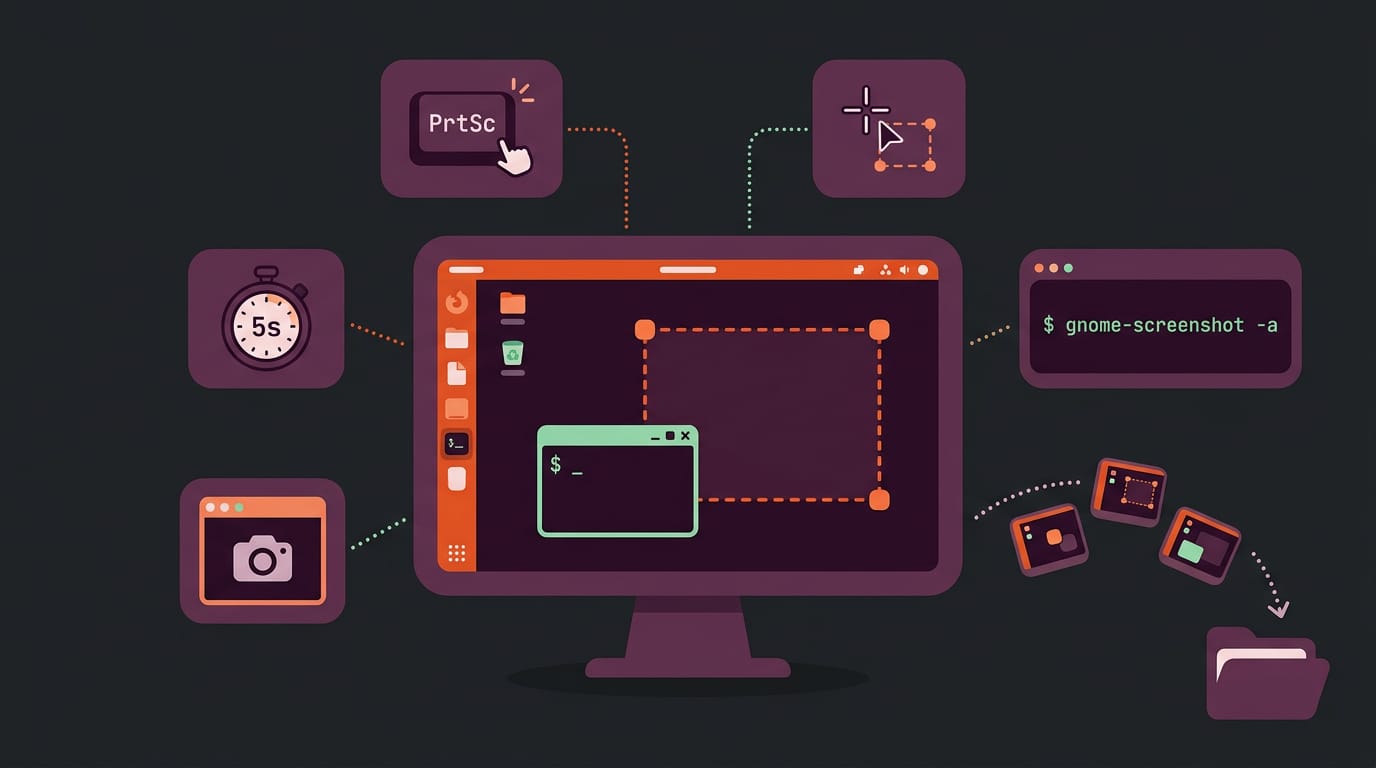
Screenshot in Ubuntu: Every Way to Capture Your Screen
Screenshot in Ubuntu: compare built-in shortcuts, the Screenshot tool, and annotation apps, then use terminal commands and keybindings most guides skip.