What File System Does Linux Use? A Complete Guide
What file system does Linux use? Compare ext4, XFS, and Btrfs, see distro defaults, and use terminal commands to check your current setup today.
tl;dr the short answer
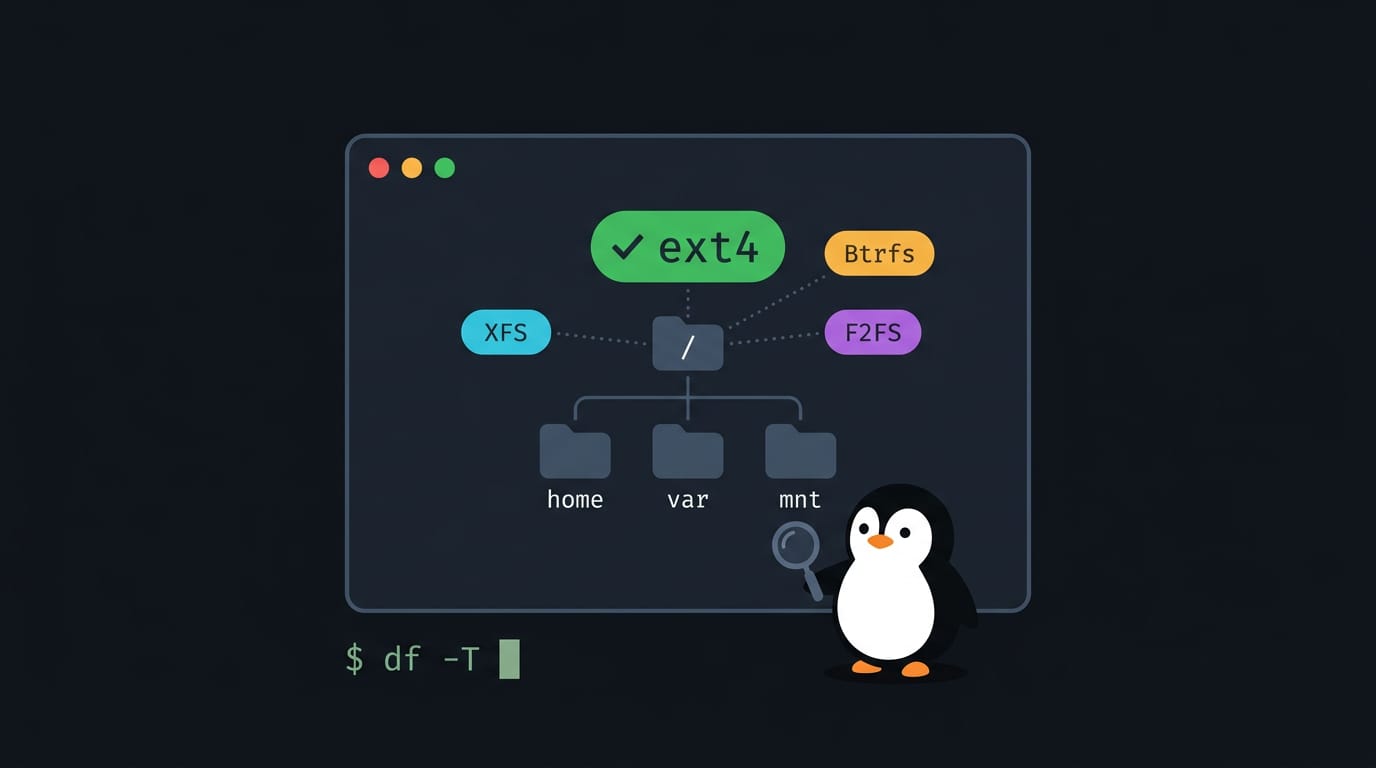
A file system organizes files and tracks their names, contents, permissions, and storage on a disk. Linux supports many formats: ext4 is a common, reliable choice for everyday use, XFS handles large files and heavy workloads, and Btrfs offers features such as snapshots; distributions choose different defaults. Check your system with `lsblk -f` or `df -T`, and keep its default unless you have a specific reason to change.
Ever opened a drawer and found everything exactly where it belongs? That’s the job a file system does for your computer: it keeps track of where every file lives so you can find it again.
So what file system does Linux use? The honest answer is that it depends on your distro, though ext4 (the fourth extended file system) is the one you’ll meet most often.
XFS, a file system built for large files and busy servers, and Btrfs, a newer option with built-in snapshots, are popular alternatives.
In this post, we’ll cover the main options, how the directory tree is laid out, and which file system your distro picks by default. Then we’ll get practical with terminal commands to check, choose, and create one.
Why the File System Linux Uses Matters
Before you check or change anything, know what a file system does and why storage needs one.
What a file system actually does
A file system is the layer that turns a raw disk into usable storage. It’s less about storing bytes than about organizing them.
It does three things:
- Organizes data and metadata. It keeps file contents alongside details like names and sizes.
- Manages storage on devices. It tracks which space is free and which file uses it.
- Sets rules for naming and access. It decides which names are valid and who can read or run a file.
Why storage needs file systems
Consider a tinkerer who edits a waybar config at midnight and reboots the next morning. The file system keeps it right where they left it.
Your random access memory (RAM) is fast but volatile, so everything in it vanishes when the power goes out. Your files need a persistent drive, like a hard disk drive (HDD) or solid-state drive (SSD), that holds data across reboots.
Without a file system, your photos would sit as scattered pieces. It maps every piece so they reassemble in order, and it keeps reads and writes efficient.
Linux lets you pick your file system
Unlike Windows and macOS, Linux treats the file system as a decision you make. You can choose one for each disk you set up.
That choice also shapes which distro suits you, since each one ships with a default. Linux supports many file system types, each suited to a different job.
Picture a self-hoster with a spare drive and a student on a ten-year-old ThinkPad, each picking the file system that suits their hardware, not someone else’s default.
Choice is the feature.
Popular File Systems and What They Do
Linux isn’t tied to one file system. Each one trades speed, safety, and features differently, and your distro picks a default for you. Here’s what the main options are good at, and where we’d use each.
The trusted ext2, ext3, and ext4 family
The ext family is the workhorse of Linux. It began with ext2, added journaling in ext3, and reached ext4 with extents, which track large files in fewer, bigger chunks. The journal logs pending changes, so a power cut is less likely to leave a mess.
Newer versions stay backward compatible with older ones, and ext4 is supported nearly everywhere. It’s the predictable choice rather than the experimental one. Boring is a compliment here.
Handling large files with XFS
According to the XFS Algorithms & Data Structures document, SGI (the company behind IRIX) developed XFS in October 1993. It’s built for large files, large file systems, and large directories, so it scales well as storage grows.
It also supports parallel I/O (input and output running at once) and fragments less. On Red Hat Enterprise Linux (RHEL), XFS is the default, as KAOS Data’s cheat sheet explains.
What Btrfs offers for snapshots and repair
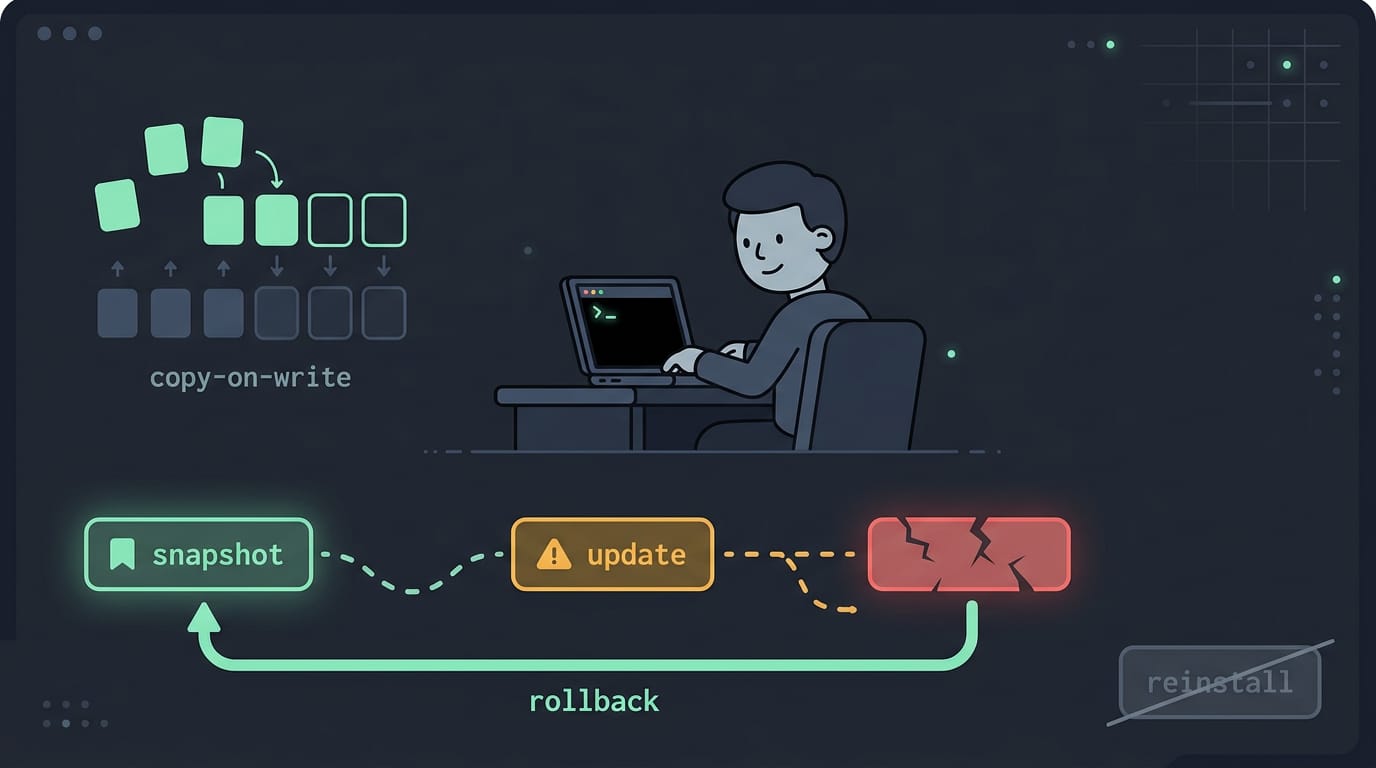
Btrfs takes a different route. It uses copy-on-write, meaning changes land in fresh space rather than overwriting old data. That makes a snapshot (a saved, point-in-time copy you can return to) practical.
Built-in RAID (combining several disks into one volume) and self-healing checks spot damaged data and repair it from a good copy when one exists. AlmaLinux’s announcement of Btrfs support notes that Btrfs is the default for Fedora Linux and openSUSE.
Picture a Fedora user about to try a risky update: a snapshot taken first means a bad update becomes a rollback instead of a reinstall.
Less common disk file systems
- JFS, IBM’s journaling file system
- ZFS, which came out of Solaris
- ReiserFS and its successor Reiser4
- Xiafs, MINIX, and MS-DOS formats, which mostly matter for history or old media
- F2FS, built for flash storage such as solid-state drives and memory cards
These are niche tools rather than everyday defaults, so we’d stick with ext4, XFS, or Btrfs unless you have a specific reason.
Special and cross-platform file systems
- Swap handles paging, holding memory pages (chunks of RAM) that Linux moves to disk when memory runs low.
- tmpfs lives in RAM, so its contents vanish at reboot.
- vfat, a FAT variant, often holds boot partitions because it’s simple and widely readable.
- NTFS (the Windows format) and exFAT (common on flash drives) are supported, so Linux can open files from either.
- FUSE lets file systems run as regular user programs instead of kernel code.
- /proc is a virtual file system: it shows live kernel information, and nothing is stored on disk.
A tinkerer sharing a USB stick with a Windows friend can format it as exFAT, so both machines open it without fuss.
How the Linux File System Is Built
Linux puts a stack of layers between your programs and the disk. Here’s how we’ll trace them, from the kernel (the core of the operating system) to the mounts in your terminal. If the kernel at the core of that stack is new to you, start with what Linux is.
How the layers stack together
- Logical file system: handles names, permissions, and the directory tree.
- Virtual file system (VFS): gives every format one common interface.
- Physical file system: the driver for one format, such as ext4 or XFS.
- Interface between apps and storage: where requests finally reach the hardware.
Your programs care about what they’re reading, not where it lives. Take a hyprland user with dotfiles on ext4 and screenshots on XFS. The same cp and ls work on both, so their scripts never notice. Same commands. Different formats.
How the VFS talks to the kernel
Programs run in user space, a restricted area for apps. The kernel space is the privileged core that controls hardware. To cross that line, a program makes a system call, a request the kernel carries out on its behalf.
Most programs reach these through glibc (the GNU C Library), which wraps them in functions like open() and read().
The VFS is the kernel’s common API (application programming interface) for every file system. Each file system registers with the VFS when its driver loads, so the kernel knows how to call it.
Key data structures and caches
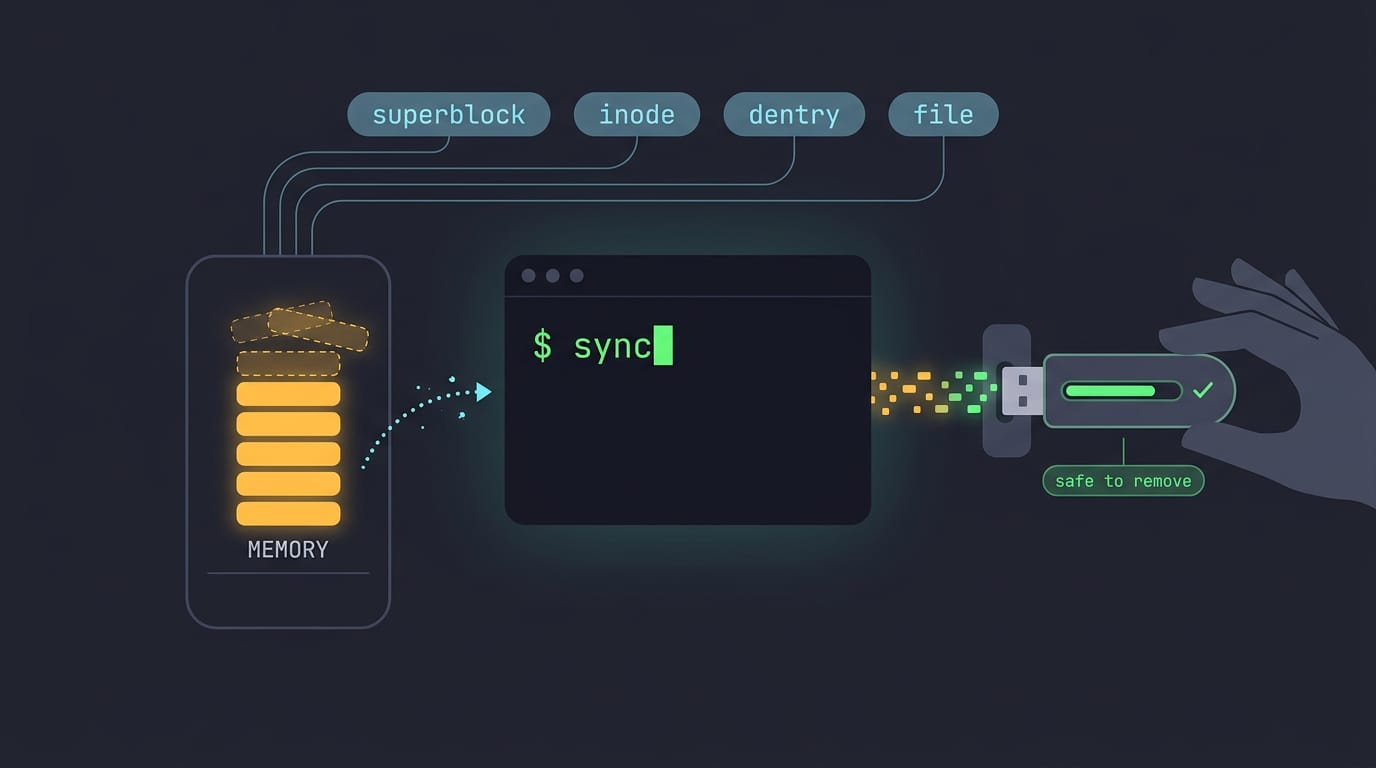
The superblock describes a mounted file system, and each inode stores a file’s metadata and where its data lives. A dentry (directory entry) links a name to an inode, while a file structure tracks an open file for a process.
The kernel also caches. The inode and directory cache speeds up repeated lookups, and the buffer cache holds recently used blocks in memory. The cache is about speed, not safety, until you run sync, which forces every pending write out to storage.
Say you copy a backup onto a USB stick and pull it straight out. The data may still be in memory, so run sync first. Then unplug.
How mounting attaches file systems
Every file system attaches to Linux’s single directory tree at a mount point, an existing directory, via the mount command. Run mount alone to list what’s attached, or findmnt for a tidy tree. You can also print the layout of that directory tree with the tree command.
A loop device treats an ordinary file as a disk, which makes a safe place to practice:
- Create a 100 MB file:
truncate -s 100M test.img - Format it as ext4:
mkfs.ext4 test.img - Make a mount point:
sudo mkdir -p /mnt/test - Attach it:
sudo mount -o loop test.img /mnt/test
Run findmnt /mnt/test and you’ll see it listed as ext4. When you’re done, sudo umount /mnt/test detaches it.
What Are the Standard Directories in Linux?
Linux uses one tree instead of drive letters, so learning its main branches makes a fresh install far less confusing.
Why everything hangs off one root
Everything hangs off a single root directory, written as a forward slash (/). Picture an upside-down tree: the root is the trunk, and each directory is a branch with its own purpose. The ones you’ll meet most often are:
- /etc holds system-wide configuration files.
- /home holds each user’s personal files and dotfiles.
- /var holds data that changes while the system runs, such as logs.
Consider a homelabber whose web server misbehaves. Logs live under /var, so they check there first instead of searching the whole disk. They’re done in seconds.
How inode numbers identify each file
Each file gets an inode, a unique number the system uses to track it. The name is for you, while the inode is how the system tells files apart. To see them, run ls -i, which prints the inode number beside each file name.
A few inode numbers are reserved for the file system’s own use, so don’t bother memorizing them.
Rules for naming files in Linux
A few rules trip up newcomers:
- Forward slashes separate directories. Paths use / and never backslashes.
- Names are case sensitive. Notes.txt and notes.txt are two separate files.
- There are no drive letters. Attached storage appears as a folder in the tree, not as C: or D:.
- Hidden files start with a dot. Dotfiles like .bashrc stay out of a plain
ls, so usels -ato see them. - Extensions are optional. Linux doesn’t require them, though many people still use them for clarity.
Picking the Right File System
The smart pick is about fit rather than features, so here’s how we’d weigh each option.
Strengths and tradeoffs of each option
- ext4: stable and low on overhead, but it lacks some advanced features.
- XFS: powerful with large files, but more involved to tune and manage.
- Btrfs: snapshots and checksums, but it uses more CPU and memory.
- Small systems: Btrfs’s extra overhead can feel cramped on tiny disks, where ext4 is kinder.
Best file system for each job
- Desktops and laptops: ext4 is the safe default, but Btrfs snapshots let a tinkerer roll back a bad update.
- Servers and data centers: XFS suits large volumes and heavy workloads, while ext4 stays simple.
- Media and scientific computing: big files are XFS territory, from media libraries to large datasets.
- Virtualization and containers: Btrfs snapshots let a homelabber save a clean state before risky tests.
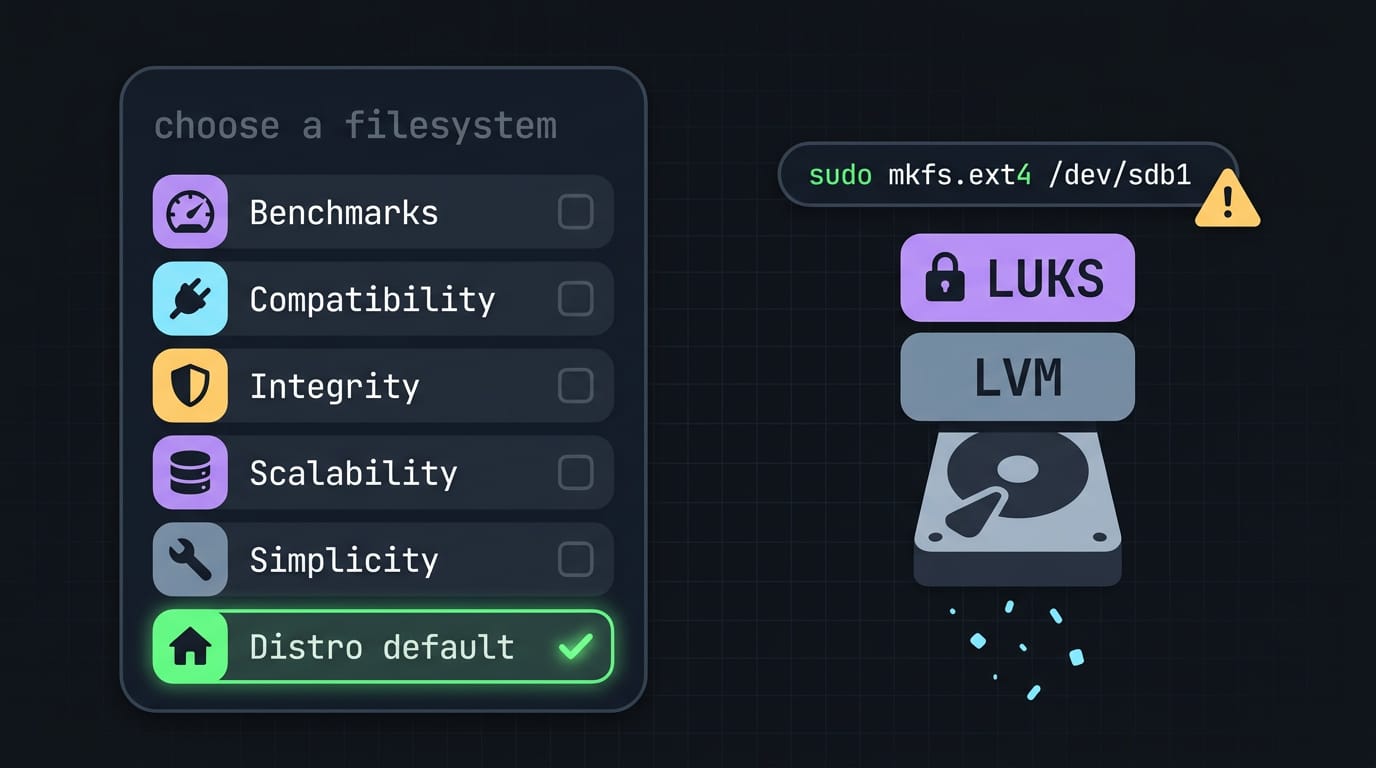
What to compare before you decide
- Performance benchmarks: a 2002 USENIX Association paper compared file systems on Linux 2.4.17 using three benchmarks. Its numbers reflect an old kernel.
- Compatibility and support: confirm your installer and rescue tools handle the file system you pick.
- Data integrity: Btrfs checksums catch corruption, while ext4 and XFS have long track records.
- Scalability: XFS and Btrfs target large pools, while ext4 suits most personal machines.
- Ease of administration: ext4 has the simplest toolset, and simple beats clever at 2am.
- Stick with distro default: your distro has tested that choice against its own installer and updates. Boring wins.
Create one with mkfs (make file system), such as sudo mkfs.ext4 /dev/sdb1, which wipes the target. If you use LUKS (Linux Unified Key Setup) or LVM (Logical Volume Manager), run mkfs on the resulting device, not the raw disk.
What Each Linux Distro Uses by Default
Most of the time, your distro picks your file system, not you. Here’s what the common ones choose out of the box.
Distros that default to ext4
ext4 (short for Extended Filesystem) is the classic choice. NTFS is the Windows file system, and a performance comparison of ext4 and NTFS notes that ext4 is a common default for Ubuntu, Linux Mint, and Debian installations.
Fedora and Pop!_OS are the other ext4 names to know. A forensic study of ext4 notes that some older Fedora releases and Pop!_OS use it by default. Newer Fedora installs are covered below.
Want something different? Choose manual partitioning in the installer and set the file system for each partition yourself. Say you’re a student turning an old ThinkPad into a coding machine.
Picking the file system at that step means the laptop starts out set up the way you need it. Your install, your call.
Where XFS and Btrfs are the default
- RHEL (Red Hat Enterprise Linux) and Oracle Linux default to XFS (a high-performance file system). Oracle’s file system documentation confirms that XFS is the default when you install Oracle Linux.
- On the desktop, Fedora Workstation defaults to Btrfs (the B-tree file system). A Fedora Magazine article on Btrfs boot failures notes that many distributions now default to Btrfs, and Fedora is no exception.
- SUSE and openSUSE use Btrfs too, but with a split: Btrfs covers the operating system, while XFS takes over for everything else, per SUSE’s Storage Administration Guide for SUSE Linux Enterprise Server.
If an update leaves your Fedora Workstation unable to boot, knowing you’re on Btrfs helps you find the right recovery guide.
Check Which File System You’re Using
Before you format or mount anything, it helps to know your file system type. The question is where the answer comes from: the disk, the running system, or your config files.
Commands that show your file system type
- lsblk -f shows each device’s FSTYPE, UUID (universally unique identifier), and mount point.
- blkid prints the TYPE and UUID stored in each partition’s signature. Run it with
sudofor the full list. - df -T shows the type of each mounted file system.
- mount with no arguments lists every mount, with the type after the word
type. - fsck -N is a dry run that prints the checker it would call, like
fsck.ext4, without touching the disk. - file -sL describes a device’s signature. The
-Lfollows symlinks, so you can point it at/dev/disk/by-uuidpaths. - findmnt draws your mounts as a tree, with a FSTYPE column.
Think of a homelabber who inherits a mini PC and wants to follow a Btrfs guide. One lsblk -f shows the root partition is ext4, so they can skip the Btrfs-only steps.
Config files that list file systems
Commands show what’s running now. Config files show what’s set up to run at boot.
- /etc/fstab is the boot-time mount table. The third column of each line gives the type, like
ext4orxfs. - /proc/filesystems lists the types your kernel supports. Entries marked
nodev, likeproc, don’t sit on a disk. - UUID mounts start with
UUID=instead of a device path like/dev/sdb1. Device names can shift when drives change, but a UUID stays with its partition. Runblkidto find yours.
Check both, and you’ll stop guessing.
So, what file system does Linux use? It depends on your distro, and the default usually works just fine. ext4 covers everyday use, while XFS and Btrfs suit more specific needs.
The directory tree looks the same no matter what sits underneath, so the commands you already know keep working. Check what you’re running, and only change it when there’s a real reason to.
Knowing your file system is a small habit with a big payoff. Your files deserve a foundation you actually understand.
References
- Comparison of EXT4 and NTFS filesystem performance — doi.org (2022)
- Forensic implications of Ext4 — dl.acm.org
- (Berkeley, CA: USENIX Association 2002). Published by Permission. — citeseerx.ist.psu.edu (2008)
- Red Hat and Oracle Linux File Systems Management Cheat Sheet - KAOS Data — kaosdata.com (2026)
- Announcing Btrfs support in AlmaLinux OS 10.1 — almalinux.org (2025)
- About File Systems — docs.oracle.com (2025)
- BTRFS boot failure and easy GUI methods for system recovery — fedoramagazine.org (2026)
- Overview of file systems in Linux | Storage Administration Guide — documentation.suse.com (2026)
- XFS Algorithms & Data Structures — erikarn.github.io
Questions
What type of file system does Linux support?
Linux supports many file systems, including ext4, XFS, and Btrfs. It can also work with formats such as FAT variants, NTFS, and exFAT; the best choice depends on the task and your distribution.
What are the standard directories in Linux?
Linux’s main directories include /etc for system configuration, /home for users’ personal files, and /var for changing data such as logs. Other common directories include /bin for essential commands, /boot for startup files, /dev for device files, /lib for essential libraries, /mnt and /media for mounted storage, /opt for optional software, /root for the administrator’s home, /tmp for temporary files, and /usr for applications and shared resources.
Does Linux use FAT32 or NTFS?
Linux supports both FAT32, usually accessed through the vfat file system, and NTFS. FAT32 is common for compatible boot partitions and removable media, while NTFS is useful for accessing Windows volumes.
What file system am I using in Linux?
It depends on the partition or mounted volume you want to check. Run `lsblk -f` to see file system types across storage devices, or `df -T` to show the types of mounted file systems.
Sources
- Red Hat and Oracle Linux File Systems Management Cheat Sheet - KAOS Data - Protecting and Making Data Highly Available, kaosdata.com,
- Announcing Btrfs support in AlmaLinux OS 10.1 | AlmaLinux OS, almalinux.org,
- Comparison of EXT4 and NTFS filesystem performance, doi.org,
- Forensic implications of Ext4, dl.acm.org
- About File Systems, docs.oracle.com,
- BTRFS boot failure and easy GUI methods for system recovery - Fedora Magazine, fedoramagazine.org,
- Overview of file systems in Linux | Storage Administration Guide | SLES 15 SP7, documentation.suse.com,
- XFS Algorithms & Data Structures, erikarn.github.io
- (Berkeley, CA: USENIX Association 2002). Published by Permission., citeseerx.ist.psu.edu,
Read next.
Mac Terminal Commands: A Complete Beginner's Guide
Mac Terminal commands take you from a blinking cursor through safe basics, customization, admin work, Homebrew, and fun tricks, including macOS quirks.
Alpine Linux package manager commands you need every day
The Alpine Linux package manager, apk, installs and upgrades software. Get daily commands, package sources, version locking, and fixes for common errors.
How to Run Exe on Linux: Wine, Proton, and Native Apps
How to run exe on Linux: open files from your file manager, spot native alternatives, or use copy-paste Wine commands when a download won’t launch.