uv Install Packages: Quick Pip and Project Routes
Install packages with uv using the right route: uv pip install for quick tasks, or uv add and uv sync to keep project environments consistent.
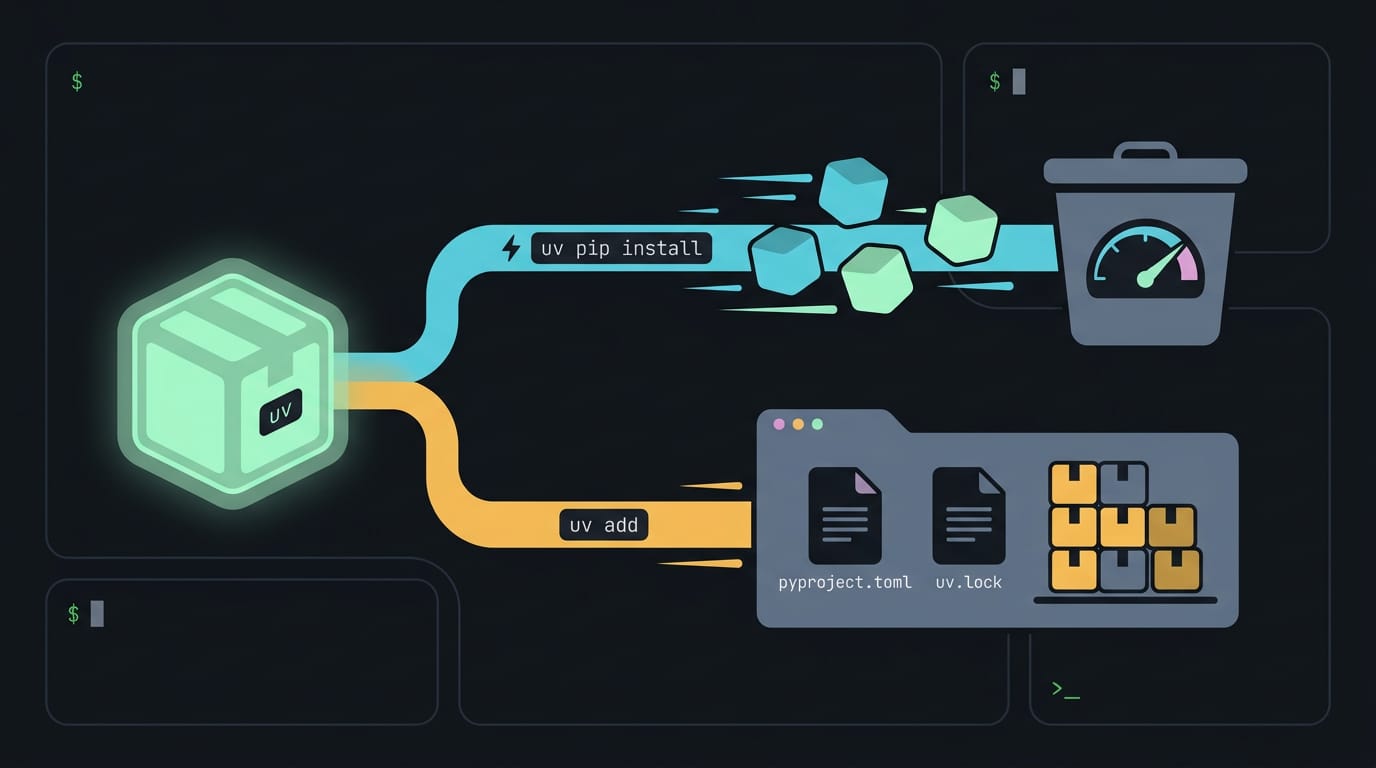
tl;dr the short answer
uv is a Python package manager that installs packages, manages virtual environments, and supports project dependencies as an alternative to pip. Use `uv pip install` for quick installs in an isolated environment, and `uv add` with `uv sync` to record and keep project dependencies consistent; check installed packages with `uv pip list` or `uv pip show`. Packages stay in the environment’s `site-packages`, protecting system Python and making each project easier to manage.
Think of a new kitchen where every pan has a home. Cooking gets easier fast. Python packages work the same way: each one needs a clear place to land, or projects start tripping over each other.
That’s where uv comes in, a fast tool for installing and organizing them.
Here, we’ll cover the quick route with uv pip install, the project route with uv add and uv sync, and how to see where packages land and verify them.
We’ll also walk through Linux details like shells, PATH, and system Python, so a fresh install holds no surprises.
Why Use Uv to Install Packages
Here’s what uv is, how fast it runs, and what to watch for.
What is a uv package installer?
uv is a Python package manager written in Rust, a programming language. It’s an alternative to pip, virtualenv, and conda, which handle installs and separate environments. Rather than juggling several tools, uv combines many of those jobs into one.
Picture a student on a ten-year-old ThinkPad setting up a class project. With one tool, they’re back to the assignment sooner.
It’s also a drop-in replacement for pip, so you can often swap uv pip install in for pip install. It’s not a perfect copy, though, and we’ll get to where it differs.
How fast uv is compared to pip
The uv project’s docs describe uv as 10-100x faster than pip. It also keeps a global cache of packages it has already downloaded, so it doesn’t fetch the same file again.
To check the gap yourself, time a numpy (a popular number-crunching library) install with pip, then with uv, on the same machine.
Socket’s write-up on uv shares example metrics for installing Trio’s dependencies with a warm cache, meaning the packages are already stored locally.
If you do, match the cache state on both sides, since a cold run and a warm run differ a lot. Compare like with like.
Things to know before relying on uv
Three things are worth knowing before you build your workflow around it:
- Not yet v1.0. uv hasn’t reached a 1.0 release, so it’s still maturing.
- Use at your own risk. Keep your pip workflow handy until you trust uv.
- Not an exact pip clone. Don’t assume every pip flag or behavior carries over unchanged.
Getting Uv Installed on Your Machine
Before you can install packages, uv needs to live on your machine. Several routes get it there, and the best one depends on how you already handle software.
Install uv with a standalone script
The standalone installer is the most direct path. Grab the script with curl or wget, but inspect it first: download it, open it in a text viewer, and read it.
Windows users get a PowerShell installer that handles the same job.
Need a specific release? Pin that version. Think of a student on a ten-year-old ThinkPad running Linux whose course needs one exact release. Pinning keeps their setup matching the handouts.
The script puts uv in ~/.local/bin, so that folder must be on your PATH, the list of folders your shell (the program that reads your typed commands) searches. If uv says “command not found,” add the folder and open a new terminal.
Installing uv through your package manager
If you already use a package manager, let it install and upgrade uv for you.
- pip or pipx: pip installs uv into the active Python environment, while pipx keeps it isolated.
- Homebrew and MacPorts: Homebrew covers macOS and Linux, and MacPorts covers macOS.
- WinGet and Scoop: the Windows options.
- Cargo from source: Cargo, the Rust build tool, compiles uv on your machine. That takes longer than a download, but it works if you’d rather build it yourself.
- Conda Forge via mamba: conda-forge, a community channel for conda (a data science package manager), carries uv, and mamba can install it.
Docker images, binaries, and wheels
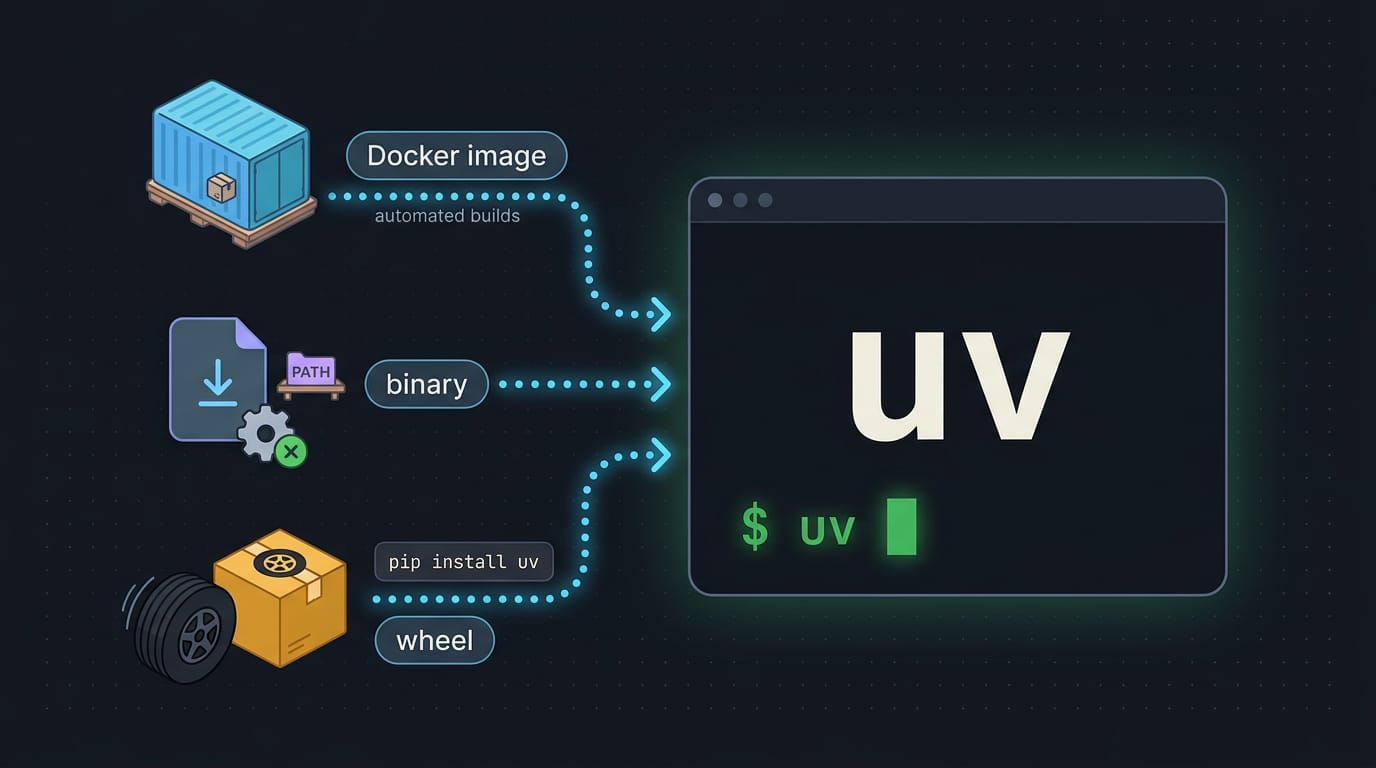
A Docker image (a packaged container) suits automated builds and throwaway test environments. Prebuilt binaries (compiled programs) sit on uv’s GitHub Releases page. Download the one for your system, make it executable, and put it on your PATH.
Prebuilt wheels (ready-made Python packages) let pip install uv without compiling, so a working Python is all you need.
Changing where uv gets installed
What matters is where uv lands, not whether it works. You can steer it in three ways:
- UV_INSTALL_DIR variable: set this environment variable (a named setting for programs) before running the installer to choose the destination.
- Disable shell modification: by default the installer edits your shell startup files to update PATH. If you manage dotfiles (the config files that set up your shell) by hand, turn this off so the installer leaves them alone.
- Private modules on HPC: on a shared high-performance computing (HPC) cluster, install uv in a private folder so your tools stay yours.
Updating uv to the latest version
How you upgrade depends on how you installed uv.
- uv self update: run
uv self update, and uv upgrades itself. - Standalone installer only: that command works only if you used the standalone script.
- Use pip upgrade otherwise: if pip installed uv, upgrade it with pip.
Match the updater to the installer, and upgrades stay boring.
Setting up tab completion and removing uv
Two housekeeping tasks finish things off: making your terminal friendlier, then cleaning up.
- Completion for bash, zsh, fish: uv can generate tab completion for these shells, so pressing Tab suggests commands and flags.
- uvx completion: uvx, the command for running a tool once without installing it, gets completion too.
- Clean cache and data: uv caches downloaded packages. Clearing that cache frees disk space, but the next install re-downloads them.
- Remove uv binaries: delete the uv programs from their folder, then remove any PATH line the installer added.
Work through the cleanup and your system goes back to how it was before uv.
Creating Environments and Picking Python Versions
Before you install anything, you need a clean home for it and the right Python. uv handles both.
Creating an environment with uv venv
Run uv venv in your project folder and you get a virtual environment, an isolated folder with its own Python, called .venv. Want another name? Pass it in, like uv venv myenv.
Then activate it with source .venv/bin/activate, and uv pip install drops packages inside it while it’s active.
This matters on Linux, where many system Pythons are externally managed and refuse plain pip installs.
Picture a Linux user cloning a project: they create .venv, install the requirements, and run the code, and their system Python never gets touched. Deleting .venv later clears it all out.
Installing, pinning, and removing Python versions
uv can fetch its own Python with uv python install 3.12. These managed Python builds sit apart from the system Python your distro ships. Use uv python list to see options and uv python find to see what uv would use.
Instead of hoping your system has the right version, pin it with uv python pin 3.12, which writes a .python-version file that everyone who opens the project shares. Finished with one? uv python uninstall 3.12 removes it.
Add --no-managed-python to skip uv’s own builds and use only the system Python. Less guessing, fewer surprises.
Setting up uv inside Conda environments
Already living in Conda? Install uv with mamba install -c conda-forge uv, where -c conda-forge points mamba at the Conda Forge channel. To set the Python version at the same time, run mamba create -n tools python=3.12 uv.
Think of a data student on Ubuntu with one Conda environment per course: they add uv to each one and every course keeps its own Python.

Installing Packages with Uv
Installs come in two flavors: a quick library for a scratch environment, or a dependency your project declares.
How do I install Python packages?
Start with a virtual environment, an isolated folder that keeps packages away from your system Python:
uv venv
source .venv/bin/activate
uv pip install requests
Fish users run source .venv/bin/activate.fish instead. Several names go on one line, like uv pip install requests rich click. uv pulls from PyPI (the Python Package Index) by default, and --index-url points it elsewhere.
Pin versions in the name:
"requests>=2.31,<3"for a range"requests==2.31.0"for an exact pin
Extras, optional add-ons a package declares, use brackets: "httpx[http2]". Quote these so zsh doesn’t misread the brackets.
Packages land in the environment’s site-packages folder, not one global spot. Downloads are cached in ~/.cache/uv, and uv cache dir prints the exact path.
Consider a hyprland user testing a Python wallpaper tool. Installed in a venv, it can’t break the system Python their bar scripts rely on. Their bar keeps humming.
Most first-run failures look like this:
- “no matches found”: zsh rejected an unquoted bracket. Quote the spec.
- Missing environment: uv won’t install without one, so run
uv venvfirst. - “externally managed”: your distro guards its system Python. Use a venv.
- “uv: command not found”: add
~/.local/binto your PATH, the list of folders your shell searches. - “No solution found”: two version pins conflict, so loosen one.
Installing from disk, GitHub, or git refs
Local folders work too: uv pip install ~/src/mylib. For GitHub, use a git+ URL: uv pip install git+https://github.com/<owner>/<repo>. Append @v1.4.0 for a tag, @<commit-sha> for a commit, or @main for a branch.
A tag or commit stays fixed, while a branch keeps moving. For private repos, use git+ssh://git@github.com/<owner>/<repo> so your Secure Shell (SSH) key handles access.
Installing your project in editable mode
An editable install links your project folder instead of copying it, so edits show up without reinstalling. From inside the project, run uv pip install -e .. For another directory, pass its path: uv pip install -e ~/code/mylib.
Installing from requirements.txt or pyproject.toml
A requirements.txt is a plain package list, installed with uv pip install -r requirements.txt. A pyproject.toml is the standard project file; uv pip install . installs it and its dependencies.
Optional extras, like a dev set, install with uv pip install ".[dev]". Dependency groups under [dependency-groups] hold development tools like test runners, and the next section covers them.
Does uv run install packages?
Yes, inside a project. uv run makes sure the lockfile (a file pinning every version) and .venv match pyproject.toml before it runs your command.
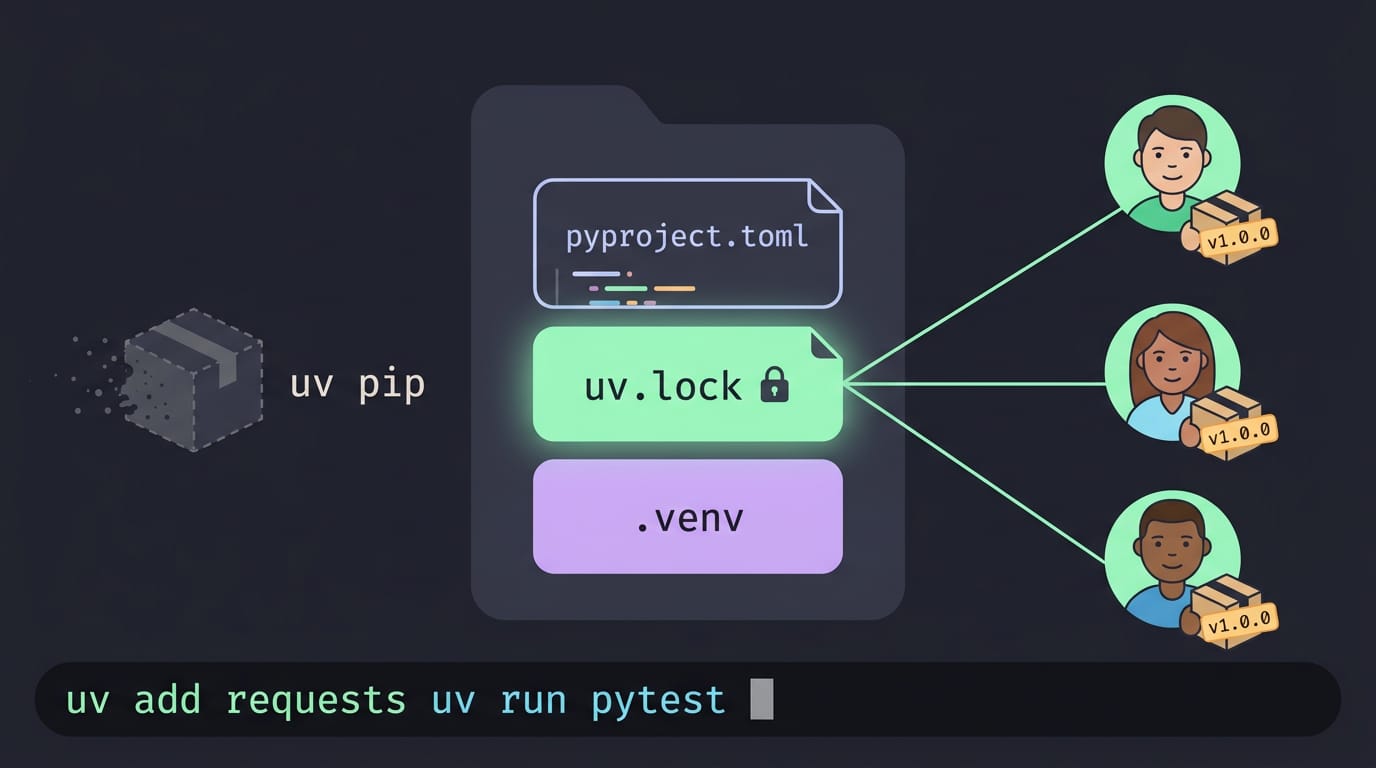
Use uv pip for throwaway environments and uv add for projects: uv pip installs a package, while uv add records it, so collaborators get the same versions.
uv addanduv removeeditpyproject.toml, update the lockfile, and sync.venv. Add--devfor dev-only tools.uv lockanduv sync:uv lockwritesuv.lock, the lockfile.uv syncmakes.venvmatch it, removing anything unlisted. Add--group devto include a dependency group.uv runexecutes project commands, likeuv run pytest.- Dependency tree:
uv treeshows which package pulled in which.
Listing, checking, and removing packages
uv pip listshows installed packages;uv pip show requestsgives one package’s version, location, and dependencies.uv pip freezeprints exact pins, souv pip freeze > requirements.txtsnapshots an environment.uv pip uninstall requestsremoves a package.uv pip checkflags installed packages whose dependencies are broken.
Related Features and Everyday Upkeep
Beyond installing, we’ll cover a few uv features that come up again and again: running tools, pinning versions, and keeping the cache in check.
Running tools and standalone scripts
A Fedora user testing a linter can run it with uvx, which uses a temporary environment, so nothing stays installed afterward. Want it daily? uv tool install gives the tool its own isolated environment and puts its command on your PATH.
For standalone scripts, uv run script.py executes one file in an environment uv manages. Add an inline metadata block at the top listing the script’s dependencies, and uv run installs them before the script starts.
Compiling and syncing pinned requirements
Some projects need identical versions everywhere, and pinned requirements lock them in. uv pip compile turns a loose requirements file into a fully pinned one, indirect dependencies included.
uv pip sync then makes an environment match that file rather than just add to it.
If you’re coming from pip-tools, these commands take over its pip-compile and pip-sync jobs. Same job, one fewer tool to install.
Finding, moving, and clearing the cache
uv stores downloads in a cache so repeat installs are faster. On Linux it’s usually in ~/.cache/uv, and uv cache dir prints the exact path on your machine.
Got a small home partition? Move the cache to a scratch drive and link it back: mv ~/.cache/uv /mnt/scratch/uv, then ln -s /mnt/scratch/uv ~/.cache/uv.
Two commands handle upkeep:
uv cache pruneremoves only entries nothing uses anymore, so make it your routine.uv cache cleanwipes the whole cache, and the next install re-downloads everything.
Reach for prune first and save clean for when you truly need the space back.
Connecting to Private Package Registries
Not every package lives on the public index. Here’s how we’ll point uv at a private one and keep your credentials out of project files.
Creating a token and storing credentials
Start by creating a personal access token on your registry, which lets uv authenticate without your password. Grant only the required token scopes, the minimum read access uv needs.
Then save it in a .netrc file in your home directory, so the secret never sits in pyproject.toml, where a commit could expose it. Each entry names one host, so one file can hold reusable per-host credentials for several registries.
Pointing uv at a custom index
Find the host and project ID on your registry’s project page. For a one-off install, pass --index with the URL to uv add.
For a reusable setup, declare a named index under [[tool.uv.index]] in pyproject.toml, then map your package to it in [tool.uv.sources].
Consider a Fedora user whose internal tools live on a private index. On a new laptop, one uv sync pulls in everything.
Avoiding dependency confusion and debugging errors
Dependency confusion happens when a public package shares a private package’s name and gets installed instead. Prevent it by pinning your package to its index in [tool.uv.sources].
Adding an index says where uv may look; pinning says which index a package must come from.
When something fails, run the command with -v for verbose mode. Scan the output for lines about your .netrc, which show whether uv found a credential for your host.
If the host doesn’t match your entry, fix the spelling in the file. Check that output first.
Installing packages with uv comes down to picking the right route for the job. Use uv pip install for quick one-off tasks, and reach for uv add and uv sync when a project needs to stay consistent.
Knowing where packages land and how to verify them takes the guesswork out. Sort out your shells, PATH, and system Python early, and the rest falls into place.
Get the install right once, and every project after it gets easier. Your packages should land where you expect them, every time.
References
Questions
What is an uv package installer?
uv is a Python package manager written in Rust. It can install packages and manage environments, combining several jobs commonly handled by pip, virtualenv, and conda.
How can I check installed packages in uv?
Run `uv pip list` in the environment you want to inspect. For details about one package, use `uv pip show package-name`; `uv pip freeze` prints exact installed versions.
How do I install Python packages?
Create and activate a virtual environment, then install packages with uv: `uv venv`, `source .venv/bin/activate`, and `uv pip install requests`. You can install several packages at once or install from a requirements file with `uv pip install -r requirements.txt`.
How to use uv?
Use `uv pip install package-name` for a quick install, typically inside a virtual environment created with `uv venv`. For project dependencies, use `uv add package-name`; uv records them in `pyproject.toml`, updates the lockfile, and syncs the environment. Use `uv run command` to run a command in the project environment.
How to install pip from file?
Install packages listed in a file with `uv pip install -r requirements.txt`. If you mean a local package file such as a wheel, pass its path directly, for example `uv pip install ./package.whl`.
Does uv run install packages?
Yes. In a project, `uv run` checks that the lockfile and `.venv` match `pyproject.toml` and syncs them before running the command. For standalone scripts with inline dependency metadata, it can also install the listed dependencies before execution.
Where does uv store installed packages?
Installed packages go in the active environment's `site-packages` directory, rather than one global location. uv's download cache is separate, usually at `~/.cache/uv` on Linux; run `uv cache dir` to see its exact location.
Sources
- uv, docs.astral.sh,
- uv: Python's New High-Speed Package Manager Promises to Simplify Tooling, socket.dev
Read next.
Cursor Install Guide for Windows, macOS, and Linux
Cursor install is easier when you pick the right file for your OS. Set up Linux AppImage launchers, handle first launch, and keep Cursor updated with ease.
Vscode Install Guide for Windows, macOS, and Linux
VS Code install takes minutes; choose the right method for Windows, macOS, or Linux, verify your first launch, then add extensions and source control.

Operating System Environment Explained, Start to Finish
Operating system environment shows how software manages hardware. Compare core OS jobs and device types to choose a system that fits how you work.