List Linux Users: Every Account, Explained
List users on Linux with getent or /etc/passwd, filter human accounts from services, and check group membership on shared Linux machines.
tl;dr the short answer
Linux user accounts are identities for people and system services, and commands such as `getent passwd` can list the accounts your system recognizes. Use `getent` for local and remote account sources, or `/etc/passwd` for local entries, then filter by login shell or UID to find likely human accounts; check groups and `who` or `w` to review access and current sessions. This helps you distinguish configured accounts from active users and manage shared-machine access more confidently.
Think of your Linux machine like an apartment building. Every resident has a name on the mailbox, but some are real people while others are background services quietly keeping things running.
Before you can tidy up or troubleshoot, you need to know who’s actually living there.
The short answer is that getent and the /etc/passwd file list every account on the system, and a few simple filters pull out just the human ones.
In this post, we’ll cover each method, explain what it actually does, and run practical checks for login managers and shared machines.
How to List All Users on Linux
Local accounts live in one plain-text file, /etc/passwd, so listing them is mostly about reading it well.
Commands that show every account
Start with getent passwd, which asks the system for every account, then pipe it into awk to keep only the username field:
getent passwd | awk -F: '{print $1}'
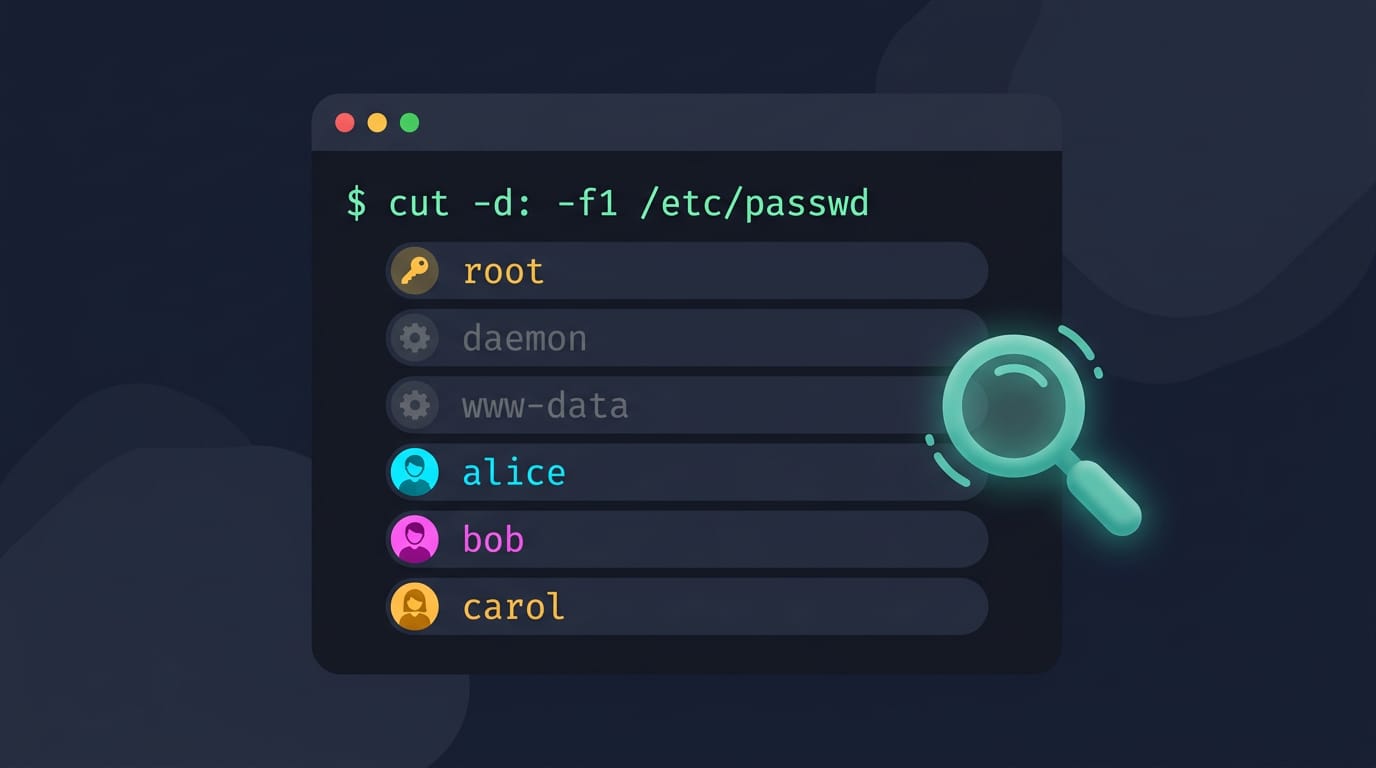
The -F: flag tells awk that fields are split by colons. Prefer the raw file? cat /etc/passwd shows everything, and cut -d: -f1 /etc/passwd gives a shorter list of names. On Ubuntu, the same commands work unchanged.
Which accounts belong to people versus programs
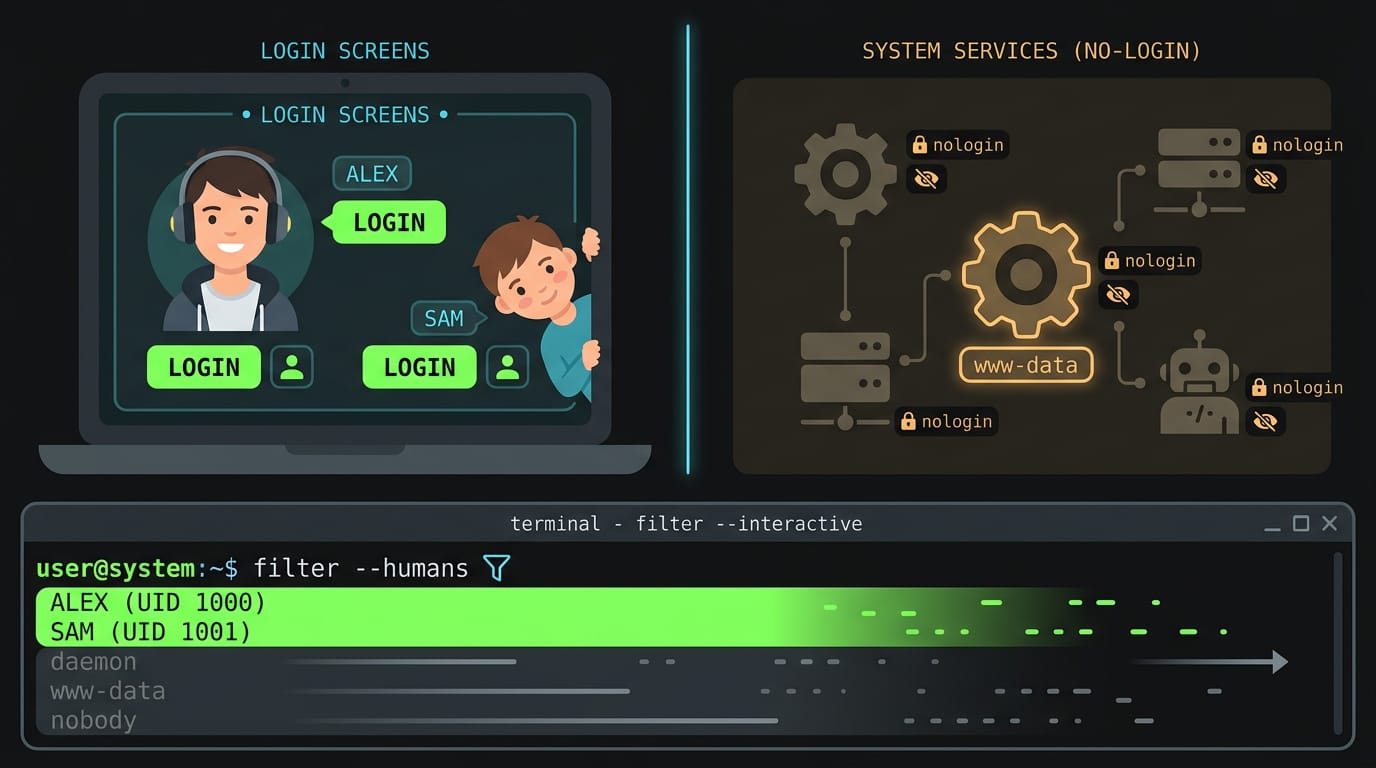
Not every name is a person. System accounts let programs run under their own identity. Take www-data: your web server runs as that user, and nobody logs in as it.
A user account belongs to a real person, such as a student sharing a ten-year-old ThinkPad with a sibling who wants to see who’s set up.
Login managers usually follow the same split and hide system accounts, so www-data won’t show on your login screen.
To keep only accounts with a login shell, filter out the nologin and false shells: grep -vE '(nologin|false)$' /etc/passwd. This file lists defined accounts, not active ones. For who’s signed in now, run who or w, and last shows past logins.
How can I check the user UID in Linux?
Every account has a UID (user ID), the number Linux uses to track it. Run id maya to see that number and the account’s groups.
To filter human accounts, use awk -F: '$3 > 999 {print $1}' /etc/passwd, which keeps UIDs above 999, where human accounts usually begin. Swap print $1 for print $1, $3 to see names beside their UIDs. That’s the whole trick.
What Each Command Actually Does
Two commands can list users and still disagree. Here’s why, and how to shape each one’s output so it’s easy to read.
Why getent gives the fuller picture
Local accounts live in /etc/passwd, a plain text file with one line per account. cat /etc/passwd shows only those entries.
getent passwd also asks the lookup services your system uses at login, including remote sources such as LDAP (Lightweight Directory Access Protocol), so it returns the fuller picture.
Say you’re a student whose school login lives on a remote server, while your test account lives in the local file. cat shows just the test account, but getent passwd shows both, so the list matches who can actually log in.
cat reveals what the file says, while getent reveals what the system can see.
Piping output through awk, step by step
A pipe (|) sends one command’s output into the next. Here’s the recipe:
-F:sets the field separator, the character awk uses to split each line. passwd lines use colons between fields.$1is the first field, the username.print $1outputs only that field.- Braces
{ }hold the action, and single quotes stop your shell from expanding$1before awk sees it.
Together: getent passwd | awk -F: '{print $1}'. Small command, clean output.
How default user ID ranges are set
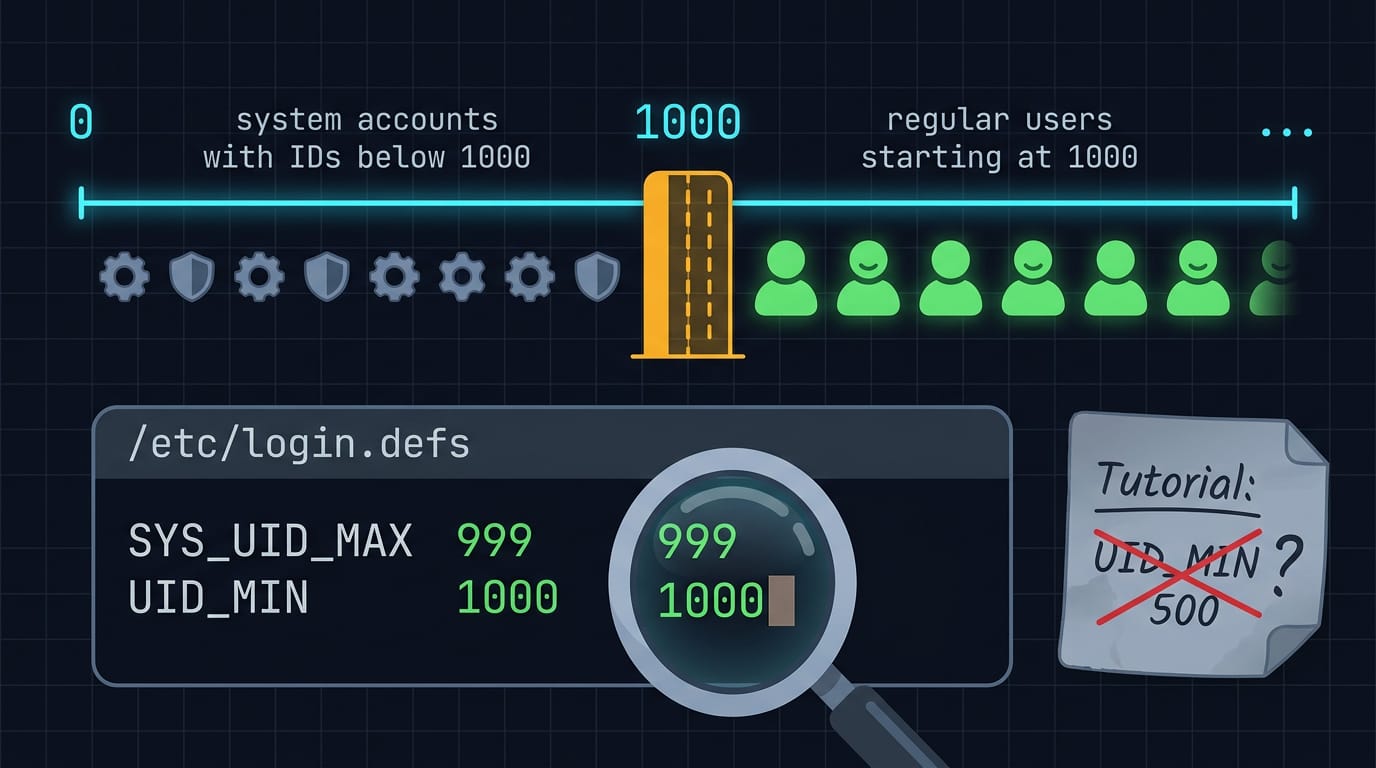
Each account gets a numeric user ID (UID). Regular user accounts start at 1000, while system accounts use IDs below 1000.
The exact limits live in /etc/login.defs as settings like UID_MIN and SYS_UID_MAX, which tools such as useradd read when they create accounts.
Distributions don’t all set these values identically, so check your own file rather than trusting numbers from a tutorial written for a different system.
Why awk versions can behave differently
Not every awk is the same program. gawk (GNU awk) accepts a long option, --field-separator, that does the same job as -F. mawk and other versions may reject that long form, which leaves you with an error that doesn’t explain much.
The short -F: works broadly across them.
The long option is easier to read, but the short one is safer to share. Same output, fewer surprises.
Checking Which Users Belong to a Group
Group membership quietly decides what a user can do, from running sudo to using sound hardware. To see your own groups, run groups with no arguments (or id -nG for the same list). A newly added group only shows up after you log out and back in.
Show who belongs to a given group
Say you just finished a fresh install and want to know who can run admin commands. Run getent group sudo, and you’ll get a line like sudo:x:27:alice,bob. The last field holds the members, separated by commas.
To print only the names, run getent group sudo | cut -d: -f4.
Admin groups vary by distro. Debian and Ubuntu usually use sudo, while many Arch and Fedora setups use wheel, so check with getent group wheel. You can swap in any group name the same way.
This is less about what a group is called and more about who is actually in it. Think of a student on a ten-year-old ThinkPad whose volume keys stop working after a reinstall.
Running getent group video input audio shows whether their username appears in each one. Knowing that saves a reinstall.
Viewing every group on the system
Want the full picture? Open the group file with less /etc/group. Each line follows the same pattern: the group name, a placeholder x for the password, the group ID, and the member list at the end.
Scrolling through it is a quick way to spot a group you didn’t know existed.
Since getent reads this same file (plus any other sources your system uses), the two usually agree.
Other Ways to Manage Users and Groups
Listing users is only half the job. Once you can see who’s on the machine, you’ll want to add, change, and remove accounts, so we’ll cover those commands too.
Adding users and adjusting their settings
To create an account, run sudo useradd -m -s /bin/bash alice. The -m flag creates a home folder and -s sets the login shell (the program that runs when they sign in), so one line gets you a working account.
Set a password with sudo passwd alice, which asks you to type it twice.
Settings change over time, and usermod handles that. Say a friend sharing your ThinkPad wants zsh instead of bash. Run sudo usermod -s /bin/zsh alice to swap the shell and leave everything else alone.

Creating, editing, and removing groups
A group is a named set of users you can grant access to together. Create one with sudo groupadd designers.
Add members with usermod -aG. The -a stands for append, and it’s the flag that matters most. sudo usermod -aG designers alice adds her to designers without touching her other groups. Drop the -a and -G replaces her entire group list instead.
Point a shared folder at that group with sudo chown :designers /srv/shared. The leading colon changes only the group owner and leaves the file owner alone.
Remove the group later with sudo groupdel designers, though it refuses if the group is someone’s primary group.
Deleting a user and their home folder
userdel removes an account. Run sudo userdel alice and the login disappears, but her home directory stays on disk. Add -r with sudo userdel -r alice and the home directory goes too.
Picture a roommate who used your spare laptop for a semester. Before you run userdel -r, copy her files to an external drive so her thesis notes survive. The command won’t ask for confirmation. Gone means gone.
Why access control matters for teams
Each command here answers one question: who can touch what. Here’s why it matters:
- Control access to resources. The design group reaches the shared folder while everyone else stays out.
- Share permissions among teams. A small crew can work from one build box without shuffling files around.
- Ensure system security. Fewer accounts, each with only the access it needs, beats one shared login that opens everything.
A forgotten account is a door you never locked.
Listing users is less about the commands themselves and more about knowing what’s running on your machine.
With getent, a read of /etc/passwd, a few filters, and a quick look at groups and sessions, you can spot strays, audit shared setups, and tidy up with confidence.
Keep these checks handy for your next fresh install or the next time a login manager acts up. A machine you can read is a machine you can trust. Know who’s home, and your setup stays yours.
Questions
What are 25 basic commands that every Linux user should know?
Common Linux commands include `pwd` (current directory), `ls` (list files), `cd` (change directory), `mkdir` (create a directory), `rmdir` (remove an empty directory), `touch` (create a file), `cp` (copy), `mv` (move or rename), `rm` (remove), `cat` (display a file), `less` (view a file page by page), `head` and `tail` (show the beginning or end of a file), `grep` (search text), `find` (locate files), `chmod` (change permissions), `chown` (change ownership), `sudo` (run a command with elevated privileges), `man` (open a command’s manual), `echo` (print text), `who` (show logged-in users), `id` (show user and group IDs), `groups` (show group memberships), `ps` (show processes), `df` (show disk space), and `du` (show file or directory space use).
How can I list all groups on a Linux system?
Use `getent group` to list groups available through the system’s configured account sources. To view the local group file, run `less /etc/group` or `cut -d: -f1 /etc/group` to print only group names.
How can I check the user UID in Linux?
Run `id username` to see a user’s UID and group information. To check your own UID, run `id -u`; use `id -u username` to check another account.
How do I check what groups my user is in Linux?
Run `groups` with no arguments to list your group memberships, or use `id -nG` for the group names. A group you have just been added to may not appear in your session until you log out and back in.
How can I list all users on Ubuntu?
Use `getent passwd | awk -F: '{print $1}'` to list account names available to Ubuntu, including accounts from configured remote sources. To list only local accounts, use `cut -d: -f1 /etc/passwd`.
How to create groups in Linux terminal?
Create a group with `sudo groupadd groupname`, replacing `groupname` with the name you want. For example, `sudo groupadd designers` creates a group called `designers`; add a user with `sudo usermod -aG designers username`.
Read next.
Remove Linux Directory: Empty and Full Folders Explained
Remove a directory in Linux safely: use rmdir for empty folders or rm -r for full ones, and avoid common errors before files you meant to keep disappear.
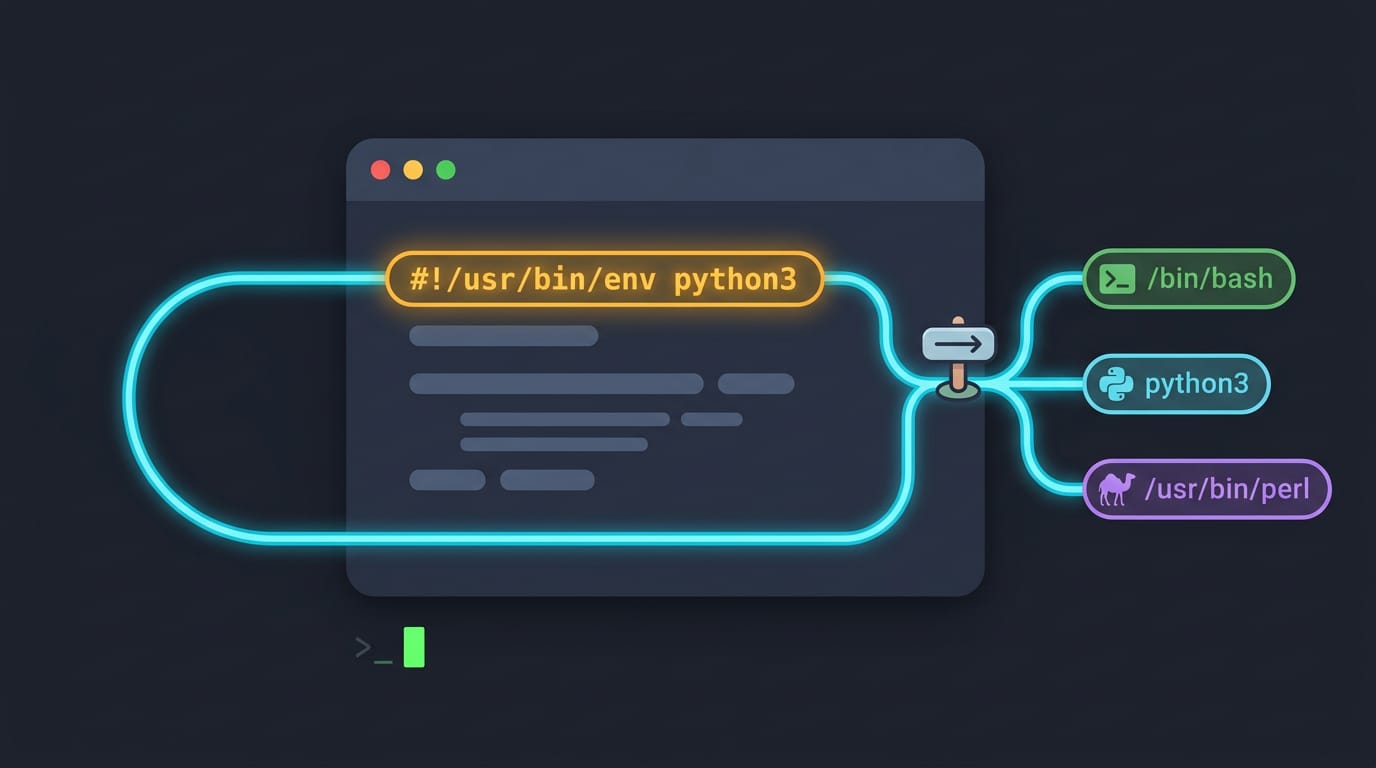
Linux Shebang Explained: What the First Line Does
Linux shebang lines tell the system which interpreter runs a script. Compare common forms, correct paths, and avoid failures from options or shell choice.

ThinkPad Arch Linux Guide: Model, Install, and Tune
Arch Linux on a ThinkPad gives you control from model choice to installation, with practical fixes for hardware quirks and longer battery life.