ThinkPad Arch Linux Guide: Model, Install, and Tune
Arch Linux on a ThinkPad gives you control from model choice to installation, with practical fixes for hardware quirks and longer battery life.
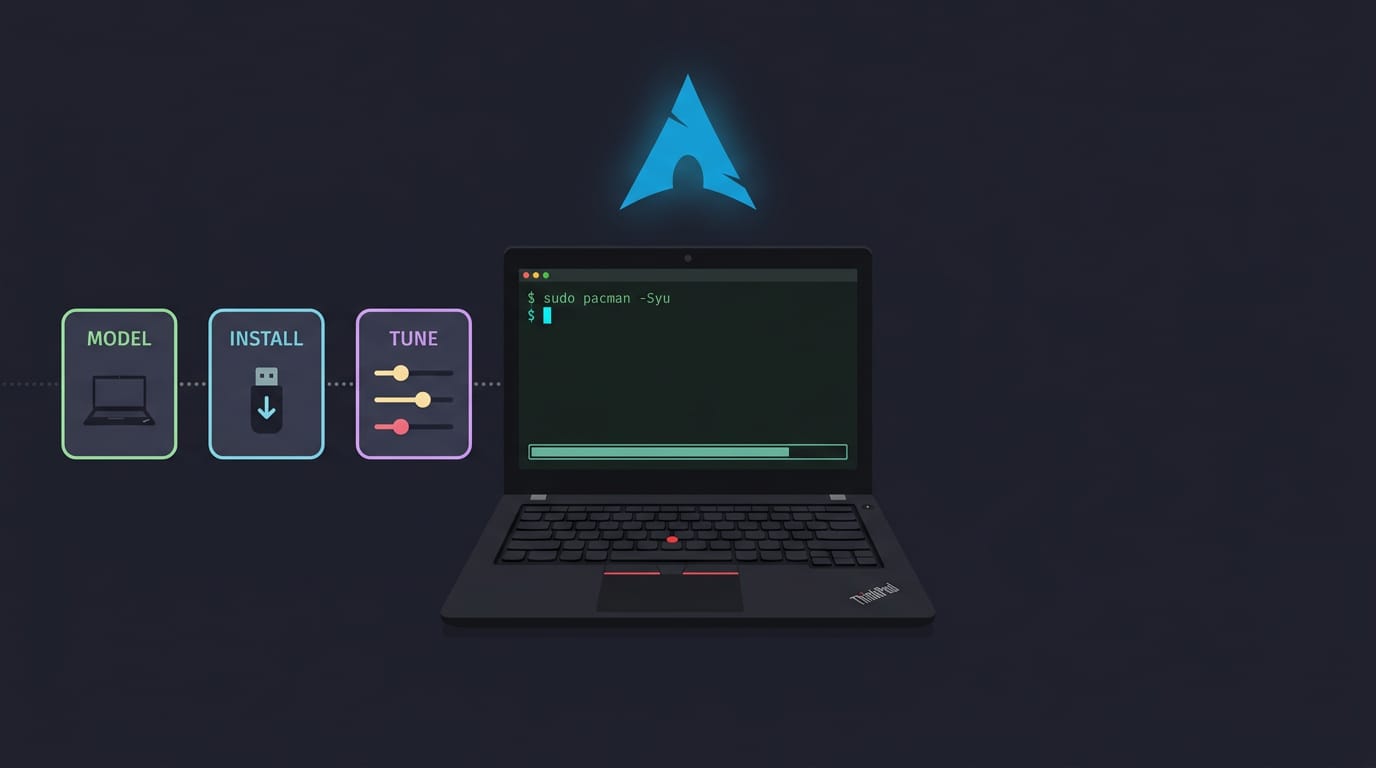
tl;dr the short answer
ThinkPad Arch Linux means running Arch, a lightweight, continuously updated Linux system you assemble and configure yourself, on a Lenovo ThinkPad laptop. Choose a model and system setup that fit your hardware and skills, then install only what you need and tune its drivers, desktop, power settings, and other hardware quirks. It offers control, customization, and a useful learning experience, but takes patience and ongoing maintenance; the Arch Wiki is a key resource for troubleshooting.
Picking up a ThinkPad and putting Arch Linux on it is a lot like building a custom bike instead of buying one off the shelf. You choose every part, so you know exactly what’s under the hood and why it runs the way it does.
This guide covers the whole ride: picking a model that plays nicely with Linux, installing Arch, fixing hardware quirks, and tuning your battery.
Then we add a rice-ready desktop, built on a Wayland compositor (the part that draws your windows) or a tiling window manager (one that arranges them for you).
ThinkPad Arch Linux Overview and Common Questions
Is Arch worth the effort on a ThinkPad? Here’s what it offers and who it suits.
Why Arch is light, flexible and customizable
Arch is less about having a finished system and more about building one. Four traits stand out:
- Lightweight and flexible: Install only what you need, so more of your ThinkPad’s power goes to your work.
- Rolling release model: Updates arrive continuously, so new software reaches you as soon as it’s ready.
- Customization and control: You choose each component, so the system matches how you work.
- Minimal bloat: Only what you ask for gets installed, so there’s less clutter and fewer surprises.
Your skill level and where to learn
Arch suits advanced users best, or anyone ready to become one. Picture a student who wants a lighter laptop for coursework. Setup takes patience and reading, but by the end they know their system inside out. The payoff is real.
Treat it as a learning opportunity: every fix teaches you how your laptop really works. For guidance, the Arch Wiki is the best starting point. Read it before a problem hits, not after you’re stuck.
Common uses, from gaming to servers
Arch handles plenty of different jobs on a ThinkPad:
- Programming and servers: A lean base makes a solid coding machine or home server.
- Gaming with Steam: Steam can be installed, so one laptop covers coursework and games.
- Virtual machines: A virtual machine runs a simulated computer inside your own, handy for safe testing.
- Dual boot setups: Keep a second OS on the same drive and pick which one starts.
- Multiple file systems: Pick the format that suits each drive or partition.
- Custom kernels: Tune the core of the system to match your hardware.
Consider a developer who turns an old ThinkPad into a home server and still codes on it by day. The laptop keeps earning its keep.
Picking a ThinkPad and Checking Hardware Fit
ThinkPads suit Linux because their lineup covers almost any setup, and older models still run Arch. Here’s what to weigh first: processor, memory, and heat.
32-bit or 64-bit builds for your CPU
Every CPU (central processing unit) has an architecture, and it decides which build you need. A 64-bit processor takes the x86_64 build, while a 32-bit one takes i686. Older Pentium M ThinkPads are 32-bit, so they need i686.
The question isn’t whether Arch runs on your ThinkPad, but which build it needs. Find your architecture before you download anything. Older hardware still runs Arch, so an old ThinkPad isn’t a dead end. Check first, download second.
What is the best laptop for Arch Linux?
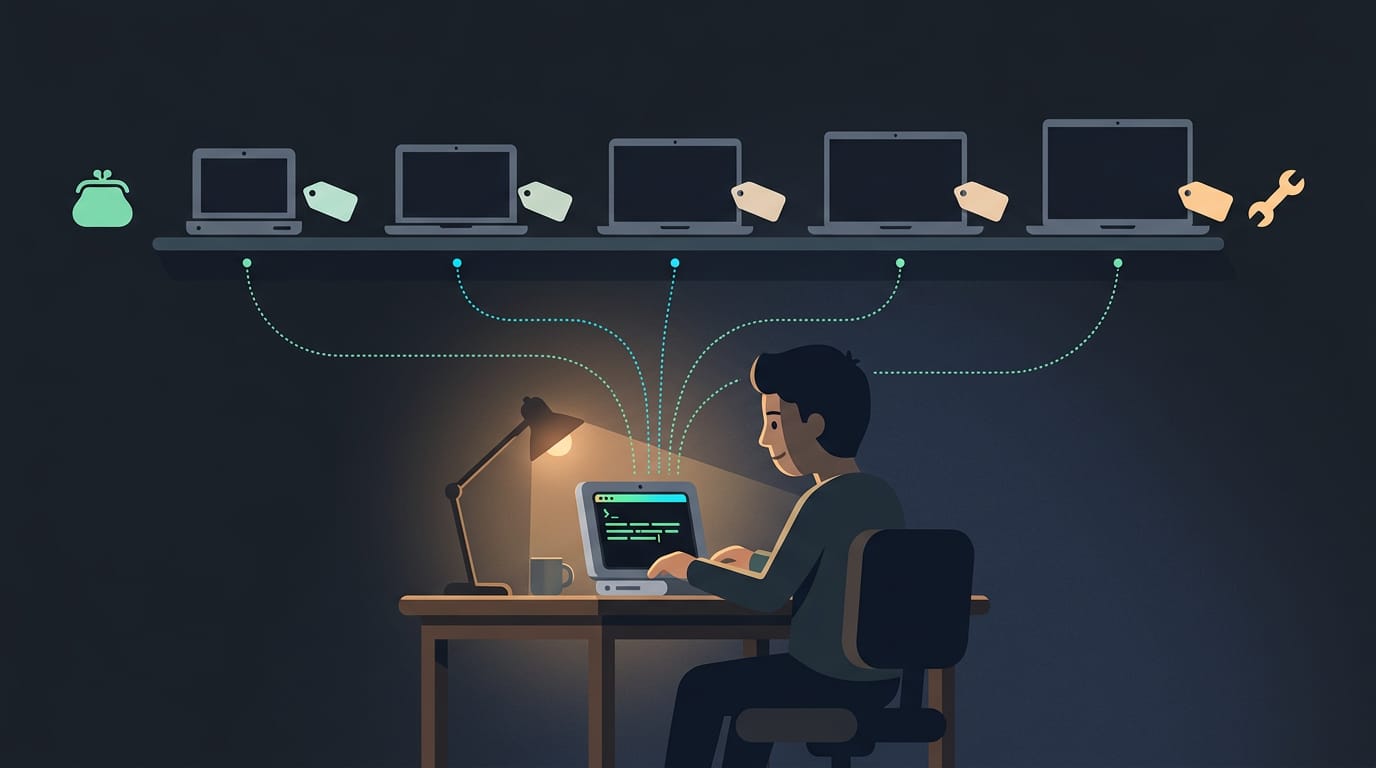
There’s no single best model, so match the pick to your budget and how much tinkering you want. Here’s how they compare:
- Netbook under $300: a budget entry point, with modest expectations.
- X40/X41: older models for a classic ThinkPad feel.
- X120e: a lightweight 64-bit option that pairs with x86_64.
- X200: pricey overkill if a terminal and a browser are all you need.
- X1 Carbon and T470p: two examples for weighing a current generation against an older one.
Think of a student who wants a cheap machine for writing papers in a terminal. An X120e or a netbook under $300 gets them a working Arch setup without a big spend.
How much RAM Arch really needs
The minimum is 512 MB (megabytes) of RAM (random-access memory, the short-term memory your programs run in), but the number depends on your desktop choice. A bare terminal can run on that much, while a graphical desktop needs more.
Picture a reader on an old ThinkPad running only a terminal: it’ll feel fine. Add a full desktop and a browser, and the same machine starts to feel tight.
It’s less about how much memory you have and more about what you run on it.
Dealing with heat and CPU throttling
The X60 and X61 are known for overheating. When a processor gets too hot, it throttles, slowing itself down to protect the hardware. Throttling is a protection rather than a fault, but it can make your machine feel sluggish.
The fix is an Intel throttling workaround, run through a throttled service: a background program that keeps it active.
Installing Arch Linux on a ThinkPad
This is where the install gets real. Work through the steps in order, since each one builds on the last.
Prepare the live system before installing
Confirm the firmware is in UEFI (the modern boot standard) mode: ls /sys/firmware/efi/efivars should list files. You want to confirm UEFI rather than assume it.
Connect with iwctl, the built-in wireless client: run station <device> scan, then station <device> connect YourNetwork. A student in a crowded dorm can get online without tethering a phone.
Sync the clock with timedatectl set-ntp true. A wrong clock breaks HTTPS downloads. Easy to miss, painful to debug.
Set the mirrorlist (pacman’s download server list) with reflector or by editing /etc/pacman.d/mirrorlist.
A big download can fill the live system’s RAM-based scratch space. Remount it larger with mount -o remount,size=<new size> /run/archiso/cowspace.
Setting up encrypted LVM on the NVMe drive
Your NVMe (Non-Volatile Memory Express) drive usually shows up as /dev/nvme0n1, and its partitions add a p, like /dev/nvme0n1p1. Don’t copy sda examples from older guides.
Lay out a GPT (GUID Partition Table) with three parts:
- EFI partition (Extensible Firmware Interface): a small FAT32 partition mounted at
/boot. - Encrypted container: the rest of the disk, locked with LUKS (Linux Unified Key Setup) using
cryptsetup luksFormat, then opened ascryptlvm. - Swap and root: inside the container, LVM (Logical Volume Manager) carves out two volumes with
lvcreate.
Lose the passphrase, and the data goes with it.
Format with mkfs.fat -F32 for EFI, mkfs.ext4 for root, and mkswap for swap. Then mount root at /mnt, EFI at /mnt/boot, and run swapon.
Installing base packages and basic settings
Install the core with pacstrap /mnt base linux linux-firmware networkmanager, then generate /etc/fstab (the mount list) with genfstab -U /mnt >> /mnt/etc/fstab.
Enter the new system with arch-chroot /mnt, a chroot (a shell rooted inside the installed system).
- Timezone:
ln -sf /usr/share/zoneinfo/Region/City /etc/localtime, thenhwclock --systohc. - Locale: uncomment yours in
/etc/locale.gen, runlocale-gen, and setLANGin/etc/locale.conf. - Hostname and root password: write your machine name to
/etc/hostname, then runpasswd. - NetworkManager: run
systemctl enable NetworkManager, or your first boot comes up offline.
Setting up the bootloader and boot options
Install systemd-boot (a simple UEFI bootloader) with bootctl install.
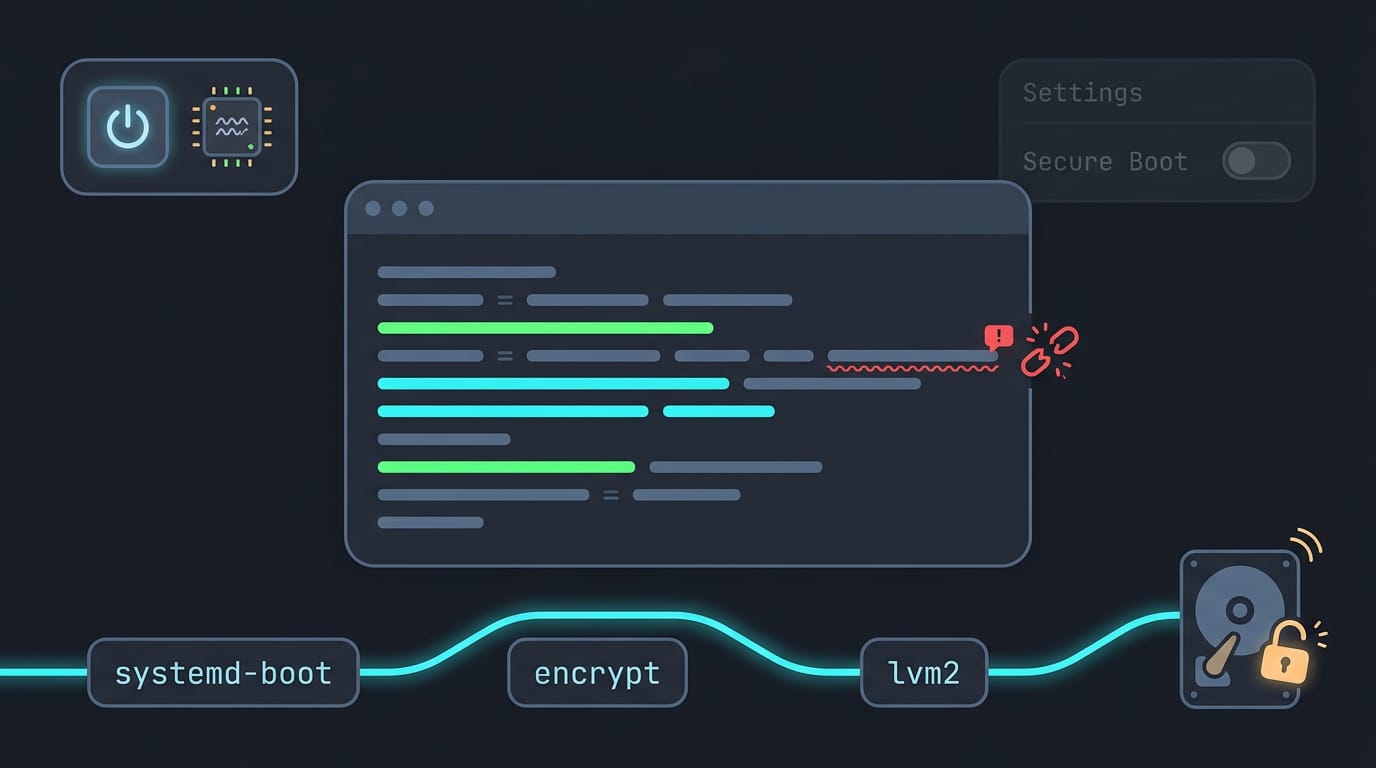
Then write /boot/loader/entries/arch.conf with linux, initrd, and options lines, where the options include cryptdevice=UUID=<LUKS partition UUID>:cryptlvm root=/dev/<vg>/root. Small typo, big headache.
Edit the HOOKS line in /etc/mkinitcpio.conf so encrypt and lvm2 sit between block and filesystems, then run mkinitcpio -P. These hooks unlock the disk at boot.
For microcode (CPU firmware fixes), install intel-ucode and add initrd /intel-ucode.img above the main initrd line.
Legacy mode for PXE boot doesn’t use UEFI, so these steps won’t apply there. Switch back afterward.
In firmware setup, turn off Secure Boot (a check that only trusts signed boot files), since these boot files aren’t signed.
Other ways to boot the installer
- PXE boot via USB-C dongle: a USB-C Ethernet dongle supplies the wired link for PXE (Preboot Execution Environment) network boot, but you still need a PXE server on your network.
- Persistent USB install: changes survive reboots, so your Wi-Fi setup sticks around.
- archinstall and alma tools:
archinstall, the official guided installer, handles partitions for you. Skip the alma tools here, since they aren’t part of the Arch install path.
Managing Packages and Software
Your ThinkPad is only as useful as its software. Here’s how to add, remove, and update it, and how to keep track of what you’ve installed.
Installing, removing and updating with pacman
Pacman is Arch’s package manager. sudo pacman -S <package> installs an app, and sudo pacman -R <package> removes it. Apps need other libraries, called dependencies, and pacman’s dependency resolution pulls those in automatically.
To update everything, run sudo pacman -Syu. Arch is a rolling release, meaning it updates continuously rather than in big version jumps. This one command refreshes the package lists and upgrades the whole system.
Partial upgrades can break things, so always run the full update. Make it a habit.
Installing AUR apps like Zoom with yay
Apps outside the official repositories live in the Arch User Repository (AUR). Its entries are PKGBUILDs, community-written build scripts. Pacman handles official packages, and the AUR covers community ones.
yay is an AUR helper that fetches and builds those scripts for you, so yay -S zoom installs much like pacman does. Think of a student on a ten-year-old ThinkPad who needs Zoom for Monday’s lecture and Spotify for study sessions.
One yay command per app gets both running without manual builds.
Listing packages you chose and AUR installs
Want a record of what you added? Two commands produce it:
pacman -Qqelists explicitly installed packages: the ones you chose, not the dependencies pulled in along the way.pacman -Qqmlists foreign packages, anything not found in the official repositories, which is where your AUR installs show up.
Save both lists before any reinstall, and you’ll know exactly what to put back.
Fixing and Tuning Things After Installing
A fresh install boots, but a few settings decide whether your ThinkPad feels like yours. We’ll also cover fingerprint setup and firmware updates with fwupd, the firmware update tool.
Picking a desktop and getting sound working
SDDM is the login screen manager. KDE Plasma mostly works out of the box, so it asks less of you. Hyprland and Sway are Wayland compositors (the programs that draw your windows) that tile windows and ask more in return for control.
PipeWire, the sound server, handles audio, and its PipeWire-Pulse layer keeps older apps working. Bluetooth headsets often pair fine, then sound thin once they slip into a low-quality call profile.
Check the active profile in audio settings before blaming the hardware. Finally, tune the TrackPoint and touchpad gestures in your desktop’s input settings.
Speeding up slow WiFi and static IPs
A slow Intel 8265 card often traces back to one module option for the iwlwifi driver (the kernel code for Intel WiFi). Set it and reboot.
For a static IP, write a systemd-networkd config for your interface, then enable its service and NTP (network time sync) so the clock stays right. Think of a self-hoster who needs the home server at the same address every time, so bookmarks never break.
Controlling brightness on laptop and external screens
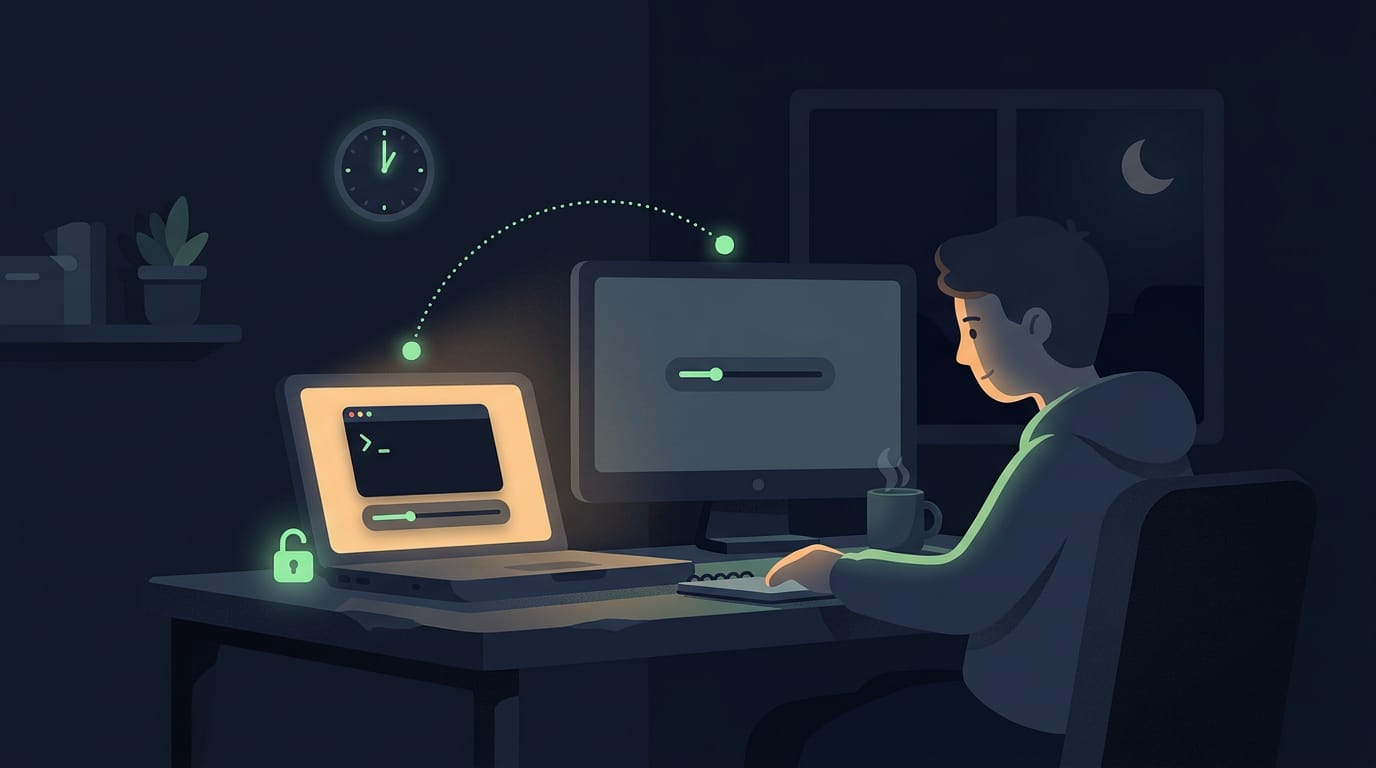
Think of a student on a ten-year-old ThinkPad who wants the screen dim at 1am without a sudo prompt. A udev rule (the file that sets device permissions as hardware appears) lets your user write to the backlight.
The panel’s brightness lives in sysfs, the kernel’s hardware file tree, so writing a number changes it. External monitors need a different tool: ddcutil adjusts them over the monitor’s control channel, so the desk screen can dim with the laptop.
Making suspend and lid close reliable
If the screen comes back blue, blank, or frozen after waking, check the logs right after the wake, since the error is usually logged there.
For lid close, systemd-logind (the service that handles power events) decides what closing the lid does, so set that action in its config. That keeps a closed lid in your bag from draining the battery overnight.
Close it, wait, open it. A clean wake means you’re done.
Making Your Battery Last Longer
A ThinkPad can run for hours on Arch, but the defaults rarely get it there.
Setting up low power tools and quieter fans
Start with a baseline. To check your battery level, look at your bar’s battery module or run a terminal battery tool, so you can see what each change buys you.
Then add TLP, a power management tool that applies sensible settings automatically, and powertop, which shows what’s draining your battery.
The goal is long battery life, not fast charging, with a quiet fan at your desk. Fan avoidance means keeping the processor cool and mostly idle so the fan rarely spins up. Less heat means less noise.
For control, thinkfan adjusts fan speed by temperature, and s-tui is a terminal monitor for temperature, frequency, and power.
Think of a student on a ten-year-old ThinkPad facing a three-hour lecture with no nearby outlet. After tuning, the laptop lasts the whole lecture and stays quiet enough that nobody notices.
Charge thresholds stop charging at a level you pick, which is handy if your ThinkPad mostly sits plugged in.
Taming Intel throttling with kernel settings
Some Intel ThinkPads slow down under heat, a behavior called throttling, and that costs you speed. The throttled tool targets this, so install it and confirm it’s running before you tune anything else.
intel_pstate is the kernel driver that controls how your Intel processor scales its speed. Kernel options adjust how it behaves, and you set them in your boot loader.
Change one setting at a time and reboot to test it, so if something misbehaves, you’ll know which change caused it.
Working with Remote Desktops and Thin Clients
Plenty of work still lives on a Windows machine, so you’ll often connect from Linux. Here’s how to choose a client and avoid the common snags.
Picking an RDP client and fixing Citrix
Reaching a remote machine takes a Remote Desktop Protocol (RDP) client, the app that carries your keyboard and screen across the network. Choose by where the work runs, not by which app looks nicer.
On Arch, you’ll mostly choose between two:
- Remmina: a general-purpose client that handles RDP and other protocols in one app.
- KRDC: the client from the KDE project, best if you already run its Plasma desktop.
Think of a student on a ten-year-old ThinkPad who needs one Windows-only lab tool for a single class. That tool opens in a window, and their results go straight back to Arch.
Two snags are worth knowing. Citrix (a platform that serves virtual desktops and apps from a server) may ignore middle-click, which trips up anyone who pastes that way, so sort it out early.
A blank screen at a Windows 10 login isn’t always a broken machine. Disconnect, reconnect, and check your client’s settings first.
Sorting out keyboard shortcuts and the Windows key
Remote sessions compete with your desktop for every keystroke. KDE may grab a shortcut first, so look for its option to ignore global shortcuts while the remote window has focus.
Windows key passthrough decides whether the Windows-logo key reaches the remote machine. Without it, that key opens your local launcher instead of the remote Start menu.
Exceptions like Alt-Tab need their own call. That shortcut might belong to your local desktop or the remote session, so the real question is which side gets each key. Settle that per key, and the fighting stops.
That’s the whole path: a ThinkPad picked with Linux in mind, an Arch install you actually understand, hardware that behaves, a battery that lasts, and a desktop that looks like yours.
Each step builds on the last, so you can rebuild the setup with confidence whenever you need to.
Take it one section at a time. Your machine should look like you, and it should still boot tomorrow.
Questions
What is the best laptop for Arch Linux?
There is no single best laptop for Arch Linux; the right choice depends on your budget and how much tinkering you want to do. ThinkPads are a strong option, with models such as the lightweight X120e or newer X1 Carbon offering different trade-offs.
What are the big 3 Linux distros?
The three most widely used Linux distribution families are Debian, Red Hat, and Arch. Popular distros in those families include Debian or Ubuntu, Fedora, and Arch Linux.
How can I check the battery level on Arch Linux?
Check the battery module in your desktop’s status bar, or use a terminal battery tool such as `upower` or `acpi`. These can show the charge level and, depending on the tool and hardware, whether the battery is charging.
Why are thinkpads so good for Linux?
ThinkPads come in a wide range of models and budgets, and many older models can still run Linux. Their hardware is generally well suited to Linux, though specific components and features can vary by model.
Can I run Arch Linux on Raspberry Pi?
Yes. Arch Linux ARM provides Arch-based images for supported Raspberry Pi models. It is a separate ARM port, so check the current device support and installation instructions before choosing an image.
Which Arch Linux distro is the best?
There is no single best Arch-based distribution for everyone. If you want the standard Arch system, install Arch Linux; if you prefer a more guided setup, consider a derivative such as EndeavourOS or Manjaro, while keeping in mind that derivatives differ from Arch itself.
Is Raspberry Pi OS just Debian?
Raspberry Pi OS is based on Debian, but it is not simply identical to Debian. It is a Debian-based operating system adapted for Raspberry Pi hardware and includes Raspberry Pi-specific software and configuration.
Does Arch use Debian?
No. Arch Linux is an independent distribution and does not use Debian as its base; it has its own package manager, pacman, and its own package repositories.
Read next.
Surface Pro 4 Linux: Complete Install and Setup Guide
Run Linux on Surface Pro 4 with a fitting distro, then set up a touch-friendly desktop and tiling workflow while checking hardware support.
Remove Linux Directory: Empty and Full Folders Explained
Remove a directory in Linux safely: use rmdir for empty folders or rm -r for full ones, and avoid common errors before files you meant to keep disappear.
Linux on MacBook Air: The Complete Installation Guide
Linux on MacBook Air can turn a familiar laptop into your own setup: check model compatibility, choose a distro, install safely, and fix Wi-Fi.