Remove Linux Directory: Empty and Full Folders Explained
Remove a directory in Linux safely: use rmdir for empty folders or rm -r for full ones, and avoid common errors before files you meant to keep disappear.
tl;dr the short answer
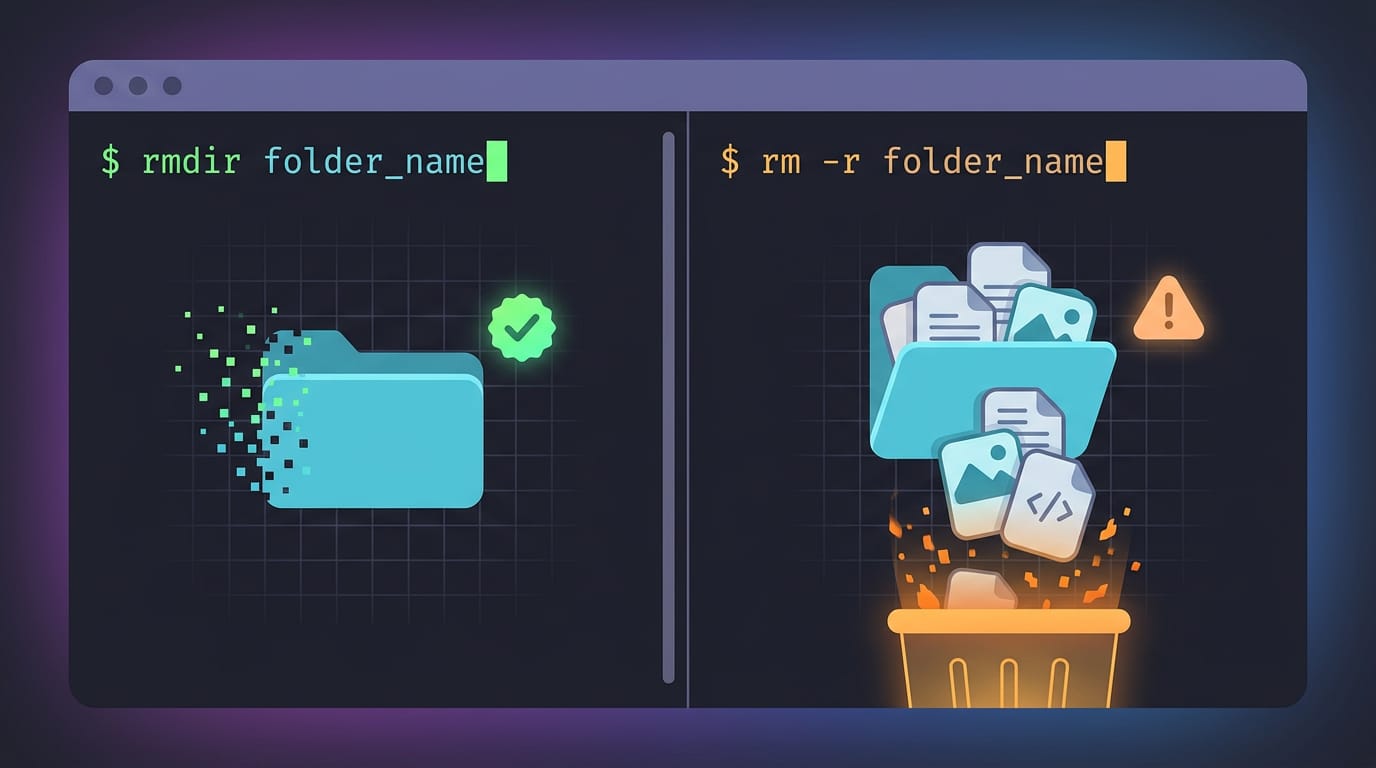
Removing a directory in Linux means deleting a folder, either because it is empty or along with everything it contains. Use `rmdir` for empty folders and `rm -r` for folders with files or subfolders; check the path and hidden contents first, since command-line deletion bypasses the trash and may be permanent. For safer cleanup, preview bulk deletions or use a trash tool when you want a chance to restore items.
Ever tried to clear out a junk drawer only to find a box inside it that’s also stuffed with junk? That’s a lot like a directory, which is what Linux calls a folder. You can’t just toss it until it’s empty, and the terminal makes sure you know that.
Removing one is simple once you know which tool fits: rmdir for empty folders, rm -r for full ones, and a few safety habits to keep you from losing files you meant to keep.
We’ll also tackle common errors and desktop extras like trash-safe deletion and bulk cleanup.
Remove Empty Directories in Linux with Rmdir
Sometimes a folder is just an empty shell, like the skeleton a backup script left behind. For that job, rmdir is the tool to reach for, because it’s built to refuse anything risky.
How rmdir only removes empty folders
Think of rmdir as the cautious cousin of rm -r. It only removes directories, and only empty ones. It never deletes files, so a folder holding anything at all stays put.
A folder counts as empty when it holds nothing but . (itself) and .. (its parent). Nothing gets lost by accident.
Permissions and checks before you start
Removing a folder changes the folder above it, so you need write permission on the parent directory. Then confirm it’s empty with ls -a.
Plain ls hides dotfiles (files whose names start with a dot), so a folder can look empty while holding something you need.
Picture a student cleaning up an old project folder on a ten-year-old ThinkPad. A plain ls shows nothing, but ls -a reveals a hidden .git directory. rmdir won’t touch that folder, and that refusal protects the project history. Check first, delete second.
Remove nested folder chains with rmdir -p
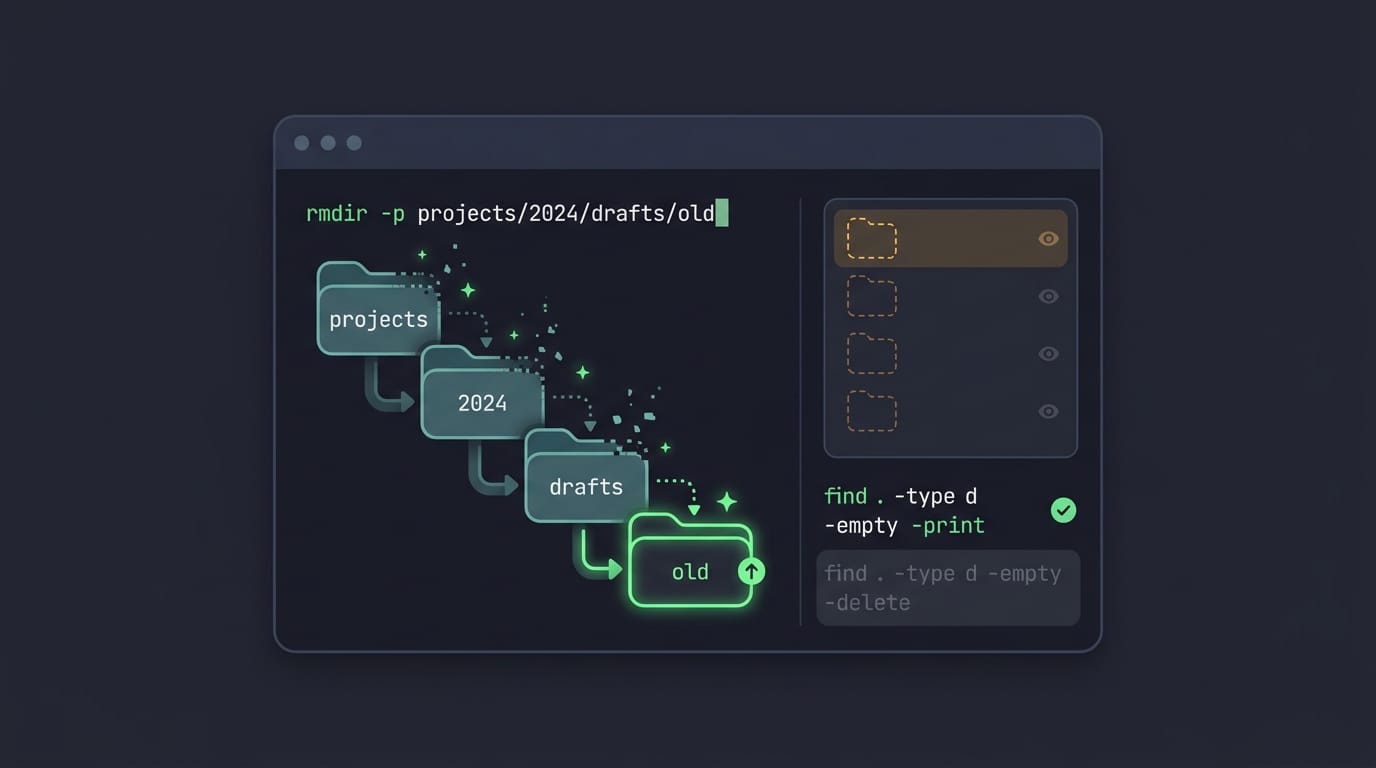
The -p flag (short for parents) removes a whole path in one go. rmdir -p projects/2024/drafts/old deletes old, then drafts, then 2024, then projects, working up the chain. If any folder in the chain still holds something, rmdir reports an error.
Need every empty directory under a location gone? Use find. find . -type d -empty -print previews the list, and find . -type d -empty -delete removes them.
Because -delete works from the bottom up, a folder that held only empty folders gets cleaned up too. Run the preview first, and only then the delete.
Empty the folder before removing it
When a folder still holds files, clear it first with rm mydir/* (add -r if there are subfolders). The shell’s * skips dotfiles, so a stray hidden file survives and blocks rmdir.
Run ls -a mydir to spot leftovers, remove them by name (such as rm mydir/.lock), then run rmdir mydir.
If you point rmdir at . or .., it prints an error and refuses, since those names stand for the folder you’re in and the one above it.
What Does the Rm Command Do in Linux?
The rm command deletes files in Linux, and with the right option, it removes a whole directory (folder) and everything inside it.
Deleting a full tree with rm -r
Add the recursive option with rm -r to remove a directory tree. Recursive means the option includes everything inside: every file and subfolder gets deleted.
Think of a student clearing out a class project: rm -r old-drafts removes the folder and every subfolder inside it in one command. Replace directory_name with the name of your own folder.
Plain rm alone won’t do the job. Without -r, you’ll get an error because the command only removes files. Also note that rm deletes for good, while most file managers move items to the trash first.
Skip prompts and errors with rm -rf
When a folder just won’t go away, rm -rf is often the fix that finally works. The force flag (-f) skips confirmation prompts and ignores most errors, such as files that don’t exist.
That speed comes with risk, so double-check the path first. There’s no undo.
Follow these steps to delete a folder
Here’s the full process:
- Open your terminal.
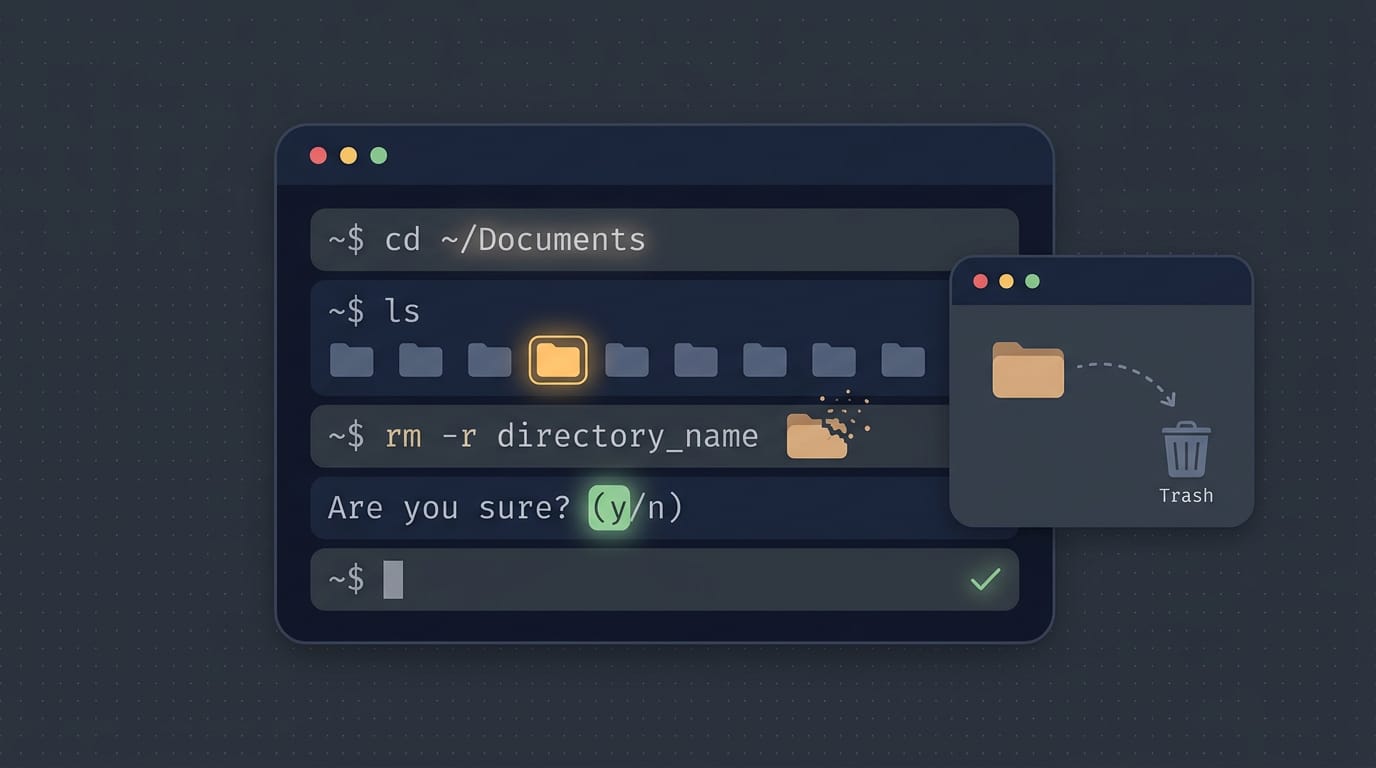
- Navigate to the parent folder with
cd, such ascd ~/Documents. - List contents with
lsto confirm the exact name. - Run
rm -r directory_name. Ifrmpauses to ask about a file, typeyto confirm ornto skip it. - Expect no output on success. Linux stays quiet when a command works.
Prefer clicking? Your file manager can delete a folder too: select it and use its delete or trash option.
How to Stay Safe Before Deleting
Deleting a directory takes one command, and that speed is exactly what makes mistakes so costly. A few quick checks before you hit Enter can save you a painful restore.
Stop accidental data loss before it happens
Deletion is permanent. Command-line removal skips the trash entirely, so there’s no undo button. Treat every rm as final.
Before you run anything, make three checks:
- Verify the directory first. Run
pwdand check where you are, not where you think you are. - Check the contents. Run
ls -lato see everything inside, including hidden dotfiles that a plainlsskips. - Preview the deletion. Use
rm -rito get a prompt for each item, or runlson the same path first.
Picture a developer who runs rm -r build in the wrong terminal tab and wipes a project instead of a cache folder. One pwd would have caught it.
Want a safety net? Install trash-cli and use trash-put in place of rm. Items land in your trash, so a wrong move is one restore away.
So what is rm -rf /*? The -r flag deletes folders and everything inside them, the -f skips the confirmation prompts, and /* expands to every item in the root directory.
Run with administrator rights, that combination can wipe the entire system, so never paste it from a random tutorial.

Fix Common Errors When Deleting Folders
Most deletion errors come from a few predictable causes, each with a quick fix.
Fix the directory not empty error
rmdir fails with Directory not empty because it only removes empty folders. Use recursive removal, rm -r folder, instead. Run ls -al folder first to see everything inside, including hidden dotfiles that a plain ls skips.
A student cleaning up ~/.config/waybar on an old ThinkPad moves it to ~/waybar.bak with mv instead of deleting, so the old bar is one rename away if the new one breaks. Target one app’s folder, never ~/.config itself, since it holds every program’s settings.
Permission denied means the folder’s permissions are blocking you. To change them, use chmod: chmod u+rwx folder gives you read, write, and execute access, and adding -R covers everything inside. Only change folders you own.
Why rm refuses to delete folders
Plain rm refuses directories with Is a directory, since it’s built for files. That’s a safety net. The two commands differ in one key way:
rmdirremoves empty directories and stops if anything’s inside.rm -rremoves everything in the tree, files and subfolders alike.
Check before you press Enter.
Check your setup when commands act oddly
Sometimes the command is fine but your shell is rewriting it. Run type rm. If it says rm is aliased to 'rm -i', every delete asks first.
A Debian user who copied a dotfiles repo to a new laptop is surprised by delete prompts. type rm explains it in one line, so they know it’s an alias and not a bug.
Next, run cat /etc/os-release to identify your distro and version. Then read man rm or man rmdir for the flags your version supports.
Removing a directory in Linux really comes down to matching the tool to the job: rmdir for empty folders, rm -r for full ones, and a quick pause before anything permanent.
Keep your safety habits close, like checking what’s inside and sending files to the trash when you can, and those scary error messages will start to make sense.
Your file manager and a few bulk commands can handle the rest of the cleanup, so tidying up doesn’t have to eat your afternoon. Clean folders make for a calmer desktop, and a careful pause before each delete keeps the right files right where they belong.
Questions
How to delete a directory through terminal Linux?
Use `rmdir directory_name` to remove an empty directory. For a directory containing files or subdirectories, use `rm -r directory_name`; check the path and contents first because command-line deletion bypasses the trash.
How do I delete a folder?
Use `rmdir folder_name` if the folder is empty. If it contains files or subfolders, use `rm -r folder_name` to delete it and everything inside; verify the folder name before running the command.
How do I find and delete all empty directories in Linux?
Preview empty directories with `find /path -type d -empty -print`. If the list is correct, remove them with `find /path -type d -empty -delete`; use `.` instead of `/path` to search from the current directory.
How do I rename a directory in bash?
Use the `mv` command to rename a directory: `mv old_name new_name`. To rename one elsewhere, provide its path, such as `mv ~/Documents/old_name ~/Documents/new_name`.
How do I exit a folder in terminal?
To go up one level to the parent directory, enter `cd ..`. To return to your home directory, enter `cd` or `cd ~`.
How do I open a folder in the Linux terminal?
Use `cd` followed by the directory path, such as `cd ~/Documents`. Run `ls` to see the files and directories there; use `pwd` to check your current location.
What does the "rm" command do in Linux?
`rm` deletes files in Linux. With the recursive option, `rm -r directory_name` deletes a directory and its contents; deletion is permanent from the command line and does not move items to the trash.
Read next.

What Is Linux and How Its Kernel Runs Your PC
What is Linux? See how its kernel, distributions, desktops, and Wayland fit together, plus where Linux runs and how its software gets managed securely.
How to rice Linux: a first-rice checklist
The order to rice a Linux desktop without breaking it: a way back first, then each piece from window manager to lock screen, with its config file and a check.
Surface Pro 4 Linux: Complete Install and Setup Guide
Run Linux on Surface Pro 4 with a fitting distro, then set up a touch-friendly desktop and tiling workflow while checking hardware support.