Run a Shell Script: Every Method Explained
Run a shell script by interpreter, executable path, or sourcing it, and see how permissions, inputs, and output differ so you can choose the right method.
tl;dr the short answer
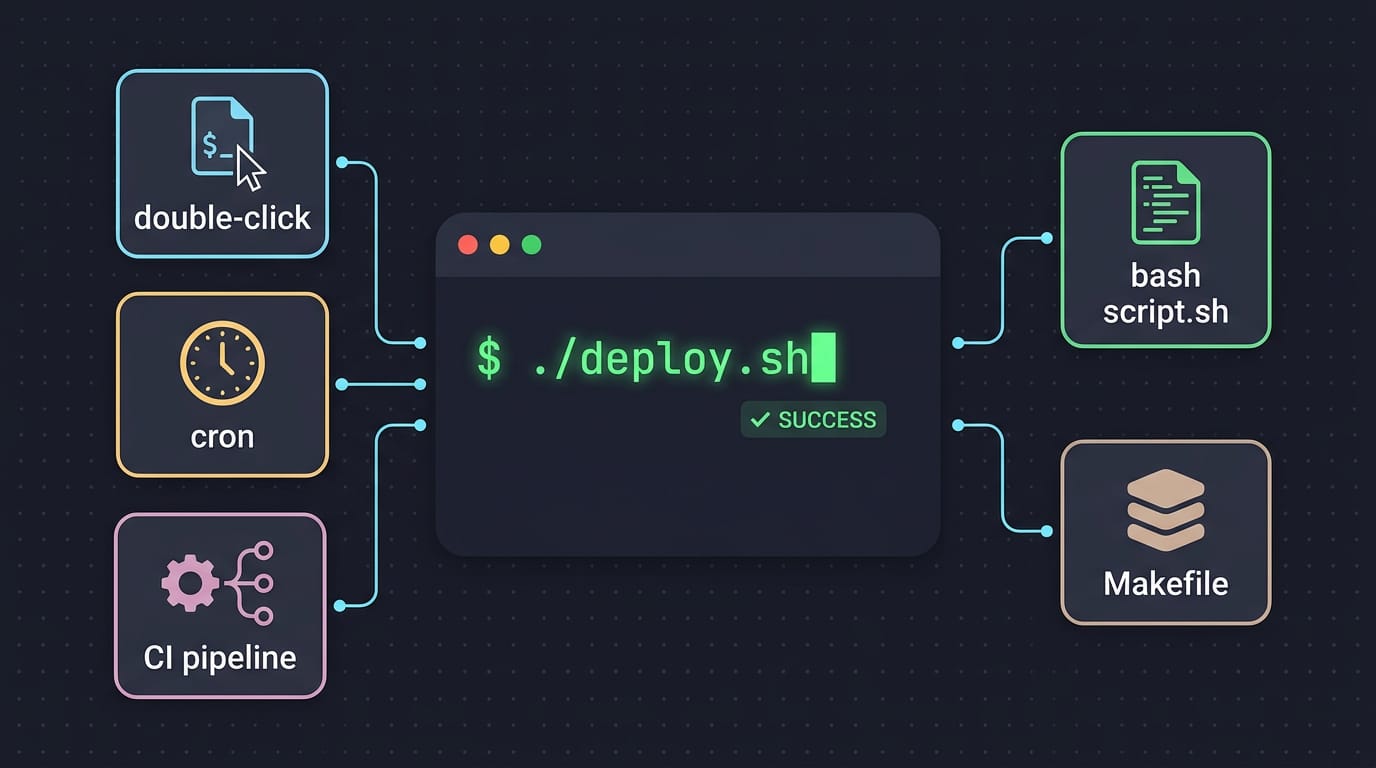
A shell script is a plain text file of commands that a shell runs in order, automating tasks you might otherwise repeat by hand. Run one with sh or bash, launch it directly after granting execute permission, or source it when its changes need to stay in your current shell; choose the method that fits the task. Correct permissions and a valid interpreter help avoid errors, while sudo should be reserved for scripts you trust that truly need administrator access.
Think of a shell script as a recipe card for your terminal. Instead of retyping the same commands every time you set up a project, you write them down once and let the shell follow along. A shell script is a plain text file of commands that runs in order.
There are a few ways to run one: pass it to an interpreter, make it executable and call it by path, or source it (load it into your current session). Each behaves differently, and picking the wrong one is a common reason a script won’t run.
This post covers every method, the permissions you’ll need, and the Linux details like PATH (the folders your shell searches for commands), sudo (running a command with administrator rights), and desktop launchers that other guides skip.
Core Ideas to Run a Shell Script
Before you run anything, it helps to know what’s doing the work. These terms show up in nearly every guide, so let’s clear them up first.
Terms every beginner should understand
The kernel is the core of Linux. It talks directly to your hardware and manages memory, disks, and running programs. You almost never type into it directly.
The shell sits on top of the kernel. It’s the program that reads what you type and passes those instructions along to the system.
Bash is a popular Unix shell, meaning a shell built for Unix-style systems like Linux. The examples in this article assume you’re using it.
A scripting language is written to be carried out step by step by another program at run time, rather than compiled ahead of time into a standalone program. When a language works that way, it’s called interpreted.
The shell reads each line of your script and runs it, and that’s the whole trick.
A shell script is simply a plain text file full of shell commands. The shell reads it from top to bottom, one instruction at a time.
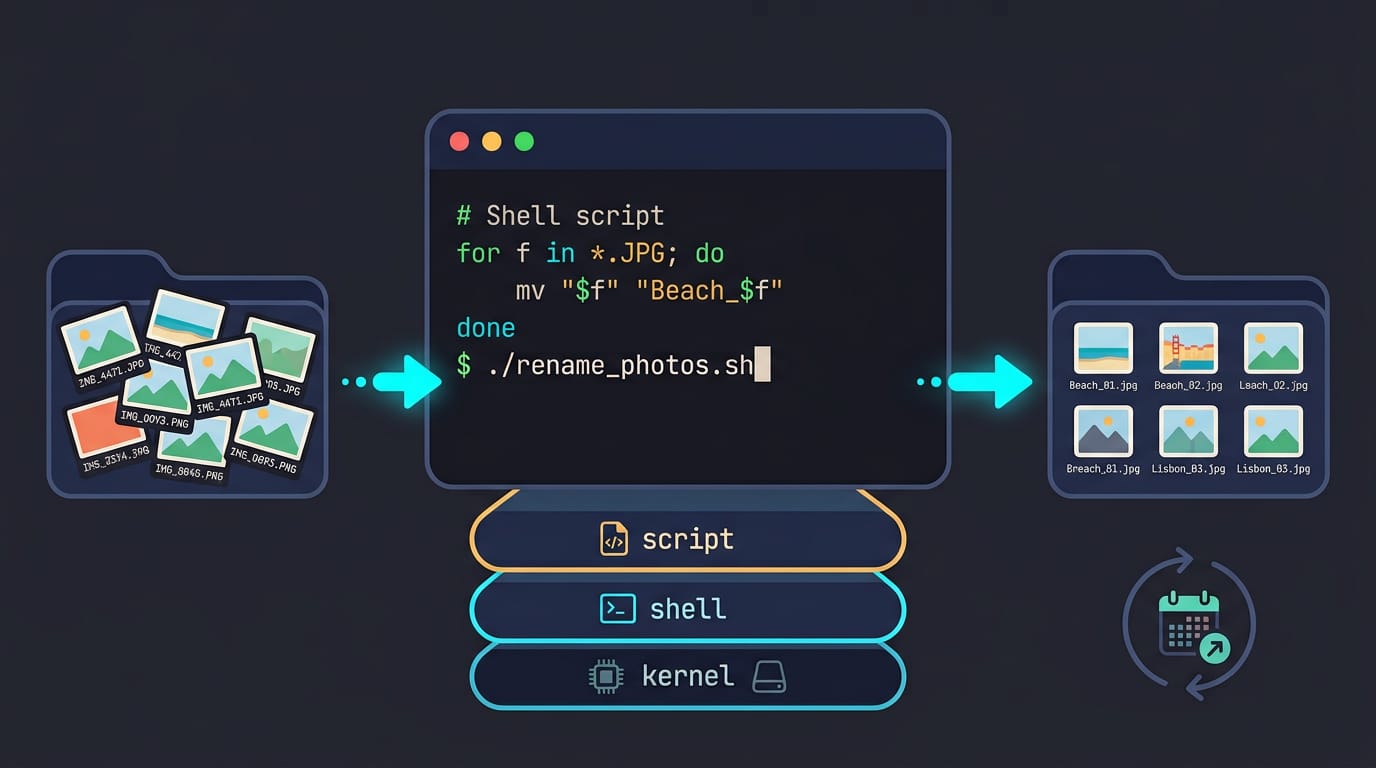
Picture a Linux user who renames a folder of vacation photos every weekend.
Typing the same fixes by hand eats an afternoon, but a three-line script does the job in seconds, and they can run it again next month without retyping a thing. Write it once. Run it anytime.
Why People Reach for Bash Scripts
Bash scripts save you from retyping the same commands. A shell script is a plain text file of commands that your shell runs in order, so here’s where we’d reach for one and where we’d think twice.
Everyday jobs a script can handle
Most scripts start as a shortcut for something you already do by hand:
- Replacing complex npm (Node package manager) scripts with one readable file
- Deploying to staging environments with the same steps every time
- Documenting repeated steps so you or a teammate can run them later
- Single-command automation for any multi-step task
Picture a Linux user who pushes a small site to a staging server every Friday. Typing the copy, restart, and health-check commands from memory invites a typo that breaks the whole sequence.
A ten-line script turns that into ./deploy-staging.sh, and the routine takes seconds.
Where Bash shines and where it struggles
Bash is already on most Unix-like systems, so your script runs with nothing to install. Its syntax stays stable across versions, so an old script usually still works. File commands like mv are right at hand, too.
Bash is weak for API requests, though. Parsing JSON (a structured data format) with text tools gets fragile fast, so a task that mostly talks to web services is better served elsewhere.
So is Bash or Python easier? For a short run of commands, Bash is easier, since you’re already typing those commands. For data, logic, or API calls, Python is easier to read. Bash is easier to start, but Python is easier to maintain.
Start with Bash. Switch when it starts to hurt.
Getting a Script Ready to Run
A script needs to exist, be executable, and name the program that reads it before it runs. Here’s how we’ll set all three up.
Create the .sh file and add commands
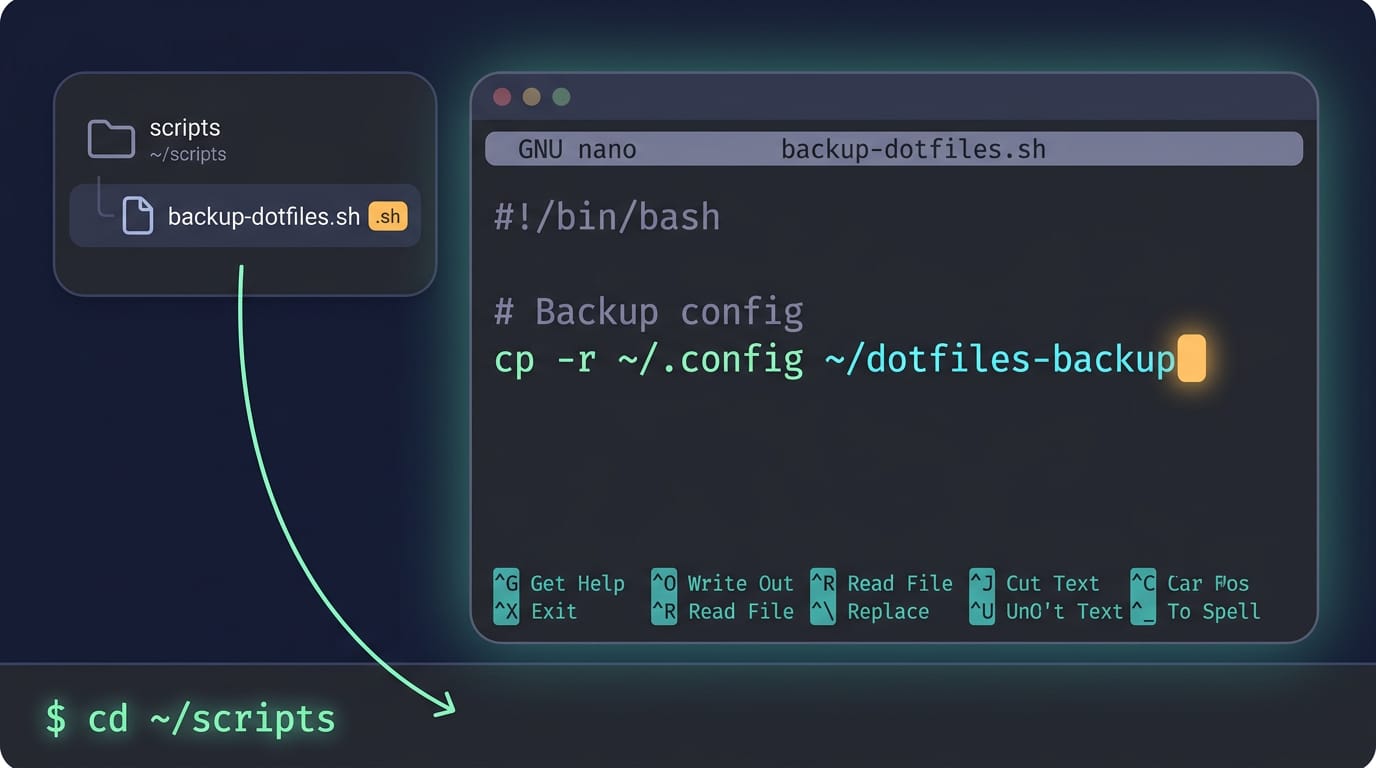
Keep scripts in one folder, such as ~/scripts, made with mkdir -p ~/scripts. Say you’re a Linux user who wants one command to back up your dotfiles. Create the script in nano, a simple terminal text editor: nano ~/scripts/backup-dotfiles.sh.
Type a command per line, such as cp -r ~/.config ~/dotfiles-backup.
Linux doesn’t need the .sh extension, but it tells you and your editor that the file is a shell script. Open a terminal and cd ~/scripts to move into that folder.
Give the script permission to execute
A new file is readable and writable but not executable, so Linux won’t run it yet. The chmod command changes permissions.
Run chmod u+x backup-dotfiles.sh, which adds execute for you alone, or chmod 744 backup-dotfiles.sh, which sets every permission: full access for you, read-only for everyone else. Skip this step and ./backup-dotfiles.sh fails with Permission denied.
Pick the interpreter with a shebang line
Your script can name the program that reads it on its first line. That line is a shebang: #! followed by the path to the interpreter. For bash, write #!/bin/bash.
Other languages follow the same pattern, so a Node.js script (Node.js is a JavaScript runtime) might start with #!/usr/bin/env node.
For shared scripts, #!/usr/bin/env bash is the more portable choice. It asks your PATH (the folders your shell searches for programs) to find bash, so the script runs even where bash isn’t in /bin/bash.
A typo in a direct path gives you bad interpreter: No such file or directory. Check the path first.
How Can I Run a Shell Script?
There are three main ways to run one, and we’ll walk through each.
Run it by calling sh or bash
Hand the file to an interpreter, the program that reads the commands: sh script.sh or bash script.sh (bash is the Bourne Again SHell). Extra words after the filename become arguments: bash backup.sh ~/Pictures passes that folder as $1.
Run it from the script’s folder or give its full path, like bash ~/scripts/backup.sh.
Need root? Put sudo (short for “superuser do”) in front: sudo bash backup.sh. Only do this for scripts you trust, since root can change anything.
Launch it directly with ./script.sh
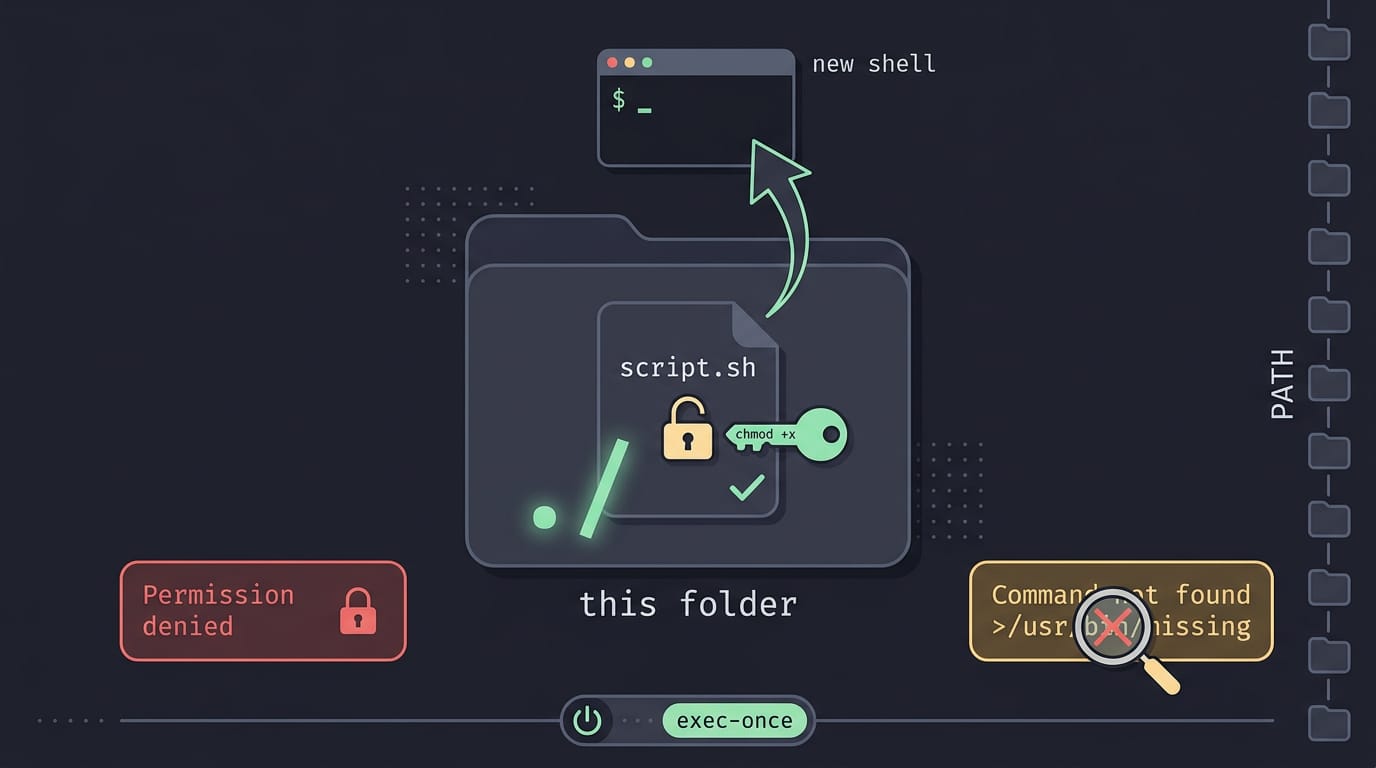
Running ./script.sh launches the file itself, where ./ means “this folder.” Your shell spawns a new shell for it, not your current one.
That needs executable permission, a flag marking the file as runnable: set it once with chmod +x script.sh (chmod means “change mode”).
Two common errors:
- Permission denied: the file lacks that flag, so run the
chmodline. - Command not found: you’re in the wrong folder or left off the
./. Use the full path, or add its folder to your PATH (the list of folders your shell searches).
To run it at login, use the full path in your startup config, like an exec-once line in Hyprland.
Load it into your current shell
The dot command (. script.sh) and source script.sh load the file into your current shell. Nothing is spawned. The real difference is scope: a variable set by a sourced script stays put, while one set in a launched script vanishes when it exits. Keeping a variable past the end of a session is a separate job, so see how to set environment variables on Mac.
Think of a tmux user with project paths in one file: sourcing it in a pane makes them available to everything typed there. Source for setup, execute for tasks.
Passing Inputs and Seeing the Output
A script that does the same thing every time is only half useful. Here’s how we’ll hand it different values at run time, and how to read what it prints back.
Give your script different inputs each run
Anything you type after a script’s name is an argument. Inside the script, the first argument is $1, the second is $2, and so on. These are positional parameters, and their position decides which value they hold.
Most scripts copy them into named variables so the rest of the file stays readable:
name="$1"stores the first argument in a variable calledname.city="$2"does the same for the second argument.
Think of Lara, a student running Linux on a ten-year-old ThinkPad, who uses one greeting script for every lab partner she meets. She changes what she passes in, not how the script works. Same file, new result.
See what a sample run prints
The echo command prints text to the terminal. Other everyday commands you’ll see in scripts include ls to list files, cp to copy them, mv to move or rename them, and grep to search text for a match.
Here’s a short script that uses echo "Hello, $name!" to greet whoever’s name it receives. Run it like this:
$ bash greet.sh Lara
And you’ll see:
Hello, Lara!
If the line comes back as Hello, !, the argument didn’t reach the script, so check that you typed the name after the filename. To make the script test for a missing argument before it runs, you can use an if statement.
Running a shell script is really about picking the right method for the job: an interpreter for a quick one-off, an executable file for something you’ll run often, or sourcing when the script needs to change your current session.
Get the permissions right, keep your PATH tidy, and reach for sudo only when a task truly needs it.
Do that, and your scripts will run as reliably from your desktop as they do in a terminal. Now go let your terminal handle the tedious parts.
Questions
What is Bash shell scripting?
Bash shell scripting means writing a plain-text file of Bash commands that the shell runs in order. It helps automate repeated tasks, such as copying files or deploying a project.
What are some common commands in Linux?
Common Linux commands include `ls` to list files, `cp` to copy them, `mv` to move or rename them, `grep` to search text, and `echo` to print text.
How can I run a shell script to run a command?
Put the command in a plain-text script, then run it with Bash, for example `bash script.sh`. You can also run the command directly in the terminal without putting it in a script.
How can I run a .sh file using sudo?
Run `sudo bash script.sh` to execute a `.sh` file with administrator rights. Only do this with a script you trust, because elevated privileges can allow it to change anything on the system.
How do I run my bash script?
Run it with `bash script.sh`, or use `./script.sh` after adding a shebang such as `#!/usr/bin/env bash` and making it executable with `chmod +x script.sh`. Use the script’s path if you are not in its folder.
Why is CLI called shell?
A shell is the command interpreter between you and the operating system: it reads your commands and passes instructions to the system. The term reflects its role as an interface around the operating system’s core, the kernel.
Is Bash or Python easier?
Bash is easier for short sequences of terminal commands, while Python is generally easier to read and maintain for data processing, complex logic, or API requests. The better choice depends on the task.
Is Bash hard to learn?
Bash is relatively easy to start learning if you already use the terminal, especially for automating a few commands. It becomes more challenging when scripts involve complex logic, data handling, or API calls.
Read next.
Shell Scripting Explained: Write Your First Script
Shell scripting turns repeated commands into a runnable routine. Write your first script, practice core syntax, and schedule recurring tasks with cron.
Best terminal emulator for Linux: kitty, Ghostty and more
kitty, Ghostty, foot, Alacritty and WezTerm compared on what a rice needs: Wayland, tabs and splits, images, ligatures, config and themes, with a pick by setup.

Install Docker on Ubuntu: Complete Step-by-Step Guide
Install Docker on Ubuntu from the official apt repository, verify it with a test container, then configure Compose, firewall rules, and rootless mode.