Ubuntu Change Password: The Complete Guide for Every User
Change your Ubuntu password safely, whether it belongs to you, another user, or root. Find recovery steps for forgotten passwords and encrypted disks.
tl;dr the short answer
Changing an Ubuntu password means setting a new sign-in credential for your own account, another user, or root, using the method that fits the situation. Use `passwd` for your own account and `sudo passwd username` for another; if you are locked out, recovery mode or a live USB can reset it, while encrypted disks must be unlocked first. Store a strong password safely, keep recovery access available, and check that the login keyring matches after a reset.
Think of your Ubuntu password like the key to your front door. You use it every day without a second thought, right up until the morning you’re locked out on the porch.
Changing it is simple, but the right method depends on whose password it is. This guide covers changing your own, changing another user’s or root’s, and getting back in when you’ve forgotten yours.
We’ll also cover the Linux details most guides skip, like keeping your keyring in sync, password expiry, and recovering an encrypted disk.
Why You Should Change Your Ubuntu Password
Your password is the lock on your whole machine, so it’s worth knowing why it needs attention and how Ubuntu guards it.
Regular changes keep passwords hard to predict
Linux is more secure than many systems, but it isn’t immune. A strong password can still be guessed, leaked, or shared. Consider a developer who shared a password with a teammate to fix a broken Wi-Fi driver.
Changing it afterward means that old copy stops working for good.
Each change makes your password harder to predict. Regular changes are about staying ahead of guessers rather than hoping nobody makes one.
The root account has full access to the entire system, so its password matters most. Treat it like the keys to the house. Root opens everything.
How Ubuntu stores and guards your passwords
Ubuntu keeps your password encrypted in /etc/shadow rather than as readable text. Recovery is deliberately strict:
- No reset link exists. If you’re locked out, there’s nothing to click.
- Security over convenience. Ubuntu prioritizes protection, so recovery can take more steps than you’d like.
- Reset needs root or physical access. Recovering a forgotten password takes someone with root privileges or direct access to the machine.
Picture a student on a ten-year-old ThinkPad who forgets their login the night before a deadline. With no reset link, they’ll need root or physical access, so it pays to know this before you’re locked out.
Change the Root Password from the Terminal
The root account is Ubuntu’s administrator login, and the terminal is the quickest way to set its password. Your own password is a separate job: run passwd by itself and it changes the password for the account you’re logged into.
If you’d rather click, the Settings app has a password option too.
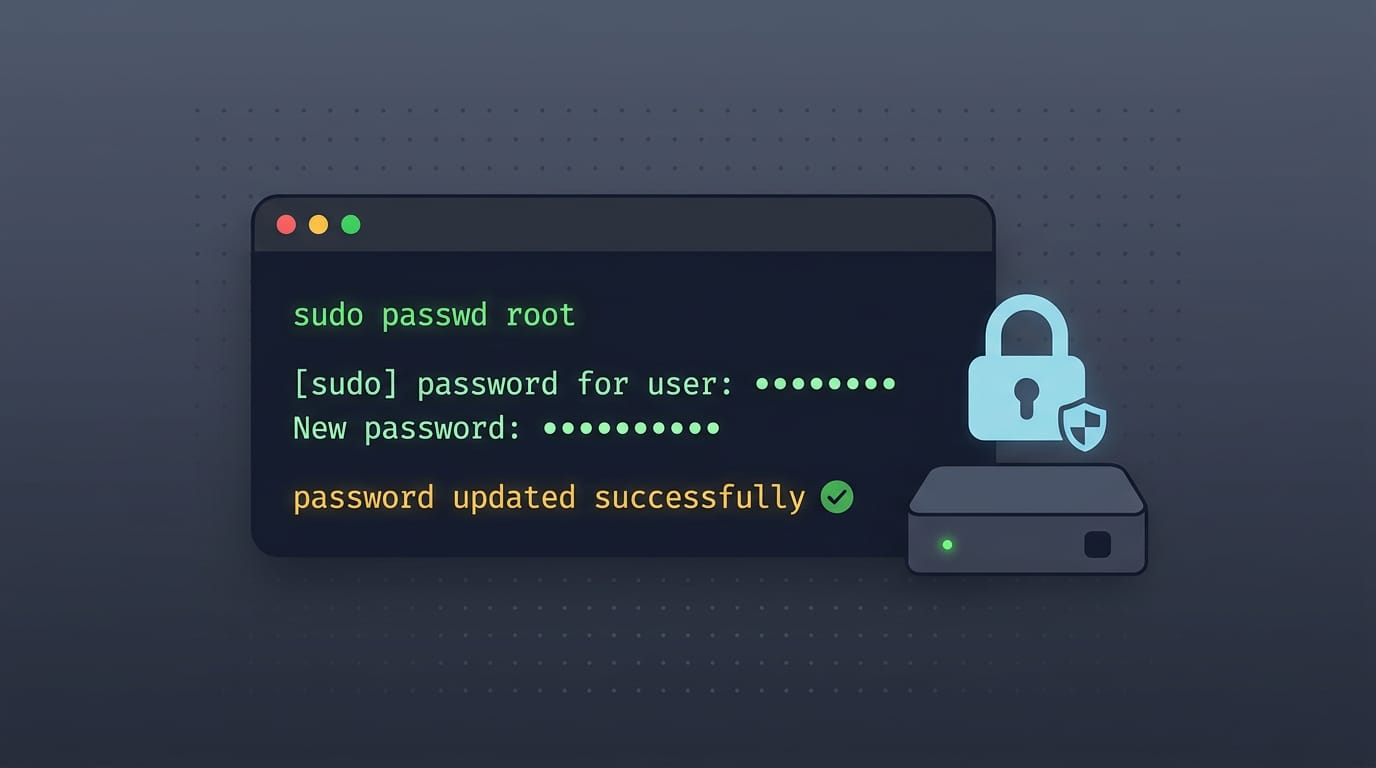
Set the root password with sudo passwd
Work through these steps with sudo, which runs one command with administrator rights:
- Open a terminal with Ctrl+Alt+T.
- Run
sudo passwd root. - Enter your account password when sudo asks for it.
- Choose a new password of at least 8 characters.
Picture a homelabber who just installed Ubuntu on a spare mini PC. Running those four steps in the first few minutes gives the box an admin password they picked, so they can get on with the actual project.
For another user, swap in their account name: sudo passwd username. Your own password stays passwd. If you want passwords to expire on a schedule, the chage command handles password expiry.
Is there a default Ubuntu root password?
No. Ubuntu sets no default root password, so there’s nothing to look up. Setting a password enables root, and locking it disables root. If you want it closed, run sudo passwd -l root.
Why the terminal hides your typing
When you type your password, no characters appear on screen. That’s a deliberate security feature, so a blank line doesn’t mean something’s broken. It’s hidden, not missing. Type it anyway, then press Enter.
Reset a Forgotten Ubuntu Password
Locked out of your own machine? You’re not the first, and the fix is more routine than it looks. Pick the path that matches your setup, and we’ll cover the others only if you need them.
Reset from GRUB recovery mode
GRUB is the boot menu that appears before Ubuntu loads, and it’s the first thing to try. Hold Shift at boot to bring it up. On UEFI systems (the newer firmware standard), press Esc instead.
- Pick the recovery mode entry and drop to a root shell.
- Remount the filesystem as writable rather than read-only, or
passwdcan’t save your change. - Run
passwdfor your user and set a new password. - Reboot and log in.
Think of a student who set a password on a ten-year-old ThinkPad over the summer, then got stuck at the login screen in September. Recovery mode gets them back in with no reinstall. No drama, just a new password.
Reset using a live USB and chroot
If GRUB recovery won’t get you there, a live USB is your backup plan. Create a bootable USB with Rufus, then boot from it and choose ‘Try Ubuntu’ without installing anything.
From that live session, you’ll use chroot, which runs commands inside your installed system instead of the live session.
- If your disk is encrypted, unlock the LUKS (the disk encryption layer) first, since your root partition sits behind it.
- Find and mount the partition that holds your root filesystem.
- chroot into it, run
passwdfor your user, then reboot.
Reset the password in WSL
WSL (the Linux environment that runs inside Windows) needs a different approach.
- Stop WSL from Windows.
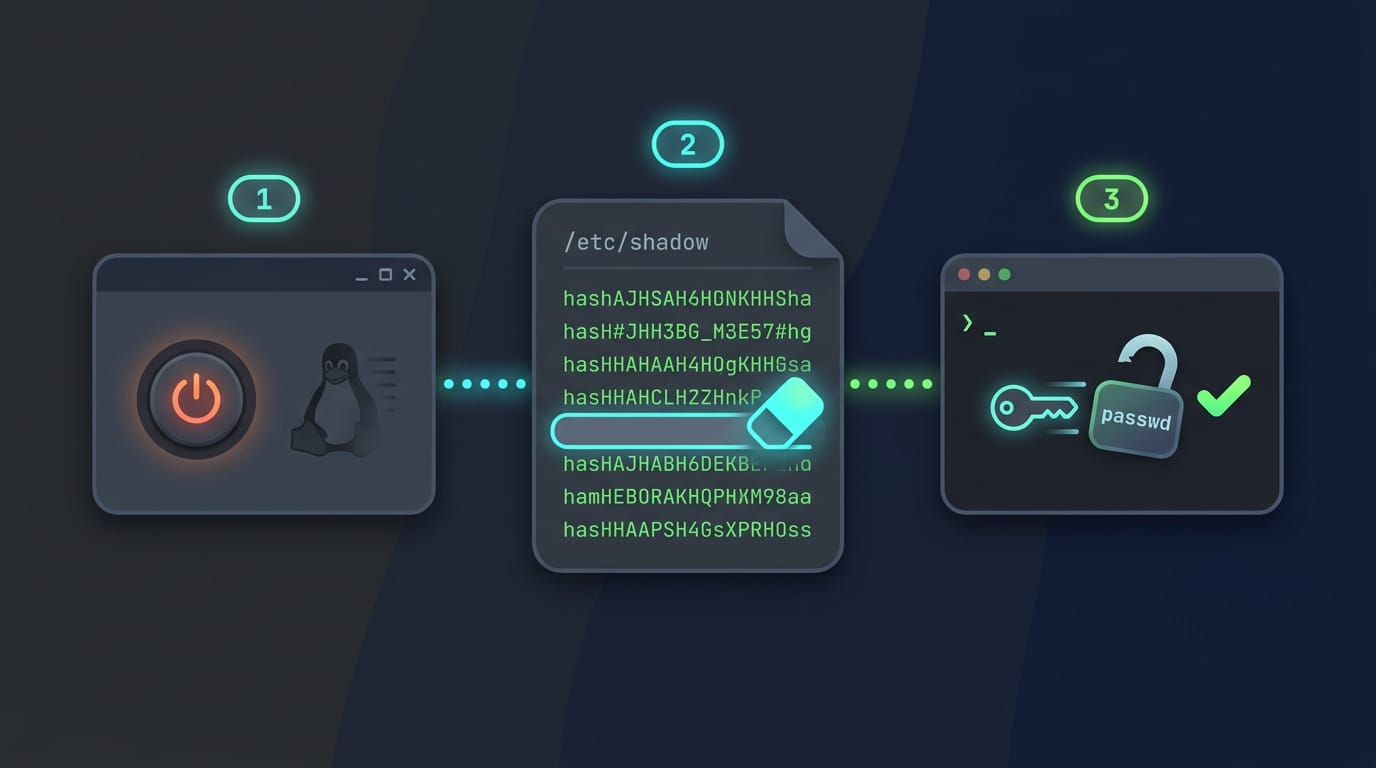
- Delete the hashed password for your user in
/etc/shadow, the file that stores hashed passwords. - Restart WSL and set a new one with
passwd.
That’s the whole trick.
Reset through the VirtualBox GRUB menu
If Ubuntu runs inside VirtualBox (software that simulates a computer inside your own), the GRUB menu appears in that virtual machine’s window.
- Highlight the GRUB entry and press
eto edit it. - Append
init=/bin/bashto the end of the boot line. - Remount the filesystem as writable.
- Run
passwd, then restart.
Avoid Getting Locked Out Later
Changing a password takes a minute. Staying in your own account takes a little planning, and that’s what keeps a forgotten password from becoming a reinstall.
Smart habits for remembering and storing passwords
Plan for when you forget a password, not if. Set this up while you’re calm, so a lockout becomes a short fix instead of a lost weekend. Future you’ll thank you.
- Password manager. One encrypted vault holds every password, so you only memorize one master password.
- Passphrase. String together four or five unrelated words. Long, but easier to remember than a random jumble.
- Password hint. Make it something only you would understand, and keep it private.
- Encrypted file storage. Keep recovery details in an encrypted file, so a finder sees only scrambled text.
- Document your reset process. Write the steps down, and keep a copy off this machine.
Ways to protect your account access
Think of a developer with one Ubuntu laptop. A bad update breaks their daily login, but the spare admin account lets them boot in and fix it in minutes.
- Multi-factor authentication (MFA). Add a second check, like a phone code, so a stolen password isn’t enough alone.
- Admin recovery account. Keep a second administrator account you rarely use, in case your main login breaks.
- Cautious automatic login. Auto-login skips the password at startup: handy at home, risky on a laptop you carry.
- Keep your system updated. Security updates close known holes, so install them regularly.
- Regular password changes. Change on a schedule you’ll keep, and right away if it might have leaked.
Questions About Resetting and Staying Secure
Forgot your password, or worried someone else has access? Here’s what usually comes up.
Things people ask about resetting
A remote reset only works if you can already reach the machine over SSH (Secure Shell, a way to log in across a network).
GRUB password protection guards GRUB, the boot menu that shows before Ubuntu loads, so nobody at the keyboard can edit boot entries. It won’t stop someone who removes the drive, so pair it with disk encryption.
Good news: resetting your password doesn’t touch your files.
After a reset, you might see a keyring mismatch. Your login keyring still expects the old password, so Seahorse (the Passwords and Keys app) can change it to match.
A live USB can reset a forgotten password, but so can anyone with physical access. Use it only on your own machine, and set a firmware password if yours supports one.
On a server, boot into recovery mode or live media, mount the system disk, and use chroot (running commands inside that disk) to run passwd. Test that path before you need it.
Locking things down after a reset
Start with strong passwords. Length matters more than complexity, so a few random words beat a short, clever one.
SSH keys replace typed passwords with a private key on your laptop and a public key on the server. Create the pair with ssh-keygen, copy the public key with ssh-copy-id, then set PasswordAuthentication no in /etc/ssh/sshd_config.
Test in a second session first. Then lock the door.
Picture a student sharing a family PC with an old guest account nobody uses. Run sudo passwd -l guest and password logins stop, so it can’t become a back door.
Managing Linux Users with CyberPanel
Once more than one person logs into your server, a web panel starts to look tempting. Here’s what CyberPanel brings to the table, and where it stops.
What CyberPanel can and can’t do
CyberPanel is an open-source hosting control panel, a web dashboard that lets you run a server without typing every command yourself. It covers a few jobs that otherwise pile up in the terminal:
- Centralized user management: keep track of the accounts on your server from one place.
- Automated backups: schedule copies of your data so they happen without a reminder.
- One-click app deployment: install a common web app from the dashboard instead of building it by hand.
Consider a freelancer who runs client sites on one Ubuntu VPS. Each client gets a login from the same dashboard, backups run on a schedule, and new apps install with a click.
When a client forgets their password, though, the freelancer still changes it in the terminal with passwd.
CyberPanel helps you manage who gets in, but it doesn’t directly reset passwords, so you’ll still work the Ubuntu way for that. Handy, but not magic.
Whether you’re updating your own login, fixing an account for someone else, or climbing out of a forgotten password, the steps come down to knowing which account you’re working with.
Keep keyring sync, password expiry, and disk recovery in mind, and no password change will catch you off guard.
A strong password is only half the job. Store it somewhere safe and test your recovery plan before you ever need it. Lock it down, but make sure you can still get back in tomorrow.
Questions
What is the purpose of using the pwd command in Linux?
The `pwd` command prints the full path of your current working directory. It helps you confirm where you are in the filesystem before running commands.
How to change password in Linux Ubuntu terminal?
To change your own password in Ubuntu, open a terminal and run `passwd`, then enter your current password and choose a new one. The terminal hides password characters as you type; this is normal.
How do I change the password for another user in Linux?
To change another user's password, run `sudo passwd username`, replacing `username` with their account name. Enter your own password when prompted by `sudo`, then set the new password for that user.
Is there a default root password for Ubuntu?
No. Ubuntu does not set a default root password. To set one, run `sudo passwd root`; setting a password enables root login, while `sudo passwd -l root` locks the root account.
I forgot my Ubuntu password. How can I reset it?
If you can access GRUB, boot into recovery mode, open a root shell, remount the filesystem as writable, and run `passwd your_username`. If recovery mode fails, boot from a live USB, unlock an encrypted disk if needed, mount the installed system, and use `chroot` to run `passwd`.
What's the difference between cwd and pwd?
`cwd` means current working directory, the directory a process or shell is currently operating in. `pwd` is the command that prints the path of that directory.
Where is the password file in Linux?
Linux stores password hashes in `/etc/shadow`, which is readable only by privileged users. Account names and other basic user details are stored separately in `/etc/passwd`; that file does not contain users' password hashes.
Read next.
Install Homebrew on macOS and Linux: Complete Guide
Install Homebrew on macOS or Linux, then set the right PATH and verify commands work before adding tools, updating packages, or fixing setup issues.
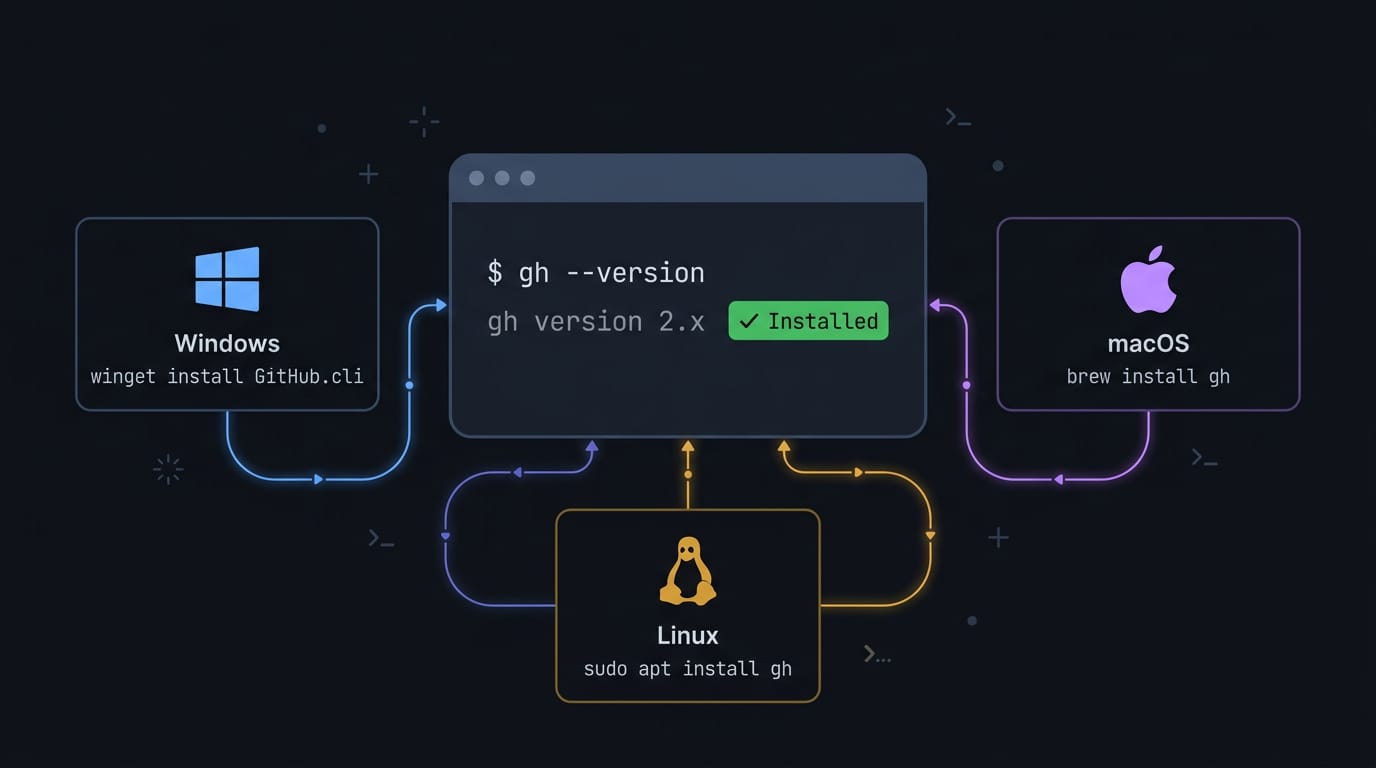
Install gh CLI on Any Platform: Complete Guide
Install gh CLI on your platform with the right package manager, then verify the setup and sign in before bringing GitHub work into your terminal.
Dual Boot Explained: How Two Operating Systems Share One PC
Dual boot lets you choose Windows or Linux at startup. See how to plan partitions and handle Fast Startup and BitLocker before installing.