Install Linux Step by Step, From USB to First Boot
Install Linux from a flash drive with a plan for choosing a distro, splitting your disk, fixing boot or driver problems, and preparing your first boot.
tl;dr the short answer
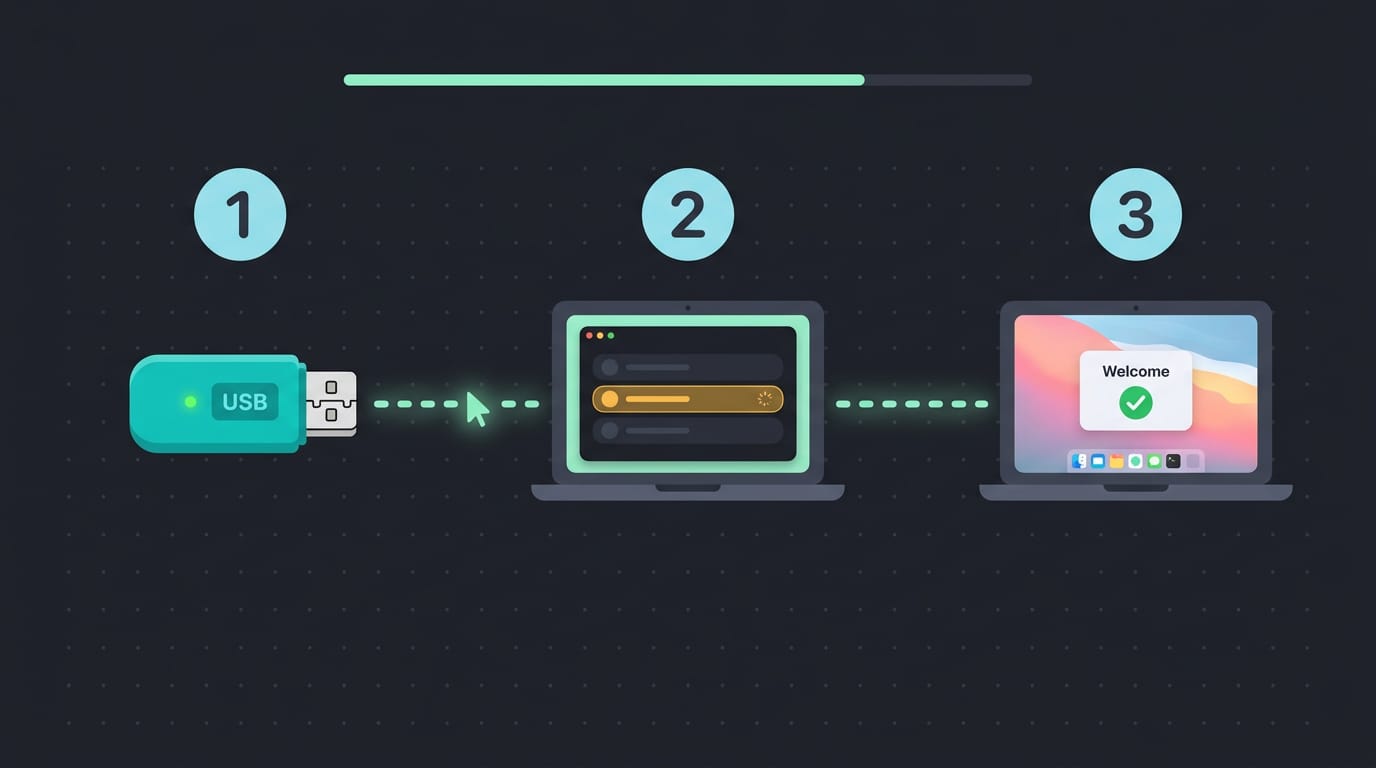
Installing Linux means putting a Linux operating system on a computer, either instead of its current system or alongside it. Choose a distribution that fits your hardware and needs, create a bootable USB, back up important files, and carefully handle disk partitions, boot settings, and drivers. Taking these steps in order helps prevent data loss and startup problems, and gets the computer ready for everyday use.
Think about moving into an empty apartment. You can buy every piece off the shelf, or plan the layout one room at a time.
Installing Linux works the same way: each choice, from which Linux flavor (distro) you pick to how you split your disk, shapes how your machine starts and feels.
The short answer is that you can do it all with a flash drive and a clear plan.
We’ll cover making install media, picking a distro, splitting your disk, setting up the bootloader (the boot menu that picks what starts), and fixing drivers, then finish with first-boot steps that get your desktop ready to theme.
Make Media, Pick a Distro, Install Linux
Three things come first:
- a bootable USB drive
- a distro that suits your machine
- a backup
since installs can wipe a disk.
Make a bootable USB drive
Download an ISO (a disk image holding the whole installer) from the distro’s official site. On Windows 10, your browser does the job: pick an edition and save the file.
Then flash it with Rufus or Etcher, double-checking the drive, since flashing wipes it.
- Live USB installs: many ISOs boot a live session from the drive. Try before you wipe.
- Install failures despite correct media: check your boot mode (UEFI, the modern boot system, or the older legacy mode), and verify the published checksum (a fingerprint proving the file is intact).
Popular distros you’ll come across
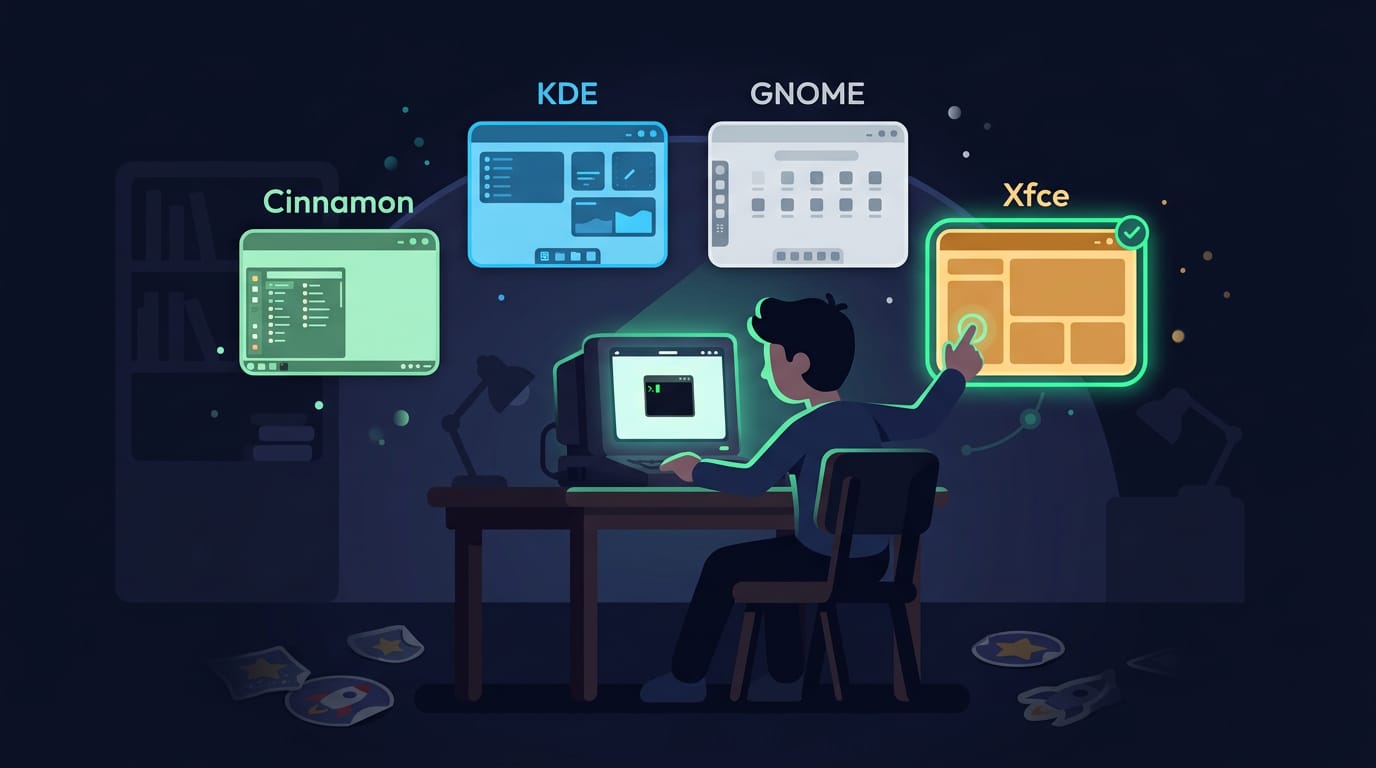
Pick your distro by desktop environment (the look and feel you’ll use daily), not by hype. A student with an old ThinkPad might choose Xubuntu’s lightweight Xfce desktop to stay snappy.
- Linux Mint: approachable, with Cinnamon by default.
- Ubuntu variants: Xubuntu (Xfce) and Kubuntu (KDE Plasma) share Ubuntu’s base.
- Debian: pick stable over newest, with testing in the middle and Sid (unstable) only if you don’t mind fixing things.
- Fedora: regularly updated, with GNOME by default.
- Kali Linux: built for security testing.
- Slackware: an old-school distro for hands-on learners.
Is there a downside? Yes: some hardware may need extra drivers, and some commercial software has no Linux version.
Unusual installs, from VMs to old Macs
- Installing in VirtualBox: create a virtual machine (a computer simulated in a window) and point it at your ISO.
- Custom Debian install ISO: a Debian installer you’ve pre-configured, so you skip the usual choices.
- Running Linux on an old MacBook: hold Option at startup to pick your USB drive.
Dual Booting and Splitting Your Disk
Dual booting means one computer holds two operating systems, and a boot menu lets you pick one at startup. Splitting your disk makes room for both.
Running Linux alongside Windows
A student with a ten-year-old laptop might want Linux Mint for tinkering but still need Windows 11 for a class tool. Dual booting lets them keep both. Back up first. Dropping Windows altogether is a separate decision, covered in how to switch from Windows to Linux.
- Mint with Windows 11: Install Mint into free space beside Windows, not on top of it.
- Shrinking the Windows partition: Use Windows’ Disk Management tool to shrink the partition and free up space for Linux, rather than erasing anything.
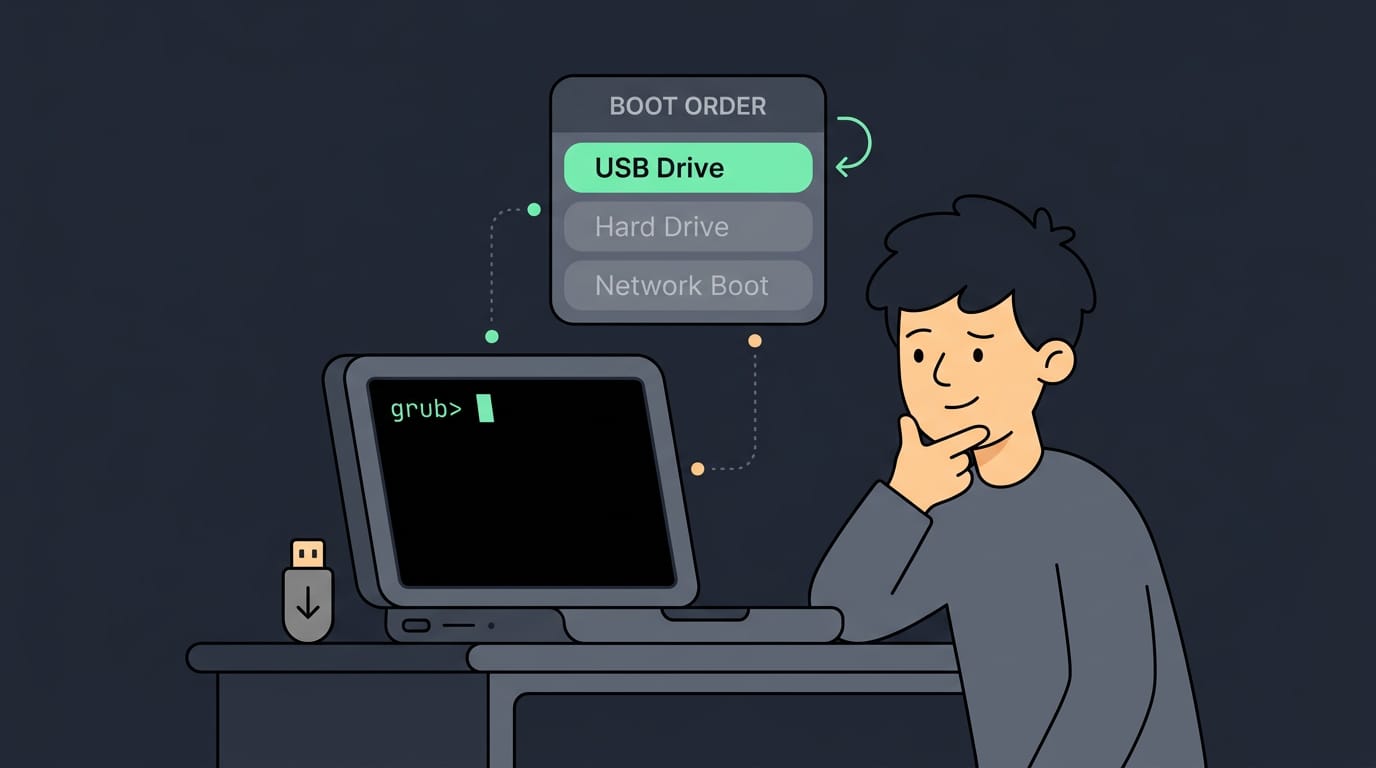
- Dual boot not appearing after install: If Windows starts straight up, open your firmware settings (the screen that runs before your OS loads) and put the Linux entry first in the boot order.
- Kali dual boot failures: If the install stalls or the boot menu skips Kali, don’t keep retrying. Recheck your partition layout and boot order first.
Replacing or removing an old system
Sometimes you’re swapping one system out instead of adding a second.
- Replace Ubuntu with Kubuntu: Kubuntu is Ubuntu with the KDE Plasma desktop in place of GNOME.
- Keeping Windows alongside Linux: Wiping the whole disk is only one option. Choose manual partitioning and you can keep Windows while replacing just the Linux side.
A manual partition layout means picking each slice of the disk yourself. A typical one has:
- Root (/): where Linux lives.
- Swap: overflow space for when memory runs low.
- EFI system partition: the small slice holding boot files (EFI is short for Extensible Firmware Interface).
- Home: your personal files, kept apart so a reinstall leaves them alone.
Fixing Startup Problems and Bootloaders
Boot problems usually trace back to the bootloader, the small program that starts your system.
When GRUB gets stuck or fails
Think of a student on a ten-year-old ThinkPad who reboots into a plain grub> prompt. That’s GRUB, the GRand Unified Bootloader, failing to find the new install. Reinstalling it from the installer stick usually fixes it.
If GRUB fails across several distros, look at how the system was installed, not which distro you picked. UEFI (the modern firmware standard) and legacy mode need different setups, so mixing them leaves GRUB unable to find its files.
If GRUB keeps fighting you, look at alternatives like systemd-boot or rEFInd. Switching is optional.
If you boot straight back into the installer or old system, firmware is probably trying something else first. Move the new entry to the top of its boot order.
Handling Secure Boot prompts and passwords
Secure Boot, a firmware feature, only runs software signed by a trusted key. Some distros use a Machine Owner Key (MOK) to trust drivers you sign. On your first reboot, a MokManager screen may ask you to enroll the key.
Choose enroll and set the one-time password you’ll type on the next boot.
The early keyboard layout may differ from your desktop’s, so retype the password slowly. Still stuck? Rerun the enrollment with a new password.
Proprietary drivers, like NVIDIA’s, may not be signed by your distro, so Secure Boot can block them. Consider a gamer whose new driver won’t load after a reboot.
Secure Boot checks who signed the code, so signing the driver with your enrolled key keeps both Secure Boot and the driver running. Secure Boot isn’t the villain here.
Fixing Hardware and Driver Problems
Hardware problems usually show up in one of two places: the network or the screen. Here’s how to work through each without guessing.
Getting Ethernet and WiFi to work
Think of a student who finishes an install on a ten-year-old ThinkPad, reboots, and finds no network at all. Before reinstalling anything, they need to know whether the card is missing or just not set up.
If you hit an Ethernet card not detected problem, check these in order:
- Run
lspciin a terminal to see whether the card appears in the hardware list. - Run
ip linkto see which network interfaces the system knows about. - If the card shows up but no interface does, look for a missing driver before you blame the cable.
A card that’s detected isn’t the same as a card that’s working. If WiFi won’t connect on Mint or Kubuntu, check your distro’s hardware or additional drivers tool for a firmware package, the small software files some wireless cards need.
If you can, plug in ethernet first, since it’s the easiest way to download what’s missing.
Graphics drivers that block installation
Consider someone with a gaming laptop who sees a black screen right after picking the boot entry. The installer never gets far enough to show a setup window.
Return to the boot menu and choose the safe graphics option, which uses basic display support so the installer can run.
Once Linux is installed, the GPU (graphics processor) needs its own driver, and that’s where things get fussy. For NVIDIA cards, work through the NVIDIA driver guide for Debian 12 step by step.
Don’t mix in commands from older guides written for other releases, since mixing steps can leave you with a display that won’t start.
Change one thing at a time and reboot after each. Go slow, and you’ll always know what broke.
Managing Software and Your System After Install
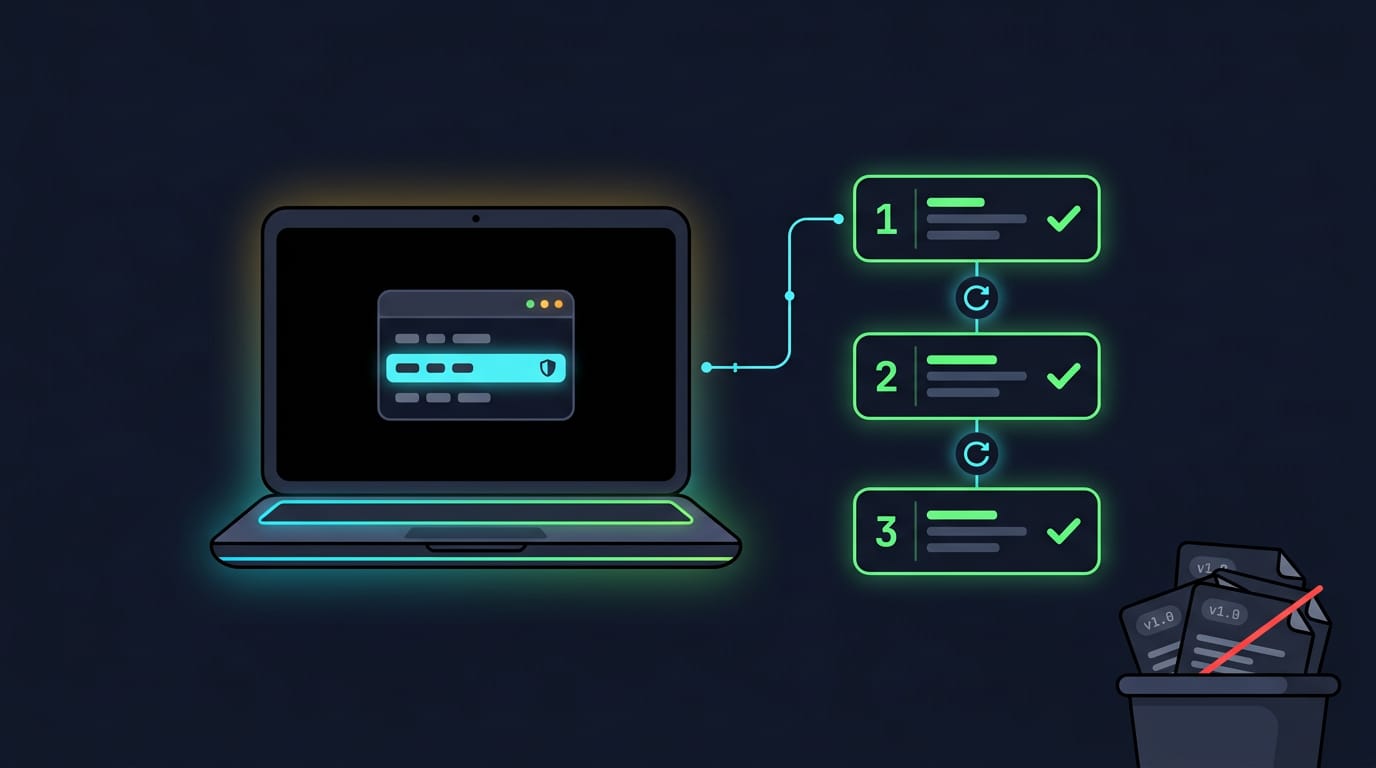
Once you’re booted, we’d start with a first-boot checklist: refresh your package lists, install Hyprland, i3, or Plasma, and confirm updates run cleanly.
What does sudo apt install do?
In short, sudo apt install adds software on Debian-based systems in one line. The sudo part runs it with administrator rights, and apt (Advanced Package Tool) pulls in the program plus its dependencies, the other packages it needs.
Think of a student on a ten-year-old ThinkPad who downloads a .deb (Debian’s package file) and hits a missing-dependency error. They run sudo dpkg -i on it, then sudo apt -f install to pull in what’s missing.
dpkg installs only the file you hand it, while apt fetches everything else it needs. That’s the whole fix.
Apt installs into the system’s own directories, so a second disk takes extra setup.
Building programs from source code
Some projects ship only source code, so you compile them with gcc (the GNU C compiler). On Slackware, start with the first gcc error, since later ones often cascade from it. Source code often arrives as a tar archive, so you’ll need to unpack it before compiling.
Make runs the steps in a project’s Makefile: usually ./configure, make, then sudo make install. CMake (a build-system generator) works differently: cmake -B build, then cmake --build build.
Installing from GitHub usually starts with git clone, then reading the README, since build steps vary by project.
Upgrading releases and recovering a lost password
Moving from Debian stable to Debian Sid (the unstable branch) means repointing your package sources, so back up first. Rolling release distros skip numbered versions, so you update continuously instead of waiting for big upgrade days.
Locked out after a reinstall? Pick the root shell in the GRUB (GRand Unified Bootloader) menu and run passwd yourname to reset it.
Installing Linux comes down to working through each step in order: picking a distro, making your install media, partitioning, setting up the bootloader, and sorting out drivers.
Each one builds on the last, so the process isn’t as tangled as it first looks.
Once that first boot lands on a clean desktop or tiling window manager, the hard part is behind you. Build the foundation right, and the fun part of making it yours can begin.
Questions
What is sudo apt install?
`sudo apt install` installs software on Debian-based Linux systems, such as Ubuntu and Linux Mint. `sudo` runs the command with administrator privileges, while `apt` downloads the requested package and any dependencies it needs.
How to download Linux in Windows 10?
To install Linux from Windows 10, download a Linux distribution’s ISO file from its official website, then use Rufus or Etcher to flash it to a USB drive. Back up important files first, since installing Linux can erase data; you can also run Linux inside Windows using the Windows Subsystem for Linux or a virtual machine.
Why do hackers prefer Linux?
Some hackers choose Linux because it offers powerful security and networking tools, extensive customization, and access to its underlying system. Distros such as Kali Linux are specifically designed for security testing, but Linux is not used by every hacker, and using it does not by itself make someone a hacker.
Is there a downside to using Linux?
Yes. Some hardware may require extra drivers or firmware, and some commercial software does not have a Linux version. Compatibility can vary depending on the computer and the programs you need.
Read next.
Linux Shebang Explained: What the First Line Does
Linux shebang lines tell the system which interpreter runs a script. Compare common forms, correct paths, and avoid failures from options or shell choice.
Surface Pro 4 Linux: Complete Install and Setup Guide
Run Linux on Surface Pro 4 with a fitting distro, then set up a touch-friendly desktop and tiling workflow while checking hardware support.
Kali Linux VirtualBox Setup: OVA, Vagrant, and ISO Paths
Run Kali Linux in VirtualBox without changing your desktop setup. Compare OVA, Vagrant, and ISO installs, then size RAM and set up Guest Additions.