Mac Keyboard Differences: A Complete Guide
Mac keyboard differences explain why PC shortcuts misfire and help you compare modifier keys, function rows, switch feel, sizes, and connection options.
tl;dr the short answer
Mac keyboard differences include the names and positions of modifier keys, special keys, regional layouts, function-row features, and the feel of the switches. Command usually handles shortcuts such as copy and paste, Option works much like Alt, and the best layout, size, and connection depend on how and where you type; many third-party boards can be remapped for macOS or Linux. Check a keyboard’s layout, compatibility, and features before buying, then choose or remap it to make everyday shortcuts comfortable and consistent.
Ever hit Control out of habit to copy something on your Mac, only to get nothing? That’s your first clue the keyboard doesn’t work like a PC’s. Modifier keys, special keys, and the function row all differ, so familiar shortcuts can feel off.
This guide breaks down each major Mac vs PC difference, from modifier keys and layouts to switches and models. Then we’ll get into the Linux angle: remapping Mac boards and layouts with open-source firmware and configuration tools like QMK and VIA.
Mac Keyboard Differences in Layout and Modifiers
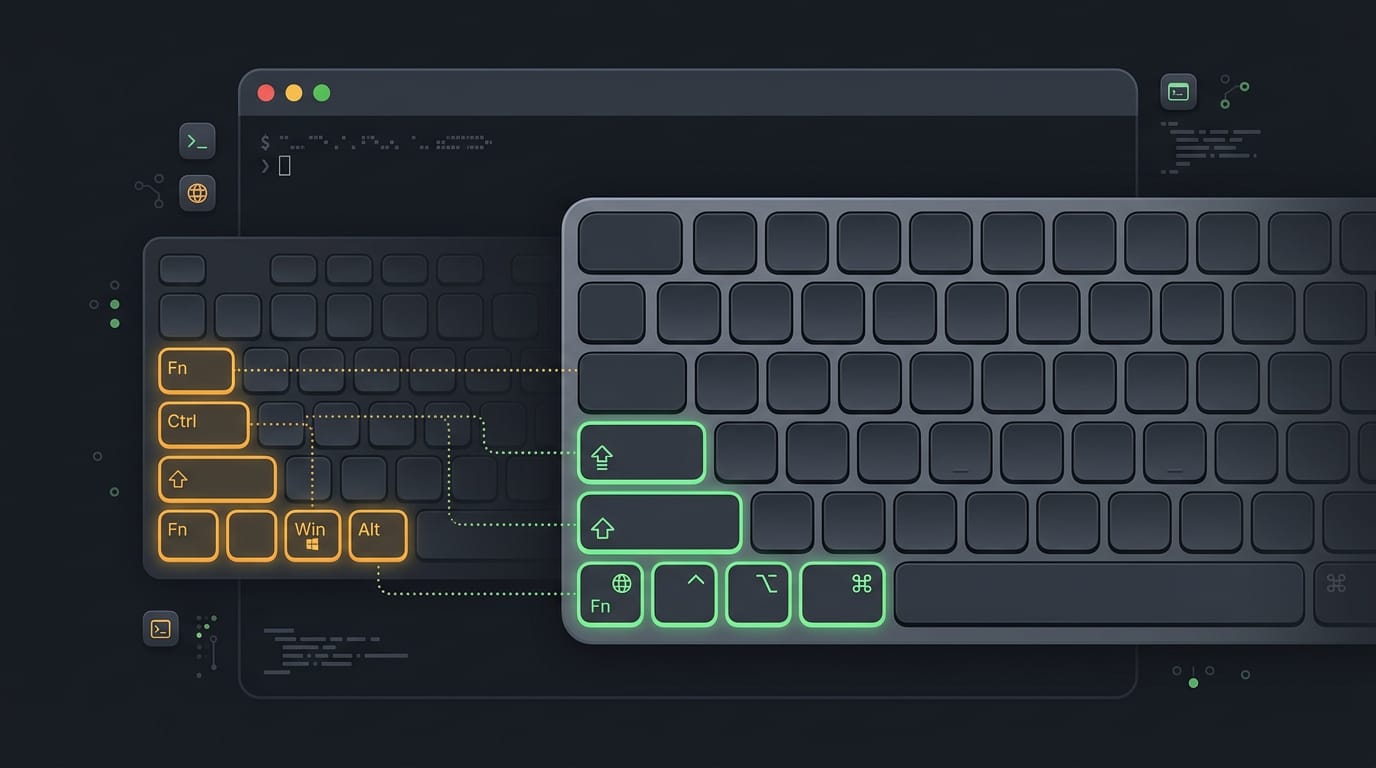
Most of the friction starts on the bottom row. Here’s where the keys differ and how we’ll match them on Linux.
Command and Option compared to Windows keys
The Command key (⌘) does the work Ctrl does on a PC, so Command+C copies and Command+V pastes. Option works like Alt, but the two swap spots, so Command sits where Alt does on a PC.
Plug a PC keyboard into a Mac and Modifier Keys in System Settings lets you remap its Win and Alt keys.
On Linux, XKB (the X Keyboard Extension) swaps left Alt and left Super (the Windows key) with altwin:swap_lalt_lwin, putting Super where Command sits on a Mac.
A Hyprland user on a Linux laptop and a Mac board can add that option to kb_options and keep Super under the same thumb on both. Thumbs stop guessing.
Keys only Apple keyboards have
- Clear replaces Num Lock on the keypad and clears the current entry instead of toggling.
- Help and fn: older boards had a Help key, and fn plus an arrow gives Home, End, Page Up, or Page Down.
- Eject and power: many Apple boards put eject on the top row, and some add a power key.
- Equals key: Mac keypads include one, and most PC keypads skip it.
- Emoji: set fn or the globe key to open the emoji picker in Keyboard settings.
Where UK, US and international layouts differ
On a UK Mac, Shift+2 gives a double quote and Shift+apostrophe gives @, the reverse of a US board. Apple sells separate US and UK models, plus other regional layouts, so check before you order. Some third-party boards only ship in US layout.
If one runs QMK (open-source keyboard firmware), the VIA configurator can remap its layout on the board itself.
How Key Mechanisms Change the Typing Feel
Two keyboards can share the same layout and still feel nothing alike. Here’s where the difference lives: under the keycaps.
Which switch type each keyboard uses
Apple’s laptops moved from butterfly switches to a scissor switch, a hinged design. A membrane board presses through one shared sheet of rubber domes, while a mechanical board gives each key its own switch.
Mechanical boards come in three main feels:
- Linear: a smooth press with no bump.
- Tactile: a small bump you feel as the key registers.
- Clicky: a tactile bump plus an audible click.
Hall effect switches skip physical contacts. A magnet and sensor measure each key’s position, and many boards let you tweak the trigger point in software.
How keys feel, sound and respond
Key travel is how far a key sinks before it bottoms out, and feedback is how clearly it tells your fingers the press registered. Mac laptop keys travel less than many mechanical boards, so feedback does more of the work.
Many people describe the MacBook Pro keyboard as having a deeper sound than a typical thin laptop.
Cheaper boards can feel spongy at the edges. Wide keys like Shift and Space rely on stabilizers, the bars that keep them level, and weak ones let the far corner bottom out unevenly. Well-stabilized keys feel accurate from edge to center.
Quiet boards suit shared rooms, while clicky ones give loud, satisfying feedback. Consider a Linux user who codes late in a shared apartment.
She builds a board with hot-swap sockets, so switches pop in without soldering, and she’s fitted it with quiet linear switches. Her roommate sleeps through it.

What the Function Row Can Do
The top row of a Mac keyboard does far more than its labels suggest. Here’s how it got that way, what the sensor adds, and how the Pro and Air differ.
How the function keys changed over time
The row has been changing its job for years. Exposé and Dashboard once owned much of it, then Mission Control and Launchpad took over overview and app launching. Spotlight search, Dictation (speaking instead of typing), and Focus modes added more.
It looks familiar, but it’s doing different work.
Many PC keyboards stop at F12, while Mac function keys reach F19. Consider a Linux user remapping a Mac board with QMK (open-source keyboard firmware) or VIA (a graphical remapping tool). Those extra keys give them somewhere to park a window action.
Using Touch ID to unlock and pay
Touch ID lets one fingerprint unlock your Mac and approve Apple Pay purchases. Apple’s support article on Touch ID confirms you can add up to three fingerprints.
If one stops working, delete it and add it again in Touch ID settings, or use a different finger.
Touch ID works only on Apple silicon Macs, the ones with Apple’s own chips. Think of a Linux tinkerer with one shared Apple silicon Mac for testing builds. Each housemate enrolls a finger, so anyone at the desk unlocks it without a shared password.
MacBook Pro and Air function rows compared
The Air and the Pro handle the top row differently, so expect a small adjustment:
- Full-height function keys. The Air uses them.
- Narrower F-keys. The Pro’s are narrower.
- Larger Touch ID sensor. The Pro has the bigger one.
It’s less about which keys you have and more about where your fingers land. Expect a few misses at first. Your fingers will adjust.
Picking the Right Size and Connection
Before you buy, settle two things: how many keys you’ll actually use, and how the board connects to your machine.
Compact versus full-size layouts and tradeoffs
A full-size board has everything, including a numeric keypad. A tenkeyless (TKL) board drops the keypad, while 75% and 65% boards shrink the function row and navigation keys too. A keypad helps if you crunch numbers and wastes desk space if you don’t.
Compact boards often hide the arrow keys behind a modifier key, a key that changes what the others do.
The question isn’t which layout is best but which keys you reach for. Consider a Linux user who writes spreadsheets at a desk and tiles windows on a laptop.
The keypad earns its place on the desk, while a 65% board fits in the laptop bag. Pick the size you’ll use.
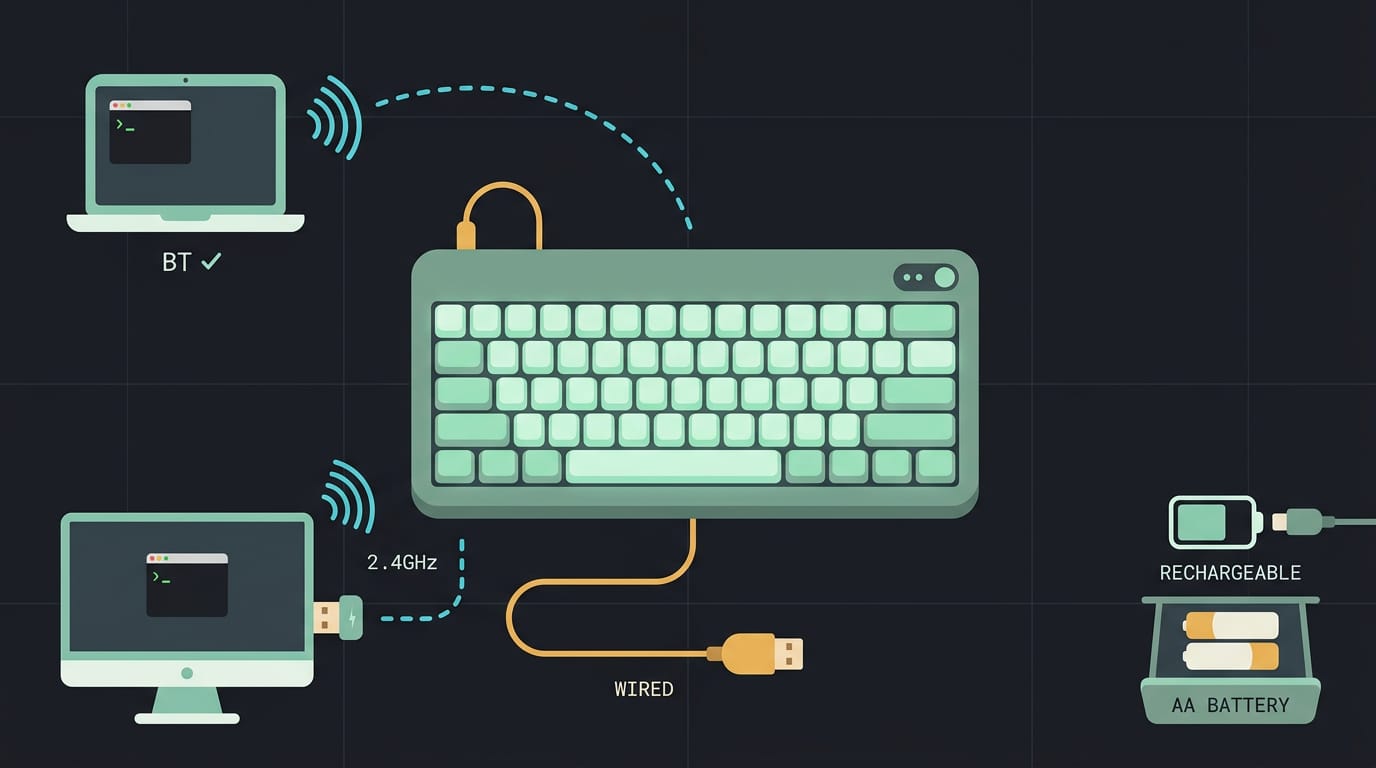
Connecting by cable or wirelessly
Bluetooth is wireless and needs a one-time pairing step. USB, short for Universal Serial Bus, runs over a cable and needs no pairing.
A 2.4GHz receiver is a small dongle that uses its own radio link, not Bluetooth, and plugs into a USB-A port (the flat, rectangular plug most computers have).
Multi-device pairing lets one board remember several computers and switch between them with a key press. A Linux user with a laptop and a desktop can flip between both without unplugging anything.
Rechargeable boards add one more cable to your bag. AA boards run on swappable batteries, so a spare pack in a drawer keeps you typing.
Whichever power you pick, the backlight drains battery, so dim it or switch it off when you don’t need the glow. Your battery will thank you.
Apple Keyboards Through the Years
Apple’s keyboards have changed a lot, and the model on your desk decides which connection, layout, and features you get. Here’s how we got from early desktops to today’s Magic Keyboards and iPad options.
Early Apple keyboards, from Lisa to iMac
The Lisa and original Macintosh each shipped with keyboards of their own. Later Apple boards used the Apple Desktop Bus (ADB), a wired connection, and the Extended Keyboard followed the IBM layout PC users already knew.
The iMac era brought USB (Universal Serial Bus) keyboards, and Apple also sold the AppleDesign and Adjustable models as variations on the standard board.
How aluminum and wireless models differed
The aluminum era split into wired and wireless boards:
- A1243 (wired): the cable-connected aluminum board.
- A1314 (wireless): the cordless version.
- Command key: Apple dropped the logo from it on these models.
- Battery and Bluetooth: wireless boards run on batteries and pair over Bluetooth.
Think of a Linux user buying a used board from a listing that just says Apple keyboard. The model number tells them whether it’s the wired A1243 or the wireless A1314, which decides whether they need a cable or a charged battery. Check the number first.
If they later want to remap it with open-source firmware tools like QMK or VIA, confirm the exact model, since firmware support depends on the hardware.
Current Magic Keyboard models, colors and prices
Today’s Magic Keyboards come in several variants, so compare these before you buy:
- Touch ID: some models have it, and some don’t.
- Numeric keypad: available with or without one.
- Colors: more than one finish, and the black option carries a price premium.
- Prices: these vary by model, so check Apple’s current listing.
- Charging: Lightning, Apple’s older connector, versus USB-C on newer models.
Telling old and new Magic Keyboards apart
Look at compatibility before you look at style. Older and newer boards can look alike in photos, so check the specs.
- Intel Mac compatibility: check before buying, since Touch ID needs Apple silicon.
- 2015/2017 vs. 2021: compare model numbers and features, not photos.
- Battery life: runtime differs between generations, so check the exact model.
Keyboards for iPad and which models fit
iPad keyboards take a different route, with the tablet itself providing the connection.
- Smart Keyboard and Folio: Apple’s iPad keyboard options, alongside the iPad Magic Keyboard.
- iPad Magic Keyboard trackpad: adds a trackpad for pointer control.
- Smart Connector power: the keyboard draws power through the Smart Connector.
- Compatible iPad models: each keyboard supports only certain iPads, so check the list for yours.
Get the model right first.
What Is the Best External Keyboard for a Mac?
The short answer is that there isn’t one best keyboard, only the best one for how you type. Use the criteria below, then match the pick to your work.
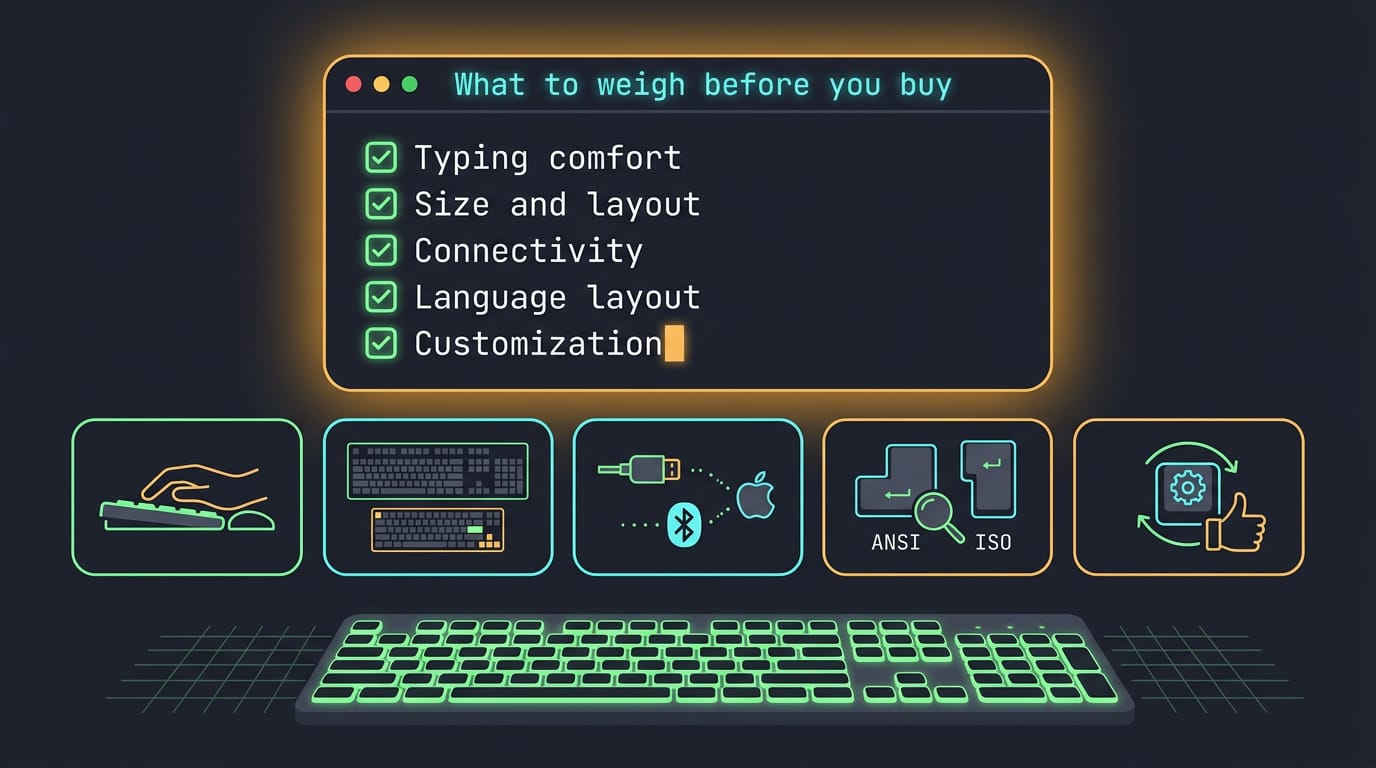
What to weigh before you buy
Start with typing comfort and ergonomics. Pick a height your wrists like, and try a low-profile design before you commit, since your hands will tell you fast.
Next, consider size and layout.
A full-size board keeps the number pad, a tenkeyless (TKL) board drops it for more mouse room, and compact boards push the function row and arrow keys into a second layer, so you’ll reach them with a key that switches modes.
Connectivity and compatibility matter too. Confirm the board connects over USB-C or Bluetooth and works cleanly with macOS before you buy.
Language layout is easy to miss. ANSI and ISO differ in key shape and placement, so confirm which one you’re getting before you check out.
Finally, customization features deserve a look. Boards running QMK firmware and configured through VIA let you reassign keys in software, so your modifier keys can sit where your thumbs expect them.
Picks for typists, gamers and creatives
Office typists want comfortable, quiet keys and a layout they can touch-type without looking, so a full-size or TKL board often suits spreadsheet work.
Gamers should prioritize a steady, low-lag connection and keys that hold up to repeated presses.
Creatives and tinkerers get the most from remapping. Consider a Linux user who shares a desk with a MacBook and programs a compact board so the shortcuts they use on both systems sit under the same thumb.
Fewer awkward reaches means a smoother session in the editor.
Keyboards from Other Brands for Your Mac
Apple’s keyboard isn’t your only option, and plenty of third-party boards suit a Mac well.
Which alternatives fit your use case
Match the board to your work:
- Budget picks. Simpler boards for less money.
- Mechanical and gaming. Firmer, tactile switches for long sessions.
- Ergonomic wave design. A curved split that lets your wrists sit more naturally.
- Creative and video editing. Extra shortcut keys for timelines and apps.
- Wired options. No charging or pairing to worry about.
What keyboards work with a MacBook Pro?
Yes, you can use most external keyboards with a MacBook Pro, by cable or Bluetooth, and non-Apple boards are no exception.
Look for a Mac-labeled layout, with Command, Option, and Control where macOS expects them, or a Mac/Windows toggle that swaps the modifier layout for you.
Otherwise, remap. Logitech Options+ remaps keys on Logitech boards, and Karabiner-Elements, a macOS key-remapping tool, can make a Windows key act as Command.
Extra shortcut and Copilot keys on Windows keyboards have no Mac equivalent, so you’ll reassign them.
For full control, look for boards that support QMK (open-source keyboard firmware) and VIA (a configurator for it). They can store a Mac layer (a saved key map for macOS) on the board, so the change travels with it.
Consider a Linux user who shares a desk between a MacBook Pro and a Linux machine. A QMK board with a Mac layer and a standard layer switches with one key press, so they skip the software remap on each computer. Set it once and move on.
Pros and cons compared with Apple’s keyboard
- Cheaper than Magic Keyboard. Many third-party boards cost less.
- Backlight availability. It varies by model, so check the spec.
- Sturdier builds. Some feel more solid, so try before you buy if you can.
- No Touch ID. Apple’s keyboards hold that sensor, so an external board can’t unlock your Mac.
The trade-off is what you save against what you give up. Your desk, your call.
Mac keyboards ask you to relearn a few habits, mostly around modifier keys and the function row. Once you know what each key does, the differences stop feeling like quirks and start feeling like choices you control.
The same goes for Linux. Remapping with QMK or VIA lets you shape a board around your own workflow, no matter which machine it plugs into.
Your keyboard should work the way you think. Now go make it do that.
References
- If Touch ID isn’t working on Mac — support.apple.com (2026)
Questions
What is the best external keyboard for a Mac?
There is no single best external keyboard for every Mac user; the right choice depends on comfort, layout, size, connection, and how you use it. Check that it supports macOS and connects by USB or Bluetooth, and consider a Mac-labeled layout or a board with remappable keys if you want to customize the modifiers.
Can I use an external keyboard with a MacBook Pro?
Yes. A MacBook Pro can use most external keyboards over USB or Bluetooth, including non-Apple models. You may need to remap modifier keys or choose a keyboard with a Mac/Windows toggle.
What keyboards work with a MacBook Pro?
Most USB and Bluetooth keyboards that support macOS work with a MacBook Pro, including Apple and third-party models. A Mac-labeled layout or a Mac/Windows toggle can make Command and Option easier to use; keys can also be remapped with software or compatible keyboard firmware.
Can you use a non-Apple keyboard with a MacBook?
Yes. You can connect a non-Apple keyboard to a MacBook by USB or Bluetooth. If its modifier keys are arranged for Windows, you can remap them in macOS or use a keyboard with a Mac/Windows layout toggle.
Sources
- If Touch ID isn't working on Mac - Apple Support, support.apple.com,
Read next.
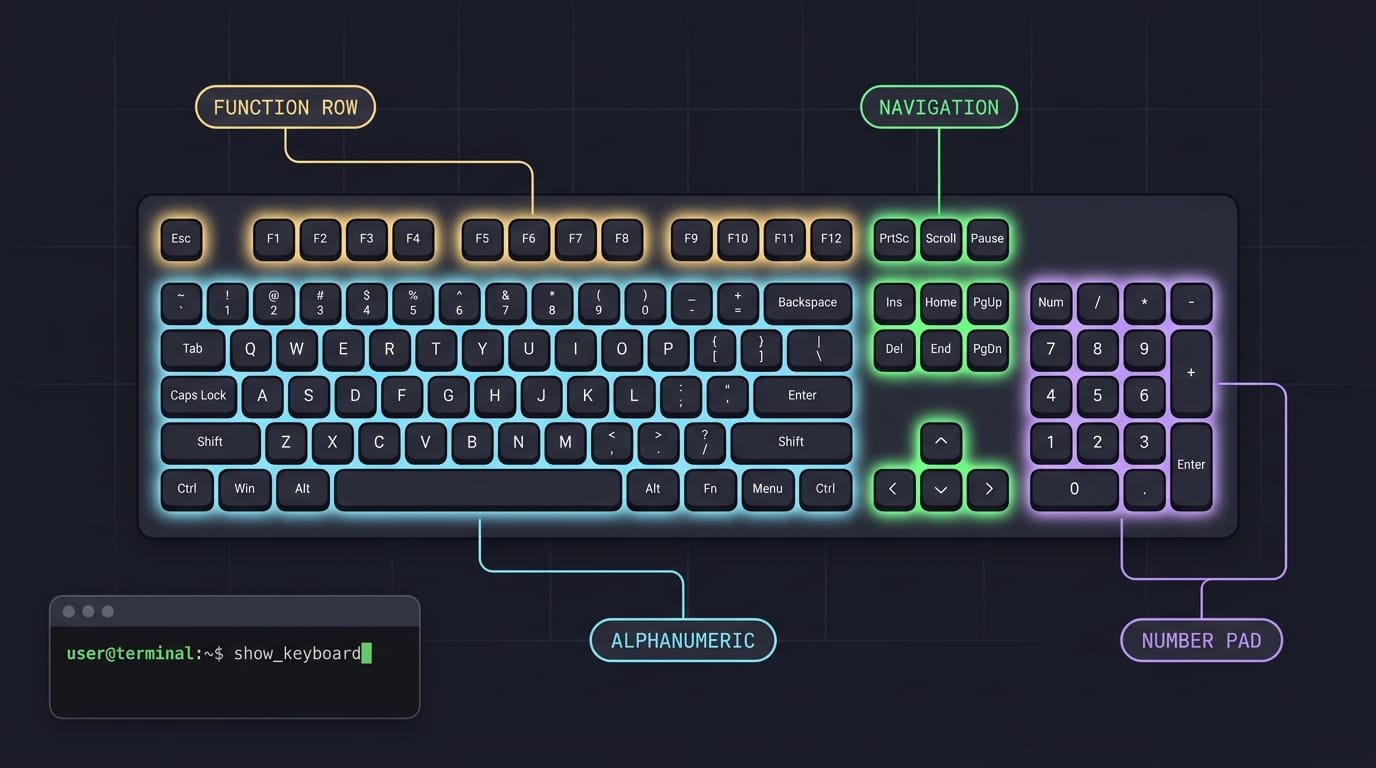
Full Size Keyboard Layout: The Complete Guide
Full size keyboard layout keeps the function row, navigation keys, and number pad together. Compare its desk space and trade-offs with compact boards.
Cent Symbol on PC Keyboard: Alt Codes and Shortcuts
Need the cent symbol on a PC keyboard? Find Windows Alt codes, Mac and Word methods, phone options, and fixes for when the sign won't appear.
British Pounds Symbol on Keyboard: How to Type £ Easily
British pounds symbol on keyboard: get £ on Windows, Mac, Chromebook, or Linux, including the Compose key and Unicode shortcut when the key isn’t printed.