Install Tar Archives on Linux, Step by Step
Install tar.gz software by extracting it, following its instructions, and building or running it from the unpacked folder; keep installs easy to undo.
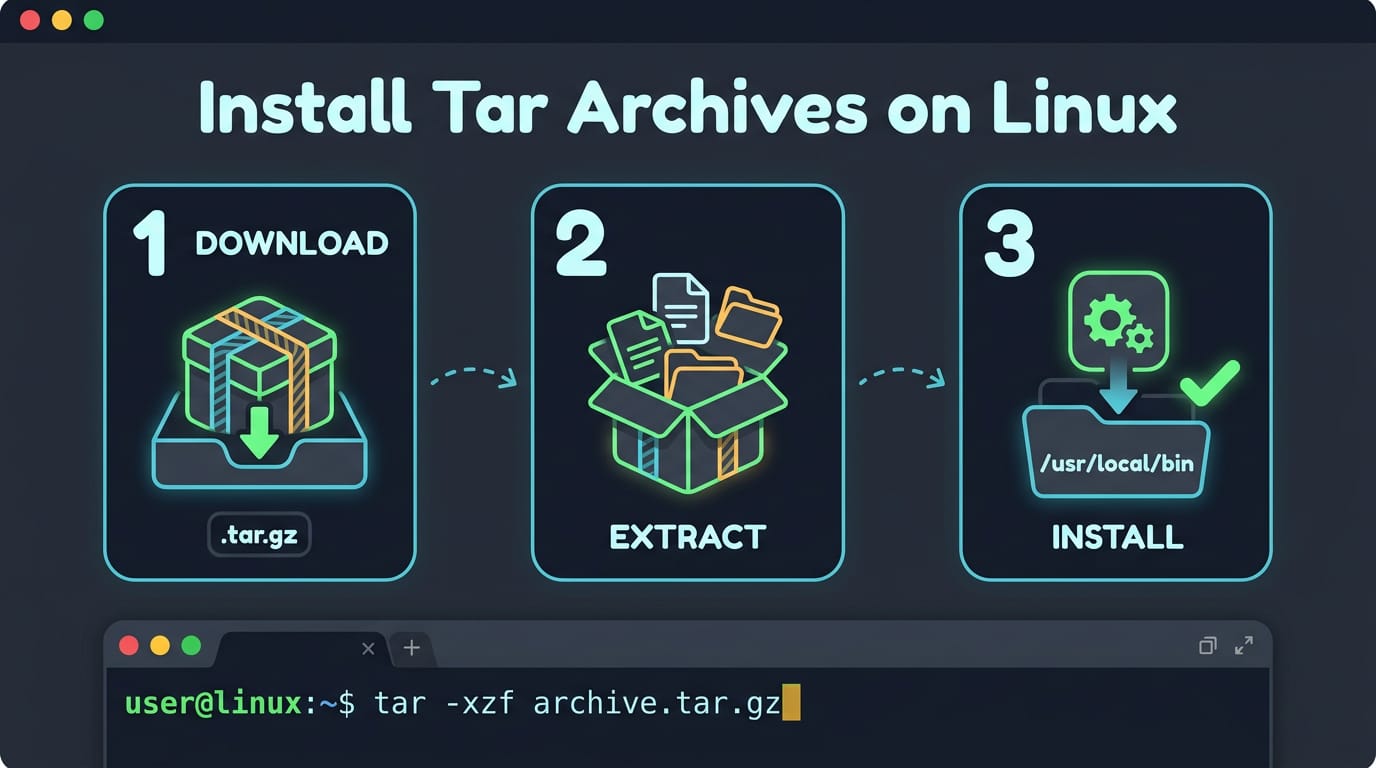
tl;dr the short answer
Installing software from a tar.gz means unpacking a compressed archive, then either running a prebuilt program or building source code according to its README or INSTALL instructions. Choose a predictable location, such as ~/.local for a user install or /opt for system-wide software, and record the commands and paths so you can remove it later. Download from an official source and check any available checksum or signature before running code.
Ever unwrapped a gift only to find another box inside, then another? A tar.gz file works the same way. It bundles many files into one archive, then compresses that archive, so you have to unwrap it before anything useful shows up.
Here’s the short answer: extract the archive, read its instructions, then build or run the program from the folder you unpacked. You get full control over where the software lands, but you also own the cleanup.
This guide covers extraction, building, and removal, plus dotfiles-style habits that keep tarball installs reproducible and easy to undo on Linux.
Tar Install Basics for Tar.gz Archives
A tar.gz is one of the most common ways Linux software gets shared, and its name tells you most of what you need to know.
Where the name tar came from
The name tar stands for “tape archive,” since it was built to bundle files for writing to tape. Tar creates archives by gathering many files and folders into one, and it can also list or extract what’s inside.
Its output can go to a regular file, to a pipe that feeds another program, or to a device such as a tape drive. Tar bundles files. Shrinking is a separate job.
Why you keep running into tar.gz files
Developers often ship a program as a tarball, a single archive holding every file the project needs. A tar.gz works much like a ZIP file: one file packs a whole folder together.
The “gz” part means the bundle is compressed, which reduces its size so it downloads faster.
Consider a student on a ten-year-old ThinkPad who wants a new terminal tool. The project page offers only a tar.gz, and they’re not sure whether to double-click it. Knowing what the file is turns that guesswork into clear steps.
Is tar.gz better than zip? It depends on where the files are going. A tar.gz keeps Unix file permissions intact, such as which files are marked runnable, so it suits Linux software. A zip opens easily on Windows and suits sharing across mixed systems.
For installing on Linux, the tar.gz is usually the better fit.
Unpacking Tar.gz Files in the Terminal
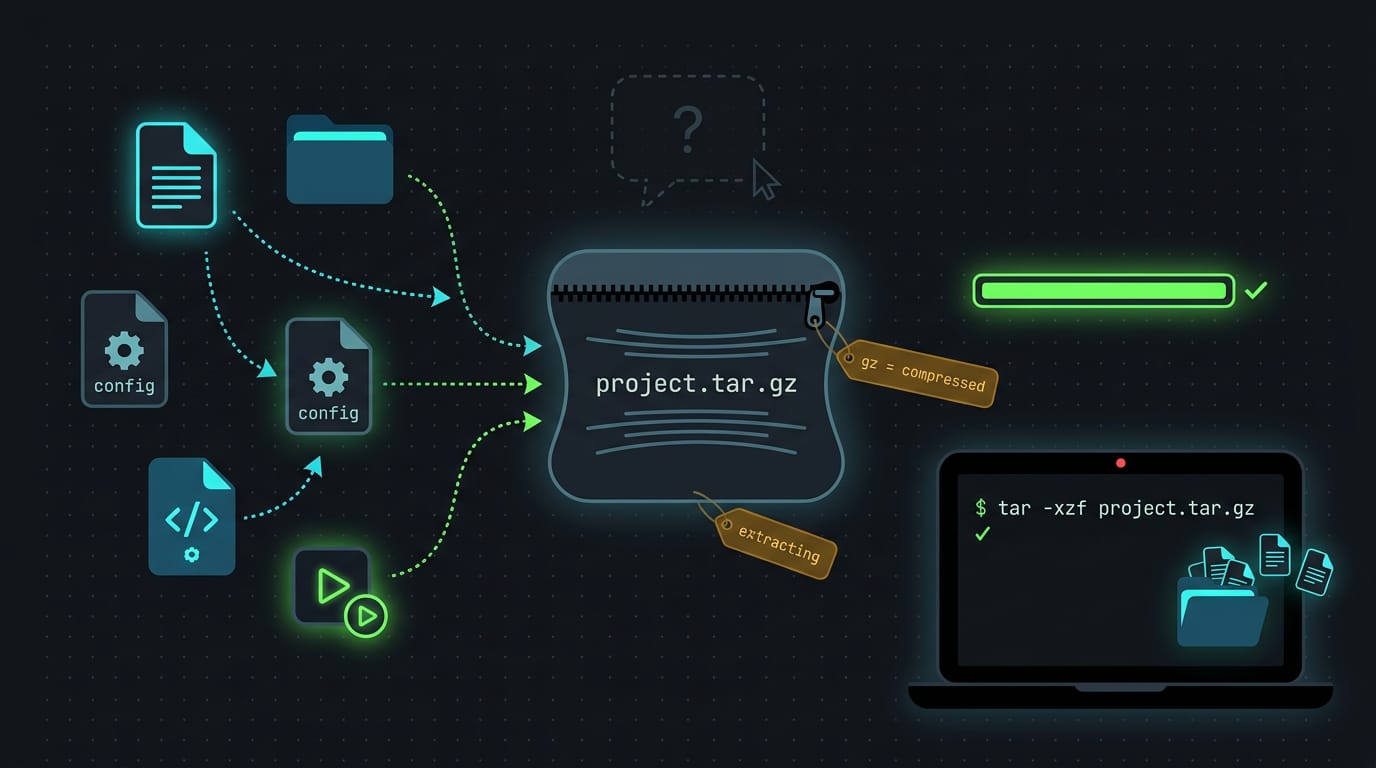
A tar.gz file is a bundle of files squeezed with gzip, and your terminal can open it in one command. Here’s how to unpack one, plus how to pack your own.
Run the basic extraction command
Open your terminal first, then confirm the file path, which is simply where the archive sits on your disk. If you’re already in the same folder, the file name alone works. Run this:
tar -xvzf file.tar.gz
For example, a student on a ten-year-old ThinkPad grabs a config bundle from Downloads, opens a terminal there, and has every file in seconds. That’s the whole trick.
Extracting into a folder you choose
Dumping files into your current folder gets messy fast. Add the -C option to name a destination instead:
tar -xvzf file.tar.gz -C ~/projects/mytools
Replace ~/projects/mytools with your own path, and run mkdir on it first if it doesn’t exist yet. Leave the archive where it is, since -C handles the destination.
What each tar flag does
Each letter in -xvzf does one job:
- -x extracts the archive’s contents.
- -z runs the file through gzip, the compression layer.
- -v lists each file as it goes, so you can watch it work.
- -f names the file, and the file name must come right after it.
To create a tar file from a directory in Linux, swap create in for extract by using -c in place of -x:
tar -czvf mytools.tar.gz mytools/
The other flags keep their meaning. This bundles your mytools folder into a single archive you can back up or share.
Installing Tar.gz Files with a File Manager
Not everyone wants to live in a terminal, and that’s fine. Your file manager can unpack a tar.gz (a tar archive compressed with gzip) in a few clicks, so here’s how we’ll do it on Ubuntu.
Extracting an archive in Ubuntu Files
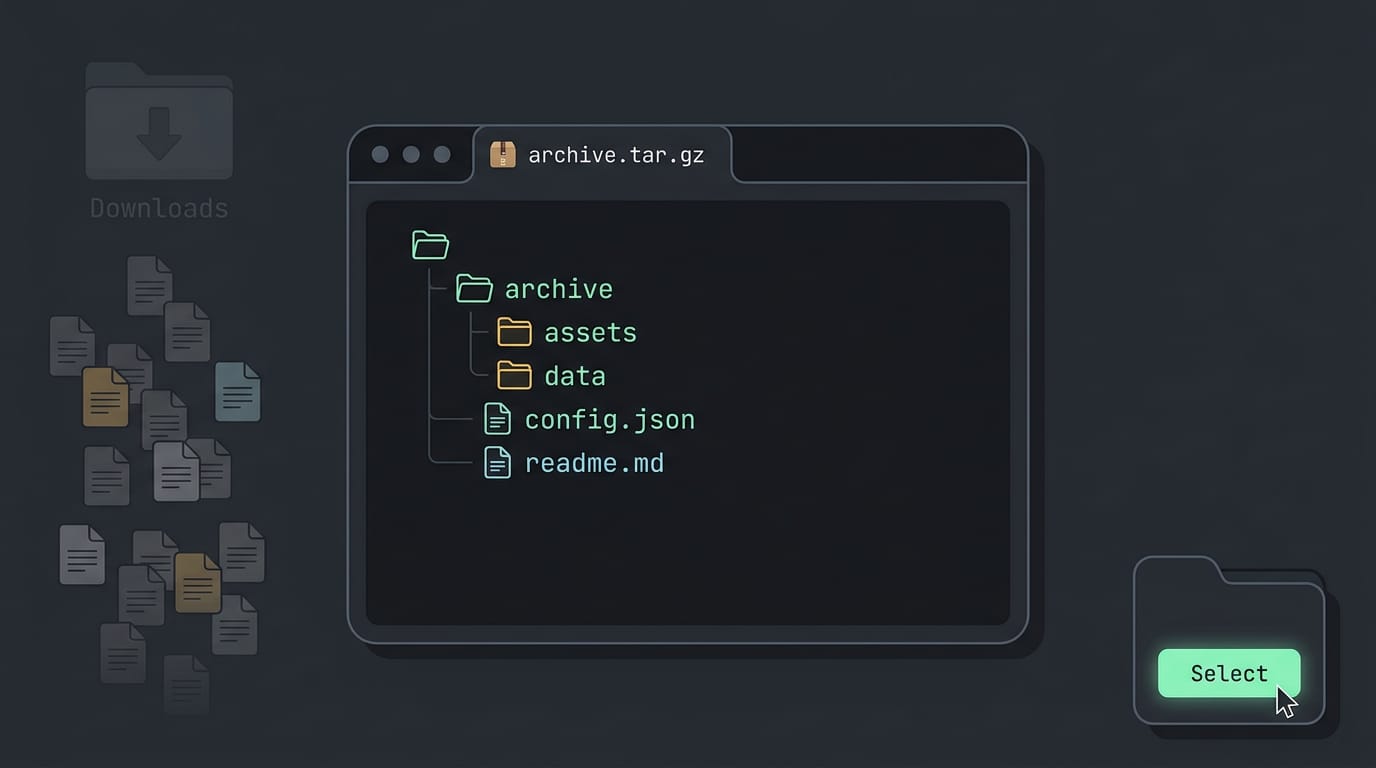
Ubuntu’s Files app can handle the whole job in four steps:
- Open Files and locate the archive. Head to the folder where your download landed and look for the file ending in
.tar.gz. - Preview with Archive Manager. Double-click the file to open it in Archive Manager, Ubuntu’s built-in archive tool. This lets you check what’s inside before you extract anything. Take a homelabber grabbing a tarball of a self-hosted tool: previewing it shows whether it unpacks into one neat folder or scatters dozens of files across Downloads, so they can plan where it goes first.
- Right-click and choose Extract To. Right-click the archive and pick Extract To from the menu.
- Pick a location and select. A folder picker opens. Choose where the contents should go, then click Select, and the files land right where you pointed them. That’s it.
On Windows, the app changes but the idea stays the same: you want to unpack the archive, not run it.
If you’re asking how to open a .tar file in Windows, use an archive tool that understands tar files, open the file in it, and extract to a folder you choose, just as you would in Files.
Questions People Ask About Tar Files
Most newcomer questions come down to undoing an install and choosing where files live.
Removing a program you installed manually
Newcomers often ask how to uninstall a program they put in by hand. A package manager does it in one command, but a tarball leaves no record. That’s why you need to track manual installs yourself: note the install location and the commands you ran.
Nothing else will. If the project includes make uninstall, run it from the source folder.
Picture a student on a ten-year-old ThinkPad who installs a newer editor into ~/.local. Months later she wants it gone, and her note lists the path, so she deletes those few files in a minute.
Installing software from a tarball
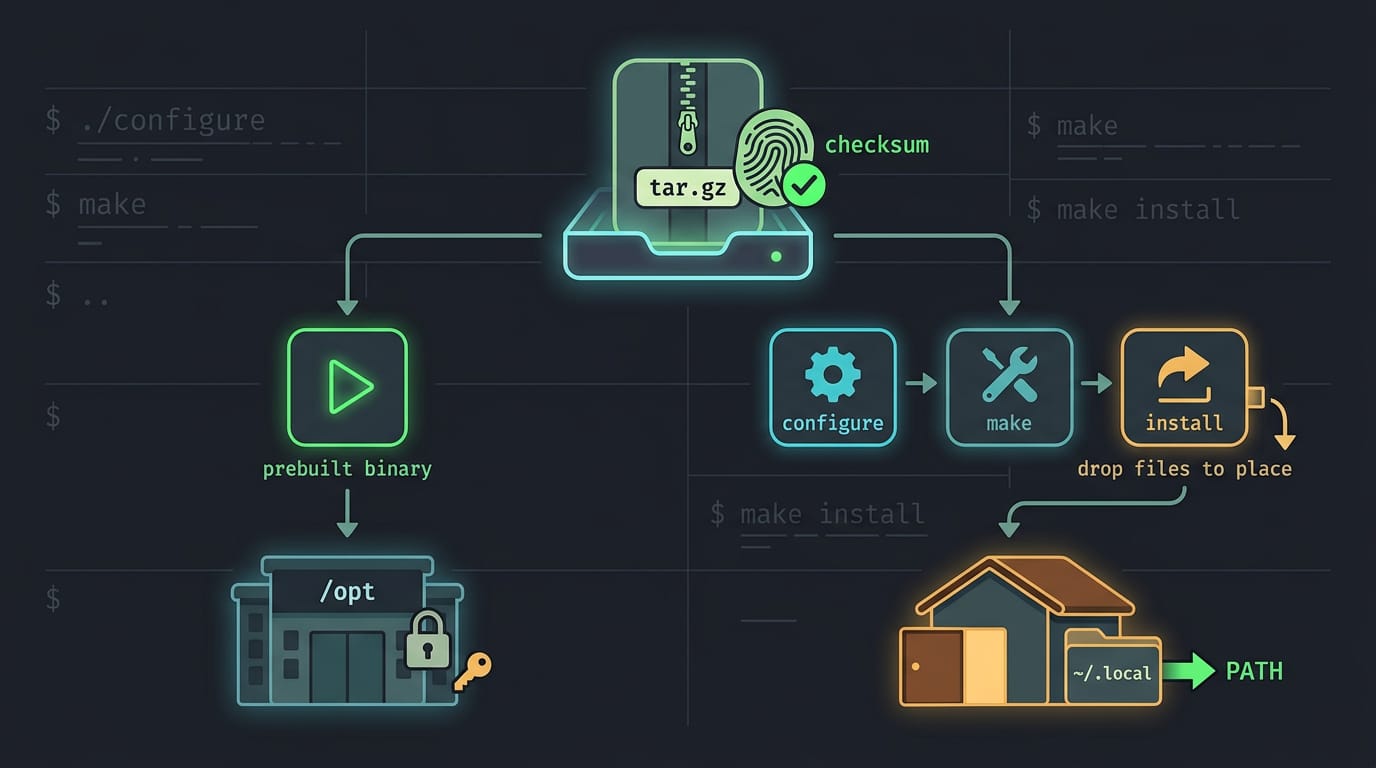
Take Firefox as an example. A Firefox tarball is a prebuilt binary: you extract it and run the program inside, with nothing to compile. A source tarball holds code you must build.
On openSUSE, zypper tracks most software, so hand-extracted tarballs sit outside it.
For a source tarball, read the README and INSTALL files first. Then run:
./configureto check your systemmaketo compilemake installto copy the files into place
Location matters. /opt suits system-wide software but needs root (administrator) access. ~/.local stays in your home folder with no root needed, as long as ~/.local/bin is on your PATH.
Is a tar.gz safe? The question is less about what the format is and more about where the file came from.
Download from the official site, check any published checksum (a fingerprint that confirms the file wasn’t altered), and remember that building or running code uses your permissions.
Where to Get and Learn GNU Tar
Before you unpack anything, you need tar itself and a quick way to look things up. Here’s where to get both, who maintains it, and what has changed.
Downloading the tar source code
The GNU project hosts tar on its FTP server (File Transfer Protocol, a file download service) and on mirrors, which are copies of the same files elsewhere. Releases come as .tar.gz (gzip), .tar.bz2 (bzip2), or .tar.xz (xz).
Where you download from matters less than what you check before you run anything.
Each release can include signatures, files that confirm the download came from the project and wasn’t altered. The project also posts alpha test releases, early builds for trying new features.
A student on a ten-year-old ThinkPad sticks with the stable release and skips the alpha, so the machine stays predictable.
Finding the manual and built-in help
Four places cover most questions:
tar --helpprints a short summary of the options.man taropens the manual page.info taropens the longer GNU manual.- The online manual lets you read the documentation in a browser.
--help is for remembering an option, while info is for understanding one.
Who maintains tar and under what license
Volunteers handle development and translation, and the project names its maintainers, so bug reports have a clear home. Discussion happens on mailing lists, email groups for developers and users.
Tar is released under the GNU General Public License version 3 (GPLv3), which lets you use, study, change, and share it. It’s about freedom, not a price tag.
What changed across tar releases
Each release ships a changelog, a running record of what changed, and it’s a good place to look when behavior surprises you. Bug fixes are listed per release, so an old problem may already be solved.
Newer versions brought new compression options and auto-detection of compressed archives, so tar can often work out the format itself.
Alternative decompressor fallback covers the case where the usual decompressor (the program that unpacks a compressed file) is missing, and tar tries another.
A self-hoster who runs a backup script on an old server reads the changelog before upgrading, so a behavior change doesn’t catch them off guard at 2am.
A tar.gz install comes down to three steps: unpack it, build or run it, then clean up after it. Keep each one tidy and the software stays a tool you control, not a mystery tucked away in your home folder.
Treat your install like a dotfile: write down the steps, keep the install location predictable, and note where every file landed so removal never turns into guesswork. Your desktop should feel like yours, and so should the software behind it.
Install with intent, and you’ll always know how to undo it.
Questions
How do I install a tar.gz file?
Extract the archive first, then follow its README or INSTALL instructions. A prebuilt program can usually be run from the extracted folder, while source code may need to be built with `./configure`, `make`, and `make install`.
How do I open a .tar file in Windows?
Use an archive utility that supports TAR, such as 7-Zip or Windows’ built-in archive features where available. Open the `.tar` file and extract its contents to a folder; the archive contains files, not a program to run directly.
How to make a tar file?
Use `tar` with the create option. For example, `tar -cvf archive.tar folder/` creates an uncompressed TAR archive; add gzip compression with `tar -czvf archive.tar.gz folder/`.
How to create a tar file from a directory in Linux?
Run `tar -czvf archive.tar.gz directory/` to create a gzip-compressed TAR archive from a directory. Use `tar -cvf archive.tar directory/` if you want an uncompressed TAR file.
How to extract tar file in Linux command?
Run `tar -xvf archive.tar` to extract an uncompressed TAR file into the current directory. To choose another destination, use `tar -xvf archive.tar -C /path/to/destination`; create the destination folder first if needed.
Is tar.gz better than zip?
It depends on the intended use. Tar.gz preserves Unix file permissions, including executable bits, so it is often a better fit for Linux software; ZIP is widely supported on Windows and convenient for sharing across different systems.
Is a tar.gz file safe?
A tar.gz file is not inherently safe or unsafe; its risk depends on its source and contents. Download it from an official source, verify a published checksum or signature when available, and inspect its contents before extracting or running anything. Building or running software can use your account’s permissions.
Read next.
GitHub filename too long: causes and every fix
The GitHub filename too long error can stop a clone cold. Fix it with Windows long-path settings, plus WSL and dotfiles cases many guides miss.
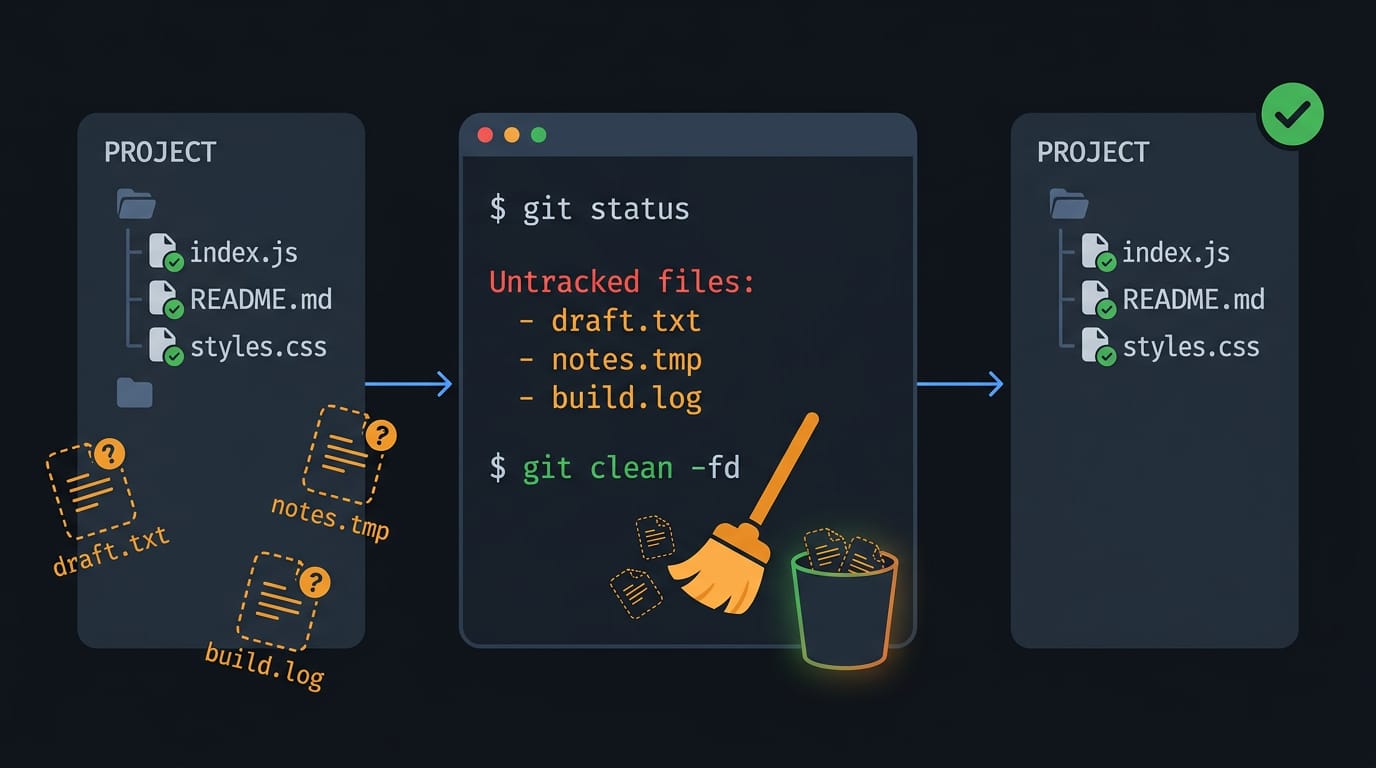
GitHub Untracked Files Explained and How to Delete Them
GitHub untracked files clutter project folders. Find, ignore, stash, or safely delete them with git clean, including ignored files and dotfile pitfalls.
Ansible File Module: How It Works and Key Options
Ansible file module keeps dotfiles consistent across laptops by managing files, symlinks, and permissions. See states and repeat-safe examples.