Kali Linux VirtualBox Setup: OVA, Vagrant, and ISO Paths
Run Kali Linux in VirtualBox without changing your desktop setup. Compare OVA, Vagrant, and ISO installs, then size RAM and set up Guest Additions.
tl;dr the short answer
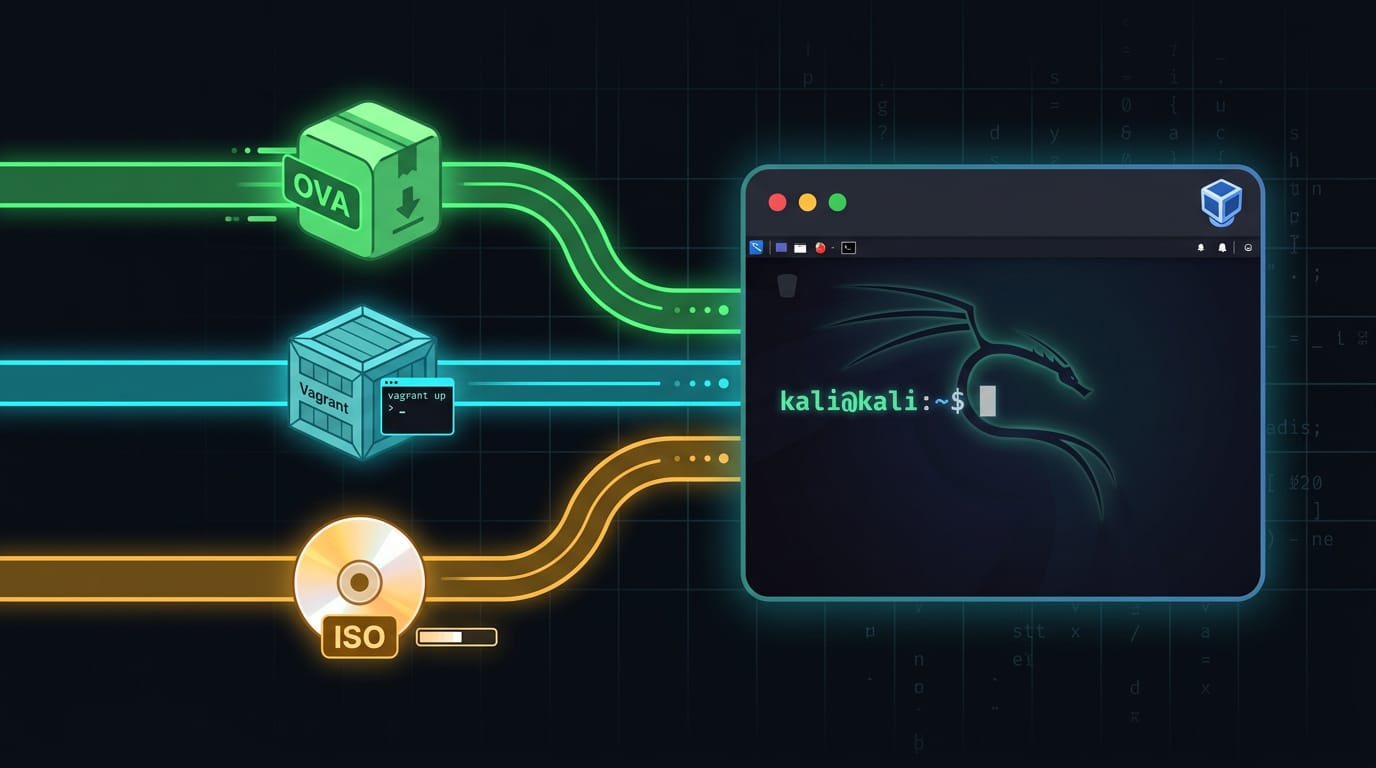
Kali Linux in VirtualBox is a complete security-testing system that runs as a virtual machine on your computer, separate from your everyday operating system. You can import a ready-made OVA, launch a Vagrant box, or install from an ISO, then use snapshots, Guest Additions, and suitable network settings to manage the lab. The result is a flexible environment for practicing tools and recovering from mistakes without rebuilding your main system.
Think about moving into a furnished apartment. You can arrange it your way from day one. Running Kali Linux in VirtualBox works the same way: you get a ready-made security lab on your own computer without touching the system you already use.
Kali Linux is built for security testing, and VirtualBox runs it as a virtual machine inside a window on your desktop. This post covers the three main install paths: a prebuilt OVA file, Vagrant, and a plain ISO.
You’ll also find sizing and RAM guidance, Guest Additions setup, and Linux-host notes on installing VirtualBox and its kernel modules.
Prep Work for Kali Linux in VirtualBox
Before you download an image, get your machine ready. Here’s what a virtual machine (VM), a system running in a window, needs first.
What you need to get started
The host is your Linux system, and the guest is the Kali system inside it. You’ll need:
- VirtualBox must be installed, via your distro’s package manager (apt, dnf, or pacman).
- Vagrant is needed only for the Vagrant method.
- Works on any Linux distribution.
- Difficulty: easy.
How much RAM (random access memory) do you need? The guest shares your host’s memory, so it’s less about total RAM and more about what’s left once your desktop takes its share.
Can you run Kali on 2GB? You can try. Once your desktop and browser take their share, very little is left for the guest, so close what you don’t need. It’s tight.
Why use VirtualBox, and is it free?
VirtualBox gives you a graphical interface, so setup is point and click. It’s minimal hassle: install, pick an image, and boot. Prebuilt images save even more effort since they skip the install.
Consider a student on a ten-year-old ThinkPad practicing security tools. They boot a prebuilt Kali image in a window, break things freely, and restore a snapshot, leaving their class Linux install untouched.
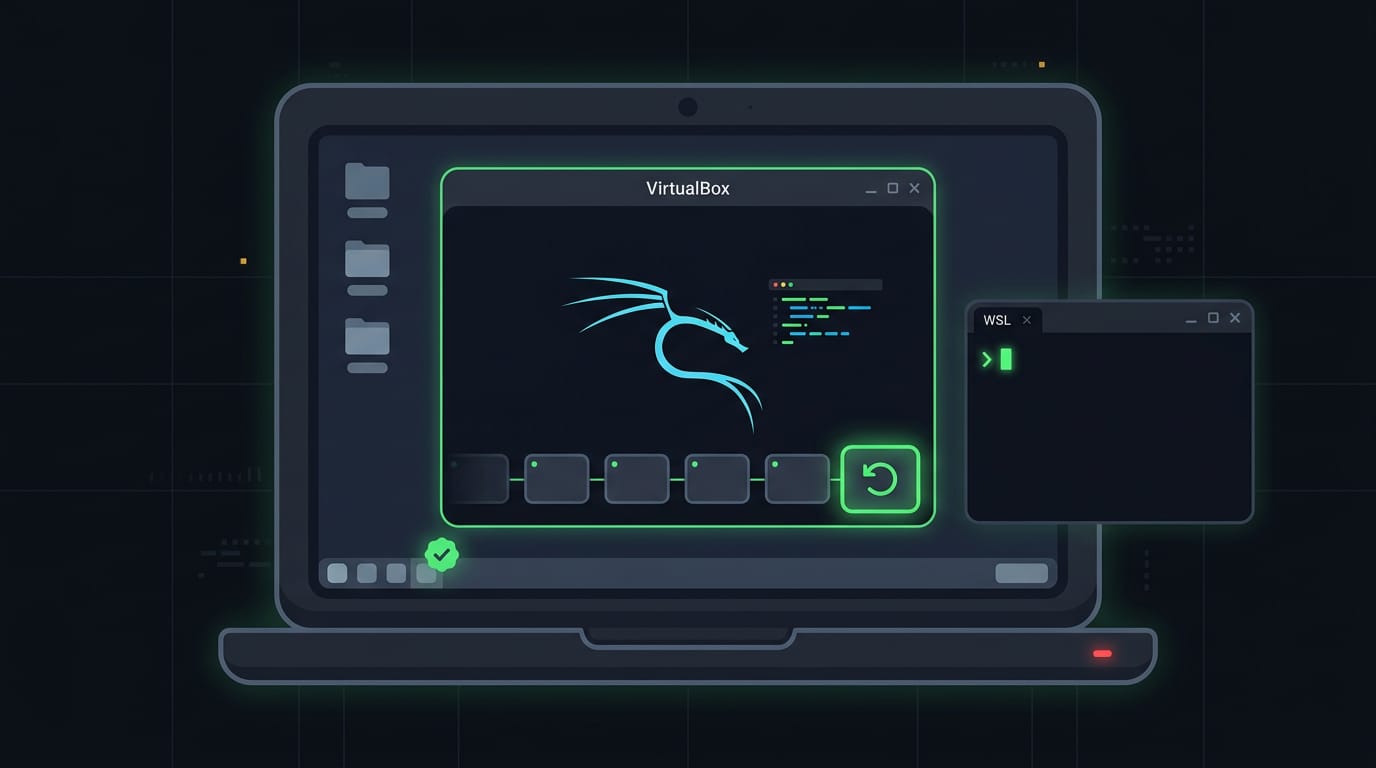
Which is better, a VM or WSL? It depends on the job. A VM runs a complete system, so it suits a full Kali desktop. WSL (Windows Subsystem for Linux) fits a few command-line tools inside Windows.
Is VirtualBox still free? Nothing in this guide asks you to pay, but licensing terms can change, so check the official site before you rely on it.
Install Kali from a Prebuilt OVA File
The quickest route to Kali in VirtualBox is to skip the installer and import a ready-made OVA (Open Virtual Appliance) file, which packages a finished virtual machine (VM) into one file. Here’s how we’ll do it.
Download the official Kali image
Start at the official Offensive Security download page and grab the prebuilt OVA.
- Choose your host architecture. Match the build to your host’s architecture (the processor type your computer uses).
- Expect large torrent files. The image is big and arrives as a torrent, which fetches pieces of the file from other computers.
- Use Transmission. Open the torrent in Transmission, a torrent client, and wait for it to finish fully.
Import the appliance into VirtualBox
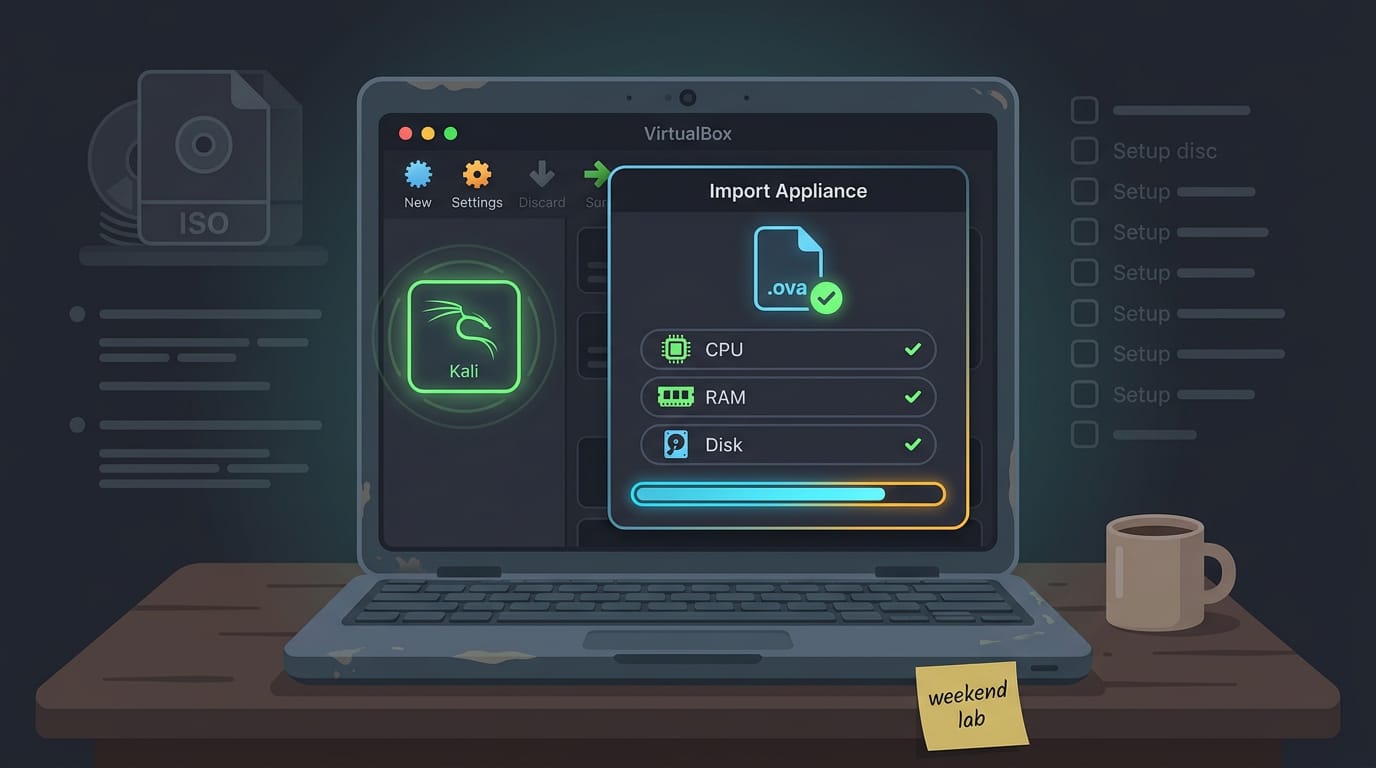
Open VirtualBox and choose File, then Import Appliance. Browse to your .ova file and select it. This is an import, not an install: you’re bringing in a finished machine.
The review screen lists the VM’s specs:
- virtual CPUs
- memory (RAM)
- disk
Check they suit your hardware, then click Import. A progress bar tracks the job, so let it run.
Consider a student who needs Kali for a weekend lab on an older laptop. Importing the OVA skips the setup entirely. When the bar finishes, Kali appears in the left menu. That’s the whole job.
Prefer the installer? To install Kali from an ISO (disc image) instead, download it from the official page, click New to create a VM, and point its virtual optical drive at the file. Boot it, and the Kali installer walks you through the rest.
Set up Kali with Vagrant
Vagrant is the quickest route to a working Kali guest, since it fetches the image and builds the VM for you. Here’s the whole flow, from an empty folder to a logged-in desktop.
Create the box and choose VirtualBox
A box is a packaged, ready-to-run image that Vagrant can launch. Start by setting up your workspace:
- Make a project directory, such as
kali-vm, and move into it. - Run
vagrant box add kalilinux/rollingto download the rolling Kali box. - Choose VirtualBox as the provider if Vagrant asks which one to use. You can also be explicit with the provider flag:
--provider virtualbox.
Launch your Kali VM for the first time
Run vagrant init in your project directory to set up its configuration, then run vagrant up to start the machine. Once it finishes, the VM opens in VirtualBox and Kali boots right on your screen, with no installer to click through.
Log in and manage the VM state
Log in with the default vagrant username and vagrant password. Think of a student running Kali for weekend lab practice on an old laptop.
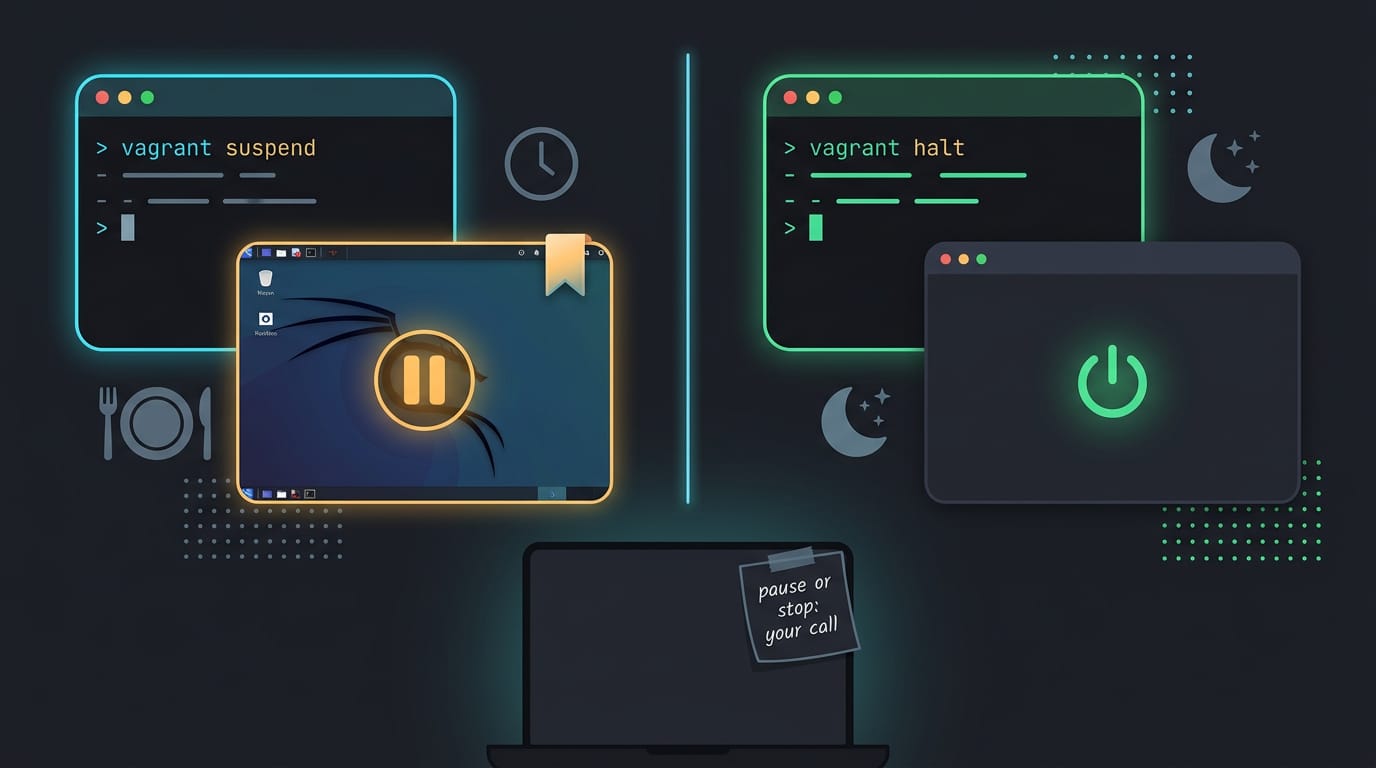
They suspend the VM when they step away for dinner and halt it when they’re done for the night, so the laptop isn’t running it all evening.
Two commands handle that:
vagrant suspendsaves the VM’s state, so you resume right where you left off.vagrant haltshuts the VM down completely.
The difference is pausing versus stopping. Pick suspend when you’re coming back soon, and halt when you’re finished for the day. Pause or stop, your call.
Using and Maintaining Kali After Setup
Once Kali is running, you’ll mostly use it like any other system, with a few VirtualBox habits that keep it stable. Here’s how we start it, keep it current, and keep the lab contained.
Everyday use and Guest Additions
Starting Kali works like any other VirtualBox VM: select it in the manager and click Start. Once it’s up, maintain it like normal Linux. Kali is Debian-based, so the usual package updates apply, and you can run them on your own schedule.
The one VirtualBox-specific extra is Guest Additions, the drivers and tools that let the guest work smoothly with your host, such as a shared clipboard and automatic screen resizing.
VirtualBox ships the installer image, so there’s no separate download to hunt for. Here’s how to install it:
- With Kali running, open the Devices menu in the VirtualBox window and choose Insert Guest Additions CD image.
- Inside Kali, open the CD drive in the file manager and launch a terminal there.
- Run the installer as root, typically with
sudo sh ./VBoxLinuxAdditions.run. - Reboot the VM so the new drivers load.
The habit that saves the most pain later is a snapshot, a saved point you can return to. Take one before a risky tool or a big upgrade. If something breaks, you’re rolling back rather than rebuilding.
Think of a student running Kali on a ten-year-old ThinkPad for a class lab. They snapshot before testing a new tool, and when an update goes sideways, they roll back and still make their next session.
Pair that with a deliberate network mode that keeps lab traffic away from your home network. Snapshot first.
Running Kali in VirtualBox gives you a lab you can rebuild whenever you need to.
Whether you started with an OVA, a Vagrant setup, or an ISO, the goal is the same: a guest that boots cleanly, with Guest Additions working and your host’s kernel modules loaded.
Keep the guest updated and your setup notes handy, and the lab will stay useful long after install day. A lab you can rebuild in an afternoon beats one you’re afraid to touch.
Questions
What is the size of Kali Linux ISO file?
Kali Linux ISO size depends on the image and release. The standard 64-bit installer ISO is several gigabytes, so check the official Kali download page for the current file size before downloading.
What is an ISO file in VirtualBox?
An ISO file in VirtualBox is a disc-image file that acts like a virtual CD or DVD. You can attach it to a VM’s virtual optical drive to install an operating system or boot a live environment.
How to install Kali Linux ISO?
Download the Kali ISO from the official Kali website, then create a new VirtualBox VM and select the ISO as its startup disk. Boot the VM and follow the Kali installer prompts to set up the system on its virtual disk.
How to install Linux using a VirtualBox?
Install VirtualBox on your computer, download the Linux distribution’s ISO, and create a new VM. Assign it memory and disk space, attach the ISO to its virtual optical drive, start the VM, and follow the installer.
Is VirtualBox still free?
Yes. VirtualBox’s base package is free and open source under the GNU General Public License. The separately licensed Extension Pack has different terms, so check Oracle’s current licensing information if you need it.
Can I run Kali Linux on 2GB RAM?
You can try running Kali with 2GB of RAM, but it will be tight, especially if your host desktop and other programs are using memory. Close unnecessary applications and expect limited performance.
Which Linux is best for VirtualBox?
There is no single best Linux distribution for VirtualBox; it depends on what you want to do. Ubuntu or Linux Mint are approachable for general desktop use, while Kali is designed for security testing.
Which OS does Kali Linux use?
Kali Linux is a Debian-based Linux operating system. It is maintained by Offensive Security and is designed for penetration testing and security work.
Read next.
Surface Pro 4 Linux: Complete Install and Setup Guide
Run Linux on Surface Pro 4 with a fitting distro, then set up a touch-friendly desktop and tiling workflow while checking hardware support.
Linux ls Command: List Files and Directories Explained
The Linux ls command lists files and folders. Practice its most useful flags, then use wildcard patterns to narrow results and find specific files faster.
Unzip on Linux: A Complete Guide to Extracting ZIP Files
Unzip files on Linux with a working install command, useful options, and examples for extracting ZIPs to a chosen folder and handling other formats safely.