Ipconfig en Linux: Complete Guide to IP Commands
Ipconfig en Linux: aprende qué comando usar para ver tu IP y configurar interfaces, y cuándo los cambios de red son temporales o permanentes.
tl;dr the short answer
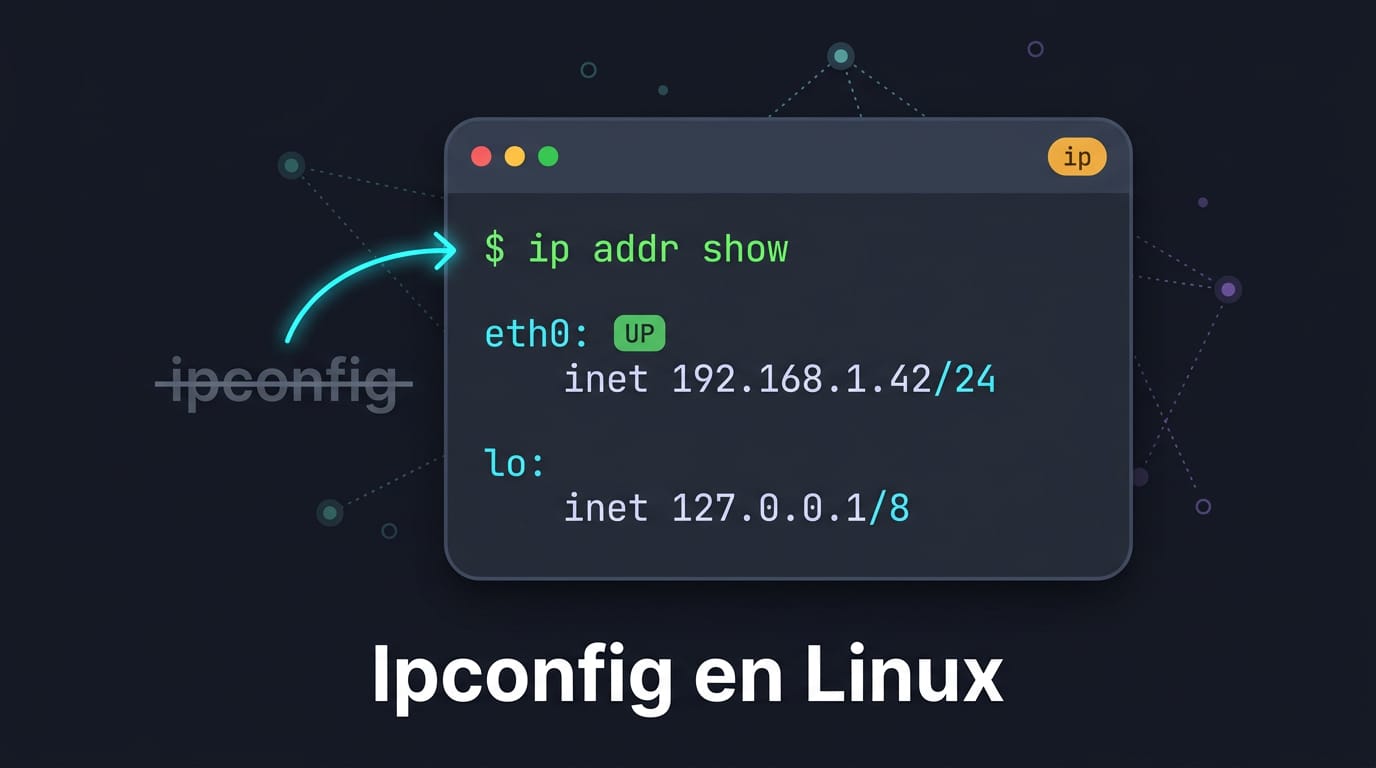
`ipconfig` is a Windows command and is not included with Linux; use `ip` to view or change addresses, `ifconfig` for older instructions, `nmcli` to manage NetworkManager connections, and `hostname` to check the computer’s name. Commands such as `ip addr show` display local addresses, while `ip route show` reveals the gateway; changes made with `ip` are temporary unless saved in your system’s network configuration. Test address changes before making them permanent, and avoid duplicate addresses or mismatched network settings.
Ever typed ipconfig into a fresh Linux terminal and been greeted with a “command not found” shrug? You’re not alone. Ipconfig is a Windows command, so it simply isn’t there on Ubuntu or most other distros.
The good news is that Linux has its own tool for every job ipconfig handles. You’ll use ip to view and set addresses, ifconfig in older guides, nmcli to talk to NetworkManager, and hostname to check your machine’s name. Those are only a few of the OS commands in Linux you’ll meet along the way.
In this post, we’ll map each task to its Linux equivalent, with copy-paste examples for viewing, setting, flushing, and persisting your IP (internet protocol) address.
Ipconfig En Linux Basics and VM Modes
Before you change anything, it helps to know what your machine asks of the network. Here’s what we’ll cover: the basics and how a virtual machine (VM) gets online.
IP roles, masks, gateways, and avoiding conflicts
Every device needs an Internet Protocol (IP) address, a unique number that identifies it on the network.
The subnet mask shows which part of that address is the network and which is the device, and the gateway is the router for everything beyond your local network.
Two devices sharing one address fight over traffic. Consider a student whose Ubuntu VM was given the same address as their laptop: both drop off at random until one of them is moved to a free address.
Comparing bridged, NAT, and host-only modes
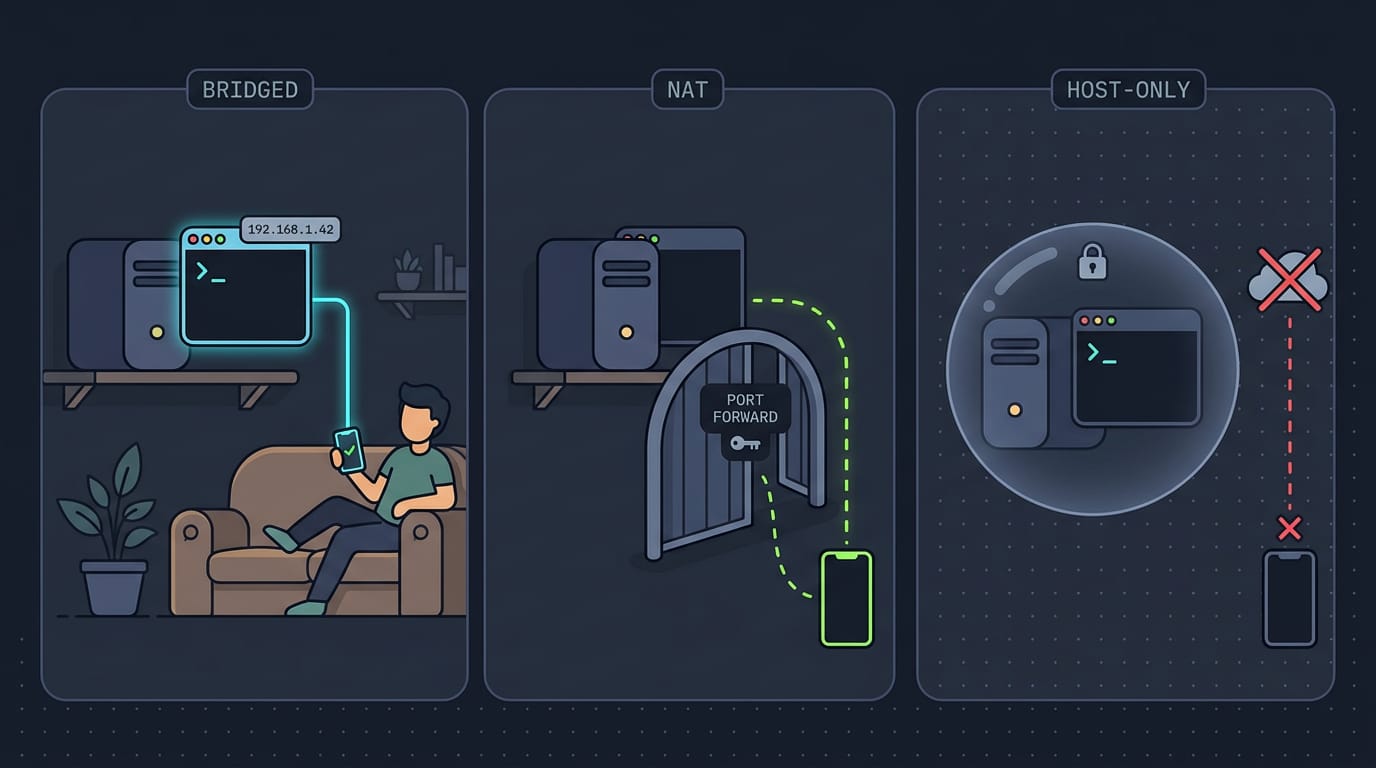
The mode decides how the VM shows up on your network:
- Bridged mode puts the VM beside your host with its own address, so other devices can reach it.
- NAT mode (network address translation) puts the VM behind your host, so outsiders need a port forwarding rule to reach it.
- Host-only mode links the host and VM privately, with no route to the internet.
| Mode | Reaches the internet | Reachable from other devices |
|---|---|---|
| Bridged | Yes | Yes |
| NAT | Yes | Only with port forwarding |
| Host-only | No | Only the host |
Think of a homelabber who wants a phone on the couch to open a test web app. Bridged mode gives the VM an address the phone can reach, so the page just loads.
Common problems and quick fixes
- No communication after config: the address, mask, or gateway probably doesn’t match your network. Check all three together.
- NIC not enabled: a network interface card (NIC) that’s switched off sends nothing. Run
ip linkto check its state. - Mask mismatch: a wrong mask can make your machine misjudge which addresses are local. Match it to your network.
Most fixes take a minute. The hard part is knowing which one to check.
Checking Your Network Details on Linux
Linux has no ipconfig, but a few tools cover the same ground.
How can I find my IP address in Unix?
Start with ifconfig, the older tool, which prints each interface’s IP address (IP is short for internet protocol). Its modern replacement, ip addr show, lists every interface.
Ubuntu has no ipconfig, so to check your addresses there, run ip a, the shorthand for ip addr show.
Filter with ip addr show | grep inet, or name one interface, like ip addr show wlp3s0. Wi-Fi names like wlp3s0 vary by machine, so ip link show helps you find yours.
hostname -I prints just your addresses, though other Unix variants may use different flags.
These commands show your local IP, handed out inside your network. Your public IP, what the wider internet sees, won’t appear here. Keep local versus public in mind.
Finding your MAC, DNS, gateway, and hostname
Your MAC address (Media Access Control, a hardware ID) appears on the ether line. Grab it with ip link show wlp3s0 | grep ether.
Your DNS (Domain Name System) servers, which map site names to addresses, are listed in /etc/resolv.conf. Print them with cat /etc/resolv.conf and look for the nameserver lines.
Your gateway is the router linking you to the wider network. Run ip route show and find the default via line, or pull out just the address with ip route show default | awk '{print $3}'. No guessing required.
Picture a student on a ten-year-old ThinkPad with flaky Wi-Fi. That one-liner gives them the router’s address, so they can open its admin page and check the connection.
Finally, hostname prints your machine’s name, handy with several remote sessions open.
Comparing Ip and Ifconfig Side by Side
Linux gives you two main tools for managing addresses: the older ifconfig and the ip command. Here’s how they line up, and we’ve included a quick table for anyone coming from Windows.
Matching ifconfig commands with ip equivalents
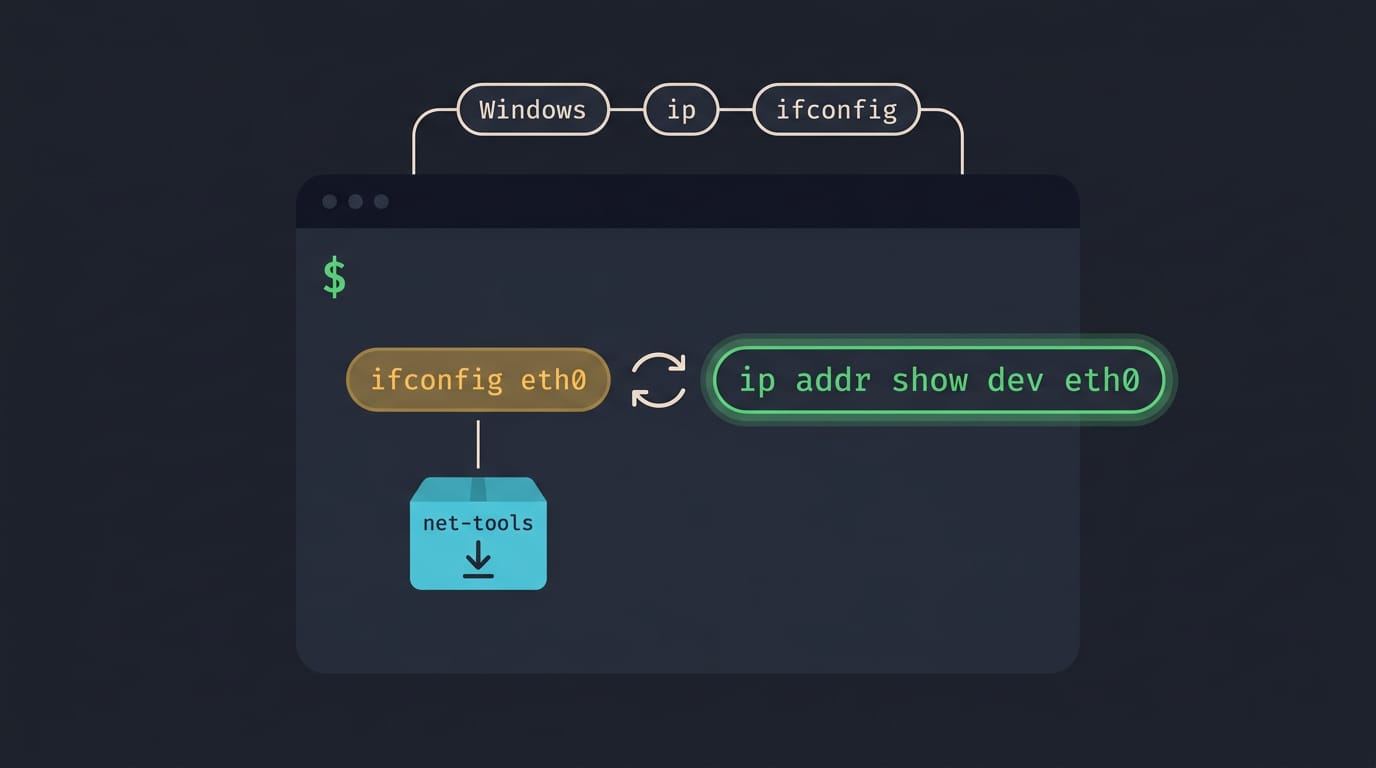
Most tasks have a direct swap. Replace eth0 with your interface name:
- View:
ifconfig eth0orip addr show dev eth0 - Set:
sudo ifconfig eth0 192.168.1.50 netmask 255.255.255.0orsudo ip addr add 192.168.1.50/24 dev eth0
The ip command is installed by default on most modern distros, so you can start typing right away. ifconfig comes from the net-tools package, which isn’t always there. On Ubuntu, run sudo apt install net-tools. For full details, run man ip.
| Windows | Linux with ip | Linux with ifconfig |
|---|---|---|
ipconfig |
ip addr show |
ifconfig |
ipconfig /all |
ip addr show and ip route show |
ifconfig -a and route -n |
Where ip pulls ahead of ifconfig
Here’s where the two split. ifconfig sets an address, while ip adds and removes them.
Red Hat’s Enterprise Linux 7 Networking Guide notes that the ip utility offers more flexible address management than ifconfig, including support for multiple addresses on one interface.
Picture a self-hoster running two services on one machine who needs a second address on the same network card. With ip, that’s one command, and the first address stays put: sudo ip addr add 192.168.1.51/24 dev eth0.
- Quiet overwrites. Setting an address with ifconfig can overwrite the one already on that interface, so check first.
- No targeted removal. ifconfig can’t delete an IP, but
sudo ip addr del 192.168.1.51/24 dev eth0removes just that one.
Same machine, fewer surprises.
Setting up IP Addresses and Interfaces
On Windows, one ipconfig call handles most of this. On Linux, learn ip first, since you’ll mostly recognize ifconfig from older guides.
Adding and removing an IP address
A homelabber giving a test service its own address uses CIDR notation (Classless Inter-Domain Routing), where /24 sets the netmask:
sudo ip addr add 192.168.1.50/24 dev eth0
The ifconfig form takes the netmask and optional broadcast address separately:
sudo ifconfig eth0 192.168.1.50 netmask 255.255.255.0 broadcast 192.168.1.255
ip addr del removes an address with the same arguments. To flush an IP address in Linux, run sudo ip addr flush dev eth0 to clear every address on that interface.
Turning network interfaces on and off
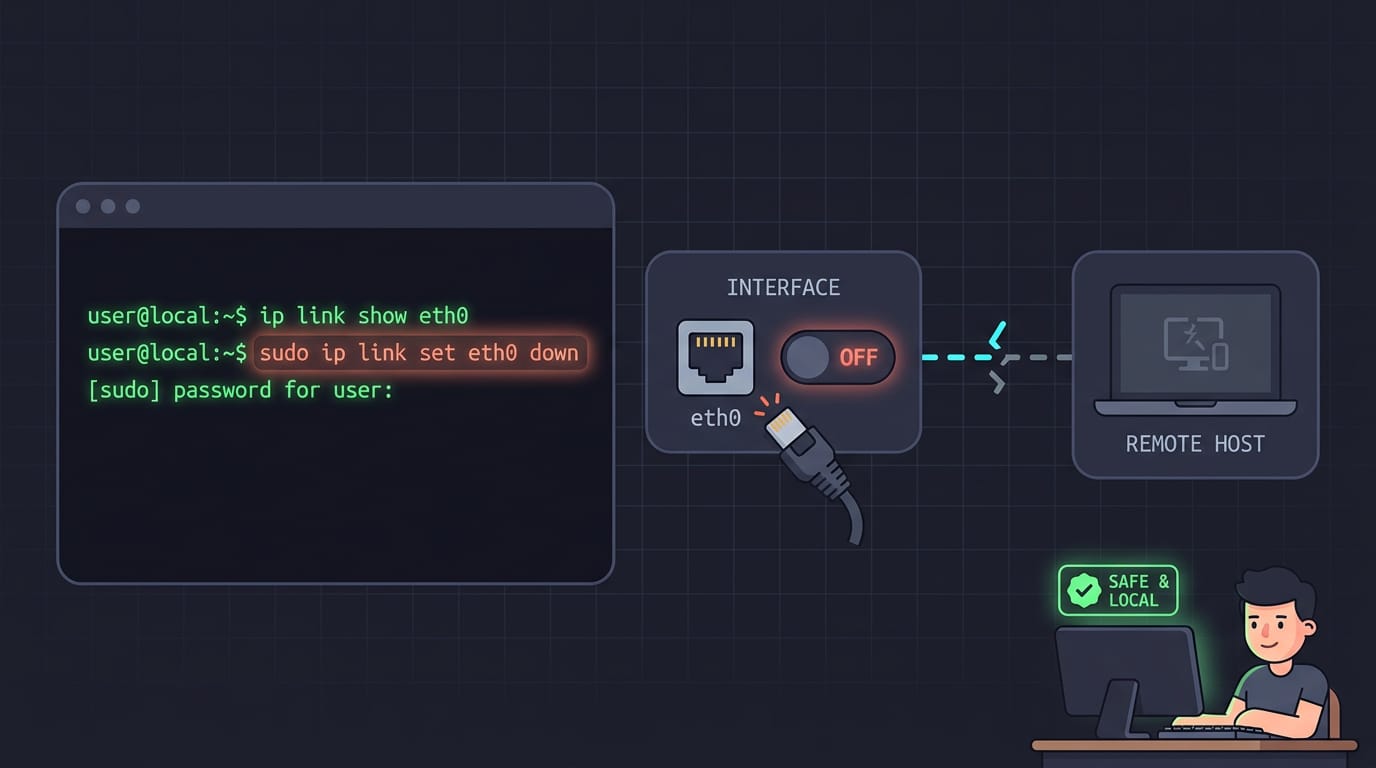
The older route is sudo ifconfig eth0 up (or down), and the modern one is sudo ip link set eth0 up (or down). sudo ifup eth0 brings an interface up from its config file on systems using the older ifupdown tooling.
If you’re connected remotely through that interface, bringing it down cuts you off, so work locally.
Checking that your changes work
Before we call it done, ping your router from the new address:
ping -I 192.168.1.50 -c 4 192.168.1.1
Then confirm with ip addr list dev eth0. If the address shows and the pings return, your test service is ready. Trust the replies, not the config.
Tweaking MTU, ARP, and promiscuous mode
These are quick fixes rather than permanent settings.
- Alias or virtual interfaces.
sudo ifconfig eth0:1 192.168.1.51 netmask 255.255.255.0 upadds a second address labeled eth0:1. - Promiscuous mode. Normally a card only accepts traffic addressed to it.
sudo ip link set eth0 promisc onlifts that limit, andsudo ip link set eth0 promisc offrestores it. - MTU (maximum transmission unit). The largest packet an interface sends at once. A self-hoster whose VPN (virtual private network) stalls on big downloads might try
sudo ip link set dev eth0 mtu 1400to see if it clears. - ARP table entries. ARP (Address Resolution Protocol) maps IP addresses to hardware addresses on your local network. Pin a static entry with
sudo ip neigh add 192.168.1.1 lladdr aa:bb:cc:dd:ee:ff dev eth0, swapping in real values. - ARP on and off.
sudo ip link set eth0 arp offdisables ARP on the interface, andsudo ip link set eth0 arp onturns it back on.
Temporary Versus Permanent Network Changes
Everything you set with ip or ifconfig is temporary by default. Here’s how we’ll make a change stick, and when leaving it temporary is the smarter move.
Making settings survive a reboot
Running sudo ip addr add 192.168.1.50/24 dev eth0 makes a runtime change. It lives in memory until the next reboot, which is handy for testing and a nasty surprise when the machine returns on the wrong address. Reboot, and it’s gone.
To keep a setting, store it where your system reads it at boot. The file depends on your distro.
Debian-based systems using ifupdown (the classic network setup tool) read /etc/network/interfaces:
auto eth0
iface eth0 inet static
    address 192.168.1.50
    netmask 255.255.255.0
    gateway 192.168.1.1
RHEL (Red Hat Enterprise Linux) and its relatives use one file per interface, such as /etc/sysconfig/network-scripts/ifcfg-eth0:
DEVICE=eth0
BOOTPROTO=none
IPADDR=192.168.1.50
PREFIX=24
GATEWAY=192.168.1.1
ONBOOT=yes
Desktops and most modern installs often hand this to NetworkManager, the service that manages connections. Edit the saved connection with nmcli (NetworkManager’s command-line tool), using your connection name from nmcli connection show:
nmcli connection modify "Wired connection 1" ipv4.method manual ipv4.addresses 192.168.1.50/24 ipv4.gateway 192.168.1.1
nmcli connection up "Wired connection 1"
Ubuntu uses netplan, which reads YAML files (plain-text config with simple indentation) from /etc/netplan/. Apply edits with sudo netplan apply.
Test first, then make it permanent. Picture a self-hoster who wants their home server at 192.168.1.50 so an SSH (Secure Shell) bookmark keeps working.
They test the address with ip for a few minutes, then save it, so the bookmark still works after the next power cut. Use runtime changes for trying things and saved ones for keeping them.
So ipconfig isn’t really missing from Linux. Its jobs are simply split across a few tools: ip for quick looks and changes, ifconfig in older guides, nmcli for managed networks, and hostname for naming.
Once you know which one fits the task, the terminal stops feeling foreign.
Your network should behave on purpose, and it should still behave after the next reboot.
References
Questions
How to check IP from terminal Linux?
Run `ip addr show` or its shorthand, `ip a`, to list local IP addresses for all network interfaces. Use `ip addr show dev eth0` to check a specific interface, replacing `eth0` with its name from `ip link show`.
How to flush IP address in Linux?
To remove every IP address from an interface, run `sudo ip addr flush dev eth0`, replacing `eth0` with the correct interface name. This is a temporary change, and removing addresses from an active remote connection may disconnect you.
How to check ipconfig in Ubuntu?
Ubuntu does not include the Windows `ipconfig` command. Use `ip a` or `ip addr show` to check interface addresses; `ip route show` displays routing information such as the default gateway.
How can I find my IP address in Unix?
Run `ip addr show` on most modern Unix-like systems to list interface addresses; on older systems, `ifconfig` may be available. `hostname -I` prints local addresses on Linux, though its flags can differ on other Unix variants.
Sources
Read next.
What File System Does Linux Use? A Complete Guide
What file system does Linux use? Compare ext4, XFS, and Btrfs, see distro defaults, and use terminal commands to check your current setup today.
Linux Tree Command Explained: Install, Flags, and Usage
The tree command in Linux turns nested folders into a readable hierarchy. See which flags customize output, target a folder, and compare practical alternatives.
Linux permissions: owners, groups, and the rwx model
Linux permissions make access errors easier to solve by explaining rwx, chmod, ownership, numeric modes like 600 and 777, and SSH key security.