VLC Media Player Install Guide for Ubuntu
Install VLC media player on Ubuntu with APT, Snap, Software, or a PPA, then verify the setup and add codecs to play videos that would not open.
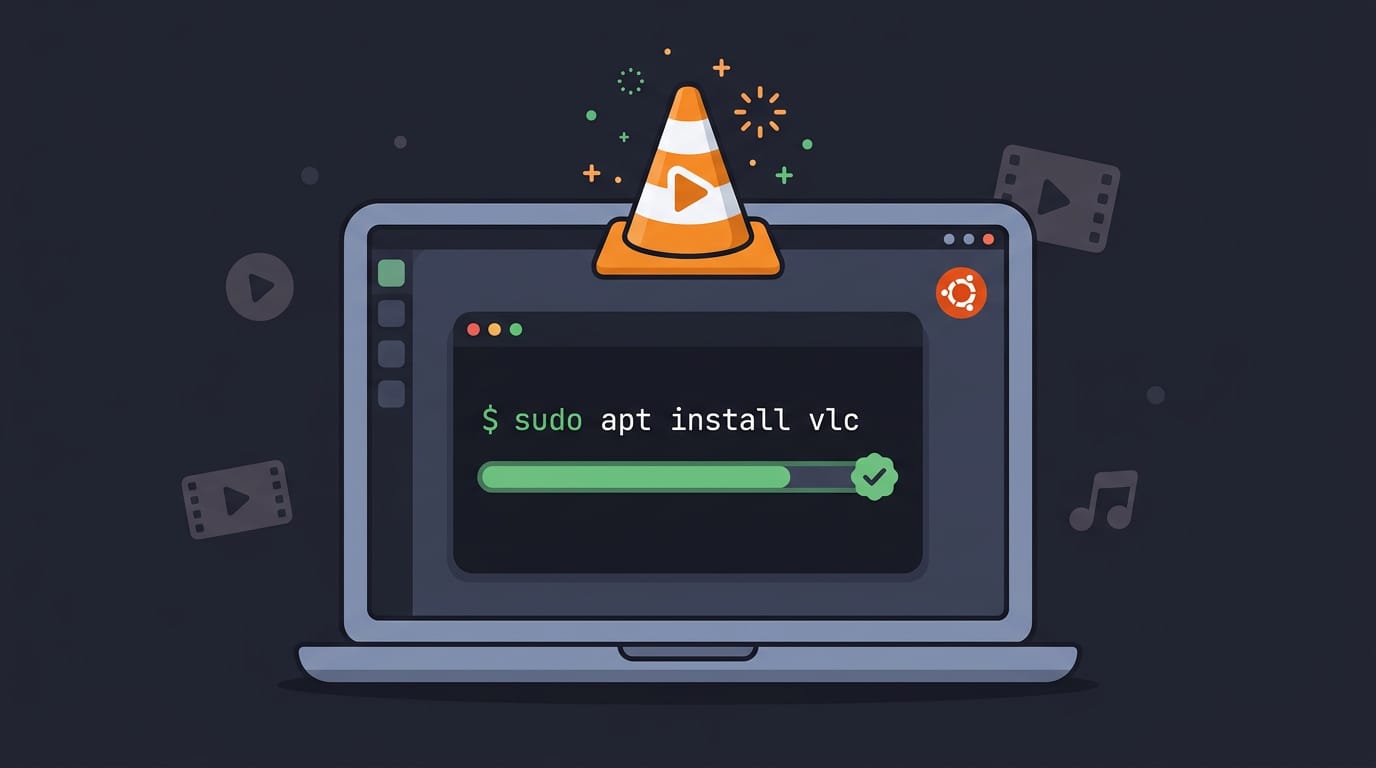
tl;dr the short answer
VLC Media Player is a free, open-source app for playing a wide range of video and audio files, DVDs, subtitles, and network streams on Ubuntu. Install it through APT, Snap, or Ubuntu Software for a stable, straightforward setup, or use a PPA for newer builds; then check the version and adjust preferences, shortcuts, or themes as needed. The best option depends on whether you value simplicity, Ubuntu’s built-in packages, or access to newer releases.
Ever double-clicked a video on a fresh Ubuntu install only to be told nothing can open it? Most new users hit that moment, and it’s usually a quick fix.
This guide covers every way to install VLC Media Player: APT (Ubuntu’s Advanced Package Tool), Snap, the Software app, and a Personal Package Archive (PPA).
We’ll show you how to confirm it’s working, check its version, and troubleshoot when it isn’t. Then we’ll get into the Linux desktop touches many guides skip, like running VLC under Wayland, theming it, and controlling it entirely from the keyboard.
Why Install VLC Media Player on Ubuntu
If you’re setting up a fresh Ubuntu install, VLC is one of the first apps worth adding. Before we get into the commands, it helps to know what you’re getting.
What VLC does well
VLC’s strengths come down to five things:
- Cross-platform availability. VLC isn’t tied to Ubuntu. The same player is available on other operating systems, so the habits you build here carry over to other machines.
- Wide format support. VLC opens a large range of video and audio formats, so most common files open without extra setup.
- Free and open source. It costs nothing to install, and its code is open for anyone to read.
- Streaming and subtitles. VLC can open network streams and load subtitle files alongside your video.
- Plays DVDs, CDs, and streams. One player covers physical discs and online sources.
Think of a student on a ten-year-old ThinkPad running Ubuntu who gets lecture recordings as video files, each with its own subtitle file. Instead of juggling multiple tools, they open the lecture in VLC, load the subtitles, and get back to studying.
That’s the appeal: one app for discs, files, and streams instead of several players for each job. Less setup, more watching.
What You Need Before Starting
Installing VLC takes only a few minutes, but a little prep means you won’t get stuck halfway through. Here’s what to have ready, plus which releases and versions this guide covers.
Admin access, internet, and a terminal
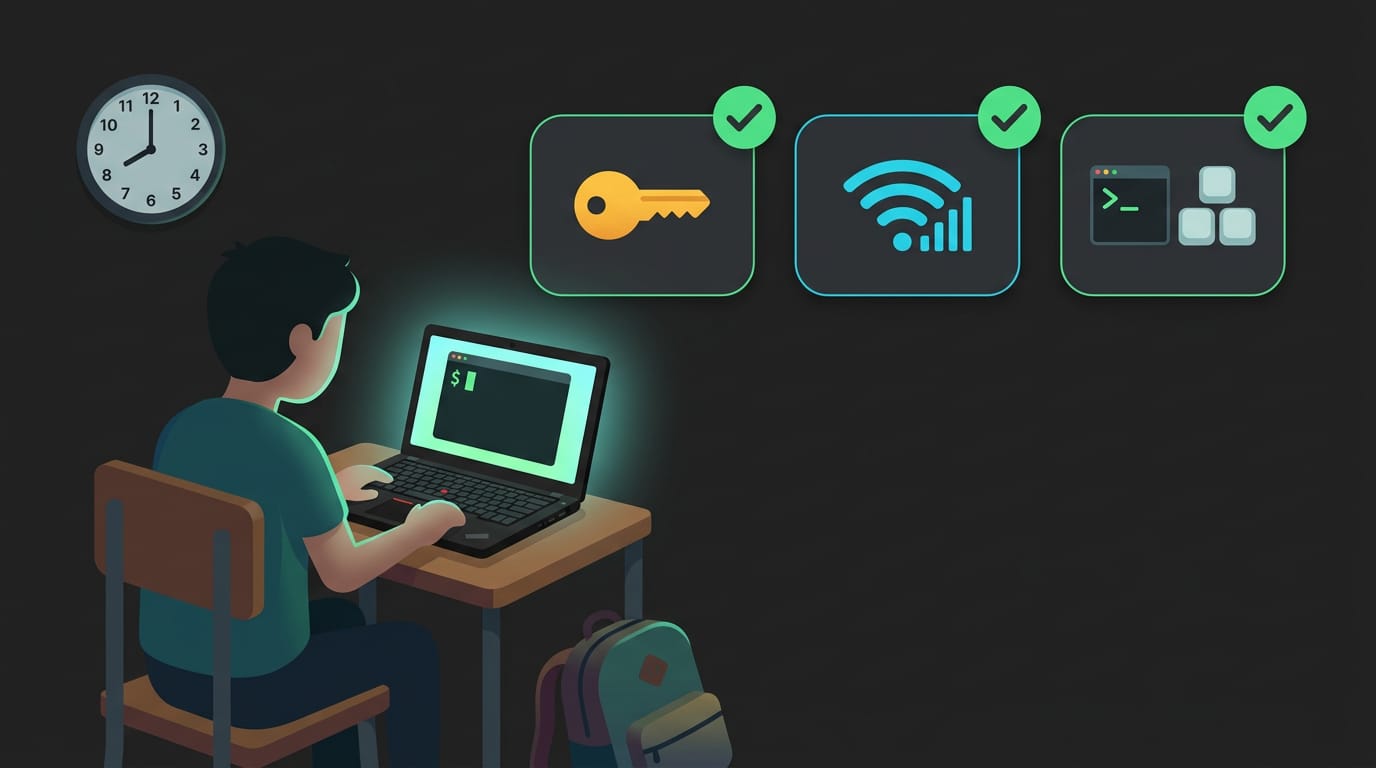
Three things get you ready:
- Admin access: You need an account that can run sudo, the command that runs other commands with administrator rights. You’ll be asked for your password when you install.
- An active internet connection: The installers download VLC, so an offline machine won’t finish the job.
- A terminal: Press Ctrl+Alt+T to open one on most Ubuntu desktops.
Picture a student who just installed Ubuntu on a ten-year-old ThinkPad and needs a lecture recording before class. Checking these three things before the install begins means it finishes the first time, not after a frantic hunt for a password.
Which Ubuntu releases and VLC versions work
This guide covers Ubuntu 18.04 Bionic and 16.04 Xenial. If you’re on 20.04, our 20.04 tutorial covers that release.
So what’s the latest version of VLC Media Player? According to VideoLAN’s 3.0.23 announcement, 3.0.23 is a stable release and the 24th update to the 3.0 branch.
The 4.0.0 build is a development release, so treat it as a preview for testing, not your daily player.
To check what you already have, open a terminal and run vlc --version. Compare the number it prints against 3.0.23. No guesswork required.
Ways to Install VLC
Ubuntu gives you four routes to VLC, and each suits a different kind of user. We’ll cover each one so you can pick the route that fits how you work.
Install VLC quickly with snap
A snap is a self-contained package that bundles an app with what it needs to run. If snap isn’t found, install snapd, the service that runs snaps, with sudo apt install snapd. Then run:
sudo snap install vlc
VideoLAN, the project behind VLC, packages its own snap, so you get the build straight from the source. On other distros, install snapd first, then run the same command.
A student on a ten-year-old ThinkPad wants lecture recordings playing tonight. One command. That’s it.
Snap and Flatpak (a separate app format) bundle their own libraries and run sandboxed, while APT relies on your system’s, so the real difference is where the libraries come from.
Using apt in the terminal
APT, short for Advanced Package Tool, is Ubuntu’s built-in package manager. Refresh its list, then install:
sudo apt update
sudo apt install vlc
That’s the traditional route, pulling VLC’s .deb package (the standard package format Ubuntu uses) from Ubuntu’s repositories. The older sudo apt-get install vlc works too.
Want an older release? Run apt-cache madison vlc to list available versions, then install one with sudo apt install vlc=VERSION, using a version from that list. Older builds only appear if your repositories still keep them.
Confirm the install with vlc --version, then launch VLC from your app grid or by typing vlc.
Install from the Ubuntu Software app
Prefer clicking to typing? Here’s the whole process:
- Open Ubuntu Software from your app grid.
- Search for VLC.
- Click Install.
No terminal and no package names to remember, so this is the friendliest route for new users.
Get the newest VLC from a PPA
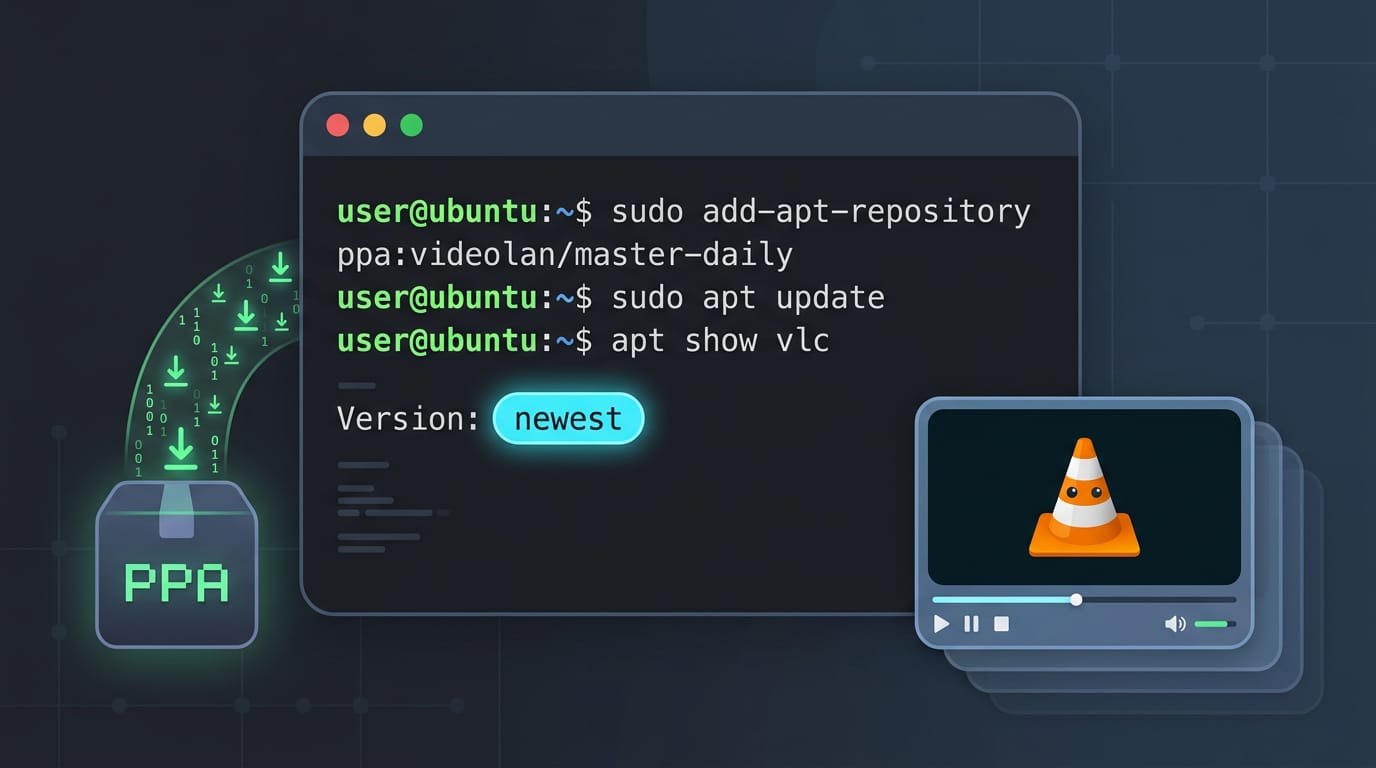
A PPA, short for Personal Package Archive, is an extra software source a project hosts for Ubuntu. The videolan/master-daily PPA holds VideoLAN’s newest builds. Add it and refresh:
sudo add-apt-repository ppa:videolan/master-daily
sudo apt update
Check the version before you install:
apt show vlc
The Version line tells you which build you’re about to get. Then install:
sudo apt install vlc qtwayland5
On Wayland, the qtwayland5 package lets VLC run natively instead of through XWayland, the compatibility layer for older X11 apps.
Setting up VLC Once It’s Installed
A few quick settings decide whether VLC feels like yours or like a stock app. Let’s tune it, set it as your default, and match your dark theme.
Adjust VLC preferences to suit you
Open Tools > Preferences or press Ctrl+P, then switch the view from Simple to All to reveal the advanced options.
Under Audio, pick the output module that sends sound to your speakers. If sound goes to the wrong device, fix it here.
Under Input / Codecs, set hardware acceleration to automatic so your GPU handles decoding. Think of a student on a ten-year-old ThinkPad whose lecture videos stutter and whine.
Letting the GPU take over decoding smooths things out. Less stutter, quieter laptop.
Under Subtitles/OSD, tune subtitle size and the On-Screen Display (OSD), the overlay that pops up when you change volume or seek.
The Hotkeys page lists every shortcut, so rebind any you use often. Out of the box, Space plays and pauses, F toggles fullscreen, and the arrow keys seek.
Click Save when you’re done, or nothing sticks.
Prefer the terminal? cvlc is VLC’s command-line version, so cvlc ~/Videos/lecture.mp4 plays a file with no menus in the way.
VLC works fine out of the box, but a few tweaks make it yours. Pick VLC under your Default Applications settings to make it the default video player.
If it clashes with a dark GTK app, choose a Qt style that matches your dark theme, since VLC’s interface runs on Qt.
If a setting goes sideways, use Reset Preferences in the same dialog, or remove VLC with sudo apt remove vlc.
Add Optional Codecs and Plugins
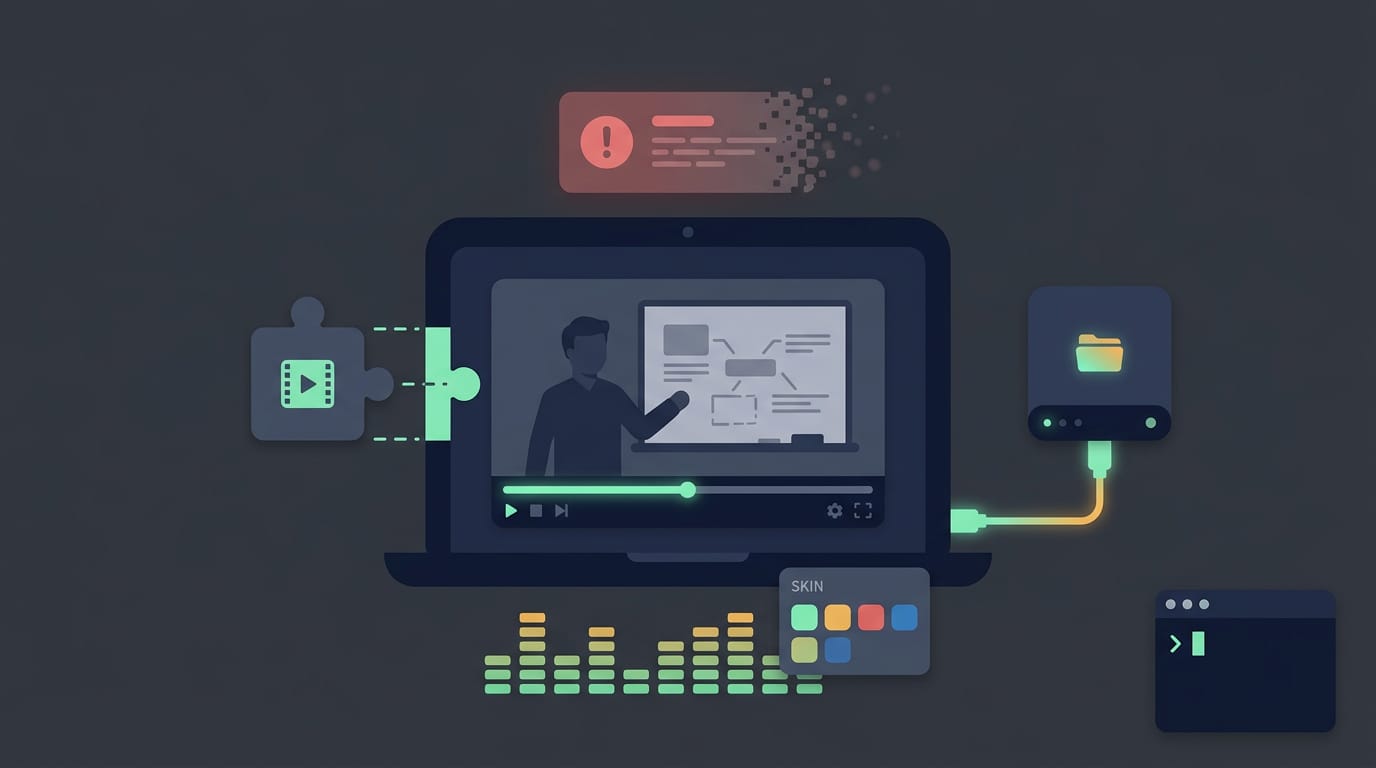
VLC handles a lot on its own, but a few add-ons fill the gaps. Think of codecs as small decoders, each built for a specific video or audio format, so a file without the right one simply won’t play.
Extra plugins for streaming and visuals
Picture a student streaming a lecture from a course site who gets an error instead of a video. Installing libavcodec-extra gives VLC more codecs for streamed media, so the lecture plays without a second thought.
The extra access, Samba, and SVG plugins round out the set. Samba is the one to reach for if your media lives on a network share.
The streaming plugins change what VLC can open, while the visualization and skins plugins change how it looks. They add audio visualizers and custom interface skins, so VLC can match the rest of your desktop.
Playing region-locked DVDs
Consider a film buff who brings home a DVD from a trip abroad and finds it won’t play on movie night. The fix is libdvdcss2, the library for region-locked DVDs.
This step applies to deb packages only, so if you installed VLC through Snap, skip it. Check how you installed VLC first. That one question saves a dead end.
Installing on Other Linux Distros
Not on Ubuntu? Snap still works, but most other distros need a little setup first. Here’s what to do on each one.
Snap setup on Arch, Fedora and more
Snaps run on any distro that has snapd, the background service that installs and manages them. The VLC snap is identical everywhere, but getting snapd running isn’t. Same app, different path, so you’ll start there.
- Arch Linux: snapd lives in the AUR (Arch User Repository, a community-run collection of packages). Install it with an AUR helper like
yay -S snapd, then runsudo systemctl enable --now snapd.socket. - Fedora: run
sudo dnf install snapd, then enablesnapd.socketthe same way. - OpenSUSE: run
sudo zypper install snapd, then enablesnapd.socketthe same way. - Debian, Kali, Mint: run
sudo apt install snapd. Kali is Debian-based and Mint is built on Ubuntu, so these steps usually carry over. If apt refuses to install snapd on Mint, check for an apt preference file that’s blocking it.
On any of these, if /snap doesn’t exist afterward, create the link snapd expects with sudo ln -s /var/lib/snapd/snap /snap.
Once snapd is up, we’ll install VLC with sudo snap install vlc and confirm it with snap list vlc.
Consider a Fedora user who needs VLC for a movie night on a borrowed laptop: one command later, they have a working player and no digging through the distro’s package list.
Whichever route you chose, you now have a working player and a clear way to check it. Keep the install that suits you, and recheck the version after updates so you know what you’re running.
With the keyboard shortcuts and theming in place, VLC starts to feel like part of your desktop instead of a default app bolted on. Your Ubuntu setup should look and work the way you want. It should also play your videos on the first try.
References
- VLC 3.0.23 — www-test.videolan.org (2026)
Questions
What is the latest version of VLC Media Player?
VLC Media Player 3.0.23 is the latest stable release. VLC 4.0.0 is a development build intended for testing, not everyday use.
How to download VLC on Mac?
On your Mac, visit the official VideoLAN website at videolan.org and download the macOS version of VLC. Open the downloaded disk image, then drag VLC into your Applications folder.
How to install VLC on Fire Stick?
On your Fire TV Stick, open the Amazon Appstore, search for VLC for Fire, and select Download or Get. Once installation finishes, open VLC from your apps list.
How to install an older version of VLC?
Use your operating system’s trusted package source to find an older VLC release. On Ubuntu, run `apt-cache madison vlc` to see versions available in your configured repositories, then install one with `sudo apt install vlc=VERSION`; older versions may not be available if the repositories no longer keep them.
Sources
- VLC 3.0.23 - VideoLAN, www-test.videolan.org,
Read next.
How to Run GitHub Code, Explained From Clone to Launch
How to run GitHub code online or locally with VS Code or a terminal, then prepare your repo so others can launch it without guessing setup steps.
Vscode Install Guide for Windows, macOS, and Linux
VS Code install takes minutes; choose the right method for Windows, macOS, or Linux, verify your first launch, then add extensions and source control.
Set Environment Variables on Mac: Every Method Explained
Set environment variables on Mac for lasting access across sessions, then choose between persistent zsh settings, launchctl, and PowerShell 7.