Windows XP Screen: Boot, Bliss, and Luna Explained
Windows XP screen nostalgia starts with the boot animation, Bliss wallpaper, and Luna visuals; see how to preview the look safely in your browser.
tl;dr the short answer
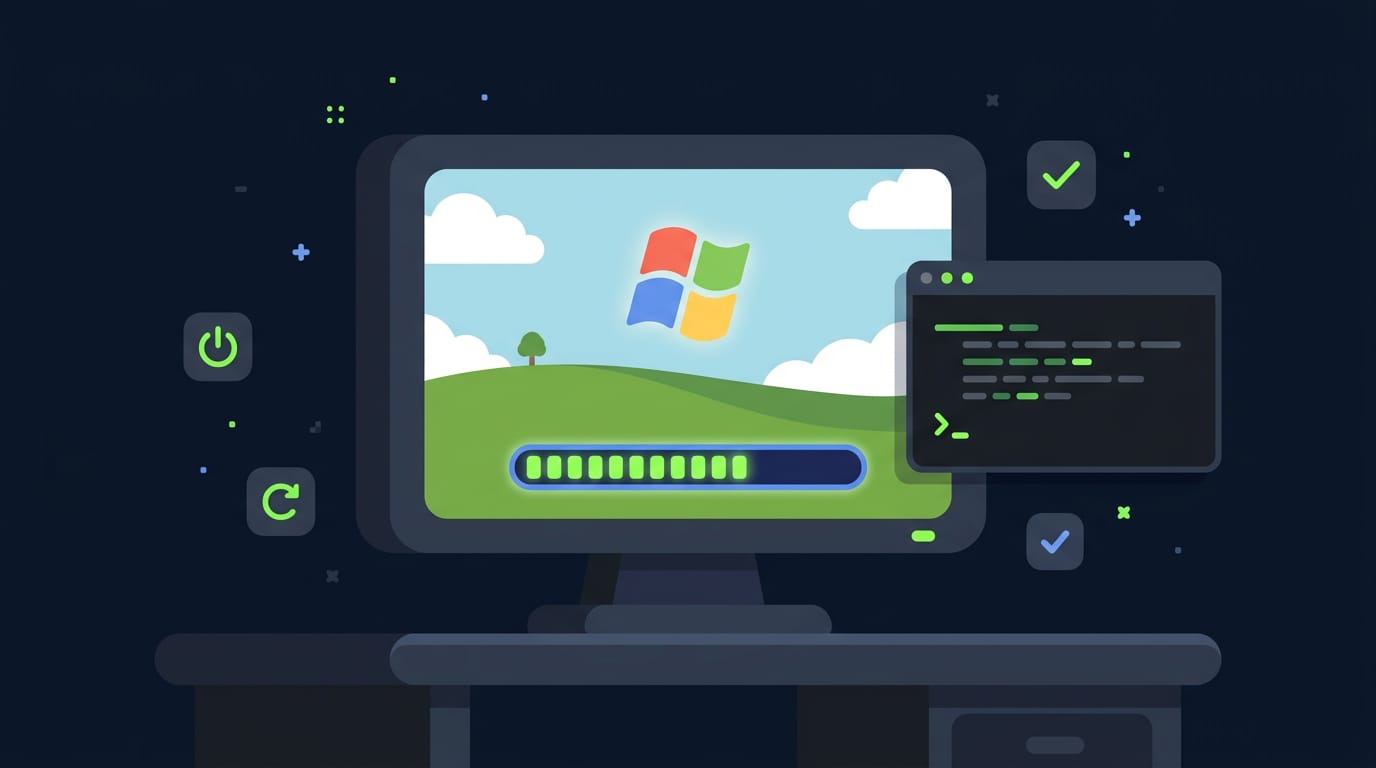
The Windows XP screen is a browser-based imitation of XP’s startup and desktop visuals, made for nostalgia or jokes, not a real operating system or installer. Its blue blocks loop until you close the tab or the timer ends; use fullscreen and Esc to control it, and avoid pages that demand calls or downloads. For a fuller retro look, pair Bliss wallpapers with Luna colors and XP-style themes, and use the overlay only briefly on devices you’re allowed to use.
Ever seen the Windows XP boot screen and felt an instant wave of nostalgia? That feeling is the heart of the Windows XP screen, and plenty of people still want a piece of it on their own machines.
In this post, we’ll look at what the Windows XP screen actually is, from the boot animation to the Bliss and Luna visuals, plus how to run the browser overlay safely.
Then we’ll show you how to recreate that look on a Linux desktop using themes, wallpapers, and palettes.
What the Windows XP Screen Actually Is
The Windows XP Screen is a web page that plays a fake Windows XP startup, built purely for laughs. Here’s what you’re looking at and what it can’t do, so we can keep the joke separate from anything real.
What the startup frame looks like
It opens on a plain black startup frame with a decorative flag in the middle and three sliding blue blocks beneath it. The blocks loop, they never fill.
They slide across, reset, and slide again, so the screen looks busy without ever getting anywhere. Busy, but never done.
Why it never boots or installs anything
It’s not setup or recovery, so there’s no installer or repair menu to run. Nothing gets written to disk. Closing the tab ends the whole thing, and it isn’t official Microsoft software, just an imitation staged for fun.
The login and desktop screens that follow are part of the same act. Picture a hyprland user on a screen share, their friend leaning in to ask why the desktop is ‘installing.’
They open the XP screen in a tab, the blocks loop, and when the tab closes, nothing on the machine has changed. The joke lands, and nothing breaks.
How it differs from a fake update
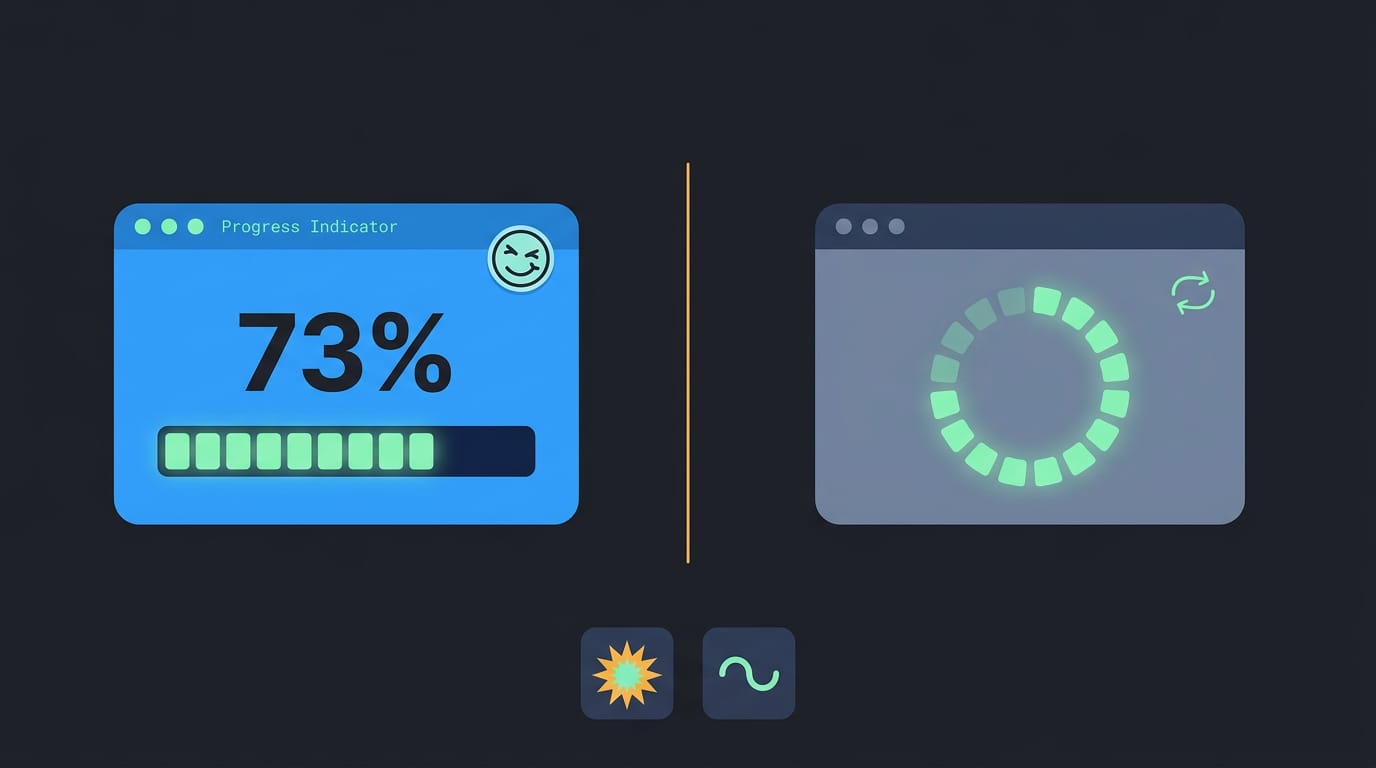
A fake update is a different gag. It’s a blue update page with a percentage that climbs toward done. The XP screen shows a looping chunk rather than a printed percent, so there’s no finish line to watch.
Choose by joke type: the XP loop is a gentle nod to an old boot, while a climbing percent is a louder prank.
Using the Overlay in Your Browser
Most of the work happens before the screen takes over, so a few settings up front go a long way. Here’s what to set, how to get out, and what’s happening behind the scenes, and we’ll walk through each piece.
Steps to get it running
Work through these in order:
- Pick a duration. Choose how long the overlay runs.
- Optional start delay. Set a delay if you want the screen to wait before it starts.
- Start fullscreen. Launch it fullscreen so the browser chrome disappears and the animation fills your monitor.
- Leave with Esc. Press Esc whenever you want out.
Consider a hyprland user who wants a few minutes of XP nostalgia between tasks. They’ll pick a short duration, add a start delay so they can step away from the keyboard, and launch fullscreen. The payoff is a full break without ever leaving the browser.
Going fullscreen and ways to exit
Here are the ways to go fullscreen and get back out:
- F11 shortcut. Press F11 to toggle fullscreen.
- Phone landscape fallback. On a phone, turn the device sideways when fullscreen isn’t available.
- Corner control and back button. Use the corner control to close the overlay, or tap your browser’s back button.
- Address bar giveaway. Fullscreen hides the address bar, the thing that gives away that you’re on a web page.
- Fullscreen in tiling window managers. Tilers such as hyprland may keep the browser inside its tile instead of filling the whole monitor. Use your compositor’s fullscreen keybind and check that the window covers the screen before you start.
How the timer, restart and animation work
The timer stays hidden, so there’s no countdown sitting on screen. It runs on a wall-clock timer, which counts real elapsed time rather than how far the animation has played.
Hit restart to reset the current chunk, the piece of the animation you’re watching, back to its start. The start delay gives you a head start to step away before anything begins, so you’re not caught off guard.
Which devices it runs on
It works on Windows, Mac, and phones, and it runs in one browser tab, so there’s nothing else to juggle. No install needed.
Windows XP Pictures and Wallpapers
The XP look comes from a few images and small graphics, so here’s where to find them.
Stock graphics, error popups and retro styles
Grab these pieces:
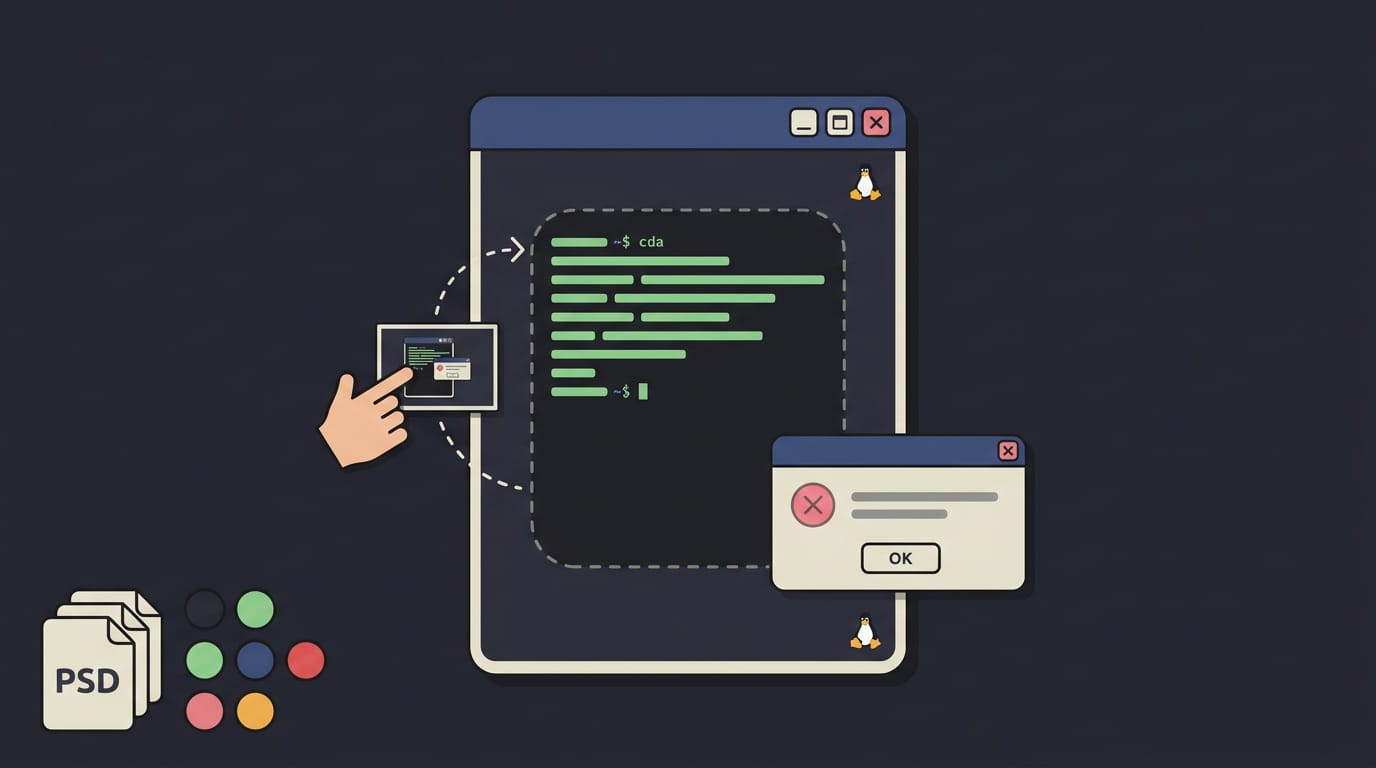
- Retro window UI vectors: recolorable title bars, buttons, and frames.
- Error popup graphics: familiar dialog icons for mockups.
- Mockups and templates: PSD (Photoshop Document) files you can edit.
A Linux user blogging about their setup can drop a screenshot into an XP-style template instead of drawing frames by hand.
Vaporwave takes retro aesthetics and turns them into a mood rather than a faithful copy. That’s fun, but pick one lane.
Where to get the official Bliss wallpaper
The Bliss wallpaper is the green hill most people picture first. Start with the default hill, then pick a version for your setup:
- Video calls: Teams, Zoom, and Skype backgrounds for meetings.
- Free downloads by device: grab the file sized for your device.
- Surface and 4K resolutions: versions sized for larger, high-res screens.
- Set Bliss on Linux: save the file, then point your wallpaper tool at it.
A hyprland user who wants a calm backdrop sets Bliss at native resolution, so the bar and terminals stand out.
Finding the file is easy. Matching its resolution to your screen is what keeps it sharp.
Other Windows wallpapers you might like
Bliss isn’t your only option. Each brings its own flavor:
- Windows 98, Vista, and 7: each one captures its own era.
- Windows 11 Bloom: a newer pick from recent Windows.
- Microsoft creator collection: a set of wallpapers for extra variety.
Pair the wallpaper with the Luna color palette, Tahoma and Trebuchet typography, and XP-style GTK, icon, and cursor themes. GTK is the toolkit many Linux apps use, so a matching theme makes them feel at home.
Where It Fits and How to Behave
The XP screen is a fun prop, but it only lands when everyone in the room knows it’s a prop. Here’s where it fits and how to keep it friendly.
Using it for pranks and props
A desk prank is the classic move: you leave the overlay up on a friend’s laptop, with their okay, while they step away. Consider a hyprland user who streams their rice sessions.
They open each stream with a short XP boot clip as a stream overlay, and chat gets a laugh before the first keybind. For a longer video, use a boot video capture: record the boot animation with your screen recorder and trim it to the best few seconds.
Teaching students to spot fake startups
This is where the screen earns its keep. Picture a media literacy teacher who shows students the overlay as a fake startup and asks what gave it away.
Pressing Esc closes it in one keystroke, and that’s the first clue: it’s just a webpage pretending to be an operating system. Put a genuine XP photo beside it and ask students to list every difference they can spot. That’s the lesson.
Using it responsibly and keeping it short
Three rules keep it fun:
- Keep the gag short. A few seconds of nostalgia gets a laugh, but a five-minute loop earns groans instead.
- Don’t block real work. Never let the overlay cover a call or a document someone is typing into.
- Use it on permitted devices. Stick to machines you own or ones whose owner has said yes, like your own laptop, a spare box, or a classroom computer your school has approved.
Staying Safe and Knowing the Limits
The XP screen runs in your browser, so it can’t reach far into your machine. Still, some sites copy this look to scare people, so we’ll show you how to tell them apart and what the page can’t do.
Telling a harmless overlay from malware
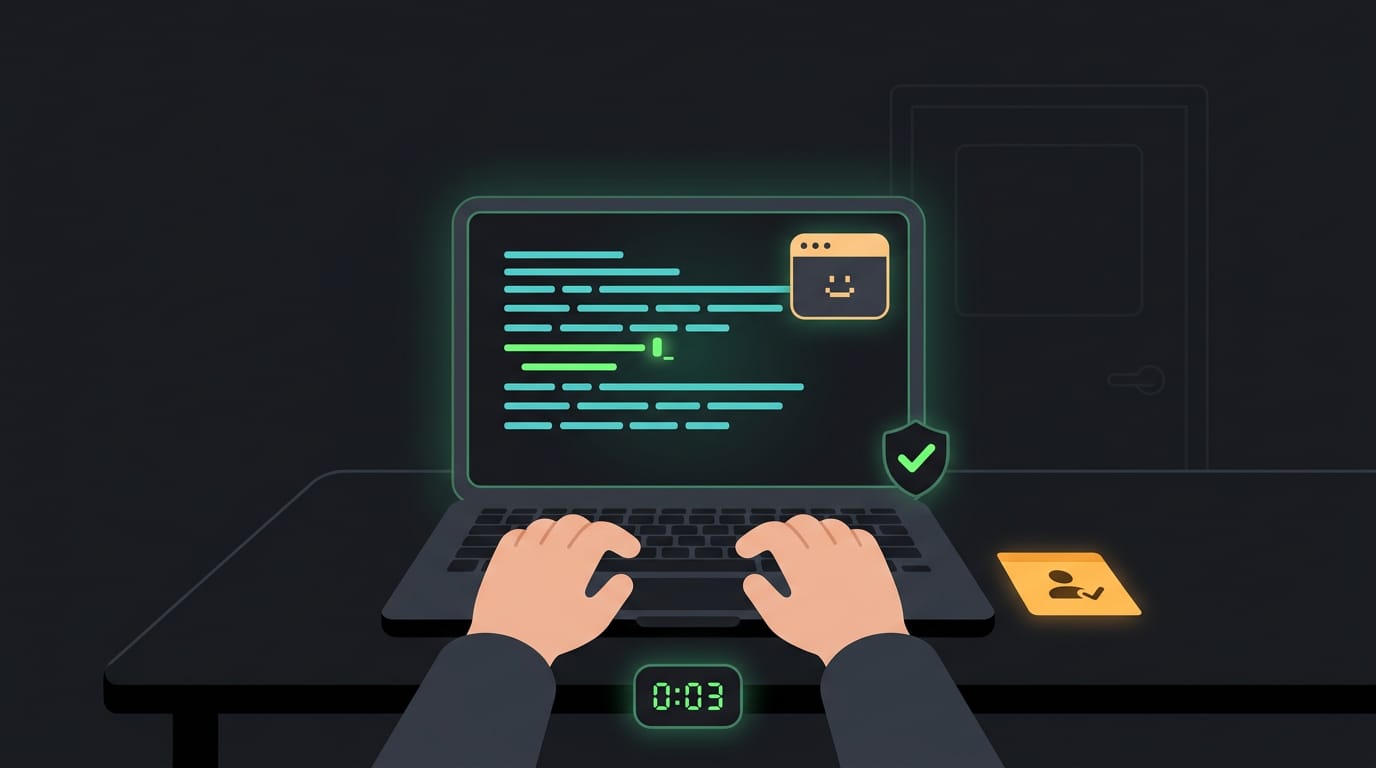
Fake support scams (pages that pretend your PC is in trouble) follow a familiar script. They play a siren, ask you to call a phone number, or push you to install something right away.
A harmless overlay does none of that: it won’t ask you to call or install, and it doesn’t access your clipboard or play a siren.
Picture a hyprland user opening an XP page for a bit of nostalgia. If a box insists on a phone call before it’ll close, shut the tab and move on.
Skip any ISO (a disc image file) or EXE (a Windows program) download claiming to be the ‘real’ XP. The page needs neither, so a download prompt is a red flag.
What the page can’t do for you
Here’s the honest part: the page isn’t a real XP install. You won’t get the Windows system, your files, or any programs. It gives you the look of XP, not the system.
It can’t fix a stuck PC either. A frozen machine won’t thaw because an XP screen appeared, so use the recovery steps you already trust. Nor will it throw fake errors or open extra windows. If a page does that, it’s only imitating the look, so close it.
Finally, it’s not a display test. Don’t use it to judge your monitor’s colors or brightness. It was built for fun, not diagnostics. Enjoy the nostalgia. Just don’t expect a rescue.
The Windows XP screen is more than a throwback. It’s a look many people remember fondly, and now you know what it is, how the browser overlay works, and where it’s safe to use it.
Recreating that feel on Linux is the fun part. Pick a theme, add a Bliss-inspired wallpaper, and build a palette so your terminal, bar, and editor all share the same colors.
Nostalgia is a great reason to tinker, but the best XP look is the one that still boots clean tomorrow.
Read next.
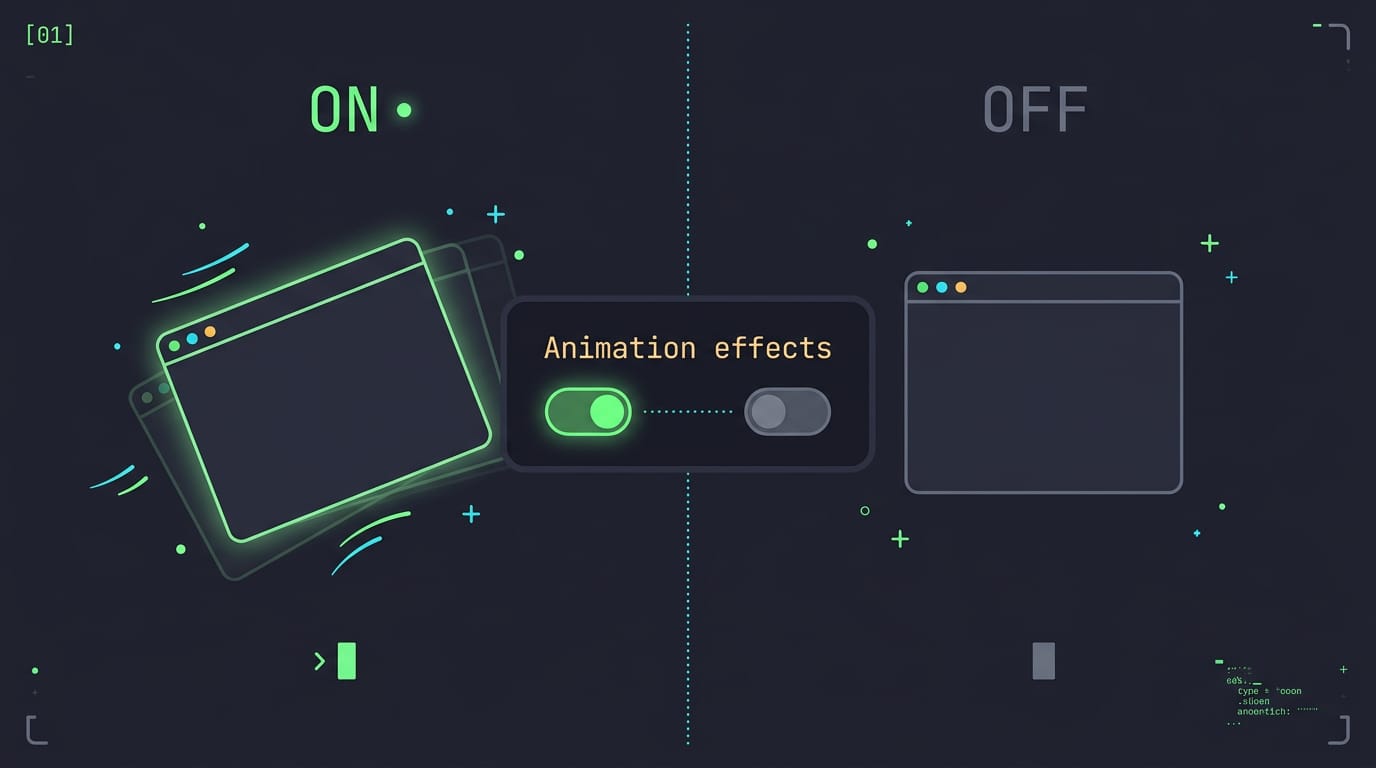
Windows animations explained: how to turn them on or off
Windows animations can be enabled, disabled, or customized with Windhawk; compare the options to choose the motion effects that fit your desktop best.
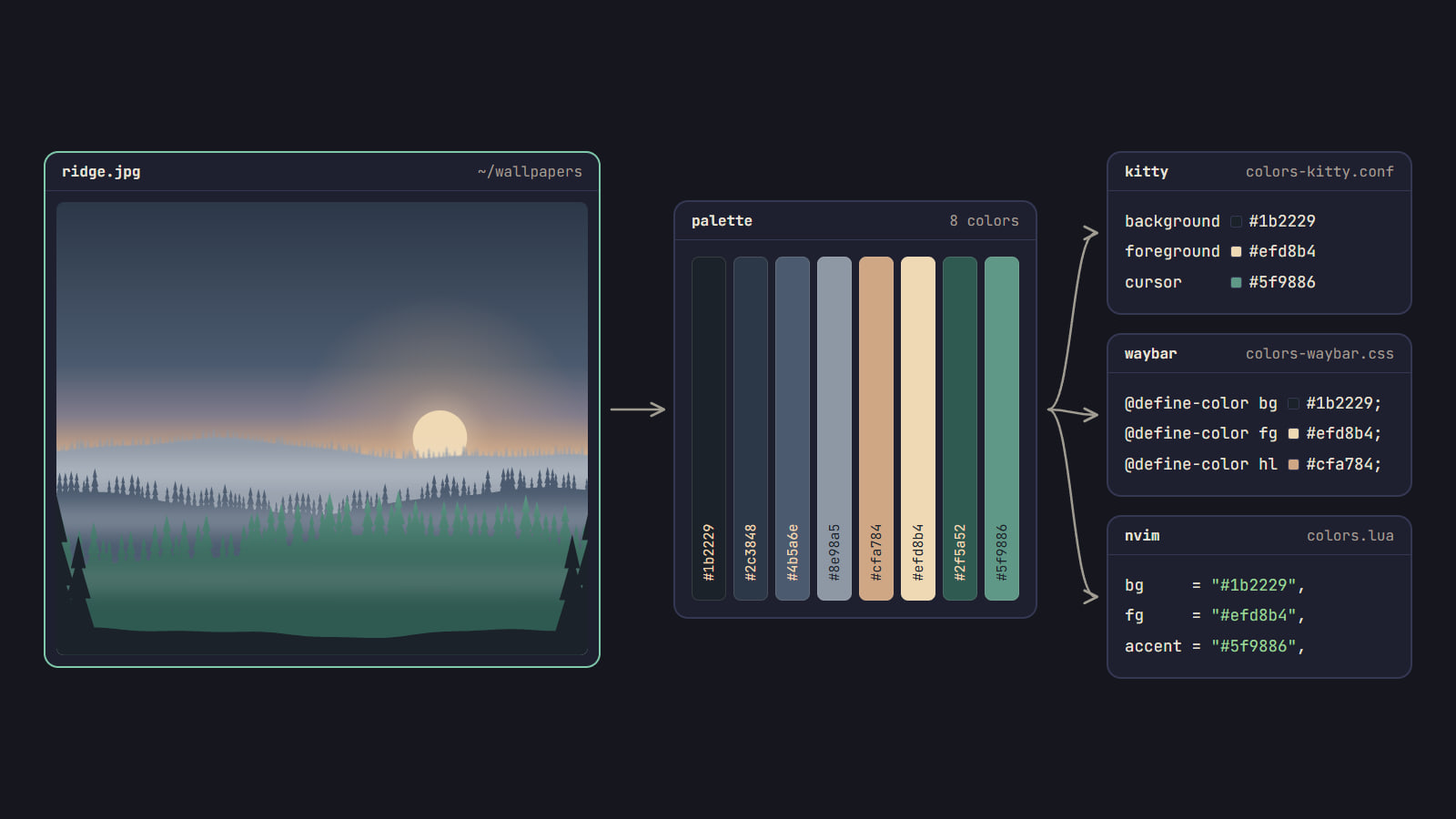
Color scheme from wallpaper: pywal, wallust and matugen
How pywal16, wallust and matugen turn a wallpaper into a color scheme, which fits your rice, how to wire it into your apps, and when a fixed palette is better.
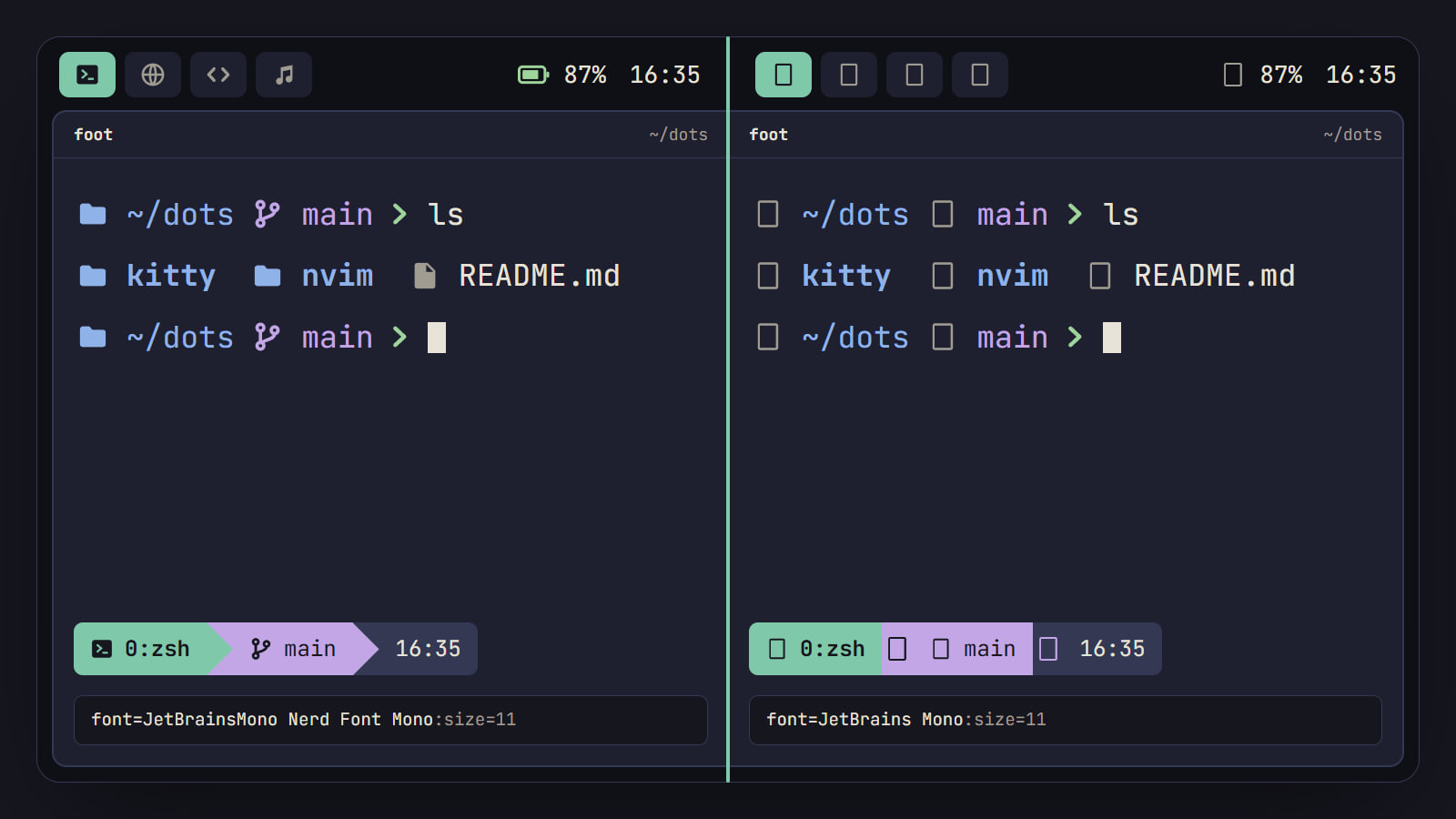
How to install Nerd Fonts on Linux (and fix the boxes)
Pick the right Nerd Font variant, install it from packages or by hand, check it with fc-list, set its exact name in your apps and fix icons that show as boxes.