Ubuntu Install Errors: A Complete Troubleshooting Guide
Ubuntu install errors often start with USB media or partitioning mistakes. Fix boot, UEFI, Secure Boot, and GRUB problems with practical troubleshooting steps.
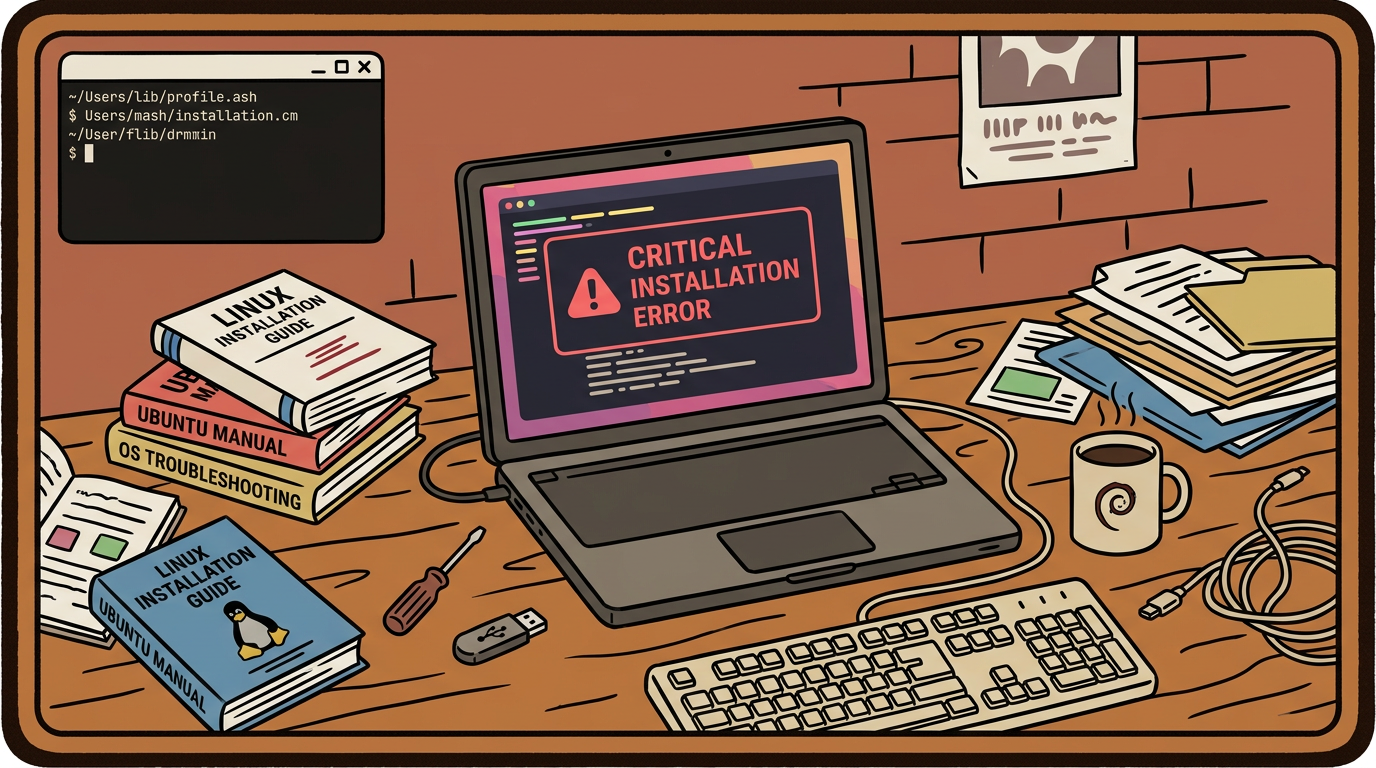
tl;dr the short answer
Ubuntu install errors are failures that prevent Ubuntu from booting, completing installation, or finding the installed system. Common causes include a corrupted ISO or poorly written USB, mismatched UEFI and Secure Boot settings, confusing disk layouts, extra drives, missing network drivers, and GRUB pointing to the wrong partition. Verify the image, isolate the target drive, check firmware settings, save logs, and repair GRUB before wiping the disk again.
Ever hit a boot screen that just stalls, or watched an installer freeze halfway through with no clue why? Most of us have been there, staring at a blinking cursor while an install we planned for an afternoon eats the whole evening.
The good news is that most Ubuntu install failures trace back to a handful of familiar causes.
This guide walks through every common failure point in one place: a flaky USB stick, partitioning mistakes, UEFI and Secure Boot settings, and GRUB recovery when the boot menu goes missing.
You’ll also find notes for anyone planning to rice or customize their desktop right after a clean install, so your setup starts on solid ground.
Avoiding Ubuntu Install Errors from Your USB
Most install headaches start before the installer even boots. Here’s where to look first, and what’s worth checking before you touch a flash drive.
Why does Ubuntu install fail with a bad ISO?
A bad ISO (the disk image file you download from Ubuntu) can look fine and still fail partway through. The usual culprit is a corrupted download or a flash tool that wrote it incorrectly.
Consider a student reinstalling on a ten-year-old ThinkPad who gets stuck on a blank screen. They reburn the same file with a different tool and the install runs clean. The image was rarely the problem. The write was.
We reach for Rufus, a Windows USB tool we’ve had good results with before, so we know its settings well. balenaEtcher is the tool Ubuntu officially suggests, and it’s a solid pick on Linux or macOS.
Either works, but stick with one you trust and understand.
Before you burn anything, verify the ISO checksum. A checksum is a short string that works like a fingerprint for the file. If your download’s checksum doesn’t match the one published with it, the file is damaged, and retrying the install won’t fix that.
Take the thirty seconds to check. It’s the cheapest insurance you’ll ever buy.
Choosing How to Install Ubuntu
Picking an install method sounds minor, but it shapes everything after it.
Firmware matters too: UEFI (the modern boot system) and Secure Boot (which only loads signed bootloaders) can clash with a Legacy setup, so check that they match how your USB was made.
Trying the simple erase and install option
The simplest route is the automatic install option, which wipes the disk and handles the layout for you. Picture a student with a ten-year-old ThinkPad who just wants Ubuntu running before a deadline.
This is the fastest path, and most people should try it first. For us, though, it did not resolve the boot issue. Repeating the same wipe won’t change that, so move on to a different approach.
Manually partitioning the disk instead
Next, we partitioned by hand, using an AskUbuntu partitioning guide as a reference. We made multiple partitioning attempts, and each one still failed to boot. Rather than chase the layout forever, check the firmware settings first.
Keep your /home partition separate, not lumped in with the system. Your dotfiles, terminal themes, and hyprland configs survive a reinstall, so rebuilding your look takes minutes instead of an evening.
How Your Other Drives Can Cause Problems
Sometimes the install fails because of what’s plugged in besides the USB stick. Here’s how to sort it out.
When extra hard drives interfere with install
Think of a student on a ten-year-old ThinkPad with an old HDD full of game files and a second HDD holding thesis photos.
With two extra HDDs present, the installer may pick the wrong drive for GRUB or offer confusing partition choices, so unplug them before you start.
Not sure which drive is causing trouble? Unplug the extra HDDs and test the install with each one connected on its own. If the install works, you’ve found the culprit.
Isolating the SSD is the cleanest route: keep only the target SSD connected during the install. Once Ubuntu boots cleanly, reattach the other drives one at a time.
Before a window manager reinstall, note your disk layout. Write down which drive holds what, and run lsblk to capture it. Two minutes now saves an afternoon later.
Wi-Fi and network driver failures are a related headache. If the installer can’t see your wireless card, you may be missing a driver rather than facing a bad disk. Plug in an Ethernet cable if you can, so the installer can fetch what it needs.
Dealing with GRUB Failures After Installing
GRUB is the bootloader menu that decides which operating system starts, so when it fails, your fresh install looks dead even though Ubuntu is sitting right there on the disk. Most of these failures are fixable without starting over.
How do I fix GRUB no such partition error in Ubuntu?
Picture a student who reboots after install and sees GRUB flash on screen for a second before a “no such partition” message. The bootloader is usually looking for a partition that moved or got renumbered during install.
Start by confirming which disk and partition GRUB points to.
If the machine boots straight into the install USB menu instead, remove the stick and check your BIOS (firmware settings) boot order. Some BIOS entries also act oddly without a USB plugged in, so make sure the Ubuntu entry is listed and selected.
Before you run any repair tool, know that Boot-Repair can wipe a custom GRUB theme. Copy your theme files somewhere safe first so your look survives the fix.
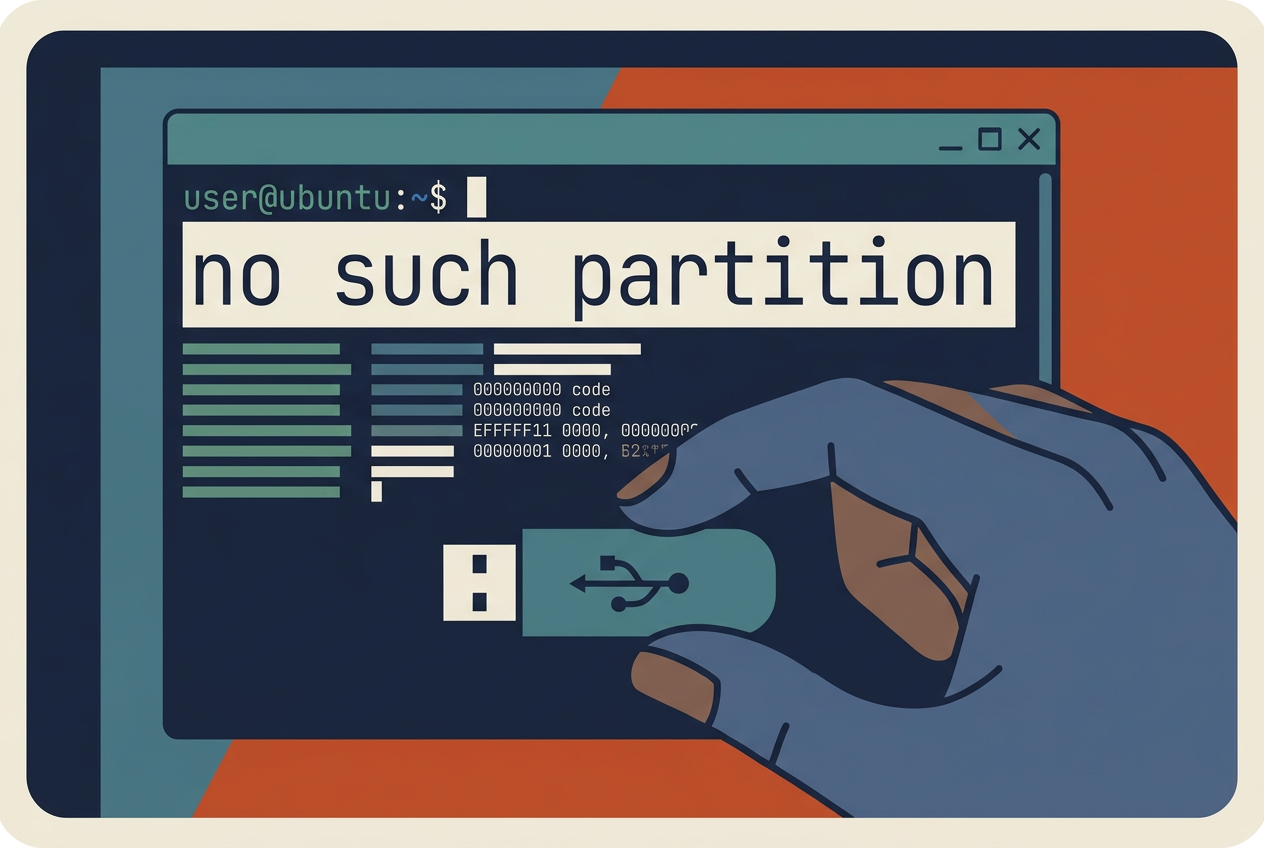
Running the Boot-Repair tool
Boot-Repair is the usual first stop. Run the recommended repair option, reboot, and see what changed. If the error hangs around, try the advanced manual options.
Expect to repeat this after each install attempt, so keep notes. Track which option you used rather than just whether the reboot worked.
Take a student rebuilding a ten-year-old ThinkPad: after three installs, the notes showed the manual option was the one that finally stuck, so the next attempt skipped the guesswork.
Gathering Logs to Get Troubleshooting Help
When an install fails, the fastest way to get real help is to hand someone the evidence. Before you wipe anything, gather what the installer left behind so the people helping you can see what went wrong, not just that something did.
Saving install logs before you wipe the drive
Here’s the part that’s easy to skip: once you reformat the disk and try again, the trail of clues is gone. Think of a student whose laptop drops to a black screen after the installer finishes.
If they save the logs from the failed attempt to a USB stick first, they can share them later. If they wipe the drive right away, they’re starting over with nothing to show anyone. Save first. Wipe second.
Multiple pastebin logs are a good way to share that information. Paste each relevant log into a pastebin site and share the link, so helpers can read the full text without you retyping error messages.
Keep one paste per log so the right file is easy to find.
Boot-Repair reports work similarly. Boot-Repair is a tool that generates a report about your boot setup, which is useful when the problem involves GRUB or boot order. Save that report and share it alongside your other logs.
Seeking community guidance means posting in an Ubuntu help forum or chat with your logs attached and a short description of what you did. Helpers can only answer what you show them, so the more specific you are, the faster you’ll get a fix.
A clean install is the foundation for everything else you want to do with your desktop. Once your USB, partitions, firmware settings, and bootloader are behaving, you can move on to the fun part, like picking a palette and tuning your bar.
Keep your logs handy for the next hiccup, because a stable base is what lets your rice survive updates. Your desktop should look like you, and it should still boot tomorrow.
Questions
How do I fix GRUB no such partition error in Ubuntu?
A “no such partition” error usually means GRUB is pointing to a partition that moved or was renumbered during installation. Confirm which disk and partition GRUB is targeting, then check your BIOS or UEFI boot order and ensure the Ubuntu entry is selected. You can also boot from an Ubuntu live USB and run Boot-Repair, starting with its recommended repair option. Back up any custom GRUB theme files first, since repair may replace them.
Why does Ubuntu install fail with a bad ISO?
A bad ISO can be corrupted during download, or the USB-writing process can damage or incorrectly record the image. Verify the ISO’s checksum against Ubuntu’s published checksum, then recreate the bootable USB with a reliable tool such as Rufus or balenaEtcher. Also ensure that the USB’s boot mode matches your firmware settings, such as UEFI versus Legacy mode.
Read next.
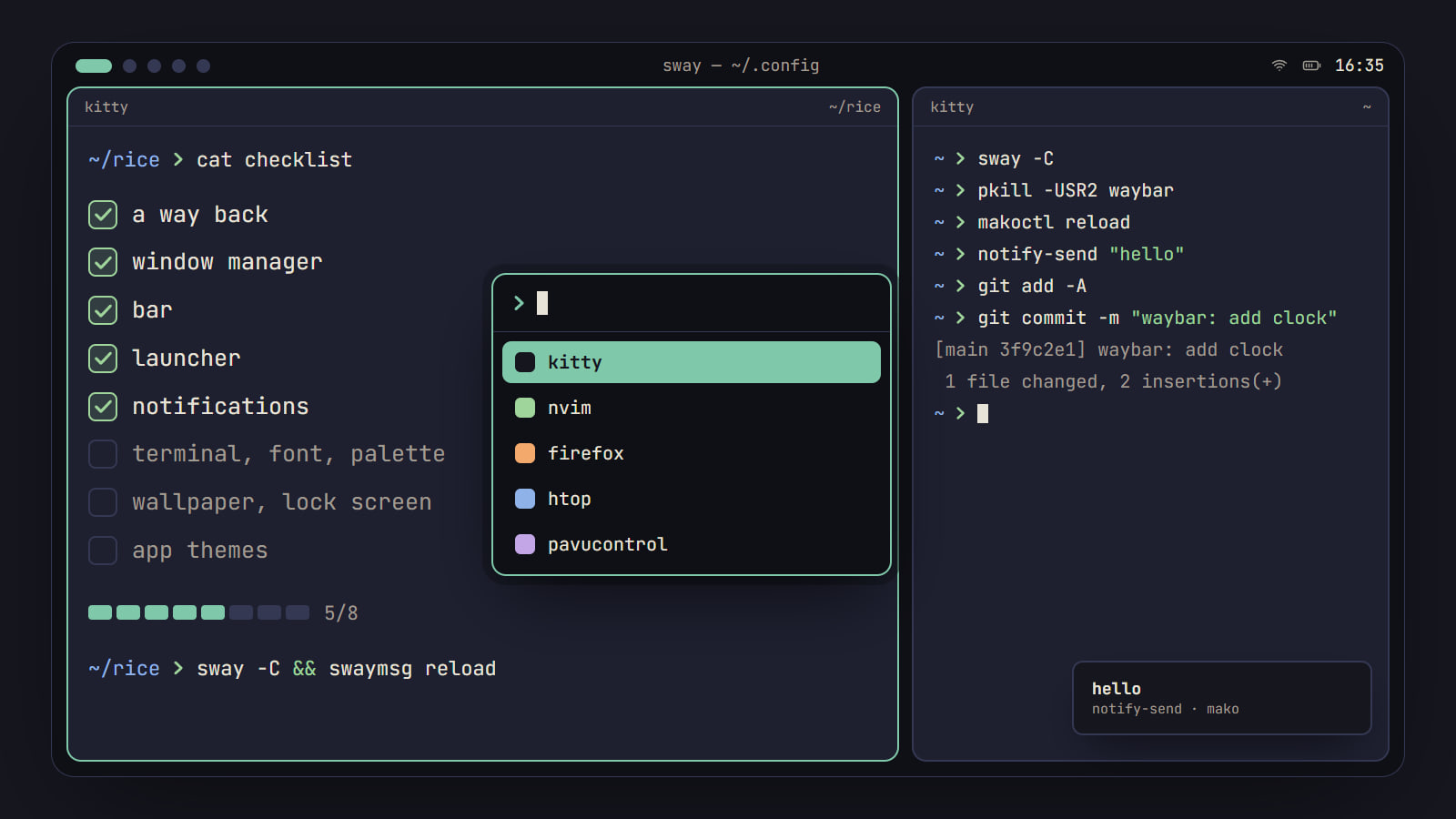
How to rice Linux: a first-rice checklist
The order to rice a Linux desktop without breaking it: a way back first, then each piece from window manager to lock screen, with its config file and a check.
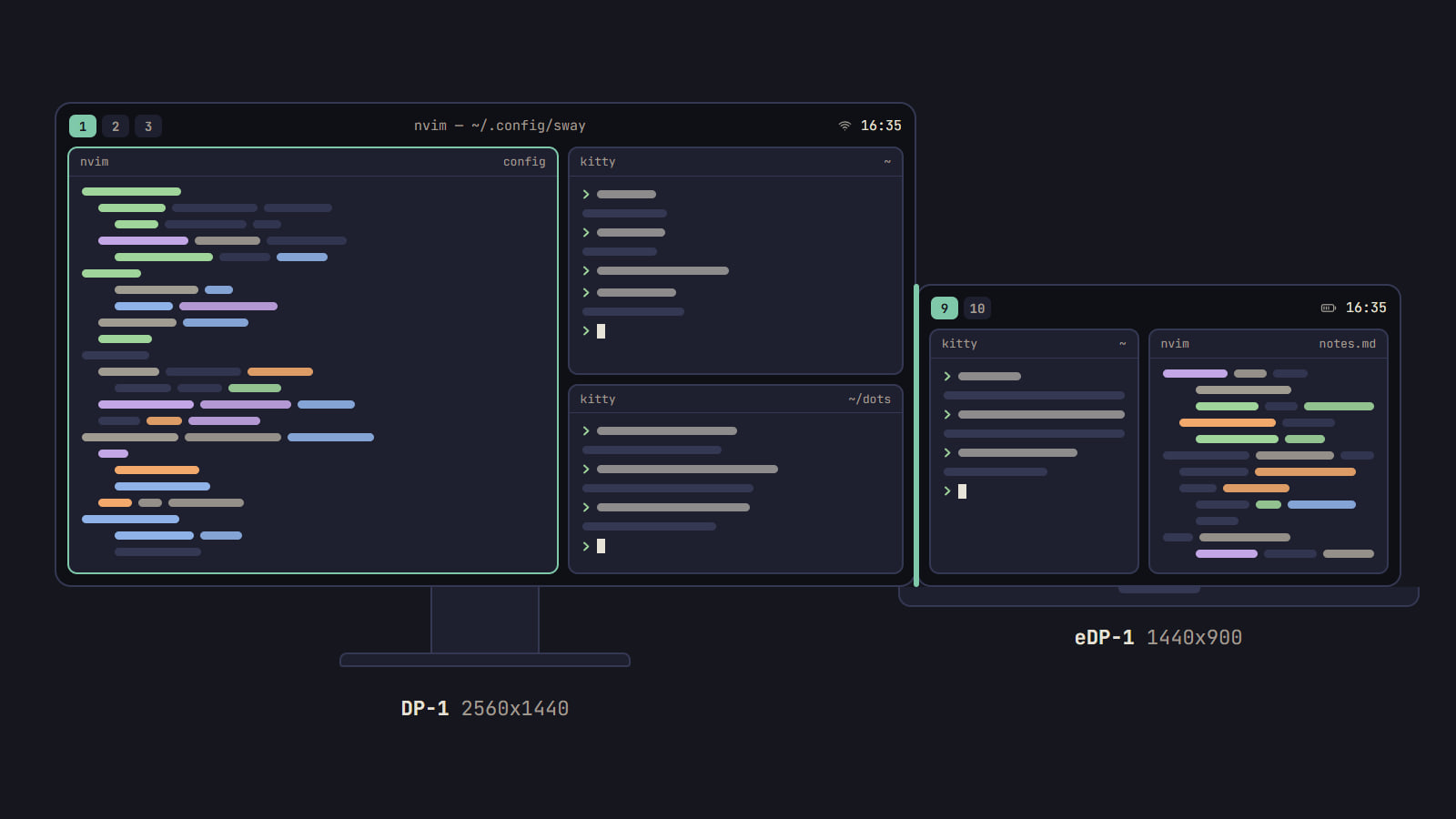
How to set up multiple monitors in sway
Find the name sway gives each screen, place it in logical pixels, pin workspaces to it and let kanshi switch layouts when you dock a laptop.
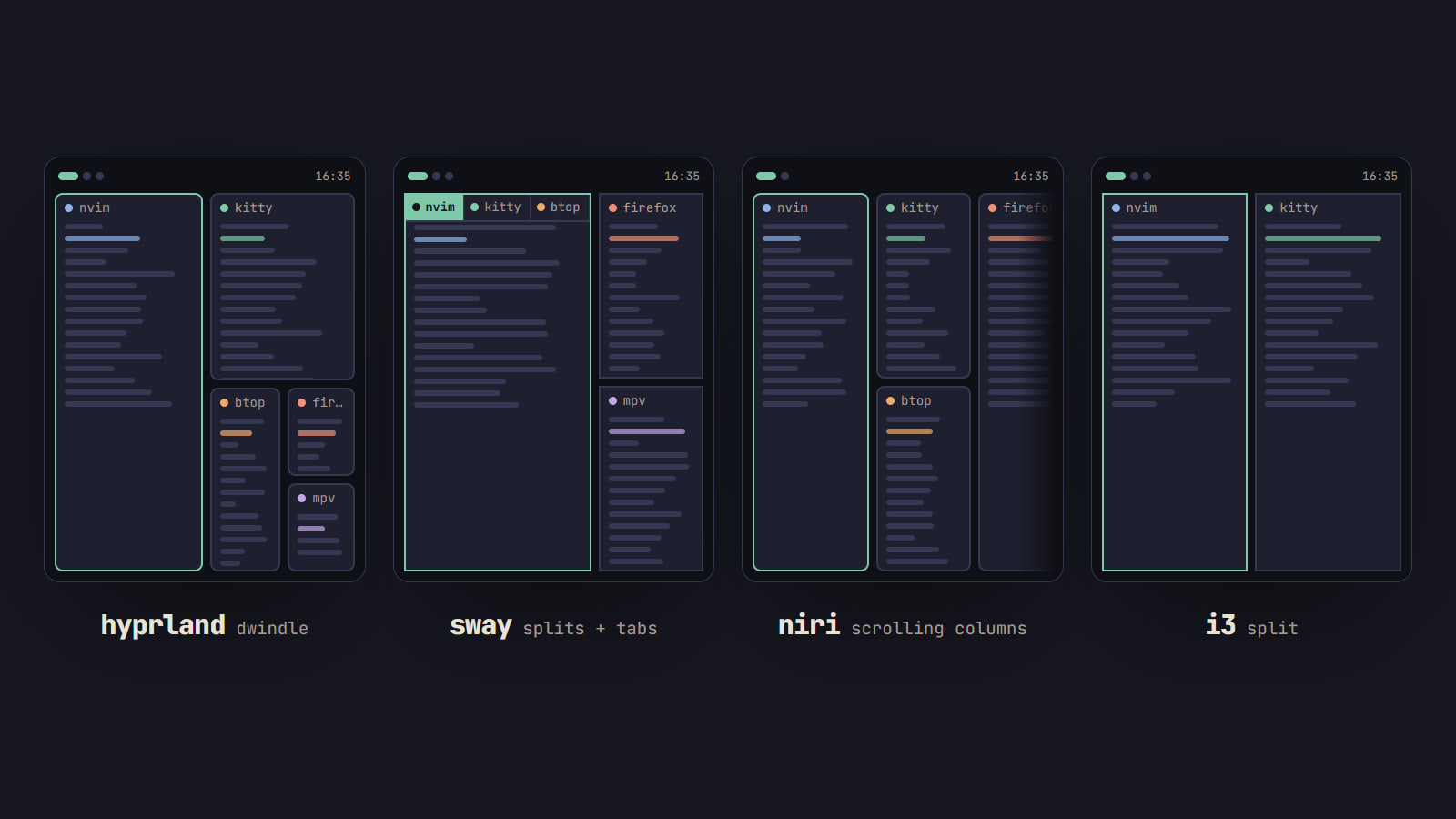
Hyprland vs sway vs niri vs i3: which tiling WM to pick
How Hyprland, sway, niri and i3 tile, how each is configured and reloaded, and what their own docs say about effects and NVIDIA, with a pick for each setup.