Install tar.gz Files: A Complete Guide
Install a tar.gz program by inspecting and unpacking the archive, then choose to compile from source or place ready-to-run files and verify the result.
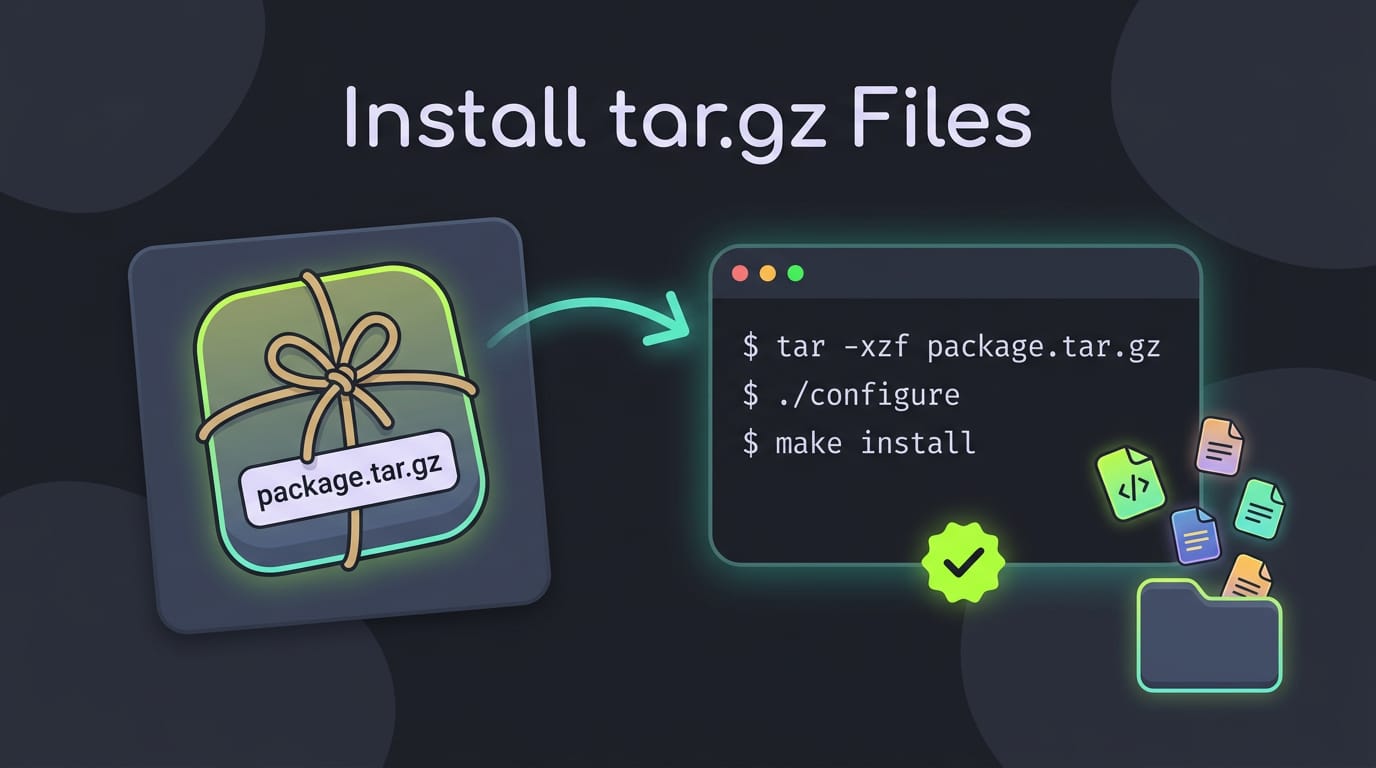
tl;dr the short answer
Installing a tar.gz means inspecting and extracting a compressed archive, then either compiling its source code or placing its ready-built files where you can run them. Check the README, dependencies, and any published checksum first; use a package manager when available, and choose a user-owned location such as ~/.local when installing manually. Documenting the steps and keeping files in a known location makes installs easier to verify, undo, and repeat after a reinstall.
Think of a flat-pack bookshelf. Everything comes in one box, but you’re the one who lays out the pieces. A tar.gz file works the same way: it’s a compressed archive that bundles a program’s files into one download, and placing them is up to you.
In this guide, we’ll walk through the whole process: inspecting the archive, unpacking it, building or placing the ready-to-run program files, verifying the install, and uninstalling it cleanly.
Then we’ll show you how to keep those installs tidy, reproducible, and tracked in your dotfiles so they survive a fresh install.
Tar.gz Install Basics and Why It Helps
Before you extract anything, it helps to know what a tarball is and when it’s the right tool. This section covers both, plus how tar stacks up against zip.
Tarball basics you should know
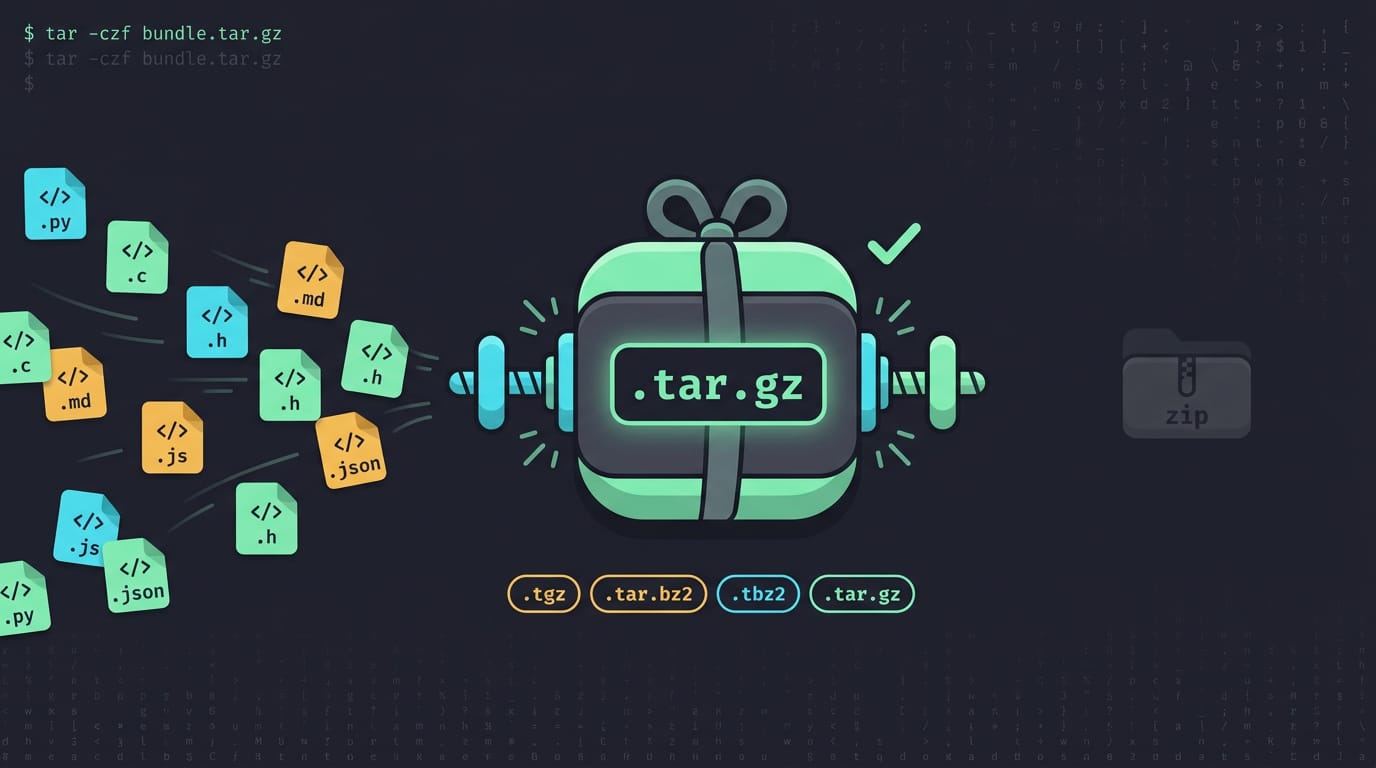
A tarball is a compressed archive that bundles source code into a single download. The tar part handles the bundling, and the compression sits on top of it. You’ll usually see it as .tar.gz, but a few variants show up too:
- .tgz: the same format as
.tar.gz, just with a shorter extension - tar.bz2 and .tbz2: the same idea, compressed with bzip2 instead of gzip
Tarballs are used widely across Linux, and every distribution supports them. So when you ask which is better, zip or tar, the answer on Linux is tar. It’s the format the ecosystem is built around, and it’s the one you’ll meet first on project pages. If your download is a ZIP file instead, it needs its own steps, covered in our Linux guide to extracting ZIP files.
Zip still opens fine, but tar is the standard you’ll see most.
When to use tarballs over package managers
Your package manager is the usual route, and it should be your first stop. It installs software straight from your distribution’s repositories, and each distro ships its own tool for the job, like apt-get or yum.
But not all software is packaged. The question is less about whether a tool exists and more about where you can get it. Think of a waybar tinkerer on a fresh install who wants a helper script that no repository carries.
Instead of waiting, they download the tarball, unpack it, and have it running in one sitting. Tarballs fill that gap.
Unpacking the Archive
Before you can use a tarball, you need its contents out, and a quick look inside comes first. We’ll pick the right command and check what landed on your disk.
How do I unzip a .tar file?
A .tar file isn’t zipped. It’s an archive that bundles many files into one, and the tar command unpacks it. The file extension tells you which flags to use:
.tar.gzor.tgz(gzip compression):tar xvzf archive.tar.gz.tar.bz2(bzip2 compression):tar jxf archive.tar.bz2- Plain
.tar:tar xvf archive.tar, since nothing is compressed.
The v flag is optional; it prints each file as it extracts. Then cd into your download directory, such as cd ~/Downloads, because tar unpacks into whatever folder you’re standing in. Running it from the wrong place leaves files where you won’t look.
What the tar command does: In Linux, tar bundles files and folders into one archive and unpacks them again. Its letters are flags: x extracts, z and j decompress gzip and bzip2, f names the file, and v is verbose.
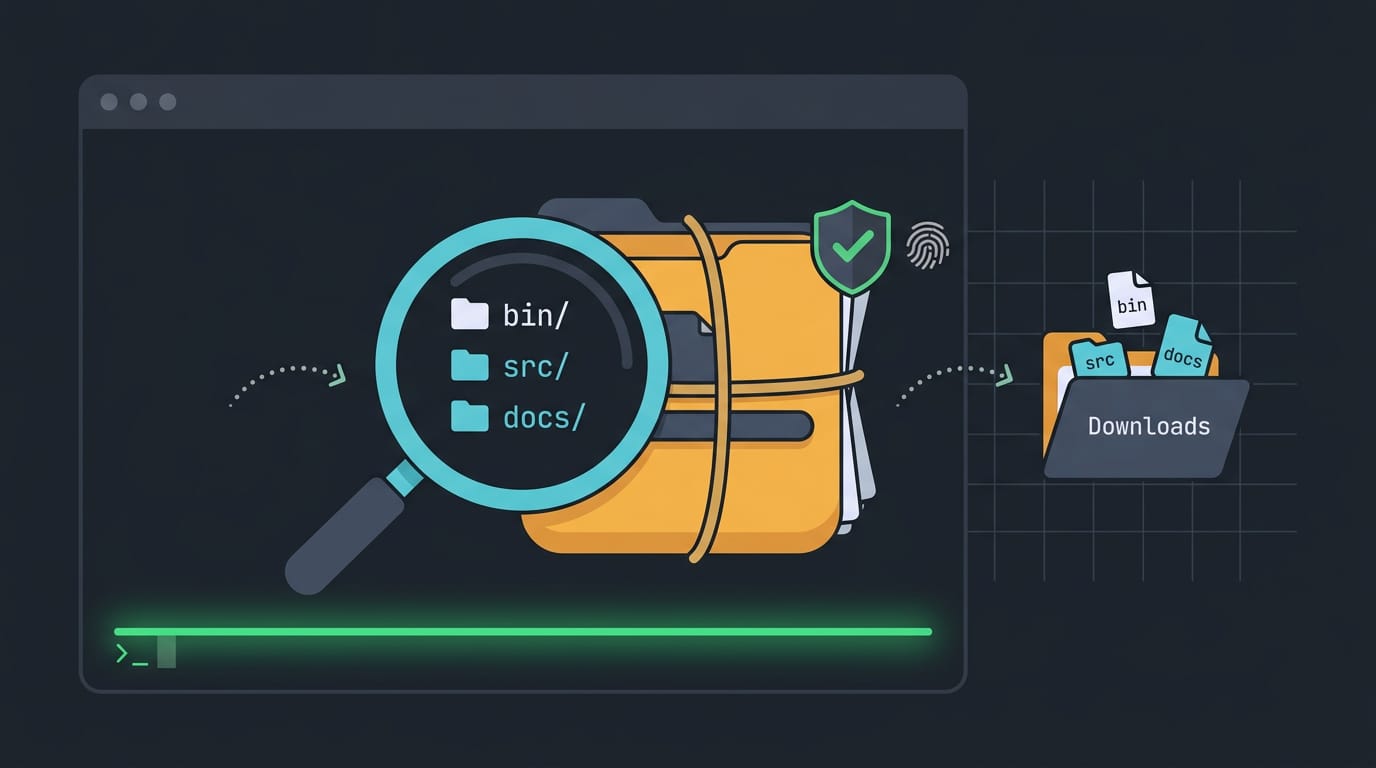
To list the contents instead of extracting them, swap x for t: tar tzf archive.tar.gz. Nothing touches your disk. Consider a Hyprland user who grabbed a bar tool’s tarball right before a fresh install.
Listing it first shows the top-level folders, so they can spot anything odd before extracting.
If the project publishes a checksum, a short string that fingerprints the exact file, run sha256sum archive.tar.gz and compare the two values. A match means the file is intact. A mismatch means you should download it again before extracting.
Look first, then unpack.
Compile and Install from Source
Many tarballs ship source code, so you compile the program yourself. It’s more steps, but you decide where everything lands.
Running configure, make, and make install
Start with the configure script, which checks your system for the tools and libraries the program needs. Then make compiles the source into binaries, and make install copies them into place.
Use --prefix to set the install location. A tmux tinkerer on an old ThinkPad who wants a newer build can run ./configure --prefix="$HOME/.local" and leave the system untouched.
Add those commands to your dotfiles bootstrap script so a fresh install rebuilds the same way. Many projects also include make uninstall, so check the README before you delete anything by hand.
Python tar.gz packages skip configure. Run pip install ./package.tar.gz, where pip is Python’s package installer, and it handles the build for you.
Check dependencies and read the README
Read the README first, since it lists required packages and special steps. Then install the libraries it needs. Skip one, and the build stops cold.
Libraries come from your distro’s repository, not the tarball. On Arch use pacman, on Debian or Ubuntu use apt, and look for -dev or -devel packages.
Common errors and how to fix them
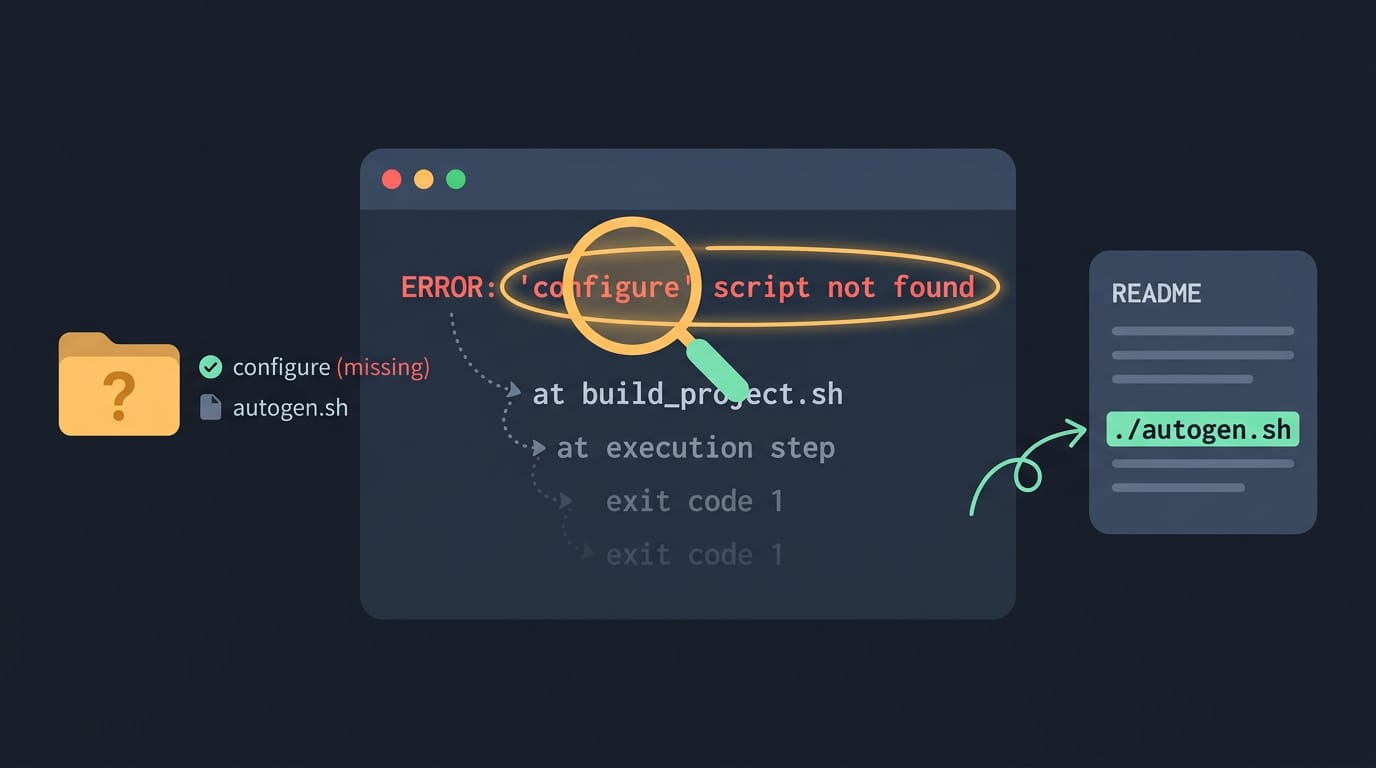
./configure: No such file or directory: you’re probably in the wrong folder. Runlsto confirmconfigureis there.- Missing configure script: some source archives ship without one. Check the README for a step like
./autogen.sh. - Compilation failures: read the first error, not the last, since later lines cascade from it. A missing header usually names the library you still need.
Easier Options Than Compiling
Compiling is the most flexible route, but it’s rarely the fastest. Check whether one of these routes already gives you the tool first.
Other routes for installing software
- Software manager. Most desktops include a graphical app store. If your program is listed there, click install and let the system handle updates from then on.
- gdebi for .deb files. A .deb file is a Debian package, the installer format used by Debian and Ubuntu. gdebi installs one and pulls in its dependencies for you.
- Manually placing an extracted folder. Some projects ship a folder you unpack and run in place. Keep it somewhere permanent, then launch the binary or link it into your PATH (the list of folders your shell searches for commands).
- External tutorial guides. A third-party walkthrough can help with one specific program, but check that it matches your distro and version.
- Prebuilt binary tarballs into ~/.local. Many projects publish ready-built binaries in a tarball. Extract it into ~/.local so the binary lands in ~/.local/bin, and make sure that folder is on your PATH.
Consider an Ubuntu user who wants a newer terminal for their tmux setup, but the distro’s version is behind. They extract a prebuilt tarball into ~/.local, open a new shell, and the updated binary is already waiting.
No build tools, no waiting, and undoing it is just deleting the files it placed.
Honestly, we’d try these first. The goal is fewer steps rather than less control, and a clean install you can undo beats a clever build you can’t.
You now have the full picture: how to inspect a tar.gz before you trust it, unpack it, build or place its program files, verify the result, and remove it cleanly when you’re done.
Tracking those steps in your dotfiles keeps your setup reproducible instead of mysterious.
A tarball install doesn’t have to be a one-off mess. With a little bookkeeping, it becomes just another documented part of your desktop. Your setup should feel like yours, and it should still work after a reinstall.
Questions
What is the tar command in Linux?
In Linux, `tar` bundles files and directories into an archive and extracts them again. For example, `tar xvf archive.tar` extracts a plain `.tar` file, while `tar xvzf archive.tar.gz` extracts a gzip-compressed tarball.
How to install a tar.gz file in Python?
Install a Python package from a local `.tar.gz` file with `pip install ./package.tar.gz`, replacing the path with the file’s location. Pip handles building and installing the package; use `python -m pip` if you need to target a specific Python installation.
How do I unzip a .tar file?
A `.tar` file is an archive, not a compressed zip file. Extract it in the directory where you want the files by running `tar xvf archive.tar`; use `tar xvzf archive.tar.gz` for a gzip-compressed archive.
How do I install a package on Linux?
On Linux, the usual approach is to use your distribution’s package manager, such as `apt` on Ubuntu or Debian, or `pacman` on Arch. If the software is not available there, you can use a project’s tarball, following its README to build or place the files, or install a compatible package from another source.
How to install a pkg in Ubuntu?
Ubuntu’s usual package format is `.deb`, not `.pkg`. Install a downloaded `.deb` with `sudo apt install ./package.deb`, which can resolve dependencies; for software in Ubuntu’s repositories, use `sudo apt install package-name`.
Which is better, zip or tar?
For Linux software, tar is generally the better fit because it is the standard format across Linux distributions and commonly used for source code and program files. Zip is also widely supported and convenient for sharing archives across different operating systems.
Read next.
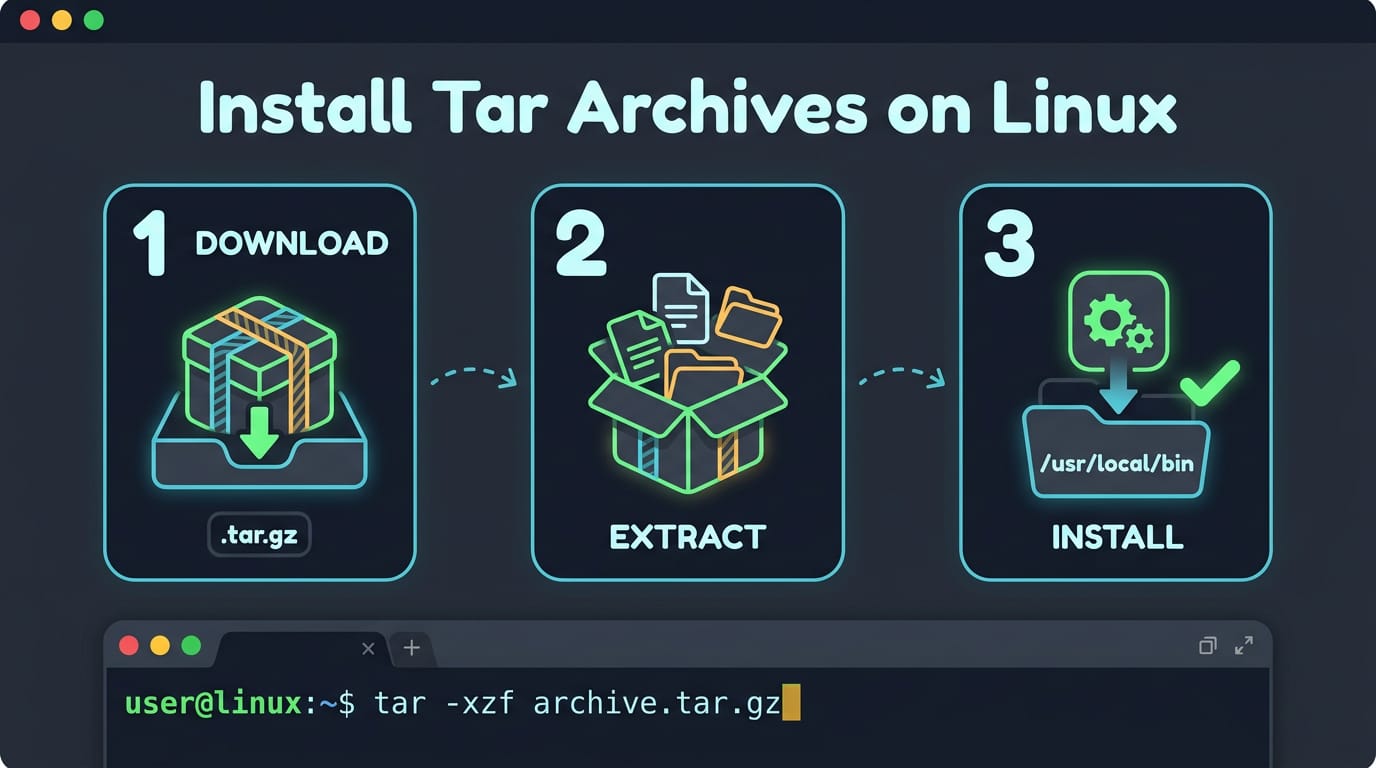
Install Tar Archives on Linux, Step by Step
Install tar.gz software by extracting it, following its instructions, and building or running it from the unpacked folder; keep installs easy to undo.
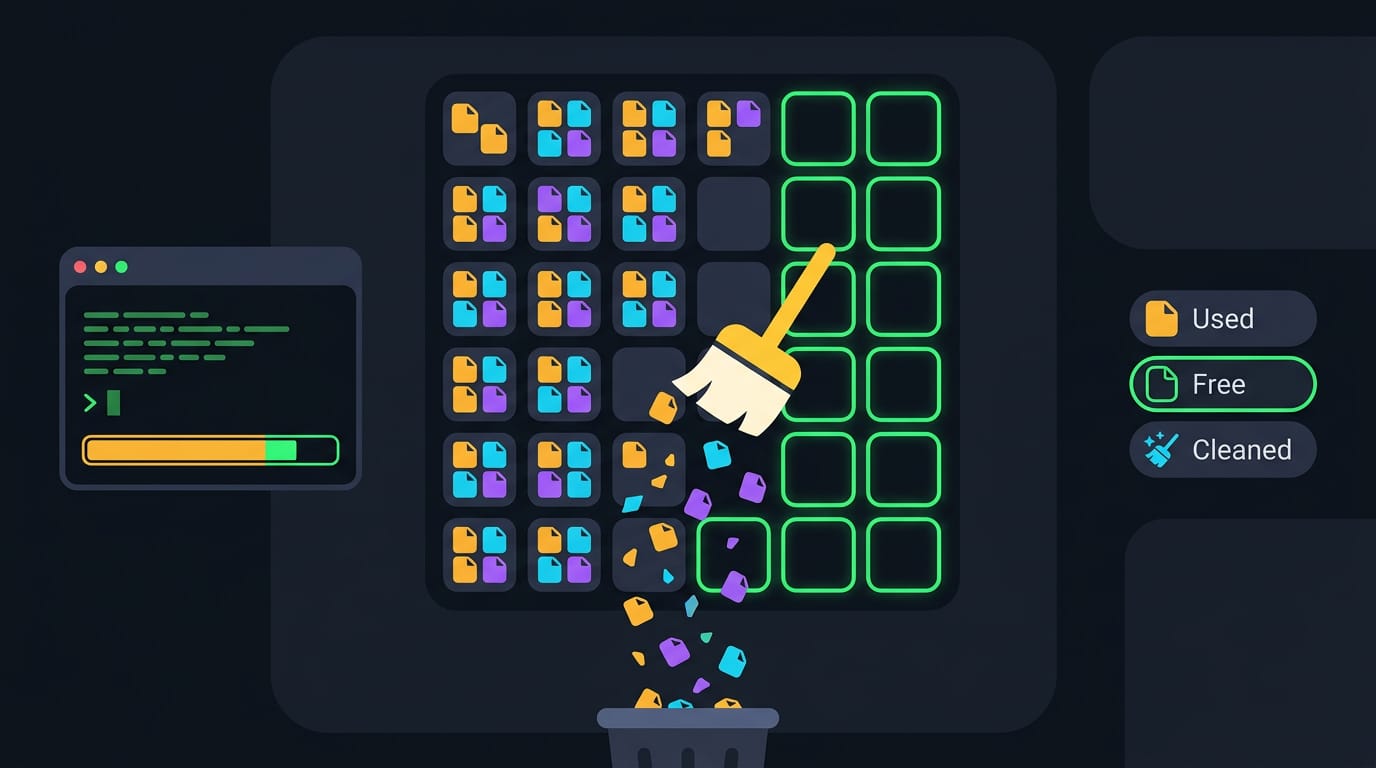
Ubuntu Clean Files and Blocks Explained
Ubuntu clean file and block counts: understand the boot message, fix a stall on the clean line, and free disk space without risking saved configs.
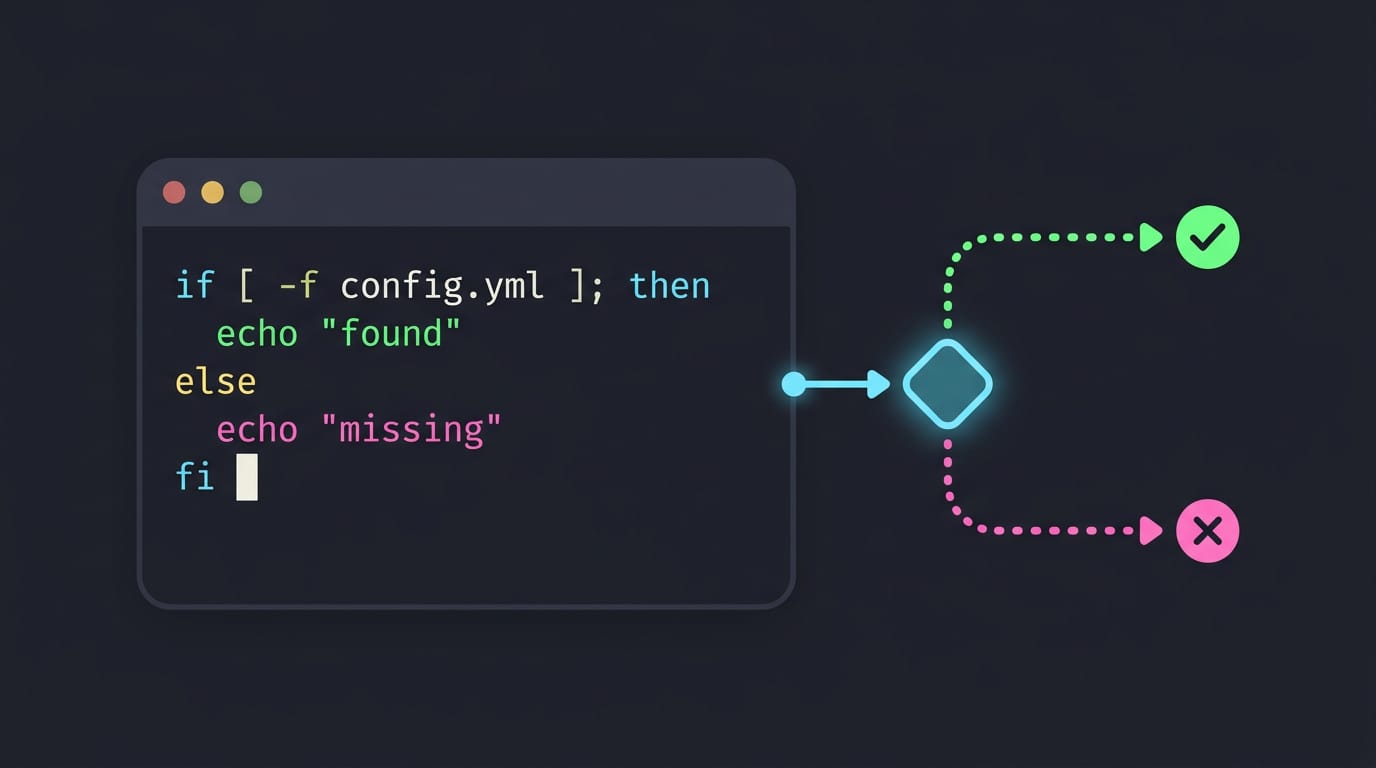
Shell Script If Statements: A Complete Guide
Shell script if statements let you check files and strings before commands run. See which test operators work and avoid portability traps in setup scripts.