How to Reboot a Computer with Keyboard Shortcuts
How to reboot a computer with keyboard: use Windows shortcuts, force a restart when frozen, or find the right keyboard-only method for Linux and Mac.
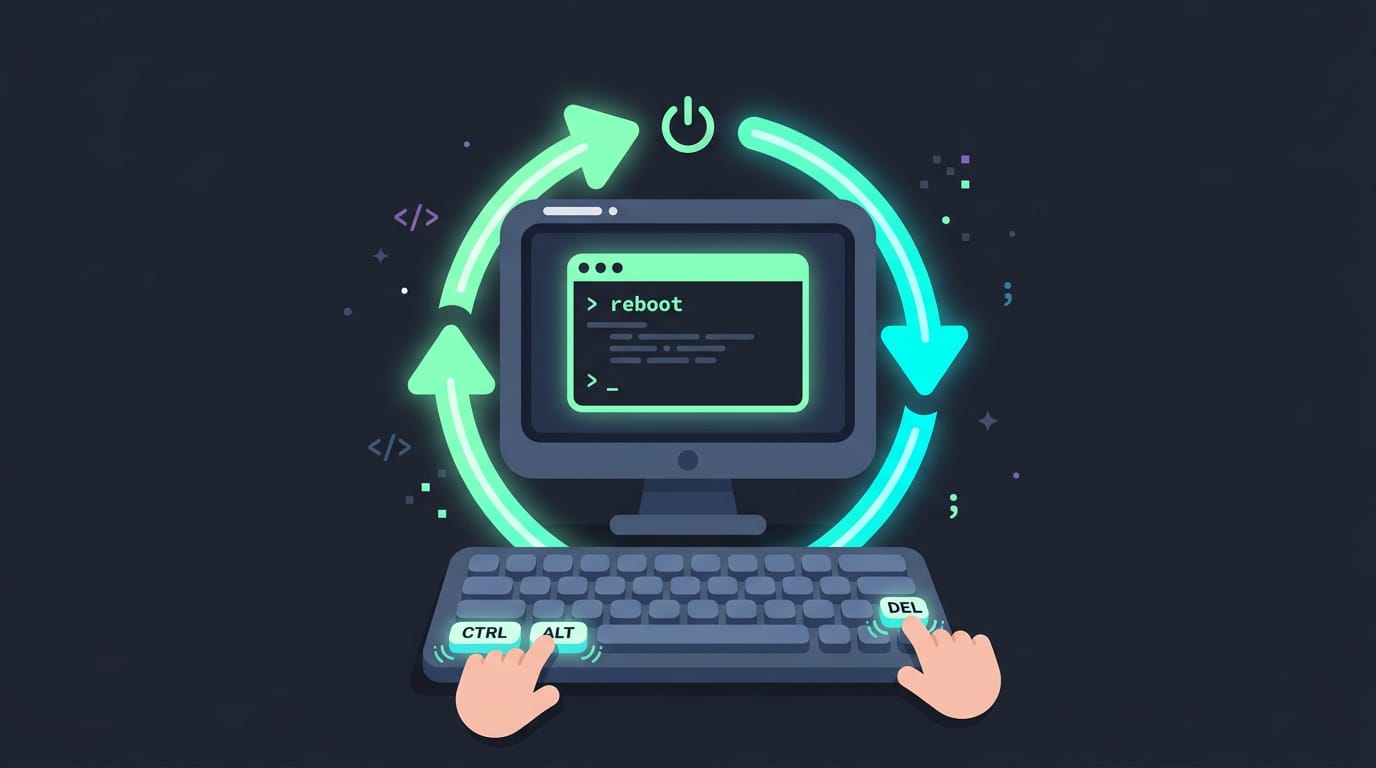
tl;dr the short answer
A keyboard restart lets you reboot a computer without using a mouse, by choosing a shortcut or menu for your operating system. On Windows, use the Start menu, Ctrl+Alt+Delete, Alt+F4, or Win+X; on Linux, use a TTY command or REISUB if the system is frozen, and on Mac, use Control+Command+Power to force a restart. Save your work and choose a normal restart whenever possible, since a forced restart can lose unsaved data or cause file system problems.
Ever been mid-task, hands on the keys, when the screen freezes and the mouse is nowhere close? A keyboard restart gets you out of that jam fast.
The short answer: press the right key combination for your system, and the restart happens without touching the mouse.
We’ll cover every keyboard-only route on Windows, from the Start menu and Ctrl+Alt+Delete to Alt+F4 and forced restarts, then move on to the Linux and Mac methods, including the SysRq (System Request) REISUB sequence and TTY (text terminal) shutdown commands that Windows-only guides leave out.
Preparing to Reboot a Computer with Keyboard
Before you reach for any restart shortcut, give your session a quick once-over. A little prep is the difference between a clean restart and a frantic hunt for a lost draft.
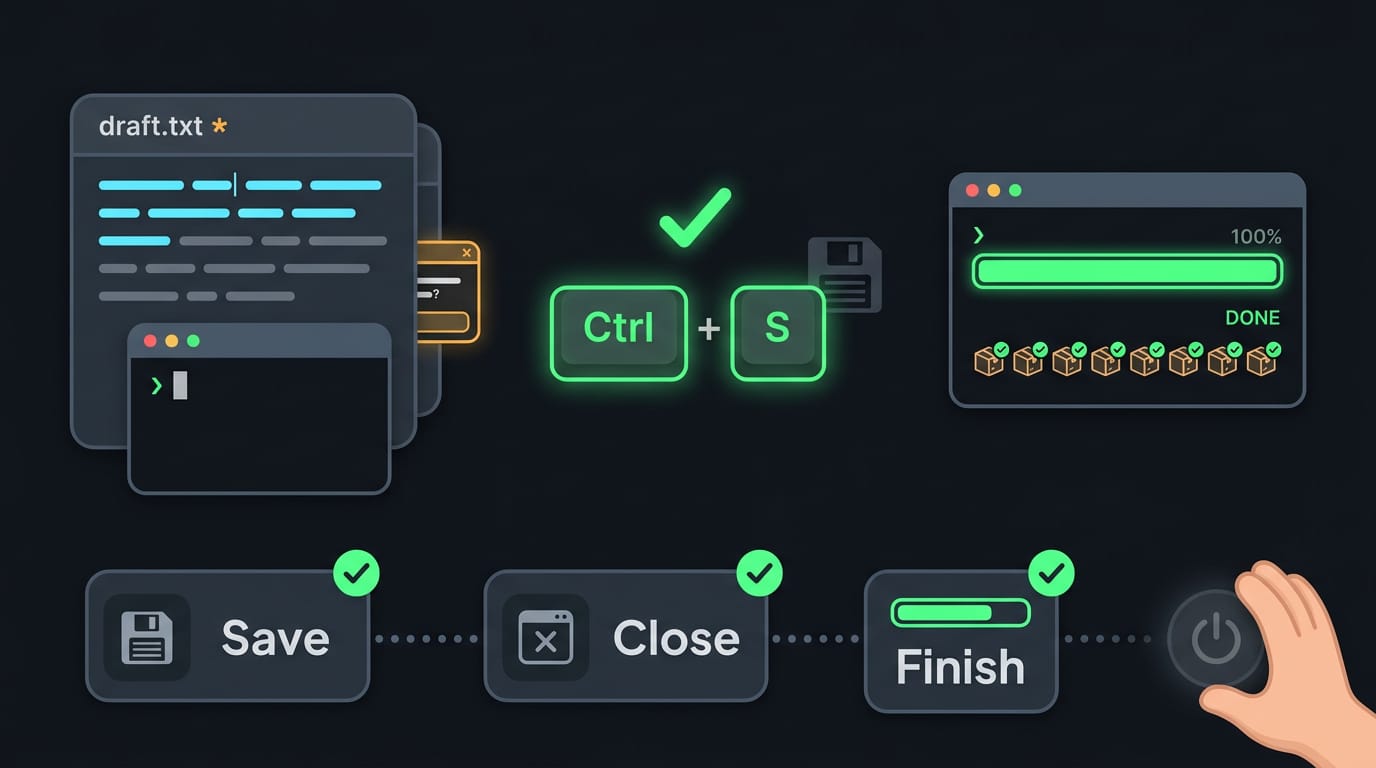
Save your work and close apps
Start with unsaved work, the stuff that exists only in memory until you save it. Picture a Fedora user writing a report in LibreOffice while a half-edited config sits open in vim.
A quick Ctrl+S in each window, plus a glance at the title bars for an asterisk or “unsaved” marker, takes under a minute and protects everything they typed. Ten seconds, and you’re covered.
Next, close open applications you no longer need. Closing windows with Alt+F4 on Windows (or quitting with Ctrl+Q on most Linux apps) lets you answer any save prompt on your own terms.
A dialog hidden behind other windows can otherwise hold up the whole restart.
The bigger goal is avoiding data loss. Your aim is to protect your work, not to race the clock. Check that nothing is still uploading, syncing, or saving in the background, because an interrupted write is exactly the kind of problem you want to dodge.
For a smooth restart, let anything long-running finish first. Think of a Debian user who starts a system update in a terminal and then reboots out of habit.
If they wait for the update to complete, the new packages install properly and the machine comes back up without surprises. Patience now saves a confusing boot later.
Restart Step by Step Using the Keyboard
To restart a laptop with the keyboard in Windows 10, you open the Start menu, move to the power options, and choose Restart. Here’s how we’ll do it, one step at a time.
Open the Start menu with a shortcut
The shortcut depends on your version of Windows, so check which one you’re running:
- In Windows 10, press Ctrl + Esc.
- In Windows 11, tap the Win key.
Consider a student on a ten-year-old ThinkPad whose touchpad stops responding in the middle of a download. Ctrl + Esc opens the Start menu from the keyboard alone, so the restart goes ahead without the dead touchpad.
Move to the Power and Restart options
With the Start menu open, use the arrow keys to move to the Power option. Press the Right Arrow to expand its submenu, then highlight Restart and press Enter. Choose Restart, not Shut down, when you want the machine to boot right back up.
Confirm the restart and wait it out
Pressing Enter on Restart brings up a confirmation prompt. Arrow to Restart in that prompt and press Enter again. Then you wait. Leave the keys alone until the reboot finishes.
Another Route Through Ctrl + Alt + Delete
Ctrl + Alt + Delete does more than open Task Manager. It also brings up a security screen with its own power menu, which is useful when the rest of your desktop is frozen.
Find power options on the security screen
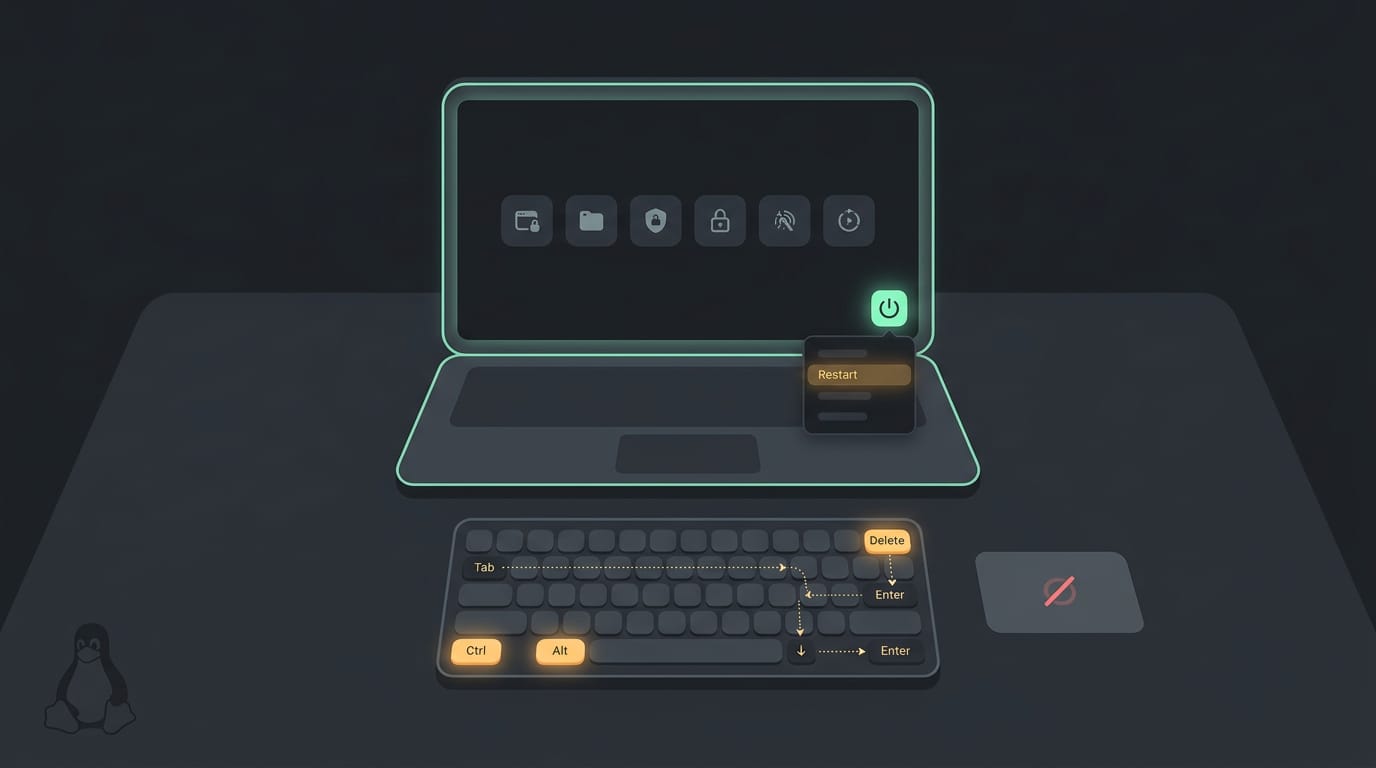
Press Ctrl + Alt + Delete and hold the keys together. Windows switches to a separate security screen that sits outside your normal desktop, so a stuck app can’t block it.
The trick here is less about which keys you press and more about where they take you. Press Tab until the power icon in the bottom-right corner is highlighted, then press Enter to open its menu. Arrow down to Restart and press Enter. Nothing to click.
Picture a Linux user with a Windows partition kept around for a single game, whose trackpad dies mid-session. The keyboard still works, so a few key presses get them rebooted without a cursor in sight.
If the shortcut doesn’t respond, try one of these instead:
- Alt + F4: Press Win + D to clear your windows and reach the desktop, then press Alt + F4. The Shut down Windows dialog appears, so arrow to Restart and press Enter.
- Win + X: Opens the power user menu. Open Shut down or sign out, then choose Restart.
On Linux, the route looks different. Press Ctrl + Alt + F3 to jump to a TTY (a plain text console, short for teletypewriter), log in, and type sudo reboot.
Force a Restart When the Computer Freezes
When the screen stops responding and Ctrl+Alt+Delete does nothing, you need a restart that doesn’t depend on the frozen system cooperating. Here’s how, including the Mac and Linux keyboard options.
Restart by holding the power button
The classic fix is to hold the power button for 5 to 10 seconds until the machine shuts off. Wait a few seconds so everything powers down, then press the power button again to turn it on.
Mac users have a keyboard option too. Holding Control, Command, and the power button together triggers a force restart right away.
Risks and when to use it
A forced restart cuts power without a clean shutdown, so anything unsaved is gone. It can also cause file system errors, which happen when the structure that tracks where your files sit on disk gets scrambled.
Most of the time the machine comes back fine, but that’s not guaranteed.
Save this for when the computer is truly unresponsive: the cursor won’t move, and Ctrl+Alt+Delete does nothing. If you can still open a menu, choose a normal restart so your apps close cleanly. Reach for a forced one only when you have to.
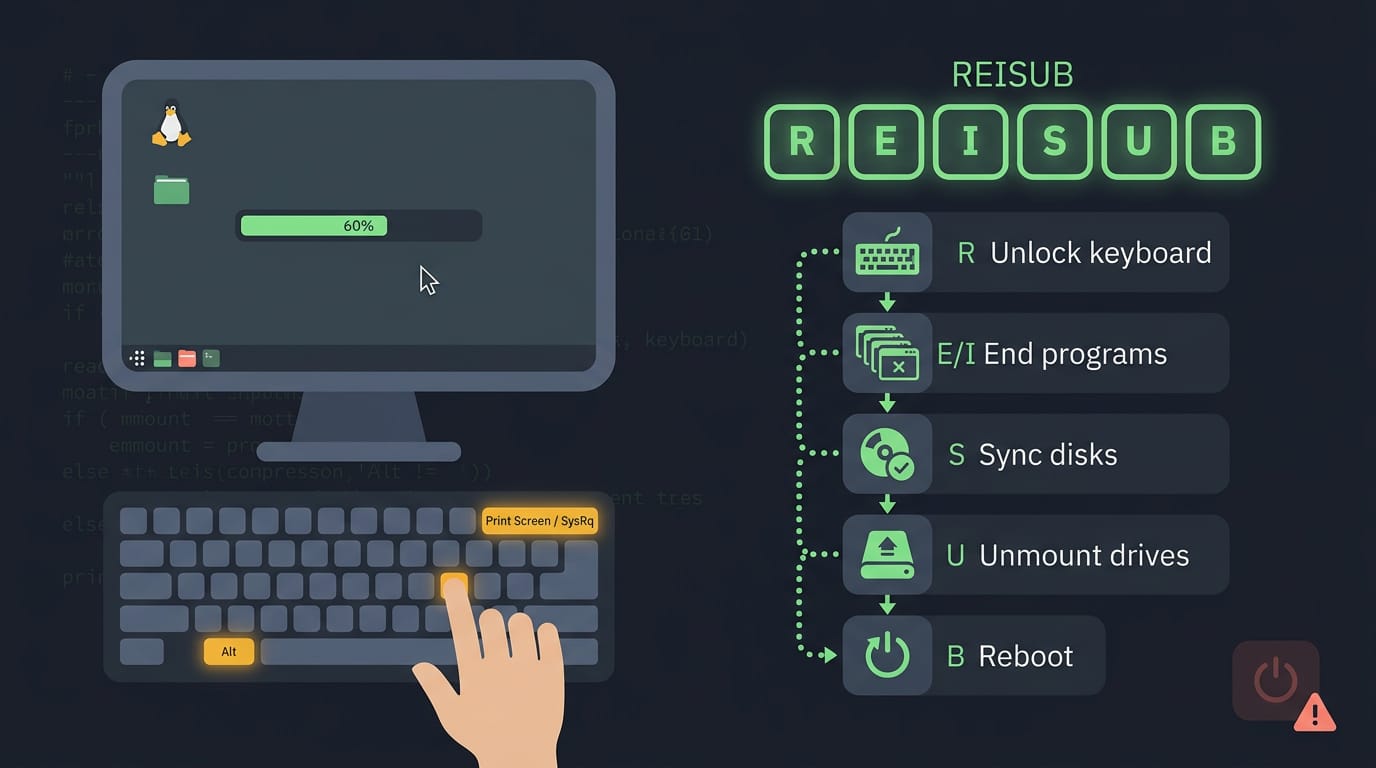
Linux users get a gentler option first. Hold Alt and SysRq (System Request, a key often shared with Print Screen), then type R, E, I, S, U, B slowly. That’s the REISUB sequence, and each letter tells the kernel to:
- release the keyboard
- end programs
- sync disks
- unmount drives
- reboot
Picture a Linux user whose desktop freezes halfway through a long compile. Running REISUB instead of holding the button flushes disk writes first, so the reboot is less likely to cause damage. Last resort, not first instinct.
Limits and Where to Get More Help
When a reboot shortcut does nothing, the cause often comes down to how your keyboard and system are set up. Here’s what we’ll check, and where to turn when none of it works.
Why won’t the Ctrl+Alt+Arrow work?
Ctrl+Alt+Arrow isn’t a reboot shortcut you can count on everywhere, and that’s the first thing to know. Two things usually decide whether it responds:
- Keyboard layout. Shortcuts vary by keyboard layout, so the same key combination may not behave the same way on every keyboard.
- Configuration differences. The same keys can do different things depending on how a system is set up, so one machine may respond while another ignores the combo.
The shortcut isn’t broken so much as different from one setup to the next. Think of a student running Linux on a ten-year-old ThinkPad who presses Ctrl+Alt+Arrow and nothing happens.
Instead of holding the power button, they open a terminal and type systemctl reboot. The laptop restarts through the normal shutdown path, so open files get a proper close instead of a hard power-off. Same goal, one clean restart.
If none of the routes above work, contact Support.com for help.
A keyboard restart comes down to knowing your system’s routes: the Start menu and Ctrl+Alt+Delete on Windows, the REISUB sequence on Linux when things lock up, and TTY shutdown commands when you’d rather type than click.
Pick the route that fits your setup and keep it top of mind so it’s ready when you need it.
Save the forced restart for when nothing else works, since it can cost you unsaved work. Your keyboard is often the fastest way out of a jam, and a little practice turns a stuck moment into a calm, controlled reboot.
Know your keys, and a frozen screen stops being a crisis.
Questions
What is the command to lock my computer using Command Prompt?
In Windows, press **Win + R**, type `shutdown /s /t 0`, and press Enter to lock the computer? That command shuts it down rather than locking it. To lock Windows, press **Win + L** or run `rundll32.exe user32.dll,LockWorkStation` in Command Prompt.
How do I reboot a computer?
On Windows, save your work, open Start, choose Power, then Restart. You can also press **Ctrl + Alt + Delete**, open the power menu, and select Restart. If the computer is completely unresponsive, hold the power button for 5 to 10 seconds, then turn it back on; unsaved work may be lost.
How to restart laptop with keyboard Windows 10?
In Windows 10, press **Ctrl + Esc** to open Start, use the arrow keys to select Power, then select Restart and press Enter. If prompted, choose Restart again and press Enter.
How do I set the keyboard back to normal?
If your keyboard is behaving unexpectedly, first check that the correct keyboard layout and input language are selected in Windows. You can switch layouts with **Win + Space**; if keys still do not behave normally, check for stuck modifier keys, accessibility settings such as Filter Keys, or a hardware problem.
Why is my keyboard not typing?
A keyboard may not type because it is disconnected, has a dead battery, or has a hardware fault. It can also be affected by a frozen computer, an incorrect keyboard layout, or settings such as Filter Keys; check the connection and try restarting the computer.
What does Ctrl+Alt+K do?
**Ctrl + Alt + K** has no single standard function across Windows, Linux, and macOS. Its effect depends on the operating system and the application or shortcut settings, and it may do nothing by default.
Can you accidentally lock your keyboard?
Yes. A keyboard can seem locked if a modifier key is stuck, an accessibility feature such as Filter Keys is enabled, or the computer or keyboard has stopped responding. Check the keyboard connection and settings before assuming it is permanently locked.
What does resetting a keyboard do?
Resetting a keyboard typically restores its settings or connection to their defaults, which can resolve incorrect layouts, custom mappings, or pairing problems. The exact effect depends on the device; it usually does not erase files on the computer.
Read next.
Cent Symbol on PC Keyboard: Alt Codes and Shortcuts
Need the cent symbol on a PC keyboard? Find Windows Alt codes, Mac and Word methods, phone options, and fixes for when the sign won't appear.
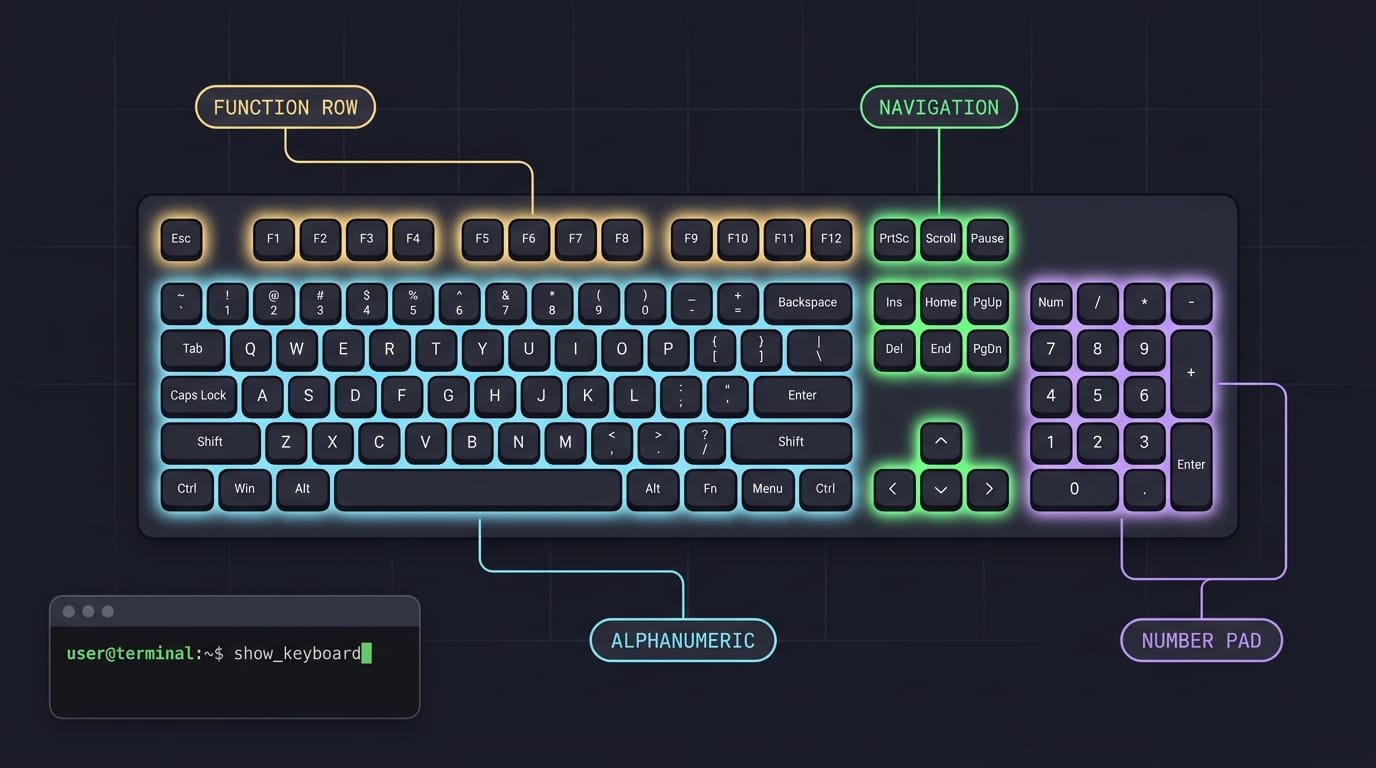
Full Size Keyboard Layout: The Complete Guide
Full size keyboard layout keeps the function row, navigation keys, and number pad together. Compare its desk space and trade-offs with compact boards.
Build a Keyboard from Scratch, Step by Step
Build a keyboard to match your layout, feel, and sound. Get realistic costs, difficulty, and Linux-specific steps for flashing and testing your board.