Ubuntu Clean Files and Blocks Explained
Ubuntu clean file and block counts: understand the boot message, fix a stall on the clean line, and free disk space without risking saved configs.
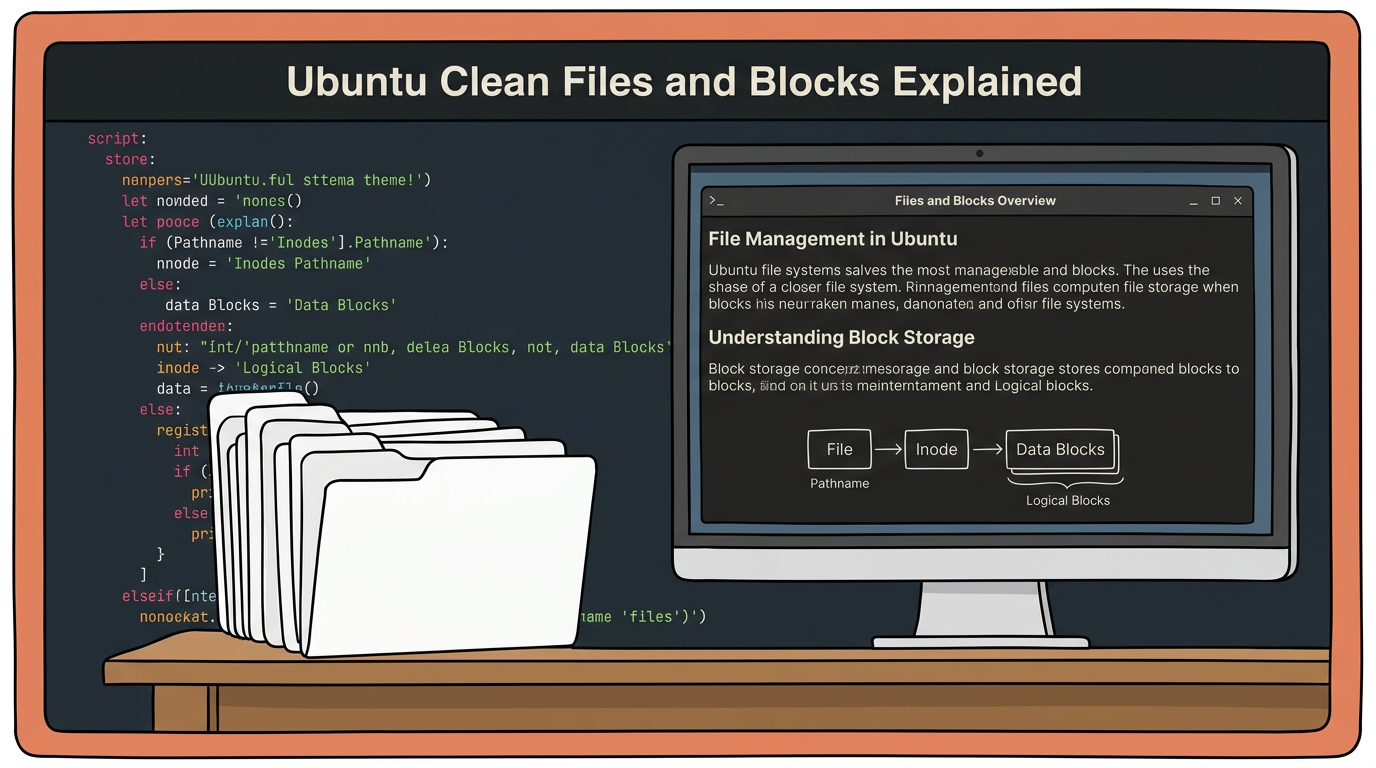
tl;dr the short answer
Ubuntu’s “clean” boot message means the filesystem check found no problems that needed repairs; its file and block counts are a snapshot of filesystem use, not a warning. If boot hangs afterward, the cause is more likely in the display or graphics startup, so check system logs and confirm disk health before changing settings. To free space safely, locate large folders, clear disposable files and caches, and protect personal configuration files with a backup or Git.
Ever watched your Ubuntu boot pause on a line that starts with ‘clean’ followed by file and block counts? It looks alarming, but it’s really just a quick dashboard check-in.
The short answer is that the filesystem passed its check without needing repairs. This guide breaks down what each number means, how to get past a boot stall when that line hangs, and how to free disk space without guessing.
We’ll also cover keeping your dotfiles safe and versioned during cleanup, so tidying up never costs you a carefully tuned config.
Ubuntu File System Basics and Getting Around
Before you clean anything, we need to know where things live. Here’s how Ubuntu lays out its folders, hides its settings files, and gets you around.
How Ubuntu organizes its folders
Ubuntu uses a root directory, a single slash (/) at the top of everything. There are no drive letters like C: or D:, so extra drives appear as folders inside that tree.
Your files live in your home folder (/home/yourname, or ~), while system files sit apart in places like /etc.
Consider a student with a full, ten-year-old ThinkPad. Their big downloads sit in the home folder, so they can free up space there and leave system files alone.
Show hidden files and dotfiles
Files starting with a period are hidden by default. These dotfiles, like .bashrc, hold app settings such as shell aliases and terminal colors. Hidden doesn’t mean gone.
Press Ctrl+H to show them, press it again to hide them, and use Ctrl+F to search for a specific file.
Since dotfiles hold so much setup, store them in a Git repository, a tool that records every change to a file, and use GNU Stow to link them into your home folder. Picture a tinkerer who spent a weekend perfecting terminal colors.
Versioning keeps that work safe through a bad cleanup.
Quick ways to get around folders
Your file manager has a few shortcuts for moving faster:
- Sidebar bookmarks: pin folders like Downloads to the left sidebar.
- Breadcrumb trail: the path bar at the top shows where you are, and each part is clickable.
- Ctrl+L: turns the path into an editable box, so you can type ~/.config and jump there.
Get these moves down and every cleanup step will feel a lot less risky.
Who Can Read, Edit, and Run Files
Few things stall a fresh Ubuntu setup faster than a script that refuses to start. Here’s why it happens and how to fix it in a couple of minutes.
Fix the “Permission Denied” error
Every file on your system carries a set of permissions, which are rules about who can touch it. Each file checks three actions:
- Read: open and view the file
- Write: change or save the file
- Execute: run the file as a program
It’s less about whether a file is locked and more about who is allowed to do what with it. Say a student copies a backup script from a friend’s USB stick, double-clicks it, and gets “Permission Denied.”
The script is all there, but the execute rule is probably off, so Ubuntu won’t run it.
The fix takes about a minute. Right-click the file, open Properties, and switch to the Permissions tab. Tick “Allow executing file as program,” and the script can run.
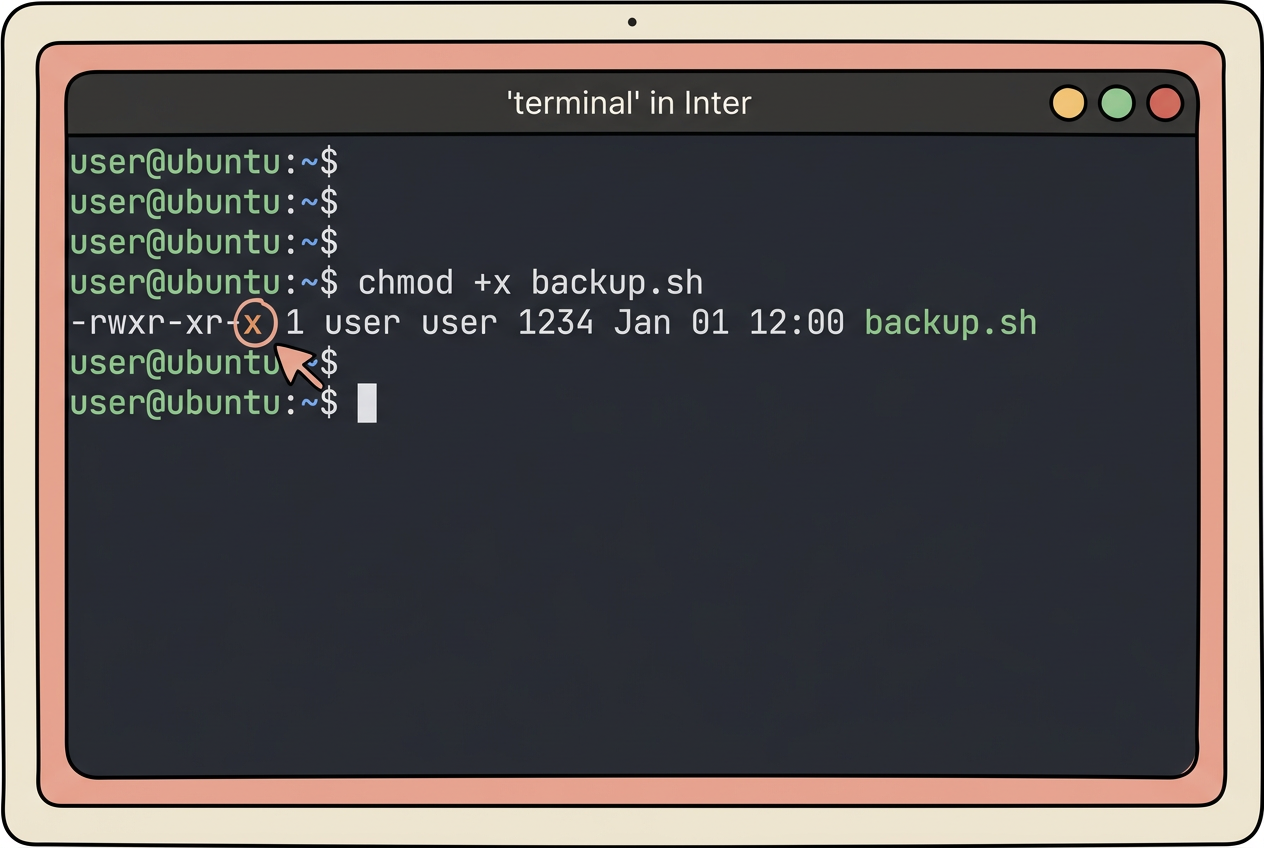
Prefer the terminal? The same change is one command: chmod +x backup.sh. chmod (short for “change mode”) edits a file’s rules, and +x adds execute. Run ls -l backup.sh to check the result, since each x in its output marks execute as on for that group.
If you see a lock icon on the Permissions tab, the settings are protected. Click it and enter your administrator password before you change anything.
Your script runs. That’s the whole fix.
Clean Ubuntu Files to Free Disk Blocks
Cleanup starts with where the space went, not how much is left, so we’ll look there first.
See which folders use the most space
Open the Disk Usage Analyzer from your app menu. It draws a visual chart of your folders, with bigger slices for bigger folders, so the biggest culprit stands out. Disk space is counted in blocks, which the boot line reports next to files.
How to free up space on boot drive?
Start with a backup, then work through these steps:
- Back up dotfiles. These hidden config files shape your shell and desktop look, so commit them to a git repository to keep every version safe.
- Empty the Trash. Deleted files don’t free their space until you empty it.
- Clear Downloads. Old installers are easy wins.
- Run
sudo apt clean. It clears the package files saved by APT, the Advanced Package Tool. - Remove old kernels. Old ones pile up in /boot, sometimes its own partition, and a full one can cause boot trouble. Run
sudo apt autoremove, then check room withdf -h /boot. - Delete forgotten caches. Apps stash temporary data under
~/.cache, and they rebuild what they need. - Prune snaps and journals. Snaps (self-contained apps) keep old revisions, and system journals grow until
journalctltrims them.
Make cleanup a five-minute weekly habit
Five minutes a week is all it takes. Set a calendar reminder and run through the list above. Check Disk Usage Analyzer each week to see which folder grew. Consider a home-server tinkerer who clears a stray folder of test images every Friday.
The next boot starts clean and stays that way. Catching junk early beats fixing a stalled boot. Small and steady wins.
Working with USB Drives and Remote Files
Your Nautilus file manager handles most of the work for both USB drives and remote machines, so you rarely need the terminal. Here’s how the pieces fit together.
Plugging in and safely removing drives
Plug in a USB stick or external drive and Ubuntu auto-mounts it, so it’s ready to use with no extra steps. Nautilus lists it in the sidebar on the left, and one click opens its contents.
When you’re done, click the eject button beside the drive entry before you pull the cable. That gives the system time to finish writing anything still in progress. Eject first, then unplug.
Think of a student carrying a project on a thumb drive between a ten-year-old ThinkPad and the library’s machines. A quick eject each time means the essay saved at midnight is still there when they plug in at school.
Connect to servers and use file links
For remote files, open Other Locations in the sidebar. The Connect to Server field at the bottom takes an address with the SSH File Transfer Protocol (SFTP) prefix, like sftp://username@server-address.
Enter it, and the remote folders appear as if they were on your own disk.
A symbolic link (symlink for short) is a small file that points to another file or folder, like a shortcut.
Consider a self-hoster who pulls backup configs from a home server over SFTP, then links them into the folders each app expects, so one copy serves every tool. Your apps find the file in its usual spot. One copy, many shortcuts.
When Boot Stalls on the Clean Line
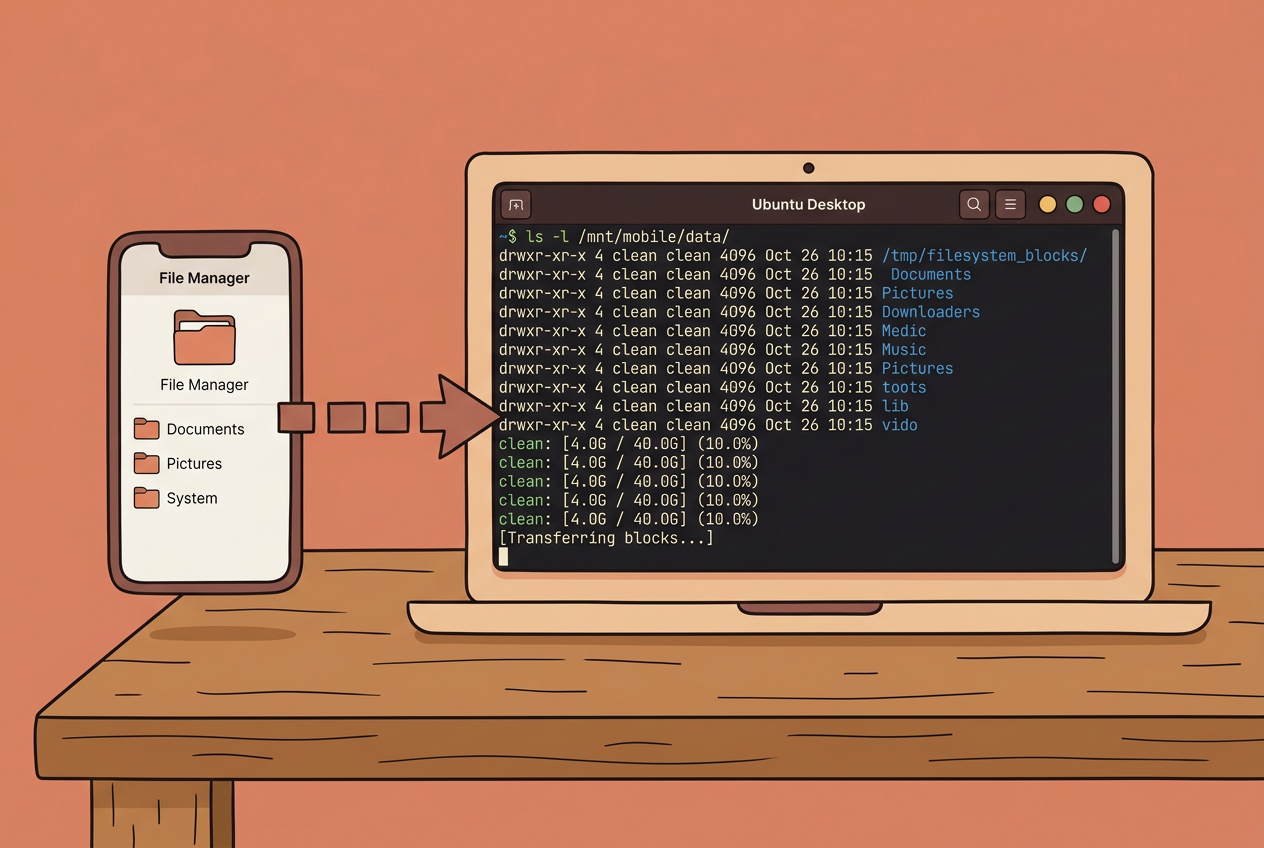
That clean line is good news: it’s the filesystem check (fsck, short for file system check) reporting that your disk looks healthy. A stall after it points somewhere else.
What the stall actually means
A stall after the clean line is usually a display problem, not a broken disk. Three clues back that up:
- TTY login still works. A TTY is a plain text login, so your core system is running.
- Chroot from USB works. Boot a live USB and use chroot (change root) to step inside your installed system.
- The system itself actually boots. The trouble sits in the graphical layer that follows.
To confirm the disk is clean, run fsck from recovery mode.
Check logs to find the real cause
Start with journalctl, the log reader for systemd (the service manager that starts your system), and run journalctl -b -1 to read the boot before this one.
Consider a ricer who just reinstalled and swapped in a new display manager (the program behind the login screen). Their journal names the failed service, which saves hours of guessing whether the disk is to blame. Read the logs first.
Two things to look for:
- SDDM fails to start X. SDDM (the Simple Desktop Display Manager) is a login screen, and X (the display server behind your desktop) never came up.
- Check the Xorg log. It records the exact error behind the failure.
Graphics drivers and early KMS setup
When X won’t start, check the graphics stack:
- Identify your GPU (graphics card) and its driver.
- Add the driver’s modules to your early-boot module list (mkinitcpio.conf on Arch).
- Enable early kernel mode setting (KMS), which hands the screen to the driver during boot.
- Rebuild the initramfs, the early-boot environment that loads those drivers.
- Try nomodeset, a kernel option that turns kernel mode setting off. If it clears the stall, the fix lives in your graphics setup.
On Ubuntu, skip mkinitcpio, since it’s Arch’s tool: run update-initramfs in step 4 instead.
Clear out an old Xorg config
An old /etc/X11/xorg.conf can name the wrong GPU, and X will use it anyway. Remove it, or move it aside first so you can restore it. Then let auto-detection do the work, so less config is often the fix.
When network services clash with each other
Running more than one network manager at once invites clashes, so tidy up:
- Keep only one service. Pick one network manager and disable the rest.
- iwd needs DHCP configuration. iwd is a Wi-Fi service, and DHCP (the protocol that hands your machine a network address) has to be set up, or you won’t get online.
- Disable leftover wpa_supplicant. This older Wi-Fi service can linger from a past setup.
Consider someone who moved to iwd but never removed the old service. Disabling that leftover ends the clash.
When moved SSDs or Windows cause trouble
Picture a student who moved their SSD (solid-state drive) into a new laptop slot and now sees the stall on every boot. Moving a drive can shuffle the order that firmware (the built-in software that starts your hardware) finds your disks.
- SSD moved to new slot. Check that your boot entry still points at the right drive.
- Windows dual-boot interference. Windows Fast Startup, a shutdown shortcut that leaves the system partly hibernated, can lock shared drives. Disable it in Windows first.
- Update packages via pacman. pacman is Arch’s package manager, so on Ubuntu, use apt instead.
So that ‘clean’ line is a status report, not a warning, and those counts are simply a snapshot of how much of your filesystem is in use. Knowing that makes boot stalls and cleanup far less stressful.
Keep the habits that protect you: look before you delete, clean in small steps, and keep your dotfiles in a git repo so every change can be rolled back.
Your setup should feel like yours, and it should still boot tomorrow.
Questions
How do I clean up my Ubuntu system?
Start by checking Disk Usage Analyzer to see which folders are taking up space, then back up important files and dotfiles before deleting anything. Empty the Trash, remove unneeded Downloads, run `sudo apt clean` and `sudo apt autoremove`, and clear disposable app caches in `~/.cache`.
How to free space on boot drive?
Find what is using space with Disk Usage Analyzer, then empty the Trash and remove files you no longer need from Downloads or other large folders. You can also run `sudo apt clean` to clear cached package files and `sudo apt autoremove` to remove unused packages and old kernels; check boot-partition space with `df -h /boot`.
Is Ubuntu still good in 2026?
Yes. Ubuntu remains a widely used Linux distribution in 2026, with a large software ecosystem, regular releases, and long-term support options, making it suitable for desktops, servers, and development. Whether it is right for you depends on your hardware, preferred workflow, and software needs.
My Ubuntu system is stuck on the loading screen. What can I do to fix this?
A pause after the “clean” filesystem message often points to a graphics or login-service problem rather than disk damage. Try a text login with Ctrl+Alt+F3, inspect the previous boot’s errors with `journalctl -b -1`, and check the display manager, graphics drivers, and any old `/etc/X11/xorg.conf`; if you cannot boot normally, use recovery mode or a live USB to diagnose the system.
Read next.
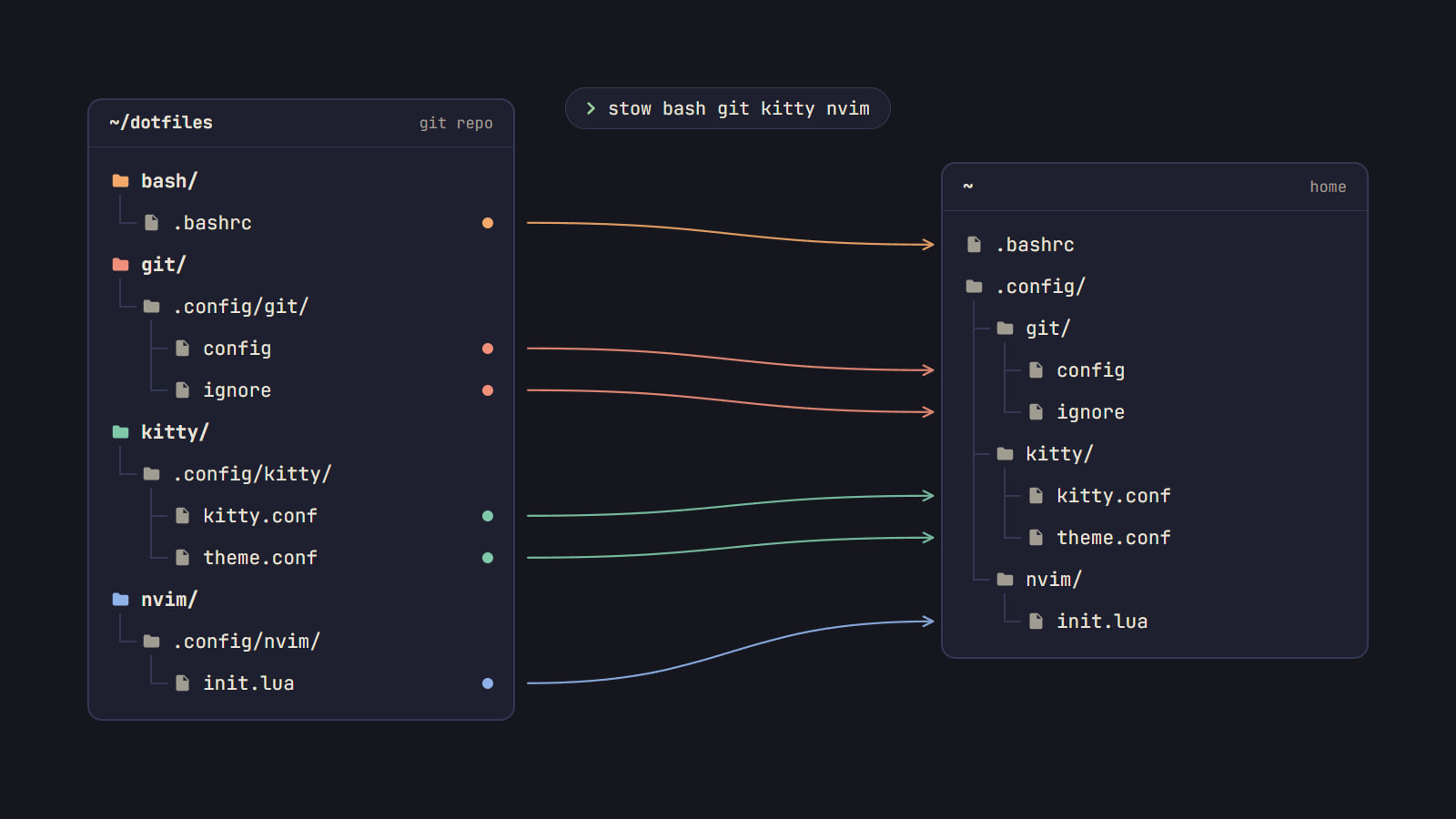
How to manage dotfiles with GNU Stow
Keep configs in a git repo and let Stow link them into place: dry runs, tree folding, conflicts and --adopt, secrets kept out, and a rebuild on a new machine.