Linux ls Command: List Files and Directories Explained
The Linux ls command lists files and folders. Practice its most useful flags, then use wildcard patterns to narrow results and find specific files faster.
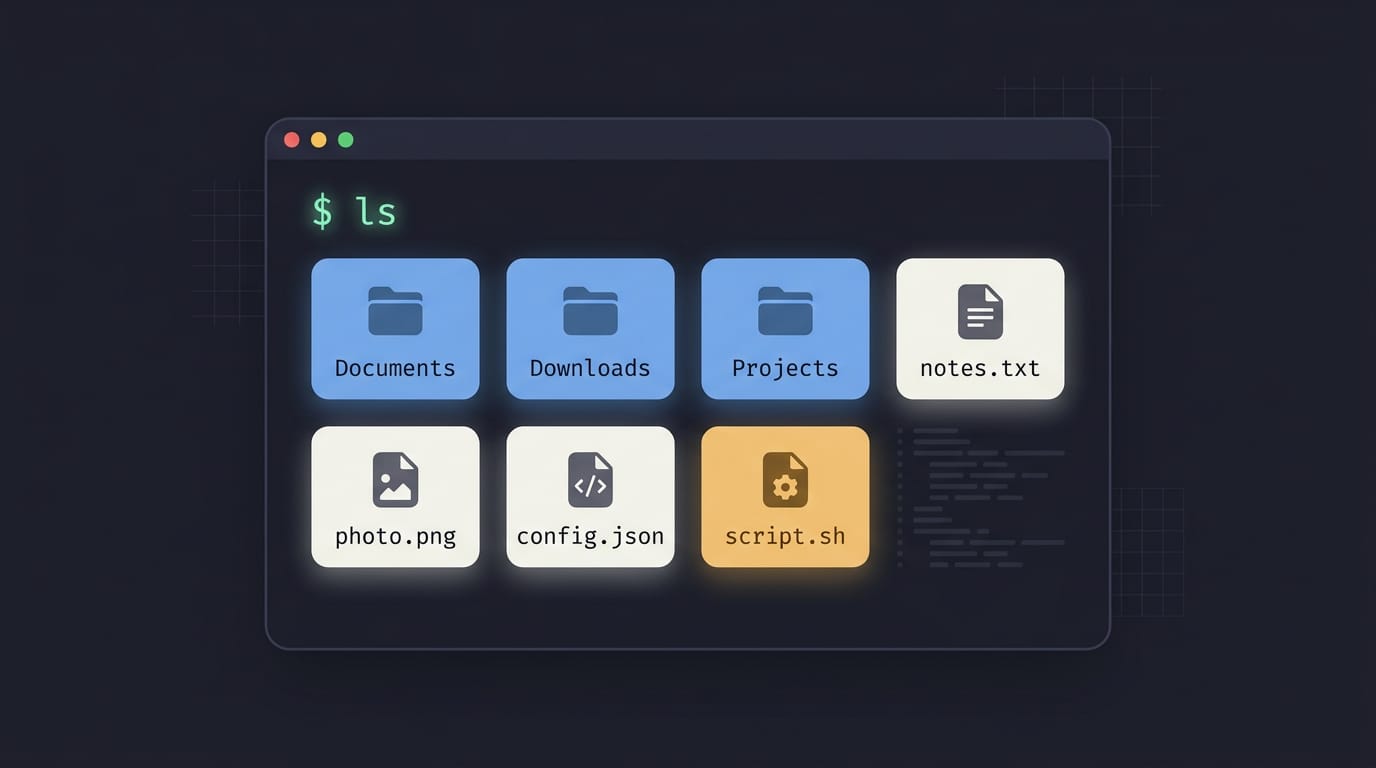
tl;dr the short answer
The Linux `ls` command displays files and folders in a directory, or in a path you specify. Use flags such as `-a` to reveal hidden files, `-l` for permissions and other details, `-h` for readable sizes, and sorting options to bring useful items to the top; wildcards narrow the list to matching names. Together, these features make it easier to find and inspect files, and preview wildcard matches before using a destructive command like `rm`.
Think of opening a junk drawer to find one cable. You could dump everything on the counter, or glance at a tidy list of what’s inside.
The ls command gives your terminal that list, showing the files and folders in your current directory and much more if you ask.
Here’s the short answer: ls prints directory contents, and flags (small switches you add to the command) control the detail and sorting.
We’ll cover the flags you’ll use most, practice them hands-on, and narrow results with wildcards, then finish with colors and icons.
What the Ls Linux Command Does
The ls command shows what’s inside a directory without leaving the terminal, and it does more than its two letters suggest.
What ls lists and its name origin
At its core, ls lists directory contents: the files and folders inside whatever location you point it at. Add the long format and it also shows file information, such as permissions, owner, size, and when each file was last modified.
That’s basic navigation without a point-and-click interface. You don’t need a file manager, just a prompt.
Picture a student on a ten-year-old ThinkPad who has logged into a school server over SSH (a remote login tool) and needs to find her homework file. One ls shows her what’s in the folder, and she’s moving again in seconds.
The name is short for list segments. It’s less about moving around the filesystem and more about seeing what’s there.
Writing ls commands and checking the manual
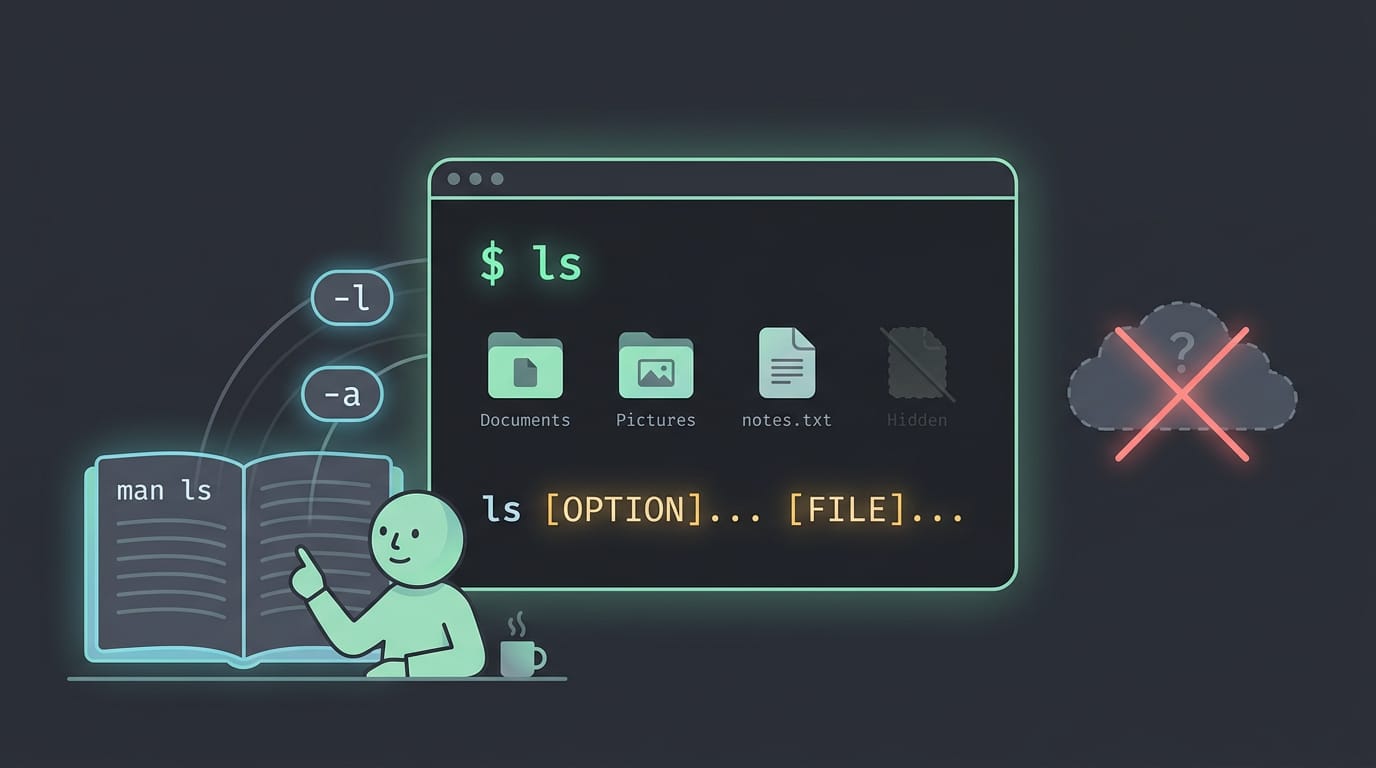
The general form looks like this: ls [OPTION]... [FILE].... Everything in square brackets is optional, so a bare ls works on its own. Each part does a different job:
- OPTION: flags that change the output, like
-lfor the long format or-afor hidden files. - FILE: one or more paths to list. Skip it, and ls shows the current directory.
For the complete option list, run man ls. The man page (the built-in manual) covers every flag, and it’s the reference you read rather than guess from.
Ls is one of the basic commands every Linux user should know, and it pairs naturally with cd and man. If you’re asking which 25 basic commands to learn first, ls is a strong starting point.
Useful Ls Flags You’ll Use Most
Plain ls shows only part of the picture. A few flags reveal hidden files, file details, and sizes you can actually read. You’ll use them daily.
See hidden files with the -a flag
Files whose names start with a dot are hidden from a plain ls. These dotfiles hold configuration, like .bashrc. They aren’t missing, just skipped by default.
A student restoring their rice on a fresh install runs ls and sees nothing familiar. Run ls -a and .bashrc and .config appear.
Try it: touch .blank, then compare ls with ls -a. Only the second run shows the file.
To list all files in Linux, use ls -a. It also shows . (the current directory) and .. (the parent). Use ls -A to keep the hidden files and drop those two.
Reading the detailed -l listing
ls -l prints one file per line with permissions (like -rw-r--r--), owner, size, date, and name. It also tells you who can touch a file, not just what it’s called. Once you know who owns a file, you may also want to list Linux users on the machine.
The total line at the top counts disk blocks, not files, which catches plenty of people off guard. Combine -la to see hidden files in this view too.
Making file sizes easier to read
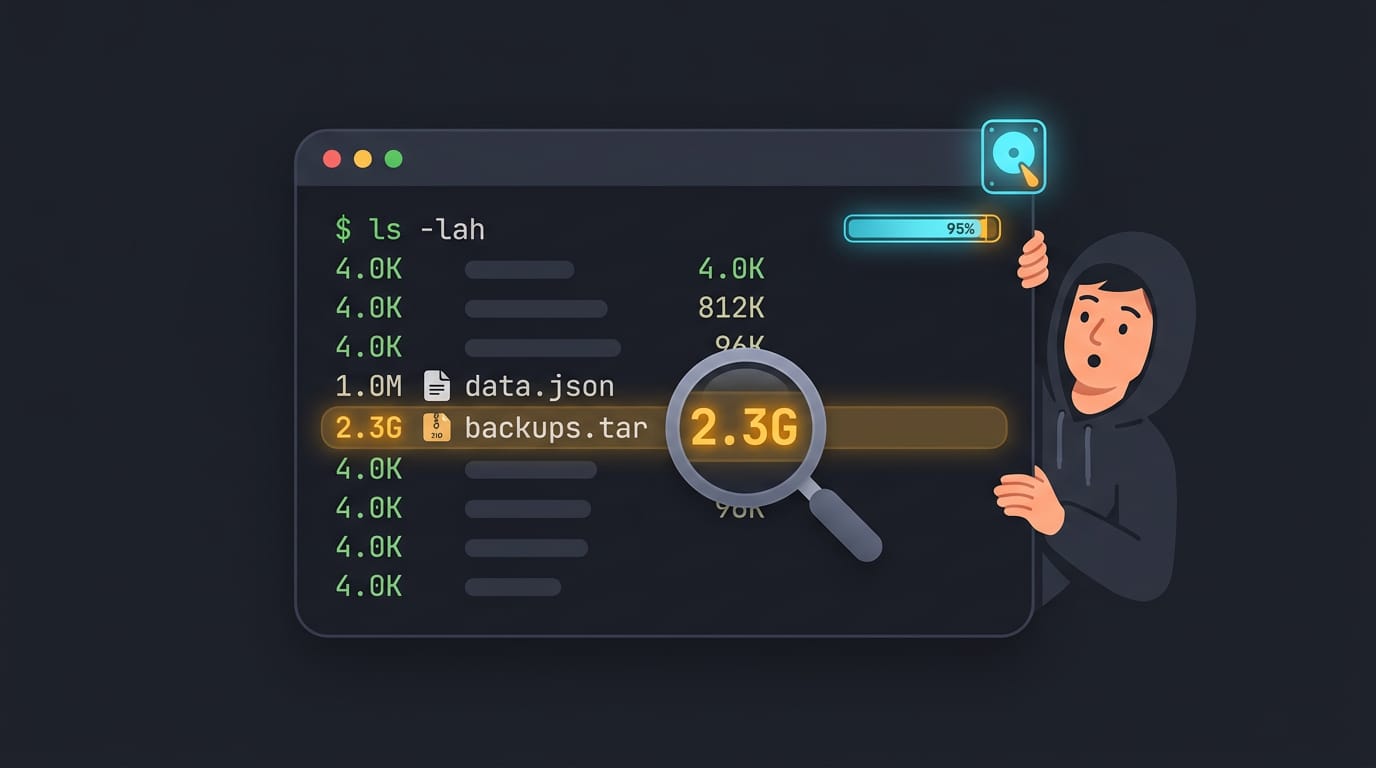
The -h flag converts raw bytes into K, M, and G units, so a 1,048,576-byte file shows as 1.0M.
A self-hoster hunting the archive that’s eating their disk runs ls -lah and spots it at a glance. One command, three answers: hidden files, long format, readable sizes.
Ordering files by time, size, or extension
Four flags shape the order:
-tsorts newest first.-rreverses the order, sols -ltrputs the oldest file at the top.-Ssorts largest first.-Xgroups files by extension.
A ricer hunting for their latest screenshot runs ls -t and finds it right at the top.
Other ways to change the display
Several smaller flags shape the output:
-Rrecurses into subfolders. It’s handy, but it can flood your terminal in big trees.-iprints each file’s inode number, the index the filesystem uses to track it.-Fadds/to directories,*to executables, and@to symlinks.--color=autocolors output in a terminal and drops the colors when you pipe it.-Zshows the SELinux security context on systems that run SELinux.
Colors come from LS_COLORS, which dircolors builds from a ~/.dircolors file. Add eval "$(dircolors -b)" to your shell config and your palette applies to ls.
Save favorites as an alias, like alias ll='ls -lah', so they travel with your dotfiles. Piping ls into other tools can break on filenames with spaces or newlines, so in scripts use a glob like *.log or find instead.
eza and lsd are modern replacements that add file-type icons. Icons need a Nerd Font (a font patched with icon glyphs), or you’ll see empty boxes.
Practice Ls with a Hands-on Walkthrough
The fastest way to learn ls is on files you don’t mind losing, so let’s build a throwaway folder.
Create a demo folder to test on
Make a folder and step into it with mkdir and cd:
mkdir ls-demo
cd ls-demo
Next, touch creates empty files for you. The dot in .hidden-config marks it as a hidden file, which plain ls skips.
touch notes.txt report.pdf .hidden-config
To fake an older file, give touch -t a timestamp in YYYYMMDDhhmm form (year, month, day, hour, minute). This sets January 15, 2024, at 10:30:
touch -t 202401151030 old-notes.txt
Step-by-step commands and their output
Compare your terminal with these samples as you go. Text stands in for screenshots, so you can match each line.
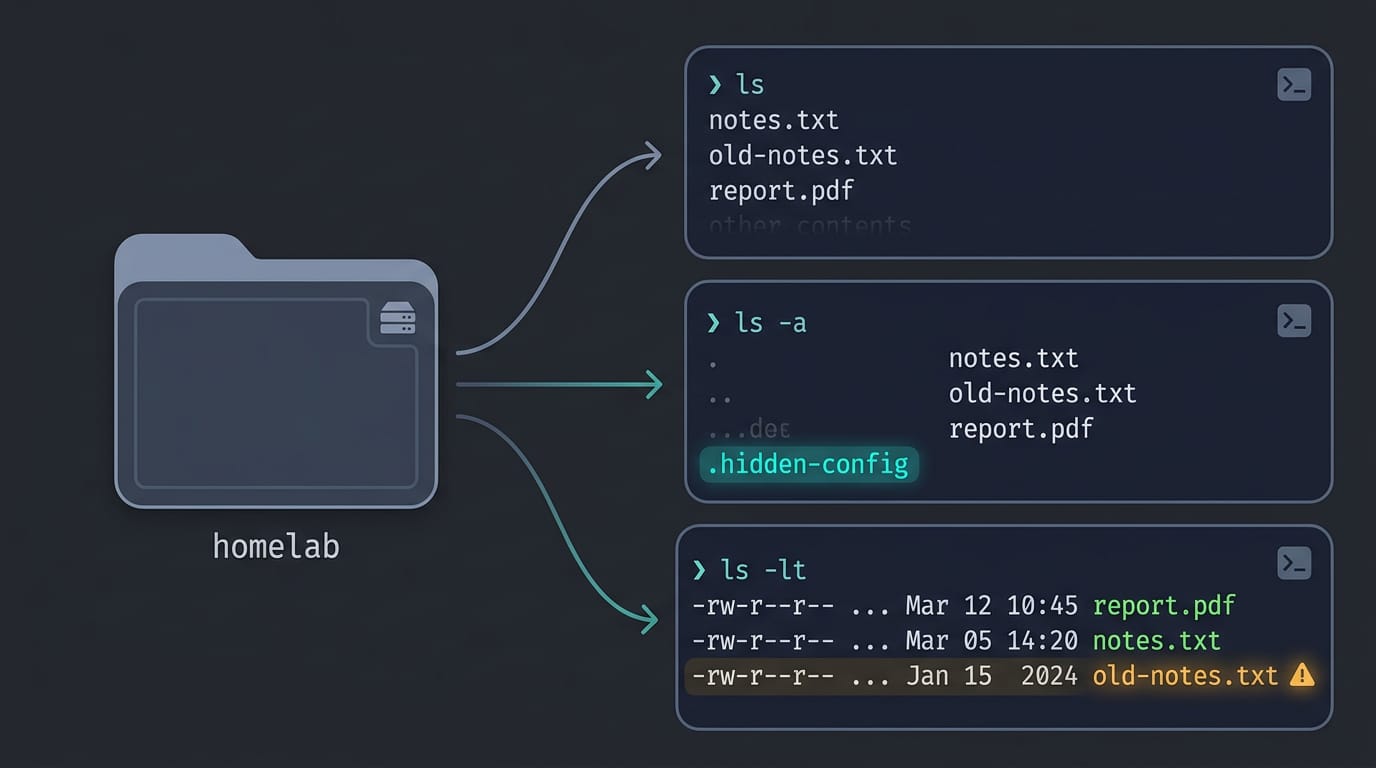
Plain ls shows only the visible files:
notes.txt old-notes.txt report.pdf
Now ls -a shows everything, including the hidden file plus . and .., the entries for the current and parent folders:
. .. .hidden-config notes.txt old-notes.txt report.pdf
Combine -l and -t for details, sorted newest first:
-rw-r--r-- 1 you you 0 Mar  3 14:02 notes.txt
-rw-r--r-- 1 you you 0 Mar  3 14:02 report.pdf
-rw-r--r-- 1 you you 0 Jan 15  2024 old-notes.txt
Picture a tmux-and-ssh homelabber with a stale config sitting in a working folder. The -t sort drops the oldest file to the bottom, so it stands out before anything gets deleted. Your username and dates will differ, but the order holds.
Same folder. Different view.
Narrowing Results with Wildcard Patterns
Listing everything in a busy folder gets noisy fast, so let’s narrow it down. A wildcard is a symbol that stands in for other characters, and the shell expands it into matching names before the command runs.
Beyond the asterisk, you also get ? for one character, [ ] for a set of characters, and {} for a list of alternatives.
Using the asterisk to match names
The asterisk (*) matches any run of characters, so you can filter by start, end, or extension:
- Prefix match:
ls g*lists every name that starts with g. - Suffix match:
ls *1lists every name that ends in 1. - Extension match:
ls *.clists files ending in .c.
Notice that the extension is checked, not ignored: *.c picks up main.c and utils.c but skips main.h. Think of a student with a folder of lecture PDFs, screenshots, and drafts.
Typing ls *.pdf shows only the readings, so there’s no scrolling past screenshots. Less noise, faster finds.
Using wildcards safely with rm and others
The same patterns work with rm, so rm *.log deletes every file ending in .log. That’s the power, and the danger. A pattern that’s a bit too broad, like rm * in the wrong folder, can catch names you never meant to touch, and rm won’t pause to ask. Deleting a whole directory, empty or full, is a separate job with its own steps.
The fix is simple: ls previews and rm deletes. Run the exact pattern through ls first, check the list, and only then swap in rm. Picture someone clearing old build logs from a project folder, where release-notes.log is still needed.
Running ls *.log first shows that file, so they can rename it or tighten the pattern before anything disappears. A few seconds of checking is cheap insurance.
Once ls clicks, it stops being a bare listing and becomes a fast way to see your files the way you want them. Flags give you control over detail and order, wildcards zoom in on what matters, and colors and icons make the output feel like yours.
Keep your favorite flags and color settings in your dotfiles so they survive a fresh install. Your terminal should look like you, and it should still list your files tomorrow.
Questions
What is ls in Linux terminal?
`ls` is a Linux terminal command that lists files and folders in a directory. With options, it can also show hidden files, file details, and different sorting orders.
What are 25 basic commands that every Linux user should know?
Common Linux commands include `ls` (list files), `cd` (change directory), `pwd` (show the current directory), `mkdir` (create a directory), `rmdir` (remove an empty directory), `touch` (create a file or update its timestamp), `cp` (copy), `mv` (move or rename), `rm` (remove), `cat` (print file contents), `less` (view a file page by page), `head` (show the beginning of a file), `tail` (show the end), `grep` (search text), `find` (locate files), `man` (read command manuals), `echo` (print text), `clear` (clear the terminal), `whoami` (show the current user), `date` (show the date and time), `df` (check filesystem space), `du` (check directory or file space), `ps` (list processes), `kill` (send a signal to a process), and `sudo` (run a command with elevated privileges). Be careful with commands such as `rm` and `sudo`, which can make significant system changes.
How do I list all files in Linux?
Run `ls -a` to list visible and hidden files, including the `.` and `..` directory entries. Use `ls -A` to include hidden files but omit those two entries.
How to ls hidden files in Linux?
Run `ls -a` to show hidden files, whose names begin with a dot, along with `.` and `..`. Use `ls -A` to show hidden files without those directory entries.
Read next.
OS Commands in Linux: A Practical Guide
OS commands in Linux help you find files, move through folders, manage permissions, and customize your desktop without clicking through windows.

Linux on MacBook Air: The Complete Installation Guide
Linux on MacBook Air can turn a familiar laptop into your own setup: check model compatibility, choose a distro, install safely, and fix Wi-Fi.
List Linux Users: Every Account, Explained
List users on Linux with getent or /etc/passwd, filter human accounts from services, and check group membership on shared Linux machines.