What Is Linux and How Its Kernel Runs Your PC
What is Linux? See how its kernel, distributions, desktops, and Wayland fit together, plus where Linux runs and how its software gets managed securely.
tl;dr the short answer
Linux is a free, open-source operating system whose kernel manages a computer’s hardware and lets programs run. Distributions combine the kernel with tools, software, and desktop options, so you can choose a setup for your needs, hardware, and preferred way of working. Linux powers everything from servers and devices to personal computers, offering flexibility and low cost while requiring some choices and learning.
Ever bought a bare PC case and picked every part yourself? Linux works a lot like that. At its center sits the kernel, the core software that manages your hardware and hands out resources to your programs.
Distributions, desktops, and window managers are the layers built around it, and they’re what most people actually see.
In this post, we’ll walk through what Linux does, how distributions differ from one another, and how window managers and Wayland turn that core into the desktop you use every day.
What Linux Is and What It Does
Before you pick a desktop, it helps to know what sits underneath it. Here’s what Linux does and why anyone can read its code.
How Linux connects hardware and software
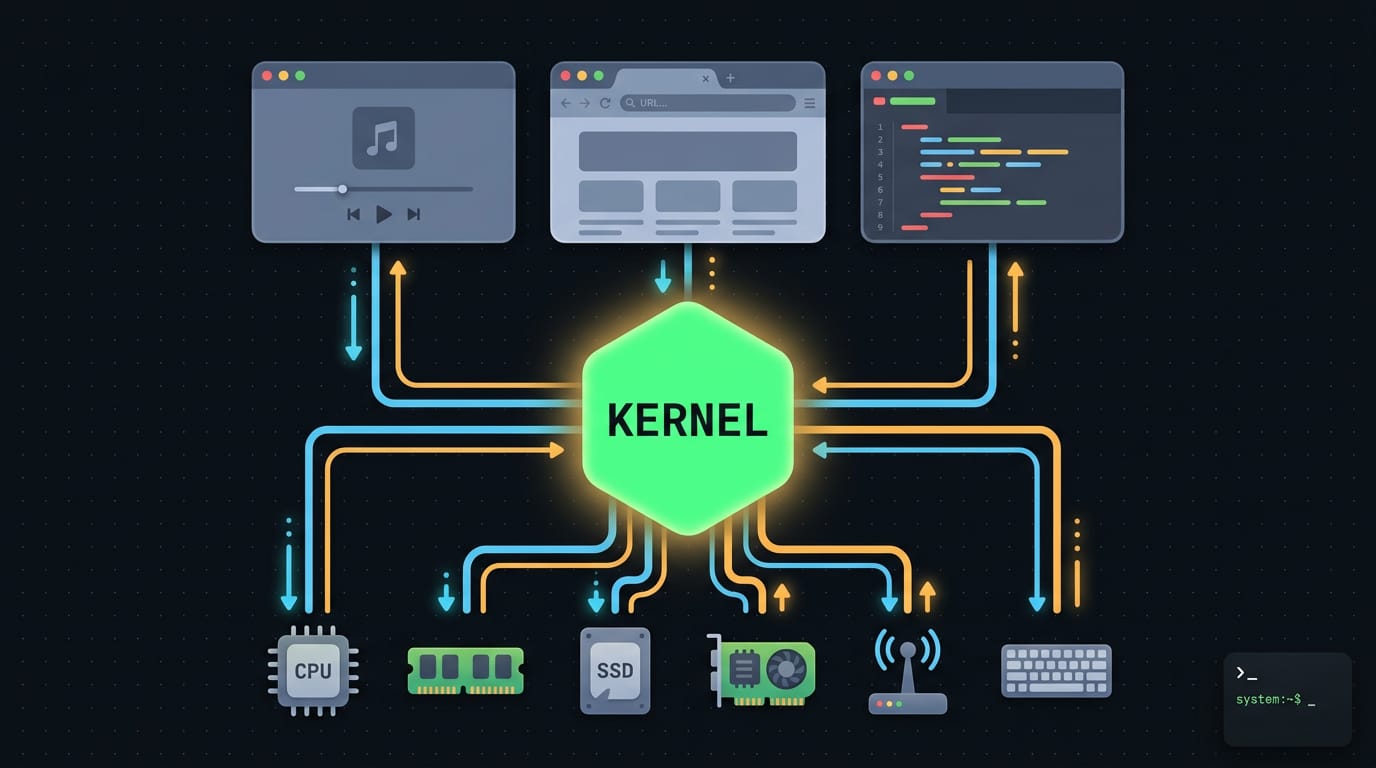
Linux is a free, open-source operating system (OS) that bridges your hardware and the programs you run. Your apps ask Linux for work, and Linux handles the details.
It manages three core resources:
- CPU (central processing unit) time, deciding which program runs and for how long.
- Memory, giving each program its own space.
- Storage, reading and writing your files.
All of this happens in the kernel, the core of Linux that does the actual work. Your bar, terminal, and other apps sit on top of it.
Strictly speaking, Linux is just the kernel. The full system, with its everyday tools, is often called GNU/Linux, since many of those tools come from the GNU project, which makes free software.
Consider a student with a ten-year-old laptop. The kernel quietly handles its older processor and limited memory, so it stays useful for notes and browsing.
Why anyone can read and change Linux
Linux’s source code, the human-readable instructions the software is built from, is public. Anyone can download it and see how it actually behaves. Nothing is hidden.
Because you can read it, you can also change it. Users can modify Linux to fit their needs and share those changes with others. It’s less about owning the code and more about changing it.
Development is spread across a global developer community, with people around the world contributing code, testing, and bug reports. And Linux isn’t a commercial product. It’s a shared project.
The Main Parts That Make Linux Work
Linux is a stack of cooperating parts, each with one clear job. Here’s what each does.
The core pieces inside a Linux system
- Kernel. The core that talks to your hardware and shares it with everything else.
- Bootloader. GRUB is the menu that appears first and loads the kernel.
- Init system and daemons. The init system is the first process the kernel starts. It launches daemons, the background services for networking and audio.
- Graphical server. The display server draws windows and routes your keyboard and mouse. X11 is the older display standard, and Wayland is its newer replacement.
- Desktop environment. The panels, menus, file manager, and settings you see, all working together.
- Applications. Your browser, editor, and terminal, which all run on top of the stack.
- Desktop environment vs window manager. A window manager only decides where windows sit and how big they are. A desktop environment bundles one with panels and settings, so it’s the whole setup, not just the layout.
How the kernel and startup system work
The kernel runs in kernel mode, a privileged level with direct hardware access. Modules are optional kernel code, like a driver for your Wi-Fi card, loaded only when needed.
systemd succeeds older init systems such as SysV (System V) init. The progression of Linux init systems notes that systemd adds parallel service startup and can start faster than SysV init.
Services that don’t depend on each other can launch at the same time.
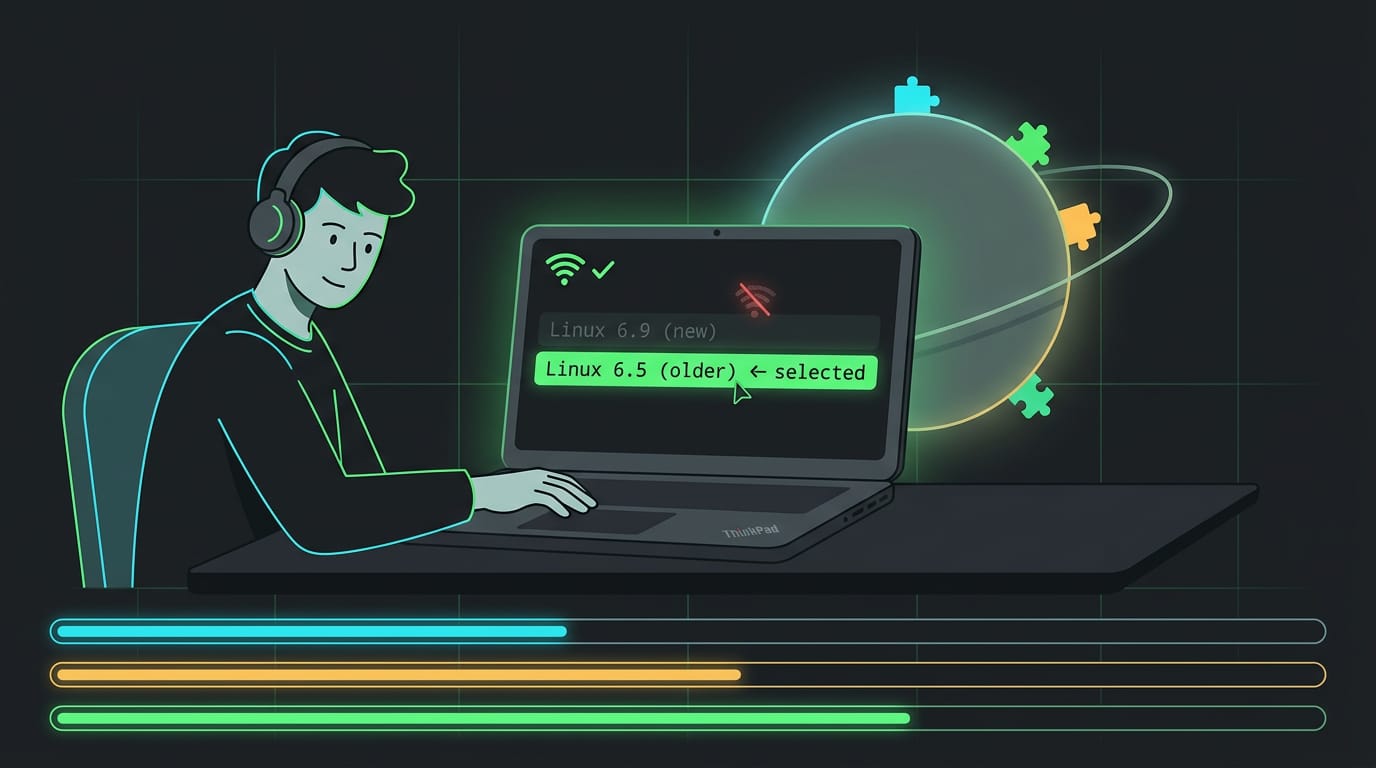
Picture a student on a ten-year-old ThinkPad whose Wi-Fi breaks after a kernel update. They pick the older kernel from the GRUB menu at startup. No reinstall, no panic.
How Linux Distributions Differ from Each Other
Ever wondered why two Linux machines look so different? The answer is the distro, short for distribution: the kernel plus tools, settings, and a desktop.
What a distro changes for its users
Each distro shapes what surrounds the shared kernel:
- Versions tailored to users: Some aim at beginners, others at developers or servers.
- Mostly free to download: Most cost nothing, so trying a few is low risk.
- Different desktop environments: One might ship GNOME, another Xfce.
- Different package managers: Each family has its own tool for installing updates, such as apt, dnf, or pacman.
The kernel stays put, but what you touch every day changes.
Distros people install most often
Three groups show up again and again:
- Ubuntu, Debian, and Fedora: general-purpose picks for desktops and servers.
- Linux Mint, Arch, and Manjaro: Mint suits beginners, Arch expects hands-on building, and Manjaro eases the way into Arch.
- Red Hat, CentOS, and SUSE: business-focused families you’ll mostly meet on servers.
Ubuntu Desktop and Ubuntu Server share a base, but only the desktop edition has a graphical screen.
Picking the right distro for your needs
- Skill level: Beginners often want setup handled for them, while experienced users may like building their own.
- Desktop interface: Pick the look and workflow you enjoy, since you’ll stare at it daily.
- Server or desktop use: A server has different needs than a machine you sit in front of.
- Hardware compatibility: Older or unusual hardware may need a lighter distro or extra drivers, so check first.
- Distro choice shapes desktop options: The distro often decides which desktop and window manager options are easy to install.
Consider a student reviving a ten-year-old laptop for note-taking. A light distro with a lean desktop keeps it snappy in lectures.
Start with your needs. The rest follows.
Everyday Places You’ll Find Linux Running
Linux is probably running near you right now. Here’s where it shows up, and how to tell whether your device uses it.
How Linux powers servers and the internet
Most people never see Linux on the internet, but they use it constantly. The Linux Scalability Project calls it “widely deployed as a platform for network services.”
Linux is also the usual pick for the majority of top servers. According to websea.org, it powers a significant portion of the internet.
Cloud infrastructure, the rented computing power behind many online services, is where Linux really shows up. The Linux Professional Institute (LPI) cites an April 2026 study finding that “90% of all public cloud infrastructure globally runs on” Linux.
Amazon Web Services (AWS), Microsoft Azure, and Google Cloud all offer Linux machines, and container tools that package apps, like Docker and Kubernetes, are built around it too.
How do I know if I have a Linux device?
To check, look in your device’s system or about settings, or its manufacturer’s spec sheet. If it shows Linux, that’s because its operating system is built on the Linux kernel, the core piece that manages the hardware.
Linux also hides in devices you might not expect:
- Smartphones and cars: Linux-based software runs inside many of them.
- Supercomputers: These run Linux as well.
- Smart TVs, routers, and Roku: The box under your TV may be running it.
- NASA and stock exchanges: NASA (the U.S. space agency) and stock exchanges run Linux systems.
Running Linux on your everyday desktop
Think of a student with a ten-year-old laptop that’s too slow for today’s software. Linux is a real alternative to Windows and macOS, and it runs on old hardware.
Free office software handles essays and spreadsheets, and developers use it too. That old laptop isn’t finished yet.

How Linux Stacks up Against Other Systems
Linux shares plenty with the systems you already know, but it differs where it counts on the desktop.
Linux’s Unix roots and shared tools
Linux is a Unix-like system, following the design of Unix, which came out of Bell Labs. Many tools and file layouts match. Think of a system administrator moving from a Unix server to a Linux laptop.
Shell commands and folders like /etc work the same, so there’s less to relearn.
Unix wasn’t always free, which is part of why open, Unix-like alternatives matter. Linux is the most successful of them, so it’s the one you’re most likely to meet.
Setting Linux against Windows and macOS
Linux looks a lot like what you already use, with draggable windows, a launcher menu, and familiar apps. The big difference is cost: it’s a free alternative to commercial systems like Windows and macOS.
Here’s the catch. According to PCMag’s coverage of the desktop OS race, Linux is used on fewer desktop computers than Windows and macOS. It holds a bigger slice than ever, but Apple and Microsoft still control the vast majority of the market.
Linux also has no single standard version. Instead, it comes in many distributions, which are complete packages of Linux with their own installers and default apps. Windows and macOS each come from one company.
Linux is less about one official version and more about which pieces you put together.
Choice is the feature.
Consider a student who follows a guide written for one distribution, then installs a different one on the same laptop. The installer looks different and a command from the guide may fail.
Check which distribution a tutorial targets before you copy anything, and you’ll save an evening of head-scratching.
The Upsides and Downsides of Linux
Linux has real strengths and real friction, and both often come from the same place: you’re in charge. We’ll take the strengths first.
What makes Linux worth using
- Free, no licensing fees. You won’t pay a license fee, so an old laptop can become a full workstation.
- Customization. Nearly every layer is yours to change, from the bar to the window manager to the color scheme.
- Security and stability. Linux is commonly described as offering both. According to a review of Linux system hardening techniques, enterprises deploy it widely for its stability, scalability, and cost effectiveness.
- Long uptime. Linux systems can maintain long uptimes. SUSE’s documentation notes that live kernel patching makes it possible to apply the latest security updates without a reboot.
- Frequent updates. Your package manager (the tool that installs and updates software) keeps packages current without a reinstall.
Consider a freelance designer who keeps a Linux laptop’s bar and palette matched to her wallpaper. When an update lands, the setup survives it.
Where Linux tends to trip people up
- Learning curve. Much of the setup lives in config files. Linux gives you control where other systems give you convenience, and the first week can feel like a test.
- Inconsistent community support. Help varies from one setup to another, so a fix written for one may not work on yours.
- Thousands of versions, no standard. Linux comes in thousands of distributions (distros for short), and no single standard ties them together.
Picture a ricer who finds a forum fix written for a different distribution. The package names don’t match, and the evening disappears into adapting it. Help exists. It just isn’t always written for your setup.
Getting Started and Managing Your Software
Before we install anything, you can test Linux safely.
Test Linux safely in a virtual machine
A student who can’t risk the laptop they use for coursework can run Ubuntu in a virtual machine (VM), a simulated computer inside a window. Here’s how:
- VirtualBox: Download this app, which runs other systems in a window.
- Install Ubuntu ISO: Download the Ubuntu ISO, a single file that holds the installer.
- Create and configure VM: Point a new VM at that ISO and set its memory and disk size.
- Risk-free learning: Everything stays inside the window, so breaking things costs nothing. Delete the VM and start over.
Installing Linux on your own computer
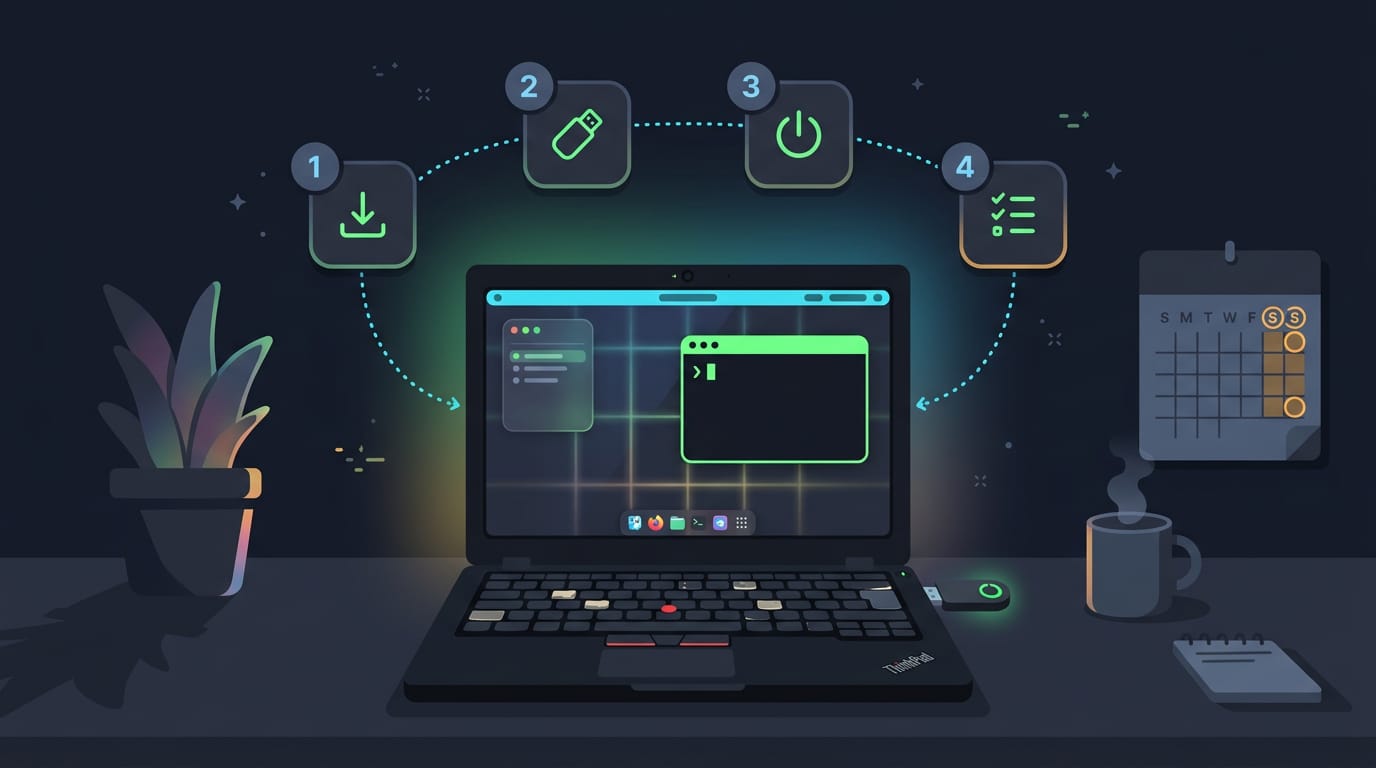
Here’s the process:
- Download the ISO for your chosen distribution (a complete Linux system).
- Create a bootable USB by writing that ISO to a stick with a flashing tool, which erases the stick.
- Boot via BIOS/UEFI (the firmware that starts your computer), then pick the USB in the boot menu.
- Follow the install prompts for language, keyboard, disk, and user account.
A ricer with a ten-year-old ThinkPad reads the disk screen twice, then spends the weekend tweaking a clean system.
Adding programs with stores and package managers
You’ll add most software through a store or a package manager, which downloads and updates programs for you.
- Graphical app stores: Browse, click, and install, much like a phone’s app store.
- Package managers: Use
apton Ubuntu and Debian, ordnfon Fedora. - Command-line installs: A single command like
sudo apt install firefoxreplaces a hunt through download pages. - Automatic dependency handling: Programs need other libraries to run. The manager installs those dependencies for you. Nothing to chase.
How Linux Keeps Systems Secure and Capable
Security is built into Linux’s foundation, and power users can extend it.
Built-in tools that protect Linux systems
Every file carries file permissions that set who can read, write, or run it. That’s discretionary access control (DAC): owners decide who gets in. A homelab tinkerer’s media server account can reach only its music folder.
SELinux (Security-Enhanced Linux) and AppArmor add a second layer that caps what a hijacked program can reach. Permissions ask who can open a file; these tools ask what a program may do.
Installing software or editing system files needs the administrator password, which stops a stray script from quietly rewriting something important. Small, but it matters.
ClamAV is an open-source antivirus for known malware, and nmap (Network Mapper) shows which network ports your machine answers on.
Why do hackers prefer Linux? Mostly because so many servers and devices run it, and its open-source code can be inspected by anyone, defenders included.
Is Linux safer than Windows? It’s a less common desktop target, but it isn’t bulletproof. A weak password or exposed service can still let someone in, so your setup matters more than the brand.
Advanced features for power users
The kernel is the core that talks to your hardware, and you can tune or customize it. KVM (Kernel-based Virtual Machine) runs other operating systems as virtual machines, so a student can test a Windows-only app without rebooting.
Docker containers package an app with everything it needs and keep it isolated from the rest of the system.
Linux is a common foundation for cloud servers, so commands learned at home often work remotely too. Your desktop skills travel.
How Linux Began and How It Grew
Linux didn’t begin as a grand plan. It started as one student’s side project and grew into a shared effort that thousands of people now help build. Here’s how that happened.
Where Linus Torvalds’ hobby project began
Linus Torvalds was a Finnish student in Helsinki when he started writing a kernel, the part of a system that manages your hardware and runs your programs. It began as a hobby project, not a business plan.
Unix and Minix, a Unix-like system, inspired him, and the project was first named Freax, a name that didn’t stick.
Think of a student with an old laptop and a free weekend. Like Torvalds, they can read the code of a system they admire, change the parts that annoy them, and share the fix with others.
That’s how a small experiment turns into a project people want to join.
How Linux grew and who guides it
Linux is built from millions of lines of code. A 2020 report in The Register, citing GitHub stats analysed by Michael Larabel at Phoronix, counted around 27.8 million lines of code in the kernel’s repository. That’s a lot of code.
The number of contributors grew from 100 to 15,000. Governance changed too.
The Linux Foundation was formed in 2007, and the study Governance of open source software: state of the art places that move within a wider trend of major open source projects incorporating.
Graphics came later. The X Window System, added in 1992, gave Linux its graphical layer, the groundwork that later window managers and desktop environments were built on.
So Linux at its heart is the kernel, with distributions, desktop environments, and window managers wrapped around it. Once you see those layers separately, the choices stop feeling overwhelming.
Pick a distribution that suits your hardware, then choose the window manager or desktop that fits how you like to work.
A desktop that looks like you and still boots every morning is well within reach. Take it one layer at a time, and make it yours.
References
- The progression of Linux init systems — doi.org (2026)
- A Review of Linux System Hardening Techniques for Enterprise Security and Compliance — doi.org (2025)
- Governance of open source software: state of the art — doi.org (2007)
- The Linux Scalability Project — hdl.handle.net (1999)
- Linux: In the Cloud and on Servers, the “Invisible” Operating System — lpi.org (2026)
- Live kernel patching with KLP | Administration Guide — documentation.suse.com (2026)
- Linux in 2020: 27.8 million lines of code in the kernel, 1.3 million in systemd — theregister.com
- Linux - A Historical Journey and Its Vital Role in Web Servers — websea.org
- Linux Just Hit a Big Milestone in the Desktop OS Race — pcmag.com
Questions
What is Unix in full?
Unix is not an acronym with an official full form. The name “Unix” was coined as a play on “Multics,” an earlier operating system.
What are the key differences between Linux and Unix operating systems?
Unix traditionally refers to systems certified to the Single UNIX Specification, while Linux is an open-source, Unix-like kernel used in many distributions. Linux distributions are generally free and assembled by different communities or companies; Unix systems have often been proprietary and vendor-specific. The systems share design ideas, command-line tools, and file-system conventions.
What are the advantages of using Linux?
Linux is generally free to use, open source, and highly customizable. It runs on a wide range of hardware, receives frequent software updates through package managers, and is commonly used for stable servers and cloud systems. Many distributions can also run well on older computers.
Why do hackers prefer Linux?
Linux is popular with security professionals and hackers because many servers and devices run it, and its open-source code can be inspected and adapted. It also offers powerful command-line and networking tools. These traits make it useful for legitimate security work, though they do not make every Linux system secure by default.
What percentage of web servers are running Linux?
There is no single reliable percentage for all web servers because estimates vary by dataset, date, and how servers are classified. Linux powers a substantial share of web infrastructure and is widely used on servers, but an exact current percentage should be tied to a clearly defined measurement source.
Can you provide me with a PDF introduction to Linux?
Yes. Introductory Linux PDFs are available from organizations such as the Linux Foundation and Linux Professional Institute, and many Linux distributions provide downloadable documentation. You can also save a web page as a PDF using your browser’s Print or Save as PDF option.
Is Linux safe than Windows?
Linux can be safer than Windows in some situations, but neither is automatically secure. Linux has permissions and optional protections such as SELinux and AppArmor, and it may be a less common desktop target; security still depends on updates, strong passwords, and careful configuration.
What did Bill Gates say about Linux?
Bill Gates has been quoted criticizing Linux’s licensing model, particularly the GNU General Public License, which he argued could require derivative software to be released under the same terms. The exact wording and context of quotations attributed to him vary, so they should be checked against a reliable original source.
Sources
- Linux in 2020: 27.8 million lines of code in the kernel, 1.3 million in systemd, theregister.com
- Governance of open source software: state of the art, doi.org,
- Linux - A Historical Journey and Its Vital Role in Web Servers, websea.org
- The Linux Scalability Project, hdl.handle.net,
- Linux: In the Cloud and on Servers, the "Invisible" Operating System - Linux Professional Institute (LPI), lpi.org,
- Linux Just Hit a Big Milestone in the Desktop OS Race | PCMag, pcmag.com
- The progression of Linux init systems, doi.org,
- A Review of Linux System Hardening Techniques for Enterprise Security and Compliance, doi.org,
- Live kernel patching with KLP | Administration Guide | SLES 15 SP7, documentation.suse.com,
- Package Freshness in Linux Distributions, doi.org,
Read next.
OS Commands in Linux: A Practical Guide
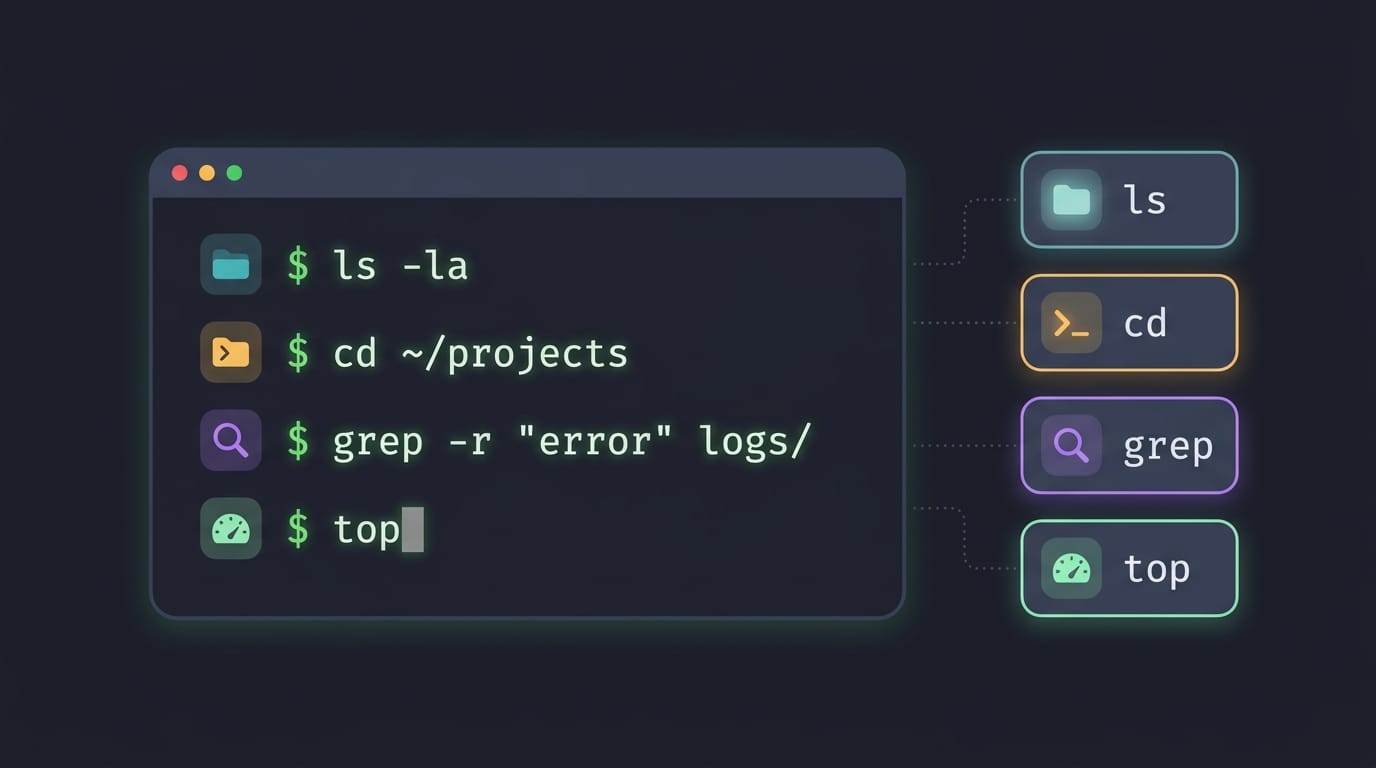
OS commands in Linux help you find files, move through folders, manage permissions, and customize your desktop without clicking through windows.
Ubuntu Shutdown Screen Explained, Step by Step
Ubuntu shutdown screen delays can reveal stuck apps or services. See how logind handles power events and force an immediate terminal shutdown when needed.
Ubuntu Install Errors: A Complete Troubleshooting Guide
Ubuntu install errors often start with USB media or partitioning mistakes. Fix boot, UEFI, Secure Boot, and GRUB problems with practical troubleshooting steps.