Update Fedora: Packages and Release Upgrades Explained
Update Fedora packages or move to Fedora 41 from the terminal or graphical interface, then check broken drivers and learn how to undo an upgrade.
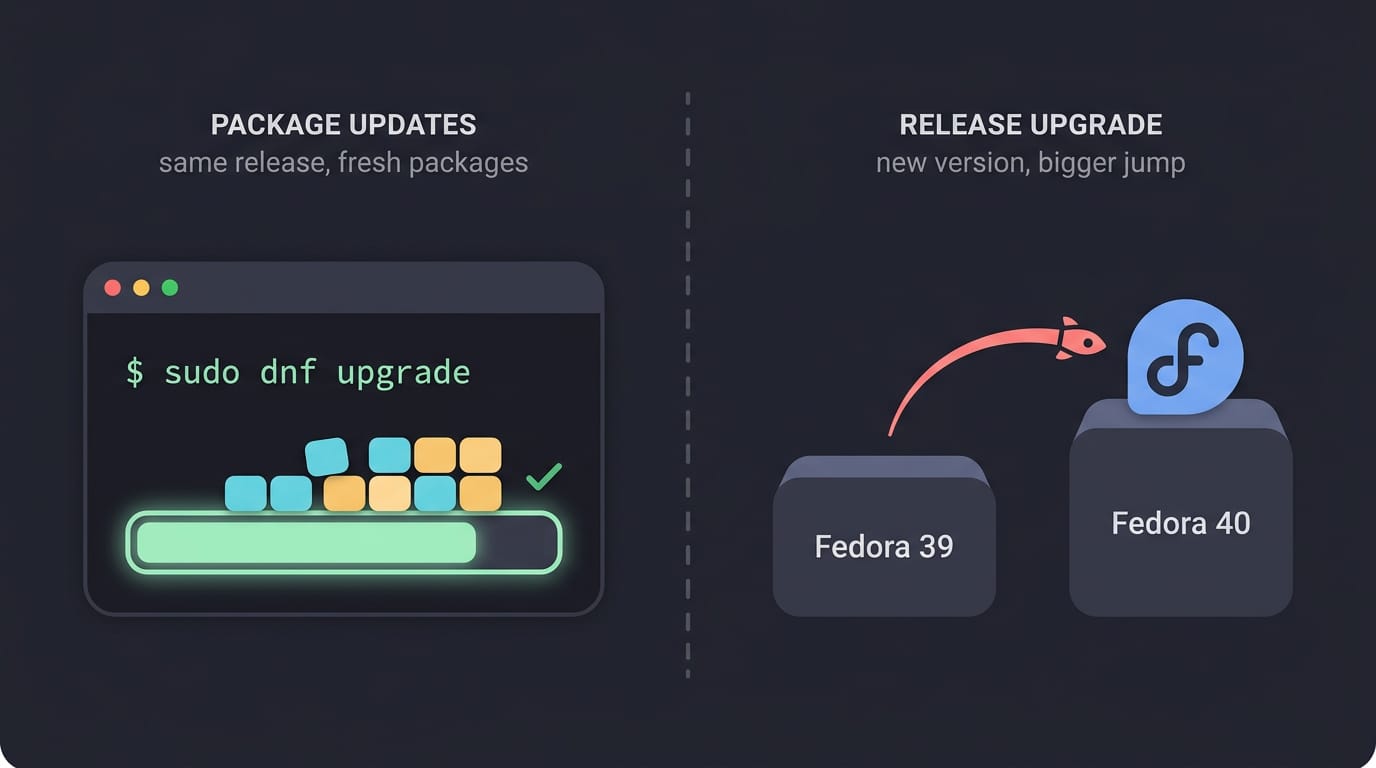
tl;dr the short answer
Updating Fedora installs newer packages while keeping your current release; upgrading Fedora moves the system to a newer release. Use DNF or GNOME Software for routine updates, and prepare release upgrades by updating packages, checking third-party repositories, saving your work, and backing up personal files. Verify the new version afterward, and if problems appear, boot the older version or restore from backup before choosing a rollback or fresh install.
Think of your Fedora install like the car you drive every day. Routine package updates are the oil changes that keep it running smoothly, while a full release upgrade is a major service that swaps out bigger parts.
Both are doable, and neither has to end with a broken desktop.
Updating means refreshing the packages you already have, and upgrading means moving to a newer Fedora release.
We’ll cover both from the terminal and the graphical interface, plus the checks you’ll want to run when something breaks afterward, like a driver that quit working.
Update Fedora Releases from the Terminal
Before we dig in, know the difference: routine updates keep you on your current Fedora release, and dnf upgrade handles them. A release upgrade moves you to the next version, which takes more prep.
Get your system ready before upgrading
- Update current packages first. Run
sudo dnf upgradeso everything is current before you touch the release. - Refresh the metadata. Run
sudo dnf upgrade --refreshso dnf pulls fresh package lists. - Get the newer release signing keys. Signing keys let dnf verify that packages come from Fedora. This step is required. Don’t skip it.
Consider a student on a ten-year-old ThinkPad who runs these steps on Sunday night, so Monday’s classes don’t start with a surprise. Skip the prep, and that Sunday night turns into a Monday rescue.
Updating VS Code follows the same rule. If you installed it from a repository, dnf upgrade picks it up with everything else. If you installed it from a standalone package file, no repository updates it, so you’ll need the newer version from the vendor.
Running the DNF system-upgrade plugin
The DNF system-upgrade plugin handles the move itself:
- Install the plugin. Run
sudo dnf install dnf-plugin-system-upgrade. - Download the new release. Run
sudo dnf system-upgrade download --releasever=<version>, swapping in the Fedora release you’re targeting. - Reboot to install. The upgrade applies when your machine restarts.
The download runs now, but nothing installs until you reboot. Download time depends on your connection, so a slow line means a long wait.
If you use third-party repos like RPM Fusion or Copr, check them before you start, since their packages may not be ready for the new release yet.
Fixing conflicts that block the upgrade
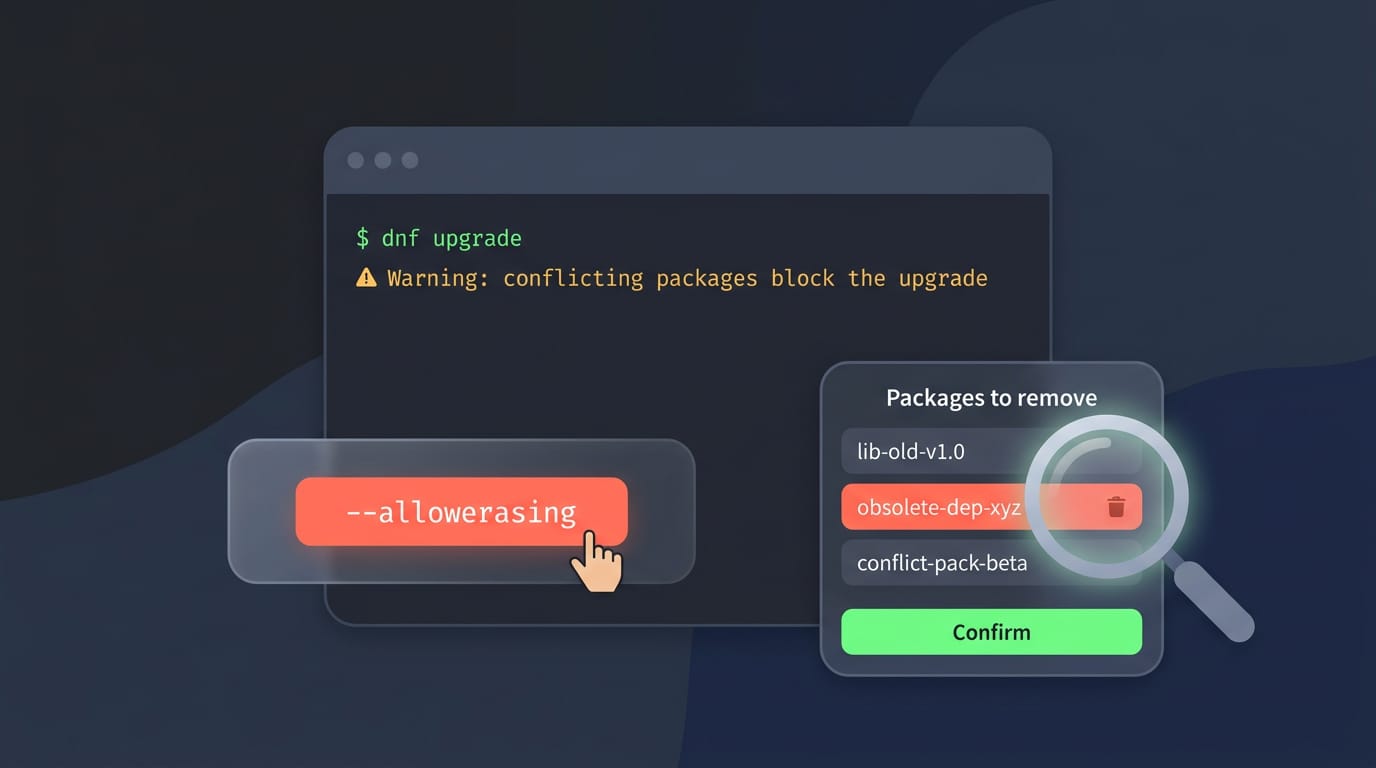
Sometimes packages conflict and stop the upgrade. The --allowerasing option tells dnf to work around that, but it removes conflicting packages to do it. Treat it as a last resort, not a first step.
Read the removal list before you confirm, since anything on it stays gone until you reinstall it.
Check that the new version is running
Once you log in after the reboot, run cat /etc/redhat-release to confirm the upgrade took. If the version listed matches your target, you’re done.
An unofficial tool that automates the steps
- Automation: the fedora-upgrade package automates the package-manager upgrade steps for you.
- Unofficial: Fedora doesn’t officially support it.
- Official guide: it points you to the official upgrade wiki, which is the place to check current steps.
Upgrade Through the Graphical Interface
If you’d rather click than type, the graphical tools handle routine updates and full release upgrades (moving to the next Fedora version). Start small, then we’ll tackle the bigger jump.
Update your system in GNOME Software
GNOME Software is the app store on Fedora Workstation. Work through it in this order:
- Upgrade notification: Workstation tells you when an update is ready, so you don’t have to hunt for it.
- Updates pane: Open it and press Refresh to check for new packages.
- Download, then Restart & Update: Updates download first, then Restart & Update applies them.
- Apply pending updates first: Clear anything waiting before you start a release upgrade.
Does Fedora automatically update? That depends on your settings, so open Settings and look for an automatic update option before you assume either way.
Start and finish the release upgrade
Picture a student who starts the upgrade Sunday night on an old ThinkPad and wakes up to a fresh release ready for Monday’s classes. The steps look like this:
- Click Download for new release: The prompt offers this button when a newer version is out.
- Follow on-screen instructions: The tool walks you through each step.
- Reliable internet needed: A dropped connection can stall the download, so stick with a steady link.
- Automatic restart after upgrade: Your machine reboots on its own when it finishes, so save your work first.
Give it time. Upgrades take a while, so leave it alone until it finishes.
Check your version in the About app
Open Activities and search for About. It shows your Fedora version and system specs, so you can confirm an upgrade landed rather than assume it did.
What’s New in Fedora 41
Fedora 41 changes both the desktop you look at all day and the system working underneath it. Here’s what’s new.
Desktop and interface improvements
According to heise online, Fedora 41 ships GNOME 47 as its primary desktop, and that release adds accent color customization. Say you want your highlights to match a favorite wallpaper: accent colors make that easy.
Here’s the rest:
- KDE Plasma 6.2 for KDE fans
- Nautilus sidebar customization in GNOME’s file manager
- Modernized dialogs, the pop-up windows that ask you to confirm something or pick a file
- Small screen scaling for compact laptops

Under-the-hood changes to the system
Most of these changes are about how your system runs, not what it looks like. The Linux kernel 6.11 is the core layer that talks to your hardware, and it’s part of this release.
DNF 5 is the newer version of Fedora’s package manager, and it’s faster with fewer dependencies (the other software a program needs to run).
NVIDIA support is improved when Secure Boot is on, the firmware feature that only loads software with a trusted signature. The Wayland graphics stack, the modern layer that draws your windows, also gets updates.
Picture an admin with a row of NVIDIA workstations: after a kernel update, rebuilding akmods (the kernel modules your NVIDIA driver needs) keeps each card’s driver in step with the new kernel. Easy to forget, easy to fix.
Who builds and uses Fedora
Fedora is community-driven, and Red Hat sponsors it. Its users include:
- Admins who keep servers and workstations running
- Desktop users who want a current, good-looking system
- Developers who need recent tools
Consider a developer who codes every morning: a faster package manager means less time waiting on installs.
Undoing an Upgrade or Starting Fresh
Sometimes an upgrade goes sideways, and you need a way back. You can roll back to the version you had, or start over with a clean install. Either way, back up your personal files first so you’re covered before anything changes.
Roll back a failed upgrade
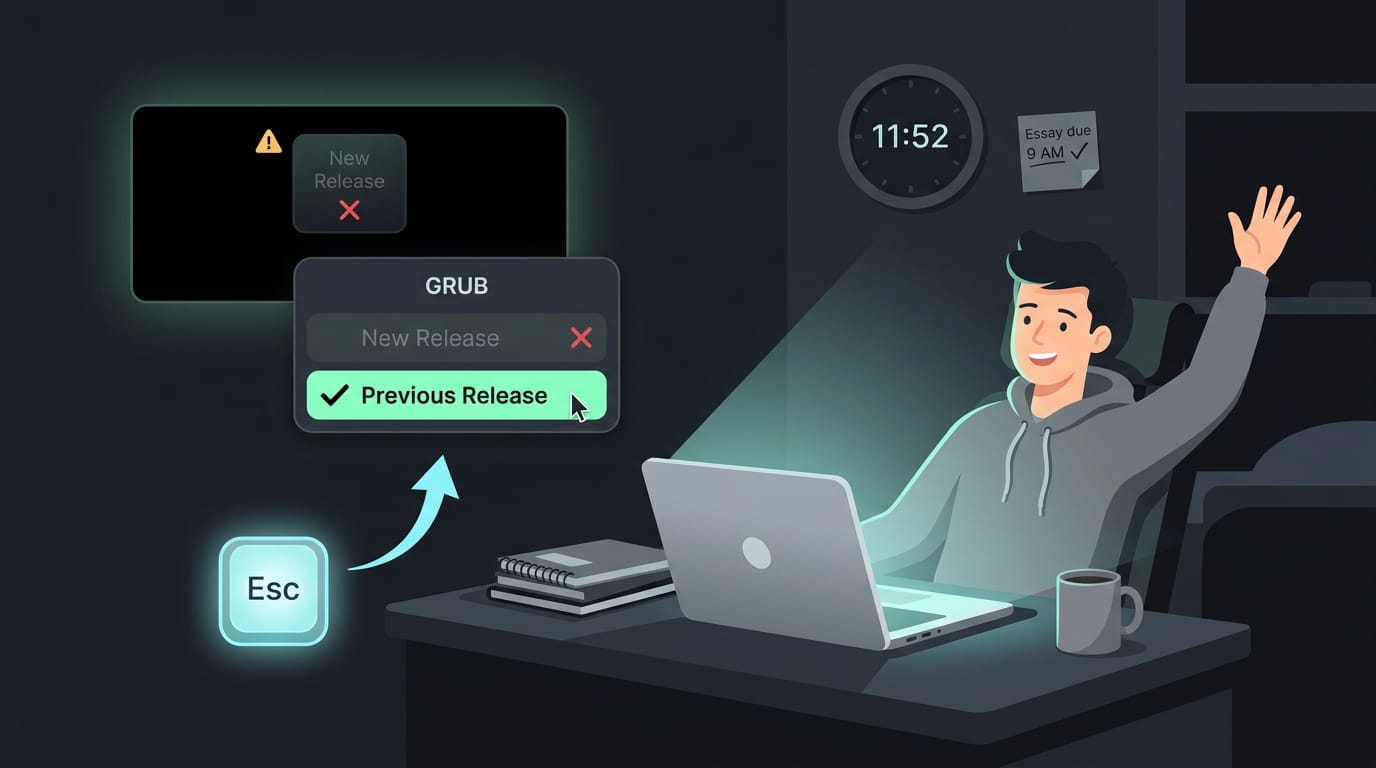
If the new release won’t boot or misbehaves right away, reboot and press Esc as the computer starts. That opens the GRUB boot menu, the list where you pick which system to load. Choose the older version and boot into it.
Think of a student who upgrades the night before a deadline and finds the laptop stuck on a black screen. A few keypresses at boot get them back into the working version in minutes, so the deadline survives.
If the older version runs well, run rpm-ostree rollback, the command for image-based Fedora systems, to make it the default that survives reboots. If only a few apps misbehave instead of the whole system, fix those packages in place and skip the rollback.
Install fresh instead of upgrading
A fresh install is about starting over rather than patching. You get a clean system with no old traces, so leftover settings from the last release have less chance to cause trouble.
The tradeoff is reinstalling your apps and settings yourself, which is why your backup matters here too.
Consider a self-hoster rebuilding a home server who wants none of the old setup carried forward.
They follow the Fedora Server install guide, reinstall only the services they need, and end up with a machine they fully understand. Sometimes the clean slate wins.
Upgrade Tool Release and Package Info
Before you upgrade, it helps to know which releases you can pick, who maintains the tooling, and where past updates are recorded.
Which releases are available
Rawhide is the development branch, and the numbered releases run through Fedora 43. Each release carries a status of stable or testing. Testing is where new changes get checked before they reach everyone. Stable is the safe default.
Consider a student whose laptop has to survive a presentation next week. They should stay on stable so they get fewer surprises before the deadline. Choose by how much surprise you can handle, not by how new a release sounds.
Maintainer, license, and related packages
Here’s what we’d check on the project side:
- Upstream repository: The source lives on GitHub, so you can read the code for yourself.
- GPL-2.0-only license: It’s a GNU General Public License, version 2, which lets you study and change the code.
- Maintainer contact: If an upgrade fails in a way the docs don’t cover, this is where you ask for help.
- Related packages: These are the companion packages tied to the tooling, so check them in the same pass.
Past update submissions and build records
Picture someone whose wifi stopped working right after an update last week. Checking the update history shows exactly which version landed on their machine and when. That’s the first clue.
Bodhi tracks update submissions, and the testing to stable pushes show when an update moved forward. Koji holds the build records for each package, so you can see exactly what was built.
Updating Fedora doesn’t have to be a gamble. Keep up with routine package updates, plan your full release upgrades, and run the post-update checks so small problems get caught early.
If something does go sideways, you’ve got a way back, whether that means undoing the upgrade or starting fresh.
Stay current, stay prepared, and your desktop will still boot tomorrow.
References
- Gnome 47 sets accents and makes X11 optional — heise.de
Questions
What is the update command for Fedora?
Run `sudo dnf upgrade` to update installed packages on Fedora. To refresh package metadata before updating, use `sudo dnf upgrade --refresh`.
How to update VS Code on Linux Fedora?
If you installed VS Code from a repository, run `sudo dnf upgrade` to update it along with your other packages. If you installed it from a standalone package file, download and install the newer version from the vendor. Make sure you use the same installation method you originally chose.
Does Fedora automatically update?
Fedora does not always update automatically; it depends on your system settings. Check the automatic update option in Settings or use GNOME Software to refresh, download, and apply updates.
Sources
Read next.
Install Java: JDK vs JRE and Setup on Any OS
Install Java on Windows, macOS, or Linux with the right JDK or JRE, platform-specific commands, and JAVAHOME setup, then test your installation.
Install Homebrew on macOS and Linux: Complete Guide
Install Homebrew on macOS or Linux, then set the right PATH and verify commands work before adding tools, updating packages, or fixing setup issues.
Install CUDA on Linux: Driver, Toolkit, and Kernel Steps
Install CUDA without guesswork: match the driver to the toolkit, then check Linux, Windows 11, containers, and rollback steps before you start.