Windows animations explained: how to turn them on or off
Windows animations can be enabled, disabled, or customized with Windhawk; compare the options to choose the motion effects that fit your desktop best.
tl;dr the short answer
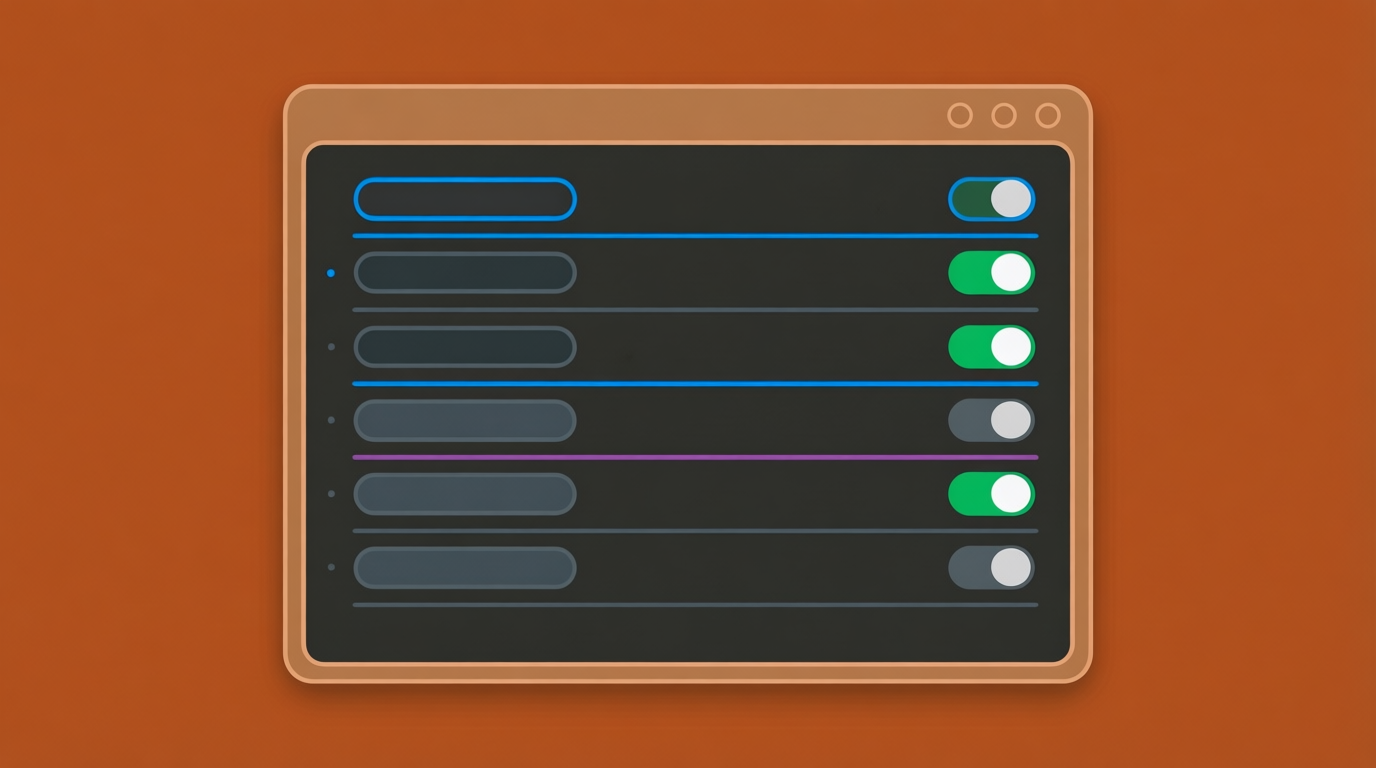
Windows animations are brief visual effects, such as fades, slides, and zooms, that appear when you open, close, minimize, or switch windows. You can enable or disable built-in effects in Settings, choose individual effects in Performance Options, or add custom styles with Windhawk; turning motion off can make older or low-power PCs feel more responsive and reduce distracting movement. The best choice depends on whether you value a calmer, snappier desktop or more visual polish, and custom effects may not work with every app.
Ever watched a window fade in or slide shut and wondered where that motion comes from? Those are window animations: short visual effects that play when you open, close, or minimize an app.
Windows ships with its own set, and you’re free to keep, tweak, or silence them.
Here’s the plan: why you might switch them on or off, how to do it, and how to go further with Windhawk.
We’ll also compare them with the compositor animations (the effects handled by the part of Linux that draws your windows) that tiling and rice setups rely on.
Why Switch Windows Animations on or Off
Windows 11 animations are the short fades, slides, and zooms that play when you open, close, or minimize a window. The question is less about whether they look good and more about what they cost you.
How animations affect speed and responsiveness
Turn them off and the interface feels snappier. Minimizing is instant, and apps tend to open quicker. Think of a student with a ten-year-old laptop: once the effects are off, the machine keeps up better when it’s already working hard.
The gain matters most on older or low-power machines. According to PCWorld, disabling Windows 11’s visual effects can speed up older laptops and improve battery life.
Linux follows the same pattern. Compositor animations, the layer that draws your windows, carry the same tradeoffs on a tiling setup.
When motion gets distracting or uncomfortable
For some people, motion is more than an annoyance. Motion-sensitive users may find constant sliding and zooming uncomfortable, and turning it off gives them a calmer screen. A desktop that stays still can also feel quieter when you’re trying to focus.
In a managed workplace or shared lab, switching animations off keeps the experience uniform for everyone.
What you give up visually
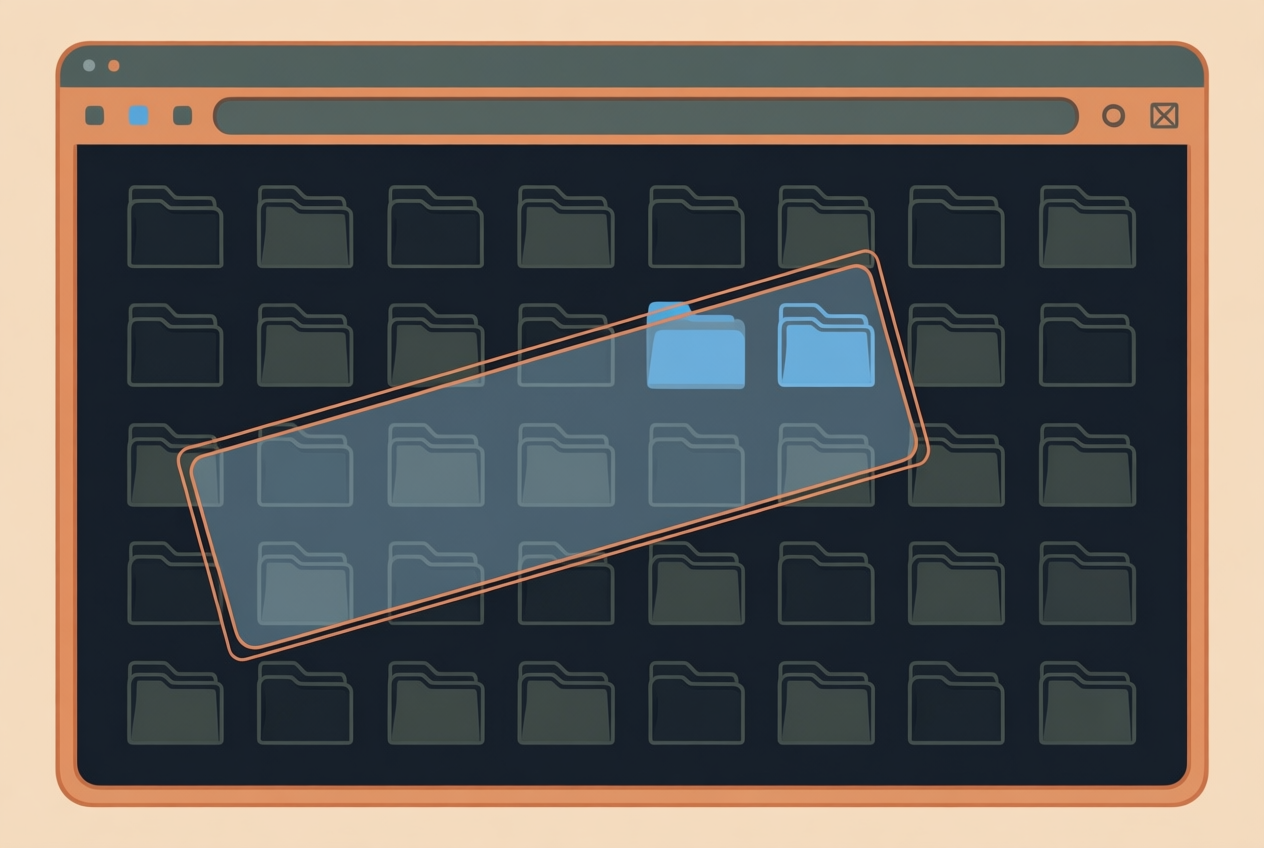
Turning them off has a visual cost. Your desktop looks less polished, and Explorer can lose its selection frame, the box that shows which files you’ve dragged across.
Some people simply enjoy the motion, and that’s a fair reason to keep it. Your call, either way.
How Do I Turn on Windows Animations?
Turning animations on is usually a single toggle, but the setting lives in a few places. The real question isn’t whether Windows can animate, but where to look.
Use Visual effects in the Settings app
Open Settings, go to Accessibility, then choose Visual effects. Turn on the Animation effects toggle. The Transparency toggle sits right beside it if you want that as well. Changes apply immediately, with no restart needed.
Say you dual-boot Windows 11 for one game and want its windows to slide as smoothly as your Linux desktop. Flip that switch and you’re done.
Because this is a per-user setting, it only affects the account you’re signed into. Reverting is just as easy: switch the toggle back off.
Using the older Performance Options dialog
The older Performance Options dialog still works and gives you more control. Type SystemPropertiesPerformance into the Run box, or reach it through Advanced system settings.
The Adjust for best performance option is blunt, since it removes shadows and font smoothing along with the motion. Choose Custom instead and tick only the animations you want:
- Animate windows
- Animate the taskbar
- Animate controls
To revert, reopen the dialog and set the options back the way they were.
Automate it with the registry or PowerShell
Setting this up on several machines? Script it rather than clicking through each one. In the registry editor, work with the VisualFXSetting values, and check the MinAnimate value too. Restart explorer.exe afterward so the changes take effect.
For repeatable setups, wrap these edits in a PowerShell script run with admin rights. There’s no direct Group Policy setting, so the script or registry edit is your main route for a group of machines.
Before you edit anything, note the current values. Then you can put them back if a change misbehaves, the same habit as backing up a dotfile before a risky tweak.
What you need before you start
These steps apply to all Windows 11 editions. Changes to your own account, like the Settings toggle, don’t need admin rights. The PowerShell script does, so open it as an administrator.
Decide early between a per-user change and a central deployment. A central deployment pushes one set of choices to multiple machines, which is where the script earns its keep.
Add Custom Window Animations with Windhawk
Want your windows to close, minimize, and switch the way you like?
If you’re asking how to change the animations in Windows 11, install Windhawk (the tool that adds these styles), pick a style in its settings, and add one mod at a time so any problem is easy to trace. Start small.
Browse close, minimize and launch styles
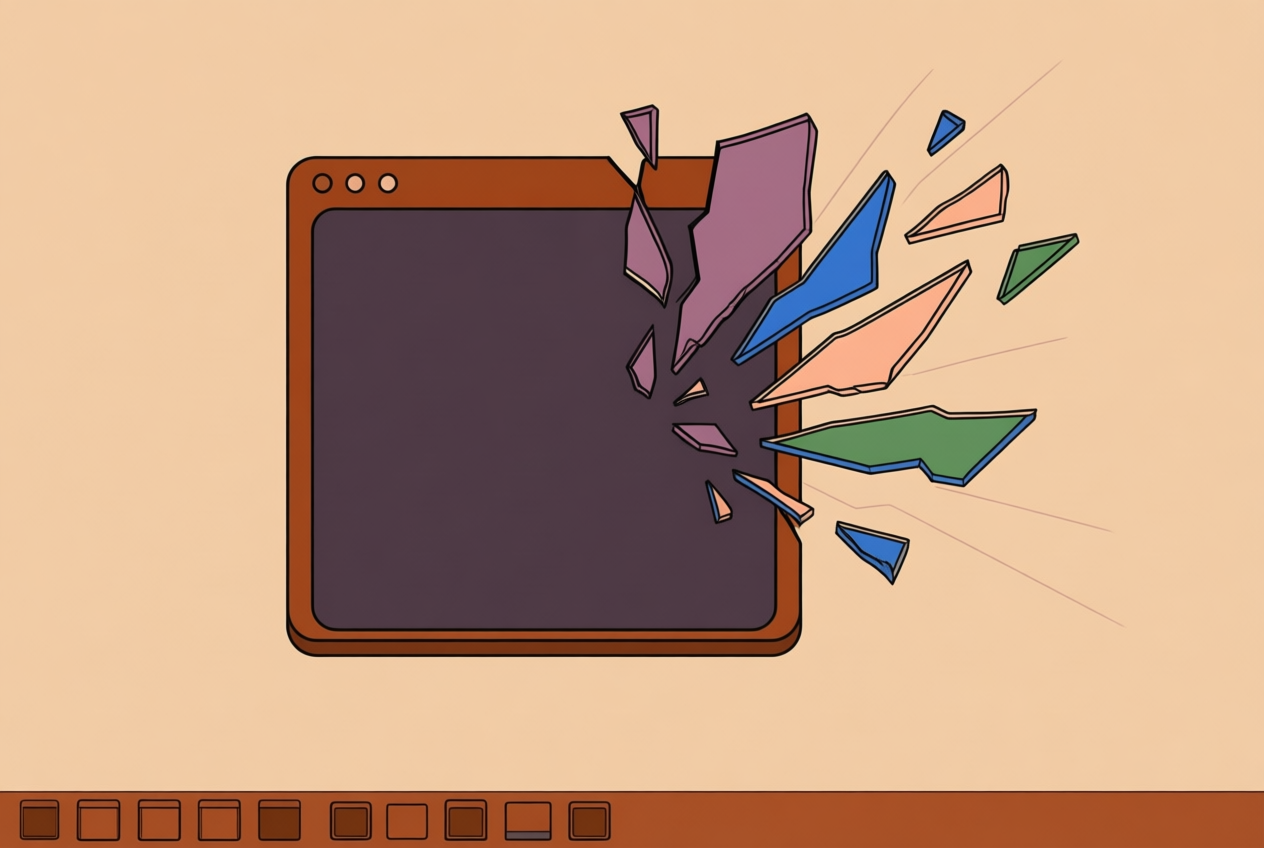
The mod offers six close effects and eight minimize, restore, and launch styles, including Genie, Thanos Snap, and Shatter. Every style has a preview, and Alt+Tab gets its own switch animation.
Think of a Hyprland user who rices a desktop all week, then needs a Windows laptop for work. They can browse the previews, pick a close effect that suits them, and feel at home on both machines.
Hyprland and KWin, the KDE window manager, each animate windows inside the compositor, the part of the desktop that draws your windows. In a rice, the animation is part of what you build. With Windhawk, it’s something you switch on.
Other mods that add animations
- macOS-style minimize: a minimize animation modeled on macOS.
- Taskbar dock hover: a dock-style hover animation for the taskbar.
- Taskbar auto-hide: control over the speed and style of the auto-hide.
- Slick window sliding: windows glide into place as you arrange them.
How the hybrid renderer affects speed
The hybrid renderer lets each animation run on the CPU (your processor) or on D3D11 (Direct3D 11, the interface that hands work to your graphics card, or GPU). This is about where the work runs, not what the effect looks like.
Each animation group has its own GPU toggle, so you can test them one at a time. Frame costs (the work each frame needs) were benchmarked against 1.2.0, and a full-GPU prototype was tried and rejected.
Where the mod falls short or conflicts
- Packaged and system apps are excluded, so those windows get no effects.
- MMC consoles (Microsoft Management Console, the admin tool windows) keep native transitions.
- Tray-hidden apps, which sit in the system tray, need a setting before they animate.
- Excel’s close animation has caveats, so test it on a spare workbook first.
- Simple Window Switcher may conflict with the Alt+Tab switch, so check compatibility before running both.
Whether you keep Windows animations, switch them off for a snappier feel, or build something custom with Windhawk, you’re in charge of how your windows move.
You also know how tiling and rice setups handle the same kind of motion through the compositor, which helps you decide where each approach fits.
So experiment until the motion feels right, and revisit it whenever your setup changes. After all, your desktop should feel like yours, down to the last fade.
References
- Disable this Windows 11 setting for a faster, longer-lasting laptop — pcworld.com (2026)
Questions
How do I turn on Windows animations?
Open **Settings** and go to **Accessibility > Visual effects**. Turn on **Animation effects**; the change applies immediately and only affects your account.
How do I change the animations in Windows 11?
Windows 11’s built-in animation effects can be enabled or disabled in **Settings > Accessibility > Visual effects**. For custom window effects, install Windhawk, choose an animation style in its settings, and add mods one at a time.
Sources
Read next.
Color scheme from wallpaper: pywal, wallust and matugen
How pywal16, wallust and matugen turn a wallpaper into a color scheme, which fits your rice, how to wire it into your apps, and when a fixed palette is better.
How to install Nerd Fonts on Linux (and fix the boxes)
Pick the right Nerd Font variant, install it from packages or by hand, check it with fc-list, set its exact name in your apps and fix icons that show as boxes.
How to make your own terminal color scheme
Build a terminal palette from scratch: a background and text, sixteen ANSI colors evened out in OKLCH and checked for contrast, then loaded and made light too.