Claude Code Install Guide: Every Method Explained
Claude Code install can fail when Linux Node.js or shell PATH settings don't match. Check Node.js, PATH, and login requirements, even on headless servers.
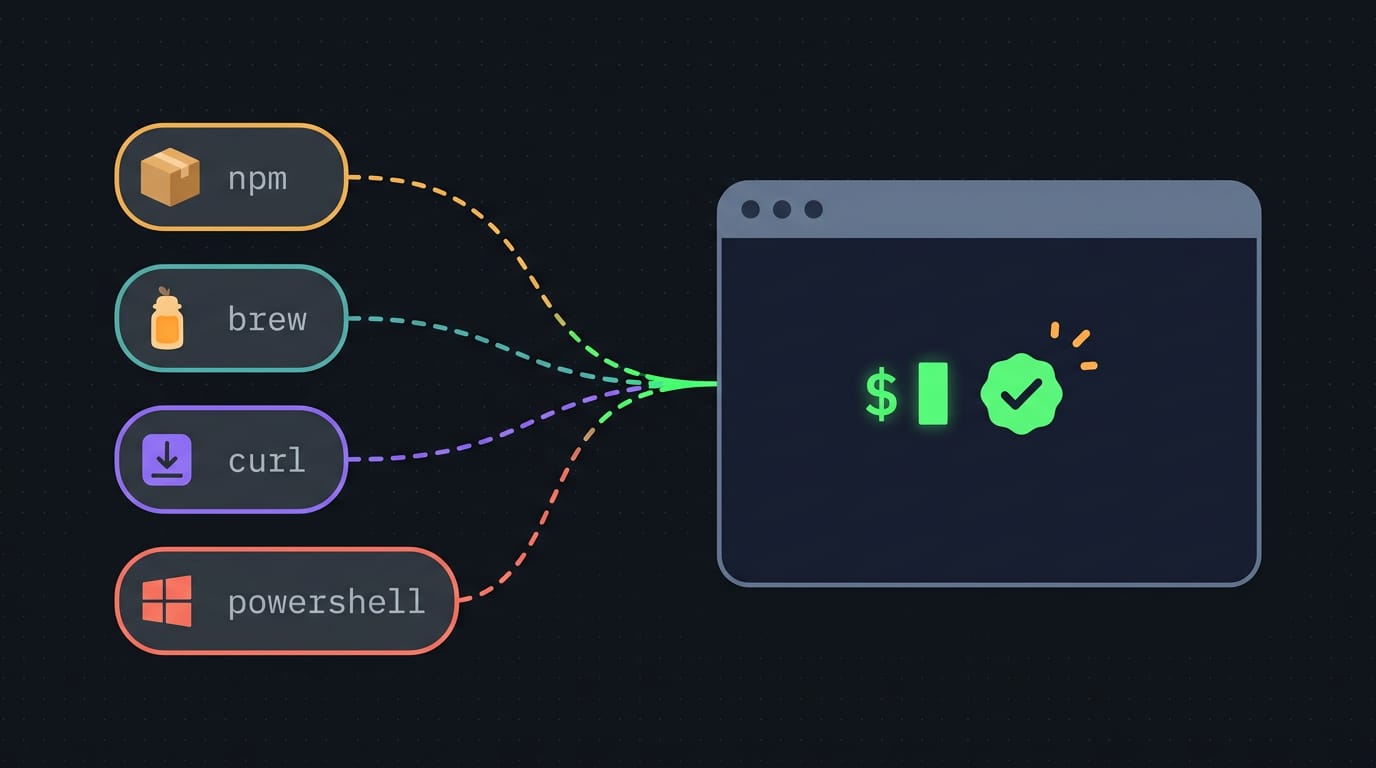
tl;dr the short answer
Claude Code is Anthropic’s terminal-based AI coding assistant, which reads project files, edits code, and runs commands or tests with your approval. Install it with npm if you already have Node.js 18 or newer, or choose a native installer to avoid the Node.js requirement; then sign in with a browser or use an API key. Launch it from your project folder, review its changes, and check your shell’s PATH if the `claude` command is not found.
Ever hit a “command not found” error right after installing a new tool?
Getting Claude Code, Anthropic’s coding assistant for the terminal, running can feel like that at first, especially on Linux, where your distro’s packages don’t always line up with what the tool expects.
This guide is the complete walkthrough.
You’ll see every install method, the prerequisites to check first, how logging in works, and the Linux details most guides skip: distro Node.js versions, the shell PATH your terminal uses to find commands, and servers without a screen.
Let’s get it working.
Claude Code Install and What It Does
Before you install anything, here’s what the tool does and why so many people keep it in the terminal.
What it reads, edits, and runs
Claude Code is Anthropic’s terminal AI assistant. It works on your project’s code and handles jobs you’d normally do by hand:
- Reads your codebase. It looks through your files to see how the pieces fit.
- Edits files. It proposes and makes changes across your project.
- Runs commands and tests. It executes shell commands, then reads the output to decide its next step.
The key word is agentic: it works toward a goal over several steps instead of answering one question. It’s also permission-based, so you approve its actions before they happen. You stay in charge, even when the assistant is doing the typing.
Why stay in your terminal
Staying put avoids context switching, that mental jolt of hopping between a browser chat, your editor, and a shell. Everything lives in one window, so your train of thought stays intact.
Claude Code supports terminal workflows like piping logs into Claude, and you can describe coding tasks in plain English, as the Claude Code Complete User Handbook explains.
Picture a Linux admin on a headless server (one with no monitor) at 1am, watching a service crash. Instead of copying log lines into a browser tab, they pipe the log into Claude and ask what broke. The payoff: a likely cause before the coffee brews.
The shift is less about memorizing commands and more about describing what you want. Plenty of people quote big time savings, but the real number depends on your work, so time a few of your own tasks.
What You Need Before Installing
Before you run a single command, line up three things: an account, a few tools on your machine, and a folder to work in. Here’s what each one takes, and we’ll flag the Linux gotchas as we go.
Which account and plan you need
You’ll need an Anthropic account to sign in to Claude Code. From there, connect through a paid plan or an API key, which ties Claude Code to your API account instead.
The free plan is fine for a quick test, but its usage limits can get in the way of daily work. If you plan to use Claude Code every day, a paid plan or API key is the smoother choice.
Software your machine needs first
Check these off before you start:
- Node.js 18 or newer: this includes npm, the package manager you’ll use to install Claude Code.
- Git for Windows: needed if you’re on Windows, where both Windows 10 and 11 are supported.
- A supported terminal: the window where you type commands. Check the official docs for the current list.
- An existing project directory: the folder you’ll launch Claude Code from. An empty one works for a fresh start.
Distro Node too old? Picture a student on a ten-year-old ThinkPad whose distro packages a Node.js version below 18. Rather than upgrading it system-wide, they install nvm, short for Node Version Manager, which keeps a newer Node under their home folder.
Their system packages stay untouched, and node -v now reports a version that meets the requirement. Nothing else changes.
Ways to Install Claude Code
Claude Code installs several ways, and the right one depends on whether Node.js is on your machine and how you’d like updates handled.
Installing with npm on any system
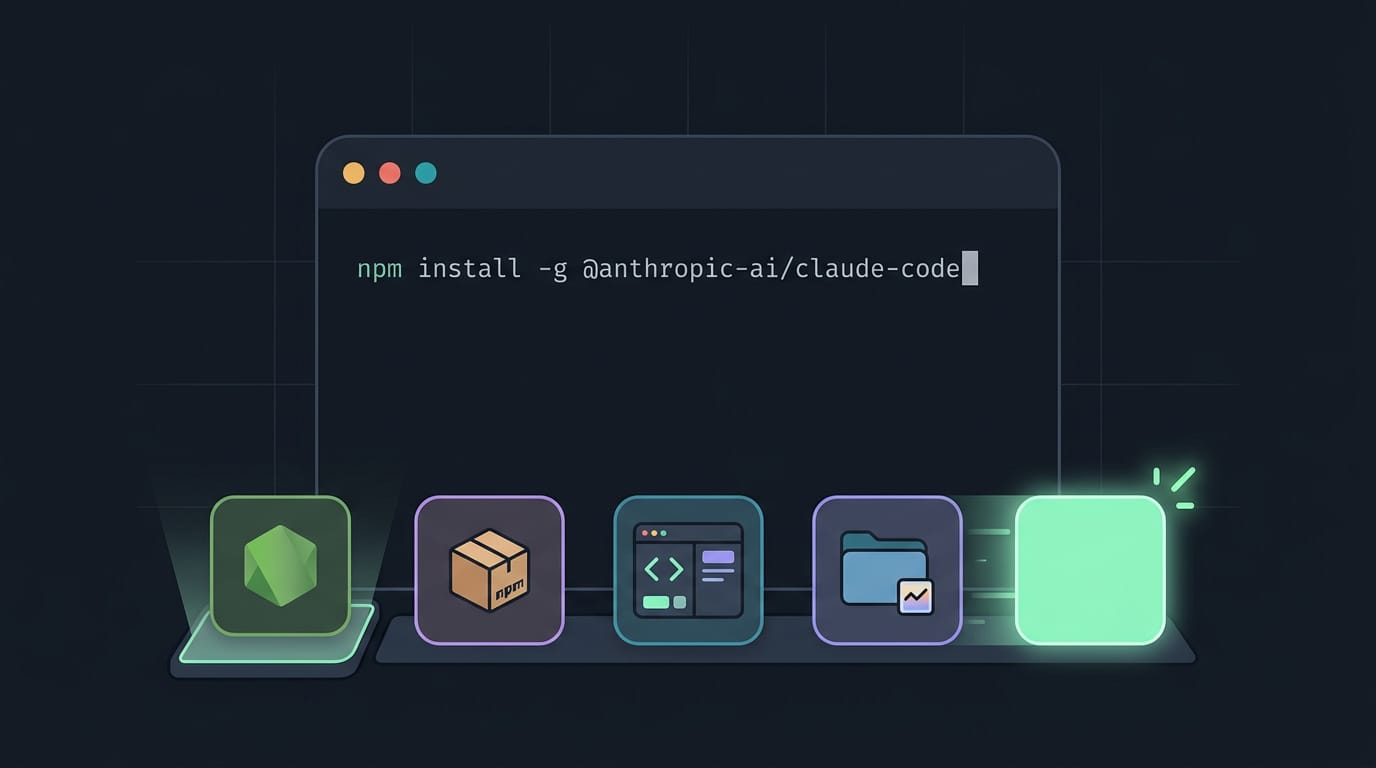
The most portable route is npm, the package manager that comes with Node.js. Run npm install -g @anthropic-ai/claude-code on any platform. The catch is the Node.js dependency: Node has to be installed first.
Take a Linux user who runs Node.js for side projects. One command, and Claude Code joins their existing tools with no second installer to manage.
To install in Visual Studio Code (VS Code), open its integrated terminal and run one of the commands above.
Fast installers that skip Node.js
Skip Node.js entirely with the native installers: a curl script on Mac and Linux (curl is a command-line download tool), or a PowerShell irm script on Windows. Both are fast, need no Node.js, and auto-update. Less to set up, fewer things to fix.
Think of a hyprland user on Arch who wants a working install before tuning their bar. Updates arrive without a reminder.
Using Homebrew or WinGet instead
Homebrew handles the Mac install, and WinGet (the Windows package manager) handles it on Windows. Native installers update themselves, but Homebrew and WinGet need you to upgrade by hand.
Linux users should check the AUR (Arch User Repository) and Nix, a package manager, to see whether a package is available before choosing a method.
Switching later? Uninstall the copy from your current method first, so you don’t end up with two installs and no idea which one runs.
Walking through the install on Windows
Windows needs a few extra steps:
- Open PowerShell from the Start menu.
- Verify your Node version. Check which Node.js version you have, and skip this if you’re using the native script.
- Run the install command. Use the npm command or the
irmscript. - Use Windows Terminal with PowerShell 7 if you can. It’s a friendlier place to run the install and everything after it.
Then confirm it worked: open a fresh terminal and check that the claude command responds.
A student on a ten-year-old ThinkPad can run the native script and skip installing Node.js on a laptop that’s already doing a lot.
Logging in and Getting Set Up
Once Claude Code is installed, it needs to know who you are, and we’ll cover the two ways to tell it. The right route depends less on what you like and more on where you’re running it.
Logging in through your browser
The usual path starts when you launch the command-line interface (CLI) and follow its prompts to authenticate. It then asks you to authorize the connection in your browser, so you’ll want a browser on that machine or one you can easily reach.
Once you approve, your credentials are saved locally, so you won’t repeat the step on that machine. Then you’re done.
Headless servers are the exception. A headless server has no screen or desktop, and you usually reach it over SSH (Secure Shell, a remote login over the network).
Think of a homelabber with a Debian server in a closet, typing from a laptop across the house. The browser lives on the laptop, not the server, so the usual flow stalls, and an API key is often the smoother route.
Signing in with an API key
Instead of a browser login, you can store your key in an environment variable named ANTHROPIC_API_KEY. That’s a named setting your shell passes to the programs you run, so Claude Code can pick up the key without a browser.
This is the route for servers, scripts, and any setup where you’d rather skip the login screen.
Keep in mind that API access uses pay-per-token billing, which means you’re charged by the token (a small chunk of text) for what you actually use.
If Claude Code rejects your key, check these first:
- Look for stray spaces or a character cut off during copy and paste.
- Confirm the variable is set in the same shell you’re launching from.
- Make sure the key hasn’t been revoked or deleted in your account.
Using It Day to Day
Once it’s installed, the real work happens inside your projects. Here’s what a typical day looks like.
Everyday tasks like fixes and commits
Claude Code handles the jobs you’d hand a teammate. You can ask it to fix bugs by describing the symptom, and it’ll look through the code for the likely cause. It can also:
- add features
- refactor code that has grown messy
- run tests to confirm nothing else broke
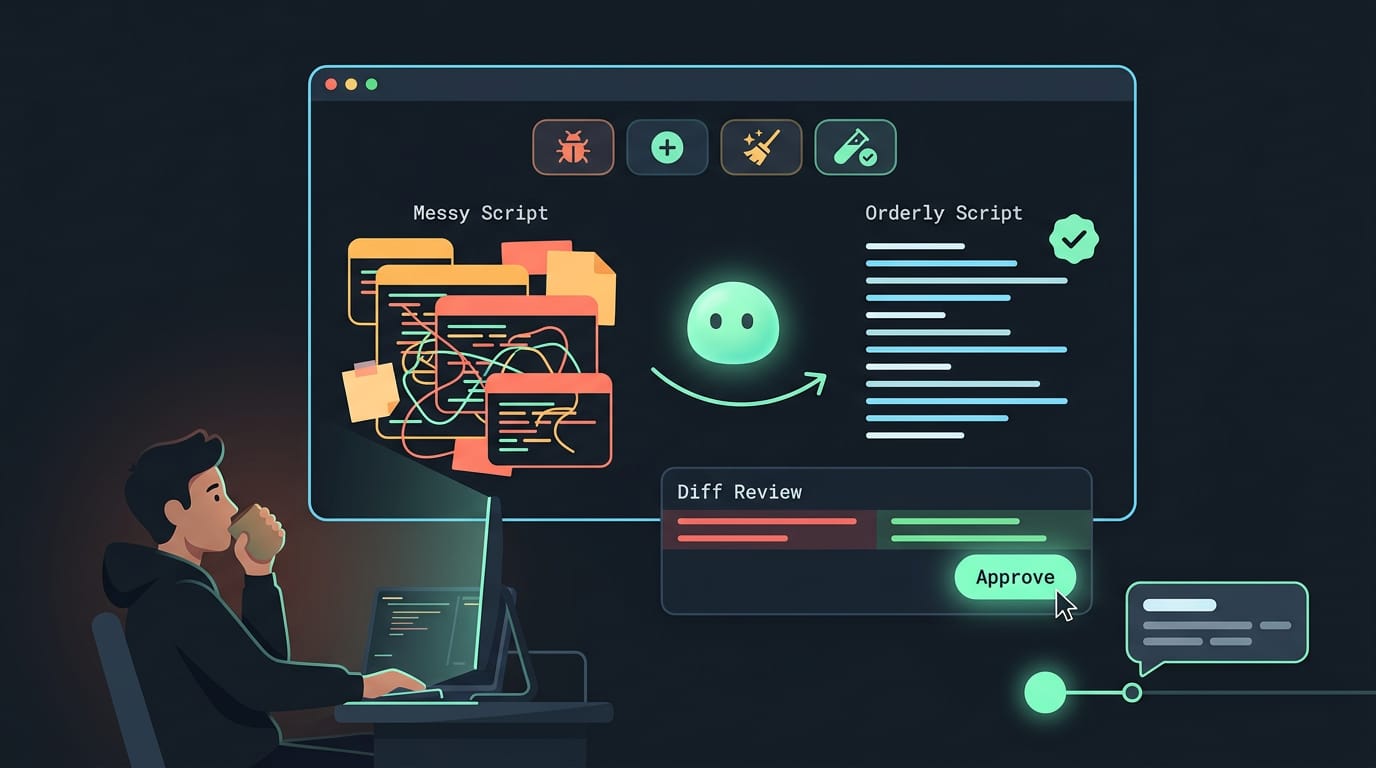
Picture a Fedora user with a deploy script that’s been patched a dozen times. They ask Claude Code to refactor it, run the tests, and read the changes. The script stays readable. Nothing ships unchecked.
The habit that pays off is to review each change rather than accept it on faith. When you’re happy, Claude Code can also generate git commits with a message describing what changed.
Starting a session in your project
Starting a session takes two steps:
- Navigate to the project directory with
cd. - Type
claudeand press enter.
Once it’s running, automatic context scanning kicks in, so Claude Code looks over your project’s files before you ask a single question.
Take a Debian user working on a small Go tool. They cd into the repo, type claude, and ask why one test keeps failing. Claude Code’s scan means it can point at the right file without a long copy-paste. Start in the right folder, and the rest follows.
Configuring Projects and Adding Tools
Two things shape how Claude Code behaves in your project: the rules it reads and the tools it can use.
Keeping project rules in CLAUDE.md
A CLAUDE.md file is a plain Markdown note describing how to work in your project, not what it’s for. Cover three things:
- Stack: languages, frameworks, and package manager
- Conventions: naming, formatting, and quirks a newcomer would hit
- Commands: build, test, and lint, exactly as you’d type them
Claude Code loads these rules hierarchically, reading CLAUDE.md files from your user settings down to the current folder. Picture a tinkerer with an Arch laptop who manages a Debian homelab remotely.
One line naming each project’s package manager stops Claude Code from guessing.
Commit the file to version control so your team and your future self share the same rules. Keep it short, though.
Adding and managing MCP servers
The Model Context Protocol (MCP) is an open standard for connecting Claude Code to outside tools, like an issue tracker or a browser. You manage those connections from the terminal:
claude mcp addconnects a serverclaude mcp listshows what’s connectedclaude mcp removedisconnects one by name
Each server has a scope. Local keeps it to you in one project, project saves it to a shared file your team commits, and user applies it everywhere.
Popular picks include GitHub for issues and pull requests, Playwright for driving a browser, and Sentry for pulling error reports into the chat. Say a developer asks why the login page broke.
With Sentry connected, Claude Code reads the real error instead of guessing.
Connect only what you use, and remove the rest.
What Using It Will Cost
Installing Claude Code costs nothing, but using it does, and how you pay depends on how you plan to work. Here’s how the options compare.
How pricing and plans work
Picture a student running Arch on a ten-year-old ThinkPad, using Claude Code a few evenings a week on a side project. The software itself costs nothing to set up.
What you pay for is the work it does, since Claude Code sends its requests to Anthropic’s hosted service and gets answers back. For that student, the number of evenings is what decides the plan.
You can pay in one of two ways. A research paper on enterprise coding agents describes both: a Pro or Max subscription, or the API (application programming interface) with usage billed by token.
- Subscription (Pro or Max). You pay a set monthly fee and pick the tier that matches how much you’ll use it.
- Pay-per-token API. Your tools reach the model directly, and you’re billed for each token, the small chunks of text the model reads and writes, as you go.
So the real question isn’t which plan looks cheapest on paper. It’s how much you’ll actually use it.
Exact figures depend on current pricing and your own habits, so check the official pricing page before you commit. You can still estimate your pattern, though.
A subscription gives you a predictable bill each month, while API billing rises and falls with your workload.
Someone who dips in on weekends may find per-token billing suits them, while someone coding every day may prefer a flat fee they can plan around. Pick the bill you can predict.
Fixing Problems and Keeping It Updated
Here’s how we’ll fix the usual snags and keep Claude Code current.
When the claude command isn’t found
Open a new terminal first. If claude still isn’t found, the install worked but your shell doesn’t know where to look. Your PATH is the list of folders the shell searches for commands, so add npm’s global bin folder to it.
Run npm prefix -g to find that folder, then add its bin subfolder:
- bash: add
export PATH="$(npm prefix -g)/bin:$PATH"to~/.bashrc, then runsource ~/.bashrc. - zsh: add the same line to
~/.zshrc, then runsource ~/.zshrc. - fish: run
fish_add_path (npm prefix -g)/binonce.
Say you’re a Linux user who sees command not found after an npm install. One line in ~/.zshrc fixes it for every terminal you open after that.
Fixing permission errors without sudo
An EACCES error means npm’s permission denied code: npm tried to write to a folder you can’t touch.
- Admin PowerShell fix: On Windows, rerun the install in a PowerShell window opened as administrator. It’s a one-time patch, not a lasting setup.
- User-writable npm directory: Point npm at a folder in your home directory with
npm config set prefix, reinstall, then add that folder’sbinsubfolder to PATH. - Avoid sudo: It can leave root-owned files that break later updates.
Other problems and how to fix them
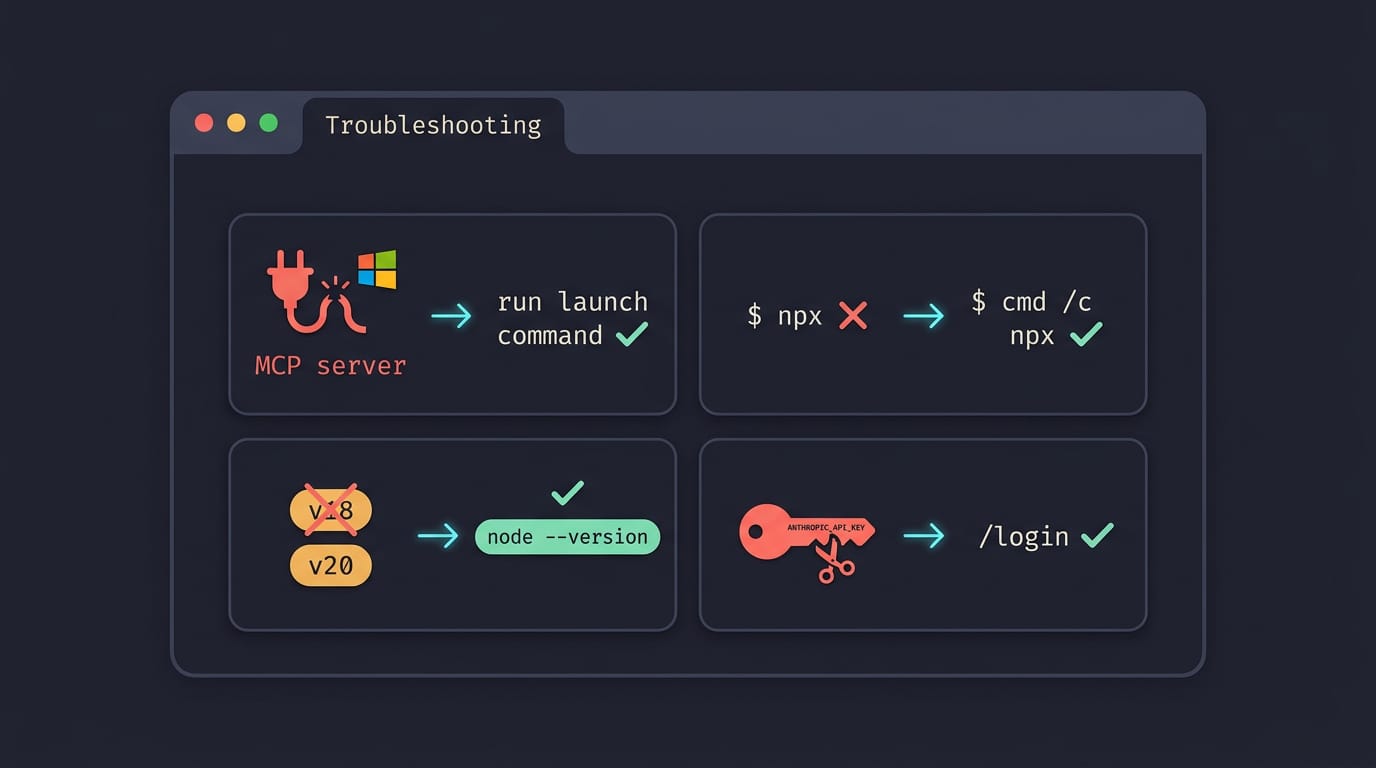
- MCP connection on Windows: If a Model Context Protocol (MCP) server won’t connect, run its launch command in your terminal to test it.
- cmd /c wrapper for npx: On native Windows, npx often fails when launched directly, so put
cmd /cin front of its launch command. - Node version conflicts: Run
node --version. If it differs from the version you installed under, remove the extra copy or use nvm (Node Version Manager). - Invalid API key: An API key is your account’s access token. Unset any leftover
ANTHROPIC_API_KEYenvironment variable, which can clash with it, then run/login.
Keeping the CLI up to date
Your update method depends on how you installed the command-line interface (CLI).
- npm update command: Run
npm update -g @anthropic-ai/claude-code. - Native auto-update: Native installs update themselves, so there’s nothing to run.
- Manual Homebrew/WinGet upgrades: Upgrade with the same tool that installed it, Homebrew or the Windows Package Manager (WinGet), so its records stay accurate.
Match the update to the install, and upgrades stay boring. Boring is good.
Other Tools Worth Comparing It With
Before you settle on a setup, it’s worth seeing what else is out there.
Other tools that also use Claude
Several tools can work with Claude models, so you may already have a favorite:
- Aider: a terminal tool built around AI pair programming.
- Simon Willison’s LLM tool: a command-line tool for talking to language models.
- Claude Code: the official option, and the one this guide covers.
For example, a Fedora user who wants quick shell help and project-wide edits might pair the LLM tool for one with Claude Code for the other.
What to weigh when comparing tools
Check each tool against these questions:
- Target users: Is it built for a solo tinkerer in a terminal, or a whole team?
- Pricing and free vs paid: Can you try it for free, and what changes once you pay?
- Codebase context and autonomy: How much of your project does it read, and how much does it change without asking?
- Multi-model support: Can you swap between models, or are you tied to one?
- Ease of installation: How many steps stand between you and your first working prompt?
Consider a student on a ten-year-old ThinkPad running Arch with one free evening. Ease of installation matters most here, since a tool running before bedtime beats a stronger one still stuck on setup.
The real question is less about what a tool can do and more about how it fits your workflow. Pick the one you’ll actually use.
Where AI Coding Tools Are Heading
AI coding tools are changing fast, so here’s what we’re seeing.
Agentic tools, MCP, and the risks ahead
The biggest shift is toward agentic tools that plan a task, run commands, read the results, and try again. A Linux user might ask one to fix a failing test suite and come back to a passing build.
Model Context Protocol (MCP) is becoming the common way for AI tools to reach outside data and services, so one assistant can connect to your notes or database without a custom hookup each time.
A context window caps how much text a tool can see at once. A homelab admin aiming an assistant at a huge config folder may get answers based only on the files it could read, so point it at the right directory.
Security is the riskiest part. Agents run commands with your permissions, so the real question isn’t how smart the tool is but what it’s allowed to run.
Review commands before you approve them, and keep secrets out of project folders. Your machine, your call.
How developer jobs are changing
Many developers are moving from coder to reviewer, spending less time typing and more time reading diffs and testing results.
According to Seniority, Spillovers, and AI-Enhanced Code Contributions, senior developers see greater gains than junior developers, which aligns with technology-skill complementarity: a tool pays off most when it builds on skills you already have.
Skills that carry over include:
- Clear instructions: say what you want, the constraints, and what done looks like.
- Task breakdown: split big problems into steps you can check.
- Critical review: catch changes that look right but aren’t.
It’s less about knowing the tool and more about judging its output. That judgment travels with you.
Once Claude Code is installed, logged in, and findable by your terminal, the hard part is behind you.
You know which install method fits your machine, how to check your Node.js version before it causes trouble, and where to look when something breaks or needs an update.
Keep this guide handy for your next fresh install or the next server you set up. A working install is the first step, and understanding your setup is what keeps it working. Now go make your terminal work for you.
References
- Claude Code Complete User Handbook — doi.org (2026)
- Seniority, Spillovers, and AI-Enhanced Code Contributions: Evidence from a Large Enterprise — aisel.aisnet.org (2025)
- Inference Economics of Enterprise Coding Agents: A Case Study of Cloud vs. On-Premise LLMs — arxiv.org (2026)
Questions
How do I set up Claude Code?
Install Claude Code with npm by running `npm install -g @anthropic-ai/claude-code` after installing Node.js 18 or newer, or use a native installer on Mac or Linux that does not require Node.js. Then launch `claude` in your project directory and follow the prompts to sign in with an Anthropic account, or configure an API key.
How to install in Visual Studio Code?
Open Visual Studio Code’s integrated terminal and run `npm install -g @anthropic-ai/claude-code`; Node.js 18 or newer is required for this method. Then open your project folder in the terminal and run `claude` to start a session.
Why is the claude command not found in the terminal?
The install may have succeeded, but your shell may not have npm’s global executable folder on its PATH. Open a fresh terminal; if the command is still missing, run `npm prefix -g` and add its `bin` subfolder to PATH. For bash or zsh, add `export PATH="$(npm prefix -g)/bin:$PATH"` to `~/.bashrc` or `~/.zshrc`, then reload the file; for fish, run `fish_add_path (npm prefix -g)/bin`.
Can I install the claude code for free?
Installing Claude Code is free, but using it requires access through a paid Claude plan or an API key billed by usage. A free plan may be enough for a quick test, though its limits can restrict regular use.
Sources
Read next.
Update Fedora: Packages and Release Upgrades Explained
Update Fedora packages or move to Fedora 41 from the terminal or graphical interface, then check broken drivers and learn how to undo an upgrade.
Install Java: JDK vs JRE and Setup on Any OS
Install Java on Windows, macOS, or Linux with the right JDK or JRE, platform-specific commands, and JAVAHOME setup, then test your installation.
Install Homebrew on macOS and Linux: Complete Guide
Install Homebrew on macOS or Linux, then set the right PATH and verify commands work before adding tools, updating packages, or fixing setup issues.