Dotfiles Explained: What They Are and How to Manage Them
Dotfiles help you rebuild shell aliases, editor settings, and tmux layouts on a new laptop, with practical ways to organize and manage them.
tl;dr the short answer
Dotfiles are hidden plain-text configuration files, usually stored in your home folder, that control how tools such as shells, editors, and terminals behave. Keeping them in a version-controlled repository, organizing app settings, and using scripts or a manager to install them makes it easier to restore a consistent setup across computers. Start with the files you actually customize, keep passwords and tokens out of the repository, and add more as you need them.
Think about the last time you set up a new laptop and spent an evening hunting down your shell aliases, editor settings, and that tmux layout you finally got right. Now picture doing it all again next month. That’s the headache dotfiles help you avoid.
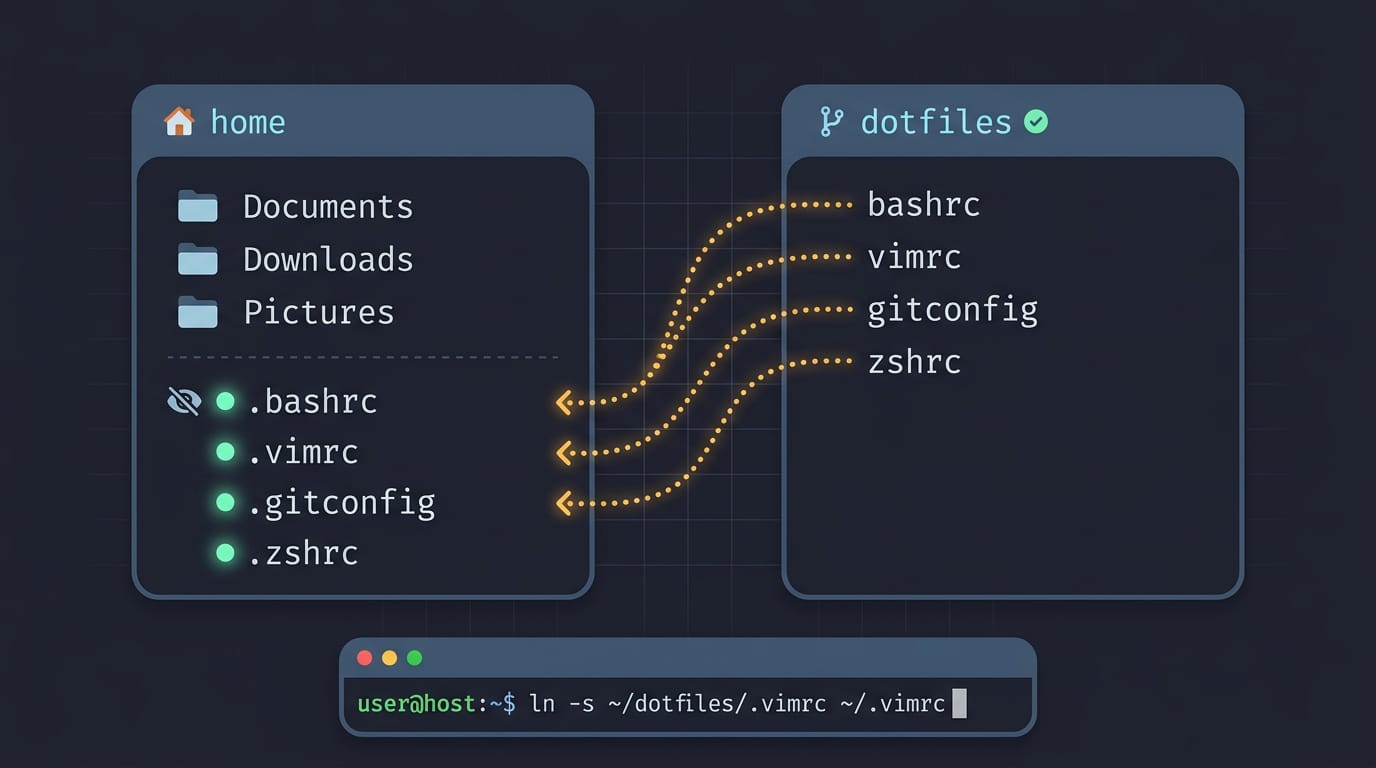
Dotfiles are the plain-text config files, usually named with a leading dot like .bashrc or .vimrc, that tell your Linux tools how to behave. The leading dot keeps them out of a plain ls listing, so they stay tucked away until you go looking.
In this post, we’ll cover what dotfiles are, how to keep them organized, the main ways to manage and rebuild them across machines, and where to learn more.
What Dotfiles Are and Why They Matter
Dotfiles are the small text files that quietly shape how your Linux desktop and terminal behave.
Hidden config files in your home folder
A dotfile is any file whose name starts with a dot, like .bashrc. On Unix-like systems such as Linux and macOS, that dot hides the file from normal listings.
Most sit in your home folder and hold settings for your shell (the program you type commands into), editor, and terminal. The dot changes what you see, not what the file does.
So how do you see them on Linux? Run ls -a in a terminal. Most file managers have a hidden-files toggle, often Ctrl+H.
In Linux, ‘file’ covers more than documents: directories and devices count too, since the system treats them all as files.
Everyday examples like .bashrc and .gitconfig
Here are the ones we see most often:
.bashrcand.zshrc: shell config for bash and zsh, loaded each time you open a terminal..bash_profile: environment setup at login, such as PATH, which lists where your shell finds programs..gitconfig: defaults for Git (the tool that tracks file changes), like your name and email..aliases: a file of shortcuts for long commands.
Why people track and share their setups
Keeping them in one place pays off:
- Fast new-machine setup: a fresh install can match your old one quickly.
- Reuse between machines: your laptop and desktop can share one set of files.
- Recovery from system failure: a dead drive doesn’t wipe out your setup.
- Consistent environments: every machine feels the same.
- Sharing and importing: share your configs or import someone else’s.
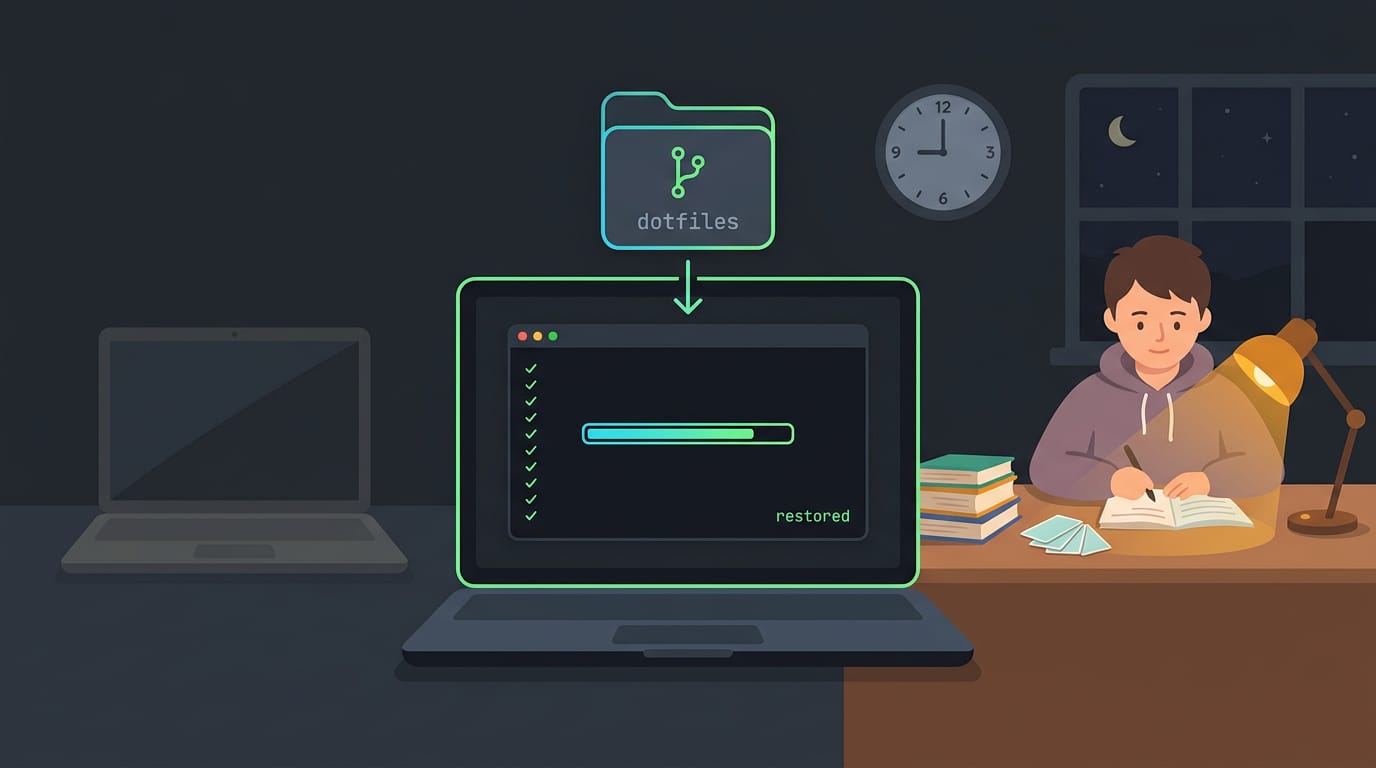
Consider a student who reinstalls Linux before an exam. Their dotfiles live in a Git repository (a folder that tracks changes), so one download and a setup step restores their terminal and editor. Their evening goes to studying, not setup.
Keeping Your Setup Files Neatly Organized
A messy dotfiles repo is easy to fall into, and a tidy one lets you rebuild on a new machine fast. Here’s how we’ll tackle it: what belongs inside, how to pull in app configs, and how to keep it lean.
What typically sits inside your repo
Most repos hold a few kinds of files:
- Config dotfiles: the real files, like
.bashrc,.vimrc, or your hyprland config. - Sync/bootstrap script: copies or symlinks everything into place on a new machine.
- One-time setup scripts: installers you run once and then forget about.
- Split files sourced by
.bash_profile: small files for aliases or per-machine settings, pulled in by your main profile.
Finding app configs and moving them over
Start by finding where each app keeps its settings. Many Linux apps use ~/.config, which follows the XDG Base Directory specification, a standard for where apps keep their files. Its location is set by XDG_CONFIG_HOME, defaulting to ~/.config when it’s unset.
Then move each config into your repo and swap the original for a symlink (a pointer that keeps it in its old spot). The app keeps working while git tracks the real file.
Consider a student reinstalling their distro on a ten-year-old ThinkPad. After cloning the repo and running the bootstrap script, their terminal and bar look just as they did before.
Setting up folders and trimming clutter
Mirror your home directory: a .config/nvim folder in the repo maps to ~/.config/nvim. That makes the bootstrap script a simple loop, not a pile of special cases.
Then slim it down. Keep the files you edit and skip what apps generate, like caches and logs. Less is easier to maintain.
How Do I Manage My Dotfiles?
Keep your dotfiles in git, script the setup, and record what you installed. That turns a new machine into a short job.
Keeping config files versioned and synced
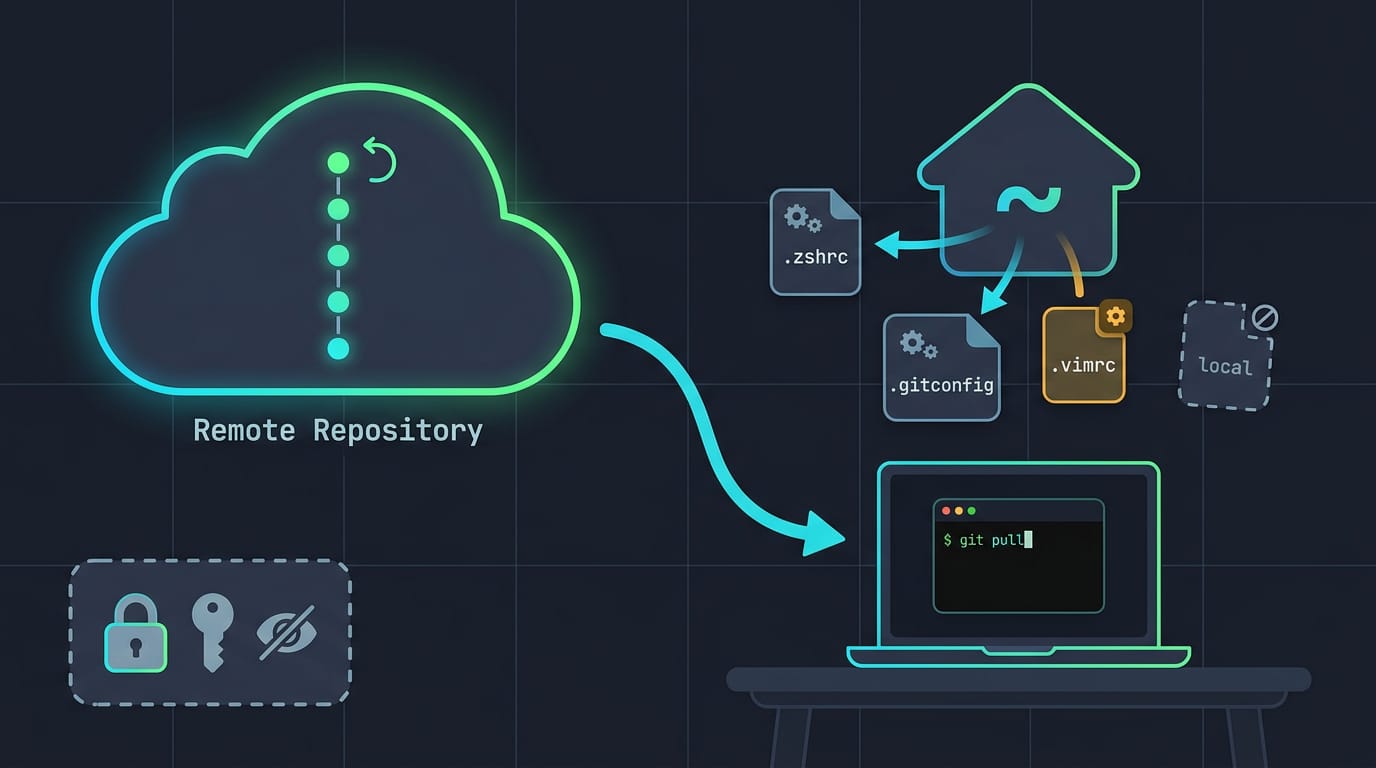
Keep config files in a git repository, usually on GitHub, so every change can be rolled back. On a new machine, pull the latest from GitHub and copy the files into your home folder.
- GNU Stow links files with symlinks (shortcuts that point to a file) rather than making copies.
- chezmoi copies files into place and adjusts them per machine.
- yadm wraps git so your usual commands work on your dotfiles.
- A bare repository is plain git with your home folder as its work tree.
Access tokens and passwords stay out of the repo. Machine-specific settings go in a local file that git ignores.
Scripts that set up a new machine
A bootstrap script runs first on a fresh install. Its jobs usually include:
- Homebrew tool installation: install your command-line tools with Homebrew, a popular package manager.
- Operating system settings: a script (conventionally
.osxon macOS) sets the defaults you’d otherwise click through. - Run as needed: rerun these after a fresh install or whenever you add a tool.
- Bootstrap scripts for Linux distros: pacman and apt need different commands, so write one per distro family.
Think of a student who inherits a ten-year-old ThinkPad. She clones her repo, runs the Debian bootstrap script, and has her terminal and editor set up in one sitting. No archaeology required.
Exporting and importing your installed programs
- Export installed programs: list the packages you chose, not every dependency the system pulled in.
- Export package lists: pacman (Arch) and apt (Debian and Ubuntu) can each write that list.
- Import programs from dotfiles: your bootstrap script reads the list and installs everything in one pass.
Using a framework like dotly
dotly wraps your setup in a centralized dot command, so one entry point replaces a pile of scripts. You don’t need to start over: add it to dotfiles you already maintain.
Declarative setups go further. NixOS, a Linux distribution built around the Nix package manager, describes the whole system in config files. Home Manager does the same for user dotfiles, so a rebuild reproduces your setup from those files.
Speeding up Scripts and Handy Shortcuts
Small helpers make a versioned setup feel like yours. Here’s how to add them, document them, and keep startup fast.
Handy aliases, functions and custom binaries
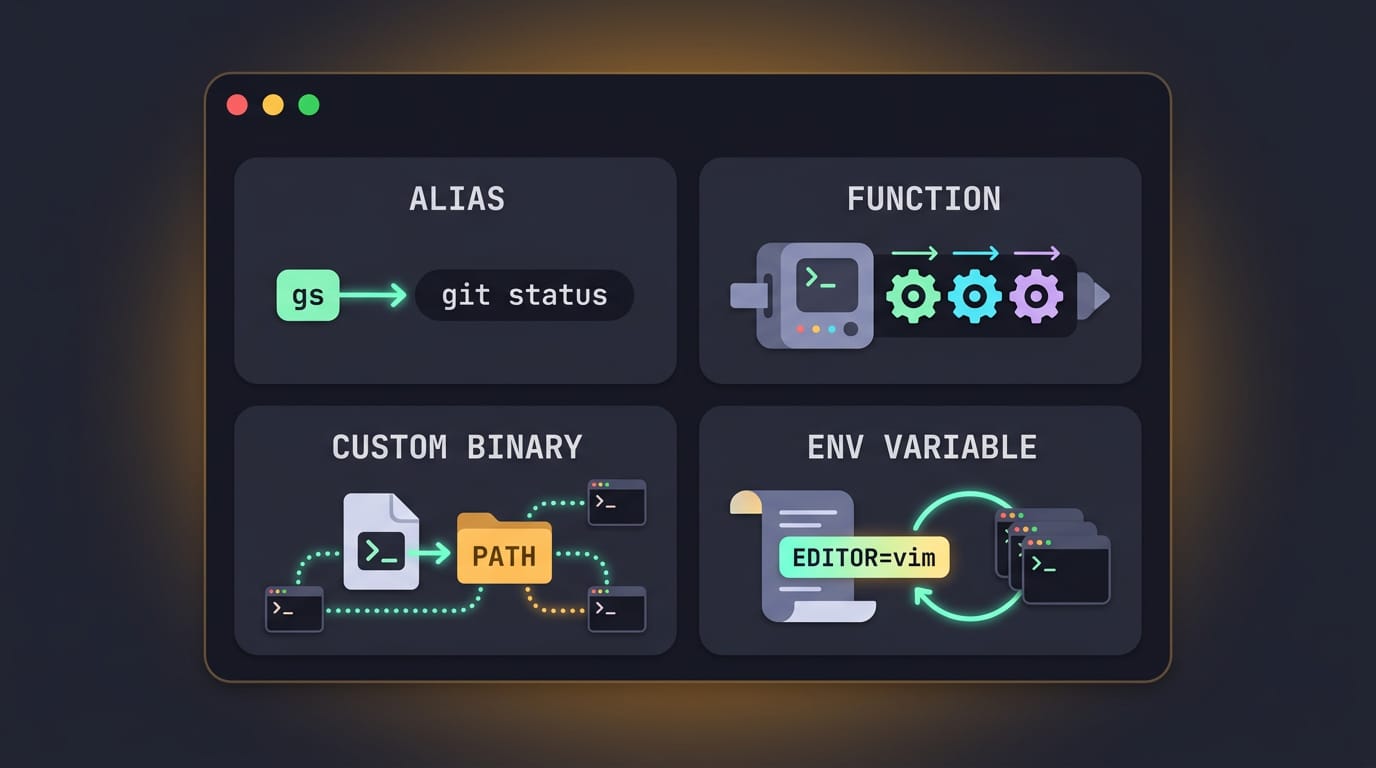
An alias is a short name for a longer command, like alias gs='git status'. A homelabber who logs into the same servers daily might alias web to ssh webserver. An alias is a rename; a function is a small program that takes input and runs several steps.
A custom binary is a script saved in a folder on your PATH, the list of directories your shell checks for commands. Put it there and you can run it from anywhere.
Environment variables are named values, like your default editor, that your shell and its programs can read. Define them in your shell config so they load every session. Set it once, and it sticks.
Documenting scripts and checking performance
Old scripts can start to look like strangers’ code. Navi is a command-line cheatsheet that keeps your commands and notes in one searchable place.
Give each bash script a --help flag that prints its arguments and one example. A backup script you haven’t touched in months becomes much easier to rerun.
A slow terminal start often traces back to one line. A student on a ten-year-old ThinkPad can run time bash -i -c exit to measure startup, then move the slow check out of their startup files and get a quick prompt back.
Some scripts and variables hold secrets, like API tokens. Keep them in a separate file, add it to your .gitignore list, and load (source) it from your shell config. Your repo stays shareable, and your secrets stay put.
Where to Learn and Connect with Others
Nobody starts a dotfiles setup from a blank file, so seeing how others organize theirs helps. Here’s where to look.
Sample repos and beginner guides
Begin by reading a sample repo, a public dotfiles repository you can study. Good starting points include:
- GitHub dotfiles community page: browse public repos for the tools you already use, like your shell, editor, or terminal.
- Mathias Bynens dotfiles repo: a full-scale example of how one person organizes a whole setup.
- Beginner walkthrough: a step-by-step guide for building your first repo without guessing at the layout.
Think of a Fedora user who wants her kitty and tmux configs on a fresh install. She copies just those two folders from a sample repo and has her terminal looking right before lunch.
Copy the parts you understand, not everything you find, or you’ll inherit config you can’t debug at 2am.
Taking a course and sharing configs
If you learn best by doing, look for a video course with exercises. Watching someone set up a repo helps, but the exercises are where it sticks. Do them, even the boring ones.
Once your setup works, share configs with colleagues. If a coworker keeps asking how your terminal looks so good, point them to your repo. Their questions will expose the bits that only worked on your machine, which is useful feedback.
Then keep the momentum going with these:
- Check the FAQ. Your question may already be answered there.
- Take one next step. Move one more config into your repo this week, then test it on a second machine. Small steps beat one big rewrite.
Dotfiles turn a pile of scattered tweaks into something you can version, manage, and rebuild. Keep them organized, store config where your tools expect it, and keep secrets out of your repo. Whichever manager you choose, the payoff is the same.
Start small. Put one file under version control today, then bring the rest in as you go.
Your setup should be yours, and it should come back to life on any machine you sit down at.
Questions
What is a dotfile?
A dotfile is a file whose name begins with a dot, such as `.bashrc` or `.vimrc`. On Linux, dotfiles are commonly plain-text configuration files that control how shells, editors, and other tools behave, and they are hidden from normal directory listings.
How to see dot files in Linux?
Run `ls -a` in a terminal to show hidden files, including dotfiles. In most Linux file managers, you can also toggle hidden files with Ctrl+H.
How do I manage dotfiles?
Store your dotfiles in a Git repository so you can track changes, sync them between computers, and restore earlier versions. Use a bootstrap script or a manager such as GNU Stow, chezmoi, or yadm to put the configurations in place; keep passwords and tokens out of the repository.
What does file mean in Linux?
In Linux, a file is a broad system concept that includes ordinary documents, directories, and devices. These different objects are all treated as files by the system.
Read next.
Install Tar Archives on Linux, Step by Step
Install tar.gz software by extracting it, following its instructions, and building or running it from the unpacked folder; keep installs easy to undo.
GitHub filename too long: causes and every fix
The GitHub filename too long error can stop a clone cold. Fix it with Windows long-path settings, plus WSL and dotfiles cases many guides miss.
GitHub Untracked Files Explained and How to Delete Them
GitHub untracked files clutter project folders. Find, ignore, stash, or safely delete them with git clean, including ignored files and dotfile pitfalls.