How to manage dotfiles with GNU Stow
Keep configs in a git repo and let Stow link them into place: dry runs, tree folding, conflicts and --adopt, secrets kept out, and a rebuild on a new machine.
tl;dr the short answer
Give each app a folder in a git repo that mirrors its paths under your home directory, preview the links with stow -n -v and the package name, then run stow to make them. Add --no-folding so apps can’t write their own files into the repo, use --adopt only on a clean git tree, and keep secrets in local files git ignores.
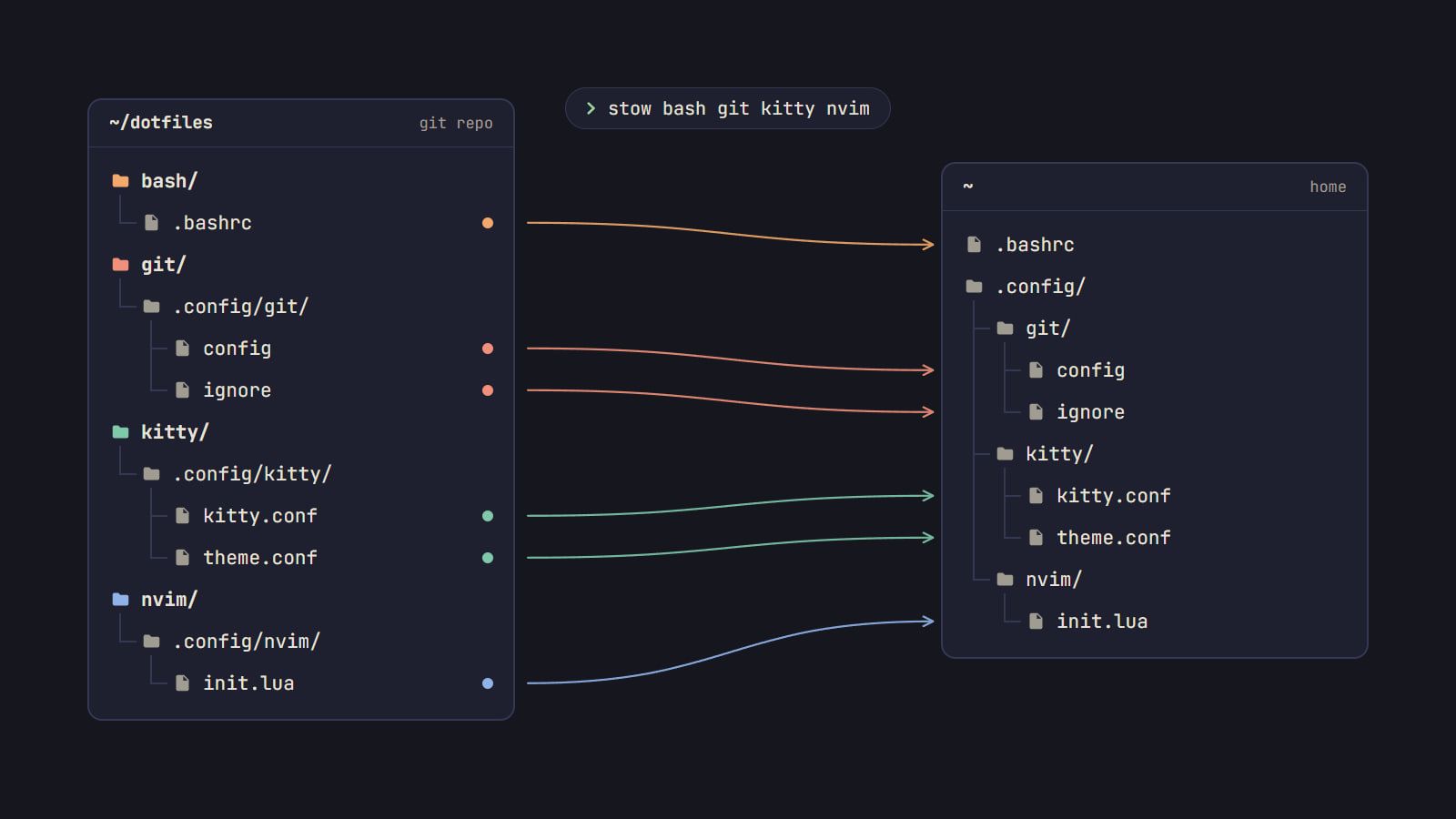
GNU Stow turns a git repository of configs into a working home directory with symlinks. Give each app its own folder in the repo, lay its files out inside the way they sit under ~, then run stow -n -v <package> from the repo to see what it would link and stow <package> to do it. Add --no-folding so apps don’t write their own files into the repo, and keep secrets in local files git never sees. This guide was written against Stow 2.4.1, the current release; man stow and the GNU Stow manual have the final word.
How Stow thinks: packages and targets
Stow has three words worth knowing:
- The stow directory is your repo, say
~/dotfiles. Stow uses the directory you run it from. - A package is one folder inside it, usually one per app:
kitty,nvim,git. - The target is where the links go. It defaults to the parent of the stow directory, which is your home directory when the repo sits at
~/dotfiles.
Stowing a package makes every path inside it appear at the same path under the target, as a symlink back into the repo: ~/dotfiles/kitty/.config/kitty/kitty.conf shows up as ~/.config/kitty/kitty.conf. Edit either one and you’re editing the same file, so there’s no apply step and git sees every change. Stow never deletes anything it didn’t create.
Lay out the repository
Install Stow from your distro’s packages (it’s stow on Arch, Debian, Ubuntu and Fedora), then give each app a folder that mirrors its paths under home:
~/dotfiles/
├── bash/
│   └── .bashrc
├── git/
│   └── .config/git/
│       ├── config
│       └── ignore
├── kitty/
│   └── .config/kitty/
│       ├── kitty.conf
│       └── theme.conf
└── nvim/
    └── .config/nvim/
        └── init.lua
One package per app means each machine stows only what it needs. The nvim package carries init.lua, so the colorscheme you set in Neovim follows you to the next machine. Theme files go in the package beside the config that loads them: a palette from the Generator comes as theme files plus the one line that includes each, which is what theme.conf is here. If you’re still putting the rice together, the first-rice checklist keeps every piece in a file from day one for this reason.
Visible names with –dotfiles
Dot names are hidden from ls and most file browsers, which makes the repo awkward to browse. With --dotfiles, Stow turns a leading dot- into a dot as it links, so bash/dot-bashrc becomes ~/.bashrc and nvim/dot-config/nvim/init.lua becomes ~/.config/nvim/init.lua.
Directories only work this way from Stow 2.4.0, which fixed a long-standing bug, and 2.4.1 stopped ignore lists from skipping a dot- file because of the name it links under; the release notes have both. Debian 12 and Ubuntu 22.04 still ship 2.3.1, so check stow --version before you name a folder dot-config. If you use the option, use it on every run, stowing and unstowing, which is what the .stowrc below is for.
What Stow skips
Stow leaves some files out by default: version control files like .git and .gitignore, editor backups, and README, LICENSE and COPYING files at the top of a package. That’s why the layout keeps git’s global ignore file at .config/git/ignore, where git looks for it anyway, rather than as a .gitignore Stow would skip.
To skip more, put a .stow-local-ignore in the package with one Perl regular expression per line. It replaces the built-in list for that package rather than adding to it, so copy across the defaults you still want.
Move your first config in
Start with an app whose config you know well. kitty is used here:
- Create the repo:
mkdir ~/dotfiles && cd ~/dotfiles && git init - Look at what’s in the app’s folder with
ls -la ~/.config/kitty. The files you wrote go in; caches, history and anything the app writes for itself stay out. kitty’s folder usually holds only your own files, so it can move whole; for an app that keeps state beside its config, move just your files. - Move the folder into its package:
mkdir -p ~/dotfiles/kitty/.config mv ~/.config/kitty ~/dotfiles/kitty/.config/ - Commit it, so git has a clean copy to compare against later:
git add kitty && git commit -m "kitty: first config"
Until the next step puts the link in place, kitty can’t find its config, so stow it before you open a new window.
Stow it, after a dry run
Ask Stow what it would do before it does it. From the repo root:
cd ~/dotfiles
stow -n -v kitty
-n simulates and -v prints each action, so you get something like:
LINK: .config/kitty => ../dotfiles/kitty/.config/kitty
WARNING: in simulation mode so not modifying filesystem.
If that’s what you expected, run it for real and check the result:
stow kitty
ls -l ~/.config/kitty
ls shows ~/.config/kitty as a link into the repo. Open a new kitty window to make sure it read its config.
Tip: keep
-n -vin front of every new command for a while, stows, restows and unstows alike. It costs a second and shows you every link before it exists.
Tree folding and –no-folding
Look at that LINK line again: Stow linked the whole ~/.config/kitty folder, not the files inside it. That’s tree folding. When a directory doesn’t exist in the target yet, Stow makes one link to the package’s directory instead of a real folder full of links, and splits it open later if another package needs a place inside.
It’s tidy, but anything that lands in a folded folder lands in your repo, including files the app writes for itself. fish is the usual example: it keeps universal variables in ~/.config/fish/fish_variables, so with a folded fish folder, every set -U turns up in git status. The bigger trap is a fresh account with no ~/.config yet. The first package you stow folds ~/.config itself into a link to that package, and every app you start afterwards writes its config into your repo.
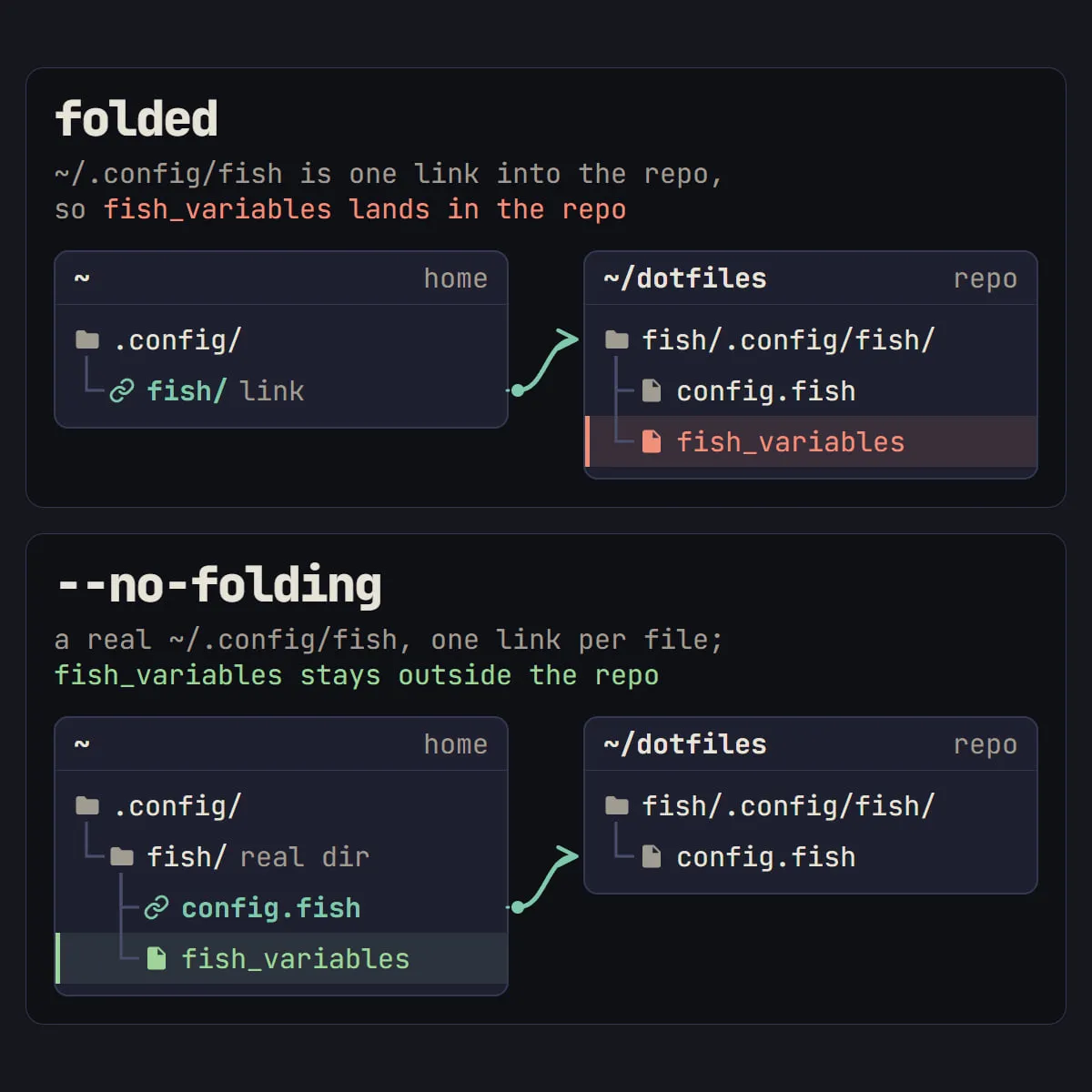
--no-folding turns this off: Stow creates real directories and links each file on its own. Put it in a .stowrc at the repo root, with the target, so every run gets it:
--target=~
--no-folding
Stow reads .stowrc from the directory you run it in and from ~/.stowrc, so run it from the repo root. The file sits outside every package, so it never gets linked. Add --dotfiles here too if you use it. To convert a package that’s already folded, restow it with stow -R kitty, which unstows and stows again.
The trade-off: a file you add to a package later isn’t linked until you restow that package. That’s one command, and in return the repo holds only the files you put there.
When Stow refuses: conflicts and –adopt
If a real file already sits where Stow wants a link, that’s a conflict. Stow checks every path first, lists each conflict and stops with “All operations aborted”, so a failed stow leaves your home directory as it was. You’ll meet this most on a new machine, where the account came with its own ~/.bashrc.
There are two ways through:
- Move the file aside and stow again:
mv ~/.bashrc ~/.bashrc.origkeeps the old one for reference. This is the plain, safe option. - Adopt it with
stow --adopt bash. Stow moves the existing file into the package, over the repo’s copy, and then links it. In the manual’s words: “This behaviour is specifically intended to alter the contents of your stow directory.”
Adopting earns its place when the file at home is the one you want, or you want to see how it differs from yours. Only do it on a clean git tree:
- Run
git status, and commit or stash anything outstanding. - Run
stow --adopt bash. - Run
git diffto see what the file from home changed in your repo. - Keep it with
git commit, or throw it away withgit restore bash.
Since the link points into the repo, git restore also puts your version back in front of the app. On a dirty tree, there’s no telling the adopted edits from your own.
Keep secrets and per-machine files out
Dotfiles repos tend to end up public, so tokens, API keys and private keys stay out, and so does anything that only makes sense on one machine.
Local files your config includes
Most configs can load another file. Keep the secret or machine-only part in a local file the repo never sees, and commit only the line that loads it:
# in .bashrc
[ -f ~/.bashrc.local ] && . ~/.bashrc.local
# in .config/git/config
[include]
path = ~/.config/git/config.localgit skips an include whose file doesn’t exist, so the same config works on a machine that has no local file. Then add a .gitignore at the repo root as a backstop, in case a local file ever lands inside a package:
*.local
fish/.config/fish/fish_variables
Ignore patterns only cover files git isn’t tracking yet. If one is already committed, git rm --cached <file> stops tracking it and leaves it on disk; git’s gitignore documentation has the pattern rules. A secret that was ever pushed stays in the history, so revoke it and make a new one.
A package per machine
For bigger differences, give each machine a small package of its own and stow it beside the shared one. sway, for example, reads extra files with include:
# in sway/.config/sway/config
include ~/.config/sway/config.d/*
Then sway-desk/.config/sway/config.d/outputs holds the desk’s monitor lines, sway-laptop/.config/sway/config.d/outputs holds the laptop’s, and each machine stows its own pair: stow sway sway-desk. Two packages can share a directory; Stow links the files from both into it.
Rebuild on a new machine
This is the payoff. On a fresh account:
- Install git and Stow from your distro’s packages.
- Clone the repo into your home directory:
git clone <your-repo-url> ~/dotfiles - Create
~/.configwithmkdir -p ~/.config, so Stow can never fold the whole folder into one package. - Dry-run the packages this machine needs, from the repo root:
cd ~/dotfiles stow -n -v bash git kitty nvim sway sway-laptop - Clear any conflicts: move the account’s default files aside, or adopt them and
git restoreyour versions as above. - Run the same command without
-n -v. - Recreate the local files by hand (
~/.bashrc.local,~/.config/git/config.local), since they were never in the repo. - Log out and back in, so the shell and the desktop start from the linked configs.
When to move to chezmoi or yadm
Stow links files and does nothing else, which is its appeal. It starts to pinch when:
- machines need different versions of the same file, beyond what includes and per-machine packages can cover;
- you want secrets pulled from a password manager, or files kept encrypted in the repo;
- an app saves its settings by writing a new file in place of the old one, which swaps your link for a plain file the repo never sees.
| GNU Stow | chezmoi | yadm | |
|---|---|---|---|
| How files reach home | Symlinks into the repo | Real files, written by chezmoi apply |
Real files; home is the repo’s work tree |
| Differences between machines | Separate packages, or includes in each config | Templates | Alternate files per OS or host, and templates |
| Secrets | Kept out with .gitignore and local files |
Encryption and password manager lookups | Encryption |
| Needs | Perl | Nothing beyond its own binary | git |
chezmoi’s comparison table goes through the rest feature by feature, for chezmoi, yadm and several other managers. Moving can be gradual: unstow one package with stow -D, copy its files back into place, then chezmoi add them. Home Manager, Dotbot and the others are in the Toolkit’s dotfile managers. If your machines share the same configs, though, Stow is probably all you need, and the rest of the Dotfiles section builds on the repo you have now.
Questions
Does Stow work with ~/.config?
Yes. Mirror the path inside the package, so nvim/.config/nvim/init.lua links to ~/.config/nvim/init.lua. Make sure ~/.config exists as a real folder before your first stow, or use --no-folding, so Stow never turns ~/.config itself into a link to one package.
What does stow --adopt do?
Where a real file blocks a link, --adopt moves that file into the package, over the repo’s copy, and then links it. Run it only on a clean git tree: git diff then shows exactly what changed, and git restore puts your version back.
How do I remove a stowed package?
Run stow -D with the package name from the repo root. Stow removes the links it made and any empty folders it created, and leaves the files in your repo alone. To keep using the config without Stow, copy the files back to their places afterwards.
Should I use Stow or chezmoi?
Stow suits one or a few machines that share the same configs, where you want to edit files in place with no apply step. chezmoi fits better once machines need different versions of a file, or you want secrets from a password manager or encrypted files in the repo. Both start from a git repo, so you can move later one package at a time.
Does Stow work on macOS?
Yes. Stow is a Perl script, and Homebrew installs it with brew install stow. Configs under ~/.config link the same way they do on Linux; apps that keep their settings in ~/Library/Application Support need packages that mirror that path instead.
Sources
- GNU Stow manual, GNU Project,
- GNU Stow NEWS: release notes, GNU Stow
- gitignore: specifies intentionally untracked files to ignore, Git
- chezmoi comparison table, chezmoi
Read next.
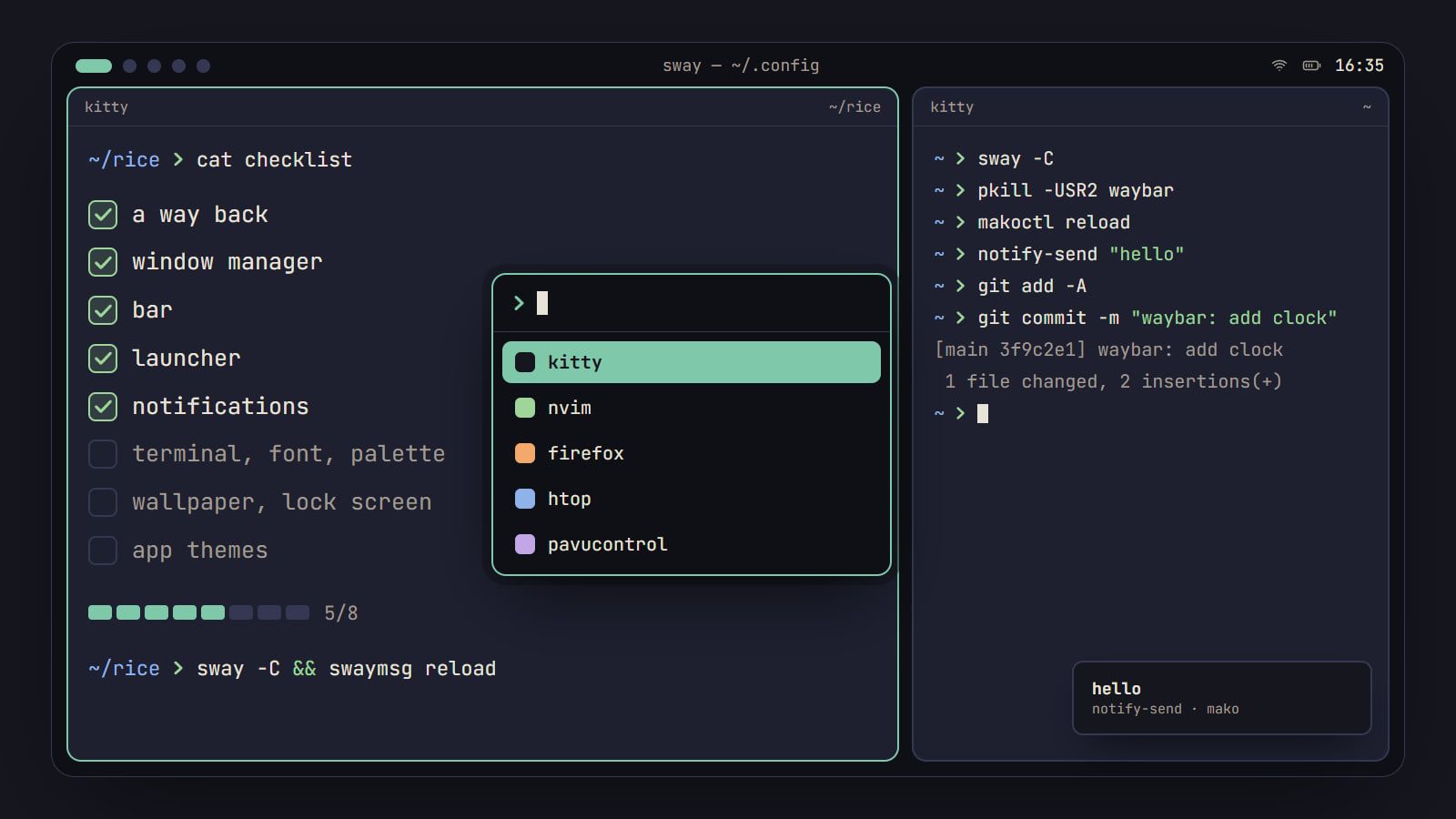
How to rice Linux: a first-rice checklist
The order to rice a Linux desktop without breaking it: a way back first, then each piece from window manager to lock screen, with its config file and a check.