GitHub filename too long: causes and every fix
The GitHub filename too long error can stop a clone cold. Fix it with Windows long-path settings, plus WSL and dotfiles cases many guides miss.
tl;dr the short answer
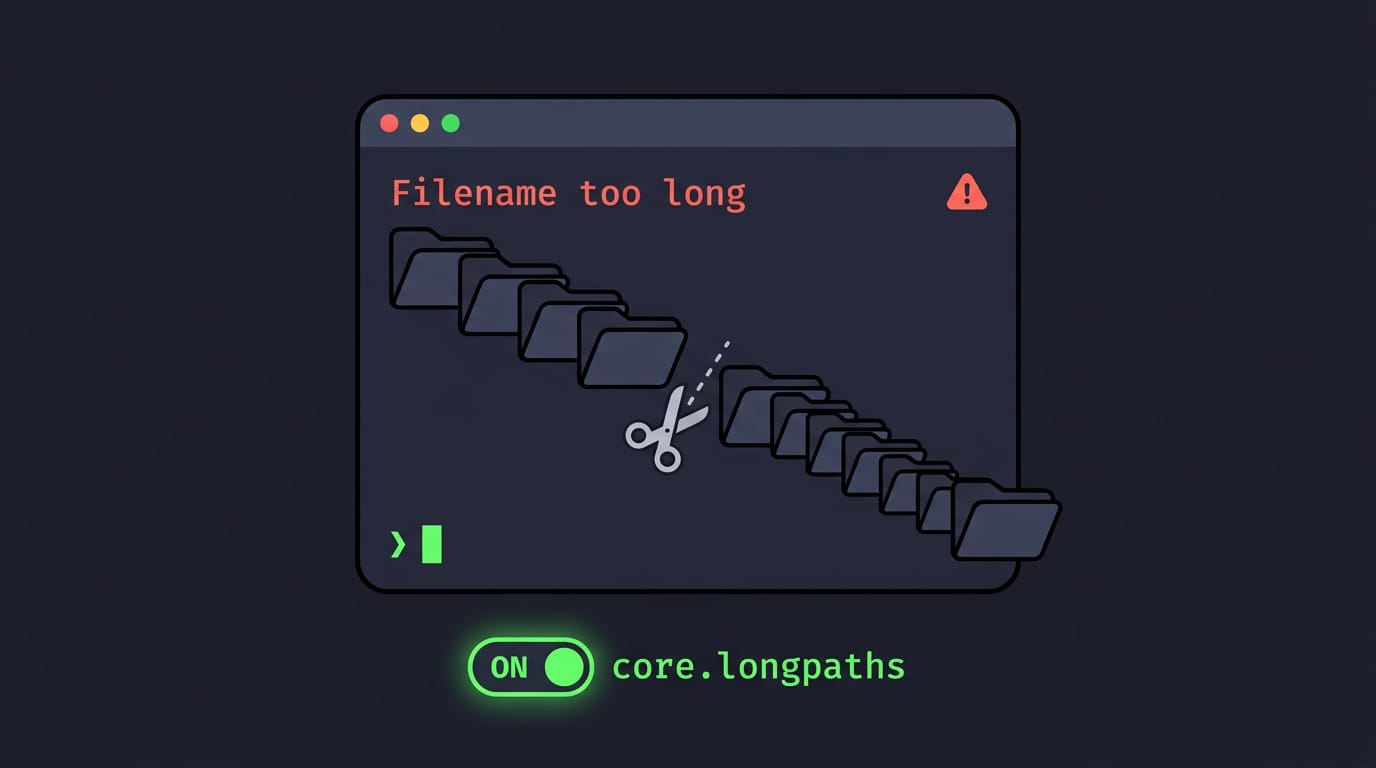
The GitHub “Filename too long” error usually means your operating system cannot create a file because its full path is too long, most often on Windows. Fix it by enabling Git’s `core.longpaths` setting, opting Windows into long-path support where available, or moving the repository closer to the drive root; WSL users can clone into the Linux filesystem. The right fix depends on where Git stores the files and which system handles the checkout.
Ever cloned a project, only to have Git stop cold with ‘Filename too long’? It’s a bit like a suitcase that closes at home but won’t zip shut at the airport: the contents haven’t changed, the container just can’t hold them.
The error is annoying, but it’s usually fixable. Here’s what causes it, where you’ll see it, and every fix that works, including the Windows Subsystem for Linux (WSL) and dotfiles angle most guides skip.
What Causes GitHub’s Filename Too Long Error
The “Filename too long” message looks like a Git or GitHub problem, but the real limit usually lives in your operating system. Here’s where it comes from and why a clone or checkout can trip over it.
Windows stops paths past 260 characters
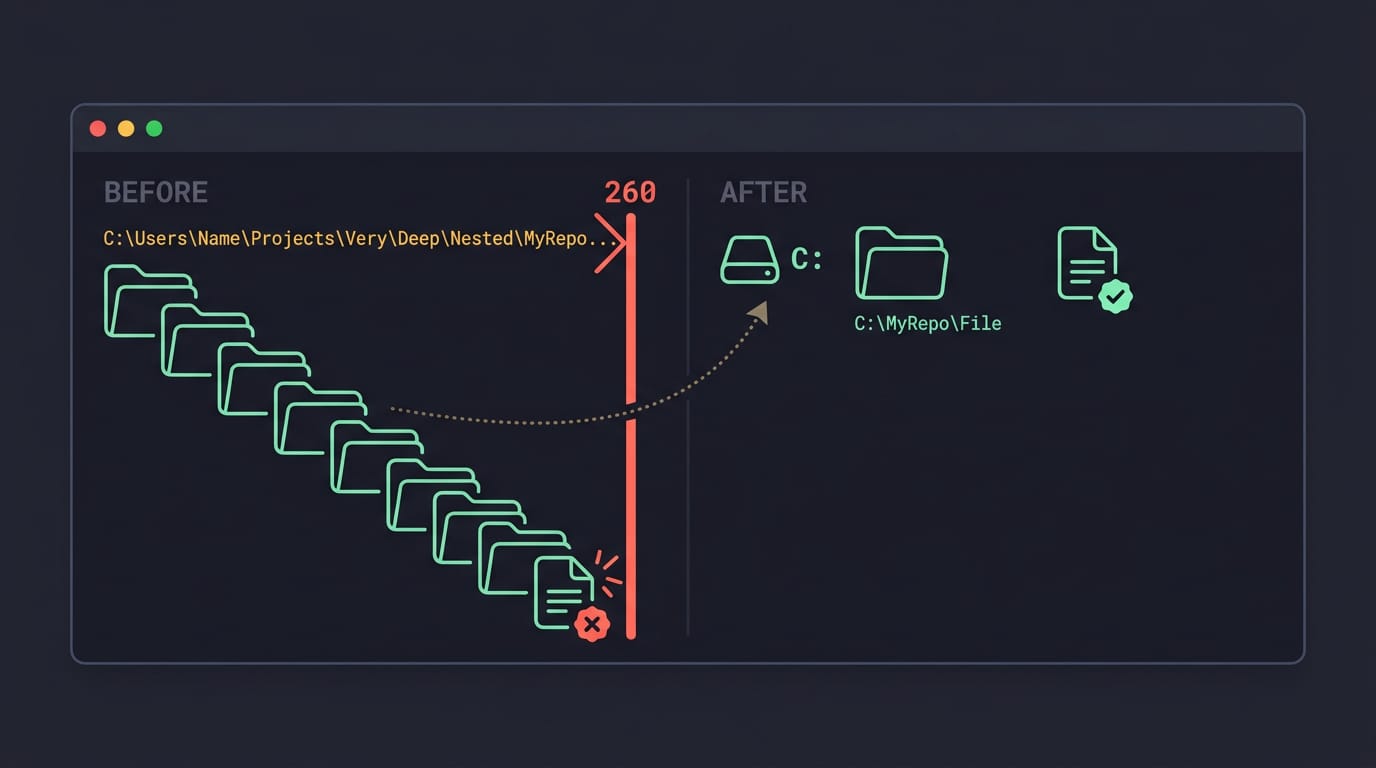
Windows caps a full file path at MAX_PATH, which is 260 characters. According to Microsoft’s naming guidance, that traditional limit applies to editions before Windows 10 version 1607.
It’s a Windows API limitation, so any program built on those calls runs into it. Deeply nested folders are the usual trigger, because every folder level adds characters to the path.
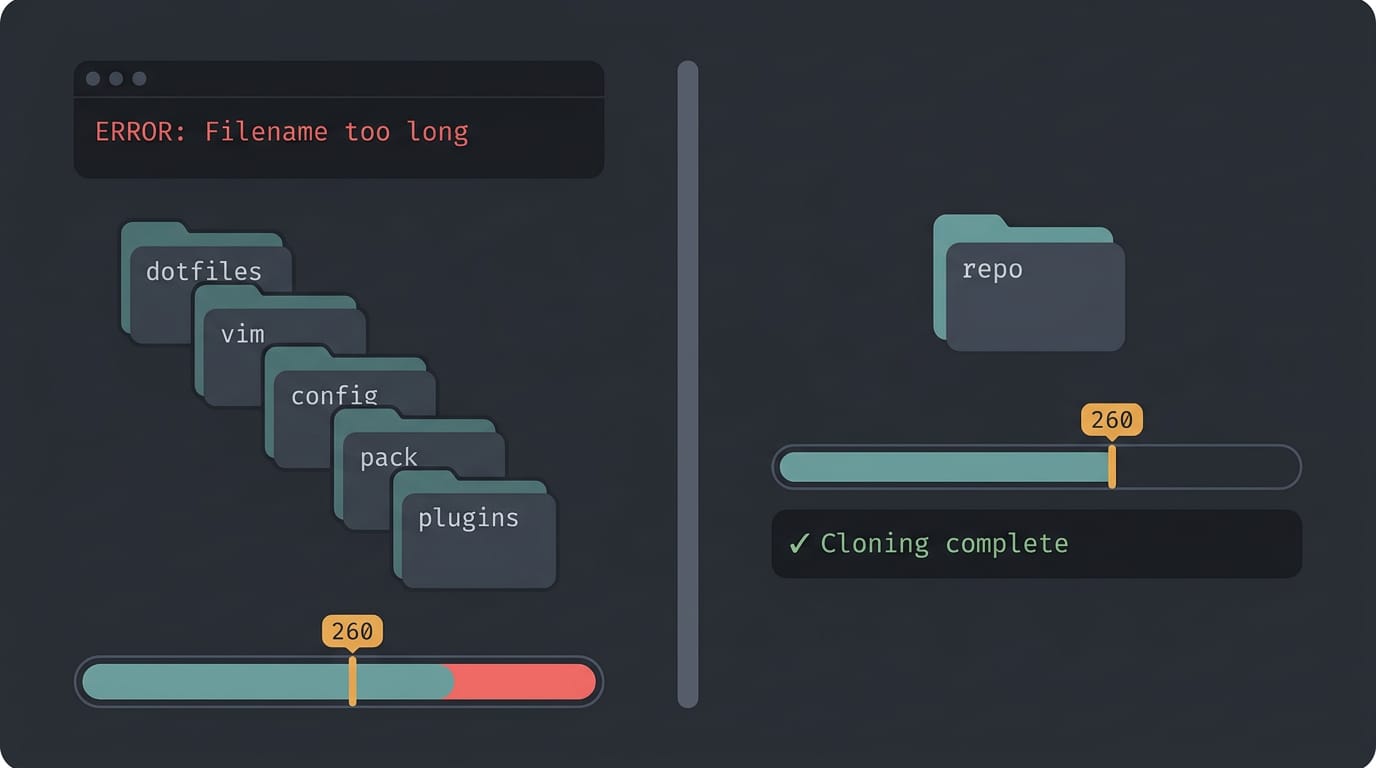
Say you’re a Linux user who keeps a dotfiles repo on a Windows drive, several folders deep. One nested plugin folder pushes the full path past 260, and the checkout fails. Moving the repo higher up keeps the path under the limit.
Git isn’t the one imposing the limit
Git is less the source of this limit than the tool where you notice it. Git for Windows offers a workaround: according to its config documentation, the core.longpaths option enables long path support for built-in commands.
It’s disabled by default, which protects you from files Explorer and IDEs can’t handle. Flip the switch on purpose.
Linux has its own ceilings, too. A single file name can run up to 255 bytes, and a full path up to 4096. If you’re on WSL, clone into the Linux filesystem, where those Linux limits apply instead of the Windows one.
Where and When You’ll See the Error
Git writes files to disk, so this error surfaces during clones, pulls, checkouts, and Windows builds. It’s separate from GitHub’s file size limits: shortening folders won’t get a file over 25MB uploaded, so check GitHub’s file size docs for that.
Failures when cloning, pulling, or checking out
- Cloning or pulling a repo. A clone or pull can stop partway on a long path.
- Checkout fails: unable to create file. Windows refuses to create the file Git names.
- Windows Git.exe executable. That Windows build hits Windows path limits, even when Linux handles the same repo.
- Dotfiles repos cloned on Windows. Config repos can hit this too, as the example shows.
For example, a Linux user clones their dotfiles onto a Windows partition, and the clone fails in a plugin folder. Moving the repo to a shorter path fixes it, since only where it sits changed.
If a clone stops partway, delete the half-finished folder before you retry.
Build and CI agents running on Windows
- Bamboo checkout task failure. Bamboo, a continuous integration (CI) server, can fail its checkout task with this same error.
- Apply fix on every agent. Each Windows agent needs the
core.longpathssetting we cover below, or the rest keep failing. - Remote and elastic agents on Windows. Hand-built remote agents are easy to forget, and elastic agents need the setting in their image.
For example, a team fixes one of six Windows agents and calls it done. The builds on the other five keep failing. Fix all six, and the failures stop.
Repos stored in deeply nested folders
Every folder level adds characters to each file’s full path, and Windows checks all of them.
- Repo within nested folders. Several folders deep, a project pushes its files toward the limit.
- Troubleshooting it. Move the repo nearer the drive root and retry. If it clones there, you’ve found the cause.
How Do I Fix a Too-long Filename?
The fastest fix is a single Git setting, and it’s where most people should start.
If you’d rather not change config, you can also rename or shorten the offending paths, or clone into a short folder near the root of your drive, which keeps the full path brief.
Turn on longpaths with git config
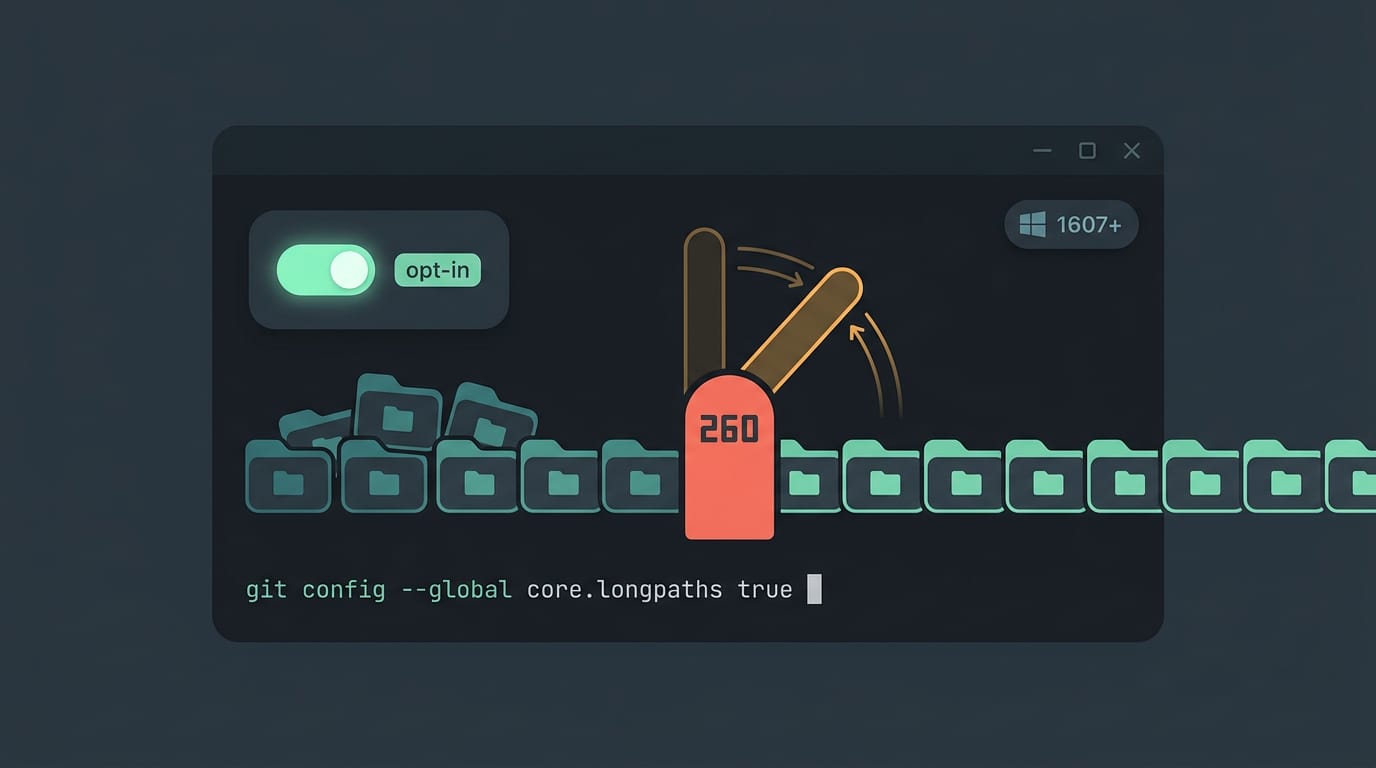
Git on Windows has its own path limit, and the core.longpaths setting is how you lift it. According to Atlassian’s support article on failed automatic merging, Git for Windows’ core.longpaths setting raises the supported path length to 4096 characters.
To turn it on:
- Run
git config core.longpaths truefrom Git Bash or CMD. - Retry the command that failed.
- It works on older Windows versions too.
Consider a Windows developer who keeps a dotfiles repo under a deeply nested Documents folder. Once a long path trips the limit, git pull stops, and this one setting gets their syncing again without moving a single file.
Choosing system-wide or global config
Git lets you apply this setting in two scopes, and the difference is who it applies to:
- —system applies the setting machine-wide, so every user on the computer gets it.
- —global applies it only to your own user account, which makes it the fallback when —system won’t cooperate.
Some users report that --system fails for them. If it does, switch to git config --global core.longpaths true. Pick the scope that works and move on.
Turn on Long Paths in Windows
Windows has a switch that lifts the old path length cap. You can flip it in the Registry Editor or with one PowerShell command.
Use Registry Editor to allow long paths
Think of a WSL user who keeps a dotfiles repo on a Windows drive and clones it into a deeply nested folder. Partway through, Git throws a ‘Filename too long’ error. The fix? One setting:
- Press Win+R, type
regedit, and hit Enter. - Navigate to
HKEY_LOCAL_MACHINE\SYSTEM\CurrentControlSet\Control\FileSystem. - Set LongPathsEnabled to
1. - Restart your PC.
Set it in PowerShell with one command
Prefer typing? Open PowerShell (Windows’ built-in command shell) as an administrator and run:
New-ItemProperty -Path 'HKLM:\SYSTEM\CurrentControlSet\Control\FileSystem' -Name 'LongPathsEnabled' -Value 1 -PropertyType DWORD -Force
It writes a REG_DWORD (Windows’ standard type for number settings) with a value of 1. It’s the same change, just typed instead of clicked, so restart afterward, same as before.
Which Windows versions support long paths
Support depends on your version, so check these:
- Windows 10 version 1607 or later. Per Microsoft Learn’s Maximum Path Length Limitation page, these versions support opting in to removing the MAX_PATH limit, a legacy cap on file path length.
- Opt-in, not automatic. The new behavior reaches many common Windows file and directory functions, but only for apps that opt in. An app that hasn’t still hits the old limit.
- Older versions. If you’re stuck on an older build, Git has its own switch:
git config --global core.longpaths true.
Where to Read More About This
This section points you to the primary sources behind the fixes above, so you can check the details yourself instead of taking our word for it.
Official docs and the related pull request
Start with the msysgit wiki and the commit that goes with it. It’s the most direct place to read about the Git side of this error, and it’s the quickest way to confirm what core.longpaths does straight from the source.
Next, Microsoft’s documentation on the Windows path-length limit covers the Windows side, including the long path option. Think of a Windows Subsystem for Linux (WSL) user who hits this error while checking out a dotfiles repo on a Windows drive.
Reading both sets of docs tells them whether to change a Git setting, a Windows setting, or just shorten a folder name, so they fix the right thing the first time.
Last, the related pull request is worth a read for the discussion behind the change.
Treat all three as a way to verify the fix rather than collect links, because reading them alongside the fixes above tells you whether the change is yours to make and how far to take it. Bookmark them.
Most of the time, this error comes down to a path that’s too long for your system, a Windows setting that’s still off, or a Git config that needs one line changed. Work through the fixes that match your setup, and you’ll be back to committing in no time.
If you keep your dotfiles in a repo, a clean clone on every machine you own is worth the few minutes this takes. Your setup should travel with you, not break at the first deep folder.
A long path is a limit, not a dead end.
References
- Naming Files, Paths, and Namespaces - Win32 apps — docs.microsoft.com
- Failed automatic merging — support.atlassian.com (2025)
- Maximum Path Length Limitation - Win32 apps — docs.microsoft.com
- Documentation/config/core.adoc — github.com
Questions
How to fix a filename too long in Git?
On Windows, run `git config --global core.longpaths true` in Git Bash or Command Prompt, then retry the failed clone, pull, or checkout. You can also shorten the repository’s folder path or move it closer to the drive root. If needed, enable Windows long paths by setting `LongPathsEnabled` to `1` and restarting.
How do I upload a file over 25MB to GitHub?
GitHub blocks files larger than 25 MB when added through the web interface. Use Git on your computer to commit and push files up to 100 MB; for larger files, install Git Large File Storage (Git LFS) and track the file with LFS before pushing. GitHub limits individual Git LFS files according to your plan.
How do I enable long file names in Git?
On Windows, enable Git’s long-path support with `git config --global core.longpaths true`. To let compatible Windows applications use long paths too, set `LongPathsEnabled` to `1` under `HKEY_LOCAL_MACHINE\SYSTEM\CurrentControlSet\Control\FileSystem` and restart Windows.
Sources
- Naming Files, Paths, and Namespaces - Win32 apps | Microsoft Learn, docs.microsoft.com
- Failed automatic merging - filename too long, support.atlassian.com,
- Maximum Path Length Limitation - Win32 apps | Microsoft Learn, docs.microsoft.com
- Documentation/config/core.adoc, github.com
Read next.
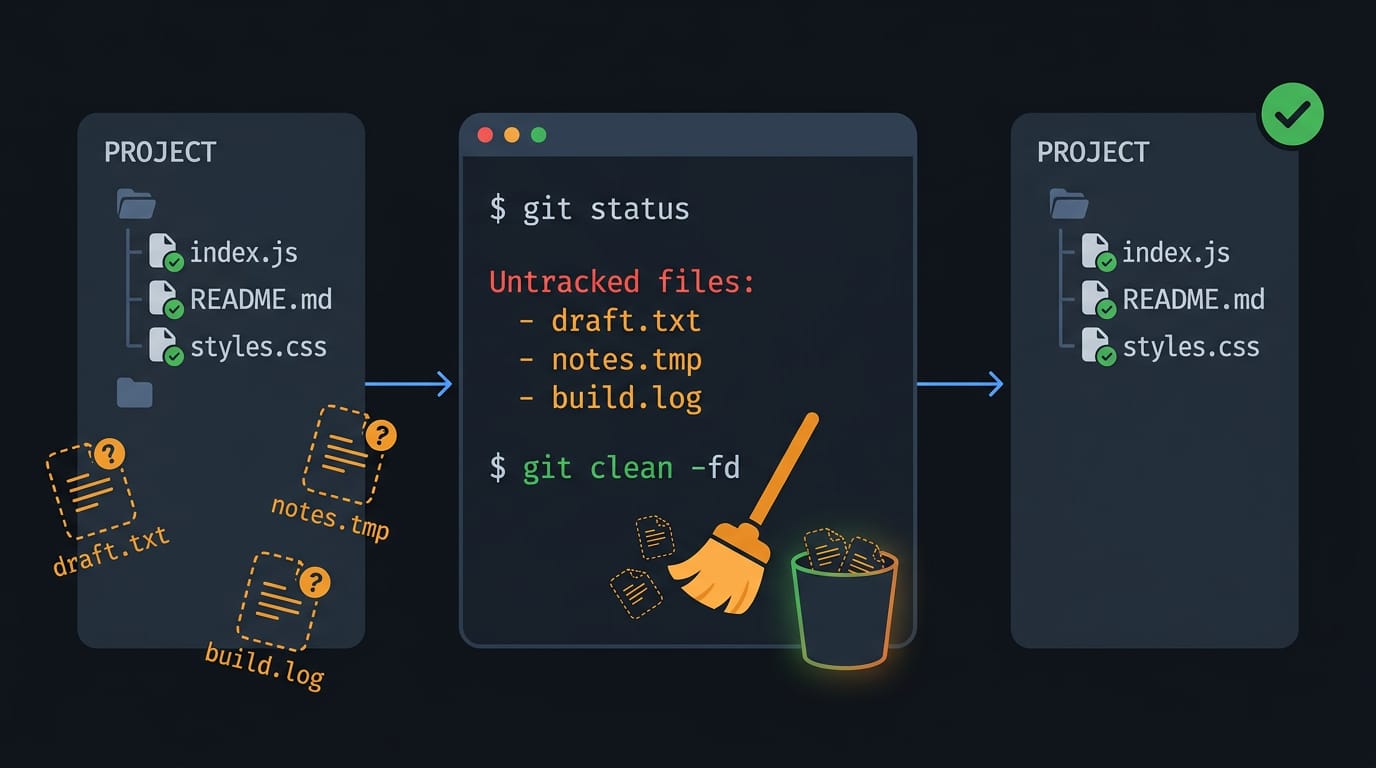
GitHub Untracked Files Explained and How to Delete Them
GitHub untracked files clutter project folders. Find, ignore, stash, or safely delete them with git clean, including ignored files and dotfile pitfalls.
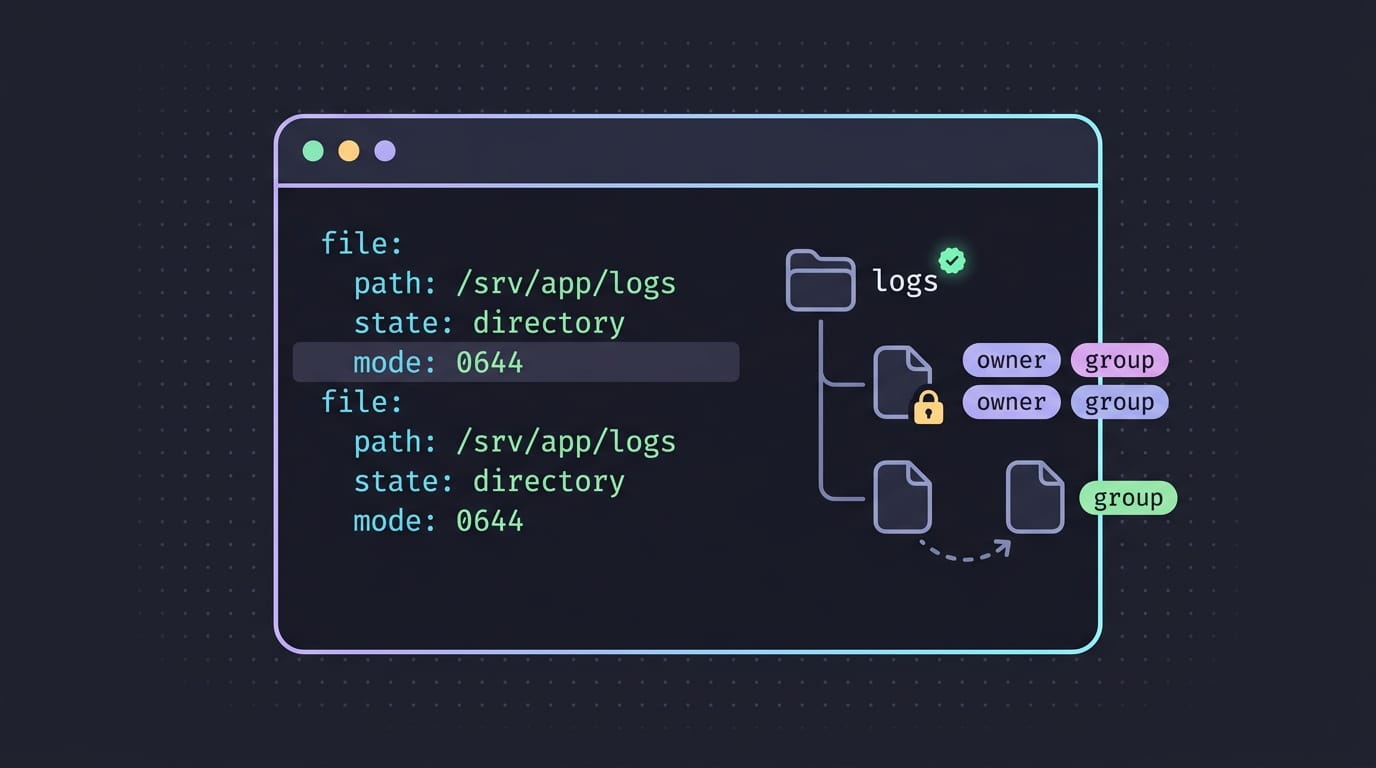
Ansible File Module: How It Works and Key Options
Ansible file module keeps dotfiles consistent across laptops by managing files, symlinks, and permissions. See states and repeat-safe examples.
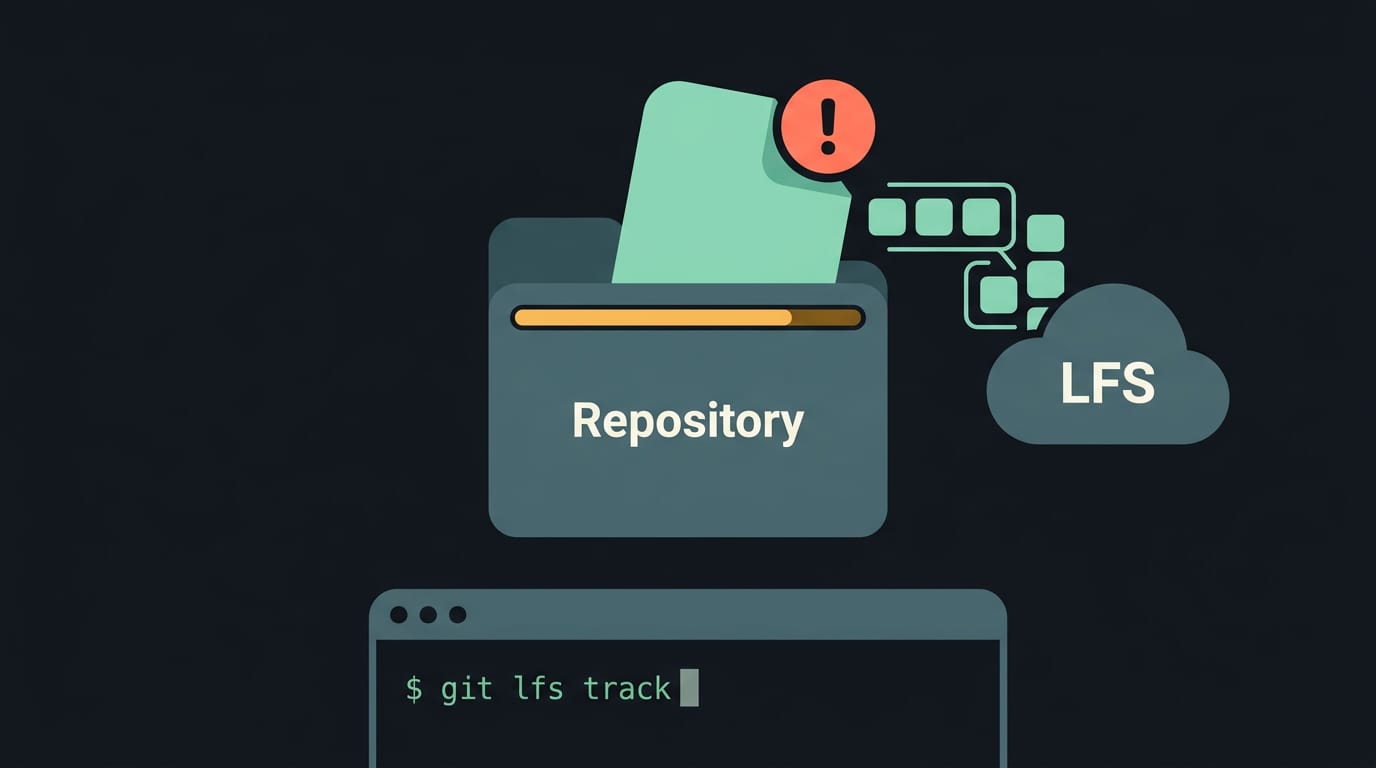
GitHub Max File Size: Limits and How to Fix Them
GitHub max file size can block a whole push over one oversized file. See how Git LFS and media hosts keep big files out of your repo history.