Full Size Keyboard Layout: The Complete Guide
Full size keyboard layout keeps the function row, navigation keys, and number pad together. Compare its desk space and trade-offs with compact boards.
tl;dr the short answer
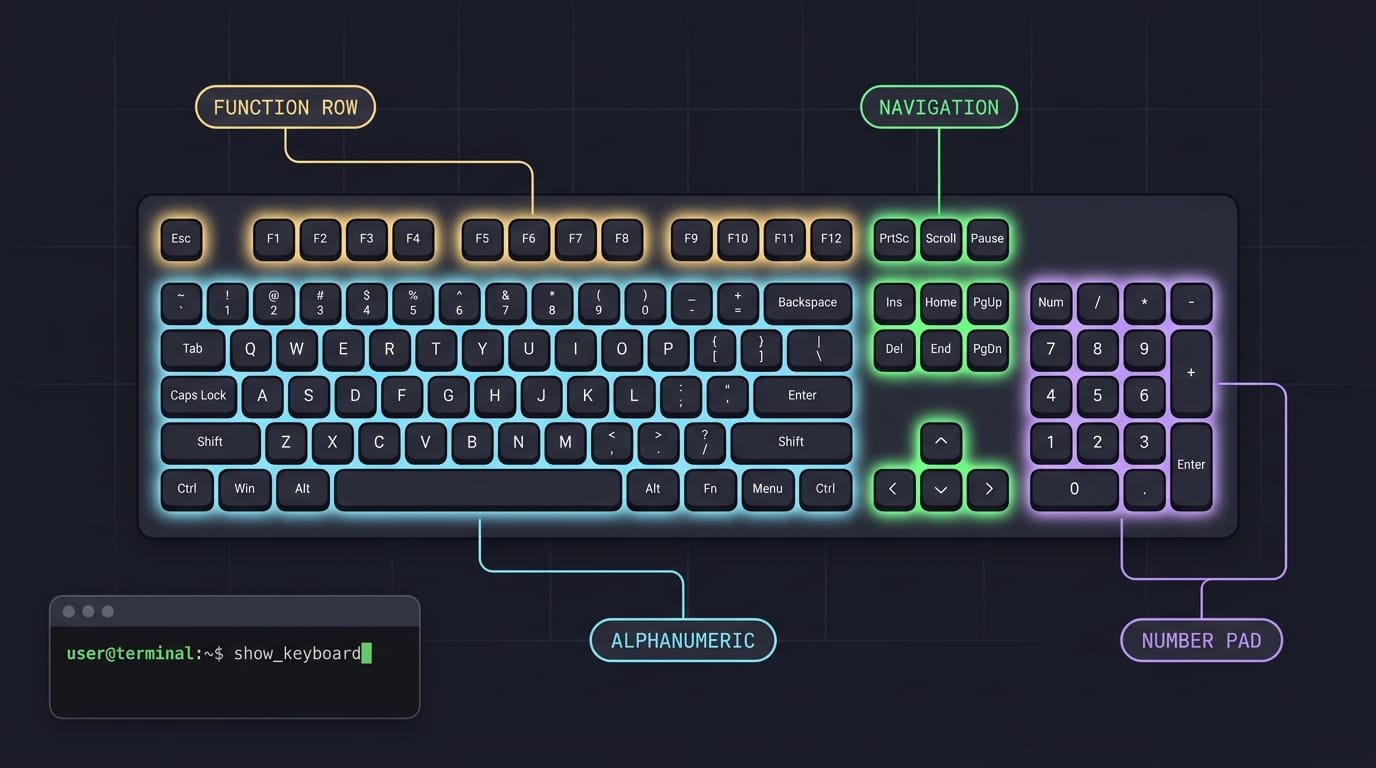
A full-size keyboard layout, also called 100%, includes the main typing area, function row, navigation and arrow keys, and a dedicated number pad, usually totaling 104 or 108 keys. It keeps common keys available without layers and suits number entry, coding, and familiar everyday typing, but takes more desk space and can push the mouse farther away. Choose it when those dedicated keys match your workflow, and check the board’s dimensions, regional layout, and Linux compatibility before buying.
Think of a full-size keyboard as a fully stocked kitchen: every tool you might reach for is already on the counter.
A full-size keyboard keeps the function row, the navigation keys, and a number pad on the right. Compact boards drop some or all of those to save desk space, and that trade-off shapes everything else about the choice.
We’ll cover the layout’s clusters and dimensions, how it compares with smaller sizes, and the Linux details most guides skip, like keymaps, firmware, and key-code testing.
What a Full Size Keyboard Layout Is
Most people picture a full-size keyboard when they hear the word keyboard. Here’s what it includes and how it compares.
What it is and how many keys
Also called a 100% keyboard, this is the largest mainstream layout and the traditional standard. It usually has 104 or 108 keys, depending on whether it includes media keys.
The key groups it includes
It’s easiest to think of the board as five groups:
- Alphanumeric main area: the letters, numbers, and punctuation you type most.
- Function row: the row of F-keys across the top.
- Navigation cluster and arrows: Insert, Home, Page Up, and the arrows that move your cursor.
- Dedicated numpad: the block of digits and operators on the right.
- Modifier keys: Shift, Ctrl, Alt, and Super (often the Windows key), which change what other keys do.
The numpad deserves a closer look on Linux. Its keys send their own key codes, separate from the number row, so the same digit can be bound to different actions.
Consider a Linux user tracking a budget at night: one hand can enter a column of figures on the numpad while the other stays on the mouse.
Key sizes along the bottom row
Sizes are measured in key units, where 1x is one standard key, so 1.25x is a quarter wider. On the bottom row, width matters more than position.
- 1.25x modifiers: Ctrl, Alt, and Super sit at this width.
- 2.25x and 2.75x shifts: the left and right Shift keys, with the right one wider still.
- 6.25x spacebar: the long bar your thumbs find without looking.
- Stabilized wide keys: stabilizers keep long keys like the spacebar flat, even when pressed off-center.
Comparing 104, 108 and 1800 style boards
The 104 and 108 are close relatives, and the smaller layouts mostly differ by how many keys they trim:
- 104 keys: the baseline full-size layout.
- 108 keys: the same core, plus media keys.
- 1800 style, or 96% compact: a much smaller footprint with fewer keys.
- 98-key tightened layouts: tighter spacing that often repositions the navigation cluster.
Think of a hyprland user with a small desk who wants the mouse closer. Moving to a tighter board frees up that room, though they’ll reach some keys differently. Less room for keys, more room for your mouse.
Benefits and Drawbacks of Full Size Boards
Full-size boards are less about fitting on a desk and more about putting every key within reach. Here’s where that pays off, and where it costs you.
Where full size boards shine
Full-size boards shine here:
- All keys without layers. Every key is one press away, with no modifier to hold.
- Dedicated numpad. A number pad on the right helps with spreadsheets and long figures.
- Standard navigation cluster. Arrows, Home, End, and Page keys each get their own key.
- Familiar key spacing. Muscle memory from other keyboards carries over.
- Expandable extra keys. Spare keys can be bound to scripts you use often.
Take a Linux sysadmin who lives in a terminal. Jumping to the top of a long log is one Home press, not a chord. That adds up fast.
Where full size boards fall short
Full size costs you more:
- Takes most desk space. The board and room for your mouse can eat a wide strip.
- Heavy and less portable. Extra material means extra weight, so it’s a chore to carry.
- Limits mouse movement. The mouse sits farther right, so each swing covers more ground.
- More components, higher cost. More keys mean more parts, and usually a higher price.
Is a 60% keyboard small? Yes, compared with a full-size board. It drops the function row, navigation cluster, and numpad, so arrows and Home or End usually sit on a secondary layer (alternate keys you reach by holding a modifier).
Where layouts can differ by model
Not every full-size board matches, so we’d check these before you buy:
- Regional key placement differences. Some symbols and key shapes shift by region.
- Function row defaults vary. Some top rows send F-keys, others send media or brightness keys.
- Software for macros and lighting. Vendor tools may not run on Linux, so check first.
Picture a developer whose top row sends media keys instead of F-keys. Their F-key shortcuts break until they change the default.
How It Compares to Other Layouts
Full-size is one point on a scale where each step down trades keys for desk space. Here’s how the common layouts stack up, from the closest relatives to the smallest boards:
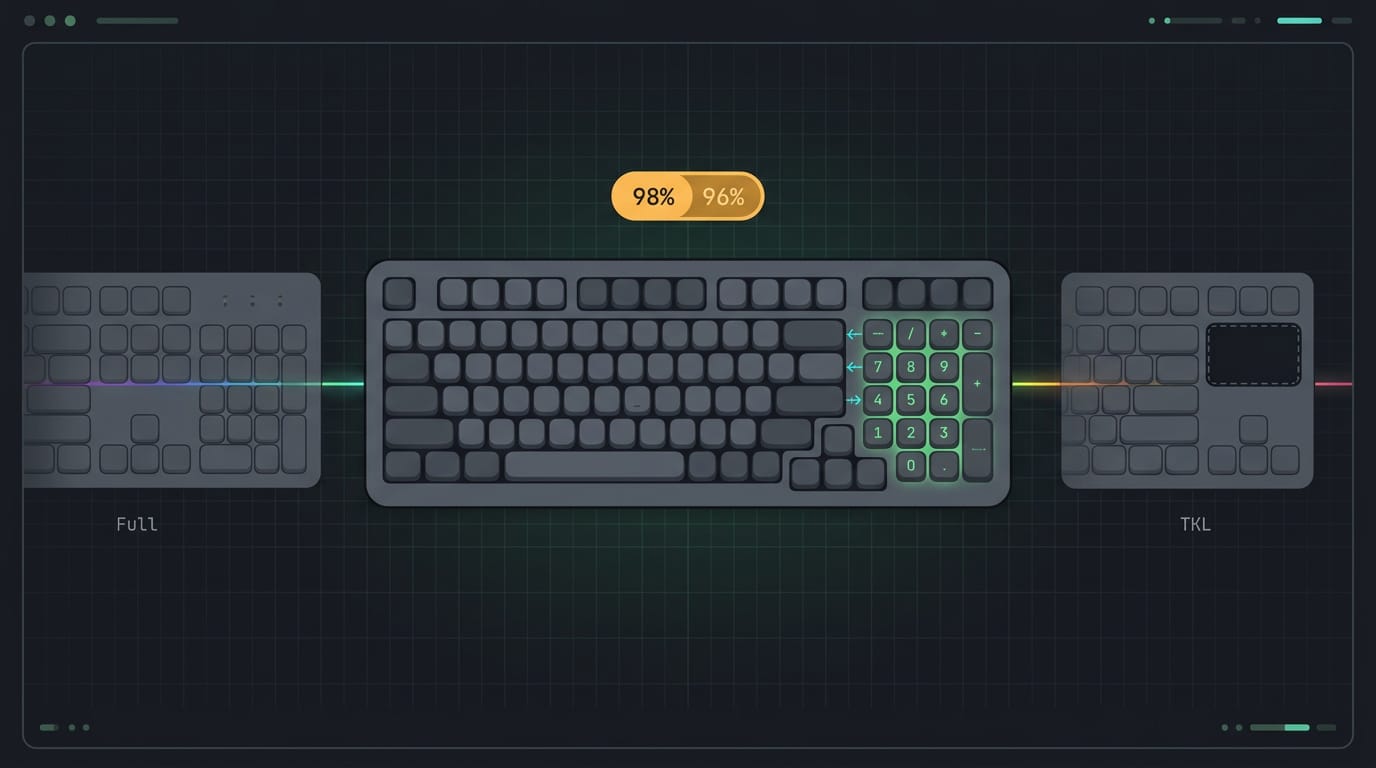
Compact 98 and 96 percent versions
These boards keep the numeric keypad (the block of number keys on the right) and the function row (the F-keys along the top). The change is spacing: the gaps between clusters close, and some keys shrink.
That makes them a middle ground, tighter than a full-size but still carrying the numpad that a tenkeyless board leaves off.
Tenkeyless boards without a numpad
A tenkeyless (TKL) board is a full-size layout with the numpad removed, and that’s what makes it narrower. A Cal Poly project on numeric keypads notes that most lightweight laptops skip the keypad because their width can’t accommodate one.
A TKL comes out several centimeters narrower than a full-size, with 87 keys in total.
The gain is room for your mouse. Think of a tmux-and-ssh homelabber whose mouse keeps running out of desk on a full-size board. A TKL gives it a clear lane, and the typing stays the same.
What 75 percent boards keep and cut
A 75 percent board keeps the function row and the arrow keys, but packs everything else much more tightly. Expect roughly 80 to 84 keys, with the navigation keys (Home, End, Page Up, and Page Down) cut.
Consider a hyprland user who likes a tidy desk but still wants arrows for moving through neovim buffers. The 75 percent board keeps those arrows, so nothing they touch daily disappears.
What 65 and 60 percent boards drop
A 65 percent board removes the function row but keeps the arrows. A 60 percent board drops the arrows too, so navigation moves onto a function (Fn) layer: a second set of commands reached by holding a modifier key such as Fn.
The trade is reach for layers, with fewer dedicated keys and more combinations to remember. Think of a terminal dweller who wants a board that slides into a bag.
A 60 percent board gives them one of the smallest mainstream widths, and the layers become second nature with practice.
Tiny 40 percent and smaller boards
Boards at 40 percent and below carry roughly 45 to 50 keys, with heavy reliance on layers. That makes them ultra-portable, but expect a steep learning curve. The curve is real. So is the portability.
How wide each layout runs
Width drops as you move down the scale, as the gaps close and then whole groups of keys go. Exact figures vary by manufacturer, so check the listed dimensions before you buy. Here’s the order, widest to smallest:
- Full-size: every key, numpad included.
- 96 and 98 percent: numpad and function row kept, gaps closed.
- TKL: numpad removed.
- 65 percent: function row removed, arrows kept.
- 60 percent: arrows removed too.
- 40 percent and smaller: most keys removed, with layers doing the rest.
How compact boards make up for gaps
Smaller boards have fewer keys, but not fewer jobs. They cover the gap with three tools:
- The first is the Fn layer above, which gives the same keys extra work.
- The second is the macro, a single key that sends a saved sequence of keystrokes.
- The third is an add-on: a separate numpad or macro pad (a small block of extra keys) that you connect beside the board when you need it.
Consider a tmux-and-ssh homelabber on a 60 percent board with a small macro pad beside it. One key opens a new tmux split, so the board stays small and the shortcut stays one press away.
Size and Desk Space You Need
Before you order or build anything, you’ll want to know how much room a full-size board takes up. The numbers below are a solid starting point, but your desk gets the final say.
Typical measurements to expect
Most full-size boards land in a similar range:
- Width: 440 to 460 mm, or about 18 inches
- Depth: 130 to 150 mm
- Height: 30 to 45 mm
Hold those figures up against your desk, and start with width. It’s the number most likely to cause trouble.
Why sizes can vary between boards
Boards don’t all build their frames the same way, which is why the ranges above exist. A few details shift the numbers:
- Bezel thickness: the border around the keys. Thicker borders add to the overall size.
- Knobs, screens, and media keys: extra controls along the top edge add width and height.
- Case and keycap profile: the case’s shape and the height of the keycaps set how tall the board sits.
- Brand and gaming designs: each maker’s choices, plus extras like lighting, can change the footprint.
- Wrist rests and kickstands: accessories that add depth, so count them when you measure.
How much desk room you need
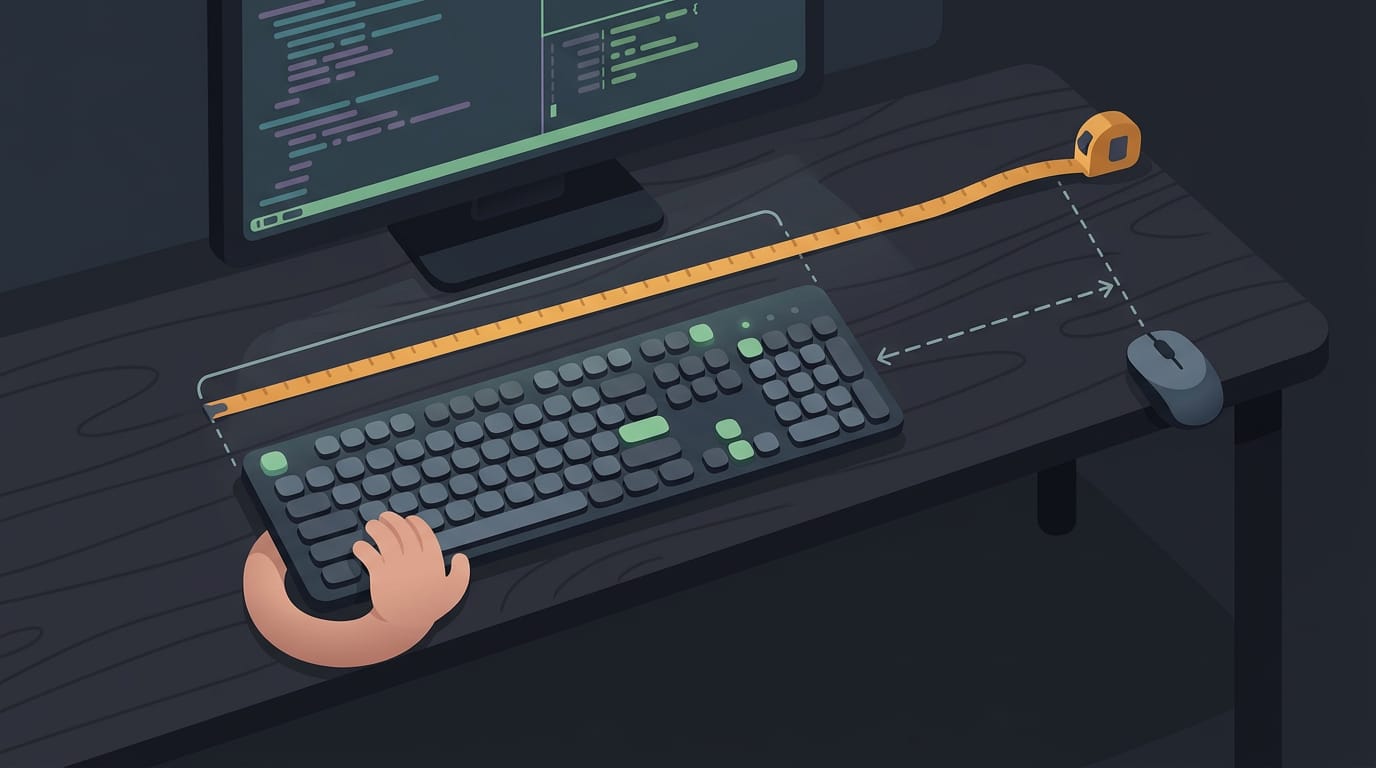
Think of a hyprland user on a narrow desk who wants a full-size board for long nvim and tmux sessions. The keyboard fits fine, but the mouse ends up hanging off the right edge.
That’s the trade-off: the numpad on the right adds keys, and it also pushes your mouse farther away. The footprint is the total space a board covers, and the gap between the board’s center and your mouse is the mouse offset.
Reach too far to the side for hours, and your shoulder pays for it. Keep the mouse close enough that your elbow stays near your side. A quick measurement before ordering would have caught the problem.
- Wide footprint: the numpad leaves less room for your mouse on a tight desk.
- Desk depth: a deep board or wrist rest needs space in front of it too.
- Small desks: a layout without a numpad frees up room, so it may suit you better.
- Measure available width: check the open span with a tape measure, leaving room for your mouse.
Your usable width matters more than the board’s listed width. Measure first.
Newer design trends worth knowing
- Slim bezels: thinner borders that trim the overall frame.
- Gasket mount: the plate sits on rubber gaskets rather than being screwed down rigidly, for a softer, more flexible feel.
- Tri-mode wireless: one board that connects by cable, a 2.4 GHz dongle, or Bluetooth.
- Metal bodies: sturdier with less flex, though they weigh more.
Check the listed dimensions on any of these before you commit.
Who a Full Size Board Suits Best
Is a full-size keyboard worth the desk space? It depends on how you spend your day, so match the layout to your work before you buy. Here’s how it fits common setups:
Office work and spreadsheet number entry
Think of a Linux user who enters invoice totals in a spreadsheet all afternoon. The numpad keeps that hand on the digits instead of reaching across the top row, so the work flows faster.
A full-size board is a desk choice more than a bag choice, since it’s built to stay put on a permanent workstation.
Gaming and mixed work use
A full-size board handles gaming and work alike, so you won’t swap keyboards between a spreadsheet and a match. For mouse room, a tenkeyless (TKL) board drops the numpad, letting the mouse travel farther without hitting the edge of the desk.
If you only sometimes need the numpad, weigh that trade-off, since you’d be paying desk space for keys you rarely press.
Coding and making content
Dedicated Home, End, Page Up, and Page Down keys save you from pressing function-key combos to move through a long file. Brackets, braces, and pipes get their own keys too, which matters because compact boards often tuck them behind a modifier layer.
Skip the numpad and a TKL board keeps navigation intact, while a 75% board (a compact layout) trims more but leans harder on layers. On Linux, you can remap the numpad in xkb (the X keyboard extension, which maps key presses to characters).
Picture a neovim and tmux user who sends arrows and Page Up from those keys, so reading a long log never costs a reach.
Shared offices and managed setups
A standard layout means everyone’s hands already know where the keys are, so nobody loses time hunting for Enter at a colleague’s desk. Shared boards take daily abuse, so pick a sturdy case and keycaps that lift off for cleaning.
Some wireless models pair through a small USB receiver that can wander off, so label it and keep it in one spot.
Pick a size by workflow and space
Start with the keys you press most:
- Heavy number entry: full-size.
- Mouse-heavy play with little numpad use: tenkeyless.
- Tight or portable desk: compact.
There’s no universal best size, only the best size for your week. You may have searched for the top 3 best keyboards, but we won’t crown a winner from memory, since the right three depend on your workflow.
Shortlist three full-size boards that fit your list, then compare them side by side.
New to mechanical keyboards? Full-size is a forgiving first pick. Every key is labeled and nothing hides behind a layer, so nothing surprises you. Start big, then trim.
Switches, Keycaps and Connection Options
A full-size board is only as good as what’s under its keys, what’s on top of them, and how it connects. Here’s what to weigh in each area before you buy.
Types of switches and how they work
Every key sits on a switch, and the first split is between membrane and mechanical boards. Membrane boards press a rubber sheet to complete a circuit, while mechanical boards give each key its own switch.
Mechanical switches come in three feels:
- Linear switches press smoothly, with no bump.
- Tactile switches add a bump before the key bottoms out.
- Clicky switches add that bump plus an audible click.
It’s about feel first and sound second. Hot-swappable boards let you swap switches without soldering.
Stabilizers keep long keys like Space and Shift level when you press near an edge. Full-size boards have more of them, so they matter here. Small part, big effect.
Keycap shapes, materials and printing
The keycap profile is the shape and height of each cap, and it changes where your fingers land. Many sets use polybutylene terephthalate (PBT), a dense plastic that holds up to constant typing.
Legends, the symbols on each cap, are either printed or molded. Printed ink can fade with heavy use. Molded legends are formed into the plastic, so they last as long as the cap does.
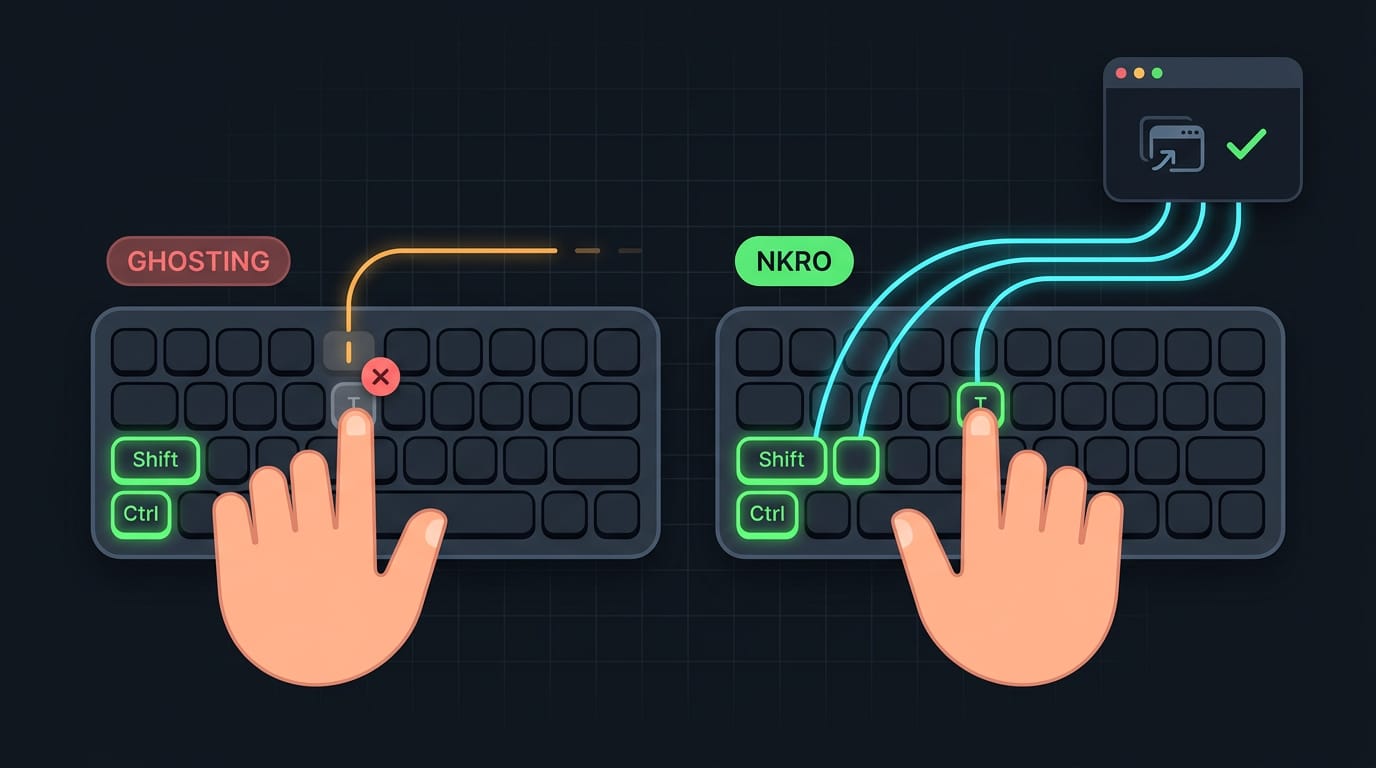
Pressing several keys at once
Simultaneous key registration is a board’s ability to recognize several presses at once. Some boards drop keys held together, which breaks multi-key shortcuts like Ctrl+Shift+T. Look for N-key rollover (NKRO), which tracks every press.
Ways to connect your keyboard
There are three options:
- Wired USB. A cable runs to your computer. Universal Serial Bus (USB) is dependable and never needs charging.
- Wireless receiver. A small USB receiver, called a dongle, links the board wirelessly.
- Bluetooth multi-device. The board pairs with several machines, and a key press switches between them.
Consider a Linux user who splits the day between a laptop and a desktop. With Bluetooth multi-device, one key press moves the board between them, so there’s no cable swapping.
Before you buy, count your free ports and measure the distance to your machine. Then check Linux driver support: confirm the board works on Linux, and if it uses a dongle, make sure it appears in your device list (lsusb lists USB devices).
Lighting, battery life and setup apps
Single-zone lighting gives the whole board one color or effect, while multi-zone lighting lets you color separate sections.
Wireless boards run on batteries, and the backlight and radio both draw power. Dimming the backlight extends battery life, which helps a student typing through lectures make it to the end of the day. Less glow, longer charge.
Vendor configuration utilities can remap keys and set lighting, but they may not run on Linux. If the board stores settings on the keyboard itself, your changes stick without the app.
Customizing and Buying the Right Board
A full-size board is only a starting point. Here’s what to weigh before you add extras, build one, or buy.
Extras like numpads and macro pads
A numpad is a separate number cluster for entering figures. A macro pad is a small add-on with extra keys you program for shortcuts. Add them beside your board, not instead of it.
Desk mats protect your surface and give your mouse a smooth spot to rest. Lube is a light lubricant for smoother switches, so use less than you think you need.
Ways to build and tweak a board
A kit is a board you assemble yourself, and a hot-swap PCB (printed circuit board) lets you change switches without soldering. Consider a Linux user who wants a split layout but has never soldered: they can try out switches before committing.
Common tweaks include:
- Programmable macros and DIP switches. Many boards let you program macros, and DIP (dual in-line package) switches are physical toggles for modes.
- Adjustable feet and tilt. Flip out the feet to raise the back.
- Split and ortholinear boards. A split board separates the keys into two halves, while an ortholinear board uses straight rows and columns instead of staggered ones.
Look for boards that support QMK, an open-source firmware, or VIA, a remapping app, so your changes stick to the board itself.
What affects price and compatibility
More keys means more parts, so component count pushes the price up. That’s why compact boards are often cheaper.
Before you buy, confirm the connection and firmware suit your operating system. Second-hand marketplaces can save money, but run every key through a key-code tester (a tool showing each key’s code). Check first, then buy.
Regional Layout Standards to Know
Before you buy a board or edit a config, you need to know which regional standard it follows. Three names come up constantly: ANSI, ISO, and JIS.
They mostly differ in the shape and placement of a few keys, and that small gap changes what you can buy and how your hands behave.
Comparing ANSI, ISO and JIS layouts
The three standards split on a few key points:
- Horizontal Enter: ANSI uses a wide, flat Enter key.
- Vertical Enter: ISO uses a tall, vertical Enter key.
- Extra Japanese keys: JIS adds keys for Japanese input, so its layout differs in more places than just Enter.
It’s less about which keys you have and more about where they sit.
Keycap availability is the practical catch: not every keycap set includes the shapes your board needs, so check that a set covers the Enter key and any other odd-shaped keys before you order.
Switching also takes retraining. Your fingers have learned where everything lives, so a new shape feels wrong at first. Give it a week.
Think of a Linux user who typed for years on an ANSI board, then starts a job on an ISO laptop. Their hand keeps reaching for Enter and landing one key off.
Once they set the right layout, the characters come out correctly, and their fingers catch up within a few days.
To set it, run setxkbmap with your layout code for the current session, or use localectl to make the change stick across reboots. The software layout decides which characters you get, while the physical shape is the part your fingers have to learn.
A full-size board isn’t the right pick for everyone, but if you lean on the number pad, the function row, or a dedicated arrow cluster, it’s hard to beat.
You now know what each part does, what it costs in desk space, and how it stacks up against compact options.
Keymaps, firmware, and a quick key-code test are what make the layout truly yours on Linux. Your keyboard should fit how you work, and it should still type the way you expect after the next update.
References
- Custom Keys: Numeric Keypad Server-Client Android App — digitalcommons.calpoly.edu (2015)
Questions
What is the standard layout of a keyboard?
A standard keyboard layout has an alphanumeric typing area, a function-key row, a navigation cluster with arrow keys, and modifier keys such as Shift, Ctrl, Alt, and Super. A full-size layout also includes a dedicated number pad on the right; regional standards such as ANSI, ISO, and JIS vary in the shape and placement of some keys.
What are the top 3 best keyboards?
There is no universal top three: the best keyboards depend on your workflow, desk space, and preferences. To compare three candidates, shortlist models that fit your needs, then weigh layout, switch feel, connection options, Linux compatibility, and price.
How many keys are on a full-sized keyboard?
A full-size keyboard usually has 104 or 108 keys. The 108-key version typically adds media keys to the standard 104-key layout.
Is a 60% keyboard small?
Yes. A 60% keyboard is small compared with a full-size board and is one of the smallest mainstream layouts. It removes the function row, navigation cluster, and arrow keys, so many of those functions are accessed through an Fn layer.
Sources
- Custom Keys: Numeric Keypad Server-Client Android App, digitalcommons.calpoly.edu,
Read next.
Cent Symbol on PC Keyboard: Alt Codes and Shortcuts
Need the cent symbol on a PC keyboard? Find Windows Alt codes, Mac and Word methods, phone options, and fixes for when the sign won't appear.