GitHub Untracked Files Explained and How to Delete Them
GitHub untracked files clutter project folders. Find, ignore, stash, or safely delete them with git clean, including ignored files and dotfile pitfalls.
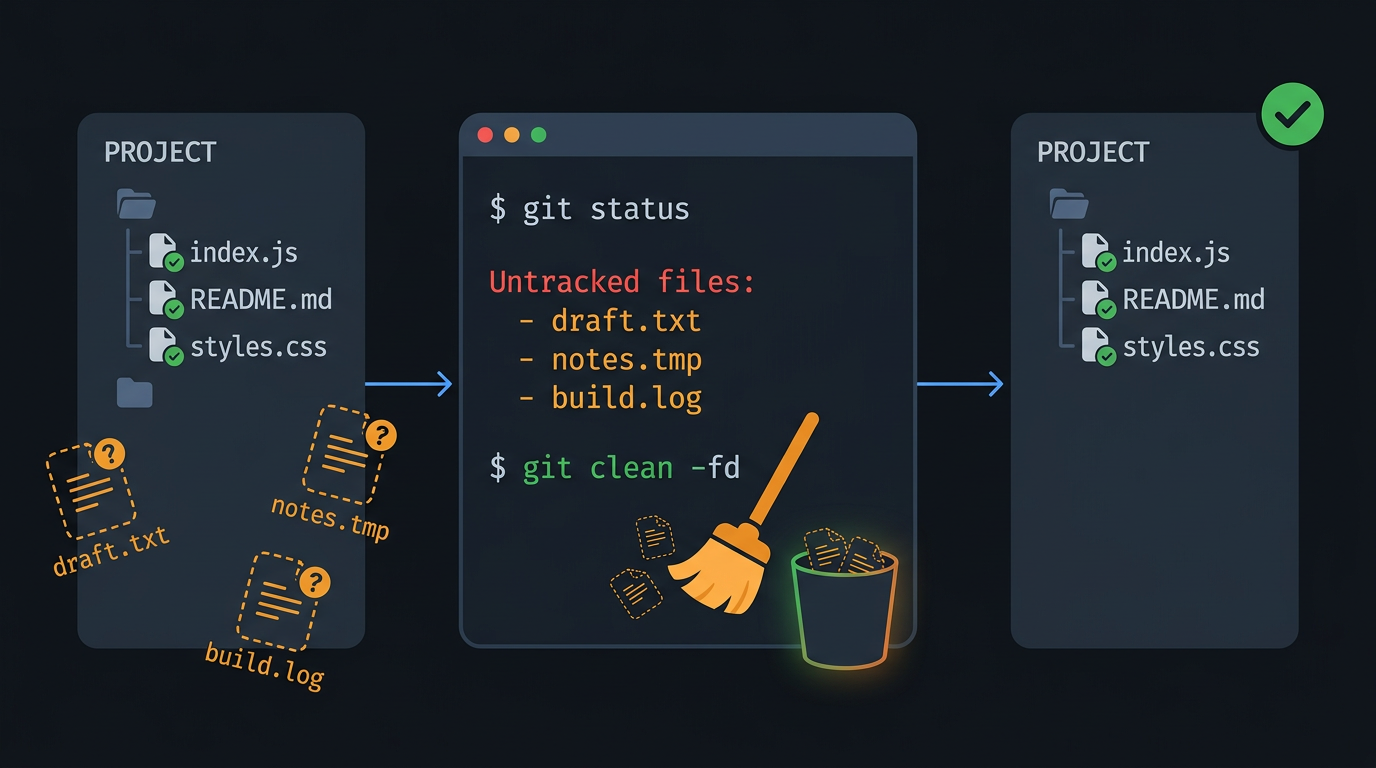
tl;dr the short answer
Git untracked files are files in your project folder that Git has not been asked to track, so it cannot restore them if they are deleted. Add files that belong in the project, use `.gitignore` to keep local or generated files on disk but out of status, stash files you may need later, or remove unwanted files with `git clean`; preview removals first because they are permanent. Be especially careful with dotfiles repositories that use your home directory as the work tree, where a cleanup command can reach far beyond the project.
Ever cleaned out a junk drawer and found loose receipts, spare keys, and batteries nobody can identify?
Your project folder can end up the same way. Git spots those stray files and lists them as untracked files: files that sit in your working folder but that Git isn’t keeping track of yet.
This guide shows you how to find these files, ignore them, stash them, and delete them safely with git clean. We’ll also cover the Linux dotfiles pitfalls that generic guides skip, like bare repositories and a home directory that doubles as a work tree.
Understanding GitHub Untracked Files and Tracked Ones
Every file in your project is either one Git follows or one it has never seen. Knowing which is which keeps your repo clean.
What tracked and untracked mean
Tracked files are the ones you’ve added with git add. Git watches them and records their changes, and each one is unmodified, modified, or staged.
Untracked files are unknown to Git. The split is about what Git knows, not what’s on disk. Git can’t restore an untracked file, since it never saved one. Once it’s deleted, it’s gone for good. No undo.
Why untracked files show up
Untracked files usually come from ordinary work:
- Prototypes and test data: throwaway experiments and sample files.
- Build artifacts: compiled outputs your tools generate.
- Auto-generated files: configs or caches a program writes on its own.
- Deprecated files: old code you’ve stopped using but never deleted.
Dangers of leaving files untracked
Leaving them untracked has real costs:
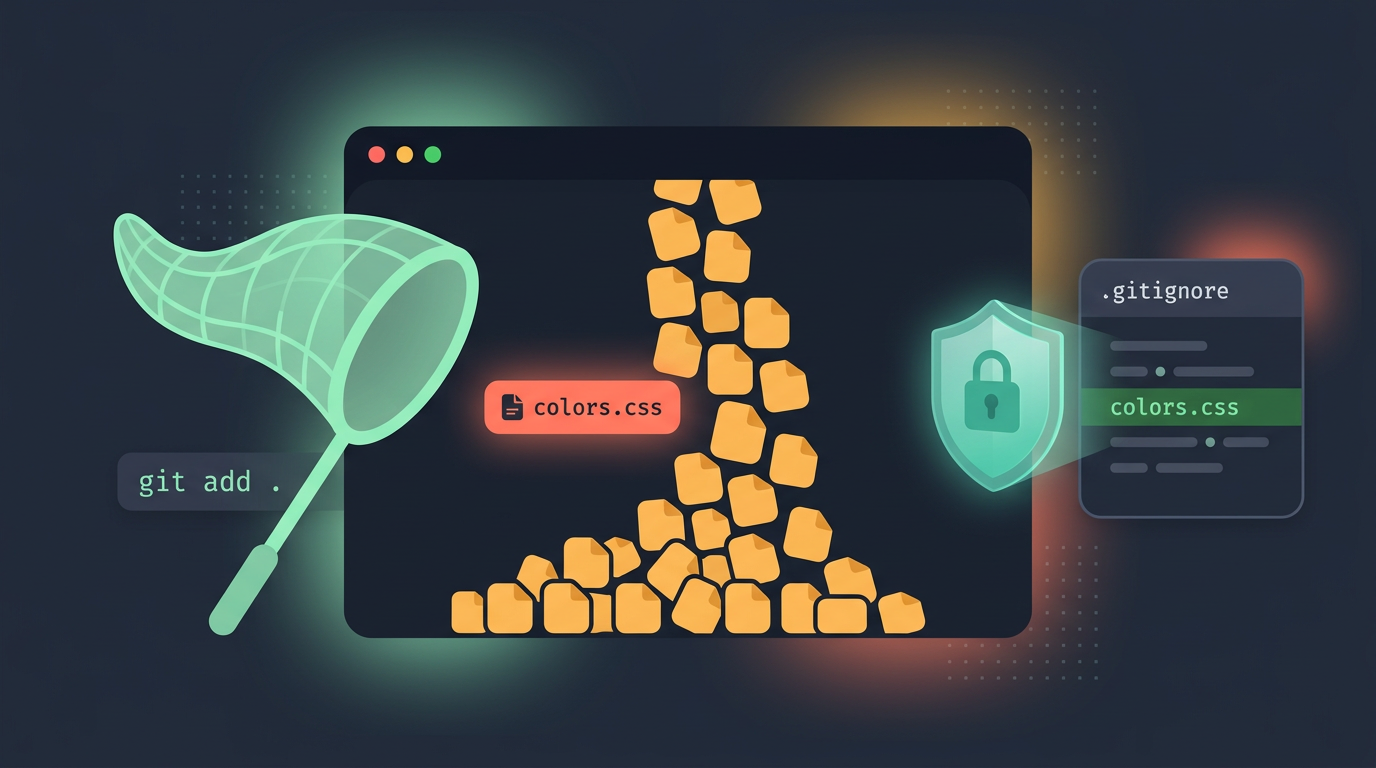
- Accidental add and commit: a broad
git add .can sweep in files you never meant to share. - Workspace clutter and disk space: old outputs pile up and eat storage.
- Noisy
git statusoutput: a long list buries the changes that matter. - Data loss if not saved: Git won’t back up untracked files, so a fresh install can wipe them.
Consider a Linux ricer who keeps dotfiles in a Git repo. Their wallpaper script rewrites a colors file on every theme swap, so it stays untracked. One careless git add . could commit it, but one line in .gitignore keeps it out for good.
So what happens if you commit without staging? Git commits only what’s already staged, so untracked files and unstaged edits are left out. If nothing is staged, Git refuses and reminds you to stage something first.
Three ways to handle files
You have three options, and the right one depends on the file:
- Add with
git add: start tracking a file that belongs in the project. - Ignore via
.gitignore: Git skips listed files, which stay on disk but stop clutteringgit status. - Remove with
git clean: delete untracked files you don’t need. Rungit clean -nfirst to preview, since deleted files are gone.
What You Need Before Starting
Before any command in this article will work, you need a Linux machine with Git installed. This section gets both in place.
Get your environment ready
Consider a homelabber who wants to practice cleanup on a throwaway machine, not the one they use every day. They create a Linode account, spin up an instance (a Linux server in the cloud), and log in over SSH (Secure Shell, a remote login tool).
Now a bad command costs them a practice folder instead of their real dotfiles (hidden config files that start with a dot).
Once you’re logged in, run git --version. A version number means you’re set. A command not found error means Git still needs installing.
Install Git with your distro’s package manager, the tool that installs software on your system. The sudo prefix runs a command with admin rights, so use the line that matches your distro:
- apt (Debian and Ubuntu):
sudo apt update, thensudo apt install git - dnf (Fedora and Red Hat families):
sudo dnf install git - pacman (Arch):
sudo pacman -S git
Run git --version again to confirm. Easy enough.
Last, create a repository (a project folder whose changes Git records). Make a practice folder with mkdir practice, step into it with cd practice, and run git init. Git adds a hidden .git folder inside, which you can see with ls -a.
The folder is a repo now, but Git is watching nothing yet, and that’s exactly where untracked files come in.
Deleting Untracked Files with Git Clean
git clean deletes untracked files from your working tree, so git makes you slow down on purpose. Here’s how to use it without losing anything you meant to keep.
Flags you must pass and why
Plain git clean refuses to run. You need one of three flags: -f (force), -n (dry run), or -i (interactive). The clean.requireForce setting is on by default, which means git won’t delete anything without -f.
You can switch that off with git config clean.requireForce false, but we’d leave it alone. A missing flag costs you one retyped command, while a silent deletion costs you the file.
The catch is that removal is permanent. Removed untracked files were never committed, so git has no copy to bring back. Once it’s gone, it’s gone.
Preview deletions first, or run quietly
Run -n before -f, every time. It lists what would be removed and changes nothing, so you can see the damage before it happens. A dry run takes seconds. A wrong delete is permanent.
The -q flag suppresses the list of removed files. That’s handy in a script where nobody reads the output, but on your first run, leave it off so you can see exactly what got removed.
Controlling which files get removed
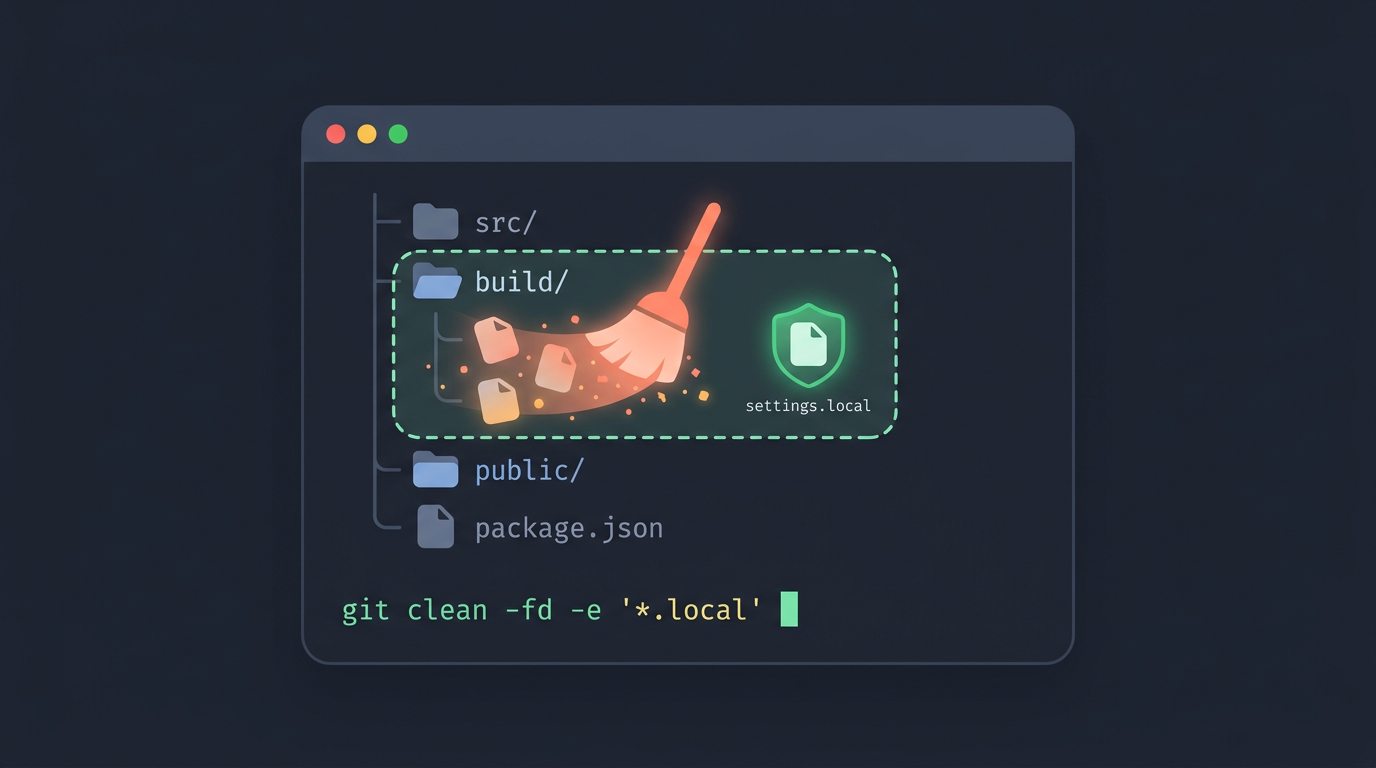
By default, git clean leaves untracked directories alone, so you need -d to include them. With -d, an entire untracked folder and everything inside it goes. To narrow the scope, pass a path, such as git clean -fd build/, and only that folder is touched.
To protect specific files, add -e with a pattern: git clean -fd -e "*.local" keeps anything matching *.local in place.
A worked example with both file types
Picture a Linux user tidying a dotfiles repo. They have a new init.lua they already staged with git add init.lua, plus a scratch/ folder of test configs they never added.
Running git clean -n -d reports Would remove scratch/, and the staged file doesn’t appear at all, because git clean only targets untracked files.
Then git clean -fd prints Removing scratch/. Finally, git status confirms the result: init.lua still sits under “Changes to be committed,” and scratch/ is gone. That check takes one command and confirms your staged work survived.
Cleaning Files Interactively with -i
Sometimes you want to keep a few untracked files and toss the rest. The -i flag turns git clean into a small menu, so you choose exactly what goes. Here’s how we’ll work through it.
How the interactive menu works
Run git clean -i and Git lists the untracked files it would remove, followed by a menu of commands:
- Clean: removes the files you’ve selected (1)
- Filter by pattern: selects files that match a wildcard (2)
- Select by numbers: marks files by their list number (3)
- Ask each: steps through files one at a time (4)
- Quit: exits without removing anything (5)
- Help: explains the menu (6)
You don’t have to type a number. Each command has shortcut letters: enter c, f, s, a, q, or h and Git runs that command. Numbers work too, so use whichever feels faster.
Type h whenever you need a reminder of what each command does. Quit doesn’t touch a single file, while clean does. That’s your safe exit.
Ways to pick files to remove
Once the list is on screen, you have four ways to choose what goes:
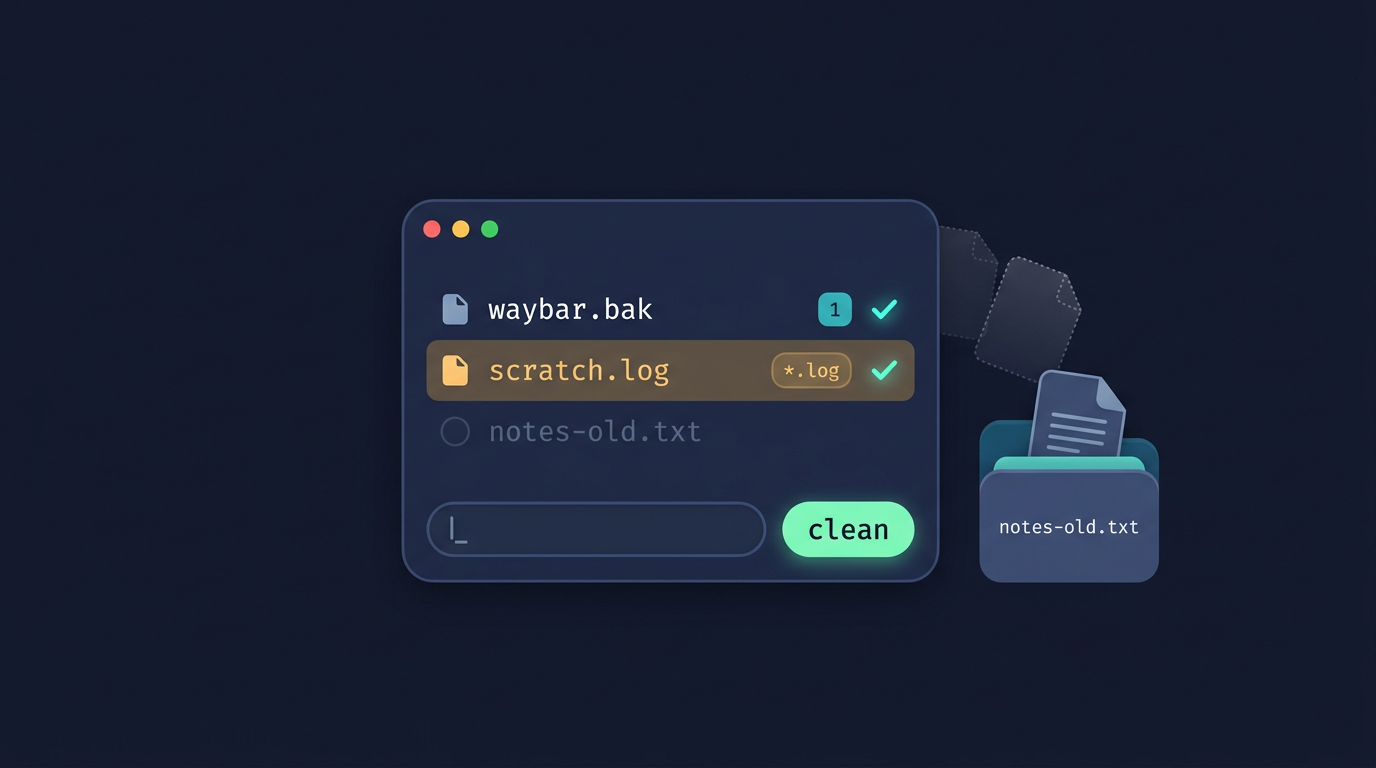
- Filter by pattern: enter a wildcard such as
*.log, and every matching file gets selected. - Select by numbers or ranges: type a number like
2, or a range like3-5, to mark files from the list. - Ask each: Git asks
yornfor every file, and the default is no. - Clean selected files: choose clean to remove whatever you’ve marked.
Picture a Linux user who tried a new waybar config and left behind waybar.bak, scratch.log, and notes-old.txt. They type *.log to grab the scratch file, pick the backup by its number, and choose clean.
The notes file stays put, and the folder is tidy without touching their real config.
Removing Ignored Files Too
By default, git clean leaves ignored files alone. Two flags change that, and they work differently enough that you’ll want to know which one you’re reaching for.
Ignored files are skipped by default
Ignored files are the ones your .gitignore tells Git to disregard, like compiled output or local caches. A plain git clean only targets untracked files, so it walks right past them.
That matches how the rest of Git treats ignored files, which means the command won’t delete something you already told Git to leave alone.
Choosing between -x and -X
Both flags reach ignored files, but they differ in how far they go:
-Xremoves only ignored files.-xremoves all untracked and ignored files.
Use -X for clean builds. Picture a Linux user compiling a project from source who wants a fresh build without losing the scratch notes sitting in the same folder.
Running git clean -X clears the compiled output Git ignores, and those untracked notes stay put.
Patterns passed with -e are still respected when you use -x, so you can shield a file you want to keep while everything else goes.
The stakes are highest in a dotfiles setup. If your repo uses $HOME as its work tree, every untracked file in your home folder is fair game, from downloads to half-finished configs. Never run git clean -x in $HOME.
Other Options for Untracked Files
Deleting by hand is one option, and usually the riskiest. Each one touches a different amount of your project, so pick the gentlest that does the job.
Manual deletion and other Git commands
The most direct route is rm, which deletes a file right away. It’s quick, but rm won’t ask, and Git has no copy to restore.
git reset sounds like a cleanup tool, but it reaches further than you’d expect, so it can undo tracked work you wanted to keep.
To set files aside instead, git stash -u tucks untracked files away with your other changes. Bring them back with git stash pop.
How does gitignore work?
A .gitignore file lists the patterns Git should skip, one per line. A line like *.o matches every object file, and local.cfg matches one specific config.
Ignoring a file means hiding it, not removing it. Ignored files stay where they are and are hidden from git status. Nothing gets deleted.
Ignore rules skip untracked files only. For a file Git already tracks, run git rm --cached <file> to untrack it while keeping it on disk, then add its pattern.
For patterns you want everywhere, set a global ignore file with core.excludesFile. For a single repo you’d rather not share, add the pattern to .git/info/exclude instead, which is never committed.
Think of a Hyprland ricer with a bare dotfiles repo that uses $HOME as the work tree. Every stray file in their home directory clutters git status.
Running git config --local status.showUntrackedFiles no keeps the output readable, so only the configs they edit show up.
Untracked files aren’t a problem on their own. They’re simply files Git hasn’t been asked to track yet. Once you can tell them apart from tracked and ignored files, you can decide what to keep, what to ignore, and what to clean up.
Commands like git clean are powerful, so give them respect, especially in your home directory or a bare dotfiles repo. Preview first, delete second, and your home directory stays intact.
Questions
How to delete untracked files in git local?
Preview first with `git clean -n`, then run `git clean -f` to delete untracked files. Add `-d` to include untracked directories, for example `git clean -fd`; use `git clean -i` to choose files interactively. Deletion is permanent, so check the preview carefully.
How does gitignore work?
A `.gitignore` file lists patterns, one per line, that Git should skip for untracked files. Ignored files stay on disk but are omitted from `git status`; they are not deleted. Ignore rules do not affect files Git already tracks unless you first untrack them, for example with `git rm --cached <file>`.
What does it mean if a file is untracked?
An untracked file is present in your working folder but Git has not been asked to track it, usually because it has not been added with `git add`. Git does not save its contents, so it cannot restore the file if it is deleted. You can add it, ignore it, or remove it, depending on whether it belongs in the project.
What happens if I commit without staging?
Git commits only the changes that are already staged. Untracked files and unstaged edits are left out of the commit. If nothing is staged, Git refuses to create a commit and prompts you to stage changes first.
Read next.
Ansible File Module: How It Works and Key Options
Ansible file module keeps dotfiles consistent across laptops by managing files, symlinks, and permissions. See states and repeat-safe examples.
GitHub Max File Size: Limits and How to Fix Them
GitHub max file size can block a whole push over one oversized file. See how Git LFS and media hosts keep big files out of your repo history.
Ubuntu Clean Files and Blocks Explained
Ubuntu clean file and block counts: understand the boot message, fix a stall on the clean line, and free disk space without risking saved configs.