Symbolic Link in Linux: What It Is and How It Works
Symbolic links in Linux point to files or folders; learn to create, inspect, safely remove them, and fix broken paths in dotfiles and themes.

tl;dr the short answer
A Linux symbolic link, or symlink, is a special file that stores a path to another file or folder, so programs can use the link to reach the target. Create one with `ln -s source link`, inspect it with `ls -l` or `readlink`, and remove it with `rm` without deleting the target; unlike a hard link, a symlink can cross filesystems but breaks if its target moves or disappears. Symlinks let you keep one copy of files such as configurations and themes while making them available from the paths your apps expect.
Think of a sticky note on your fridge that says the good scissors are in the junk drawer. The note isn’t the scissors. It just points you to where they live.
A symbolic link, or symlink, works the same way in Linux: a small file that points to another file or folder.
We’ll cover creating one with ln -s, spotting and reading them, why they break, and how they differ from hard links. Then we’ll put them to work on your dotfiles and theme folders.
What a Symbolic Link Is in Linux
A symbolic link, or soft link, is simpler than it sounds. Here’s how it works and where it fits in your setup.
How a symbolic link points to a path
A symlink is a special file whose contents are just a pathname. Opening it takes you to whatever lives at that path. It points to a name, not to the inode (the internal number the filesystem uses to track a file). The link is just a pointer.
Run readlink followed by a link’s name to see its stored path, so you can confirm a link before you trust it.
What’s the Linux equivalent of Windows shortcuts?
The short answer: a Linux symlink fills the role a Windows shortcut plays, though they work differently. Windows has symbolic links too, but shortcuts are what most people meet first.
A shortcut is a file only the desktop follows, while a symlink is resolved by the system, so any program that opens the path gets the target.
Common jobs include:
- Short path to deep directories.
ln -s /long/path/to/project ~/projectlets you type~/projectinstead of the whole route. - Linking libraries. Programs often expect a library under one name, and a symlink can point that name at the real file.
- Same file in multiple locations. Both paths lead to one copy, so changes show up in both places.
Consider a hyprland user who keeps their themes in a git repo at ~/dotfiles/themes. Running ln -s ~/dotfiles/themes/nord ~/.themes/nord puts the theme where GTK apps look, and the repo stays the single source of truth.
The payoff: a git pull updates the theme everywhere, and after a fresh install you just rerun a few ln -s commands.
Creating Symbolic Links with Ln
Making a symlink (short for symbolic link) takes one ln command, but the syntax trips up nearly everyone at first.
Getting the ln -s argument order right
The basic form is ln -s source link, and order matters:
- Source first: the existing file or folder the link points to.
- Link second: the new path where the link lives.
- Forget
-s? You get a hard link, a second name for the same data, not a pointer.
Swap them and you’ll build the link in the wrong place.
Linking a file or a whole directory
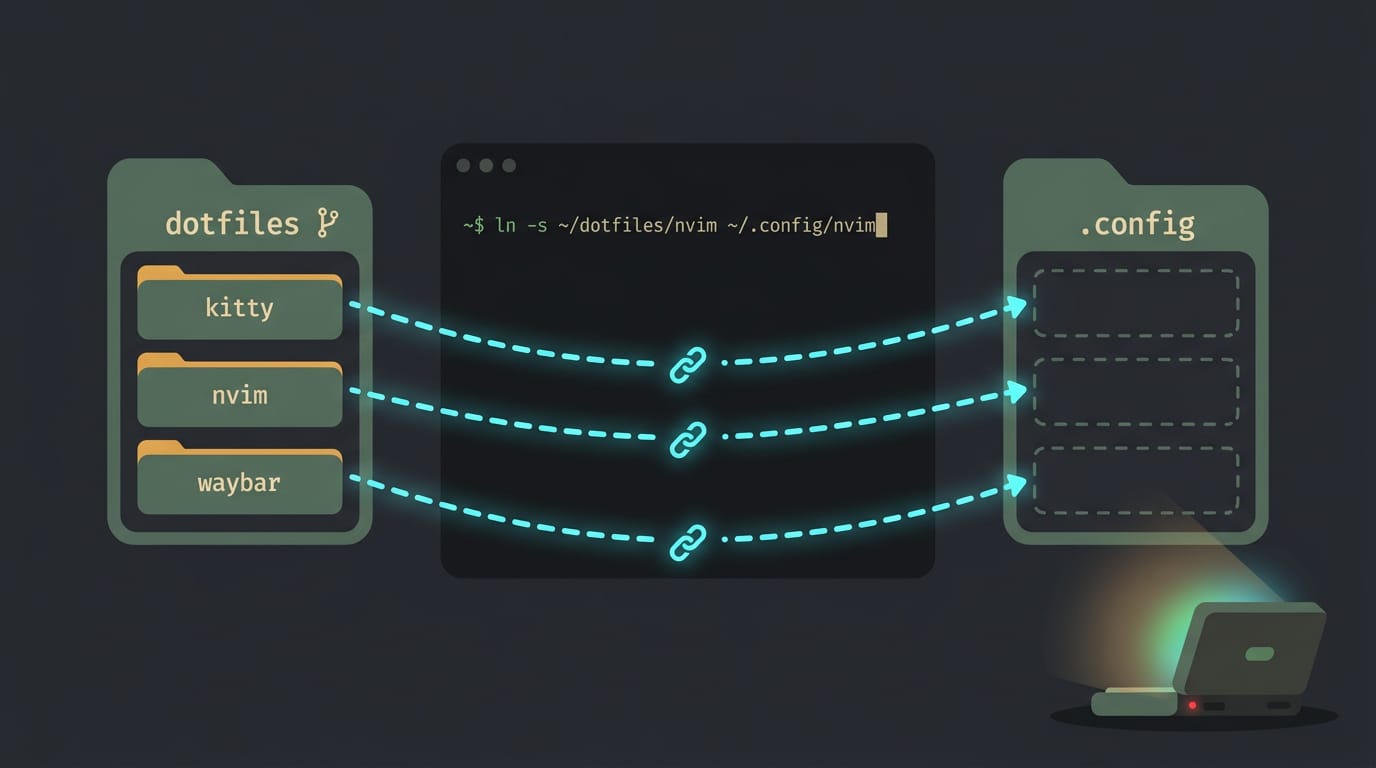
Linking a file follows the same pattern: ln -s ~/dotfiles/kitty/kitty.conf ~/.config/kitty/kitty.conf. A whole folder works too: ln -s ~/dotfiles/nvim ~/.config/nvim.
Skip the link name and ln uses the source’s name in your current directory, so ln -s ~/dotfiles/waybar run from ~/.config creates waybar there. The link’s folder must also already exist, or ln fails with “No such file or directory.”
A student on a ten-year-old ThinkPad keeps one git repo at ~/dotfiles, symlinked folder by folder into ~/.config. A fresh install is restored with a few ln commands.
Symlink targets can be absolute (starting from /) or relative (resolved from the link’s folder). Absolute paths work wherever you run the command. Relative ones break if you move just one end.
If the link name already exists, add -f (ln -sf) to overwrite it. If that name is a link to a directory, add -n too (ln -sfn), or ln drops the new link inside that directory.
GNU Stow automates the grind. Keep each program in a folder that mirrors your home directory, like kitty/.config/kitty/kitty.conf, then run stow kitty. One command, and your links are back.
Spotting Symlinks and Their Targets
Before you edit through a link, you should know it’s there and where it points. Your shell can tell you both without installing anything.
Checking links with ls -l
Running ls -l is the quickest way to spot a symlink, which is a file that points to another path. Look at the first character in the permissions column. A leading l means the entry is a link, while a - means a regular file. If the ls command is new to you, it is worth learning before you go further.
The arrow shows the target. Say you’re a hyprland user who keeps your real waybar config in ~/dotfiles/waybar and links it into ~/.config.
Running ls -l ~/.config shows waybar -> /home/you/dotfiles/waybar, so you can see right away that your edits land in your dotfiles repo. Quick look, no guessing.
Running ls -li adds the inode number, the filesystem’s internal ID for each file. A symlink gets its own inode, so its number differs from the target’s. A hard link is different: it shares the target’s inode, so the two numbers match.
When a path runs through several links, readlink -f and realpath both print the absolute path with every link followed, so you see the real location in one line.
For the full set of options, check man ln.
How Symlinks Differ from Hard Links
A hard link and a symlink both let you reach one file from more than one place, but they work very differently. The gap shows up in what each one points to and in what happens when the original goes away.
How each link type uses inodes
Every file on a Linux filesystem has an inode, the record that stores where its data lives. A hard link is another name for that same inode, so it’s indistinguishable from the original. A symlink gets its own inode, which holds only a path to the target.
Think of a dotfiles user whose kitty.conf lives in a git repo. A symlink in ~/.config/kitty points at that copy, so the config is a small pointer rather than a duplicate.
Limits hard links have that symlinks don’t
Hard links can’t target directories, and they can’t cross filesystems. Symlinks can do both. The directory rule exists for loop prevention: a directory hard linked into its own tree could send tree-walking tools around in circles forever.
Consider a student on a ten-year-old ThinkPad with a small system drive and a large second disk. A symlink can point ~/Pictures/wallpapers at the second disk, and the rice script never notices. A hard link would fail across filesystems.
What happens when the original is deleted
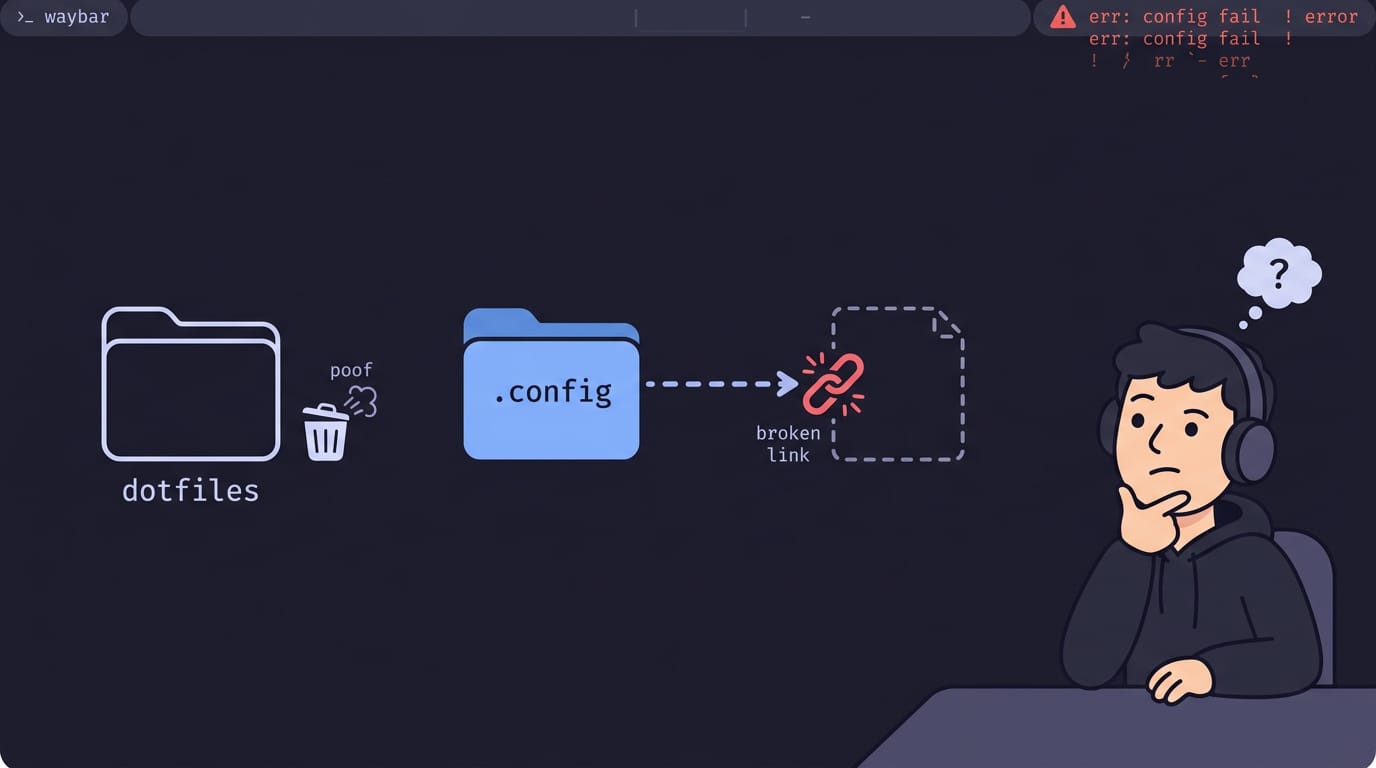
A hard link stays usable because it keeps the data. A symlink keeps only the path, so when the original is deleted it becomes a broken link, a pointer to nothing.
Picture a ricer who cleans out ~/dotfiles and then sees the waybar config in ~/.config throwing errors. The bar won’t start until they restore the file. The link survives. The file doesn’t.
When a Symlink Points to Nothing
Symlinks never check on their targets, so a link can outlive the file it points to. Here’s how to spot and clear the leftovers.
Why links break and what errors appear
A broken symlink (a link whose target no longer exists) usually comes from ordinary tidying up. Picture a hyprland user who moves their dotfiles and forgets that ~/.config/waybar still points at the old spot. Breakage usually traces back to a few causes:
- Target moved or deleted. The link now points at an empty path.
- Target need not exist.
ln -sdoesn’t check, so you can link to a path that isn’t there yet. - Link has no own contents. A symlink stores only a path. It holds where your config lives, not the config itself, so
ls -lshows a tiny size no matter how big the file is.
Reading the link produces the error. cat ~/.config/waybar/config prints No such file or directory, which looks like your config was wiped. The link is fine. The target is gone.
Find broken links and delete them
Don’t hunt for these by hand. Run find from the folder you want to check, and it lists every broken link underneath:
find . -xtype l
Picture a waybar tinkerer who renamed their themes folder. That one search of ~/.config shows every dead palette link, so the folder stops collecting ghosts.
To remove them, add -delete:
find . -xtype l -delete
Preview first, though. -delete removes every match with no confirmation prompt, so run the search alone and read the list before you add the flag.
Removing Symlinks Safely
Removing a link is simple once you know which command to use and what to leave off the end of the name. Here’s how to clear links cleanly.
Commands that delete just the link
Plain rm removes the link itself, not the file it points to. Say you’ve linked your Neovim config from a dotfiles repo into ~/.config/nvim. Running rm ~/.config/nvim clears the link, and your config stays safe in the repo. Deleting a real folder, whether empty or full, is a separate job.
If you want a command that does one job, reach for unlink. It removes a single link and takes exactly one name, so it’s a good fit when you’re cleaning up one link at a time.
When several links need to go, rm handles multiple names in one command: rm ~/.config/waybar/theme-dark ~/.config/waybar/theme-light
Why a trailing slash causes trouble
A trailing slash feels harmless, but it changes how the name is read. Consider a ricer who types rm ~/.config/kitty/ out of habit, even though kitty is a symlink into their dotfiles. Here’s what that extra character does:
- Don’t append a slash. Type the link name exactly as it appears in
ls. - Treated as a directory. The slash tells the system to read the link as a folder.
- Causes errors. The command fails instead of removing the link.
One stray character changes the outcome. Drop the slash, and rm removes just the link.
How Commands and System Calls Follow Symlinks
Some programs follow a symlink, and others stop at the link. The split depends on whether a system call or a command does the work, and here’s how we’ll sort them.
When system calls follow a symlink
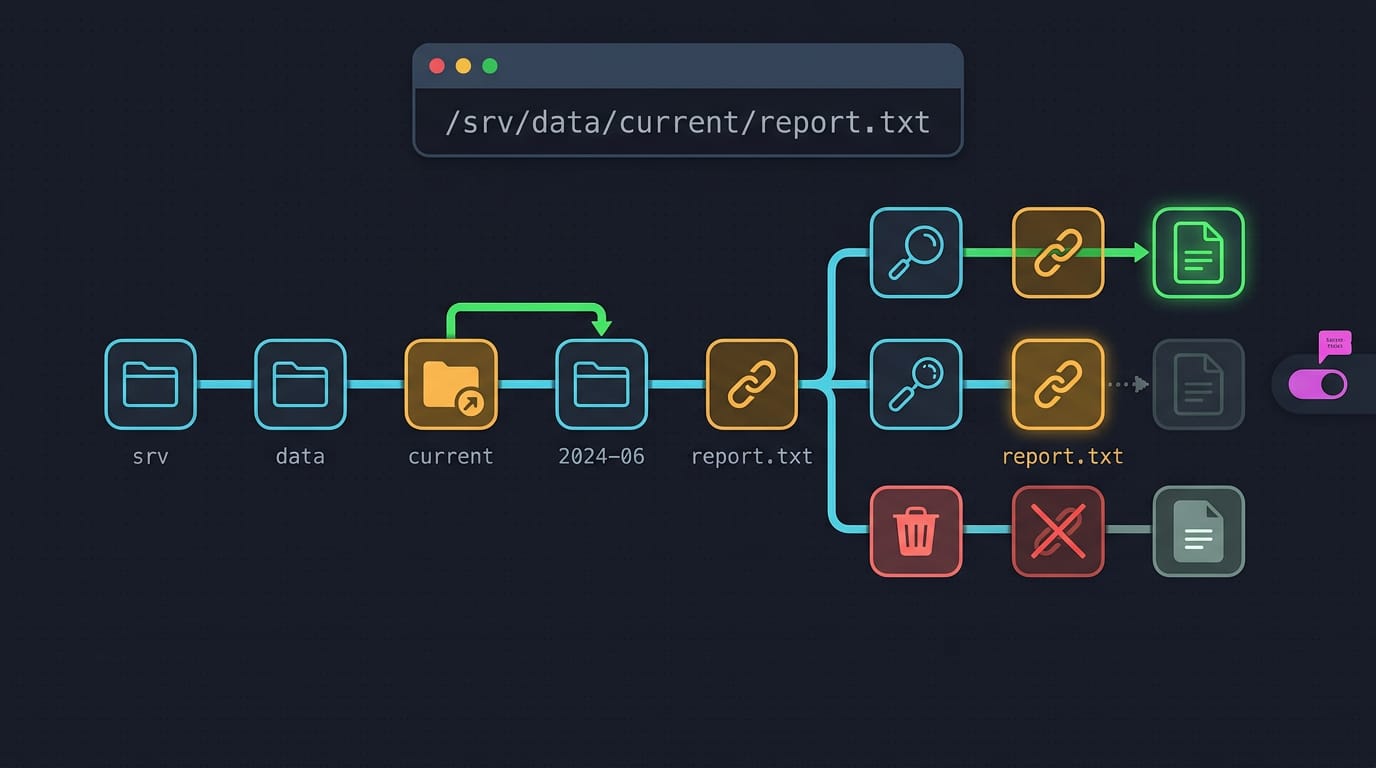
- Dirname always followed: any symlink in the directory part of a path gets resolved.
- Basename usually followed: most calls, like
openandstat, follow the final name, but not all. - lstat, readlink, and unlink don’t follow: they act on the link itself, so you can inspect or delete it.
- Optional-follow calls: a flag lets the program choose per call.
- link(2) POSIX differences: POSIX (Portable Operating System Interface) leaves this open, and Linux doesn’t follow by default, so the new hard link points at the link.
When commands follow links and when not
Say you link ~/.config/waybar to your dotfiles in ~/dotfiles/waybar. Commands follow that link by default, so cat ~/.config/waybar/config reads your real file.
Flags change that. On chown, -h acts on the link itself rather than the target. Recursive walks also take these flags:
- -H: follows only links named on the command line.
- -L: follows every link it meets, a logical walk.
- -P: follows none, a physical walk.
Some commands break the pattern. rm ~/.config/waybar deletes only the link, mv renames it, ls -l shows the link’s own entry, and file describes it unless you add -L. Your dotfiles stay put.
Following chains of links and loops
A symlink can point at another symlink, so the kernel keeps following each link (called dereferencing) until it reaches a real file or directory. If a chain loops back on itself or passes the follow limit, the lookup fails with an error.
Symlink Permissions, Ownership and Special Cases
Symlinks have their own metadata, and it doesn’t always behave the way you’d expect.
How a symlink’s own metadata behaves
A symlink’s permissions are always 0777, and Linux checks the target’s permissions instead. Say a hyprland user keeps ~/.config/hypr as a symlink into a dotfiles repo.
Running chmod 600 ~/.config/hypr/hyprland.conf changes the real file in the repo, since chmod follows the link.
Ownership works differently: chown follows the link and changes the target, while lchown (or chown -h) changes the link itself. That’s handy when a stray sudo leaves the link owned by root.
The sticky bit on /tmp stops users from deleting each other’s files, but it does nothing for a link itself.
The real guard is fs.protected_symlinks, which stops the kernel from following a link in a world-writable sticky directory unless the link’s owner matches the follower or the directory’s owner. That blocks the classic planted-link trick in /tmp.
Timestamps follow the same pattern. utimensat can set a link’s times directly when you pass AT_SYMLINK_NOFOLLOW, and touch -h does this from the shell.
Magic /proc links and file descriptors
Some entries under /proc are magic links. Paths like /proc/self/fd/3 resolve straight to the live file the kernel has open, even if that file was deleted or renamed. Attackers have also used magic links in exploits.
To work on the link itself, open it with O_PATH | O_NOFOLLOW. The O_PATH flag gives you a handle without reading the file, and O_NOFOLLOW stops the open from following the link. Calls like fstat on that descriptor then operate on the link itself.
A symlink is just a pointer, but it gives you a lot of control. Once you know how to create one, read it, and remove it safely, your dotfiles and theme folders can live in one tidy place while every app still finds what it expects.
Keep the real files in one place, link them out, and you’ll always know where your setup lives. Your desktop should look like you. It should also survive a fresh install.
Questions
What is a symbolic link in Linux?
A symbolic link, or symlink, is a special file that stores a path to another file or directory. When a program opens the link, the system follows that path to the target.
What is the Linux equivalent of symbolic links in Windows?
Windows has symbolic links, which work much like Linux symlinks. Windows shortcuts are a familiar alternative, but they differ because they are typically followed by the desktop rather than transparently by programs opening a path.
How do I add a symlink?
Use `ln -s source link` in a terminal, with the target path first and the new link path second. For example, `ln -s ~/dotfiles/nvim ~/.config/nvim` links the `nvim` folder from your dotfiles into your configuration directory.
Read next.
How to rice Linux: a first-rice checklist
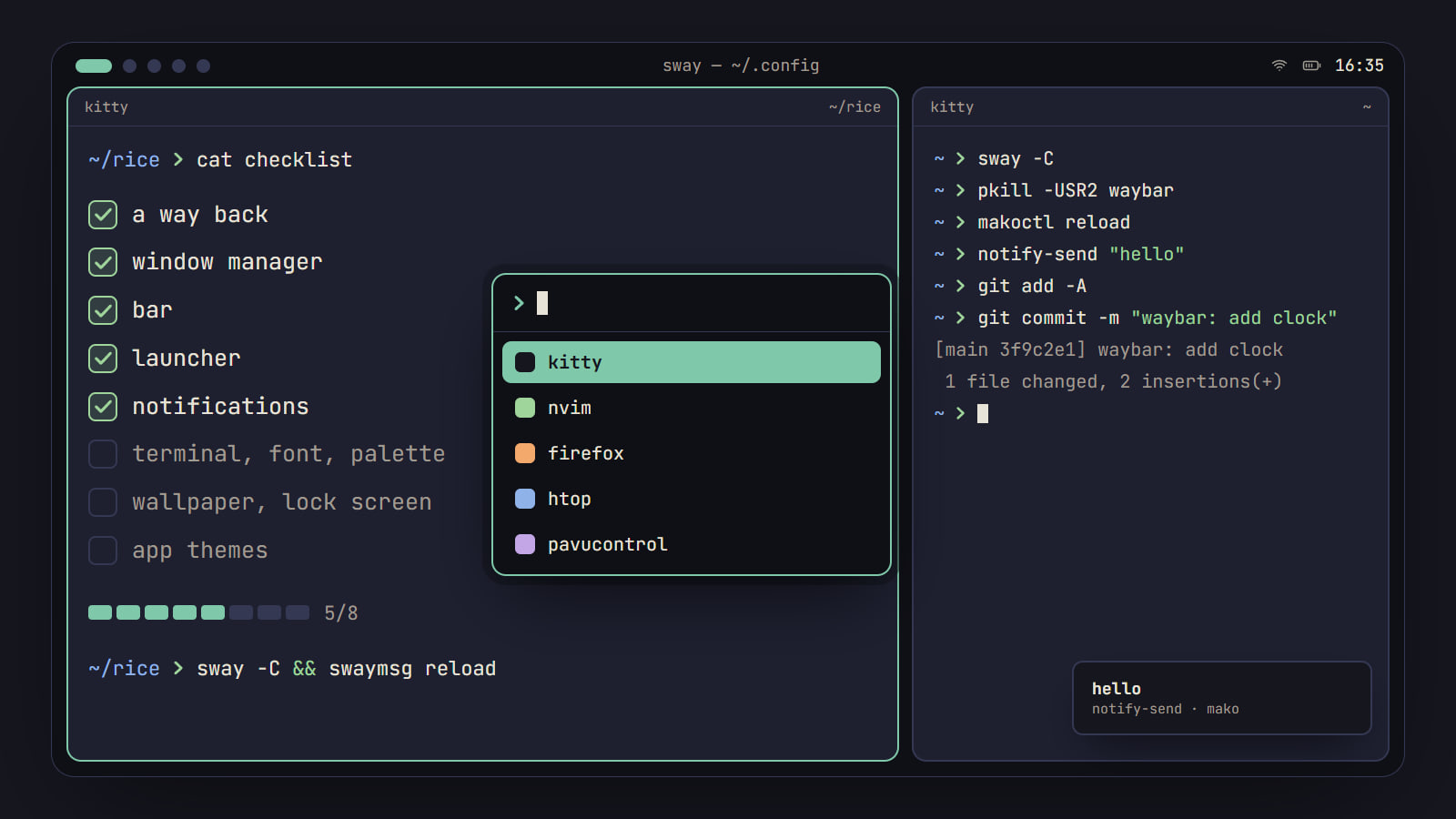
The order to rice a Linux desktop without breaking it: a way back first, then each piece from window manager to lock screen, with its config file and a check.

ThinkPad Arch Linux Guide: Model, Install, and Tune
Arch Linux on a ThinkPad gives you control from model choice to installation, with practical fixes for hardware quirks and longer battery life.
How to Dual Boot Linux and Windows on One Computer
How to dual boot Linux and Windows starts with safe drive prep. Shrink Windows, install Linux from USB, check Secure Boot, and set GRUB boot order.