Ubuntu Rename File Guide: GUI, Terminal and Bulk Methods
Rename a file on Ubuntu with F2 or mv, and use safe previews for batch changes by pattern while avoiding quoting mistakes with tricky filenames.
tl;dr the short answer
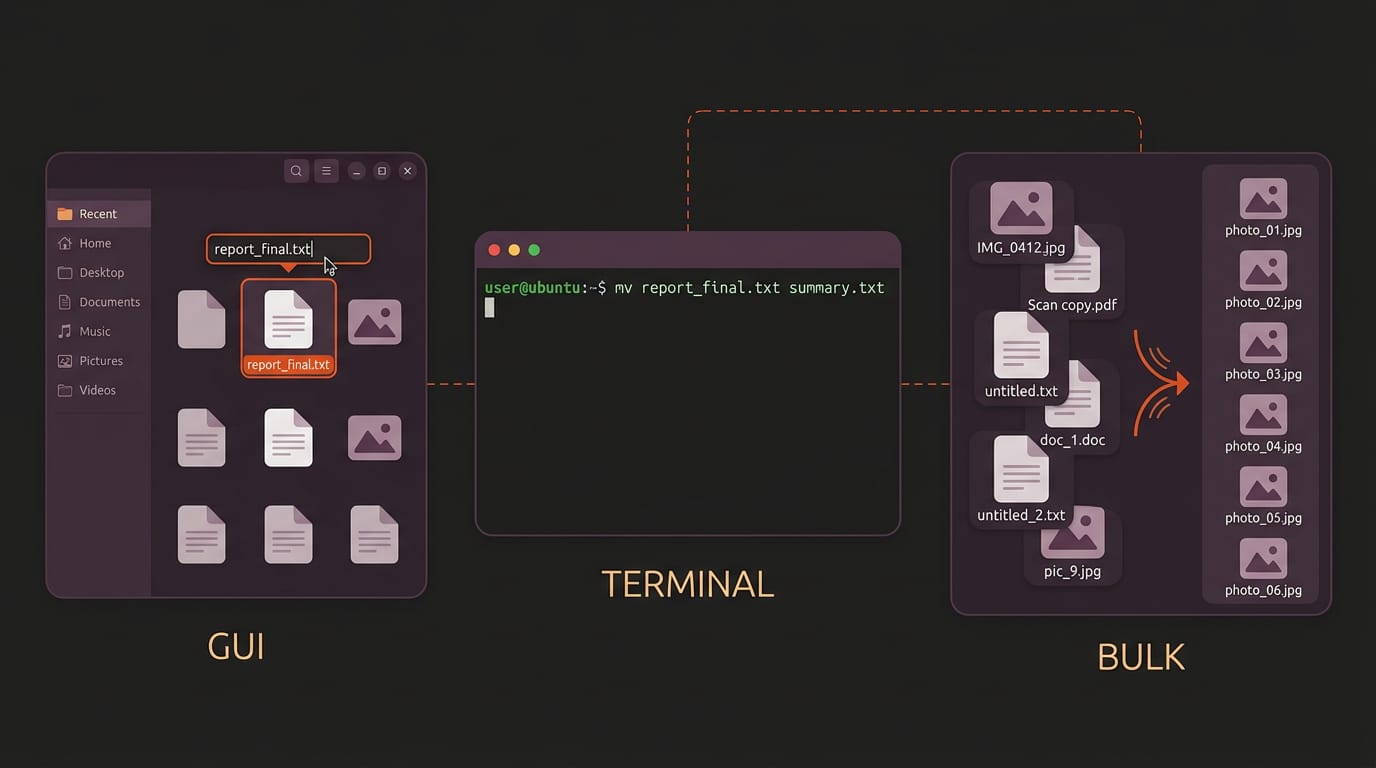
Renaming a file on Ubuntu means changing its name without changing its contents, using Files or a terminal command. Press F2 for a quick one-off, use `mv` for a single file or folder, and choose pattern tools such as `rename`, `find`, or `mmv` for batches; quote names with spaces and preview bulk changes before applying them. Check for existing names, dotfiles, and symlinks first so a rename does not overwrite data or leave a link pointing to a missing path.
Ever dumped a folder of screenshots into one called “stuff” and then spent ten minutes hunting for a single image? A clear file name works like a label on a moving box.
On Ubuntu, you can rename a file with the F2 key in the GUI, or use mv and rename in the terminal once you’re comfortable there.
This guide covers each method, from one-off renames to bulk changes by pattern, with safe previews and the quoting pitfalls that trip people up. We’ll also show you how to rename dotfiles and config files without breaking symlinks or repos.
Ubuntu Rename File with GUI or Terminal
Renaming a file on Ubuntu doesn’t have to mean opening a terminal. In Files, select the file, press F2, type the new name, and hit Enter, and that’s the whole job.
Say a student downloaded a lab report called final(3).docx; one F2 and a typed name later, it’s chem-lab-week4.docx, ready to attach.
Open the terminal from your desktop menu
Clicking through a graphical interface (GUI) is perfectly acceptable, and for one file it’s usually the quicker choice. The terminal can be more efficient once you’re comfortable with it, though.
It’s less about whether you can click and more about when typing saves you time.
To open one:
- Open your desktop’s app menu.
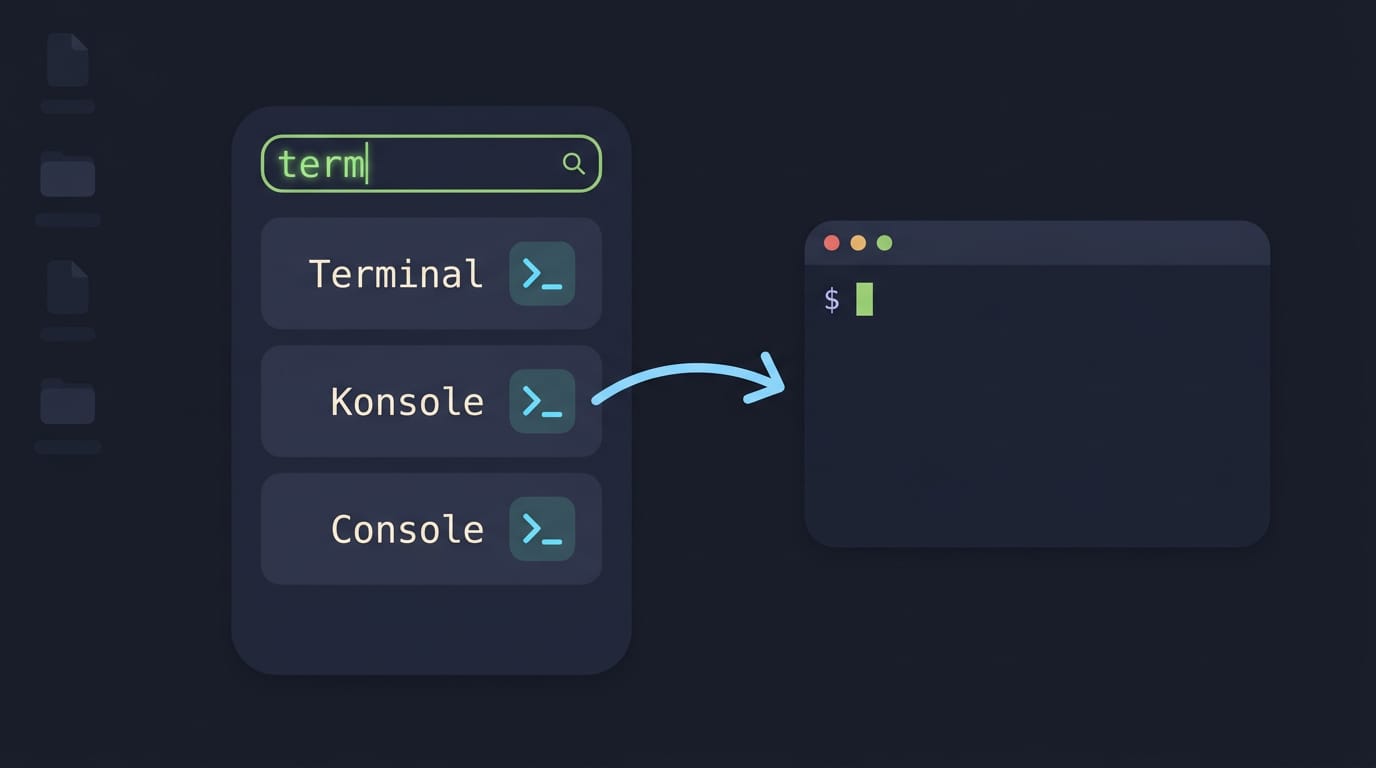
- Search for “Terminal.”
- Click the icon to get a window with a prompt, where your commands go.
Terminal names vary by desktop, so if you don’t see an app called Terminal, search for “term” and you’ll likely find it under whatever name yours uses. Either way, you land at the same prompt.
How to Rename a Folder in Terminal?
Renaming a folder in the terminal takes one command, and it works for files too. Here’s the basic move, plus the details that trip people up.
Use mv with old and new names
To change a folder name in Ubuntu terminal, run mv with the current name first and the new name second: mv photos holiday-photos. The same command renames files and directories on any Linux distro.
Spaces and special characters need quoting, or the terminal splits them into separate names. Wrap each name in double quotes, like mv "old folder" "new folder".
Why moving a file also renames it
Renaming is really just moving a file within its own folder, not somewhere else. If only the final name changes, mv is renaming. That means fewer commands to remember.
In a git repository (a project tracked by git), use git mv old-name new-name instead. Git records the move as a rename, so the folder’s history stays attached to its new name.
Rename files as you move or copy
Consider a student who finishes a lab report in Downloads and wants it filed under a clear name. Running mv ~/Downloads/lab-report.pdf ~/School/week-03-lab.pdf moves and renames it in one step, so Downloads stays tidy.
Use cp notes.txt notes-backup.txt to copy instead, which leaves the original untouched.
The ~/ shortcut means your home folder, so ~/School works from any directory. A relative path starts from where you are, like ../notes.txt. A full path starts from the root folder, like /home/yourname/School.
Handle a name that already exists
If the new name already exists, a plain mv can overwrite that file without asking. If it’s an existing folder, mv moves yours inside it instead.
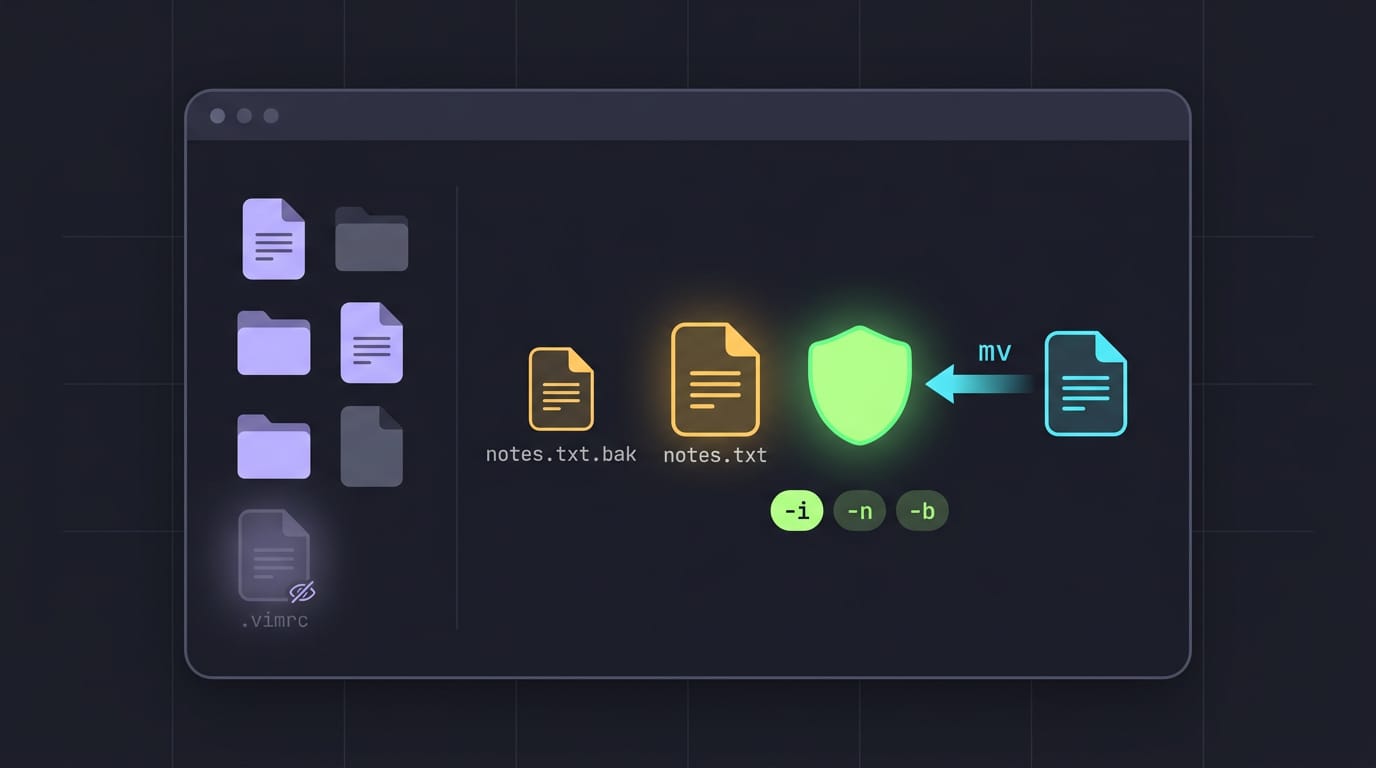
Hidden files, or dotfiles, start with a dot and stay out of plain ls output unless you add -a. Backing up a config works the same way: mv .vimrc .vimrc.bak, after you check with ls -a that .vimrc.bak isn’t already taken.
To guard against overwrites, add one of these flags to mv:
-iasks before each overwrite.-nnever overwrites, so the existing file stays put.-bsaves a backup of the file being replaced.
Nothing gets replaced by surprise.
Tools for Renaming Many Files by Pattern
Ever stared at two hundred screenshots and wished for a faster way? Describe the pattern instead of typing each name, and preview with a dry run (-n) first.
Install and use the rename command
Install it with sudo apt install rename. Its s/old/new/ form uses a Perl-style regular expression, a compact find-and-replace pattern. To turn every .jpeg into .jpg, run rename 's/\.jpeg$/.jpg/' *.jpeg.
A student with draft-essay1.txt through draft-essay12.txt can run rename 's/draft/final/' draft-*.txt to fix all twelve at once.
Single-quote the expression so the shell can’t rewrite it. Add -n to see every change first, since a sloppy pattern can hit files you never meant to touch. Preview, then rename.
Use find to rename matching folders
find locates folders by criteria. find . -type d -name '*draft*' lists every folder with draft in its name.
Pair it with mv through -execdir, and add -depth so each nested folder is handled before its parent:
find . -depth -type d -name '*draft*' -execdir bash -c 'mv -- "$1" "${1//draft/final}"' _ {} \;
For a single folder, a shell loop is enough: for f in *.txt; do mv -- "$f" "${f%.txt}.md"; done. For trickier patterns, sed swaps text and awk splits on delimiters.
Bulk rename files with mmv patterns
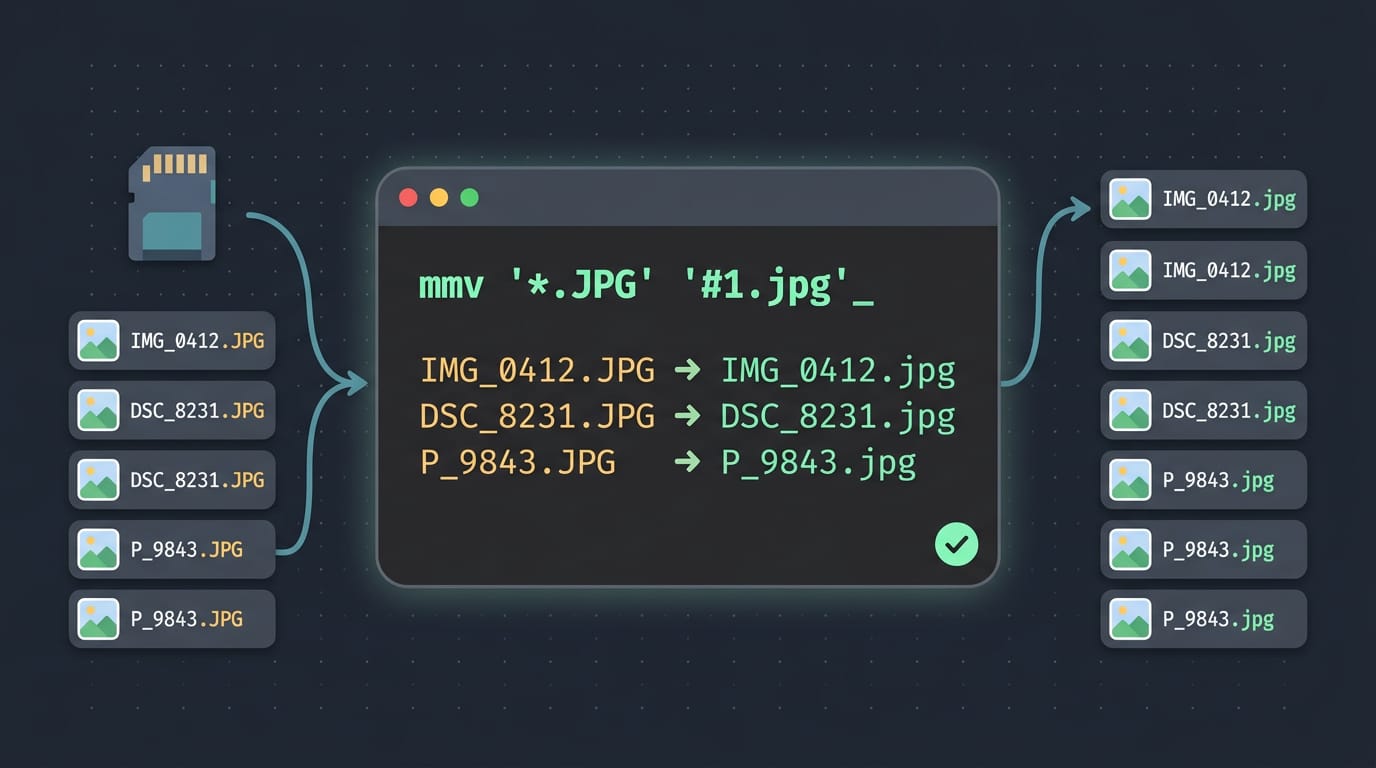
Install with sudo apt install mmv, then give it a source and destination pattern: mmv '*.JPG' '#1.jpg'. The * matches any text, ? matches one character, and #1 reuses whatever the first * matched.
A photographer copies a memory card into one folder, and every file ends in .JPG. That one command renames them all, so IMG_0412.JPG becomes IMG_0412.jpg.
Quote both patterns so the shell doesn’t expand them first. Add -n for a dry run that lists planned renames without changing anything.
Picking the Best Method for Your Task
Not every rename needs the same tool. The right choice depends on how many files you’re changing and how precisely you need to pick them, so start with the simplest option that still gets the job done.
Which method fits each job best
- mv for simple tasks. Renaming one file is what
mvis for. A student who wantsessay.txtto becomeessay-final.txtonly needsmv essay.txt essay-final.txt, and the change happens instantly. - rename for patterns. When the same change applies to many names, such as swapping
.jpegfor.jpgacross a photo folder,renameapplies one pattern to every match. Preview the matches first, so one typo doesn’t rename hundreds of files at once. - find for precision. Say a self-hoster has backups scattered across subfolders, and only last month’s
*.bakfiles need renaming.findselects exactly those files by name, age, or type, so nothing else gets touched. Pair it withmvto act on only the matches. - mmv for bulk operations.
mmvmatches wildcards on both the old and new names, so one command handles a whole batch. Reach for it when the batch is large and the rule is simple to describe.
One caution applies to every method above. A symlink remembers the path to its target, not the file itself. Rename that target, and the link is left pointing at a name that no longer exists. Your file is fine, but the link can’t find it.
Recreate it with ln -sf to point at the new name.
Renaming a file is a small task, but doing it carefully keeps your setup intact. Use the GUI for quick one-offs, and reach for mv or rename when you need speed or scale.
Always preview bulk changes before you run them, and double-check dotfiles and config files, where a broken symlink can quietly stop a tool you use every day. Rename with care, and your setup will keep working the way you built it.
Questions
How to change folder name in Ubuntu terminal?
Use `mv` followed by the current folder name and the new name: `mv photos holiday-photos`. Quote names that contain spaces, such as `mv "old folder" "new folder"`.
How to use F2 to rename?
In Ubuntu Files, select the file and press F2. Type the new name and press Enter to confirm.
How to rename a file using Linux?
Use `mv` with the old filename first and the new filename second, for example: `mv notes.txt meeting-notes.txt`. Quote filenames containing spaces, such as `mv "old notes.txt" "meeting notes.txt"`.
Read next.

Ubuntu Clean Files and Blocks Explained
Ubuntu clean file and block counts: understand the boot message, fix a stall on the clean line, and free disk space without risking saved configs.
Ansible File Module: How It Works and Key Options
Ansible file module keeps dotfiles consistent across laptops by managing files, symlinks, and permissions. See states and repeat-safe examples.
Dotfiles Explained: What They Are and How to Manage Them
Dotfiles help you rebuild shell aliases, editor settings, and tmux layouts on a new laptop, with practical ways to organize and manage them.