Install pipx: Complete Guide to Python Command-Line Tools
Install pipx to keep Python command-line apps isolated, avoid PEP 668 install errors, and set up PATH so tools run cleanly on modern Linux today.
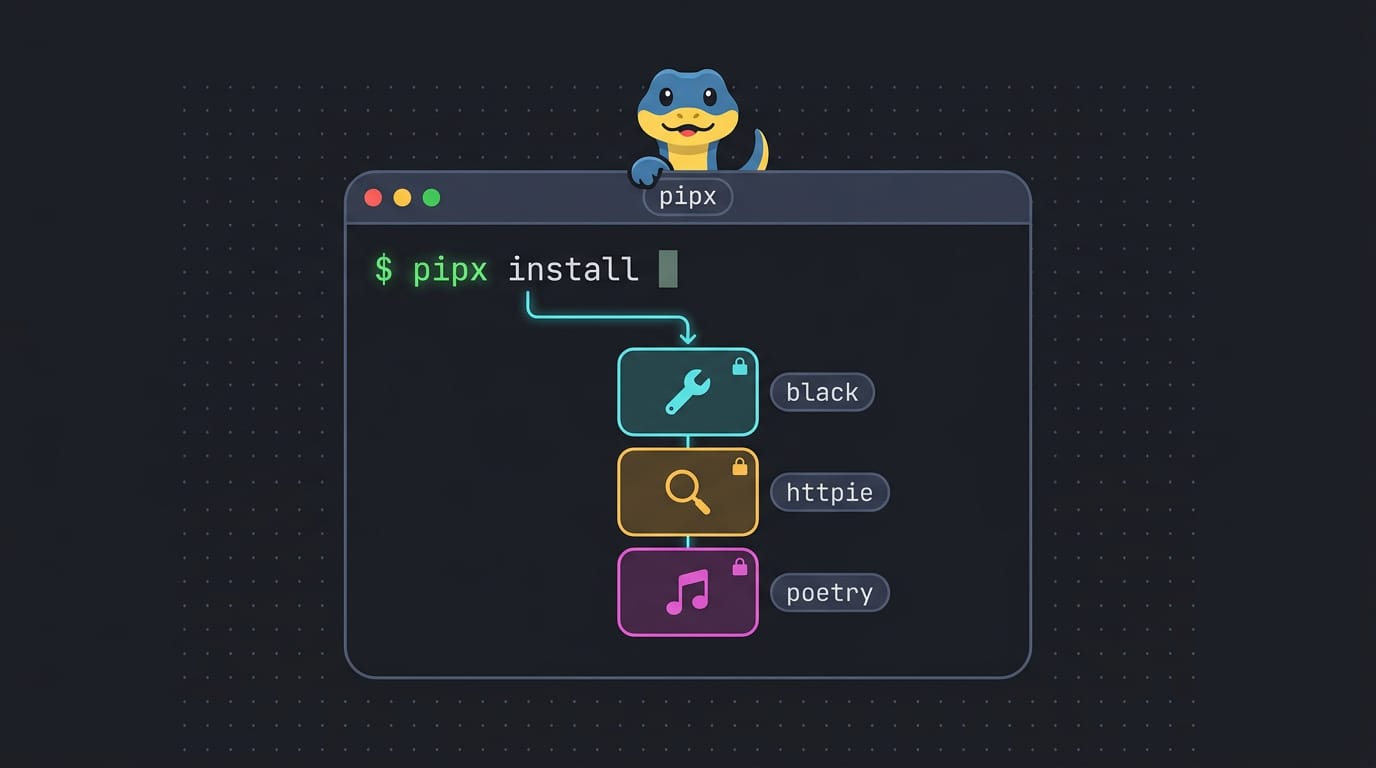
tl;dr the short answer
pipx installs Python command-line apps, not libraries for your code, and gives each app its own isolated environment. Install pipx with your operating system’s package manager or another supported method, set up your PATH, then use it to install, run, upgrade, or remove tools without mixing their dependencies or changing system Python. This keeps terminal tools organized and helps avoid system-wide pip conflicts, especially on Linux distributions that restrict them.
Think of pipx as a tidy toolbox for command-line apps. It gives each Python tool its own private environment, so installs don’t collide and updates don’t break your other tools. Hit an “externally managed environment” error on a modern Linux distro?
This is the fix you’ve been looking for.
This guide walks you through pipx install from setup to upgrades and fixes.
We’ll also cover the Linux-specific steps other guides skip, like PEP 668 distros (Python’s guard against system-wide pip installs) and PATH setup (the list of folders your shell searches for commands).
What Pipx Install Does and Its Benefits
Before you run pipx install, know what it installs, what it’s good for, and how it compares.
What kind of software it installs
pipx installs end-user Python apps: command-line tools you run, not libraries your code imports. Picture a Linux user who wants a linter in every terminal, from any folder, without touching system Python.
Each app gets its own isolated virtual environment (a private set of packages), and its commands land on your PATH (the folders your shell searches for commands). They’re apps, not importable libraries, so you won’t import them into your own code.
What pipx can do for you
Here’s what you get:
- Per-app isolation. Each tool gets its own environment, so apps needing different versions of a shared dependency never collide.
- Run without installing.
pipx runlets you try an app without installing it for good. - List, upgrade, uninstall.
pipx listshows what’s installed, andpipx upgradeandpipx uninstallhandle the rest. - No sudo pip. pipx never needs
sudo pip, so system Python stays untouched. - Inject extra packages.
pipx injectadds a helper library to one app’s environment when a plugin needs it.
Each app stays in its lane. That’s the whole trick.
How it compares to similar tools
- Brew, npx, and apt each fetch tools for one ecosystem. pipx does that job for Python apps.
- pip is pipx’s close relative, installing Python packages in general.
- pipsi tackled a similar problem, so older guides may mention it.
Choosing comes down to what you’re installing:
- pipx for end-user Python apps you run from the terminal.
- venv (Python’s built-in environment tool) for a project’s own dependencies.
- pip inside a venv for libraries your code imports.
Getting Pipx onto Your Machine
Before we use it, pipx has to be on your machine, and the right route depends on your system.
How do I install pipx on my system?
- macOS:
brew install pipxthrough Homebrew. - Windows:
scoop install pipxthrough Scoop. - Linux: your distro’s package manager, such as
sudo dnf install pipxon Fedora. - Pip route:
pip install --user pipx, where your system allows it.
Then run pipx ensurepath once. It adds pipx’s folder to your PATH, the list of directories your shell checks when you type a command. To update pipx itself, use the same tool you installed it with, such as brew upgrade pipx on macOS. If brew isn’t on your Mac yet, see how to install Homebrew first.
Python version needs and system restrictions
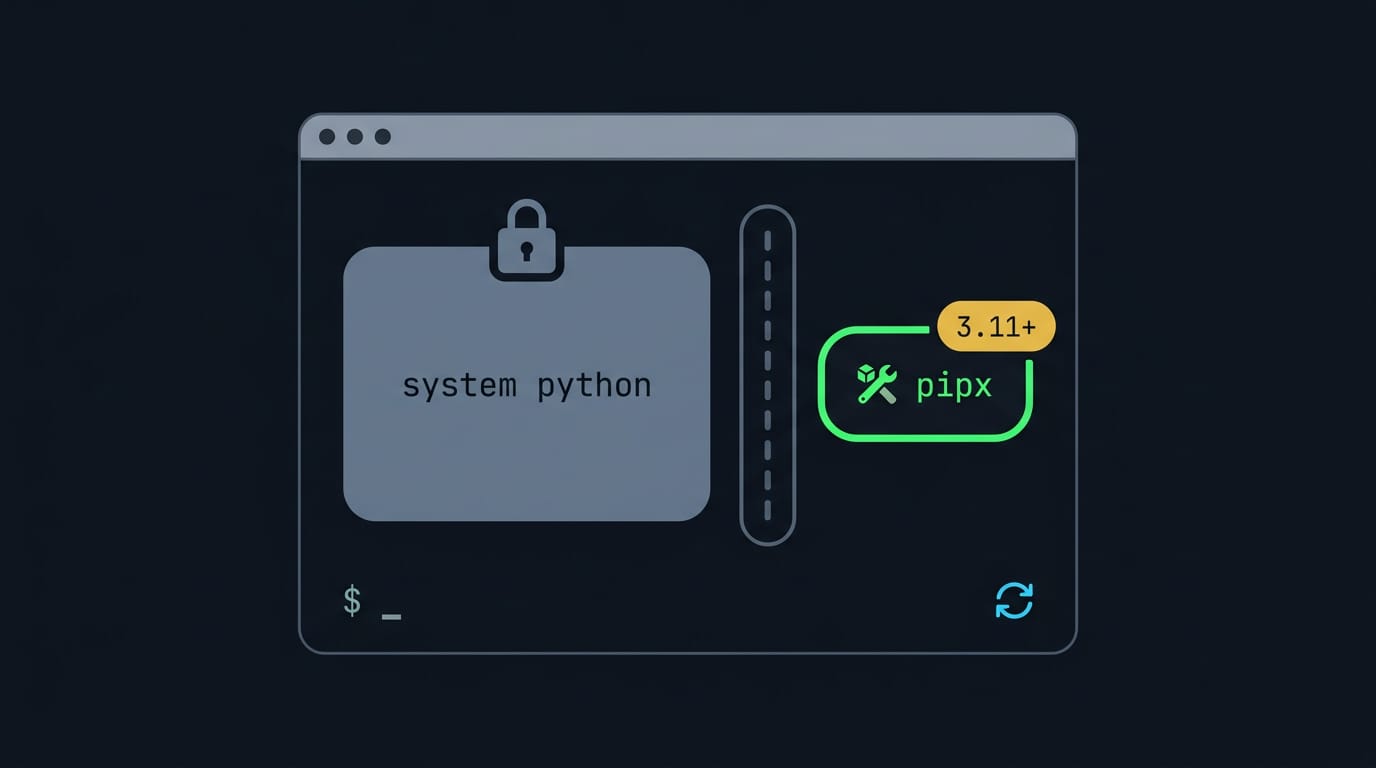
According to the official pipx install guide, pipx needs Python 3.11 or newer, and so does any interpreter you pass with --python.
On distros that enforce PEP 668 (Python Enhancement Proposal 668), plain pip install is blocked. That’s why the package manager is the safer route there: sudo apt install pipx on Debian and Ubuntu, or sudo pacman -S python-pipx on Arch.
Think of a Fedora user on a fresh install who wants a command-line tool without touching the system Python. pipx gives it its own environment, so the tool lives beside the system Python instead of inside it.
Restart your shell so the new PATH loads. Then you’re set.
Fixing errors that stop the install
- Debian and Ubuntu need
python3-venv. If your install fails, runsudo apt install python3-venvand try again. sudo pipxnot found? sudo often uses a stripped-down PATH that skips your user folders, so it can’t see the pipx you installed. Call pipx by its full path, or install it as a system package instead.
Using Pipx Install in Practice
Ever wanted a cow to greet you each time you open a terminal? Every pipx install makes a few choices for you, and you can override them.
Install an app and run it
Start with pycowsay, a small Python app that draws a cow saying your message:
pipx install pycowsay
pycowsay "Hello, Linux"
To run it once without installing it, use pipx run pycowsay "Hello". A tmux tinkerer can drop the command into their shell profile for a cow greeting each session. Swap in a tool you use daily, like a linter, and the pattern holds.
Where you can install apps from
pipx installs from three sources:
- PyPI, the Python Package Index
- A local path, like a project folder you’re still building
- A VCS URL, a link to a version control system such as git
Add extras in brackets and pin versions with ==: pipx install "package[extra]==1.2.3". Pass pip flags with --pip-args="--flag", equals sign included, so pipx reads them as one value.
The same flags can ignore SSL errors on a broken network, but only use that on one you trust. --suffix=-dev adds text to the command name, so two versions can sit side by side.
Picking which Python runs the app
The question isn’t whether you have Python, but which one pipx uses. Point at one with --python.
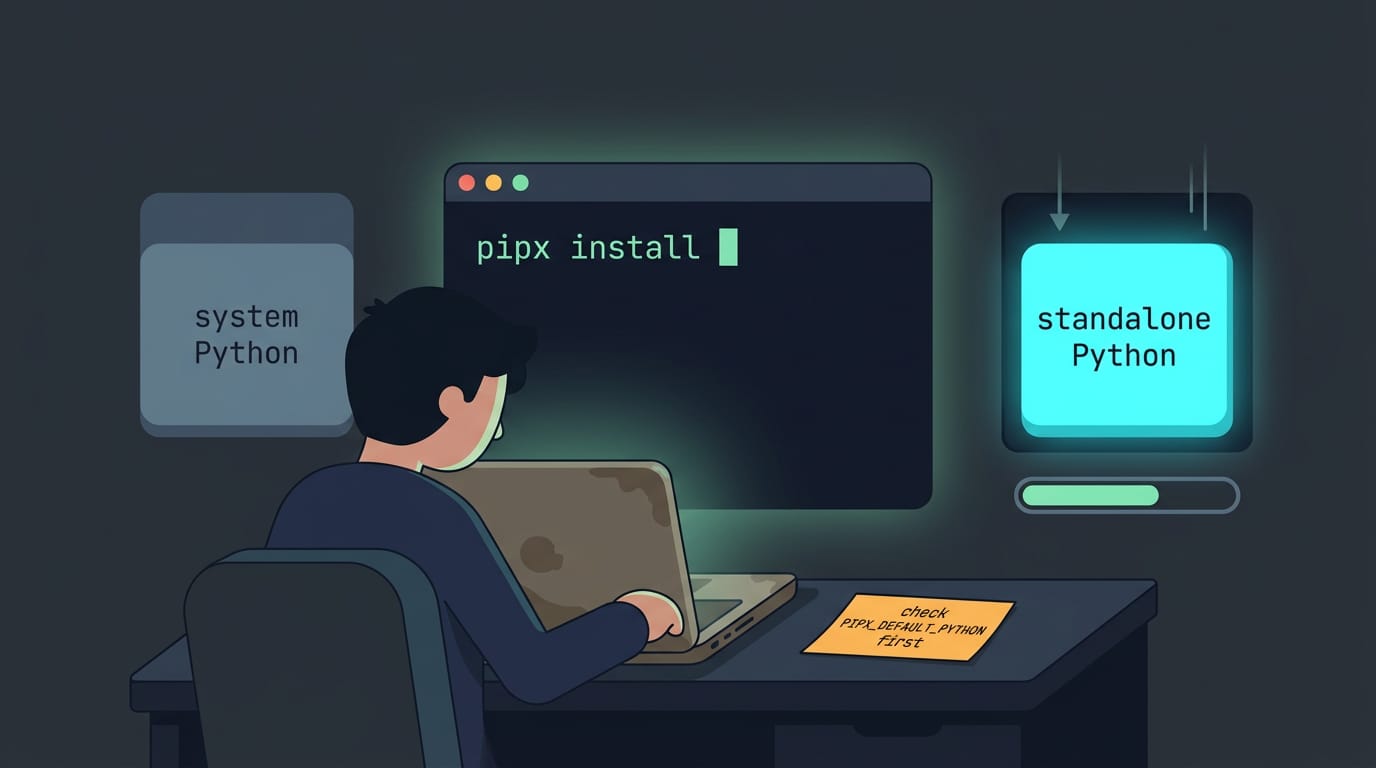
--fetch-python missingdownloads a standalone Python, a self-contained build, only when nothing suitable exists--fetch-python alwaysdownloads one every time
A student on an aging laptop can use --fetch-python missing to grab a standalone build for one install, leaving the system Python alone. Check PIPX_DEFAULT_PYTHON first, since it may already set the default for you.
Which tool handles the installation
pipx uses uv, a fast Python package installer, when it’s available, and falls back to pip otherwise. Choose explicitly with --backend pip, or set PIPX_DEFAULT_BACKEND to make your pick stick.
Installing pipx[uv] instead of plain pipx bundles uv alongside it.
Each tool listens only to its own variables: PIP_* settings steer pip, and UV_* settings steer uv. A pip setting you relied on can go quiet once uv takes over. Same goal, different knobs.
Keeping Installed Apps Current and Tidy
Installing is the easy part. Upkeep keeps your apps working after the next update, and a reset helps when things get messy.
Upgrade, reinstall, pin and remove apps
Run pipx list to see every app. Each one lives in its own virtual environment (an isolated folder of Python packages), so pipx can update one without touching the rest.
- Upgrade:
pipx upgrade APPupdates one app, andpipx upgrade-allupdates everything. - Reinstall:
pipx reinstall APPrebuilds one app from scratch, andpipx reinstall-alldoes it for every app. - Pin and unpin:
pipx pin APPblocks upgrades for an app until you runpipx unpin APP. - Inject:
pipx inject APP PACKAGEadds an extra package, like a plugin, to an app. - Uninstall:
pipx uninstall APPremoves an app. - Shared libraries:
pipx upgrade-sharedrefreshes the libraries your apps share.
Consider a homelab tinkerer whose Ansible and yt-dlp start misbehaving after a distro upgrade. Apps built against the old Python can break, so one pipx reinstall-all rebuilds them against the new one. One command, and your tools are back. If Ansible misbehaves again, compare the ways to install Ansible.
Resetting everything to a clean slate
Sometimes starting over is the cleanest fix. pipx reset removes the apps pipx manages, so it’s destructive: plan before you run it. Save a record first with pipx list --short, which prints just the app names.
--dry-run previews a reset rather than running it, so read the output before you commit. --yes skips any confirmation, so save it for after you’ve read the dry run.
Keep that list close. It’s your safety net.
Fixing Pipx Install Problems
Most pipx problems come from an old Python, a broken install, a shell that can’t find the command, or a forgotten setting. We’ll work through the usual suspects below.
Why you get an outdated version
If pipx install gives you an older version than expected, check the default Python first. Picture a Linux user whose system Python predates the release they want. Pointing pipx reinstall --python at a newer interpreter gets them that release.
Leave --force out, though, since it ignores --python.
Checking health and repairing broken setups
Run pipx health before you change anything. A script can read the exit code (the number a command returns when it finishes), so a homelabber’s nightly backup job can flag a broken tool early.
For scripts, JSON output (a machine-readable format) beats parsing plain text. Use pipx repair to fix what it finds. If pipx refuses an upgrade, look for a pinned package (one locked to a specific version).
Older pipx records may lack some options, so reinstalling the tool writes a fresh record.
Narrowing down what went wrong
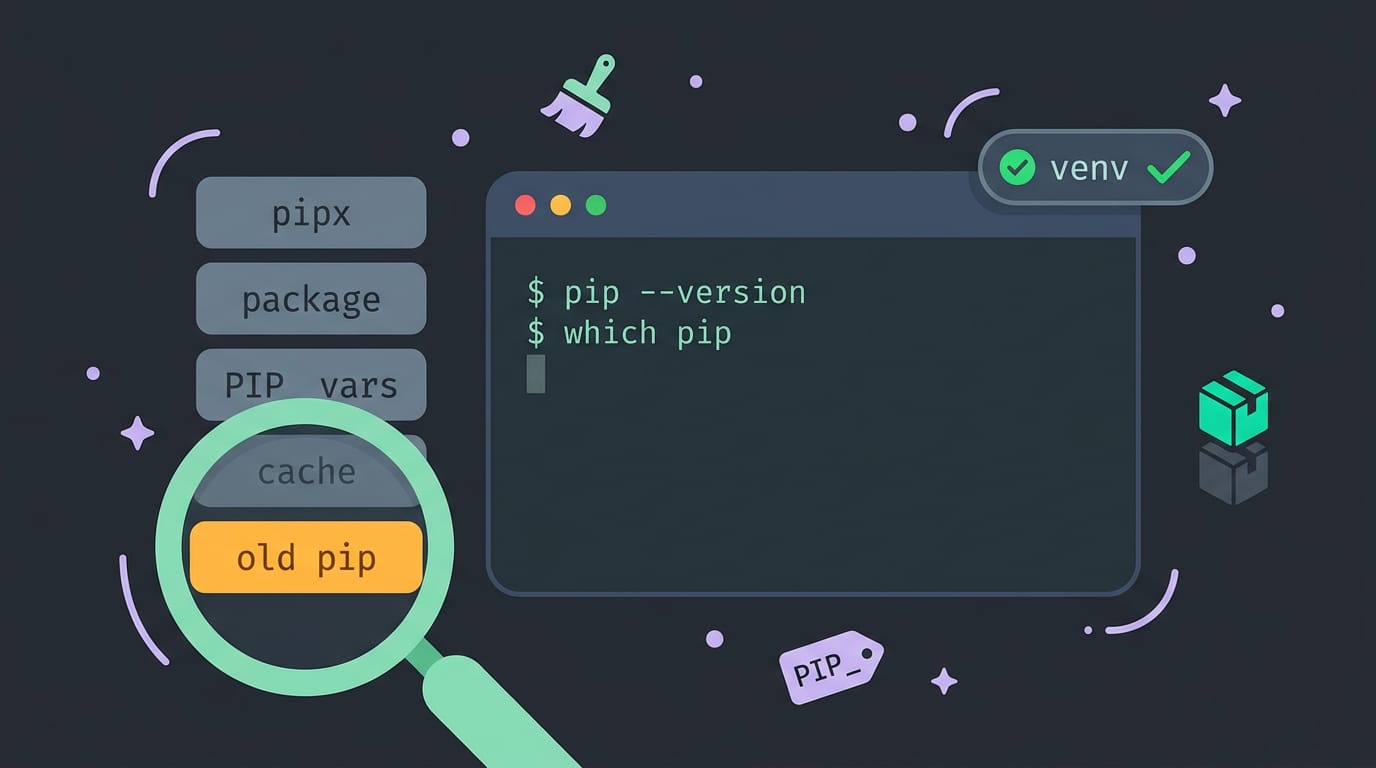
Try plain pip inside a virtual environment (an isolated Python sandbox). If it works there, pipx is the suspect; if not, the package probably is. Then check your PIP_* variables, which are environment variables (settings your shell passes to programs).
A stray one can change how pip behaves. Clear the cache that pipx runpip uses to rule out a bad download. After a Python upgrade, a shared pip may still point at the old version, so check which pip runs.
Permission errors and path problems
A “Permission denied” error means another user owns a folder pipx needs, so fix the ownership first. Three variables control where pipx puts things, not what it installs:
- PIPX_HOME: the tools’ environments
- PIPX_BIN_DIR: linked commands
- PIPX_MAN_DIR: man pages (manual pages)
--global has its own defaults, so check which mode you used. On macOS, a space in your home path can trip up tools that don’t quote paths. pipx’s folders come from platformdirs, a helper library, so a changed default can make tools seem to vanish.
Picture a fresh-install tweaker who types a tool’s name and gets “command not found.” The command sits in ~/.local/bin, which isn’t on their PATH (the folders your shell searches).
Add that folder to your shell config, open a new terminal, and the command runs.
Finding logs and odd version behavior
pipx keeps logs in a log directory that varies by platform, so look up yours first. PIPX_MAX_LOGS sets how many log files pipx keeps, so raise it for older logs or lower it to save space.
Python 3.15 brings lazy imports, which load modules only when code uses them, so failures can surface later than you’d expect. A suffix naming change can rename a command, so a script calling the old name may fail.
Check the name before you blame the install.
Package Releases and Project Details
Before you trust a tool on your machine, it’s worth knowing where it came from and where to get help.
Release files, checksums and Python support
The project publishes a few things worth a look:
- Release files and checksums. Each release ships with files and a checksum, a short fingerprint you can compare against your download to confirm it wasn’t altered.
- Provenance attestations. These record where and how a package was built, so you can verify a download rather than just trust it.
- Release history. Every published version is listed, so you can see what changed before you upgrade.
- Supported Python versions. The pipx project documents which Python versions it supports: pipx needs Python 3.11 or newer, and so does any interpreter you pass with
--python.
Picture a Debian user setting up a shared lab machine. Comparing a checksum takes seconds and keeps a tampered file off a machine several people share. Quick, and worth it.
Where to read docs and get involved
Start with the project’s full documentation when a command acts differently than this guide says. Bugs get reported as issues, and proposed fixes arrive as pull requests, so search existing issues first.
Consider a homelabber whose upgrade fails on a headless server: a quick search might show the same problem already discussed, and you’ll skip a duplicate report.
Discussions there fall under the Python Software Foundation (PSF) Code of Conduct, so keep your reports clear, specific, and friendly.
Installing apps with pipx comes down to a few habits: give each tool its own environment, keep your PATH set up right, and upgrade on purpose. Once those click, your command-line tools stay tidy and your system Python stays out of the way.
You don’t need to memorize every flag. Keep this walkthrough handy, and the next time a new Python tool catches your eye, you’ll know exactly where it belongs.
Your system should stay stable, and your tools should stay yours. pipx lets you have both.
References
- Install pipx — pipx.pypa.io
Questions
How to install pipx on mac?
On macOS, install pipx with Homebrew: `brew install pipx`. Then run `pipx ensurepath` and restart your shell so pipx is available on your PATH.
How to update pipx?
Update pipx using the package manager you installed it with. If you installed it with Homebrew on macOS, run `brew upgrade pipx`.
Sources
- Install pipx - pipx, pipx.pypa.io
Read next.
Install CMake on Every Major Platform: Complete Guide
Install CMake on Windows, macOS, or Linux with package managers, official binaries, or source builds, then check versions and fix Linux PATH issues.
Install Raspberry Pi OS: A Complete Beginner's Guide
Install Raspberry Pi OS by choosing the right image and flashing an SD card with Raspberry Pi Imager, with clear steps from prep to first boot.
UEFI Secure Boot Explained: Keys, Signing, and Trust
UEFI Secure Boot checks boot signatures before code runs. See how its key chain and custom keys affect dual boot and unsigned driver failures at startup.