Install CMake on Every Major Platform: Complete Guide
Install CMake on Windows, macOS, or Linux with package managers, official binaries, or source builds, then check versions and fix Linux PATH issues.
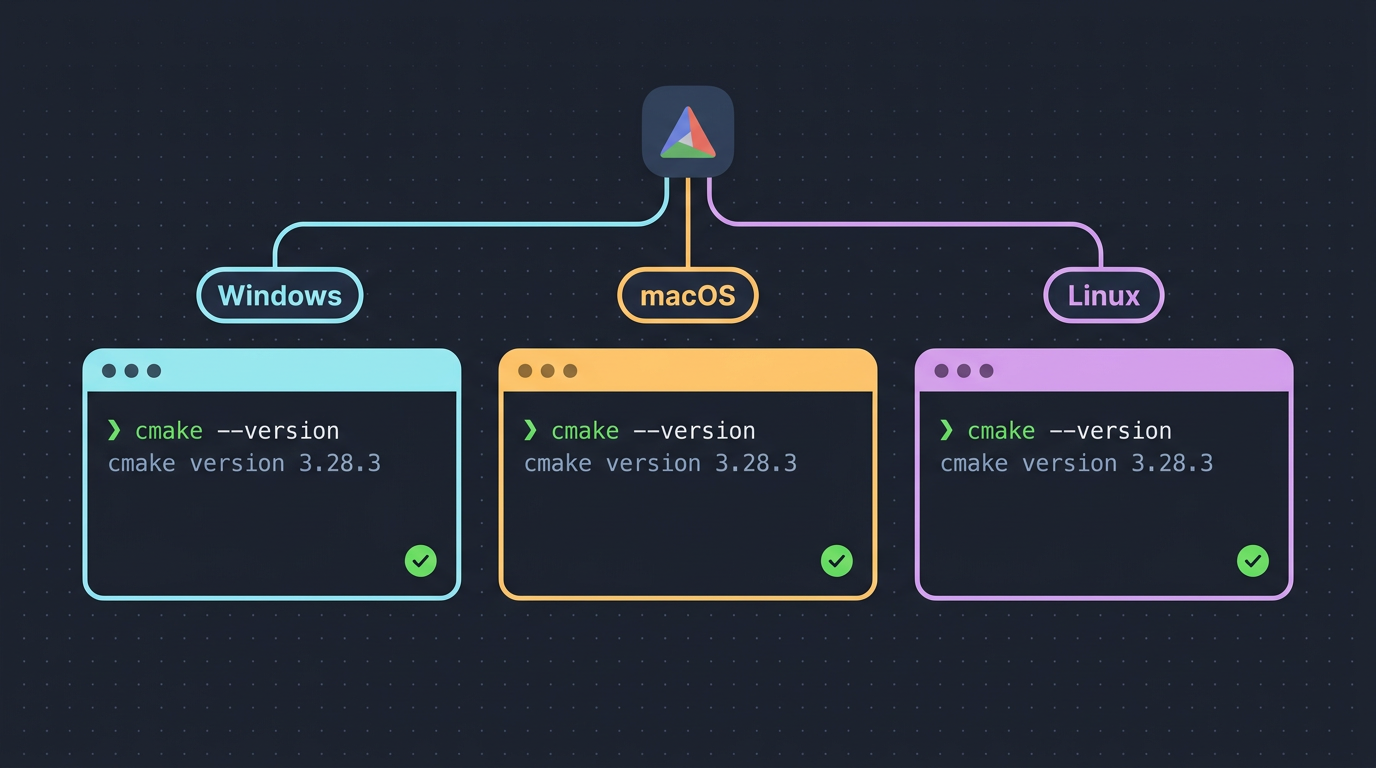
tl;dr the short answer
CMake is a build-system generator that reads a project's CMakeLists.txt and creates the native files your compiler and platform use to build it. Install it with your system's package manager for convenience, use an official binary for a newer release, or build from source when you need more control; on Windows, an R function can install it directly. Check with `cmake --version`, and fix PATH if the command is not found.
Ever typed a build command and been greeted by ‘cmake: command not found’? Building a project often comes down to the same hurdle as a new recipe: you need the right tool in the kitchen first.
CMake is a build system generator, meaning it reads your project’s CMakeLists.txt file and writes the files your compiler needs.
Installing it is quicker than you’d think. We’ll cover package managers, official binaries, and building from source on every major platform, plus version checks.
Linux users also get distro-specific fixes for old versions and PATH problems (the folders your shell searches for commands).
What CMake Is and Why Install It
Before you install anything, it helps to know what CMake does and why it’s worth having. Here’s the short version, so the install steps we cover next make sense.
How CMake builds, tests, and packages code
CMake is a family of build tools that work together to take a project from source files to a finished program. It doesn’t compile your code itself.
Instead, it reads a project’s instructions and sets up how the software gets built, tested, and packaged for others to use.
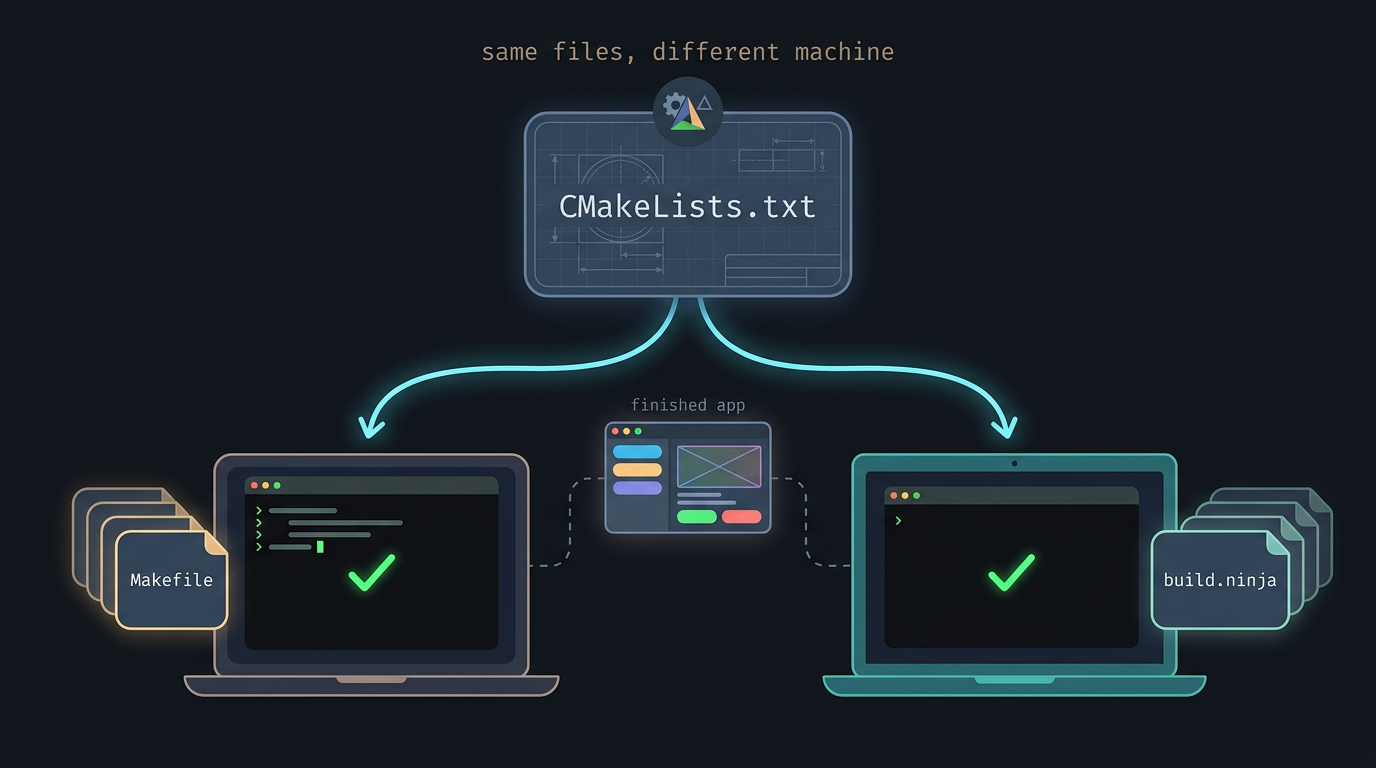
Those instructions live in platform-independent configuration files, so one set of files can describe the project on any system. Once CMake reads them, it generates native makefiles and workspaces, the build files your own system already knows how to run.
Say you clone a C++ project from a friend and its readme says to run cmake. On your Arch laptop, CMake writes the native build files, you run them, and the program compiles.
Your friend on a different distro gets a working build from the same files. Same files, different machine.
CMake isn’t the build itself. It’s how the build gets described, so your machine can run it the right way.
Install CMake on Windows from R
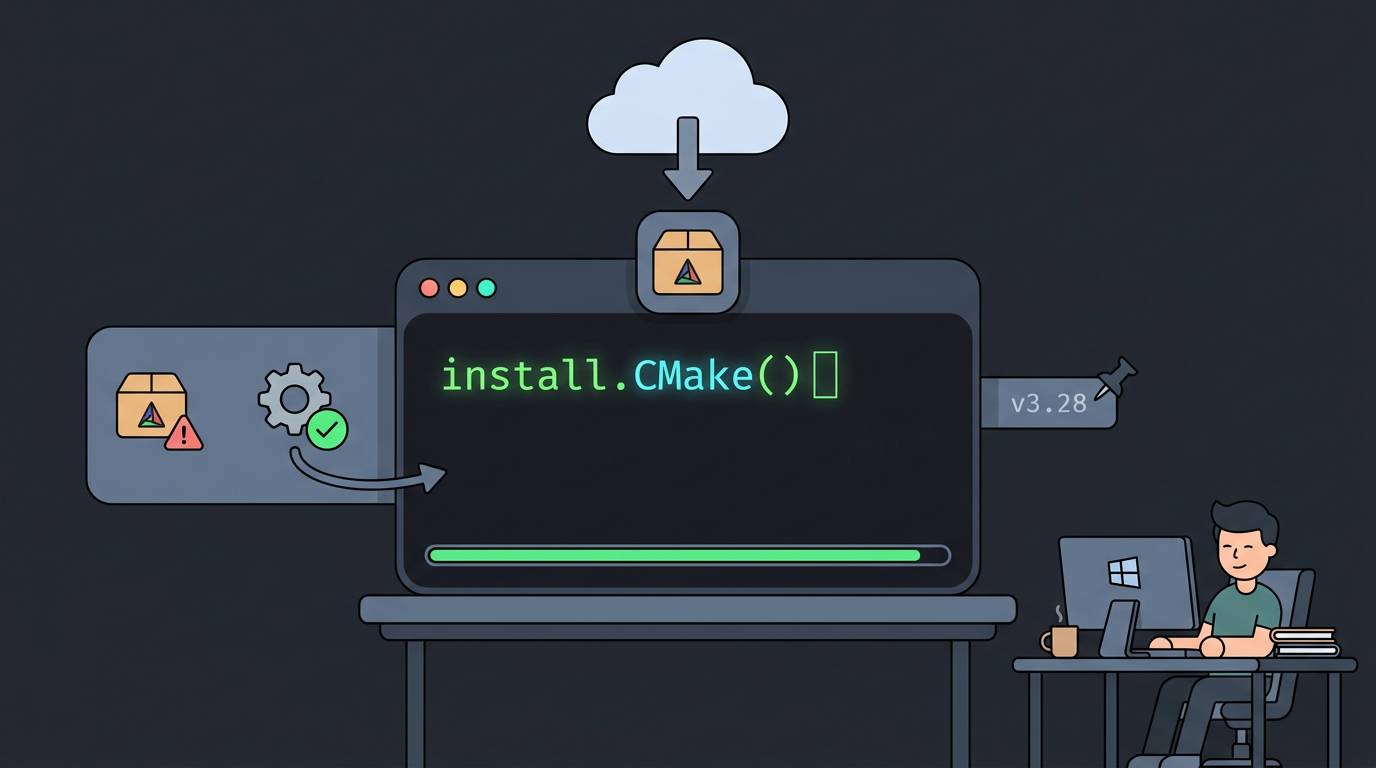
You can install CMake on Windows without leaving R. The install.CMake function handles the download, so you stay in your session while it works.
Running install.CMake and its options
- Function call syntax:
install.CMake()with any optional arguments inside the parentheses. - cmake_version: an optional quoted string that pins the version you want, like
install.CMake(cmake_version = "your version"). - Default source: the download comes from CMake’s GitHub releases by default, so you don’t need to hunt down a link yourself.
- Extra parameters: anything else you pass is forwarded to
install.URL.
Leave cmake_version out and you get the latest release. Add it and you pin the exact version you need.
Consider a Linux user stuck on a Windows lab machine for a course, where an R package won’t build until CMake is installed. One line, install.CMake(), puts CMake on the machine so the package can finish building, and the coursework carries on.
What the function returns, with an example
The function returns a plain TRUE or FALSE. TRUE means the install worked, and FALSE means it didn’t. Because the result is a simple logical value, you can check it in an if statement and stop your script when something goes wrong.
To install the latest version, run:
install.CMake()
[1] TRUE
That’s the whole call.
How CMake Behaves on Other Systems
Mac and Linux installs have a few quirks, so here’s what to expect and how to get a current build.
What happens on Mac and Linux
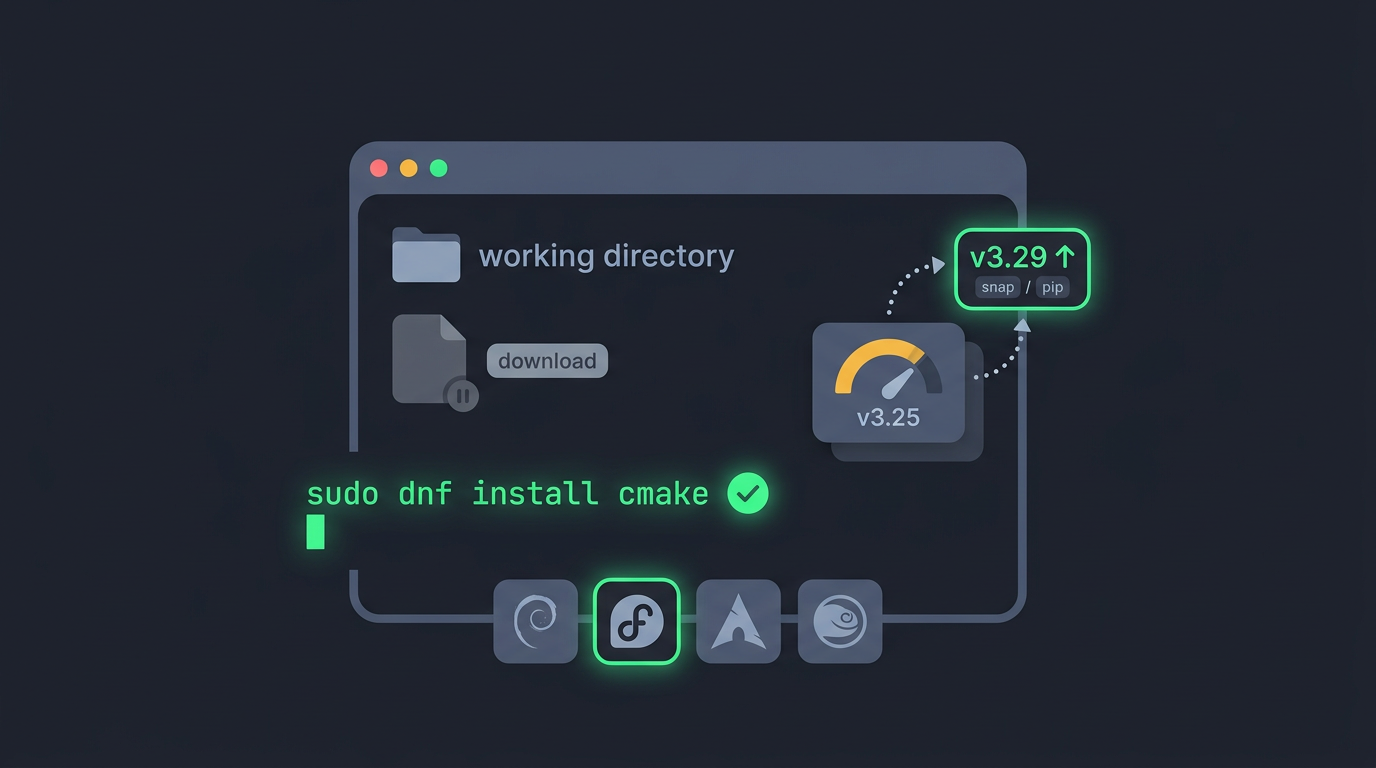
Downloads on Mac and Linux give you a file, not a finished install. The file lands in your working directory, the folder your terminal is in when you run the download, so you’ll run or unpack it from there. Nothing happens until you do.
The quickest route is your package manager, the tool your distro uses to install software:
- Debian and Ubuntu:
sudo apt install cmake - Fedora:
sudo dnf install cmake - Arch:
sudo pacman -S cmake - openSUSE:
sudo zypper install cmake
Distro versions can lag behind, though. Picture a Fedora student who clones a class project and gets an error saying it needs a newer CMake than dnf provides.
Snap (a universal Linux package format) or pip (Python’s package installer) can fetch a newer build: sudo snap install cmake --classic or pip install cmake. Your project then compiles without touching a line of code.
Where to find official CMake downloads
The CMake homepage has a download page with the current release, including an official binary installer (a ready-made program) or a tarball (a compressed archive of files).
Kitware, the company behind CMake, also posts releases on its GitHub releases page.
Building from source is the last resort: download the source archive, then run ./bootstrap, make, and sudo make install.
Whatever route you take, confirm it with cmake --version. A version number means you’re set.
A “command not found” error means the folder holding CMake isn’t on your PATH (the list of folders your shell searches for programs), so add that folder to PATH in your shell’s config and open a fresh terminal.
With CMake installed and a version check passing, you’ve cleared the hardest part of getting a build going.
Choose the route that fits your system: a package manager for convenience, an official binary for a current release, or a source build when you need full control. On Linux, the distro-specific fixes handle old packages and PATH mix-ups.
Keep the version check handy for the next time a build fails.
Get the tool right once, and every build after it starts with less guesswork.
Read next.
Install Oh My Zsh: Setup, Themes, and Plugins Explained
Install Oh My Zsh and turn a bare prompt into your own workspace: check Zsh prerequisites, choose a theme, add plugins, and fix common setup issues.
Wayland vs X11 for ricing: what changes and what to use
Where GNOME, Plasma, Xfce and Cinnamon stand now, which X11 tools a rice swaps on Wayland, from picom to xdotool, and the cases where X11 still fits.