How to set up multiple monitors in sway
Find the name sway gives each screen, place it in logical pixels, pin workspaces to it and let kanshi switch layouts when you dock a laptop.
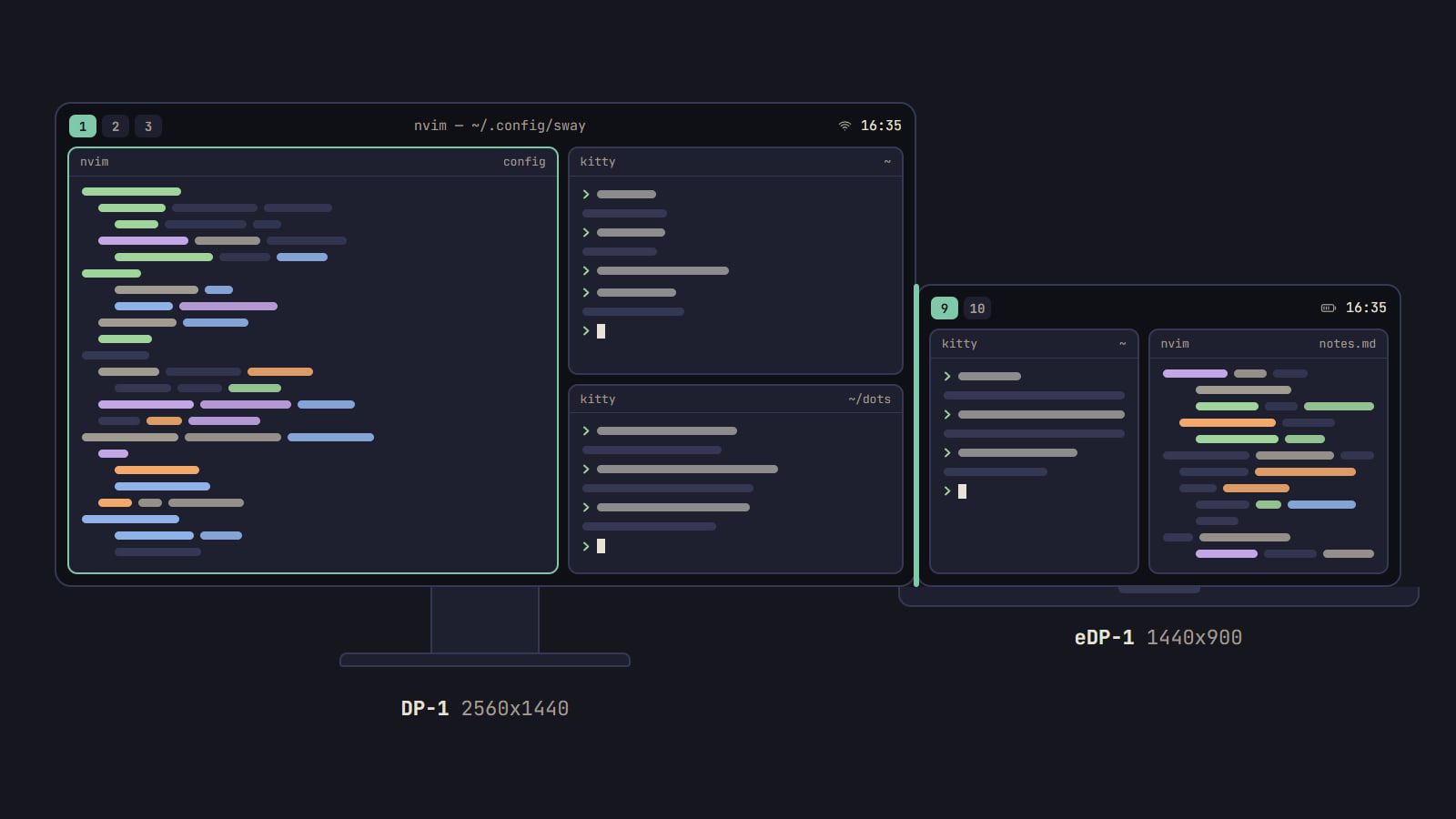
tl;dr the short answer
Get each screen’s name from swaymsg -t get_outputs, then place the screens with output lines in logical pixels: the resolution divided by the scale. Pin workspaces to outputs with workspace rules, and let kanshi switch profiles if you dock a laptop.
To use more than one monitor in sway, run swaymsg -t get_outputs to get each screen’s name, then give each screen an output line with its mode, scale and position. Positions are in logical pixels, the resolution divided by the scale, and the screens have to touch for the cursor to cross. Pin workspaces to a screen with workspace rules, and let kanshi switch layouts if a laptop docks. This guide was written against sway 1.12 and kanshi 1.9; if something doesn’t match your machine, man sway-output has the final word.
Find the names sway gives your screens
Plug everything in and run:
swaymsg -t get_outputsYou get a block of details for each output. Write down three things from each one:
- The name, like
eDP-1for a laptop panel,DP-1for DisplayPort orHDMI-A-1for HDMI. - The make, model and serial, an identifier you can use in place of the name.
- The available modes, the resolutions and refresh rates the screen accepts.
Names are quick to type but not always stable. They can change after a reboot, depending on the order the kernel finds the hardware, and screens behind a USB-C dock can get a new name each time they connect. For anything you plug and unplug, use the identifier in quotes:
output "Some Company ABC123 0x00000000" pos 1920 0Work out the layout in logical pixels
sway places every output on one shared grid, with 0,0 at the top-left corner of the whole layout. The catch is that positions are measured in logical pixels, not the panel’s real ones.
Scale changes the size sway sees
A scaled output takes up its resolution divided by its scale. A 4K panel at scale 2 is 1920 logical pixels wide, so the screen to its right starts at x = 1920, not 3840.
| Mode | Scale | Size in the layout |
|---|---|---|
| 1920x1080 | 1 | 1920x1080 |
| 2560x1440 | 1 | 2560x1440 |
| 3840x2160 | 2 | 1920x1080 |
| 3840x2160 | 1.5 | 2560x1440 |
| 2880x1800 | 2 | 1440x900 |
A rotated screen swaps its sides too: a 1920x1080 monitor turned upright with transform 90 takes 1080x1920 in the layout. When you shop for a screen, the resolution filter on a listing like Dell’s monitors gives you the first column; the scale is down to your eyes and the size of the panel. If you are still deciding what goes on the desk, Setups is where we write about monitors and the rest of the hardware.
Line up the edges you cross
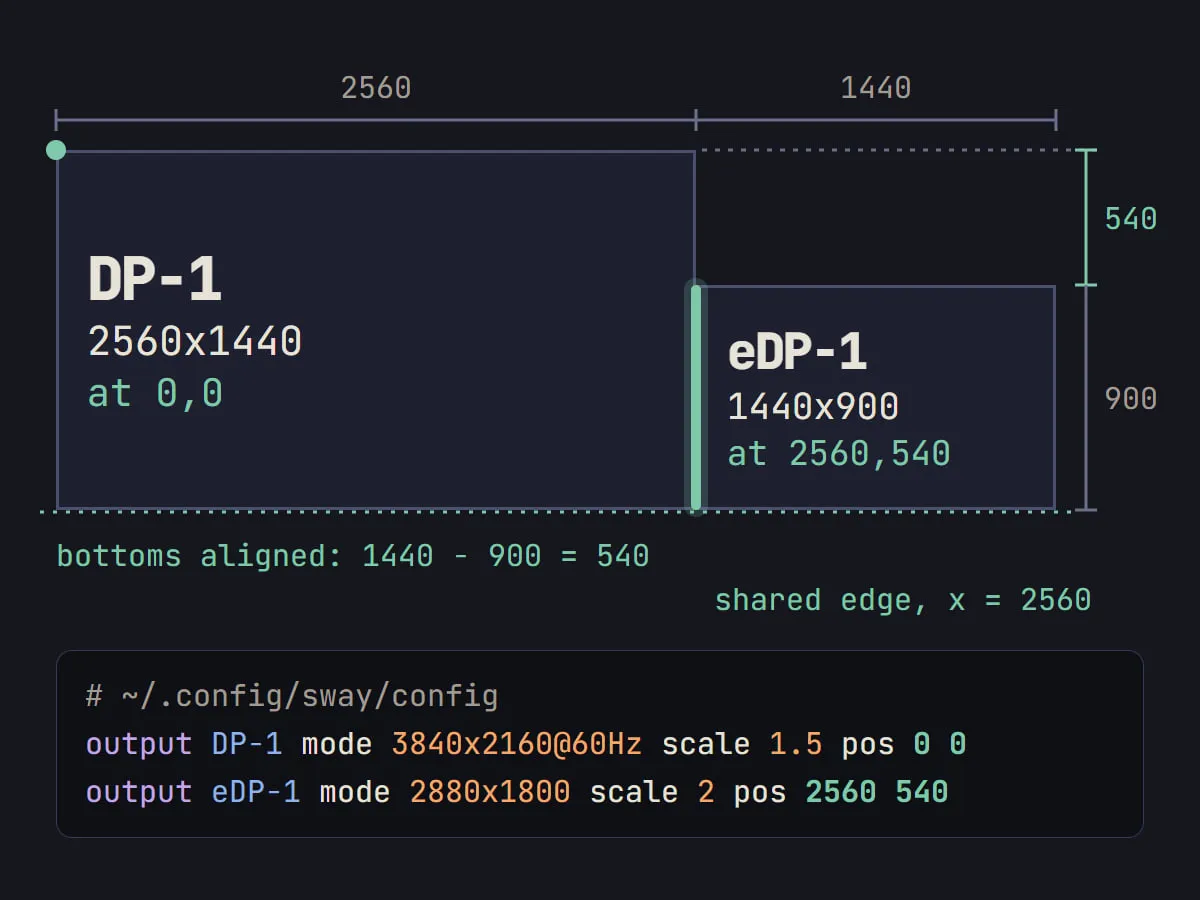
Each output is placed by its top-left corner, so screens of different heights line up along the top unless you move one down. To align their bottoms, push the shorter screen down by the difference in height. The edges also have to touch: sway only moves the cursor between outputs that sit directly next to each other, so a gap of a few pixels in your numbers leaves the pointer stuck on one screen.
Here is the layout this guide builds: a 4K monitor at scale 1.5 on the left, and a laptop panel at scale 2 to its right, bottoms aligned (1440 − 900 = 540).
Write the output lines
Output lines go in ~/.config/sway/config, one per screen, and do the job xrandr does on X11 (Wayland vs X11 for ricing lists the other tools that change). A single line can carry several settings:
output DP-1 mode 3840x2160@60Hz scale 1.5 pos 0 0
output eDP-1 mode 2880x1800 scale 2 pos 2560 540
Swap in the names and modes get_outputs printed for you, then:
- Save the file and reload sway with
swaymsg reload($mod+Shift+cin the default config). - Run
swaymsg -t get_outputsagain and check each output’s position and scale. - Move the cursor across every shared edge to make sure it crosses.
- Open a terminal on each screen and check that the text is a size you can read all day.
Tip: try a setting live before you write it down.
swaymsg output DP-1 scale 1.25changes the screen right away, so you can step through a few scales in a minute and copy the one you like into the config.
Everything else an output can do, from transform and adaptive_sync to a wallpaper per screen with bg, is in the sway-output(5) manual page. To match the rest of the rice to one of those wallpapers, the Generator builds a palette from it.
Keep workspaces on the right screen
Switch to a workspace that doesn’t exist yet and sway opens it on whichever screen has focus. To give each workspace a home, list the outputs it should use, in order of preference:
workspace 1 output DP-1 eDP-1
workspace 2 output DP-1 eDP-1
workspace 3 output DP-1 eDP-1
workspace 9 output eDP-1
workspace 10 output eDP-1
sway uses the first output on the list that is available. If workspace 1 falls back to the laptop while the monitor is unplugged, it moves back to DP-1 when the monitor returns. The rule leaves existing workspaces alone, so reload and switch to an empty one to see it work.
Then add keybinds for moving between screens:
bindsym $mod+Ctrl+Left focus output left
bindsym $mod+Ctrl+Right focus output right
bindsym $mod+Ctrl+Shift+Left move workspace to output left
bindsym $mod+Ctrl+Shift+Right move workspace to output right
The first pair moves focus to the next screen; the second carries the whole workspace across, windows and all.
Switch layouts when you dock with kanshi
Output lines in the sway config describe one fixed arrangement. If your laptop travels between a desk and the couch, kanshi switches for you: it holds a list of profiles and activates one when all the outputs it lists are connected. Install it from your distro’s packages and put a config in ~/.config/kanshi/config:
profile docked {
    output "Some Company ABC123 0x00000000" mode 3840x2160@60Hz scale 1.5 position 0,0
    output eDP-1 scale 2 position 2560,540
}

profile nomad {
    output eDP-1 enable scale 2
}
Start it from your sway config with exec kanshi rather than exec_always, which would run it again on every reload, and run kanshictl reload after you edit the kanshi config. Two things to watch: kanshi writes positions as x,y with a comma, where sway uses a space, and once kanshi manages a screen, take that screen’s output lines out of the sway config so the two never disagree.
Docks are where the identifier earns its keep, since screens behind a USB-C dock are the ones most likely to change names. If your laptop is short on video ports, a Thunderbolt dock like the ones in CalDigit’s range adds outputs, and on a Framework laptop so does a DisplayPort card from its expansion cards. Check how many external screens your laptop and dock can drive before you buy.
What breaks it
- Blurry apps on a scaled screen. sway doesn’t support HiDPI for Xwayland clients, so X11 apps blur on a scaled output. Prefer Wayland-native builds, or use an integer scale and raise the font size instead.
- A stuck cursor. If the pointer won’t cross, the outputs don’t touch. Recheck the positions against the logical sizes.
- A scale that isn’t quite what you typed. sway may adjust a fractional scale slightly to fit the protocol, so
get_outputscan show a number a hair off yours. - Missing windows after
disable. A disabled output loses its workspaces and windows. To blank a screen and keep them where they are, useoutput <name> power off.
Keep these lines in your dotfiles and the next laptop is one copy away. Our guide to managing dotfiles with GNU Stow sets up the repository and gives each machine a small package for its own output lines. If you’re still weighing sway against the others, our comparison of Hyprland, sway, niri and i3 sets out how each one tiles, and the rest of our window manager guides are in Desktops.
Questions
Why do some apps look blurry on my scaled monitor?
They are most likely X11 apps running through Xwayland, which sway does not scale for HiDPI. Use a Wayland-native version of the app where there is one, or set an integer scale and raise the font size instead.
Do I need kanshi if my monitors never change?
No. Output lines in the sway config are enough for a desk that stays the same. kanshi earns its place when screens come and go, like a laptop that docks at a desk and leaves again.
Why won’t my cursor move to the other monitor?
The outputs probably do not touch in the layout. sway only moves the cursor between outputs that sit directly next to each other, so check each position against the screen’s size in logical pixels.
Can sway mirror my laptop screen to a projector?
Not on its own: sway has no output mirroring. wl-mirror, a separate tool many distros package, shows one output in a window and can fullscreen that window on another, so wl-mirror --fullscreen-output HDMI-A-1 eDP-1 puts the laptop panel on the projector.
Sources
- sway-output(5): output configuration commands for sway, Arch Linux manual pages,
- sway(5): configuration file and commands, Arch Linux manual pages,
- kanshi(5): configuration file, Arch Linux manual pages,
- wl-mirror: a simple Wayland output mirror client, wl-mirror on GitHub
Read next.
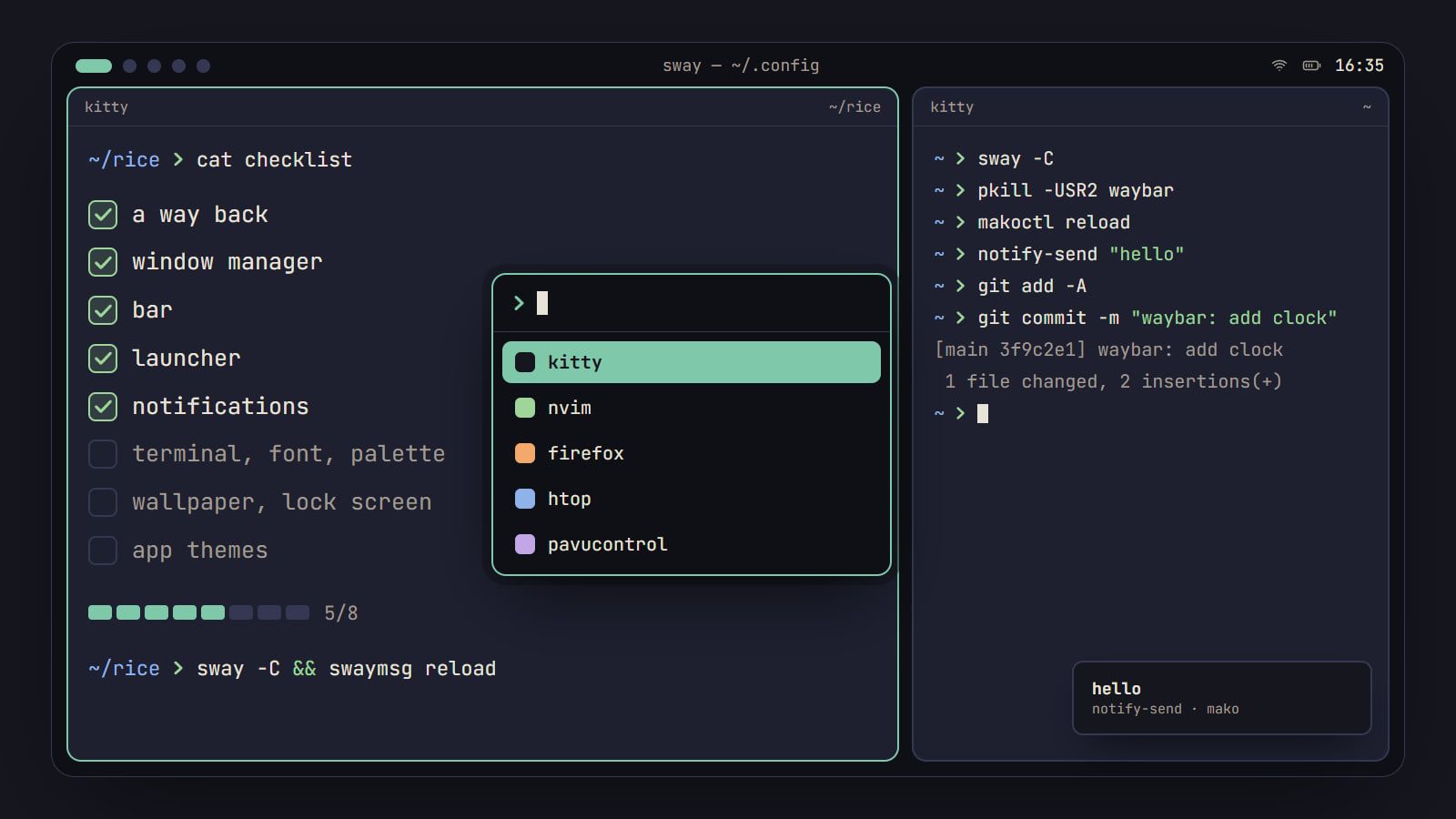
How to rice Linux: a first-rice checklist
The order to rice a Linux desktop without breaking it: a way back first, then each piece from window manager to lock screen, with its config file and a check.
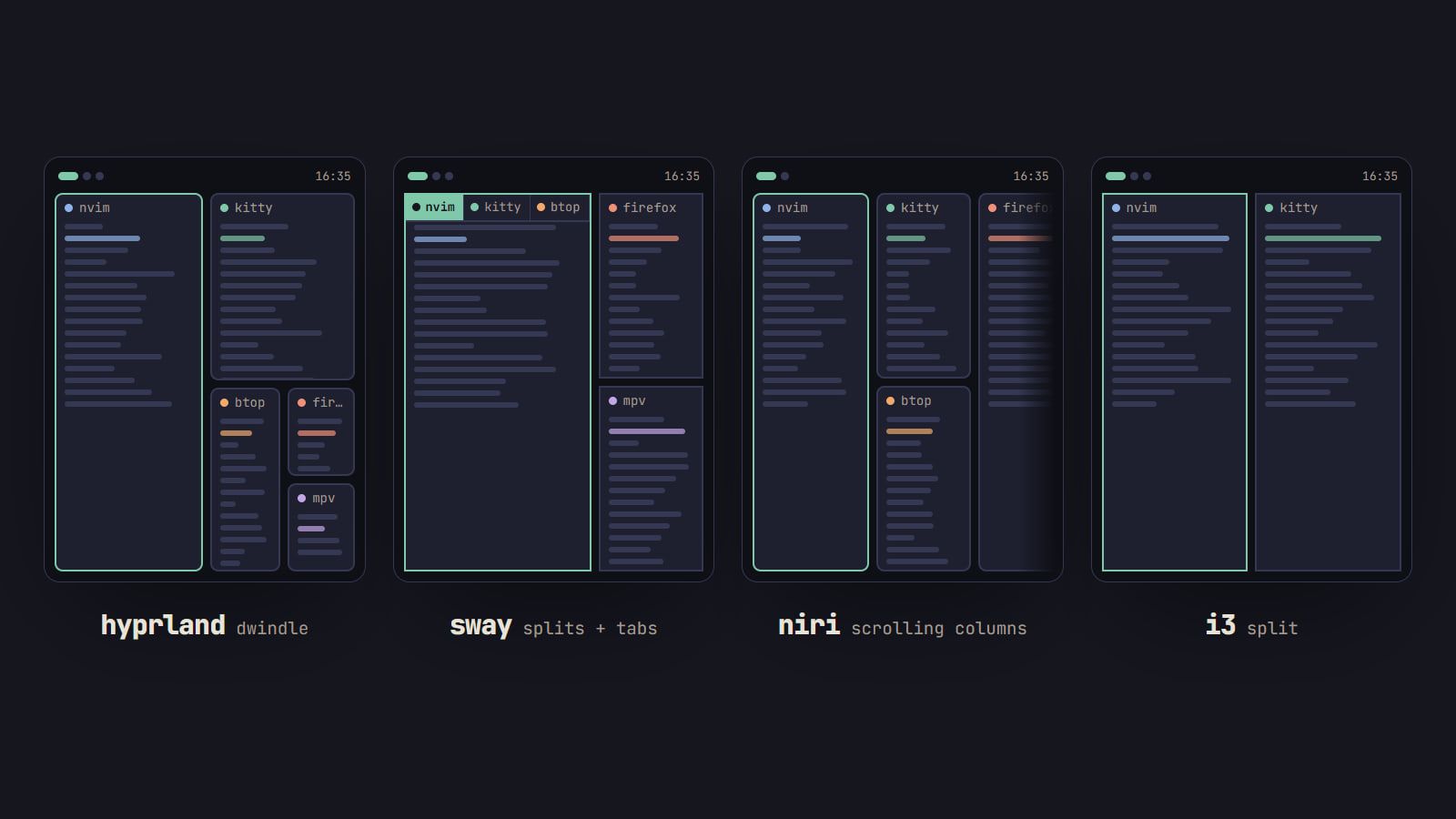
Hyprland vs sway vs niri vs i3: which tiling WM to pick
How Hyprland, sway, niri and i3 tile, how each is configured and reloaded, and what their own docs say about effects and NVIDIA, with a pick for each setup.
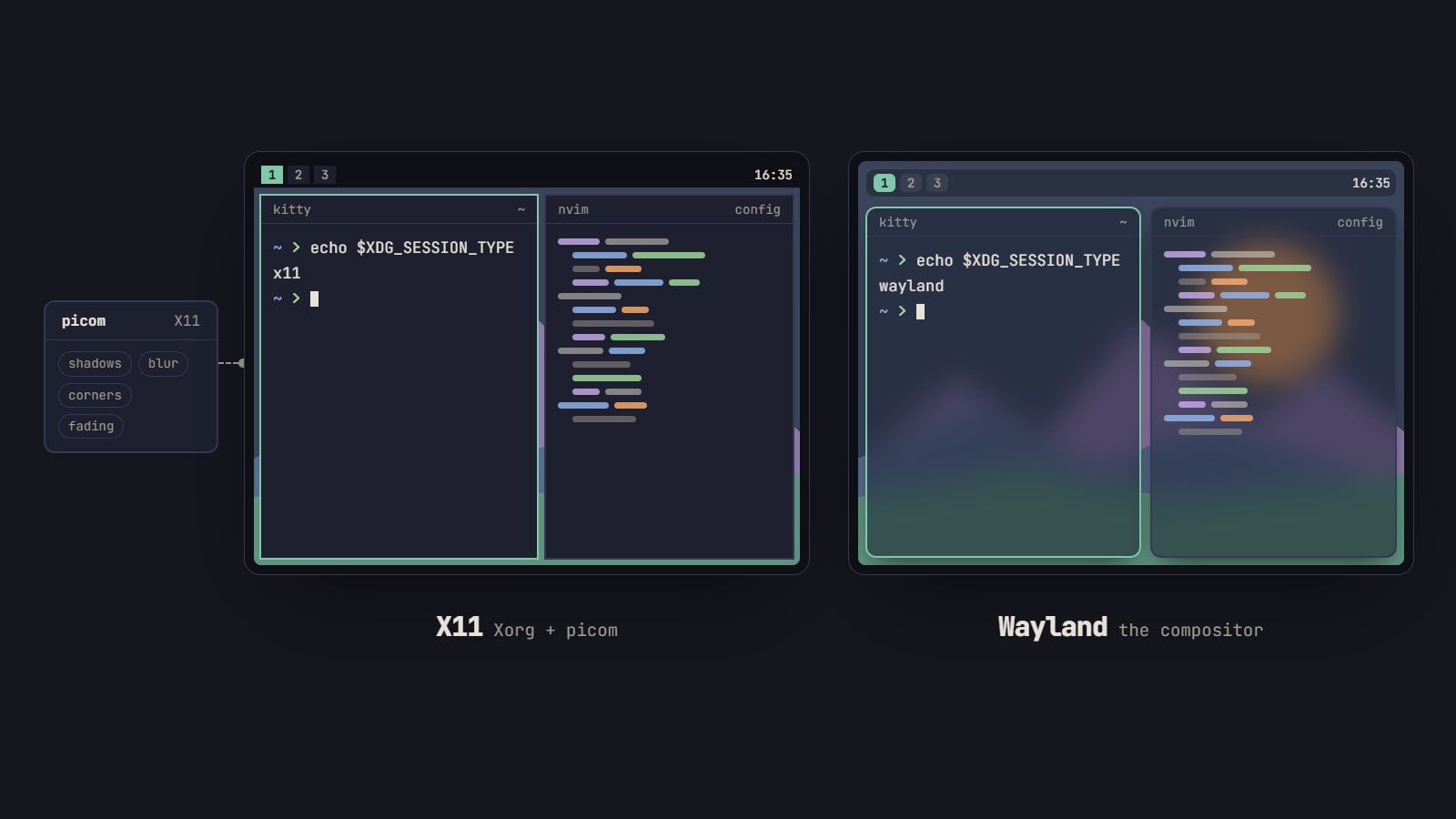
Wayland vs X11 for ricing: what changes and what to use
Where GNOME, Plasma, Xfce and Cinnamon stand now, which X11 tools a rice swaps on Wayland, from picom to xdotool, and the cases where X11 still fits.