Operating System Environment Explained, Start to Finish
Operating system environment shows how software manages hardware. Compare core OS jobs and device types to choose a system that fits how you work.
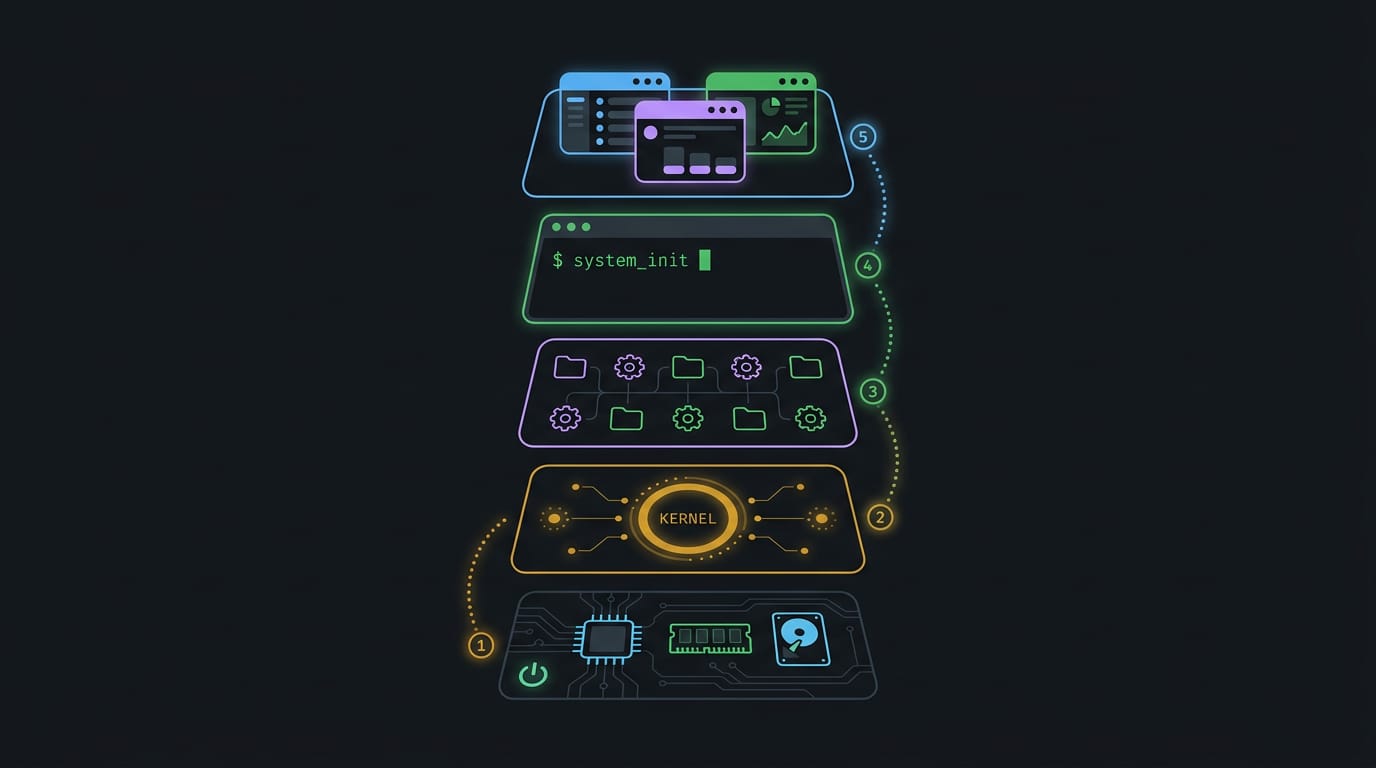
tl;dr the short answer
An operating system environment is the software setup that shapes how programs run, including the operating system and its kernel, shell, desktop, and related tools. The OS manages hardware, apps, memory, files, devices, security, and network connections, while different systems are designed for different devices and workloads. Understanding these layers helps you choose an OS that fits your needs and customize how you work.
Ever wondered why a keybind works in one terminal but not another? Think of your computer as an apartment building. The hardware is the bricks and wiring, but the rules, shared hallways, and hookups all come from the management.
That management is the operating system (OS), the core software that runs your hardware, and everything around it forms the operating system environment.
In this post, we’ll cover what that environment is, the core jobs an OS handles, the main types and how to choose one, and then how Linux users can layer the kernel (the core that talks to your hardware), the shell (your command line), the desktop, and the editor together and customize each one.
What an Operating System Environment Is
The operating system (OS) is the core software that runs your computer, while the operating system environment is the wider setup that shapes how your programs run. We’ll walk through each layer below.
How the OS bridges users and hardware
The OS manages both your hardware and the software running on it, translating between the two. It’s the bridge between you and the machine, and it coordinates apps so they don’t interfere with one another. Every computing device runs one.
A stable home for running apps
Applications need a stable platform to run on. The OS provides abstraction, hiding hardware details so a program can save a file without knowing which disk holds it.
That also simplifies software development, and the same idea runs on servers, where the OS hosts web software.
Your shell is the program that reads your commands, and environment variables are named settings like PATH, which lists the folders your system searches for programs.
A Linux user adds a folder to PATH once, and every terminal and editor launched from that shell inherits the change, so the new tool just works.
How the kernel manages system resources
The kernel is the core component of the OS, the part with direct control of the hardware. It decides which program gets processor time, how memory is shared, and when a disk or network card is ready. Apps don’t touch hardware directly.
They make system calls, requests the kernel carries out. Most of what you run lives in user space, where your apps and shell run. Think of the kernel as a traffic controller on a busy web server, deciding which request goes next.
Your apps just ask, and the kernel does the rest.
The Core Jobs an Operating System Handles
Your operating system (OS) works every second your machine is on. Here’s how its main jobs keep your apps, files, and hardware in sync.
Sharing the CPU between running programs
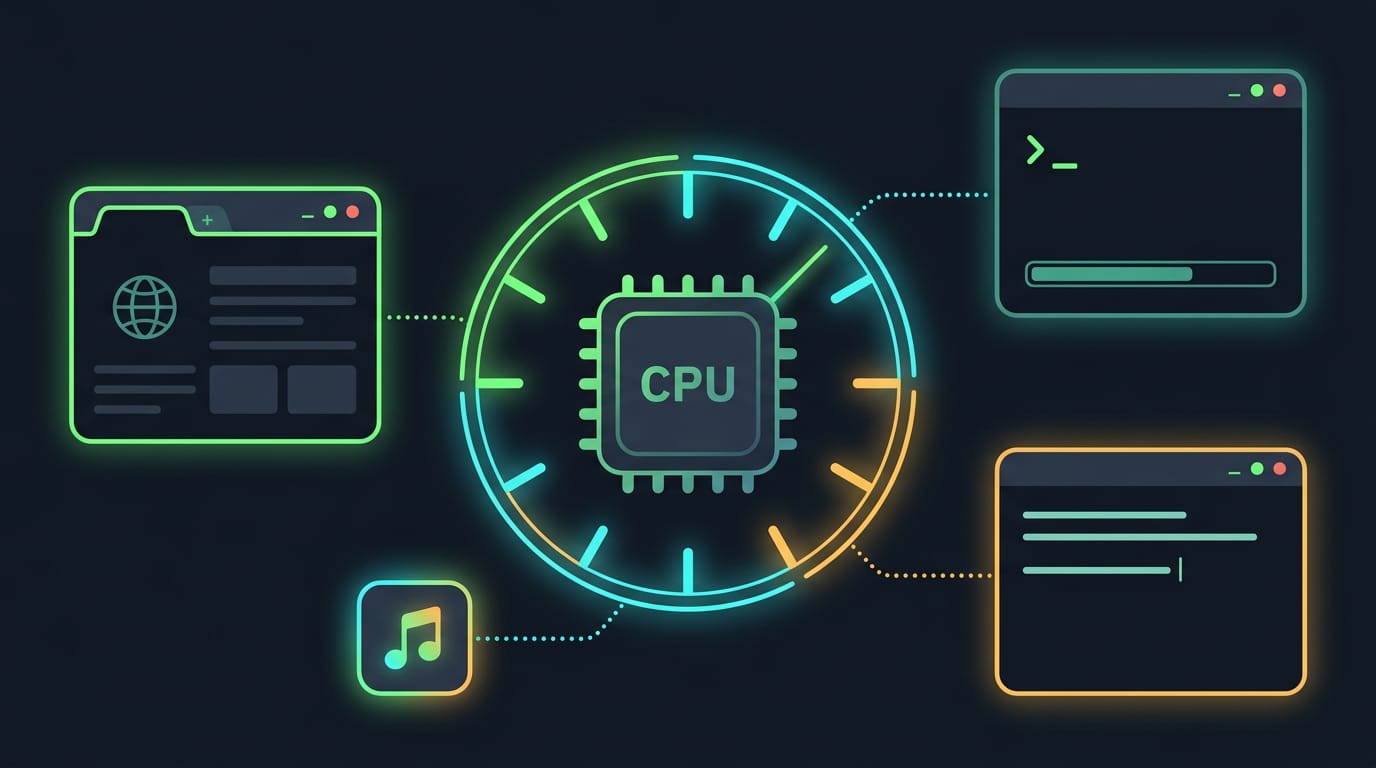
You might have a browser, a terminal, and a music player open, but your processor, or CPU (central processing unit), runs only so many instructions at once.
The kernel, the core of the OS that talks to your hardware, includes a scheduler that switches between apps by handing out short slices of CPU time.
The goal isn’t just to run more programs. It’s running them safely side by side, so one crash doesn’t corrupt another app. When two programs each wait on something the other holds, you get a deadlock, and a good OS works to avoid it.
Consider a Linux user compiling a project in one terminal while editing notes in another. The scheduler gives each its turns, so typing stays smooth during the build.
Organizing memory, files, and disk space
Each running program needs its own space in RAM, the fast, short-term memory programs work in. The OS hands out that space and reclaims it when a program closes.
When RAM runs low, virtual memory lets the system act as if it has more memory than it physically holds, shuffling idle data to disk and back. Disk is much slower, so heavy shuffling feels sluggish. Clever, but not free.
The file system decides how files and folders are named, stored, and found, and tracks free space so files don’t overwrite each other. Disk space management keeps that bookkeeping accurate.
Working with keyboards, displays, and printers
Drivers are small pieces of software that teach the OS to talk to each device, so new hardware works without you writing code. Keyboard input goes to whichever app has focus, and display output sends pixels to the screen.
The OS queues print jobs so pages come out in order, and it manages disk reads and writes the same way.
Protecting accounts and keeping your OS updated
Every login is a door. User authentication confirms who you are, usually with a password, and access permissions decide which files and settings your account can change.
Malware and threat protection add another layer, and updates do a lot of the heavy lifting. They’re less about new features and more about closing vulnerabilities, the weak spots attackers could exploit.
If you’re wondering how to update your OS, open your distribution’s software updater or run its package manager from a terminal. Save your work, apply what it finds, and reboot when asked, since a new kernel only loads after a restart.
Managing network connections and remote access
The OS tracks your Wi-Fi and wired connections, choosing which one carries your traffic. Protocols are agreed-upon rules that let two machines exchange data reliably.
Remote access lets you log into another machine. A homelab tinkerer checking a server from a coffee shop uses Secure Shell (SSH) to restart a service as if they were sitting in front of it.
Catching errors and automating routine tasks
Here’s what keeps things steady:
- Error detection and recovery. The OS spots failures, like a bad disk read, and restarts what it can.
- Hardware or software warnings. Alerts flag a failing drive or low battery before data is lost.
- Task automation tools. Scheduled jobs handle backups and cleanups for you.
- Performance monitoring. Tracking CPU, memory, and disk use shows what’s slowing you down.
When it’s working well, you rarely notice. That’s the point.
Operating System Types by Device and Use
Operating systems aren’t one-size-fits-all, so the right one depends on the device and the job. Here’s how the main types break down:
Desktop systems for PCs and laptops
Most people meet an operating system (the software that runs your hardware and programs) on a desktop or laptop. Windows, macOS, and Linux each offer a graphical user interface (GUI): the windows and icons you click instead of typing commands.
Consider a student running Linux on a ten-year-old laptop. A lightweight desktop keeps it responsive through a long lecture. Linux is the one we’ll focus on.
Server systems for businesses and hosting
Servers handle work for other machines, usually around the clock. Windows Server, Ubuntu Server, and Red Hat Enterprise Linux (RHEL) target enterprise workloads, the heavy jobs a business relies on. Here the priorities shift:
- Performance. Jobs finish quickly under load.
- Scalability. The system keeps up as demand grows.
- Security. Access and updates stay tightly controlled.
Hosting databases and web servers is the classic job. Picture a small shop running its online store on Ubuntu Server. When a holiday sale spikes traffic, a well-tuned server keeps checkout loading.
Servers are judged by reliability rather than looks. Uptime is the score.

Systems powering phones and tablets
Android and iOS run the phones and tablets most of us carry daily. Their touch interfaces are built for fingers, and their power efficiency keeps batteries going through a full day.
The app ecosystem is a big draw, but it comes with security and fragmentation risks. Fragmentation means many versions and device makers run at once, so patches can reach some phones long after others.
Before you hand an old Android tablet to a kid, make sure it still gets security updates.
Built-in systems and virtualization hosts
Some devices run on limited-resource dedicated hardware, a small chip with little memory that does one job. Routers and Internet of Things (IoT) devices, like smart thermostats, often run embedded Linux or Windows IoT.
Virtualization hosts take the opposite approach. A hypervisor such as ESXi or KVM runs several virtual machines (complete computers simulated in software) on one physical box.
A homelabber can test a new distro in a KVM virtual machine without touching the daily driver.
Examples for networks and real-time tasks
A few systems serve a narrow, critical role. Cisco IOS runs Cisco network gear such as routers and switches, and NetWare is a classic network operating system.
VxWorks and FreeRTOS are real-time operating systems (RTOS), built to respond within a guaranteed time window, which matters when a machine has to react on schedule.
Let the device pick the system. Everything else gets easier.
How Operating Systems Handle Work Differently
Not every computer handles work the same way. Here are four common approaches we’ll walk through:
What is a batch operating system?
A batch operating system runs groups of jobs without anyone interacting with them. You queue up the work, the system runs it in order, and you collect the results later.
Several programs sit in memory at once, keeping the CPU busy, but each job may wait longer for its turn. That’s the tradeoff.
Think of a Linux admin who queues a nightly billing run so it finishes while nobody’s at the desk. Payroll works the same way. Nobody has to babysit the job, and the results are waiting by morning.
Switching tasks and sharing multiple CPUs
Interactive machines take a different approach. Each task gets a short burst of CPU time called a time slice (or quantum). When the slice ends, the scheduler moves on.
Round-robin scheduling gives every task a turn in a fixed order, then repeats the cycle.
Picture a developer with a terminal, a browser, and an editor open. Each gets its slice, so nothing feels frozen. Multiple CPUs let tasks run truly at the same time.
Those extra processors also add fault tolerance, since work can often carry on if one fails. Cost is the catch.
Systems spread across connected computers
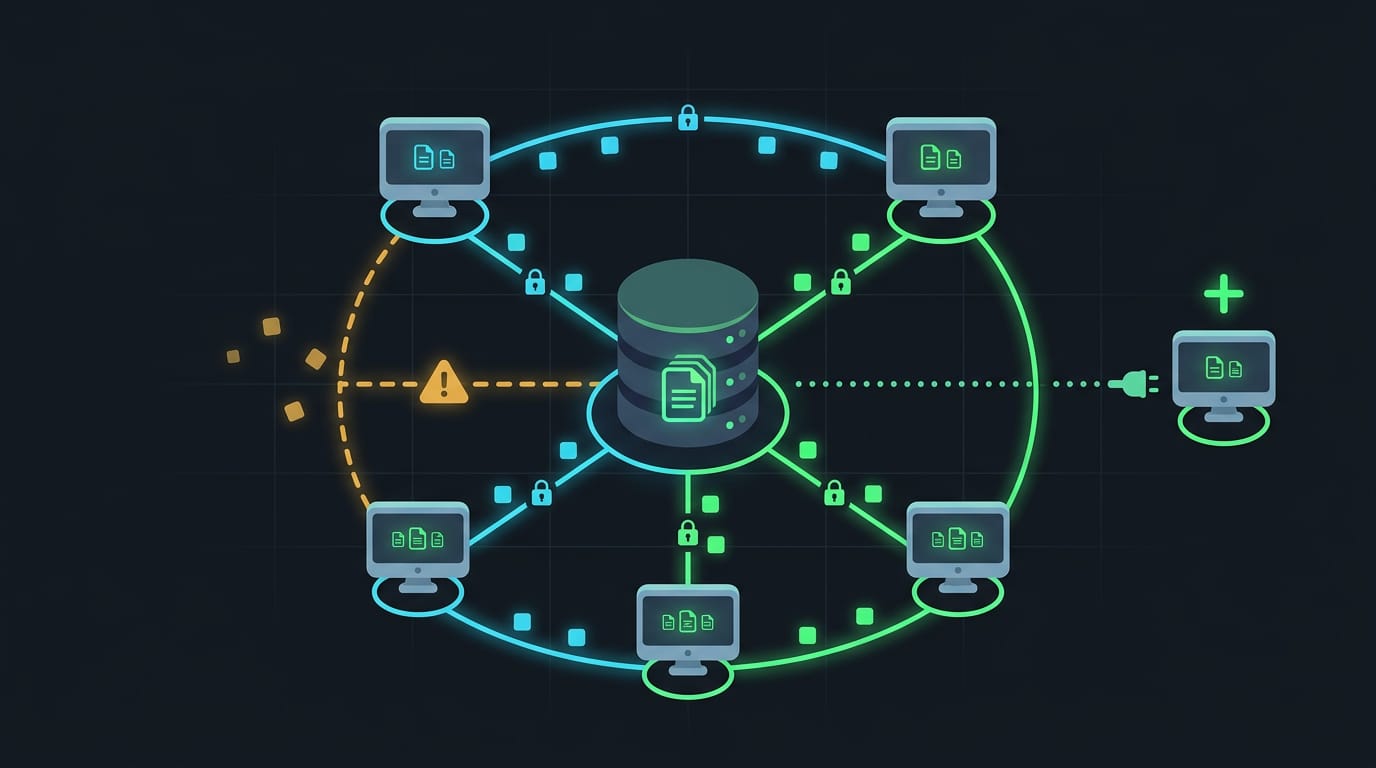
A distributed system links independent computers over a network so they work like one machine. Each has its own hardware, and growth is easy: add a machine when demand rises.
The drawback is network dependency, since a dropped connection can stop the pieces cooperating.
A central server often manages shared resources, such as files, so every machine sees the same data. Still, each link is a chance for data to be intercepted or fall out of sync, so security and consistency need careful planning.
Systems that must respond on time
A real-time operating system must respond within strict time limits. In hard real-time systems, a missed deadline could be dangerous. Soft real-time systems aim for timely responses but can tolerate an occasional delay.
Missile guidance, airbag deployment, and robot arms all rely on this. It’s less about what the system computes and more about when it delivers the result.
These systems tend to run complex algorithms but a limited set of tasks, which helps keep timing manageable.
What Are the Five Operating Systems?
The five are Windows, macOS, Android, Chrome OS, and Linux. According to a comparative study of operating systems, each has its own owner: Apple owns macOS, Microsoft owns Windows, Google owns Android, and a community builds Linux.
Our research doesn’t date them, so we can’t name the oldest.
How Windows and macOS differ
Windows has a long history and a reputation for compatibility, so it runs on hardware and software from many makers. macOS is the opposite: it’s built for Apple-only hardware.
Both give you a visual desktop of windows and icons, and both come with pre-installed apps to start with.
Android and Chrome OS from Google
Android is open source at its core and built on Linux, so you can swap launchers and widgets to make it yours. Your Google account ties mail, photos, and purchases together across devices.
Chrome OS is built around the cloud rather than the device, so much of your work lives online.
Linux and its many distributions
Linux is an open-source kernel family, and the kernel is the core layer that manages your hardware. Distributions (distros) like Ubuntu, Fedora, Debian, and CentOS package that kernel with their own installers and tools.
You get full user control, but you’ll need some technical knowledge, so community support from forums and wikis fills the gaps.
A desktop environment bundles a panel, file manager, and settings into one package, while a window manager only arranges windows and leaves the rest to you.
Picture a student with a ten-year-old ThinkPad who pairs Debian with a light window manager and runs only the pieces she picked. Her laptop, her rules.
Picking the Right Operating System for You
Choosing an operating system (OS), the software that runs your hardware and apps, starts with how you work, not how a screenshot looks. We’ll cover what to weigh, then who each option suits.
What to weigh before you choose
Weigh these six factors:
- Application compatibility: Does your essential software run here, or does it need a workaround?
- Technical skill level: How comfortable are you fixing things in a terminal when they break?
- Performance and memory needs: Will it stay snappy on your hardware, especially an older laptop?
- Security track record: How quickly do patches arrive, and how are past issues handled?
- Control panel compatibility: Do the settings and management tools fit how you configure things?
- Community and support: Are there active forums, good docs, and maintainers when you’re stuck?
Consider a Linux user who needs one work app built only for another platform. They test a compatibility layer or a virtual machine before committing, because that single check can rule a system in or out. Start there. If neither works well, a dual boot setup lets two operating systems share one PC.
Who each system suits best
- Beginners vs. tech-savvy users: Beginners want guided setup and sensible defaults. Tech-savvy users often prefer systems they can take apart and rebuild.
- IT professionals needing control: Admins want scripting, version-controlled configs, and the power to lock machines down.
- Cloud-reliant users: If your work lives in a browser and online apps, a lightweight system may be all you need.
- Business and enterprise needs: Organizations usually value central management, predictable updates, and paid support.
The operating system environment is more than a single program. It’s the kernel doing the heavy lifting, the shell taking your commands, the desktop showing you what’s happening, and the editor where you do your real work.
Once you see how those layers fit together, choosing an OS and tweaking your setup gets a lot less mysterious.
Pick one layer, tune it today, and let the rest of your setup grow around it.
References
Questions
What is a batch operating system?
A batch operating system runs queued groups of jobs without requiring user interaction while they execute. The system processes the jobs, often in sequence, and provides the results later.
What is the oldest operating system?
GM-NAA I/O, created in 1956 for the IBM 704, is often cited as the first operating system. The answer can vary depending on how “operating system” is defined, since early computers used different kinds of job-management software.
What are the five operating systems?
Five widely used operating systems are Windows, macOS, Android, Chrome OS, and Linux. They serve different devices and needs, from desktop computers to phones and cloud-focused laptops.
How to update your OS?
Use your device’s built-in software updater to check for and install operating system updates. Save your work first, and restart if prompted so updates that require a reboot can take effect.
Sources
Read next.
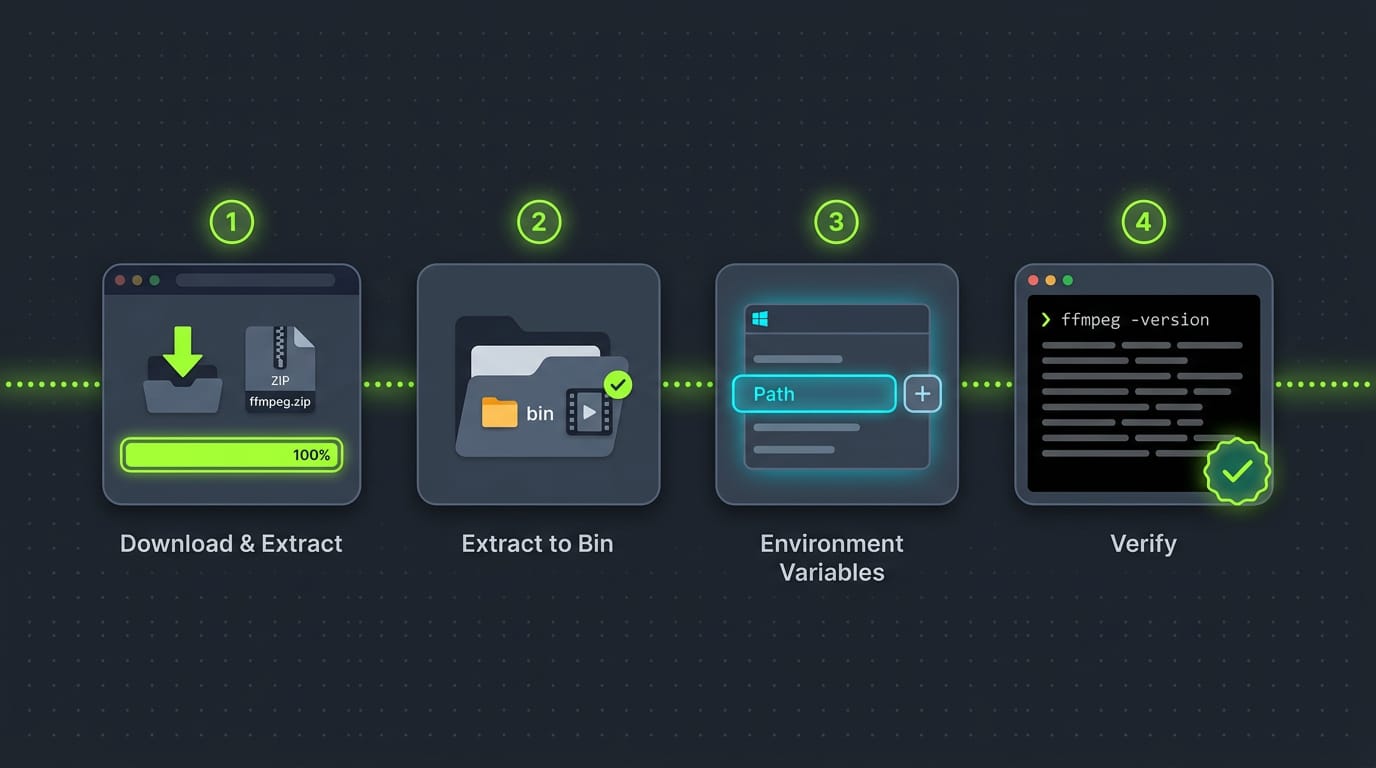
Install FFmpeg on Windows, Start to Finish
Install FFmpeg on Windows with manual PATH setup or winget, Chocolatey, and Scoop. Verify the command and fix common errors without developer tools.
Set Environment Variables on Mac: Every Method Explained
Set environment variables on Mac for lasting access across sessions, then choose between persistent zsh settings, launchctl, and PowerShell 7.
Install Ansible: Package Manager, pip, or pipx Explained
Install Ansible with your distro’s package manager, pip, or pipx, then verify it works and take the next step toward automating repeat setup on your machine.